Who uses this: All roles — 2FA applies to every user on the account, and each user sets up their own at first login; admins can reset a user’s 2FA or send them their recovery codes. Availability: Turned on by FieldPulse Support on request; once on, it applies account-wide.Two-factor authentication (2FA) adds a second login check to your FieldPulse account, so signing in takes two forms of identification instead of one. To turn on two-factor authentication, contact FieldPulse Support; from then on, every user sets it up with an authenticator app the next time they log in.
Overview
Two-factor authentication is an account-wide setting: once it is turned on, it is required for all users on the account — you cannot turn it on for only some people. FieldPulse Support turns it on at your request. After that, each user pairs an authenticator app with FieldPulse the first time they log in and downloads a set of recovery codes to use if they lose their device.Video walkthrough
Watch the two-factor authentication walkthrough for a full run-through. The written steps below stand on their own.Before you begin
- To turn 2FA on, contact FieldPulse Support at support@fieldpulse.com. You can’t activate it yourself, but once Support activates it, you can turn it off and on in Company Settings > User Accounts > Two-Factor Authentication.
- Each user needs an authenticator app on their phone. FieldPulse recommends Google Authenticator, though other free authenticator apps work.
- Once 2FA is on, every user on the account goes through setup at their next login — let your team know ahead of time.
Step-by-step setup
Turn on 2FA for the account
- Email FieldPulse Support at support@fieldpulse.com to request two-factor authentication for your account.
Set up 2FA at your first login
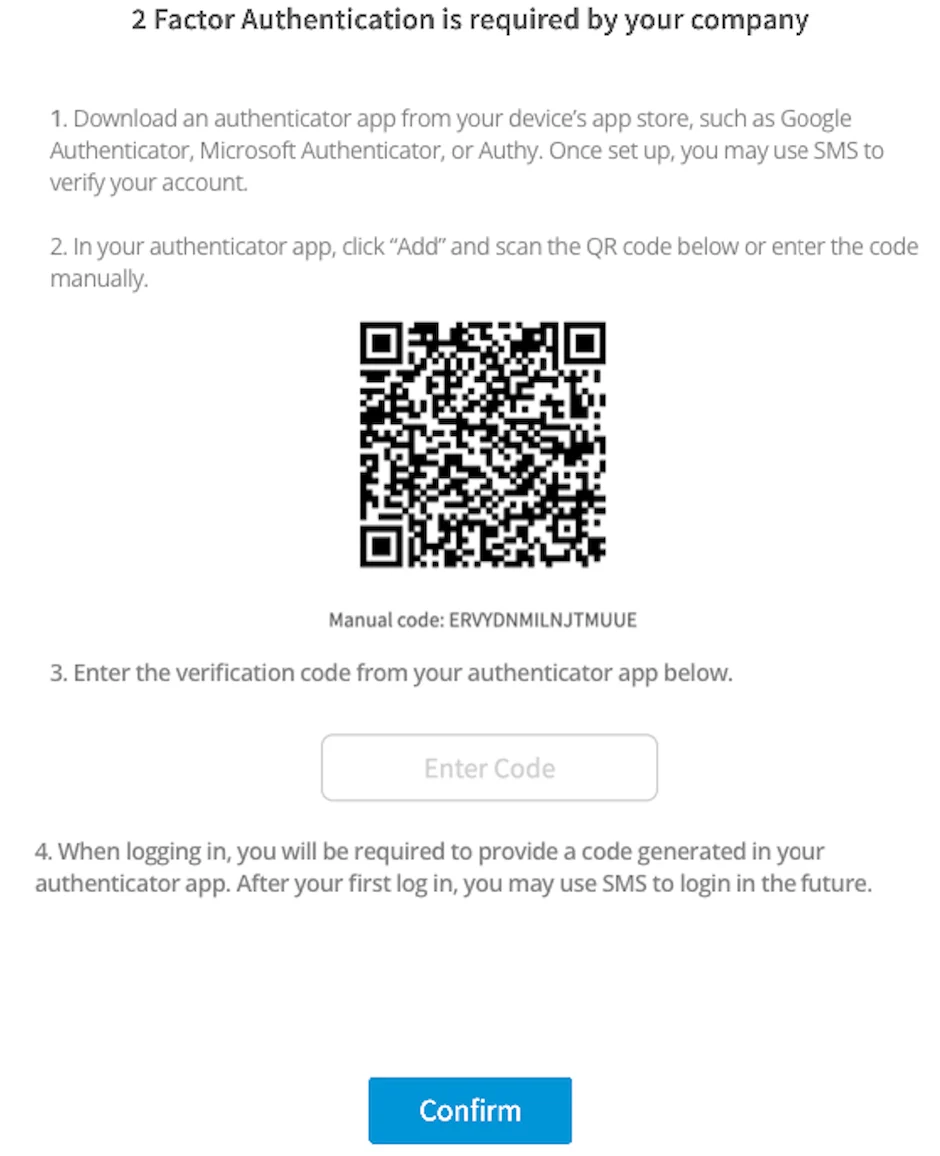
The first time you log in after 2FA is turned on, FieldPulse shows a setup screen with instructions.- Log in to FieldPulse. The 2FA setup screen appears.
- If you do not already have one, download Google Authenticator (or another authenticator app) from your device’s app store.
- In the authenticator app, scan the QR code on the setup screen, or type in the manual code shown below it.
- Enter the 6-digit verification code from the authenticator app and select Confirm to finish logging in.
- When FieldPulse prompts you, download your recovery codes and keep the file somewhere safe — you need a recovery code if you lose your device.
Using two-factor authentication
To log in once 2FA is set up, open your authenticator app, enter the current 6-digit code, and sign in. After your first authenticator-app login, the sign-in screen shows a blue here link that texts a code to your phone instead — a faster option than opening the authenticator app each time.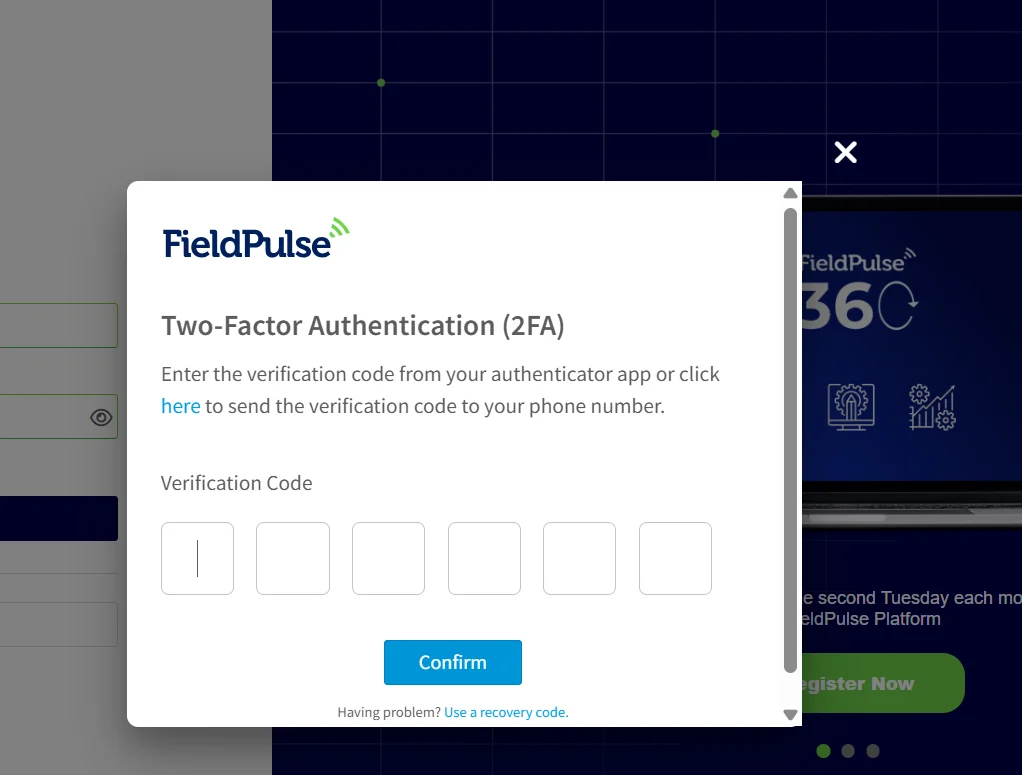
Resetting two-factor authentication
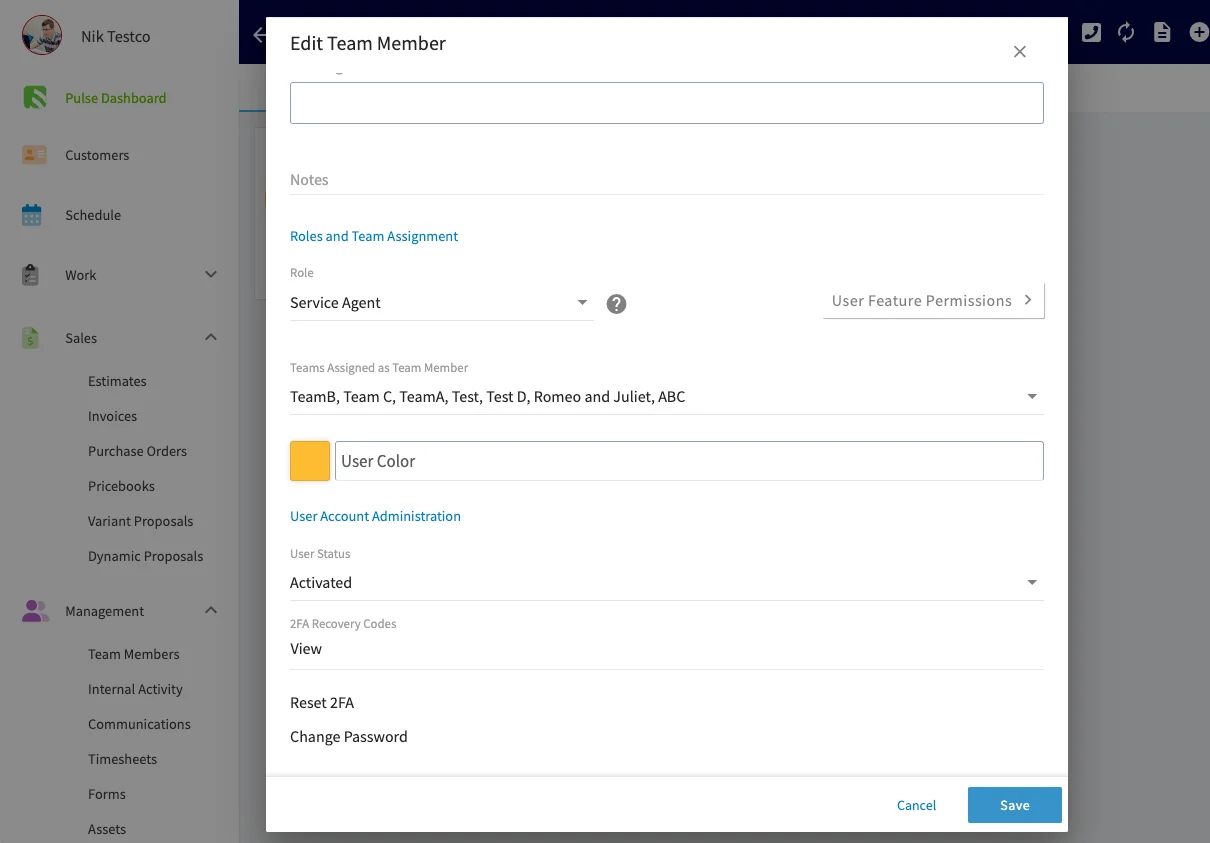
If a team member loses the device with their authenticator app, they should log in with a recovery code first. If their recovery codes are also lost, an admin can either send them their recovery codes or reset their 2FA:- Go to Company Settings > User Accounts.
- Select the user, then select Edit.
- Scroll to 2FA Recovery Codes or Reset 2FA and choose the option you need.
- Enter your own password when prompted, for security.