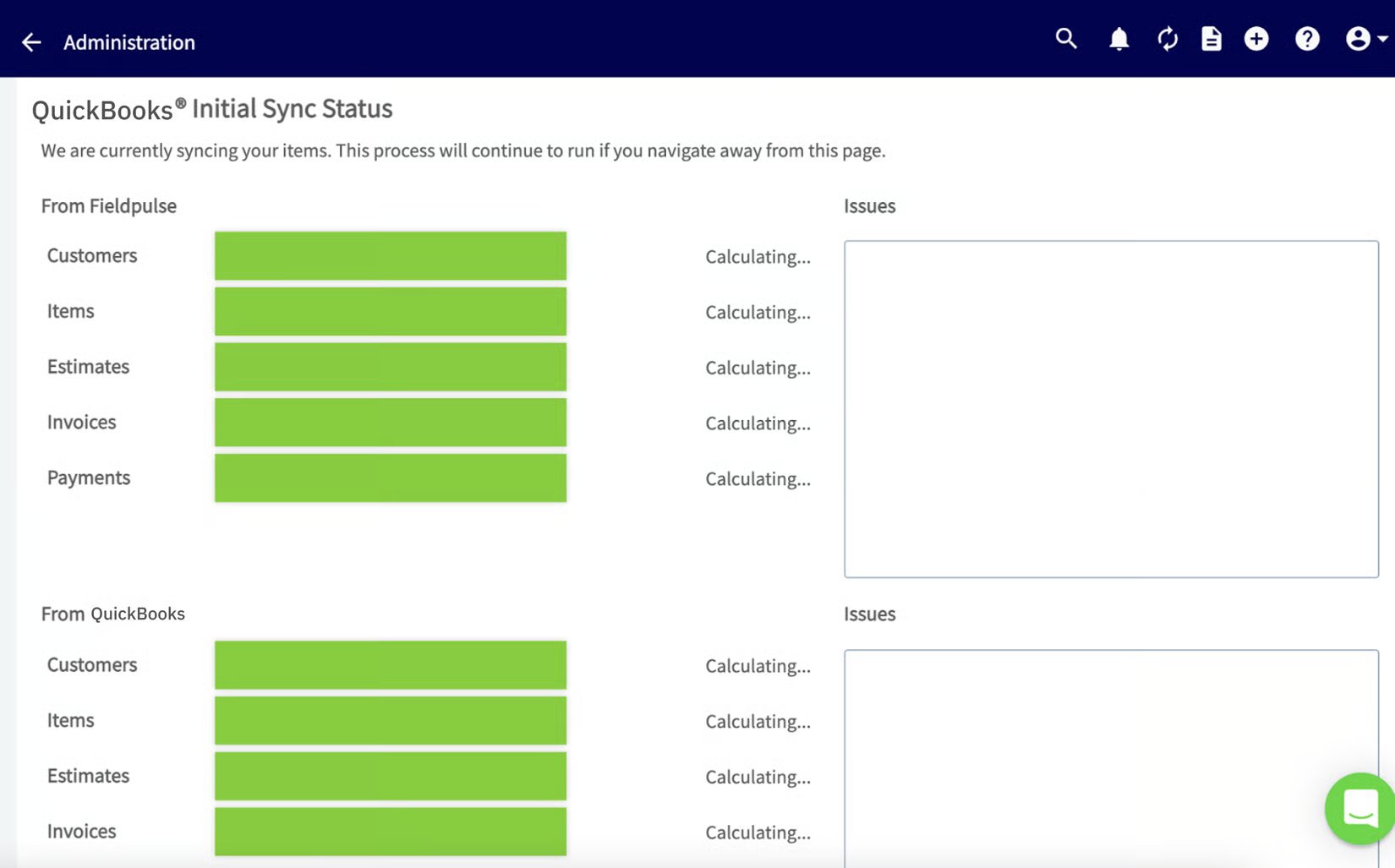
Who uses this: Admins connect the integration. The connecting account must be active and have admin permissions in QuickBooks Online. Availability: Requires your own QuickBooks Online subscription (Essentials, Plus, or Advanced) and is available in the United States, Canada, and Australia.Syncing with QuickBooks Online is a two-part task: you request access from the FieldPulse team, then turn on the integration in Company Settings and choose what to bring over. Once the connection is live, your customers, invoices, and payments sync both ways.
Overview
The QuickBooks Online connection is gated: you request access first, and the FieldPulse team enables the connection for your account. After that, you connect from the QuickBooks Online tile in Company Settings and select the time period and records to sync. Complete the preparation in Setting Up QuickBooks Online Before Syncing first.Before you begin
- Finish the preparation steps in Setting Up QuickBooks Online Before Syncing, including turning off Automatically apply credits in QuickBooks Online.
- Make sure the QuickBooks Online account you connect with is active and has admin permissions.
Request access and connect
- Request access. Contact the FieldPulse team through in-app chat or at support@fieldpulse.com to request access to the QuickBooks Online sync. The team enables the connection for your account.
-
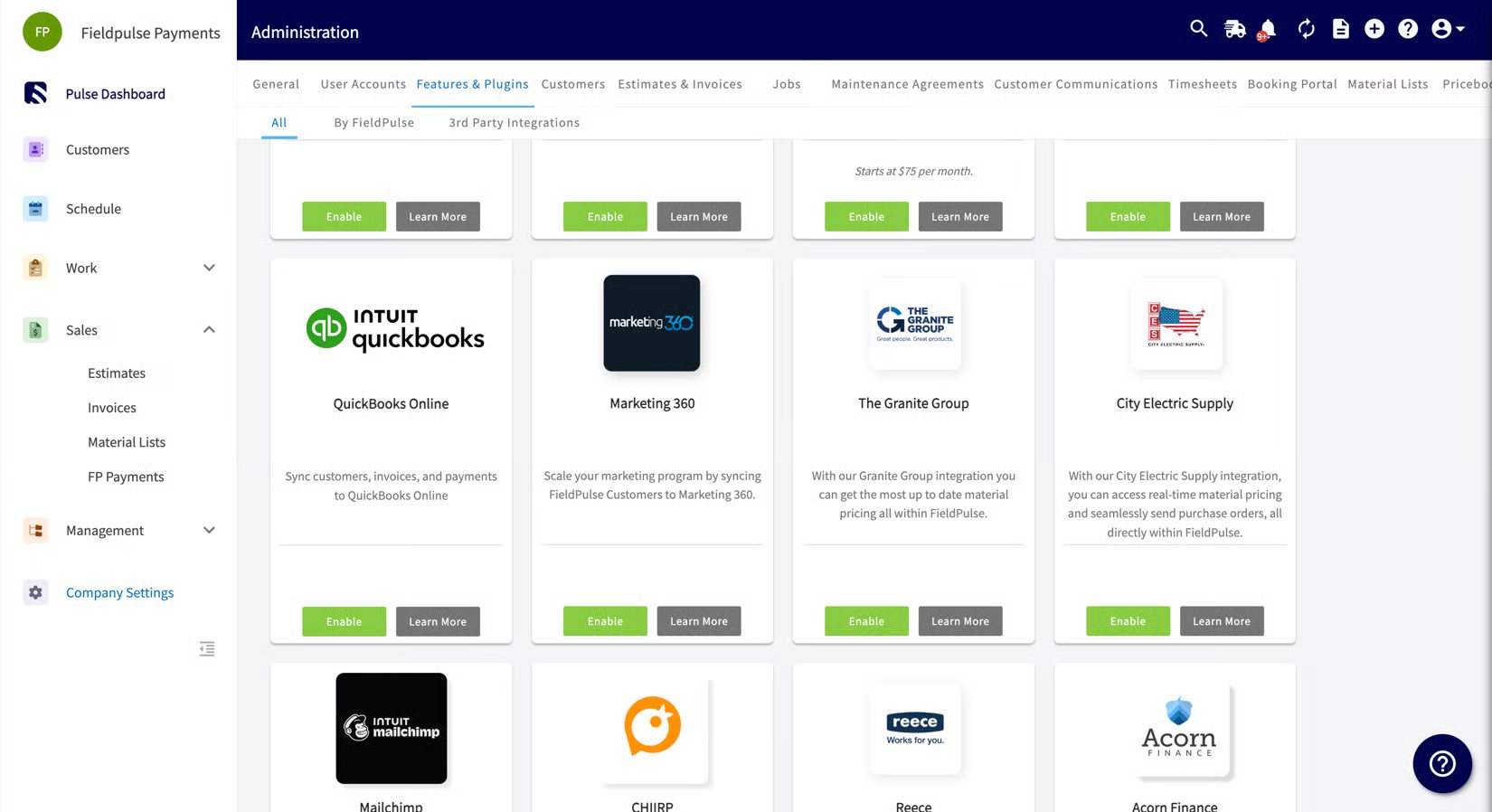
Open the integration tile. Once access is enabled, go to Company Settings and select the Features & Plugins tab. Scroll to the QuickBooks Online tile.
-
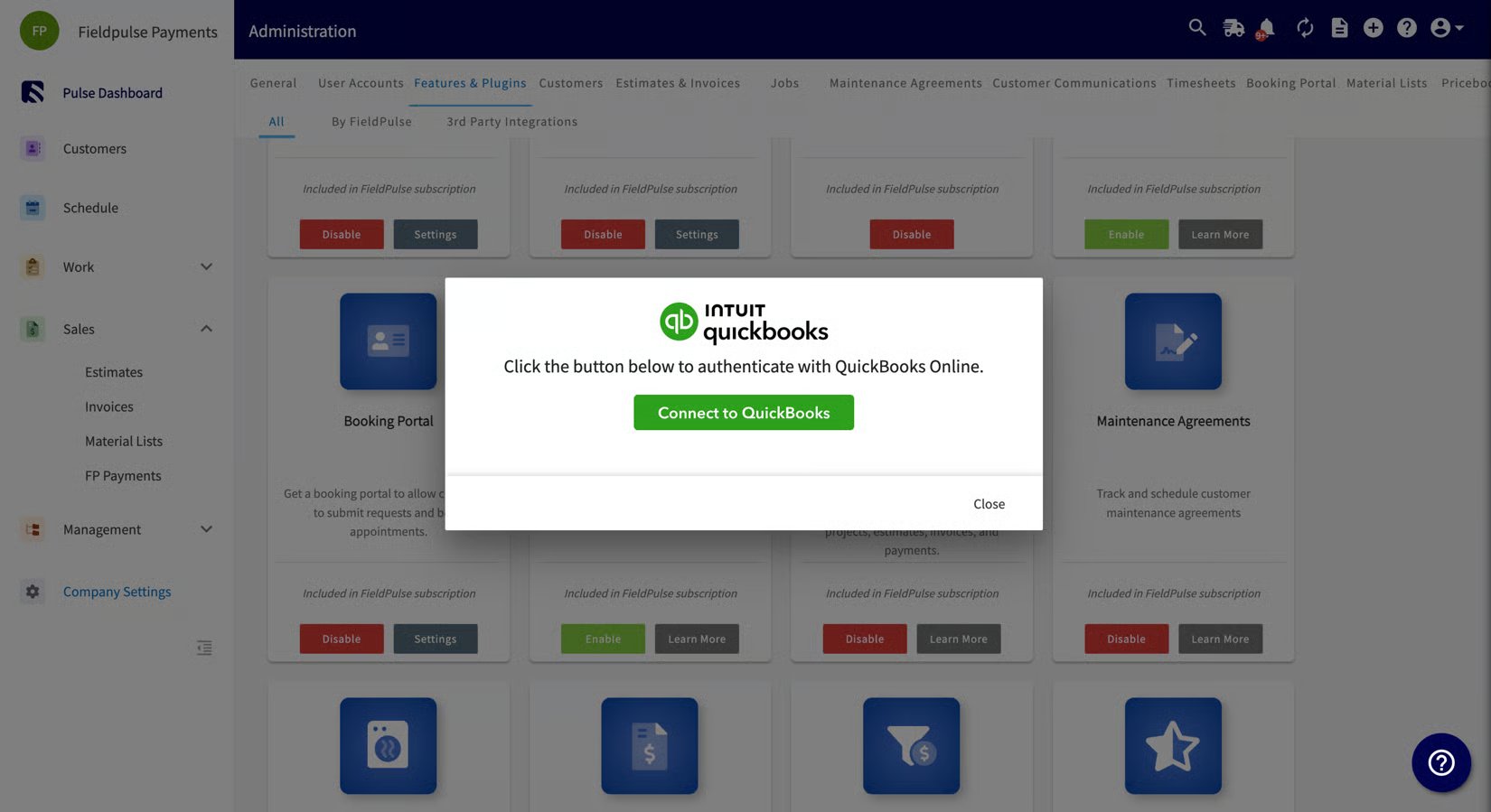
Connect. Select Connect to QuickBooks and sign in to your QuickBooks Online account when prompted to authorize the connection.
-
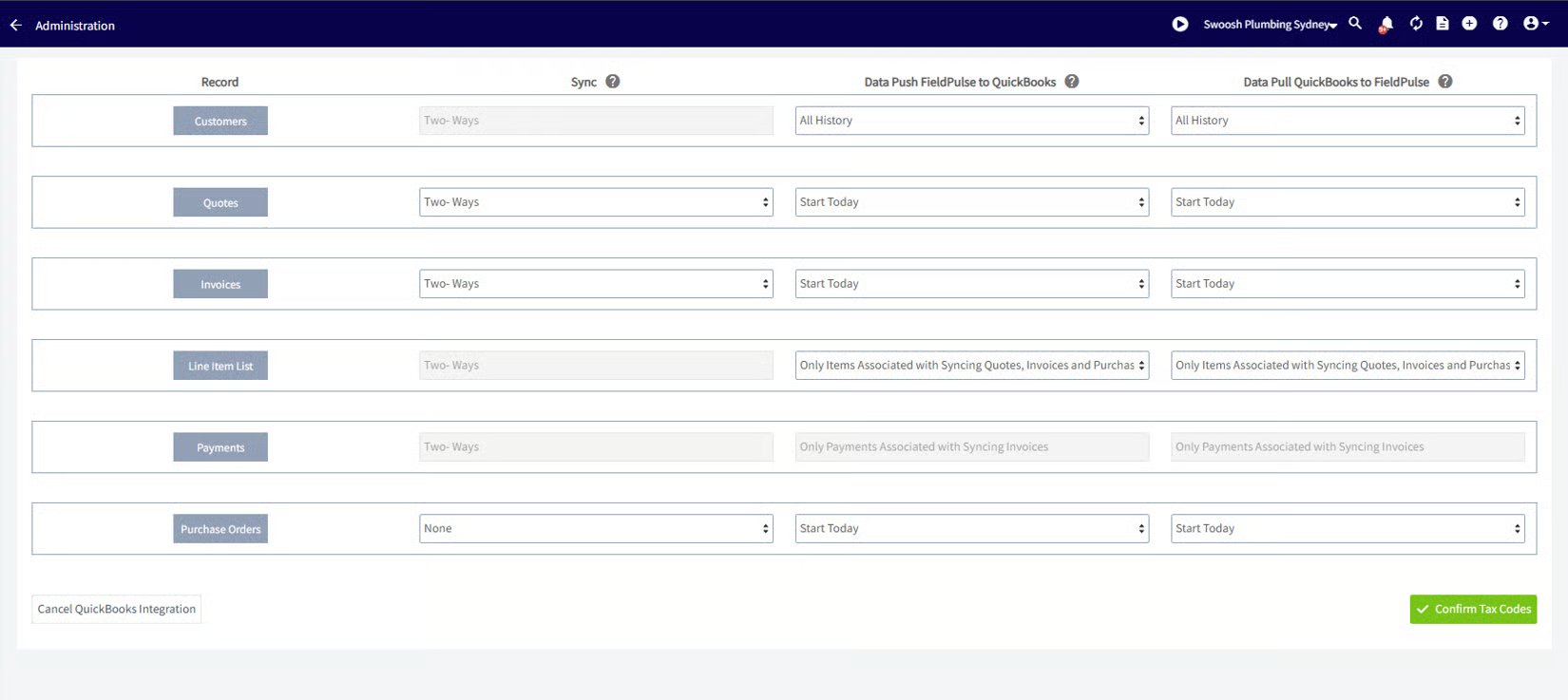
Choose the time period and records. Select the time period and all the entities you want to sync between FieldPulse and QuickBooks Online. To sync invoices, you must also sync customers, line items, and payments.
-
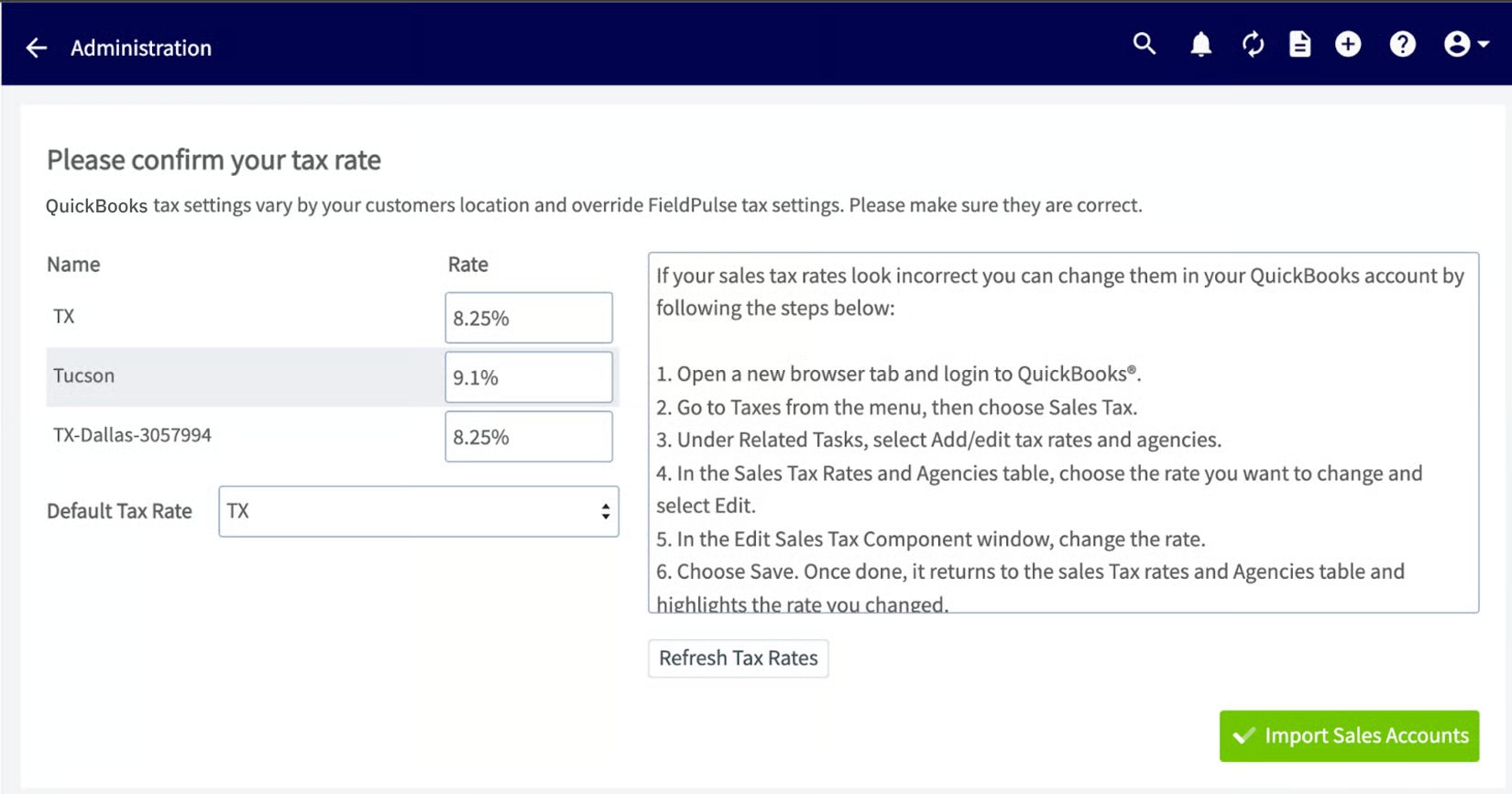
Select your default tax rate, sales account, and purchase account. Choose the default tax rate from the list QuickBooks Online provides, along with the default sales account (for items you sell) and default purchase account (for items you buy).
-
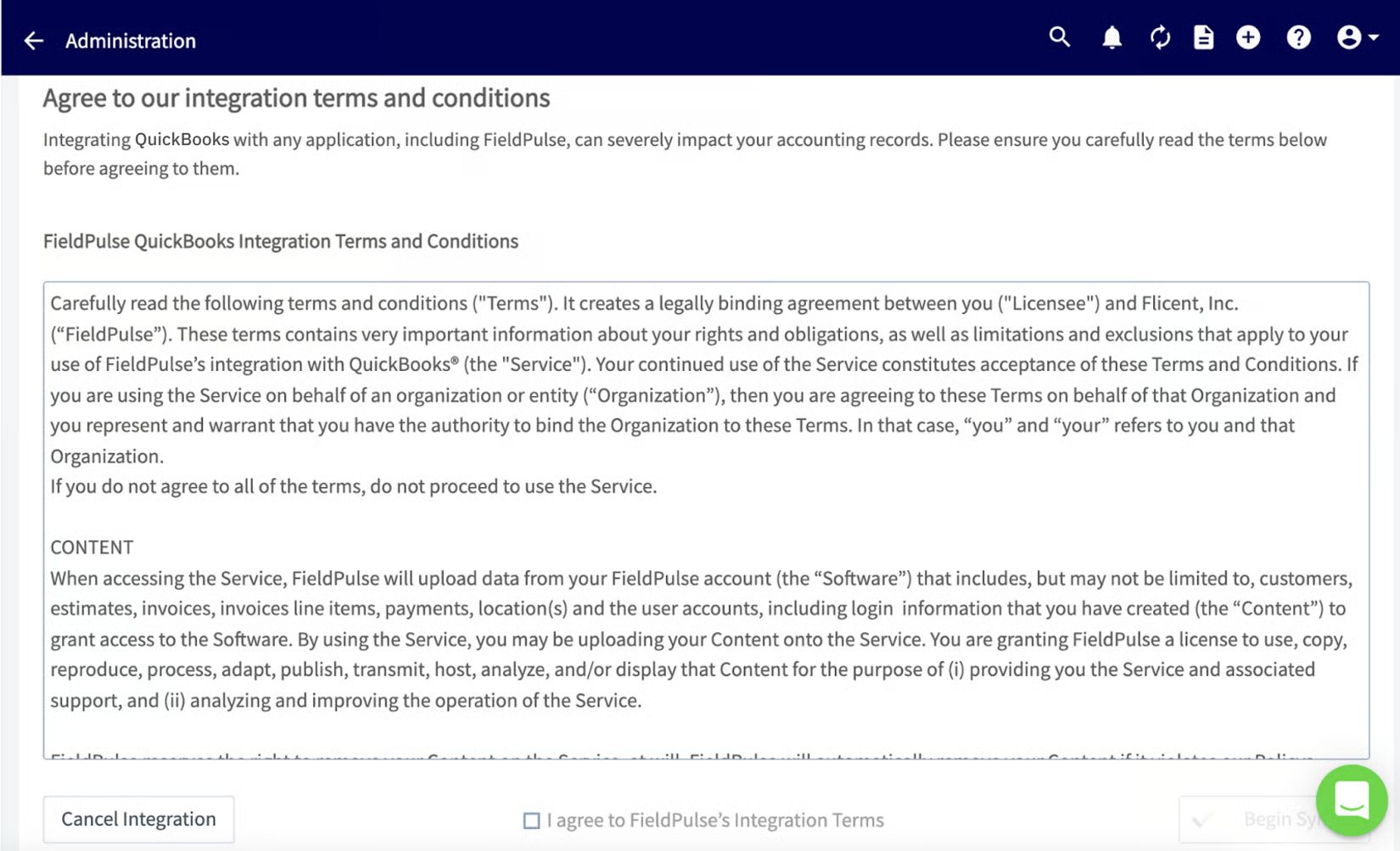
Agree to the QuickBooks Integration Terms & Conditions.
- Start the sync. Confirm your selections to start the sync. A confirmation page shows that syncing has started, and records begin populating in your FieldPulse account.