
Who uses this: Anyone reviewing how records transfer to QuickBooks Online. Availability: Requires your own QuickBooks Online subscription and an active QuickBooks Online integration — available in the United States, Canada, and Australia.Use this page to preview how each record maps between FieldPulse and QuickBooks Online — which fields carry over, where they land, and how statuses translate — before you rely on the sync for your books.
Overview
When a record syncs, FieldPulse maps its fields onto the matching QuickBooks Online fields. The tables below show that mapping for each record type, plus how estimate statuses translate. Fields not listed here do not sync — see Setting Up QuickBooks Online Before Syncing for the full “what won’t sync” reference.Customer mapping
FieldPulse
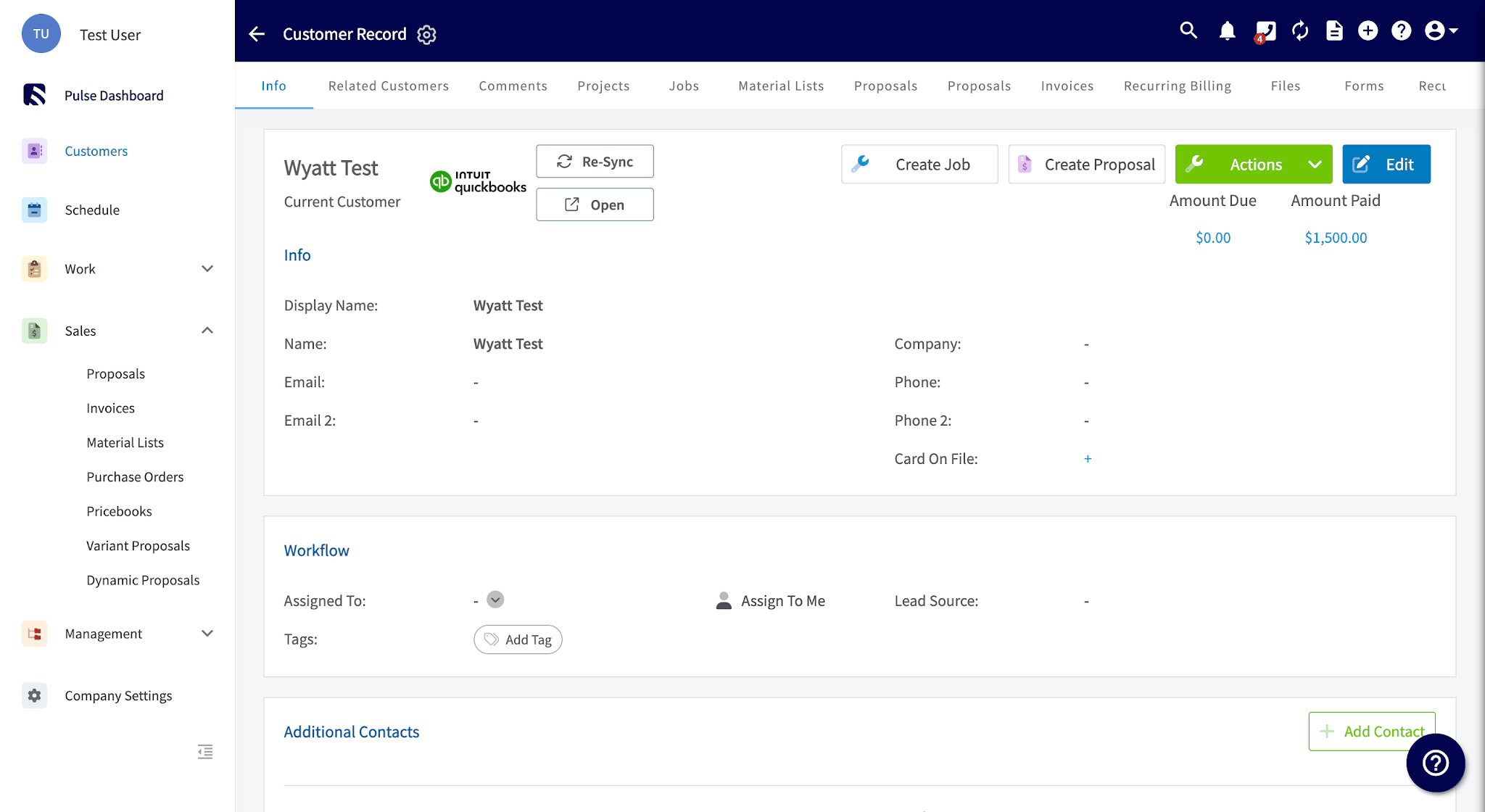
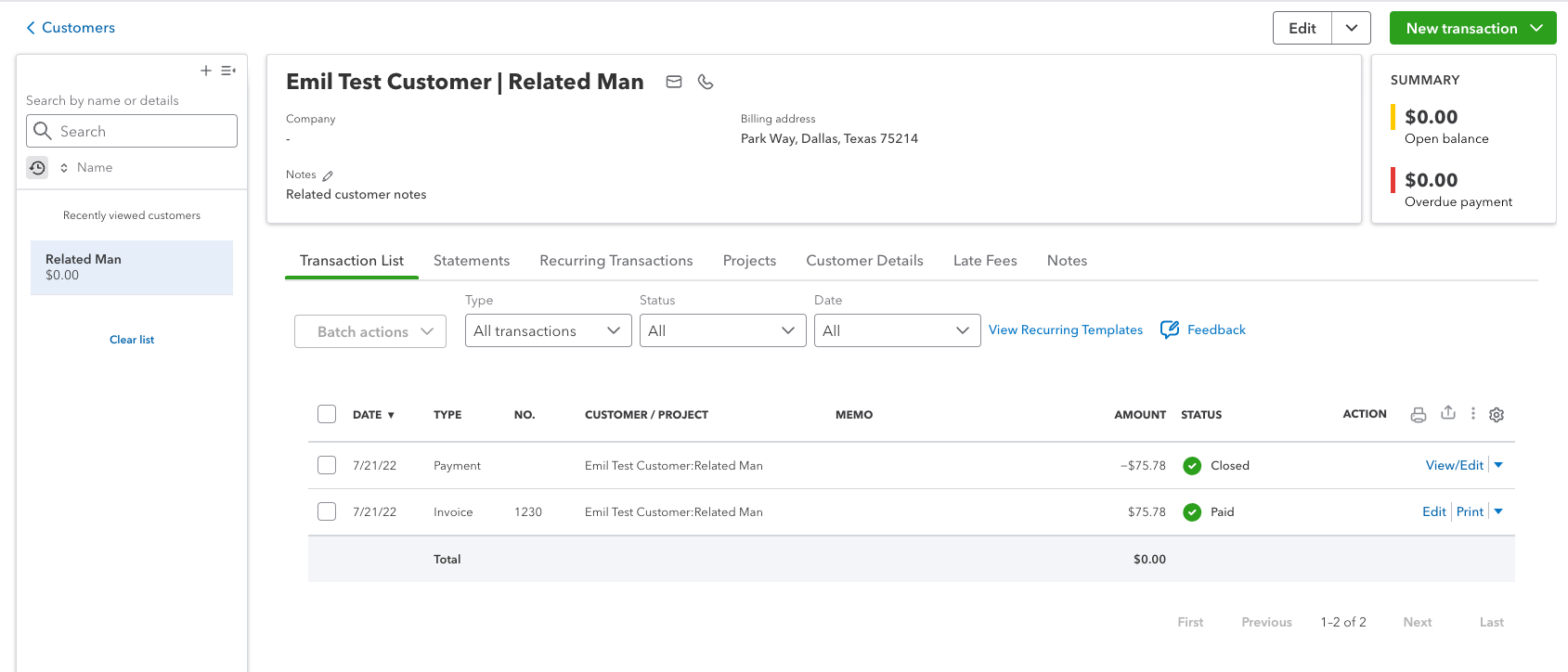
Line item mapping
FieldPulse
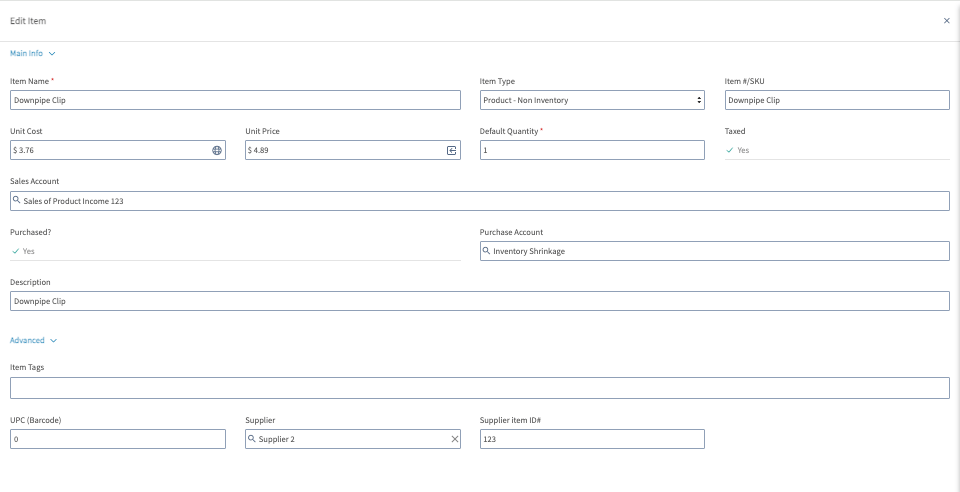
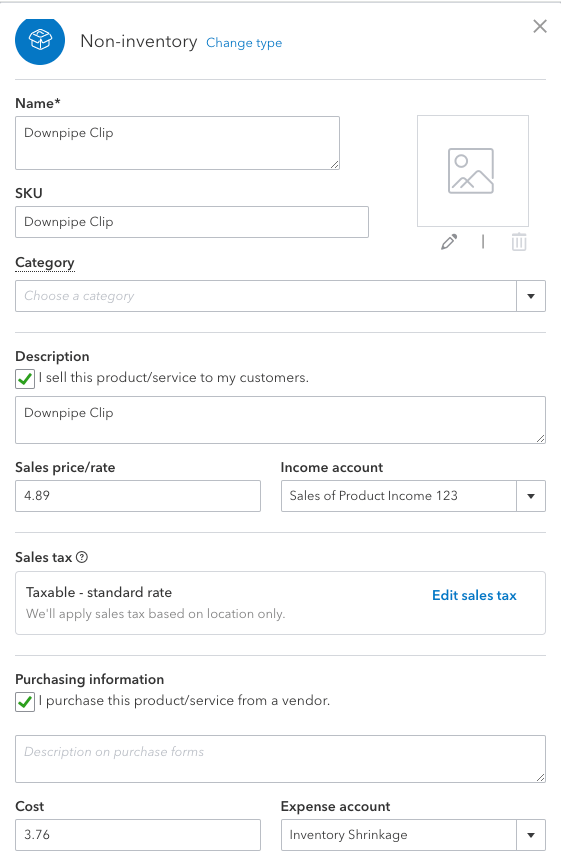
Estimate mapping
Estimates sync regardless of their status, and each FieldPulse status maps to a QuickBooks Online status:
FieldPulse
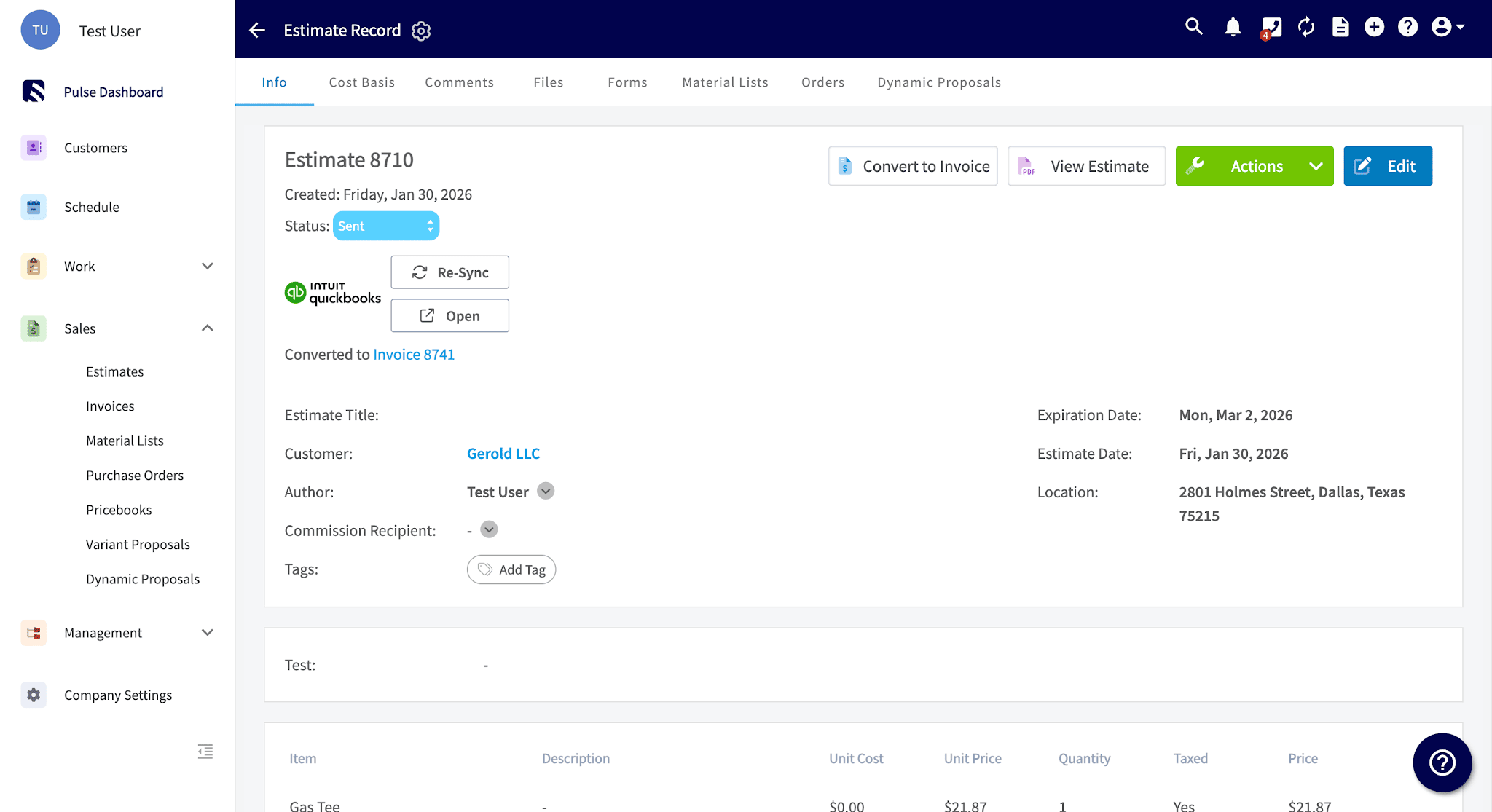
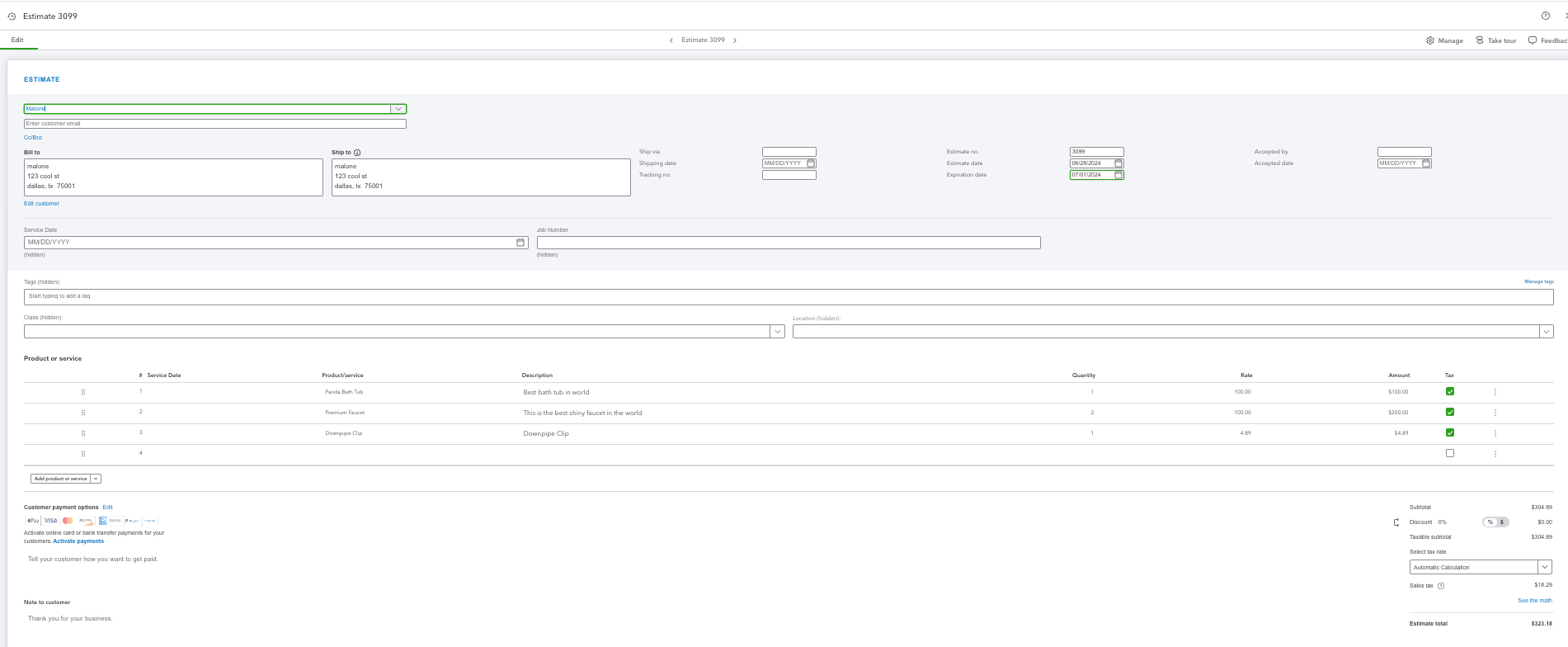
Invoice mapping
An invoice begins syncing once it reaches Invoiced status; its attached customer, invoice items, and tax rate sync with it.
FieldPulse
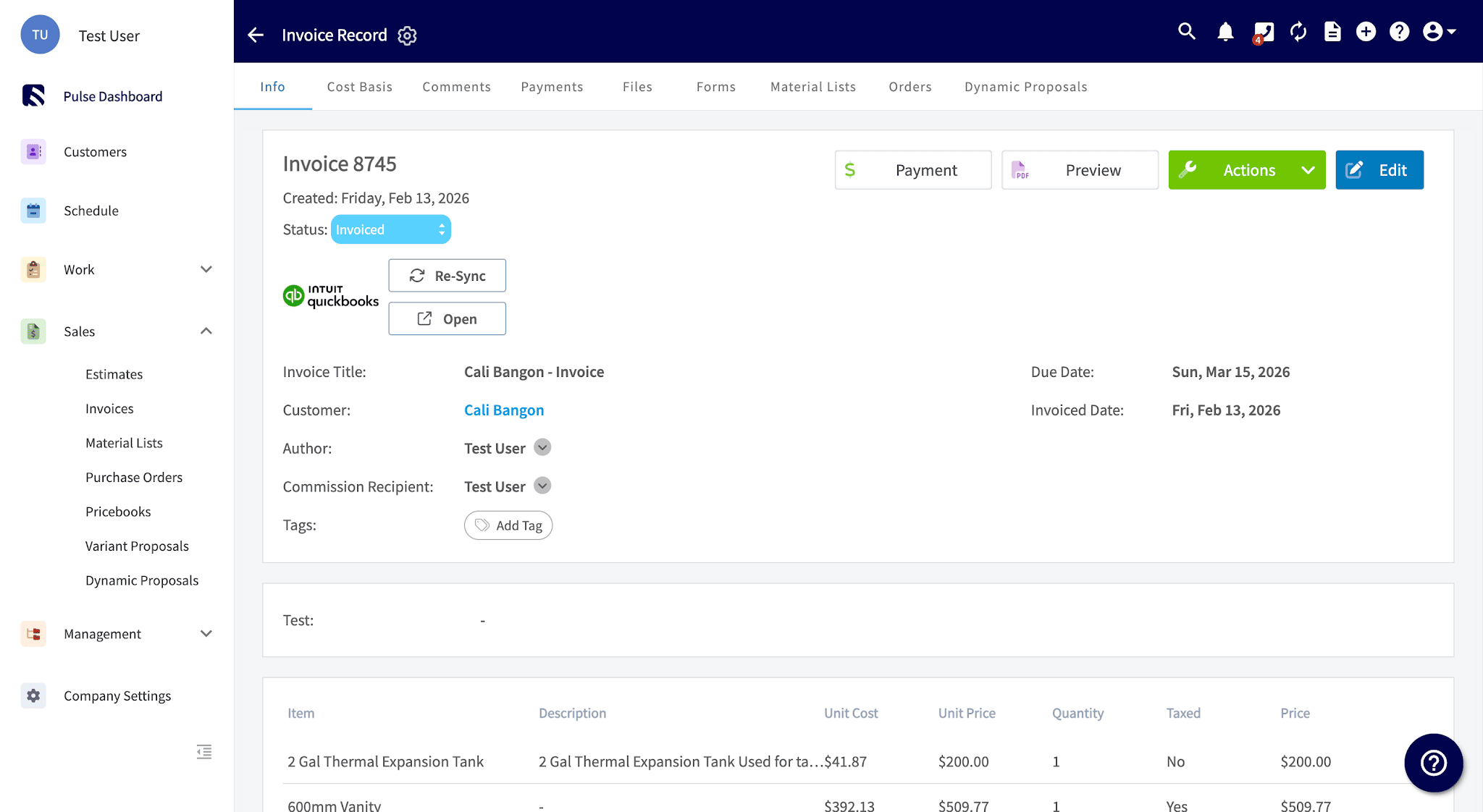
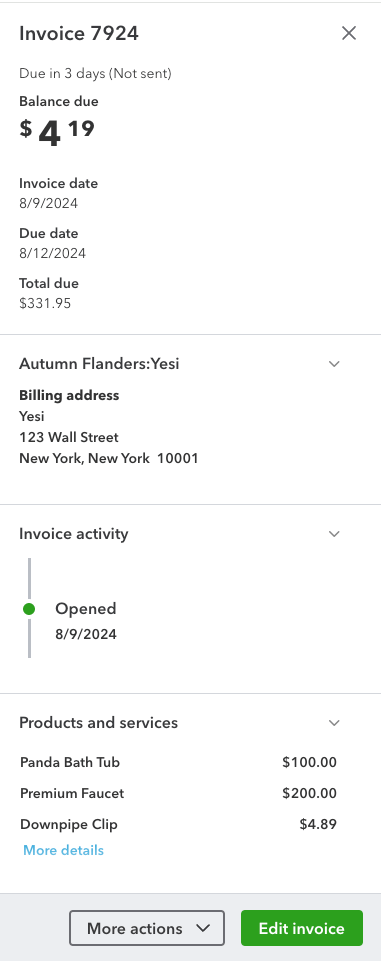
Payment mapping
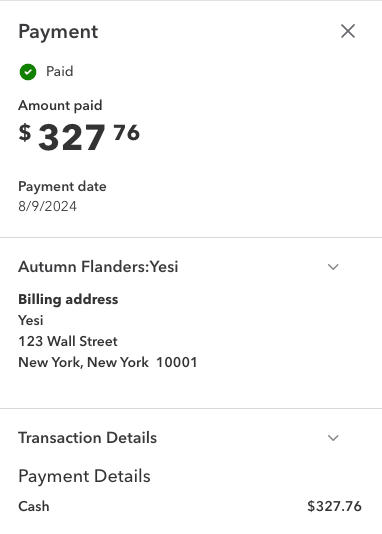
A collected payment follows this flow in QuickBooks Online: Invoice → Payment → Undeposited Funds, matching a standard QuickBooks workflow.
FieldPulse

Notes & limitations
- Estimate and invoice authors: For estimates and invoices created in QuickBooks Online, the QuickBooks author does not carry into FieldPulse — the author is filled in as the FieldPulse founding admin user.
- Custom transaction numbers: With them on in QuickBooks Online, invoice numbers follow the FieldPulse sequence; off, they follow QuickBooks Online’s sequence.
- Tips do not sync. A payment that exceeds the invoice total because of a tip can create a negative balance in QuickBooks Online.
- Gift card payments do not sync. Payments recorded with a gift card in QuickBooks Online do not sync to FieldPulse.