
Who uses this: Your customers book through the portal, and an Admin sets it up in Company Settings. Availability: All regions. Taking a deposit or payment on the portal requires FieldPulse Payments.The booking portal is often the first impression a new customer has of your business — a public page for service scheduling where new and existing customers contact you, request a service, or book a specific time slot without calling your office. This page walks through the booking portal from the customer’s side, screen by screen, so you know exactly what your customer experiences before you send the link or embed the portal on your website.
Overview
The booking portal is your customer-facing scheduling page. A customer opens the portal, picks a service, chooses a time slot if scheduling is enabled, enters contact details, pays if the selected service requires payment, and receives a confirmation. What the customer sees at each screen comes from the settings you chose when you set up the booking portal — your booking contact method, the services you list, the pricing display on each service, and the availability rules behind them.This page covers the customer’s side of the booking portal. To enable the portal — choose a booking contact method, build services, set Smart Scheduler availability, and embed the portal on your website — see Setting Up the Booking Portal.
How it works
The customer moves through up to six screens. Which screens appear depends on your booking contact method and on the settings of the service the customer selects.Landing
The portal homepage is the customer’s entry point to your business. The customer sees your welcome text, description, and notes, along with the service options you offer. If you added your logo in Company Settings, the logo displays at the top of the portal.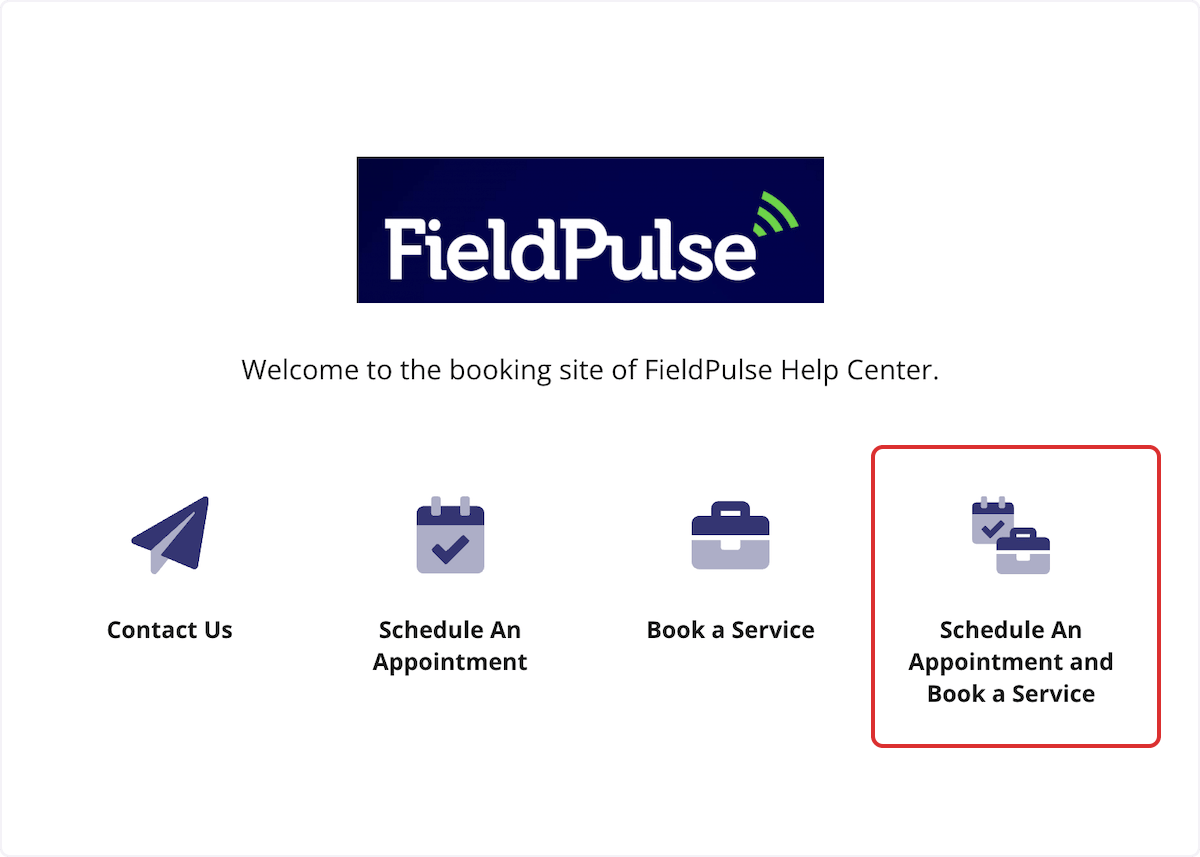
Service selection
The customer chooses a service from the categories and services you created. Each service displays according to the Booking Method you set for it — no pricing, the price with no payment taken, the price with a required deposit, or the price with full payment required.Scheduling
If your booking contact method lets customers pick a time, the customer selects an available time slot. The time slots the customer sees come from your availability rules — General Availability, or the Smart Scheduler, which offers only the times your team is free to work the service.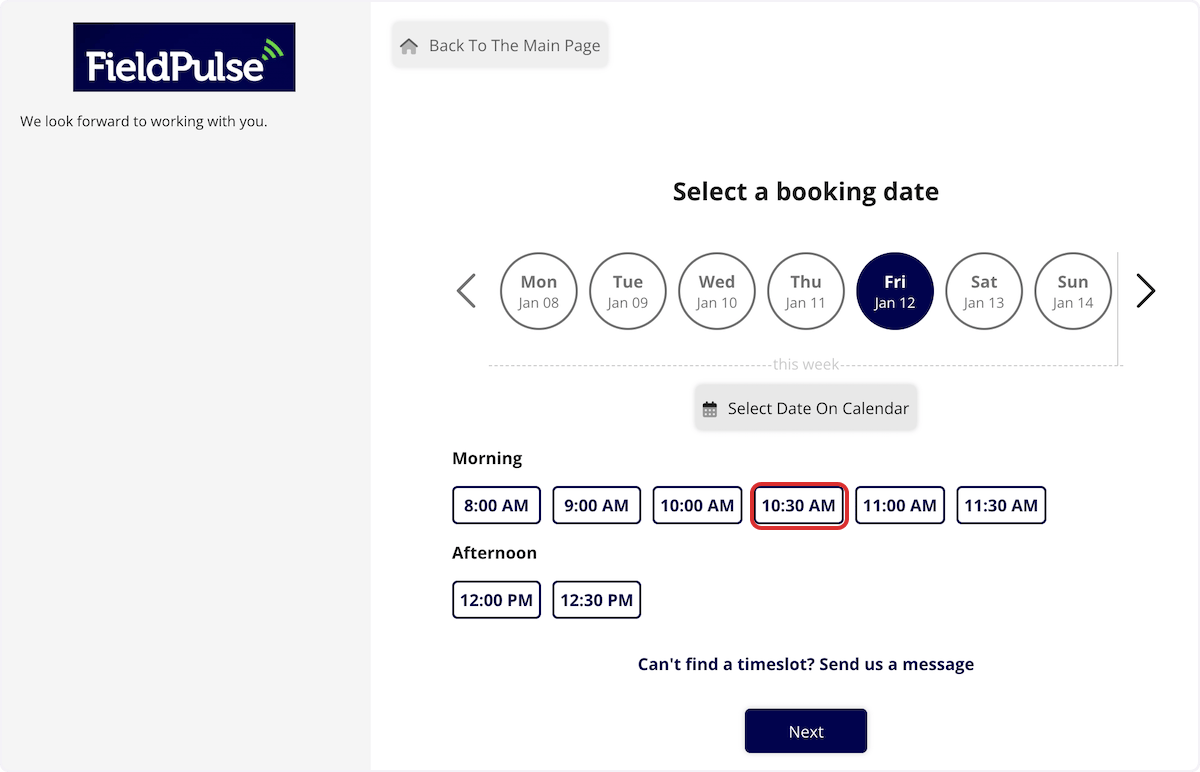
Contact details
The customer enters their contact information. Any custom fields you configured appear here alongside the standard contact fields, which always appear on the form. On the web app, photos and files the customer submits with the request attach to the job FieldPulse creates from that request.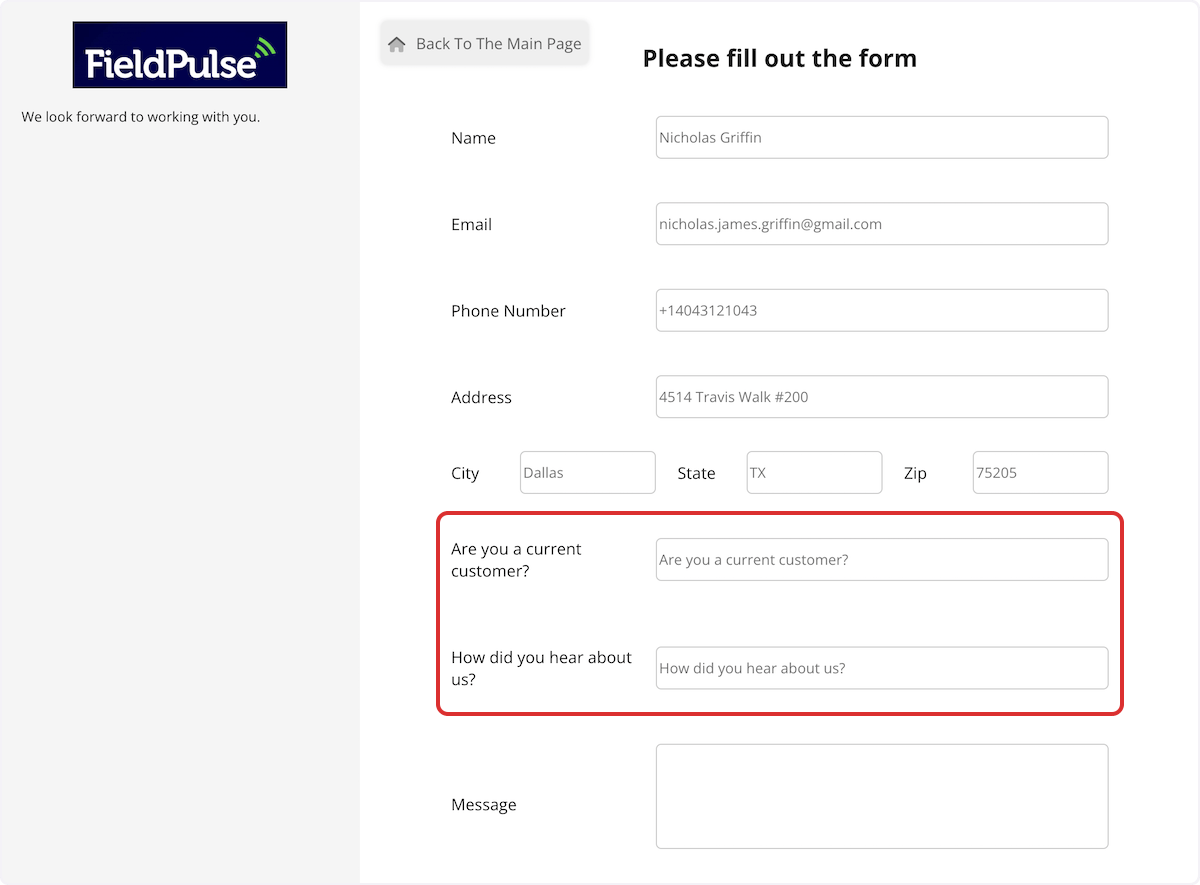
Payment
If the selected service requires a deposit or full payment, the customer sees a payment step before the booking is confirmed. Collecting payment on the portal requires FieldPulse Payments on your account.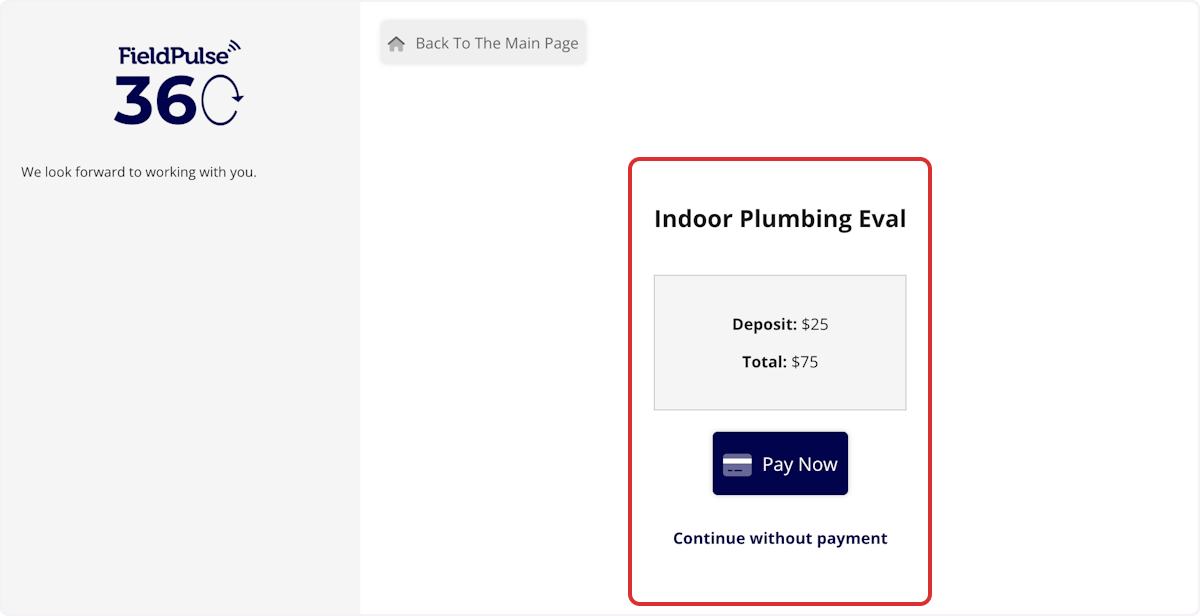
Confirmation
The customer sees a confirmation message on screen. If you turned on Send Appointment Confirmation Email to Customer, the customer also receives an email letting them know the request came through.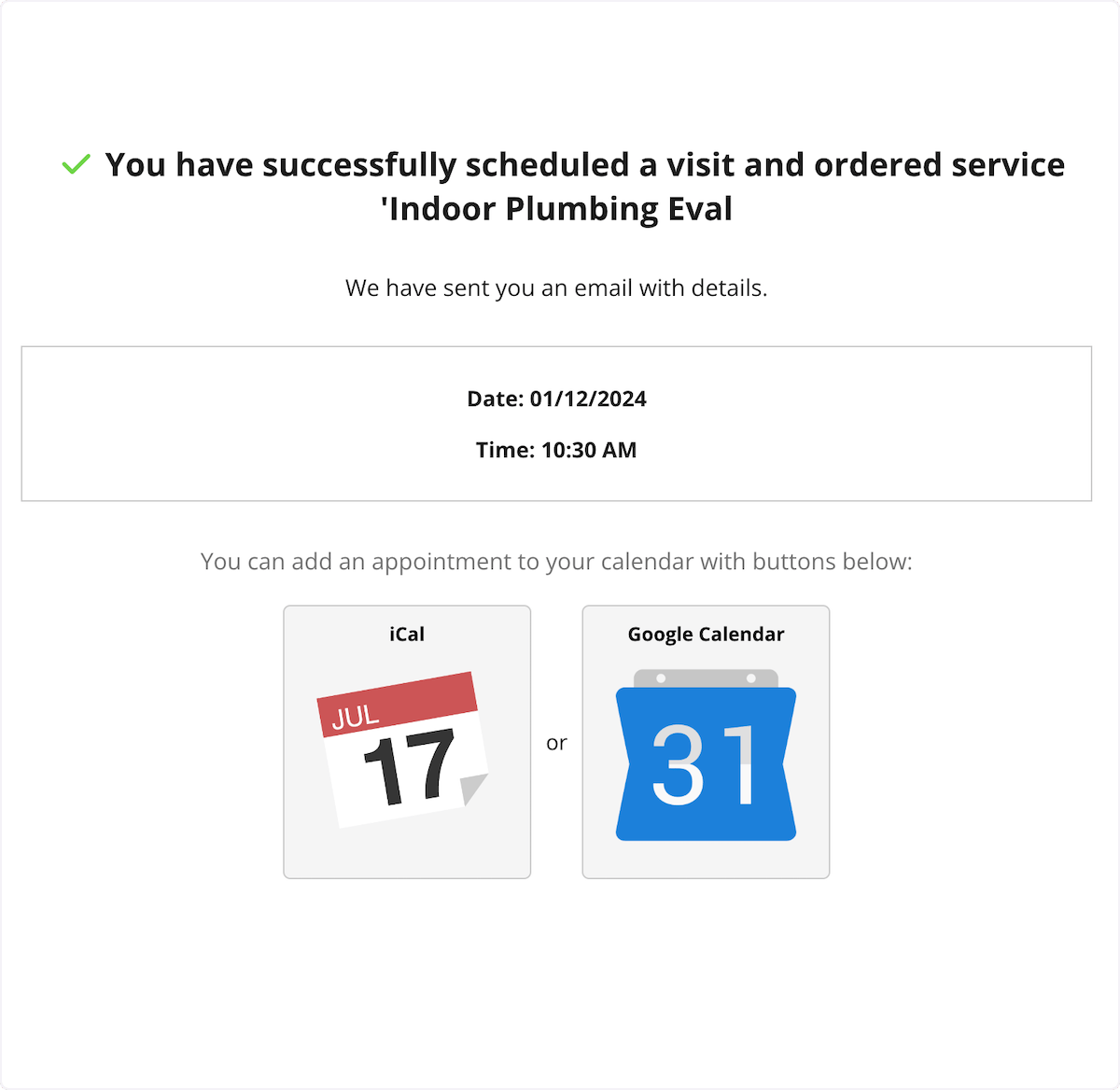
The confirmation email tells the customer their request was received and is under review. It does not mean the appointment itself is confirmed.