
Who uses this: An Admin enables the customer portal and controls what appears in it through Customer Portal Permissions in Company Settings; each customer opens their own portal link without a FieldPulse user account. Availability: All regions · the customer portal must be enabled for the account in Company Settings > Features & Plugins.The customer portal is a self-service page where your existing customers review their jobs, estimates and invoices, and payments without calling your office. This page walks through the portal exactly as your customer sees it, tab by tab, so you know what a customer can view, edit, and act on before you send the link.
Overview
The customer portal gives an existing customer one page that holds their history with your business. The customer opens their personal portal link, lands on their own contact details, and moves between tabs across the top of the page to check job status, open estimates, download invoices, review payment history, and request new work through your booking portal. The portal can show up to eight tabs: Home, Submit Request, My Jobs, My Projects, My Estimates, My Invoices, My Payments, and My Assets. Which tabs a customer actually sees depends on your Customer Portal Permissions settings, and those settings apply to every customer on your account. When the portal is doing its job, a customer opens their link and finds current job status, their estimates and invoices, and their payment history without calling your office.To set up the customer portal — enabling it, choosing what customers can see, and sharing each customer’s link — see Customer Portal Overview.
How it works
The customer works through the portal one tab at a time. The sections below cover each tab and what the customer can do in it.Home
The customer sees the contact details you have on file for them. When Allow profile updates is on, the customer selects any field, makes changes, and saves them with Save changes.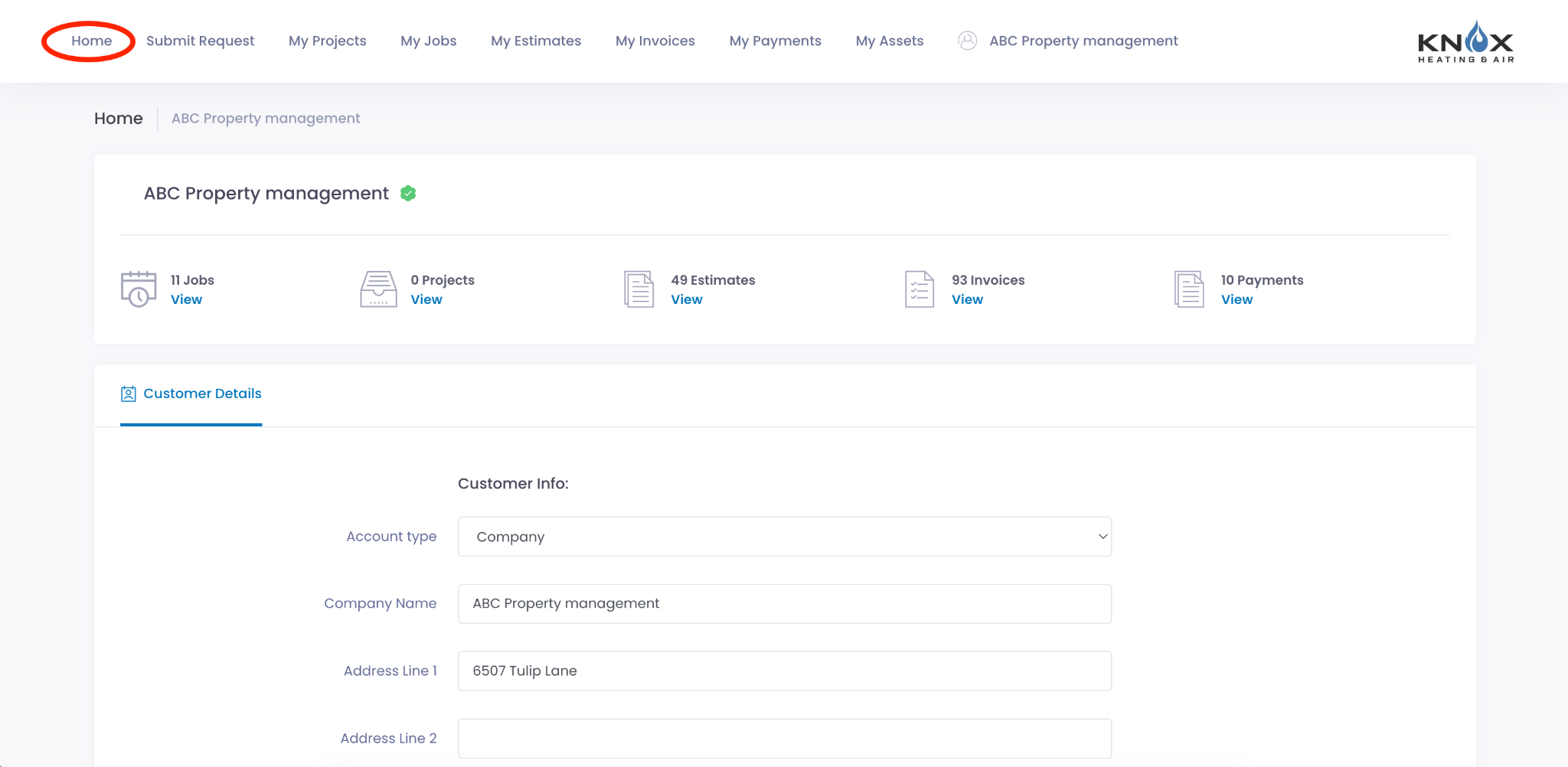
Submit Request
The Submit Request tab opens your booking portal in a new browser tab, where the customer requests a new job or service. What the customer can request there comes from your booking portal setup — the services you list, the time slots you offer, and whether a deposit is required.
My Jobs
The My Jobs tab lists the customer’s open jobs with the date, time, and status of each one. Selecting a job shows the job details along with any files attached to it, which the customer can view and download.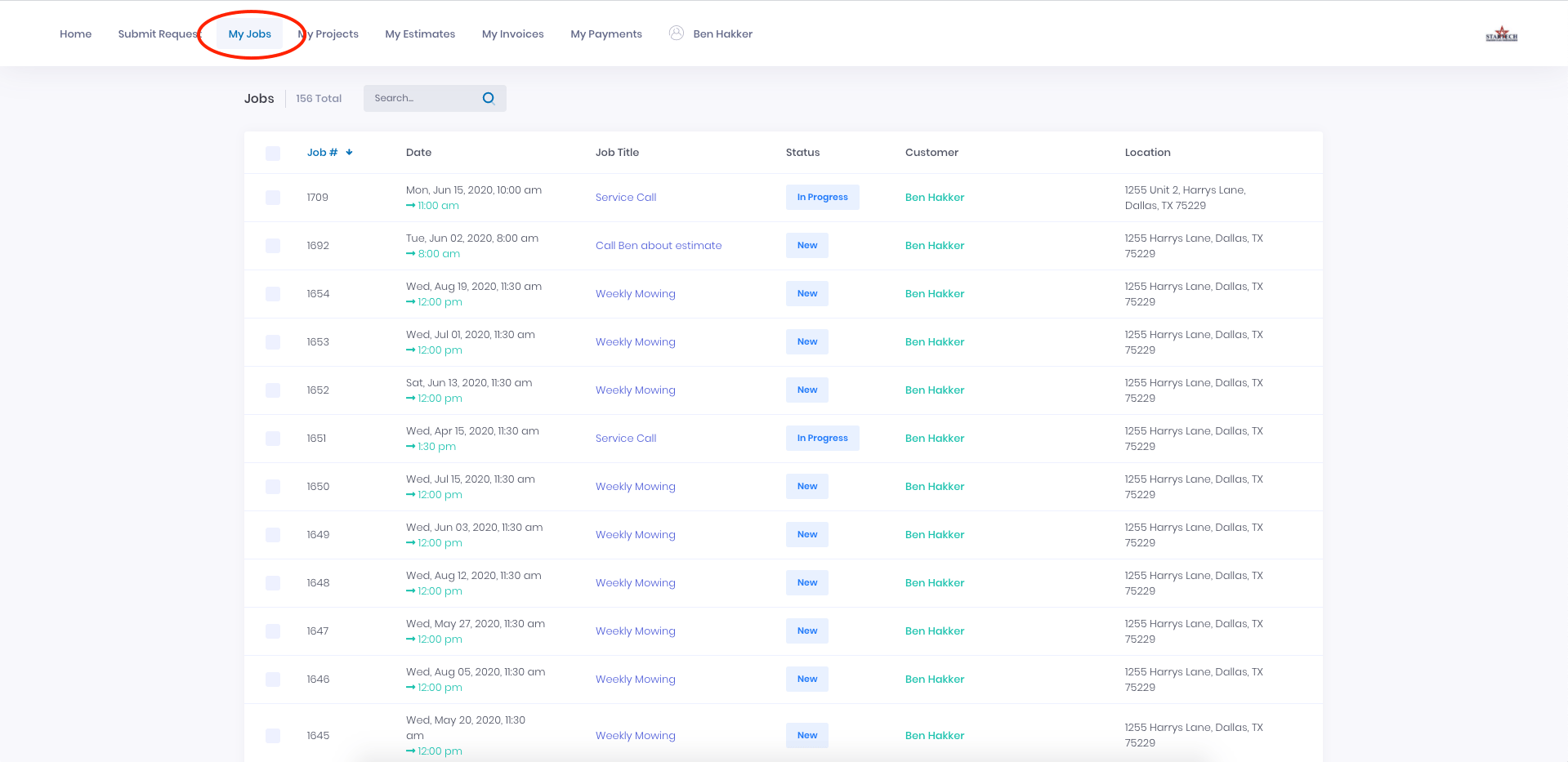
My Projects
The My Projects tab lists the customer’s open projects with the date, time, status, and completion percentage of each one. Selecting a project shows the project details along with any files attached to it.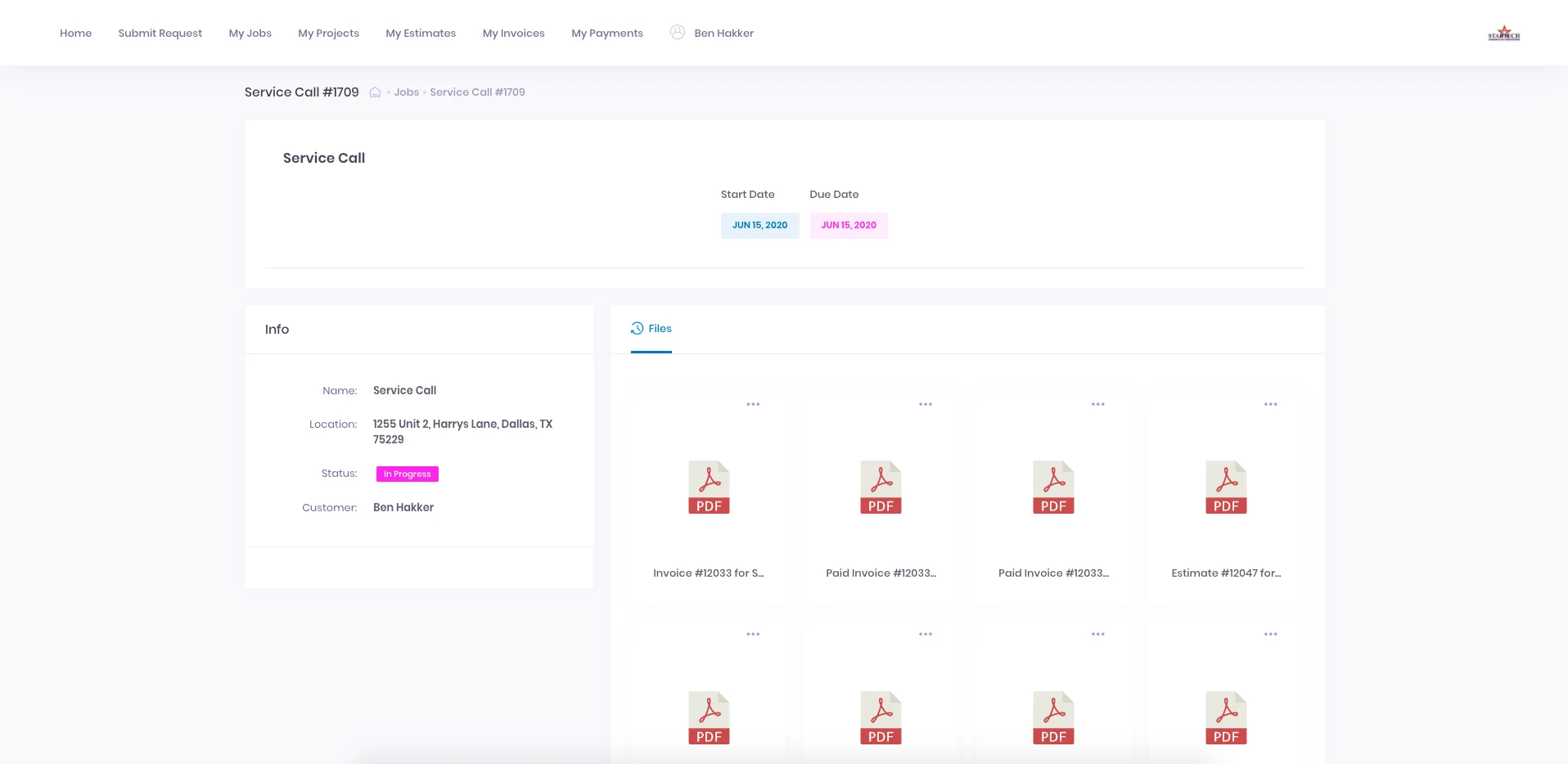
My Estimates
The My Estimates tab lists every estimate on the customer’s account with its status, sent date, expiration date, and total amount. The customer can open, download, print, and accept an estimate from this tab.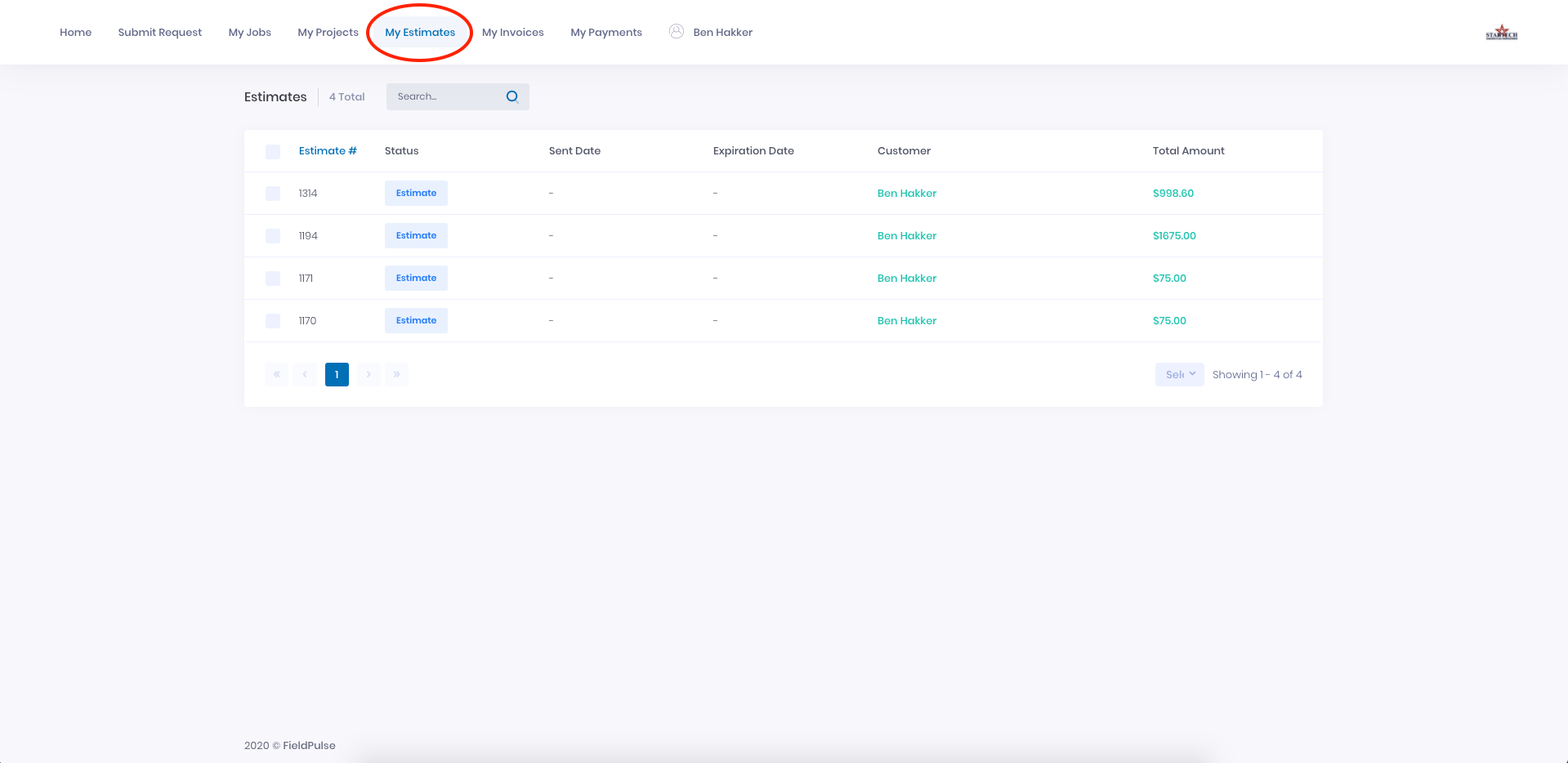
My Invoices
The My Invoices tab lists every invoice with the invoice date, due date, amount paid, and balance due. Opening an invoice displays it as a PDF the customer can view, download, or print.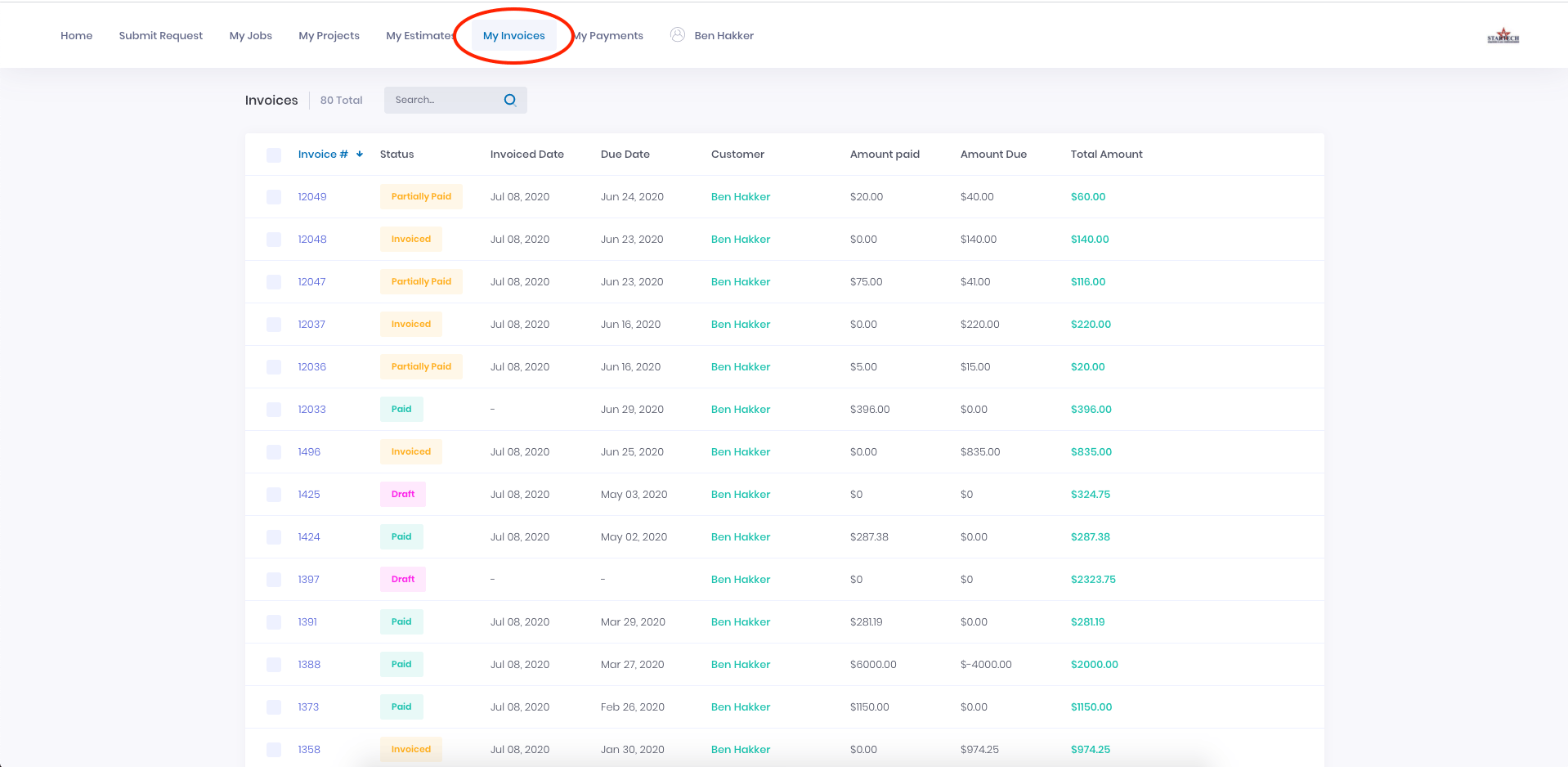
My Payments
The My Payments tab is the customer’s complete payment record with you, including the date, payment method, and payment status for each payment. Statuses use the same labels your team sees: Processing, Succeeded, Failed, Completed, and Cancelled.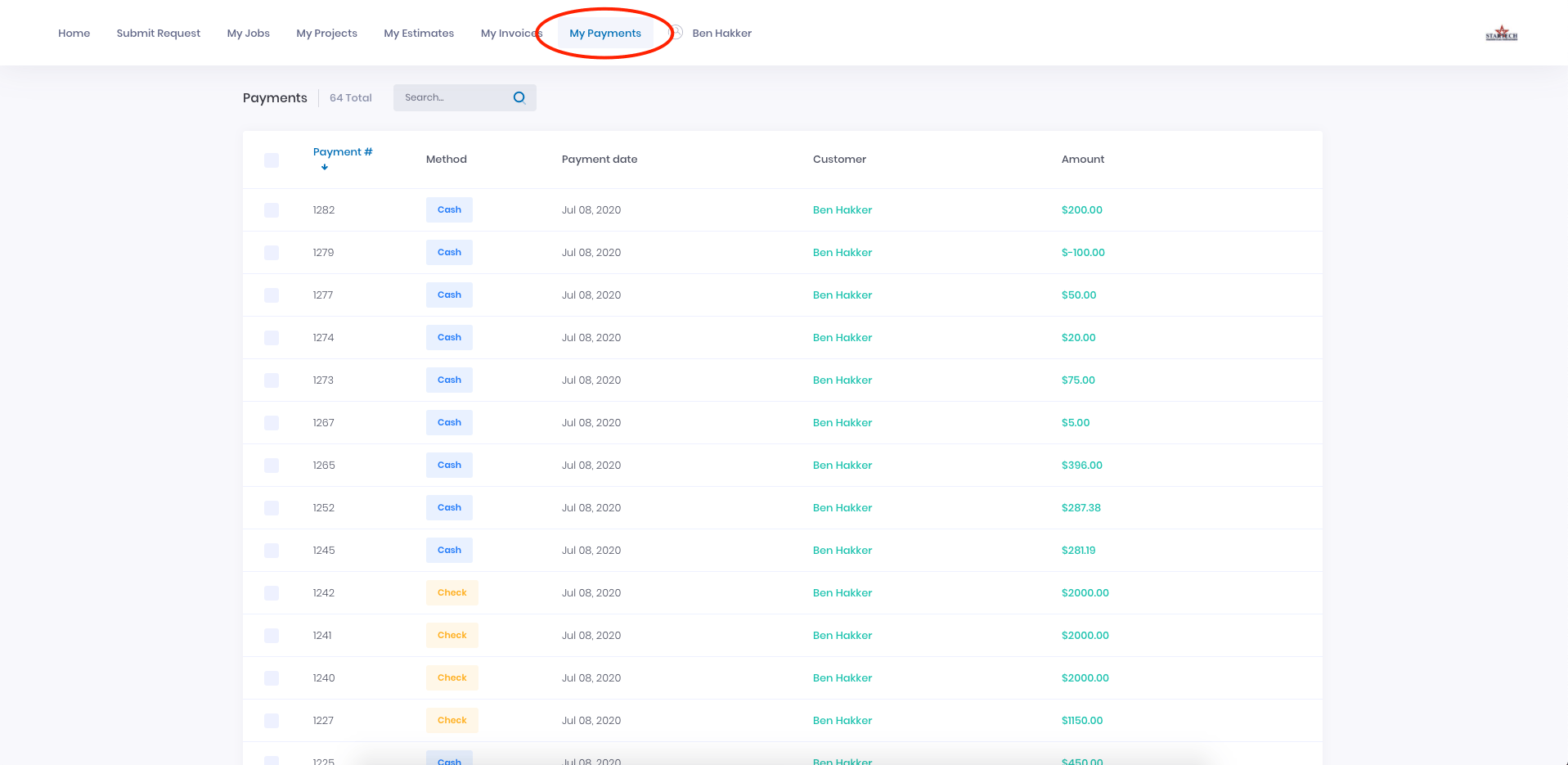
My Assets
The My Assets tab lists the asset records tied to the customer, including the update history on each asset and any files attached to it.Settings reference
Three settings change what a customer sees in the portal.Notes & limitations
- The Submit Request tab hands the customer off to your booking portal. What the customer can request there depends on how the booking portal is set up — see Setting Up the Booking Portal and Booking Portal Experience Overview.
- Customer Portal Permissions apply globally to every customer on your account. You cannot show one tab to one customer and hide it from another.
- Every toggle in Customer Portal Permissions defaults to on for new accounts, so a new portal shows all tabs and details until you turn something off.