
Who uses this: Admins, Team Managers, and Service Agents — the roles offline mode is available to. Availability: FieldPulse mobile app only · All regions · requires timesheets enabled on your account.The clock does not wait for a signal — a tech starting a job in a basement or out on a rural route still needs the hours to count. The FieldPulse mobile app switches to offline mode on its own when the connection gets weak, so your team keeps clocking in and out on cached data. Each entry is saved on the device as a draft and uploaded to your FieldPulse account once the device reconnects.
Overview
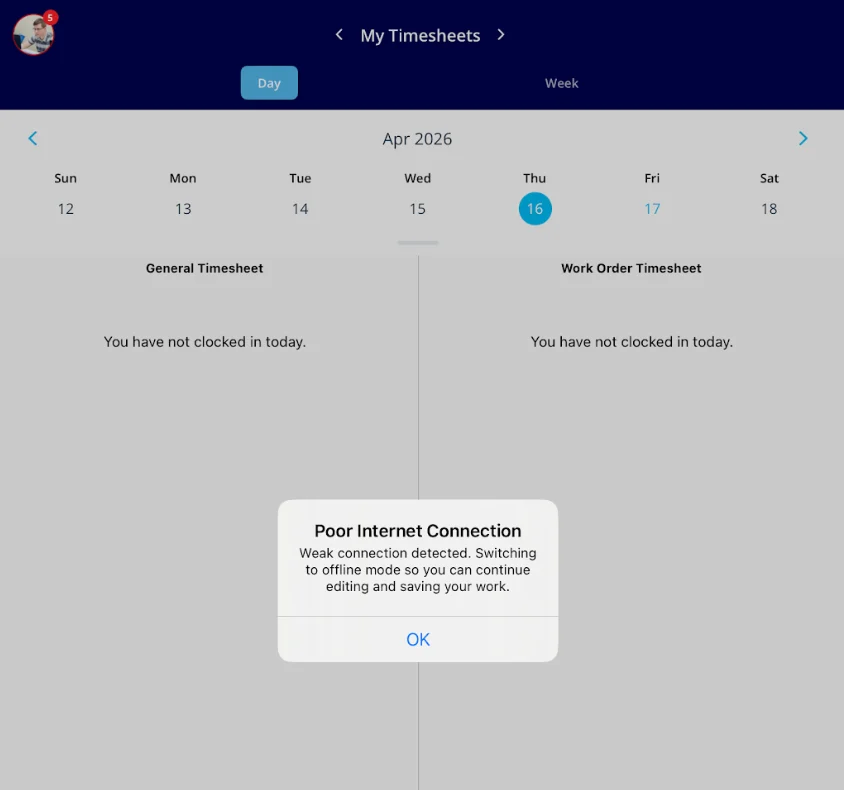
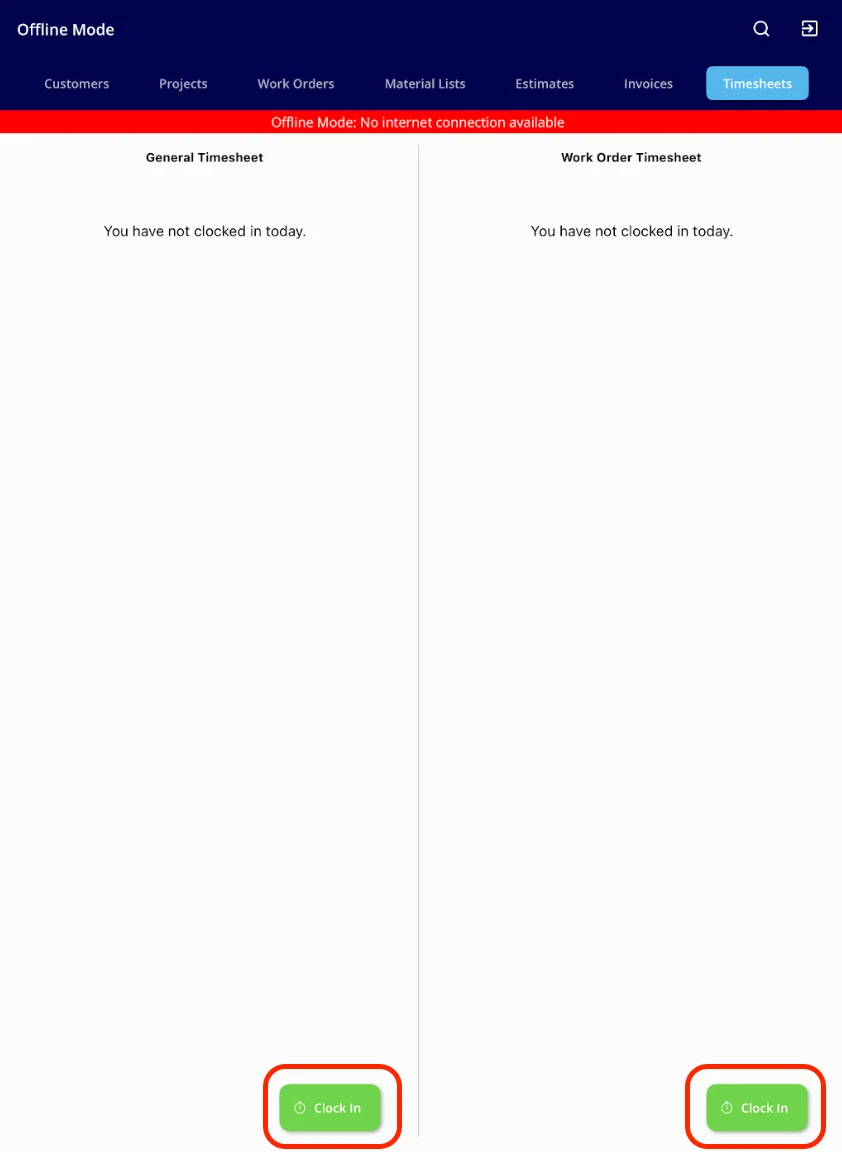
Offline mode keeps timesheets running on cached data — your own time entries for the current day, plus the ability to clock in and out on a General Timesheet or a Job Timesheet. When the mobile app detects a weak connection, it shows a Poor Internet Connection message reading Weak connection detected. Switching to offline mode so you can continue editing and saving your work, then switches to offline mode with a red Offline Mode: No internet connection available banner across the top of the screen. The cached set is narrow. Only your own entries, and only for the current day, are available with no connection. Other team members’ timesheets and entries from previous days come back once the device is online again. The mobile app enters offline mode automatically, and your team can also open offline mode manually from the profile icon — see Offline Mode Overview for those steps and the full capability reference across FieldPulse.Video walkthrough
Video walkthrough: using timesheets in offline mode
Before you begin
- Timesheets are enabled in your account.
- The FieldPulse mobile app is installed and up to date.
What works offline
Offline mode covers the clock — starting an entry, ending it, and seeing today’s time.Clocking in and out offline
Your team starts an offline entry two ways — from the Timesheets screen, or from an individual job record.From the Timesheets screen
-
Select OK on the Poor Internet Connection message. The mobile app switches to offline mode.
-
Select Clock In or Clock Out under General Timesheet or Job Timesheet.
-
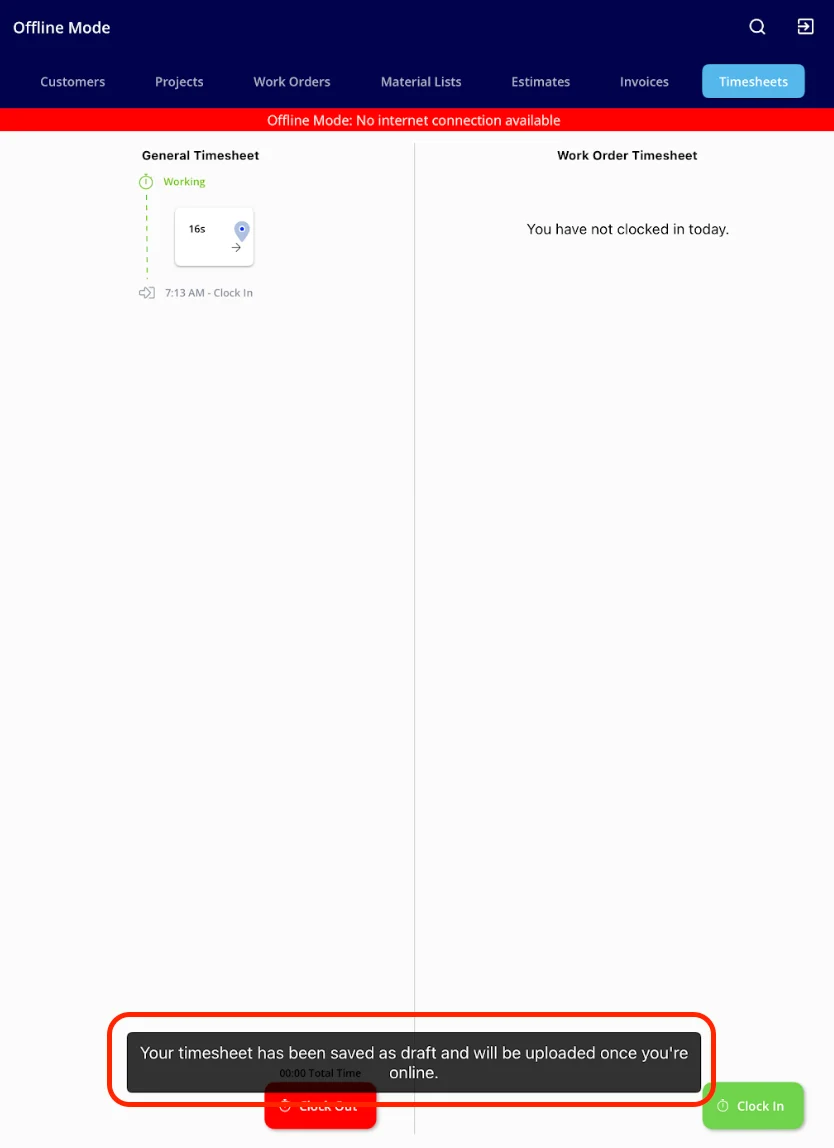
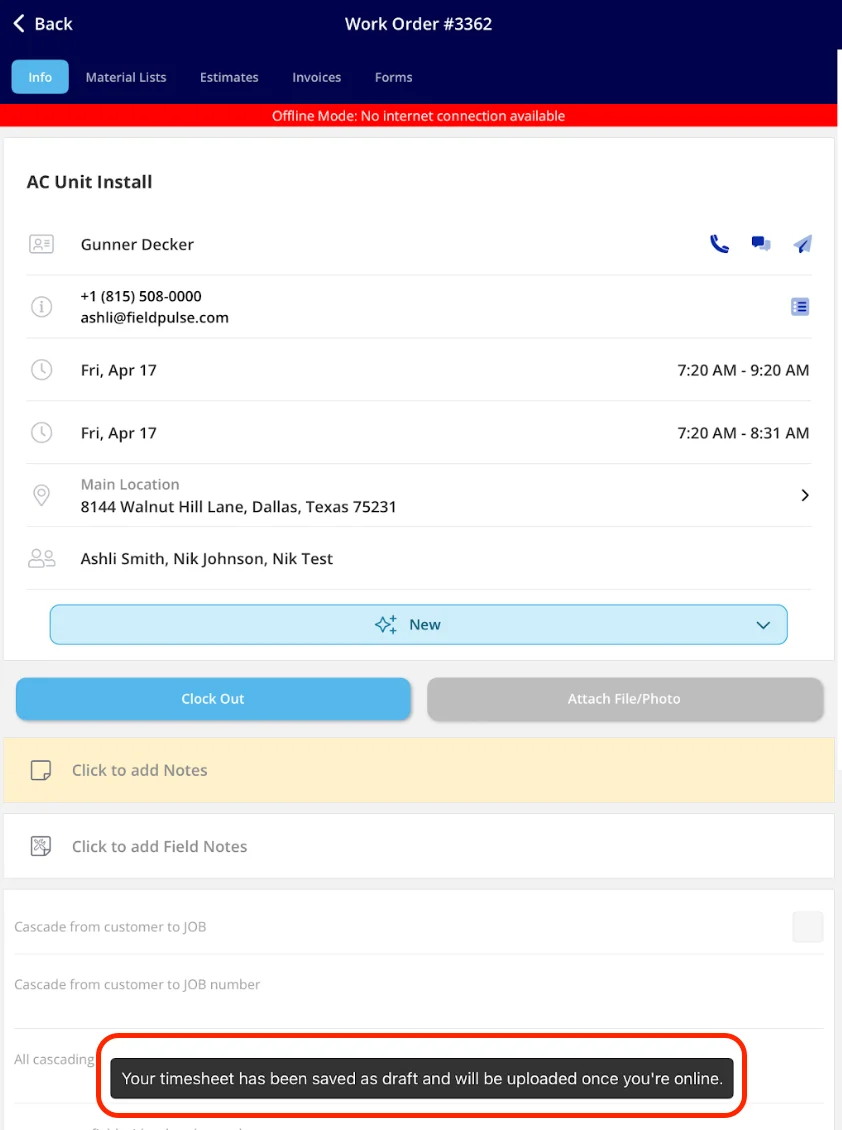
Save the time as usual. The mobile app confirms with Your timesheet has been saved as draft and will be uploaded once you’re online, and the entry is held on the device until the signal returns.
From a job record
-
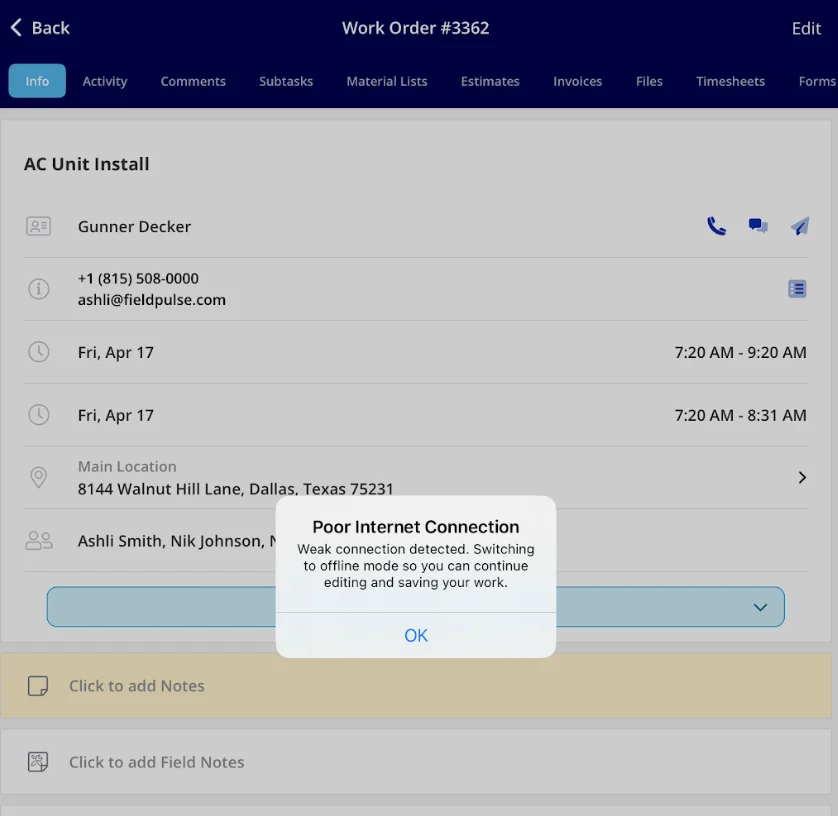
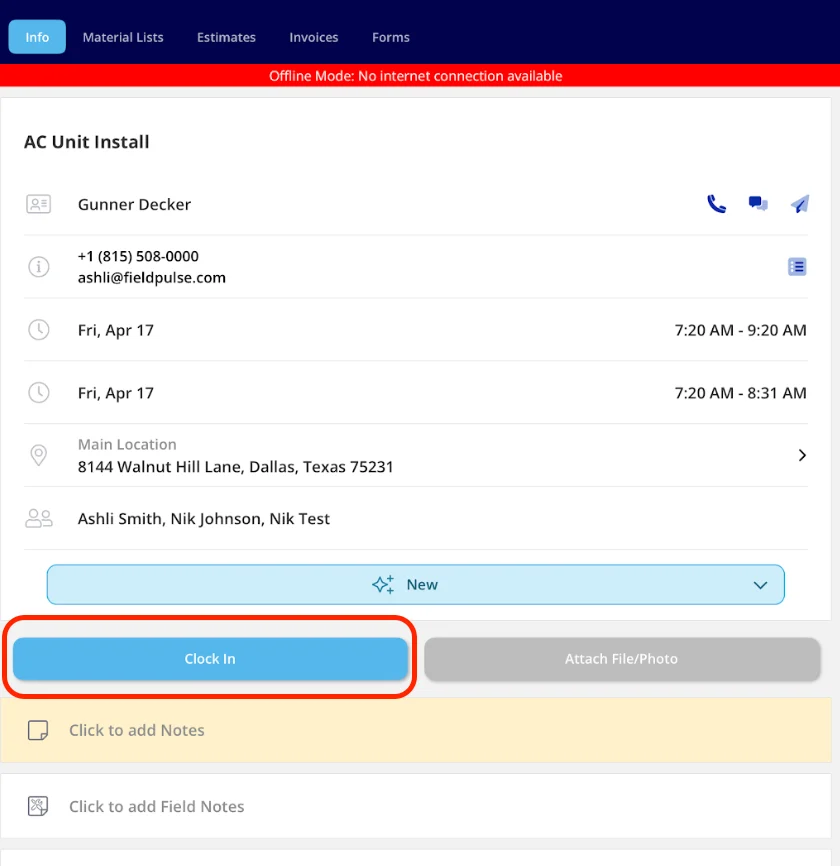
Select OK on the Poor Internet Connection message when it appears on the job record.
-
Select Clock In or Clock Out on the record. The entry links directly to that job’s timesheet.
-
Save the time as usual. The entry is cached on the device until the signal returns.
How offline time entries sync
Offline time entries sync on their own — nobody has to push them. Every clock-in and clock-out saved in offline mode is stored on the device, and once the device reconnects, FieldPulse syncs those timestamps to the matching Job Timesheet or General Timesheet. No extra steps on your end. If a clock-in has not appeared in FieldPulse after the device is back online, the sync is still running. Keep a stable internet connection and wait for the entries to finish syncing.Notes & limitations
- Offline mode is available in the FieldPulse mobile app only.
- The mobile app shows a Poor Internet Connection message and switches to offline mode on its own when the connection becomes unstable or the device is in Airplane Mode.
- Only your own time entries are available offline. Other team members’ timesheets are available once you are back online, for the people your permissions let you view.
- Only current-day entries are cached. Entries from previous days are available once you are back online.
- A time entry made offline can link to any job cached for the current day.
- Offline time entries are stored on the device until it reconnects to the internet.
- Offline mode is available to Admins, Team Managers, and Service Agents. Limited Agents do not have Offline Mode, so they cannot clock in or out without a connection.