
- You can create a customer from the Pulse Dashboard
- You can create a customer from the Customers tab in the bottom menu
- You can create a customer from the Full Menu tab
Method 1: From the Pulse Dashboard
To create a new customer from the Pulse Dashboard, select Create Customer or Create New under Recent Customers.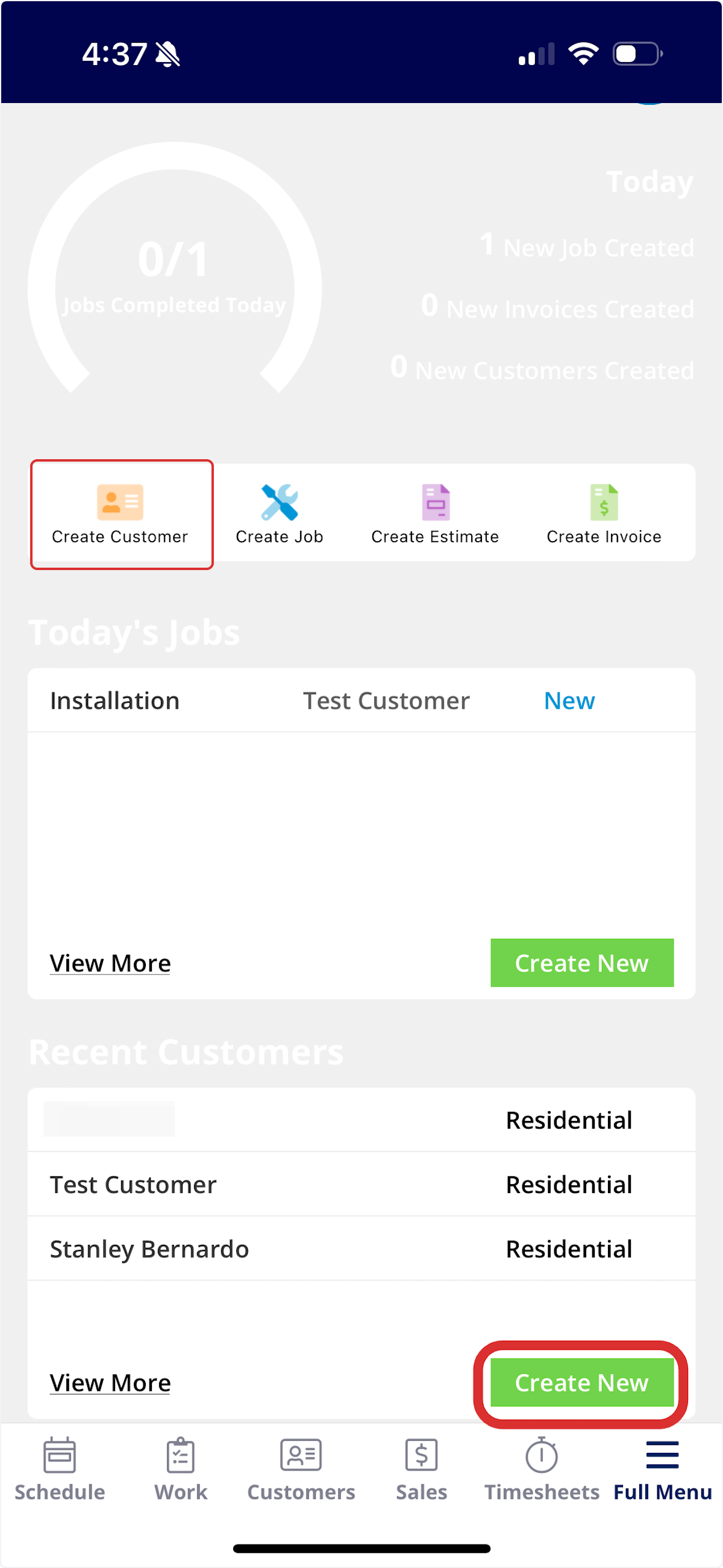
Method 2: From the Customers Tab
To create a new customer from the Customers tab, select Customers from the menu at the bottom of the screen. Then click Create New.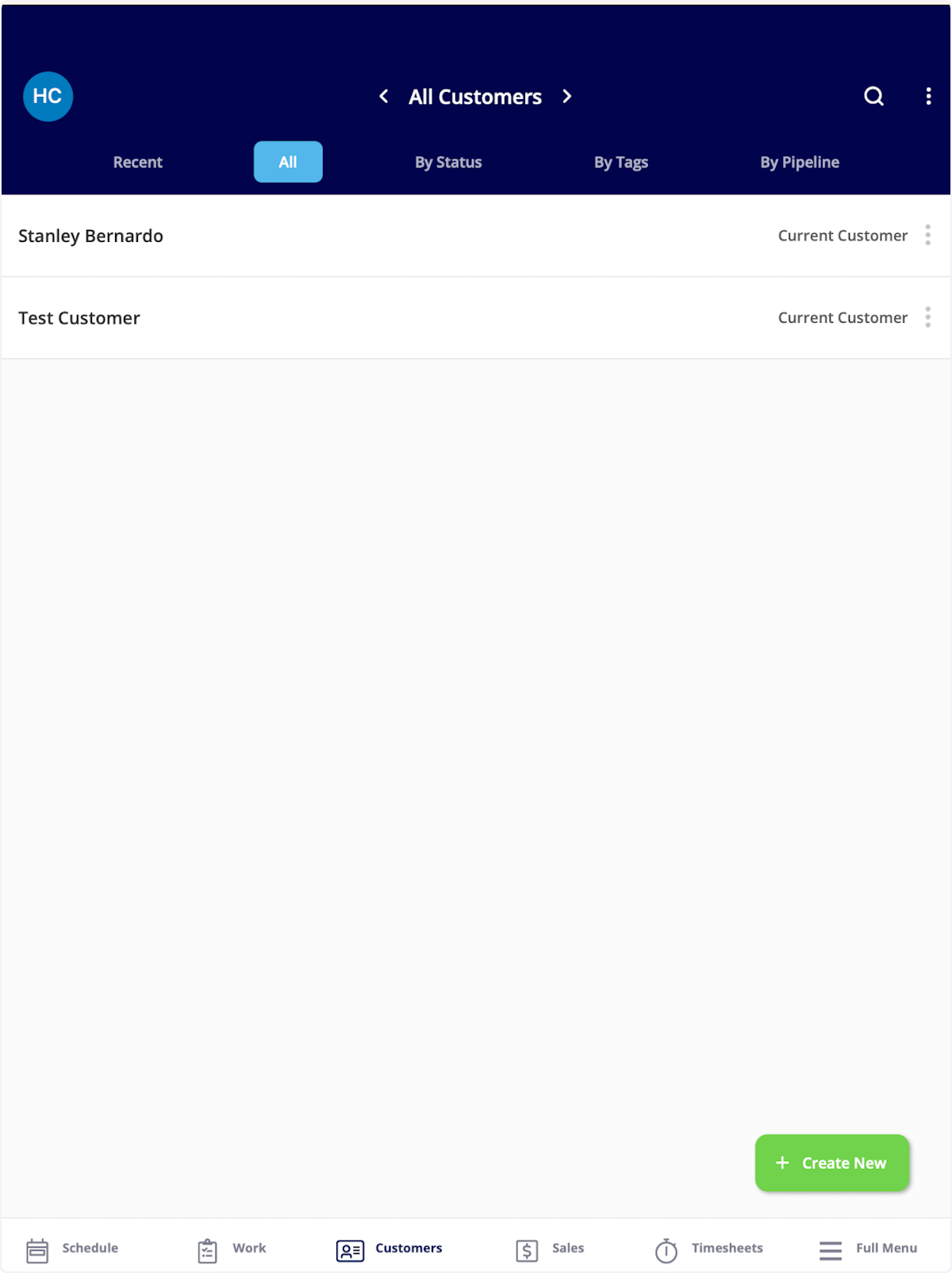
Method 3: From the Full Menu
To create a new customer from the full menu, select Full Menu from the menu at the bottom of the screen and then click Customers.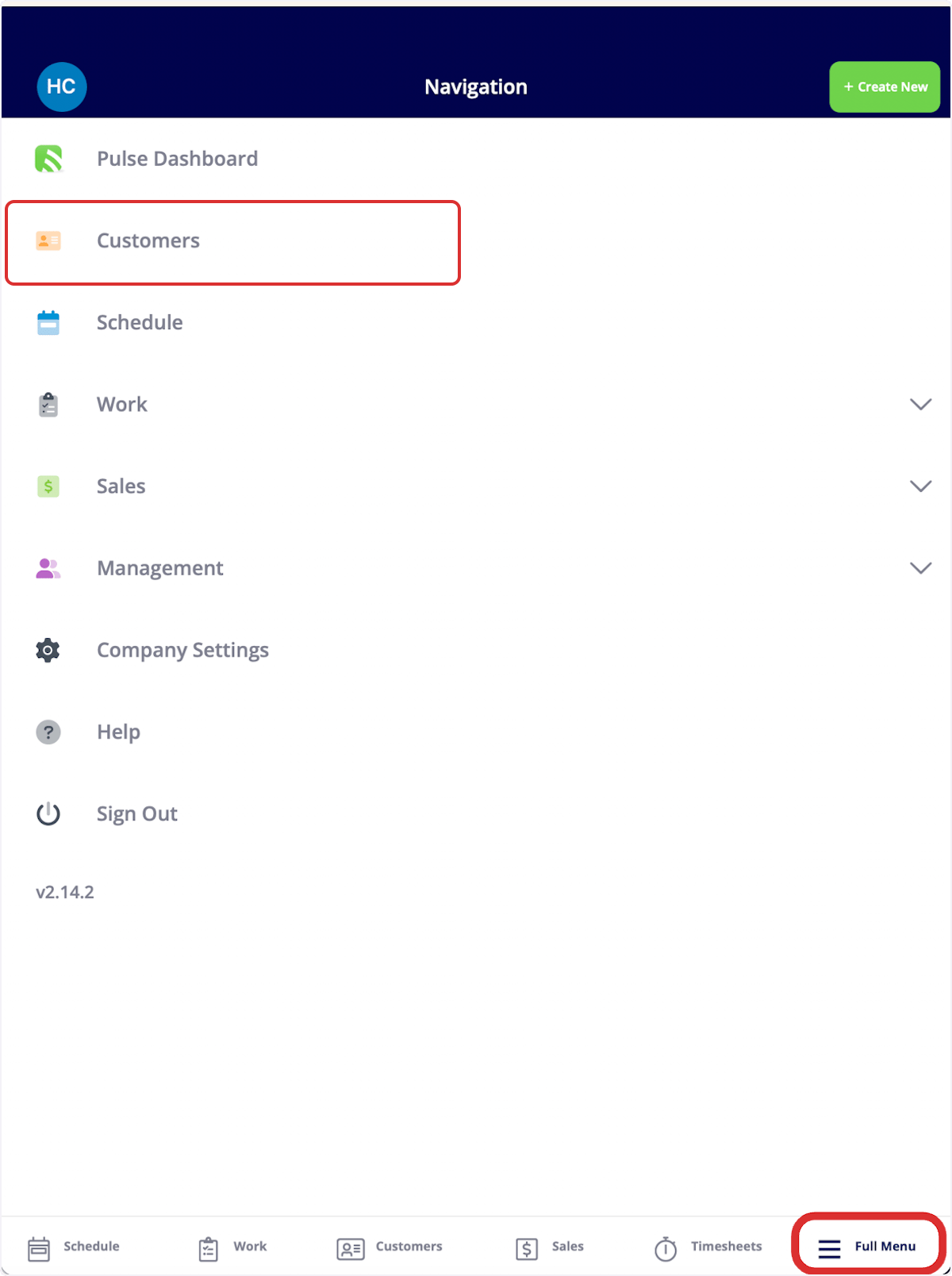
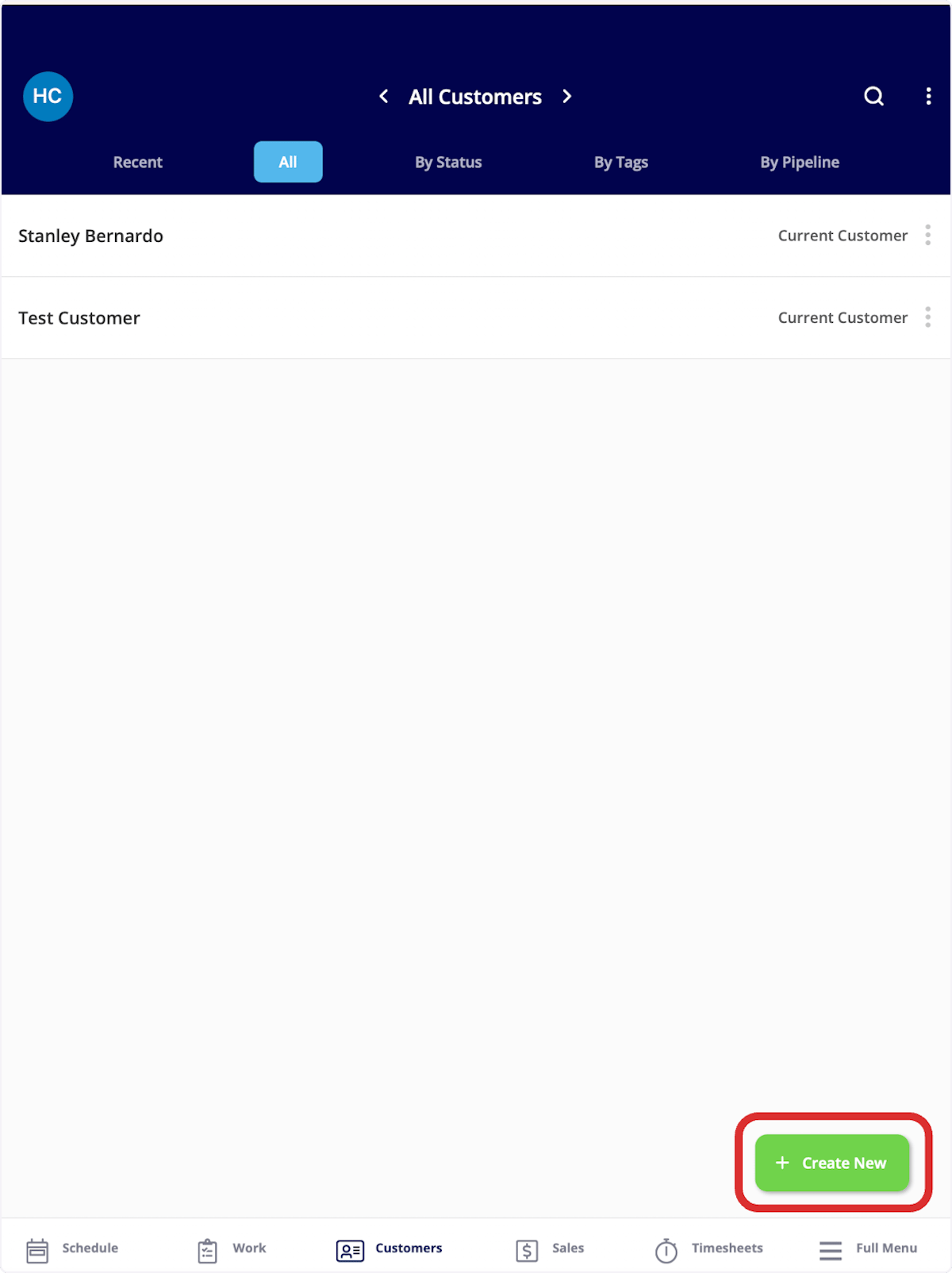
Creating a Customer
From here, you can begin to fill out the Account Status, Pipeline Status, Account Type, if you’d like to assign this customer to a specific team member, Lead Source and Primary contact information. Once you are finished entering the information, click Save in the top right corner.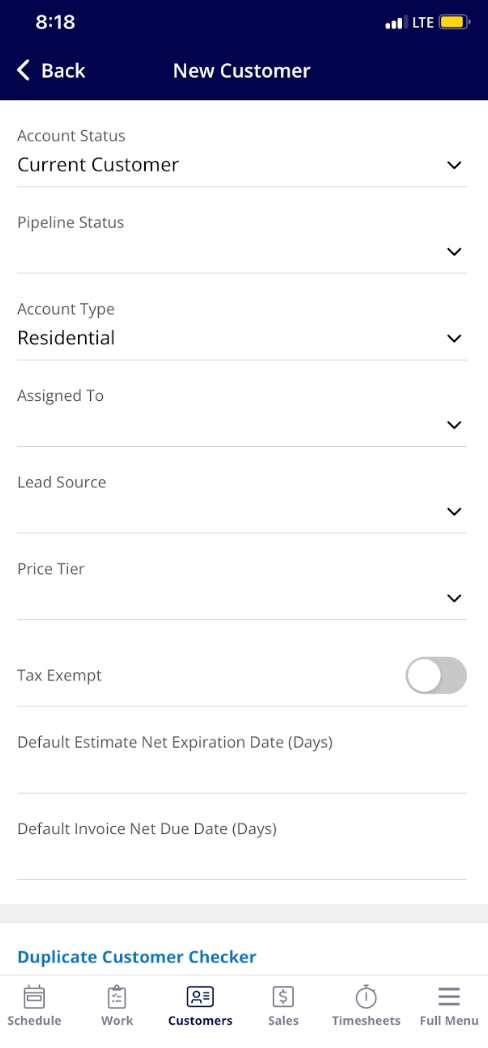
Have additional questions? Contact us at support@fieldpulse.com or use the chat feature in the bottom right corner of your screen.