Who uses this: Anyone who labels items, inventory, or assets and scans them in the field. The barcodes themselves are created in a free third-party web tool, outside FieldPulse. Availability: All regions · scanning happens in the FieldPulse mobile app.FieldPulse does not generate barcodes, but the FieldPulse mobile app scanner reads the Code-128 format — so you can create your own labels with a free online tool and scan them straight into FieldPulse. Encode a SKU, an asset ID, or another item number as a Code-128 barcode, print it, apply it to the item, and scan it to track your items, inventory, or assets in FieldPulse.
Overview
Custom barcodes are created outside FieldPulse in a free web tool and then scanned in the FieldPulse mobile app. This page uses the TEC-IT online barcode generator, which turns each line of data you enter into its own Code-128 barcode image and packages the whole set as a ZIP download. Creating a set of barcodes takes three stages, in order:- Enter your barcode data in the generator — one value per line, or a numbered sequence the tool builds for you.
- Download the barcode images as a ZIP file.
- Print the labels and apply them to your items, inventory, or assets.
Before you begin
FieldPulse is compatible with the Code-128 barcode format. Generate your barcodes in Code-128 so the FieldPulse mobile app can read them.
- Decide what each barcode should encode — a SKU, an asset ID, or another item number — before you start, so you can enter them all at once.
- You download image files from the third-party tool and print them, so have a printer and label stock ready.
Create the barcodes
- Open the TEC-IT online barcode generator.
-
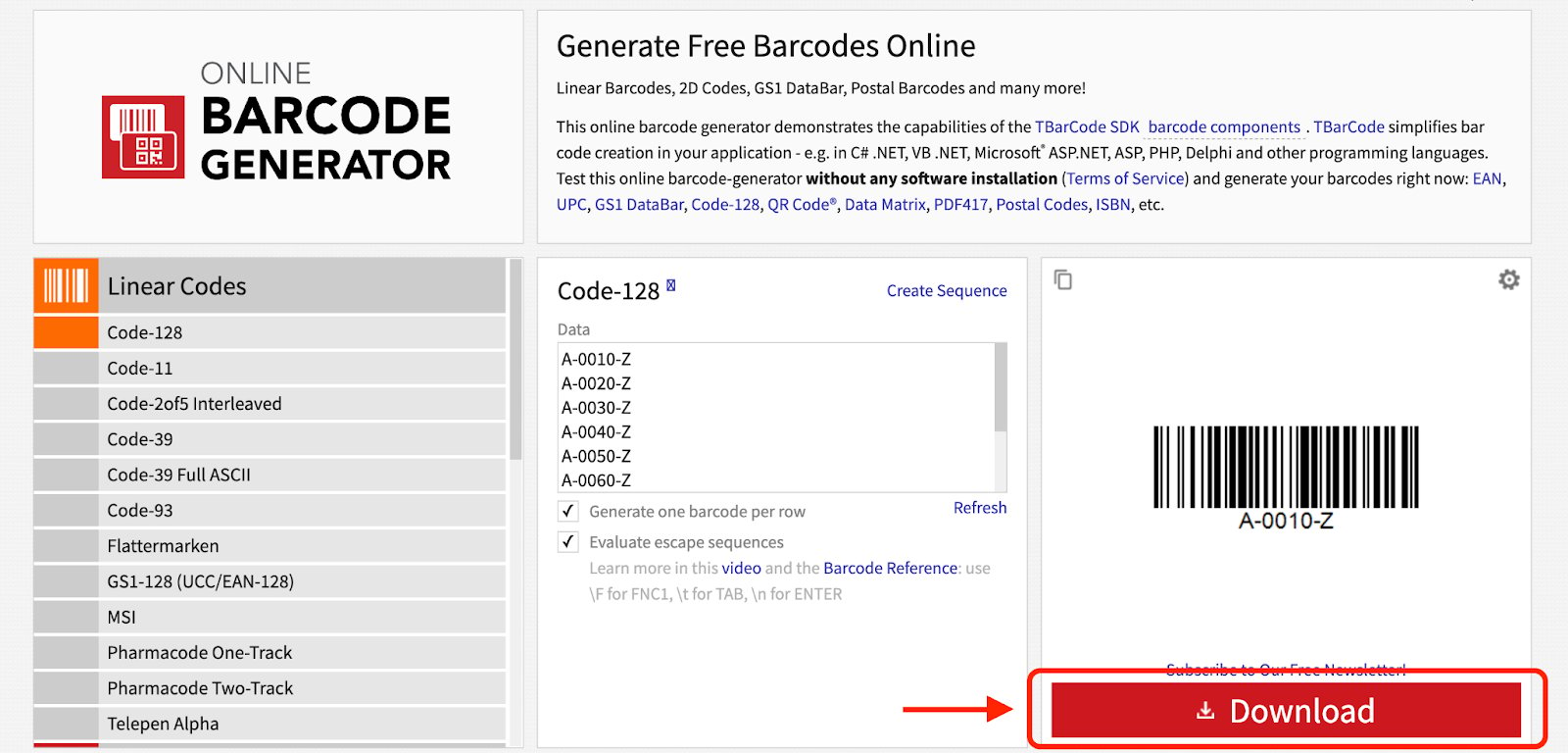
In the Linear Codes list on the left, select Code-128.
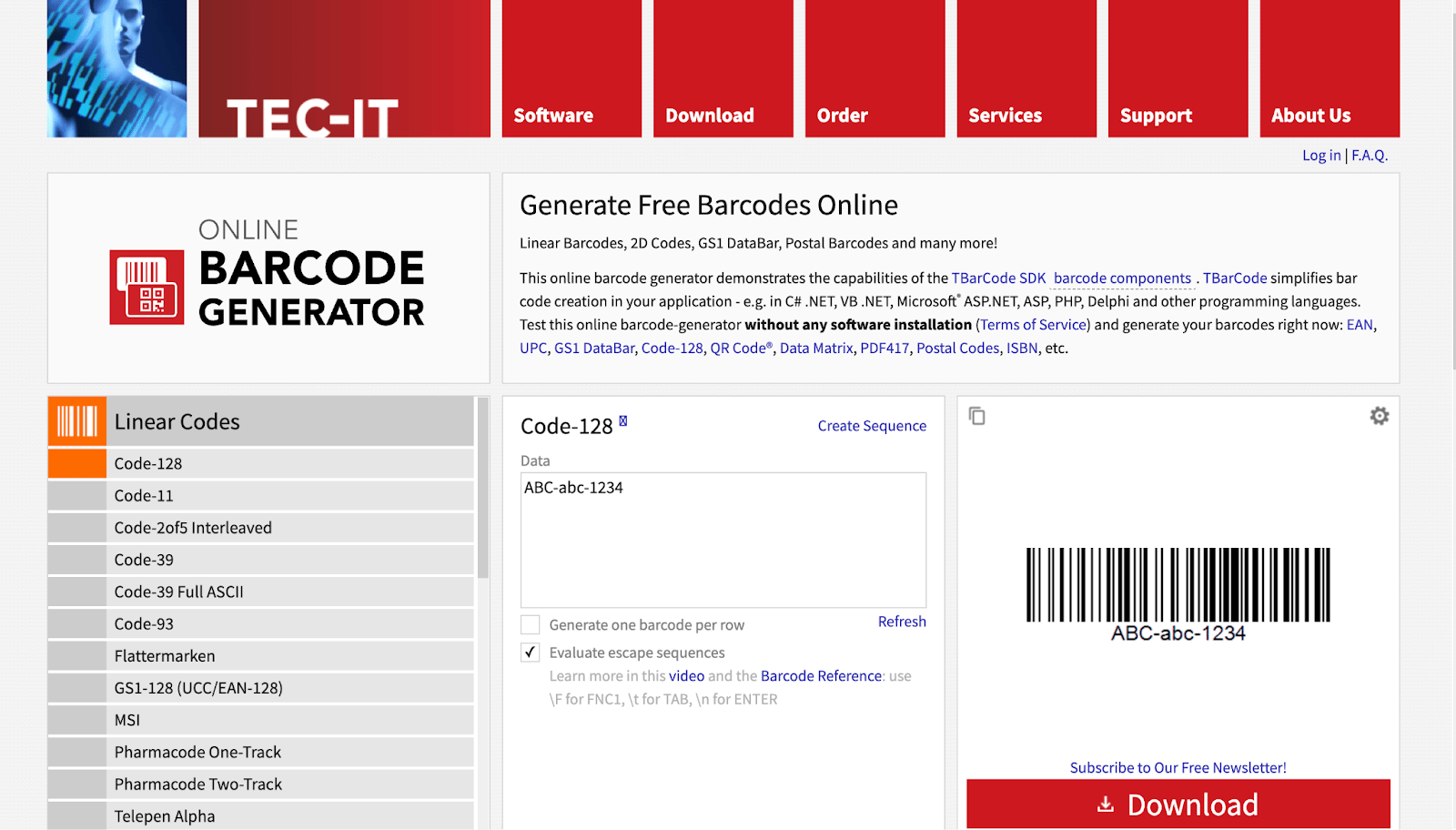
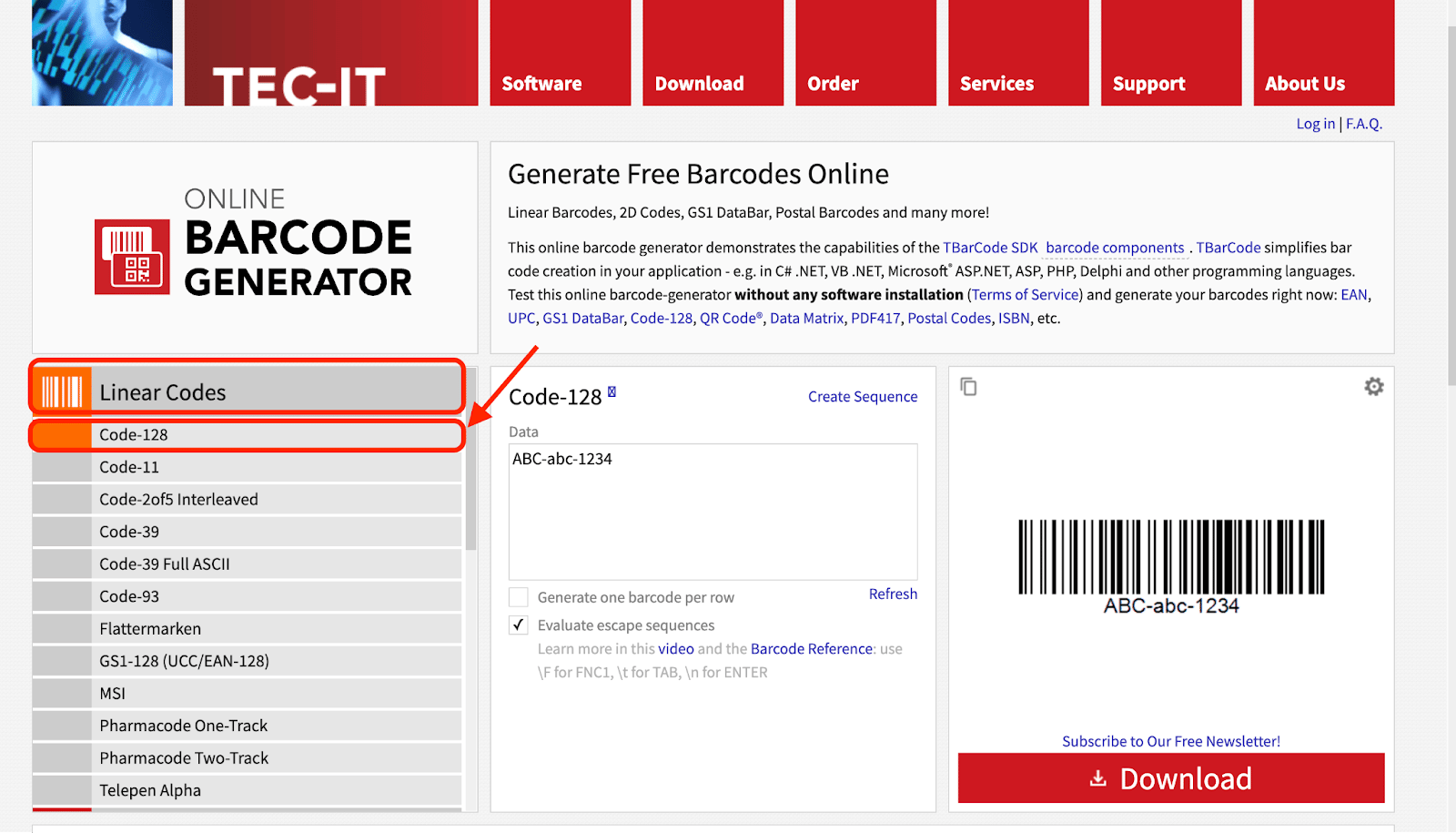
- In the Data field in the middle of the page, enter the information you want encoded in the barcode.
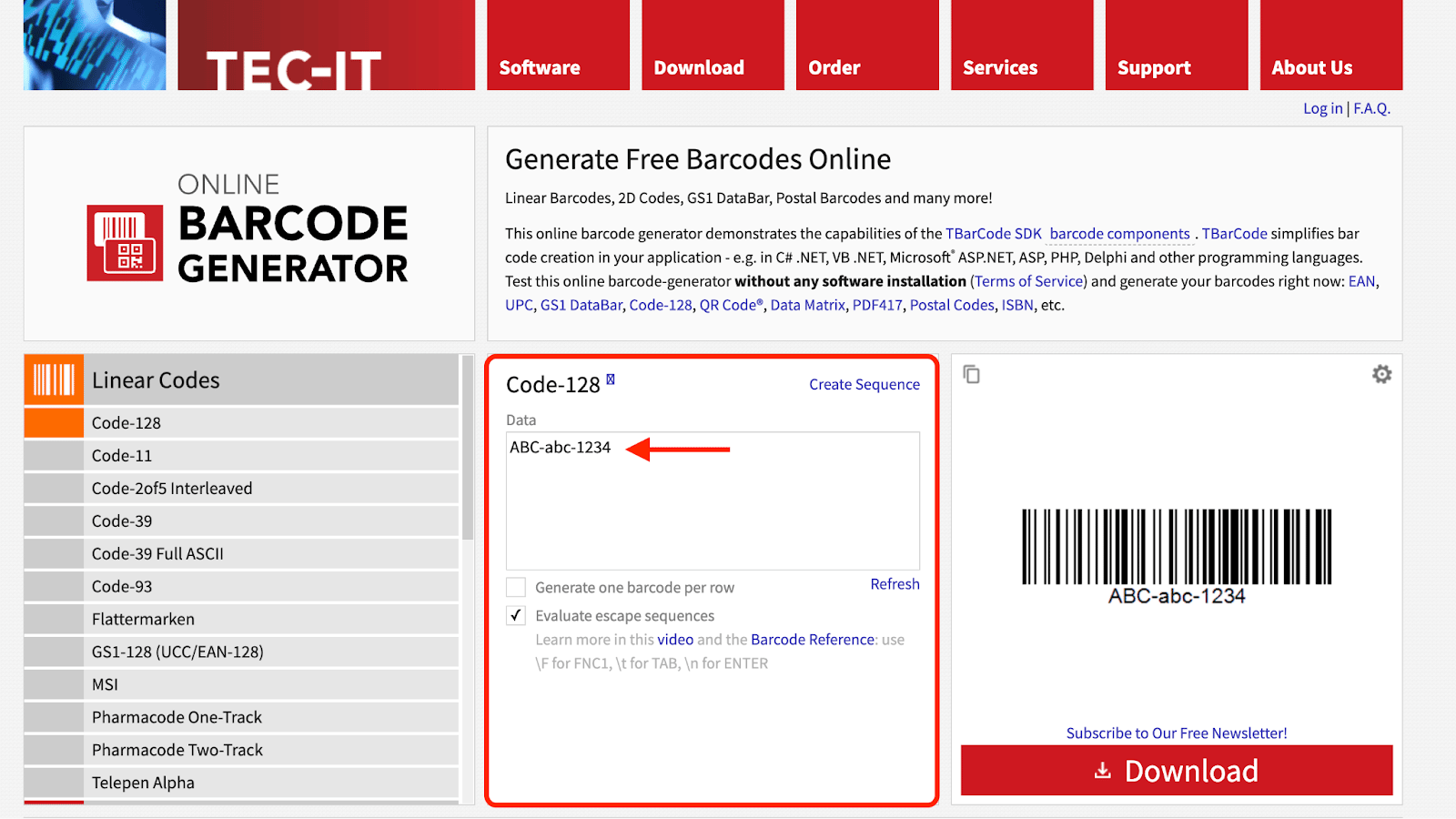
Enter one barcode per row
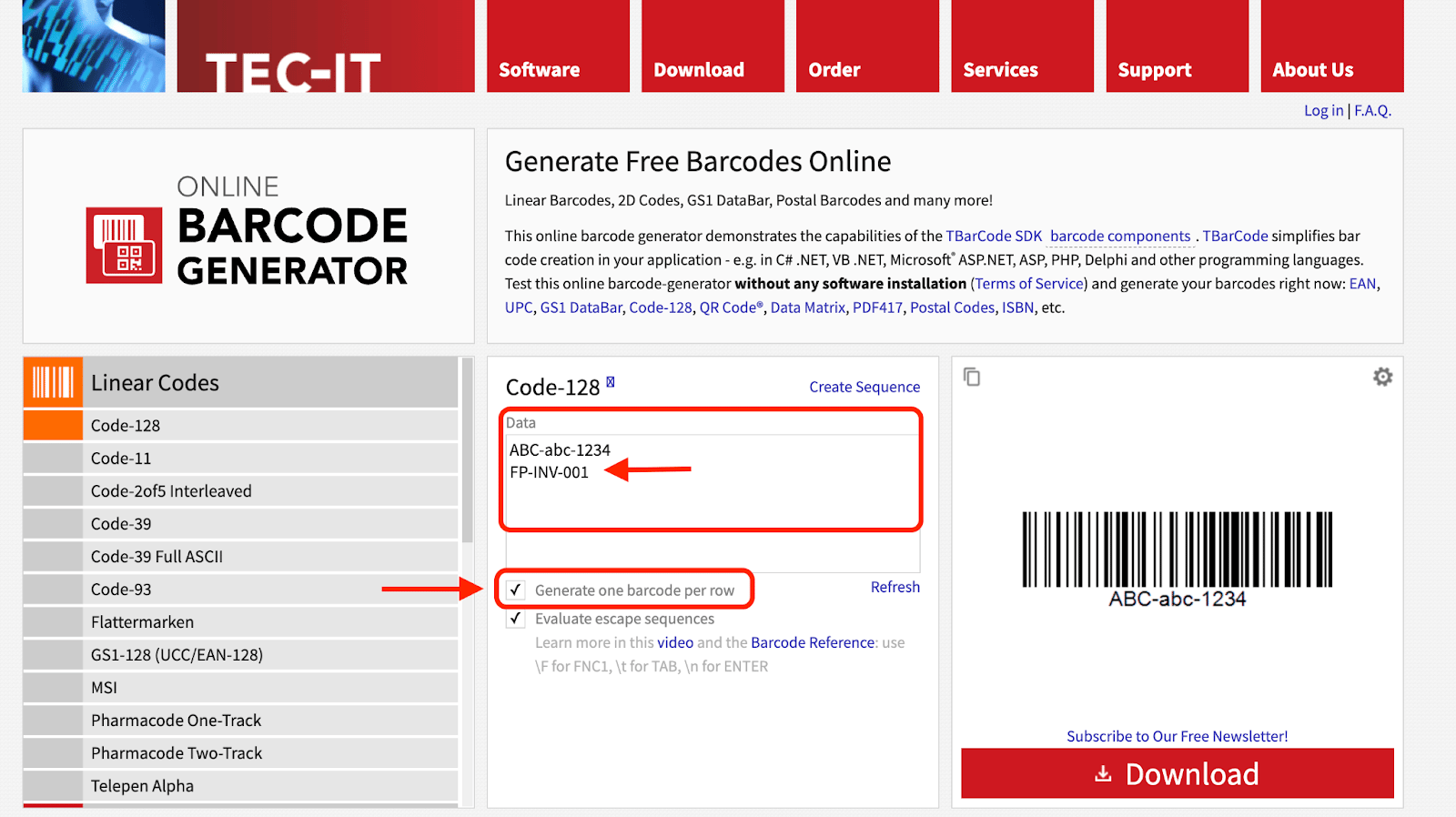
- Select the Generate one barcode per row checkbox.
- Enter each barcode value — such as a SKU number or an asset ID — on its own line in the Data field.
Create a numbered sequence
-
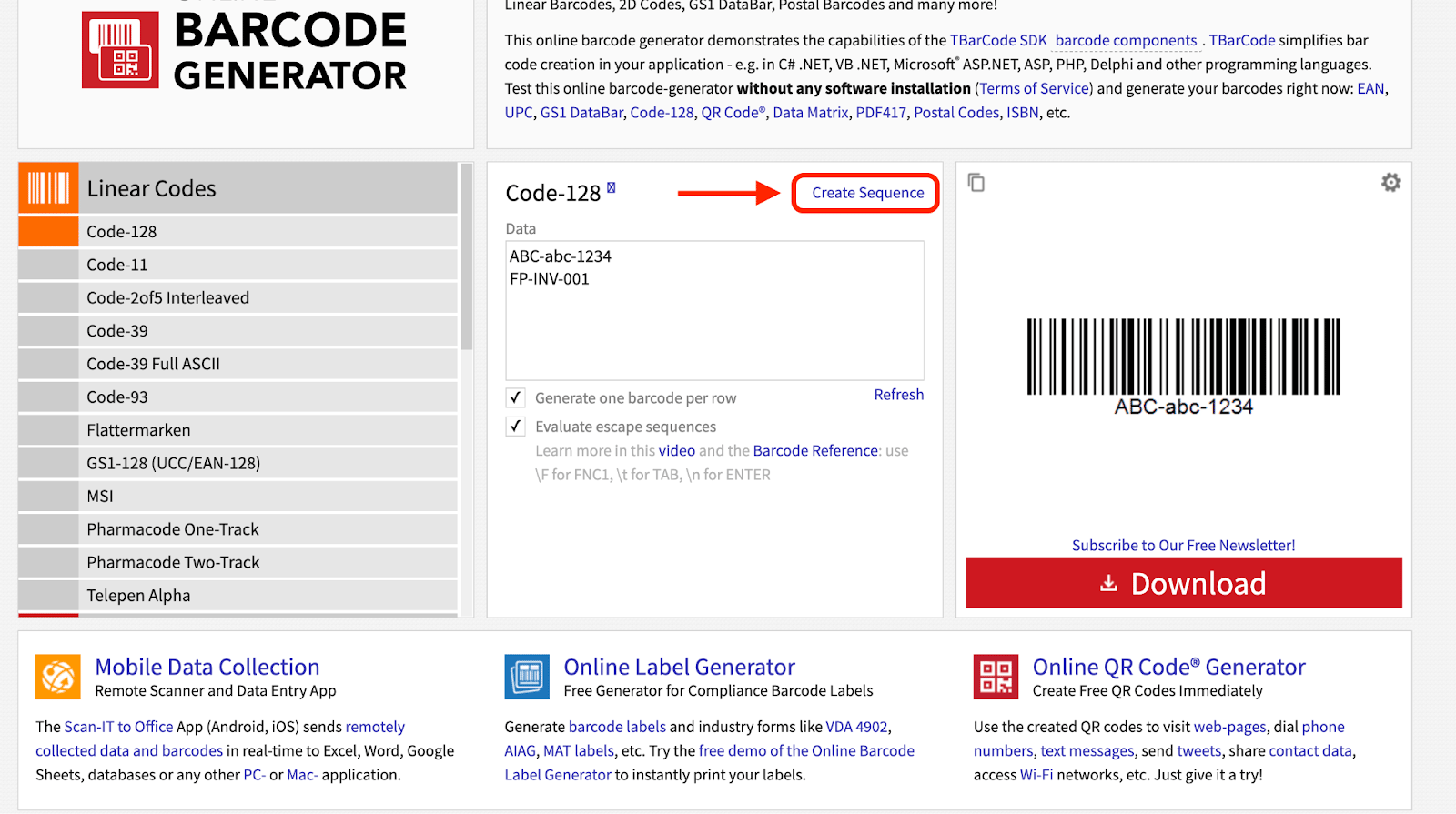
Select Create Sequence at the top of the Code-128 panel.
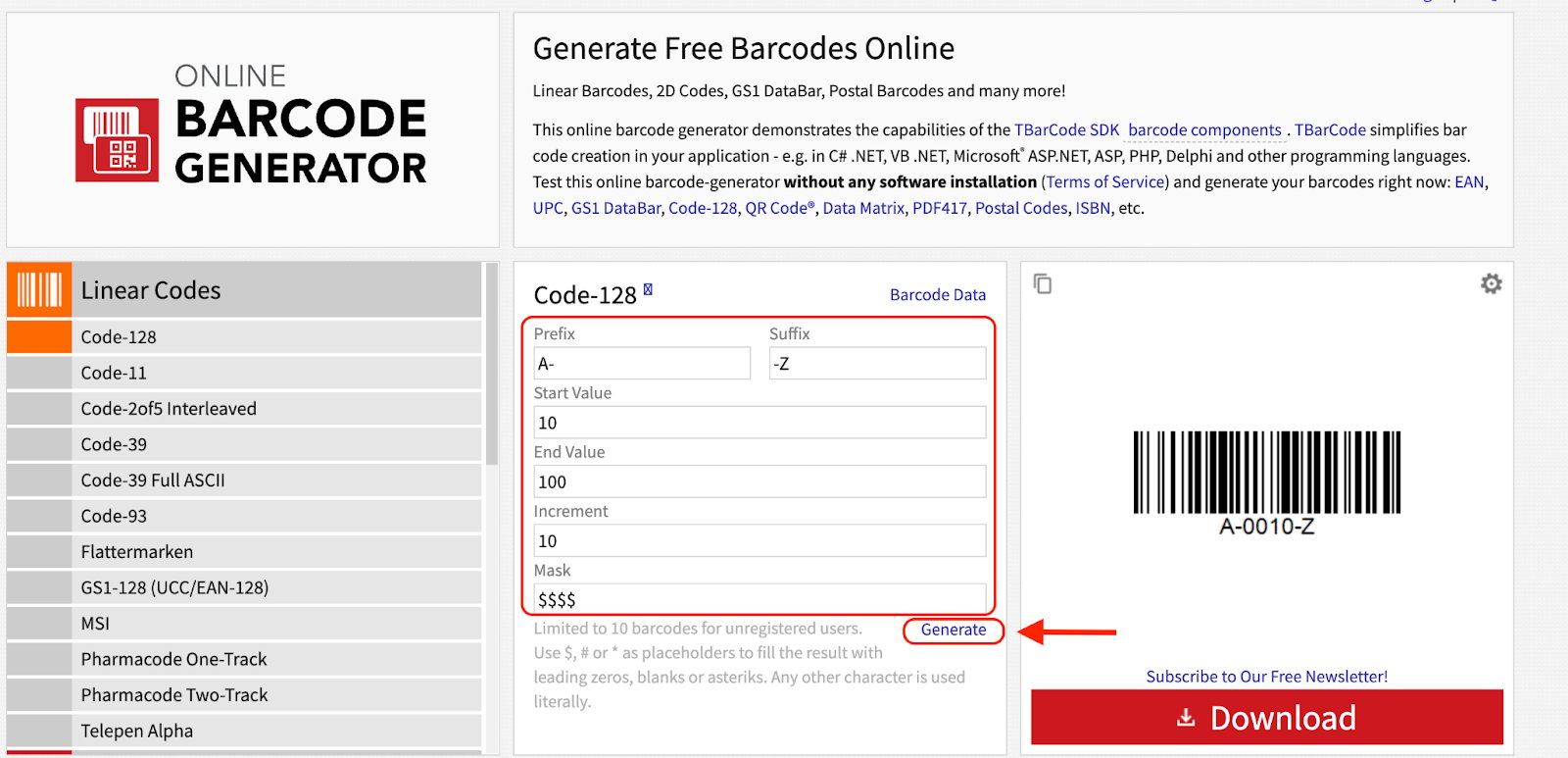
- Fill in the Prefix, Suffix, Start Value, End Value, Increment, and Mask fields to describe the numbering pattern you want.
- Select Generate. The tool creates a run of 10 barcodes from that pattern — sequence generation is limited to 10 barcodes for unregistered users.
Download, print, and apply the labels
-
Select Download. The generator processes each line of data and creates a separate barcode image for each entry.
-
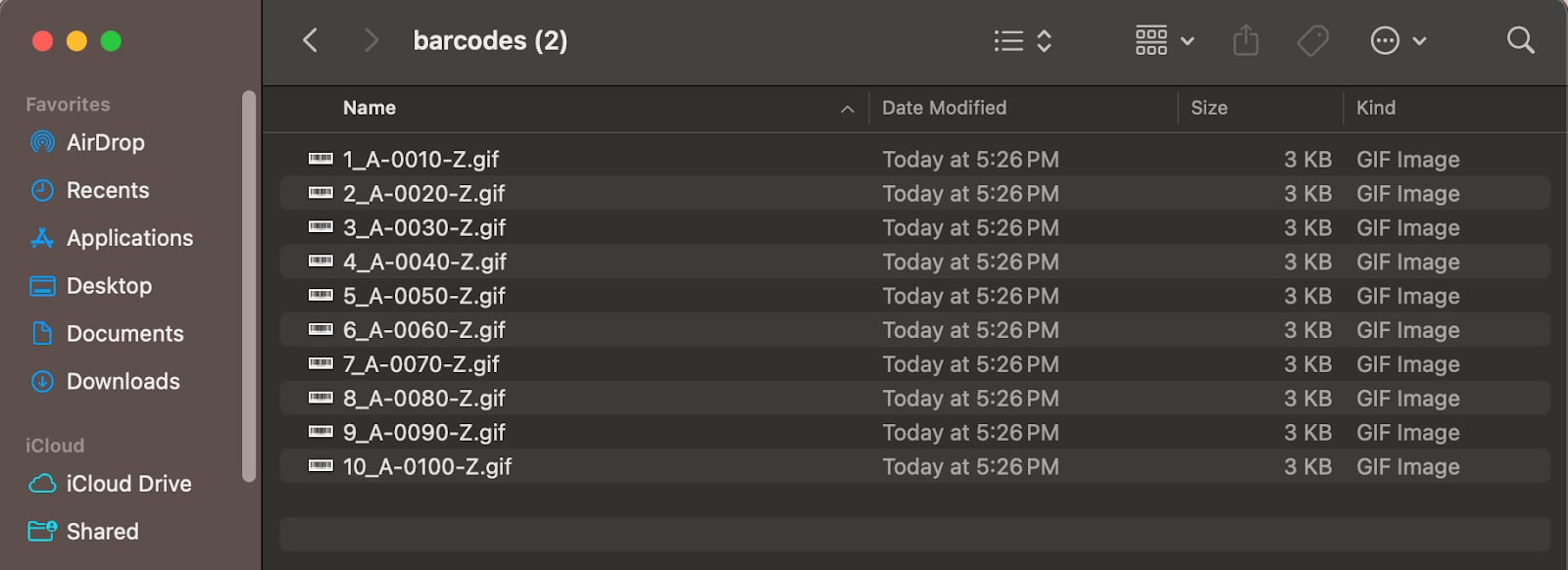
A ZIP file downloads, holding each of your barcode numbers as its own image file.
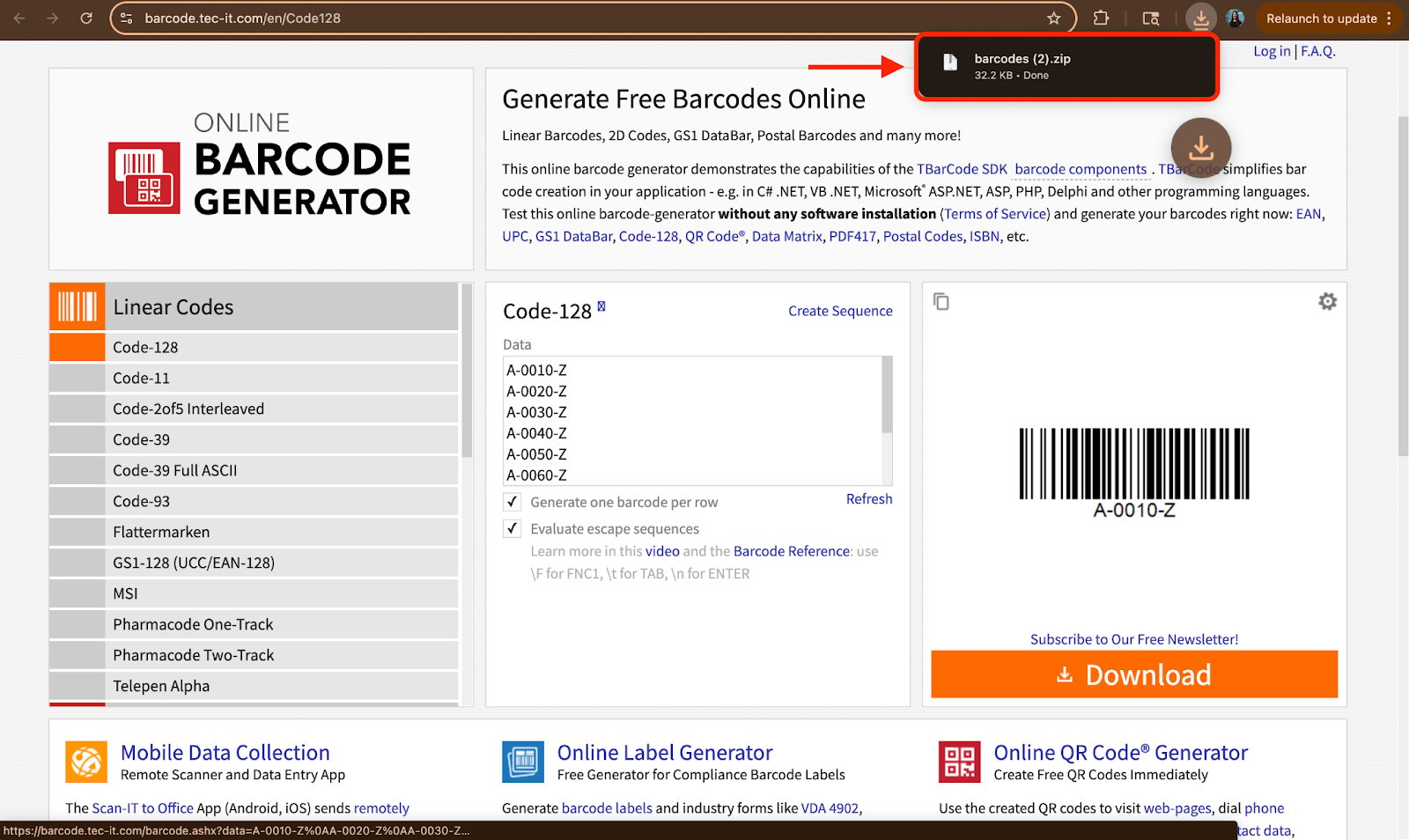
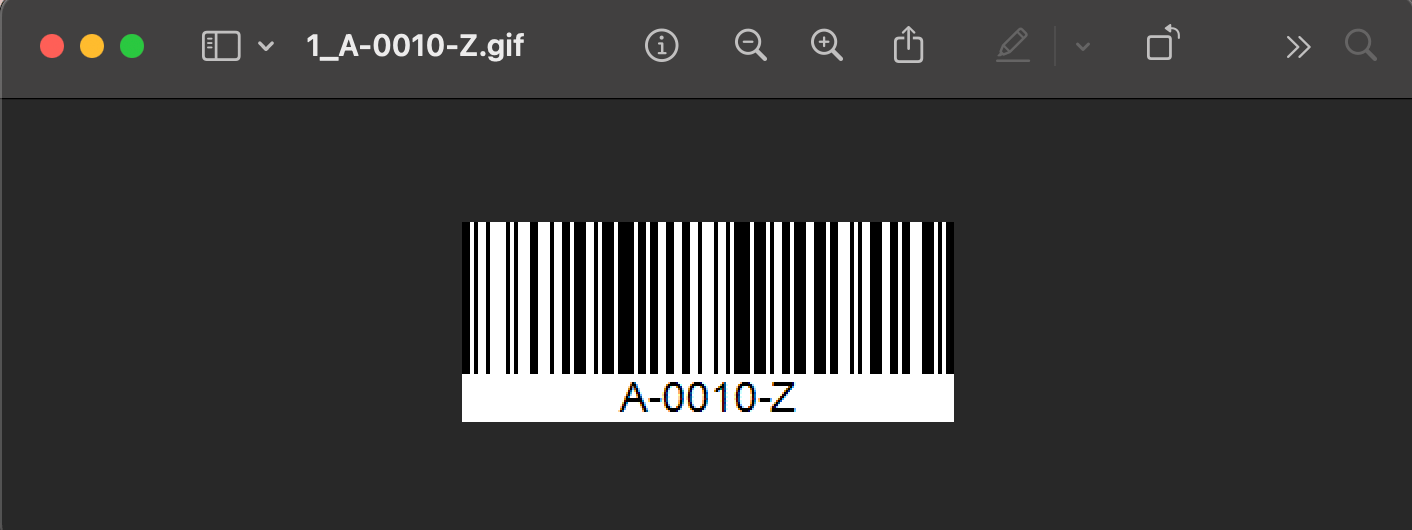
- Locate the downloaded file on your device and open it. Each barcode is a separate image named after the value it encodes.
- Print the barcode images and apply the labels to your inventory or assets. The labels are then ready to be scanned in the FieldPulse mobile app.