
Who uses this: All users with estimate permissions · Availability: All regions and all plans. Payment requests require FieldPulse Payments or a supported payment provider.
Overview
A variant proposal presents Good, Better, and Best options from one estimate, and the customer picks one, signs, and can pay in the same visit. Every variant proposal includes a signature request. You can also attach a payment request and an Acorn financing offer when you send it. Selecting an option does not accept the estimate. The estimate moves to Accepted when the customer submits their signature.Before you begin
- Create an estimate with the options you want to offer. See How to Use Estimate Options & Add-Ons.
- Attach a contract to the estimate if you want the customer to review terms before signing. See Setting Up Contracts.
- To include a payment request, set up FieldPulse Payments or a supported payment provider.
On web
Send the proposal
- Open the estimate and select View Estimate.
- Select Variant Proposal, then select Email To Customer.
- In the Email Estimate panel, scroll to Send Options. The signature request is always included. Choose whether to add a payment request.
- Select Send.
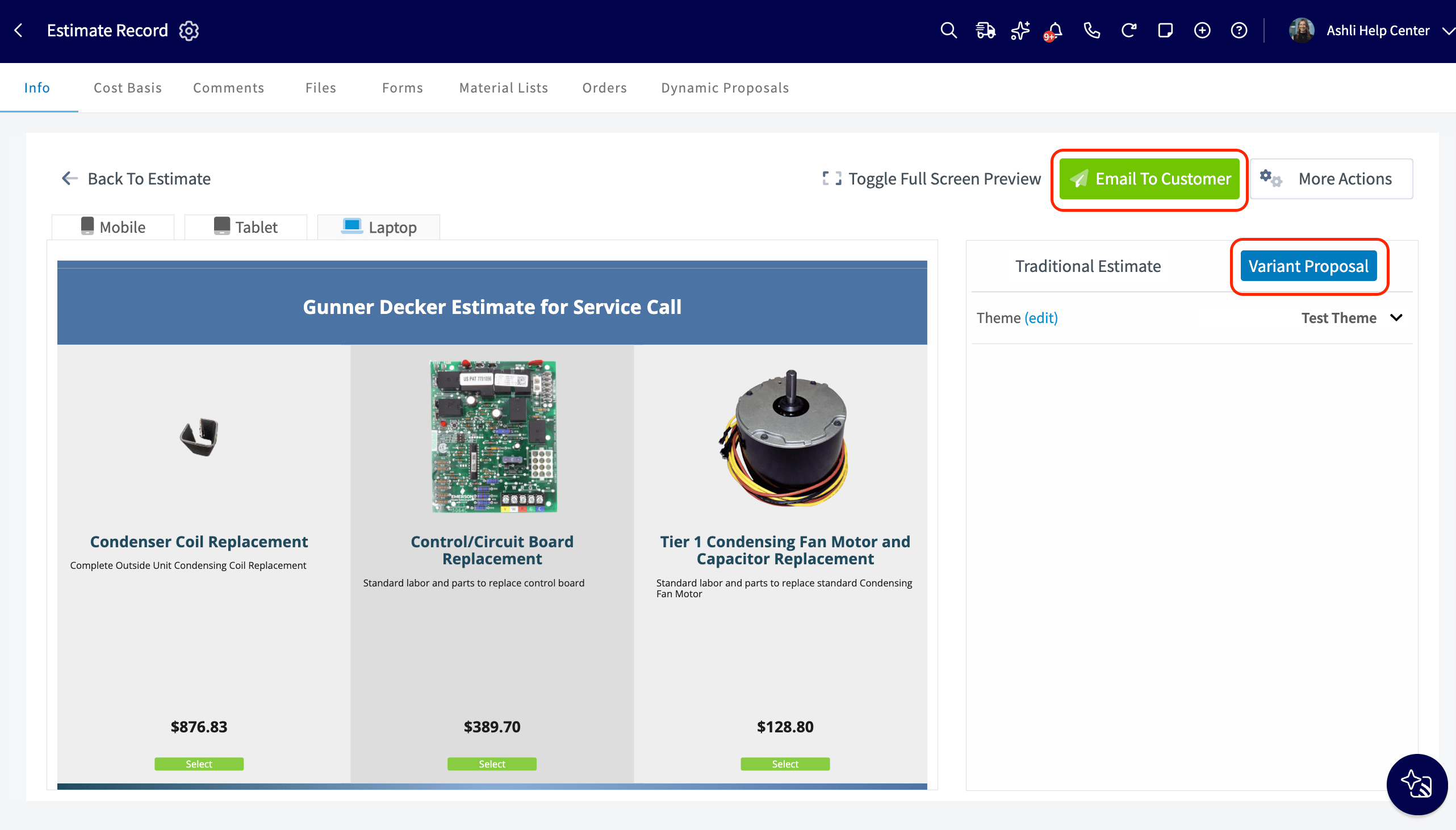
What the customer sees and does
The customer sees every option side by side. When the estimate has a discount, each option shows the amount the customer would pay after the discount.- The customer selects an option. A window opens over the proposal, showing the option name above a Summary tab and a Contract tab.
- The customer reviews the Summary tab, which shows the estimate summary for that option.
- The customer optionally opens the Contract tab to read the attached contract. Opening the contract is not required before signing or paying.
- The customer selects Sign and Accept, or Pay Now when a payment request is included.
- The customer draws their signature in Sign Now, then enters their full name.
- The customer sees the accepted confirmation. When a balance remains, the confirmation includes Pay Now.
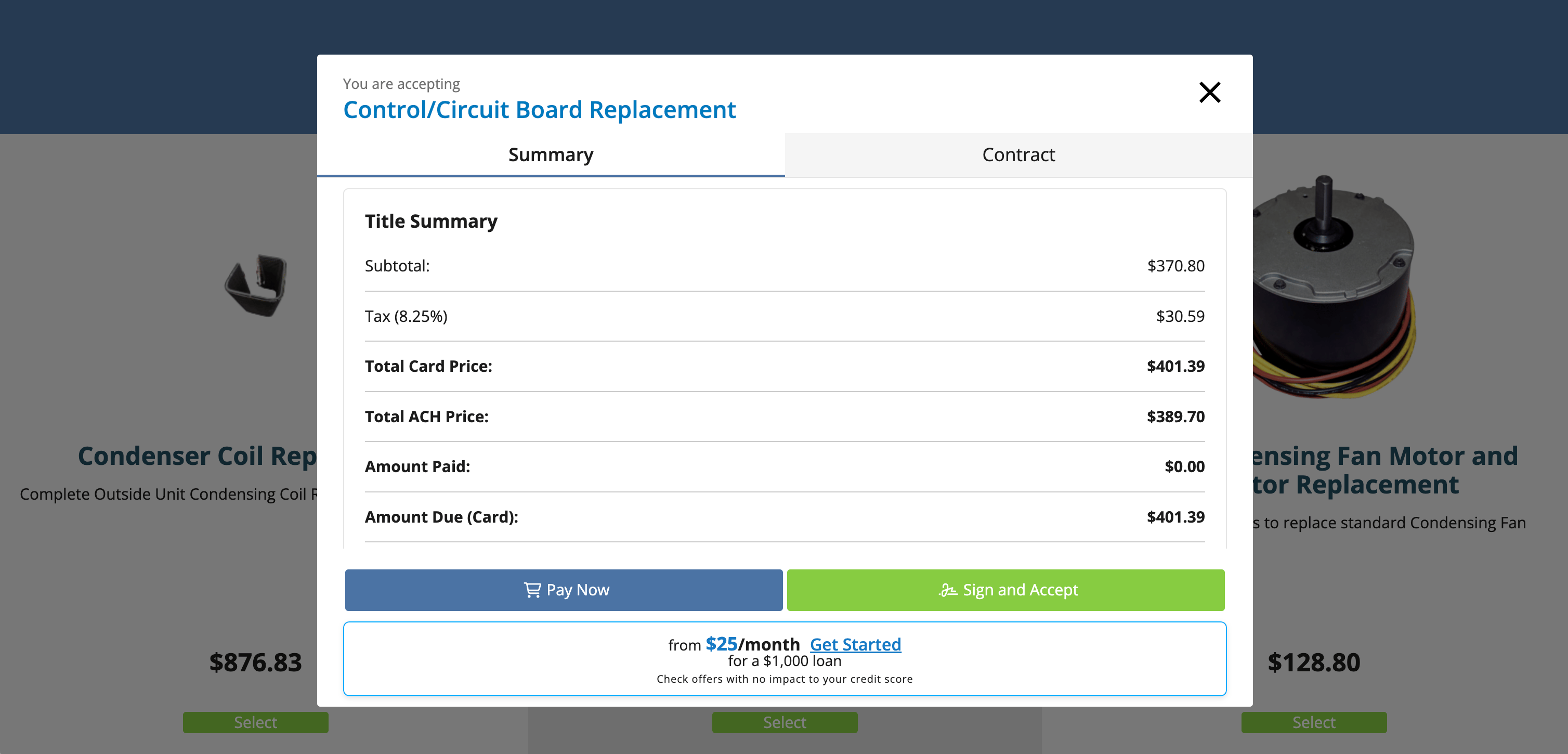
What happens after the customer signs
When the customer submits a signature, FieldPulse updates the estimate record:- The estimate status changes to Accepted.
- A signed PDF for the selected option is saved to Files on the estimate.
- The selected option is checked off, and the estimate total reflects it. Converting to an invoice carries over that option’s line items and totals.
On mobile
- Open the estimate and select View Estimate, then choose Variant Proposal and select Send.
- On the Send Estimate Email screen, turn on Include Payment Request, which appears directly below Attach Estimate PDF if you have FieldPulse Payments.
- Send the proposal.