
Who uses this: Your customer receives the estimate or invoice email, PDF, and approval page; an Admin sets the account-wide email defaults in Company Settings. Availability: All regions.When you send an estimate or invoice from FieldPulse, your customer receives more than a number — they get a branded experience that carries your business. This page walks through the three things your customer sees, in the order they see them, and names what you can configure on each.
Overview
Sending an estimate or invoice from FieldPulse produces three customer-facing pieces: the email that lands in the customer’s inbox, the PDF version of the record, and the approval and signature page the customer opens from the link. Each piece is configurable. The email carries your logo and your wording, the PDF carries your theme and company information, and the approval page gives the customer a way to accept the record without creating an account.How it works
The email
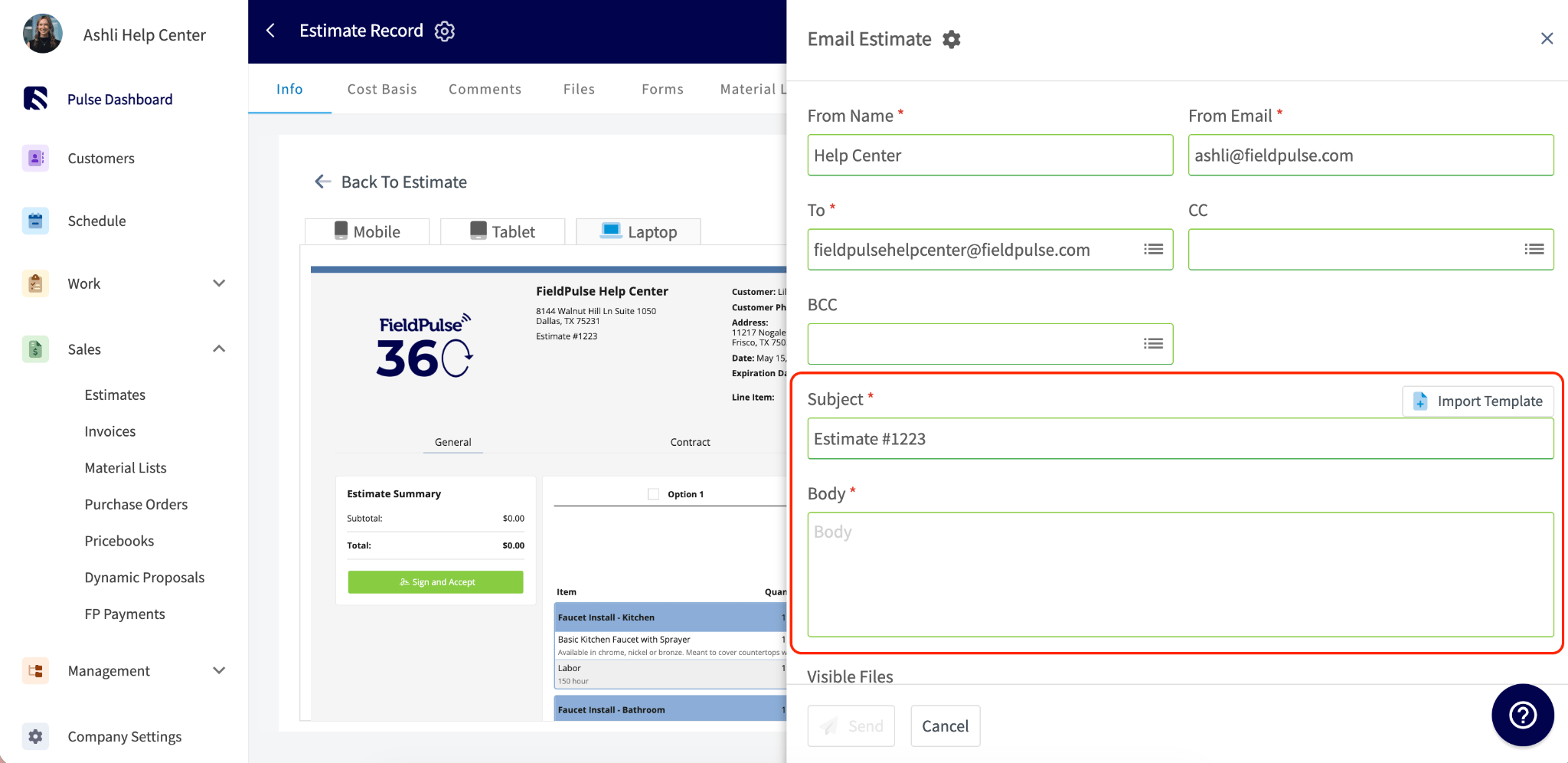
When you send an estimate or invoice from FieldPulse, your customer receives an email with a link to view the record. If you have added your logo in Company Settings, the logo displays in the email header.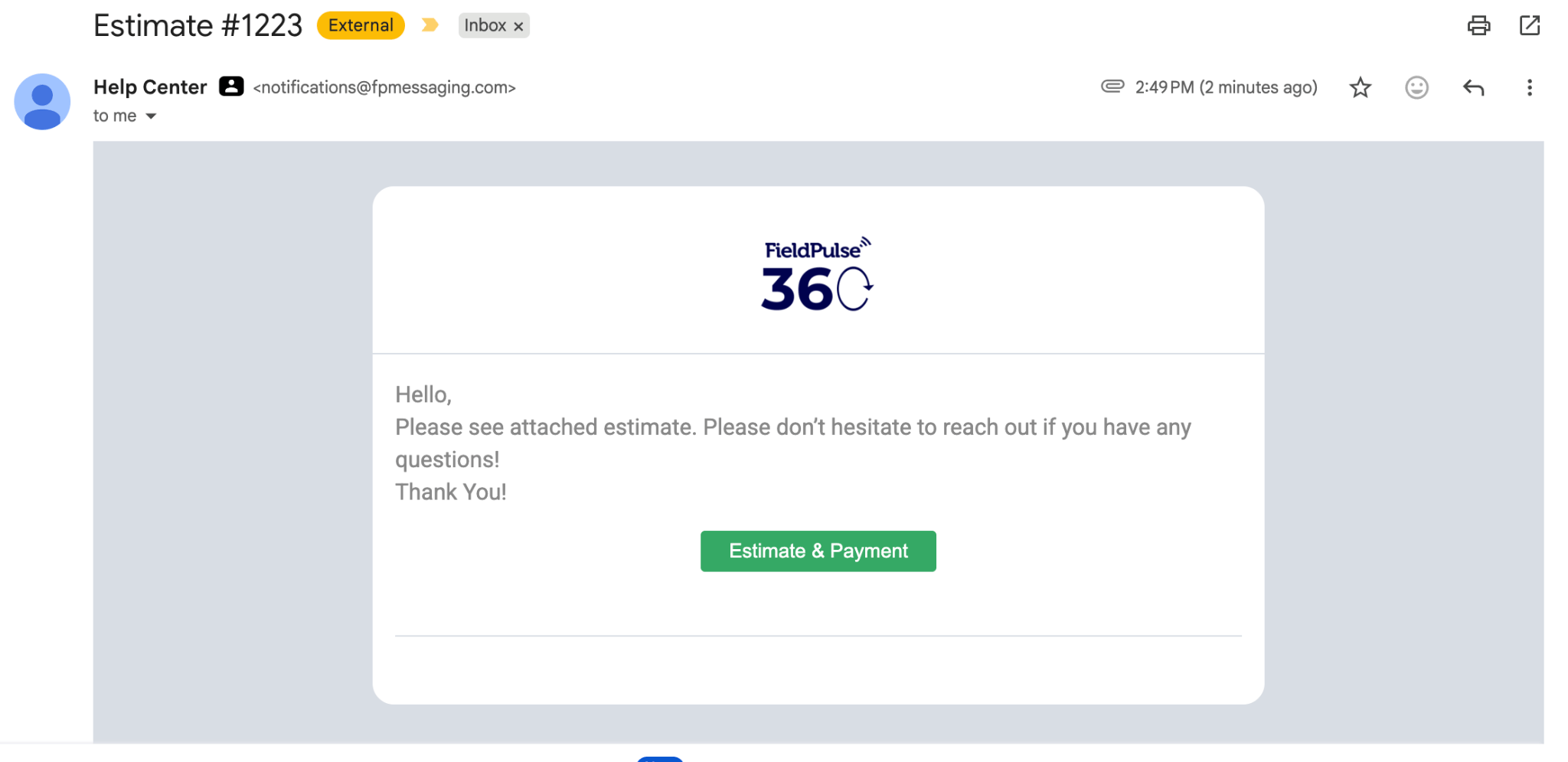
For the full walkthrough of sending a record to a customer, see How to Send Estimates & Invoices to Customers.
The PDF
When you send an estimate or invoice from FieldPulse, you can choose to send your customer a PDF version of the record.- To view the PDF, open the estimate or invoice record, select View Estimate/Invoice, then select PDF.
- To send the PDF, select Email to Customer and toggle on Attach Estimate/Invoice PDF.
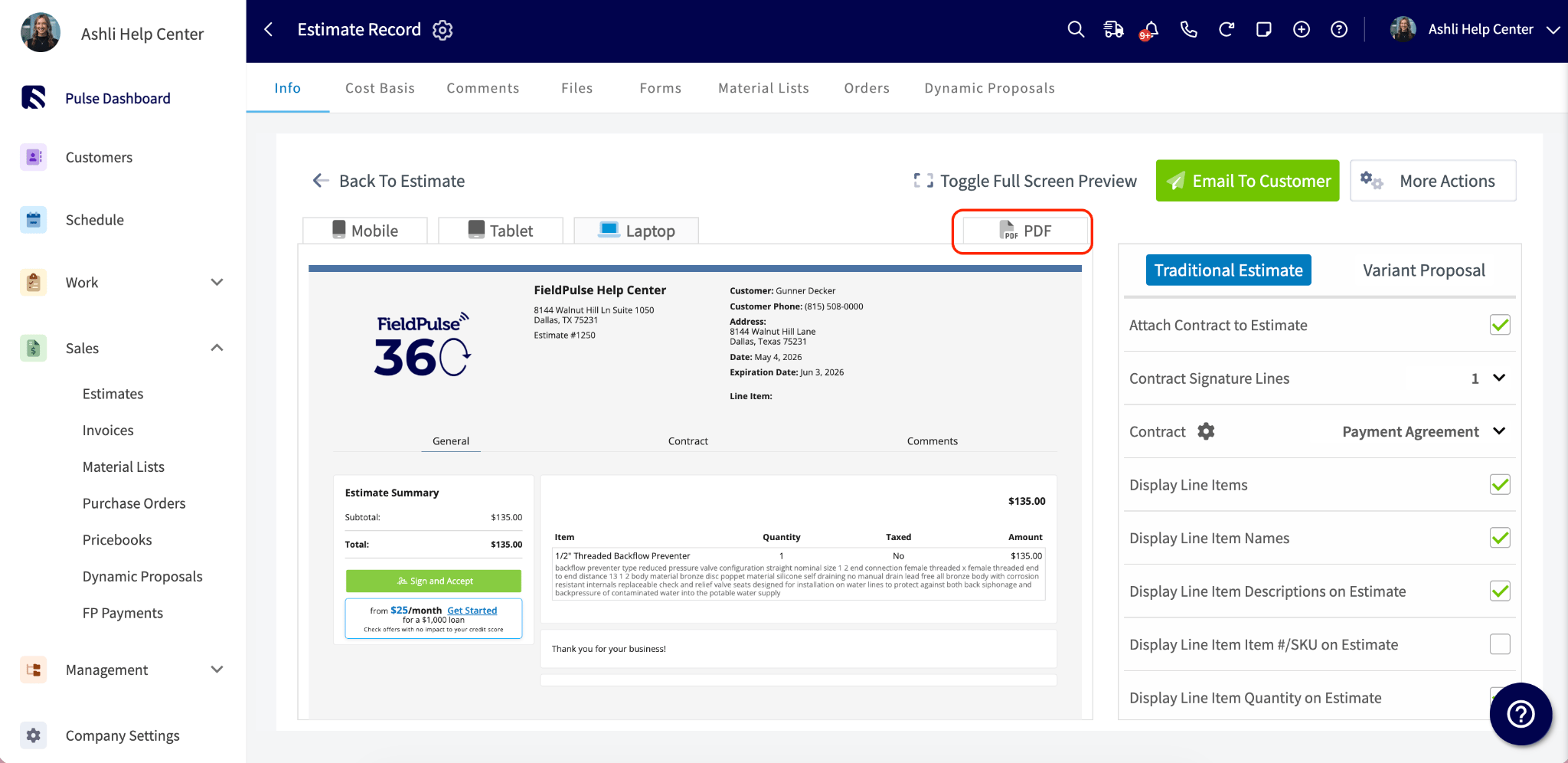
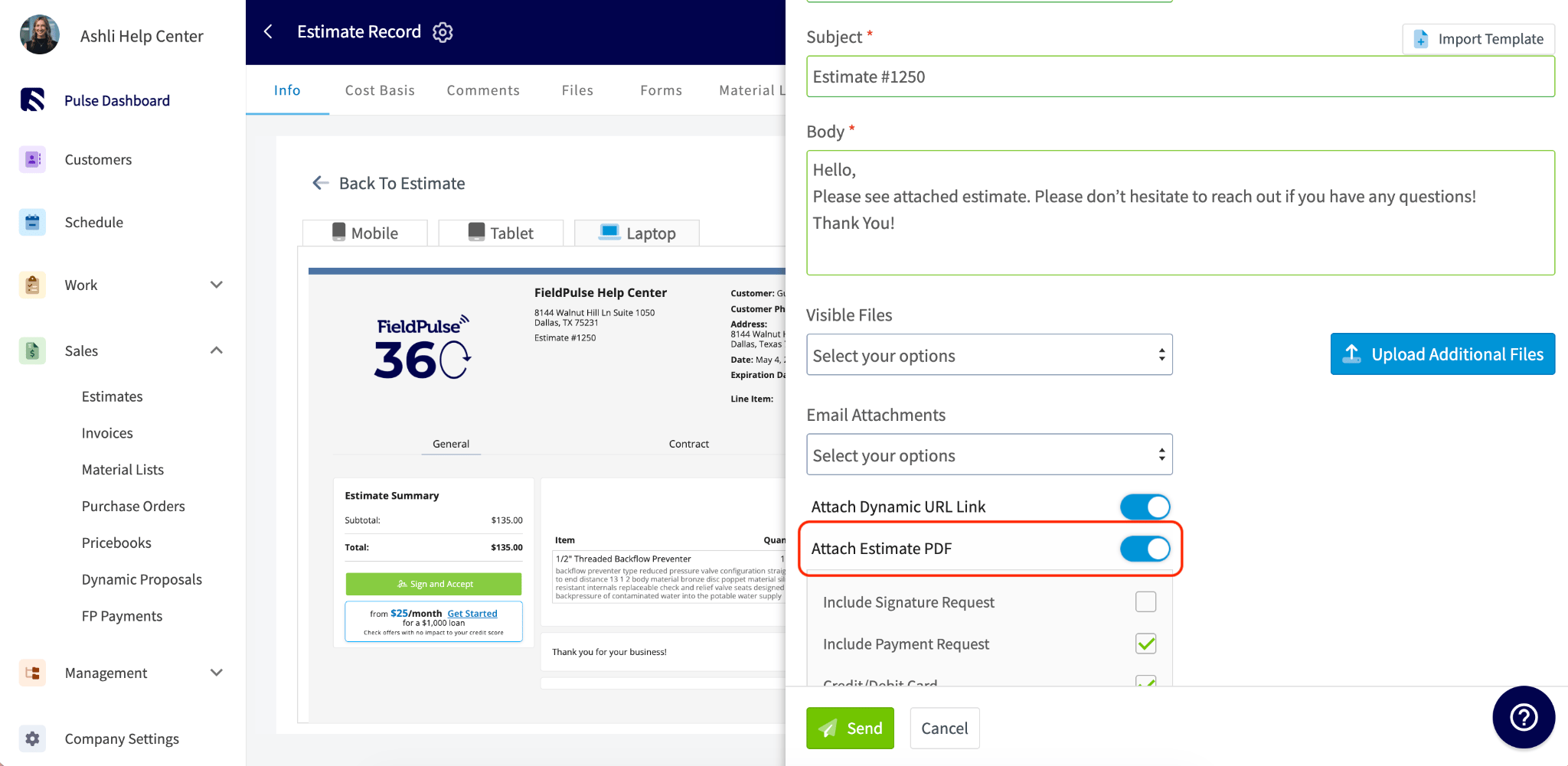
For the colors, fonts, and layout applied to the PDF, see Setting Up Custom Estimate & Invoice Themes. For the preview settings that control what appears on the record, see Setting Up Default Estimate & Invoice Settings.
The approval and signature page
If you have requested a customer signature, the customer can approve the estimate or invoice directly from the dynamic link. The customer sees the record details and a green Sign and Accept button, and no account or login is required.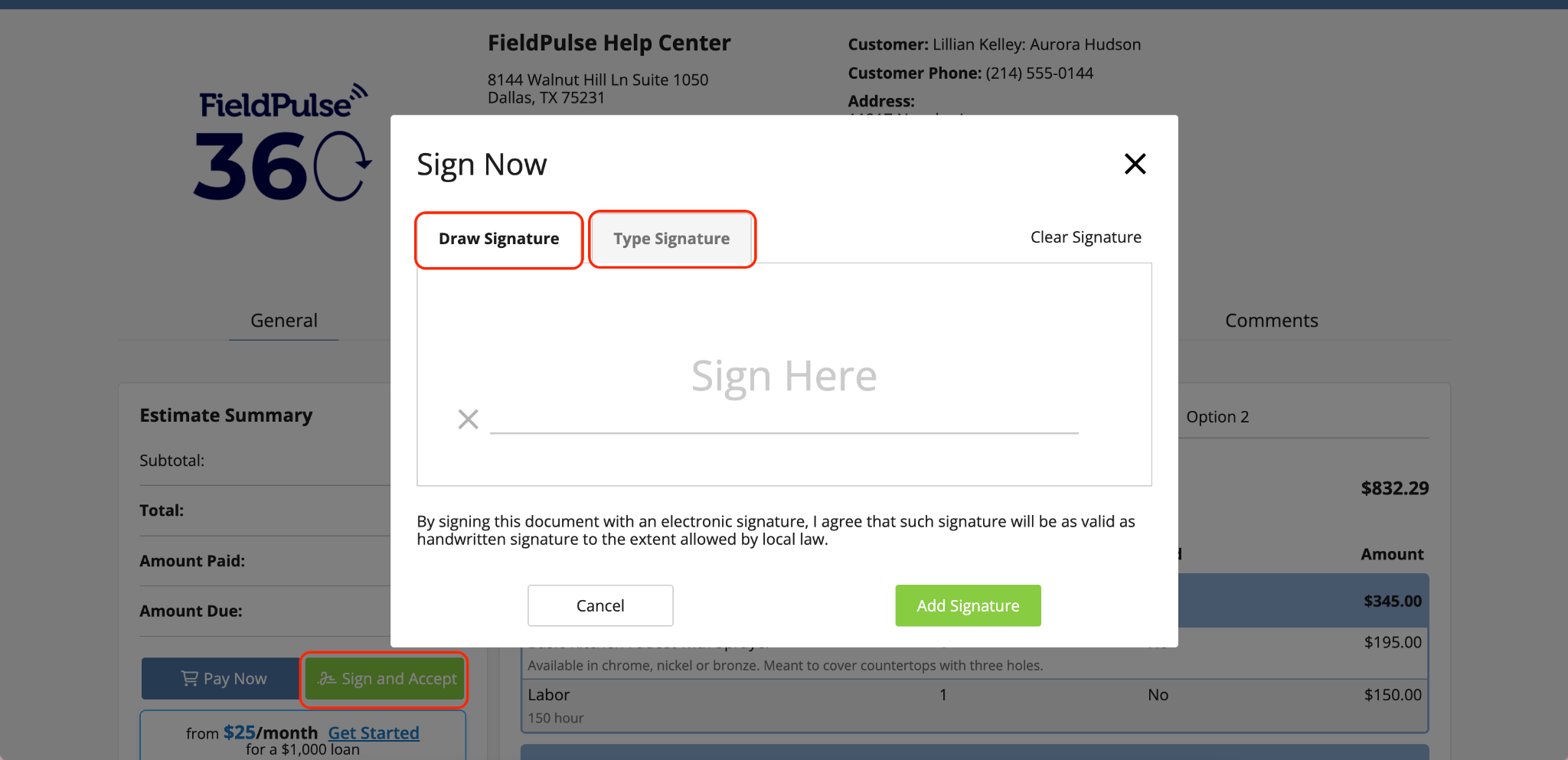
To request a signature on an estimate or invoice, see How to Request a Customer Signature.
Settings reference
Each of the three customer-facing pieces has its own set of configurable elements.
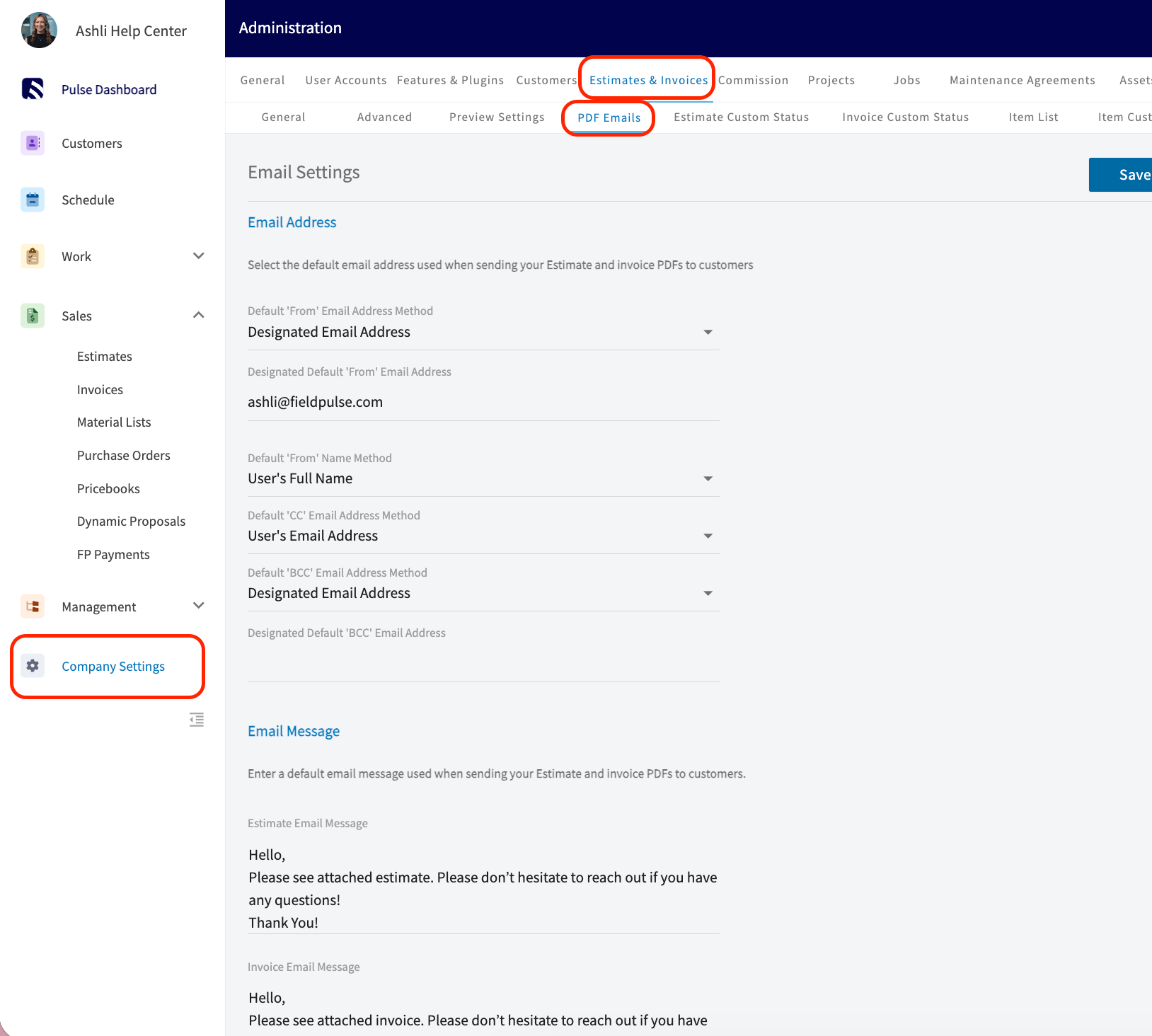
Set defaults for the email body text, from name, from email address, and CC address under Company Settings > Estimates & Invoices > PDF Emails.
Notes & limitations
- Your logo displays in the email header only when a logo is set in Company Settings.
- The PDF is optional. Toggle on Attach Estimate/Invoice PDF while sending to include it.
- The approval and signature page appears only when you have requested a customer signature. The customer needs no account and no login to approve the record.