Who uses this: Administrators and Team Managers can create and send estimates and invoices; for Service Agents it is a permission an Administrator turns on per user, and Limited Agents cannot. Availability: All regions.Once your customers are added and your first jobs are scheduled, you are ready to create an estimate or an invoice. Estimates and invoices follow the same process in FieldPulse and share the same record layout, so learning one teaches you both. This quick start covers the three places you can start from, and each one links to the full feature page when you want the complete detail.
Overview
An estimate is the price you send for approval, and an invoice is the bill you collect on. Both use one shared record layout in FieldPulse, so you build them the same way. You can start an estimate or an invoice from three places, and where you start decides how much of the record fills in for you:- A customer record — links the customer for you.
- The Estimates or Invoices tab — starts the record from scratch, and you link the customer yourself.
- A job record — links both the customer and the job for you.
Video walkthrough
Watch a short walkthrough of creating your first estimate or invoice in FieldPulse, then follow the written steps below.Estimates and invoices quick start walkthrough
Before you begin
- Add your customers first, so there is a customer record to attach the estimate or invoice to. See Customers & Scheduling Quick Start.
- Create and schedule the job if the work already exists in FieldPulse. Starting from a job record carries both the customer and the job onto the new estimate or invoice and saves you a step.
On web
From a customer record
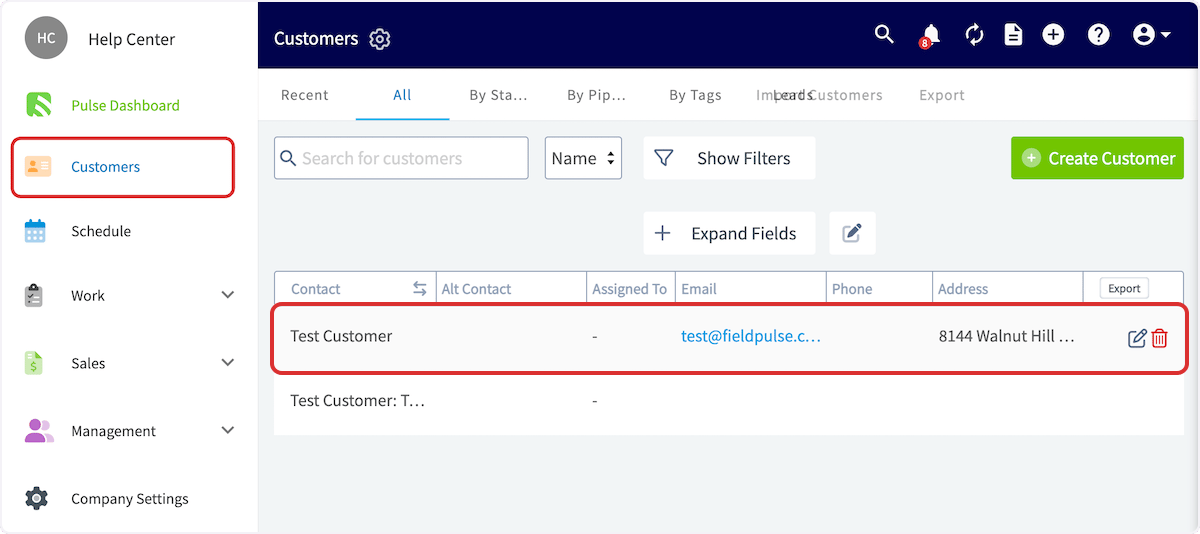
Starting from a customer record links the customer to the estimate or invoice for you.- Select Customers in the left-side menu.
- Search for and select the customer you are billing.
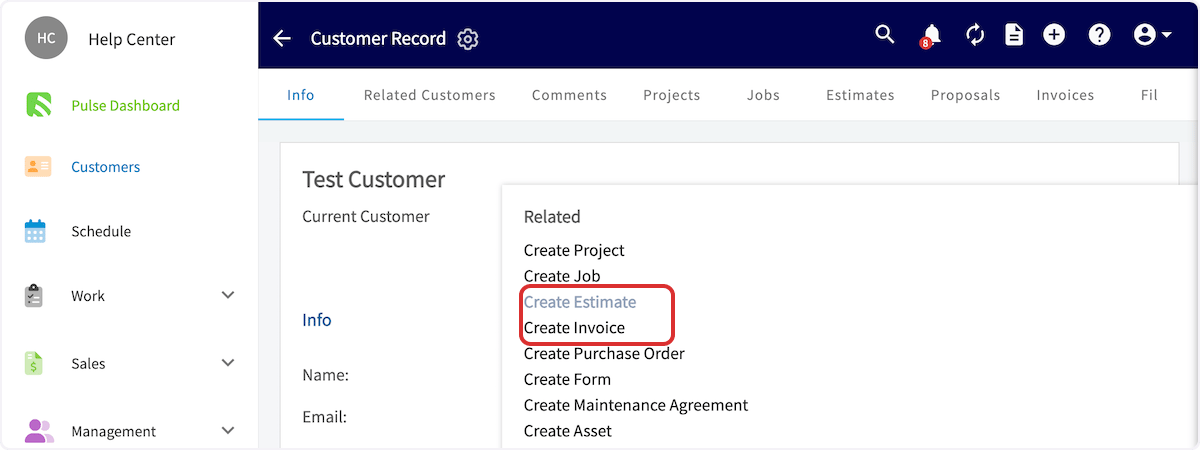
- Select the Actions drop-down, then Create Estimate or Create Invoice under Related.
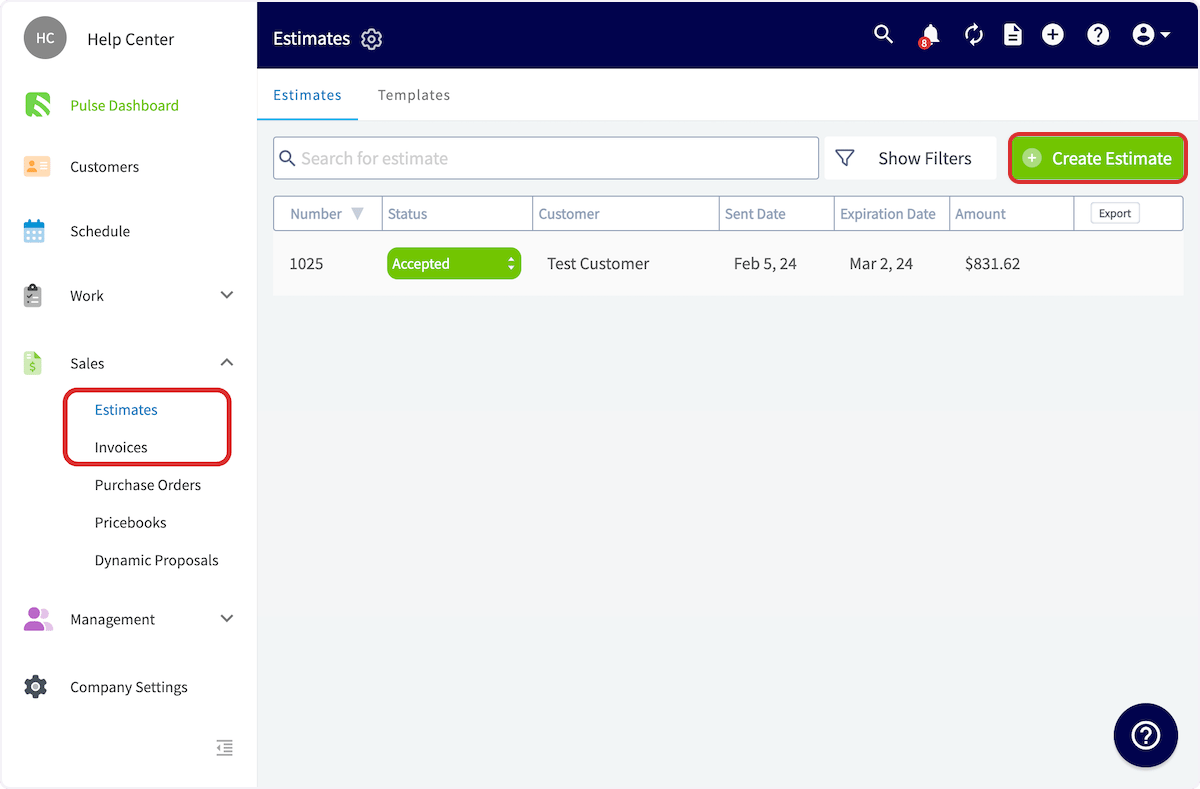
From the Estimates or Invoices tab
Starting from the tab creates the record from scratch, and you link the customer yourself.- Select Estimates or Invoices under Sales in the left-side menu.
- Select Create Estimate or Create Invoice.
- Link the customer, and any related job, on the record.
From a job record
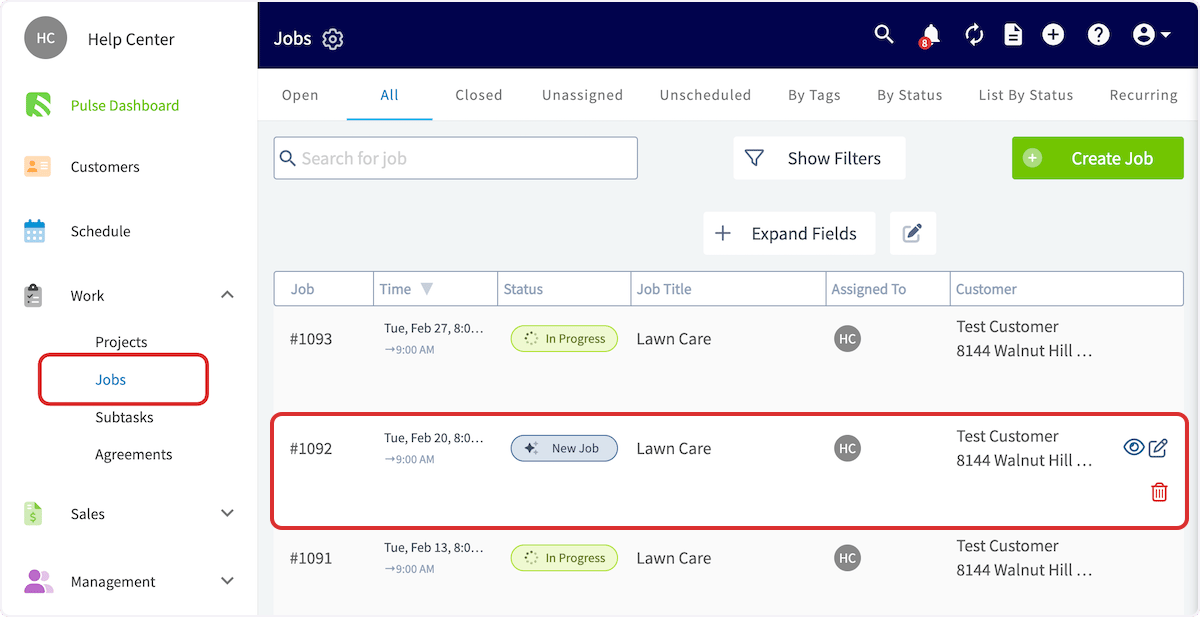
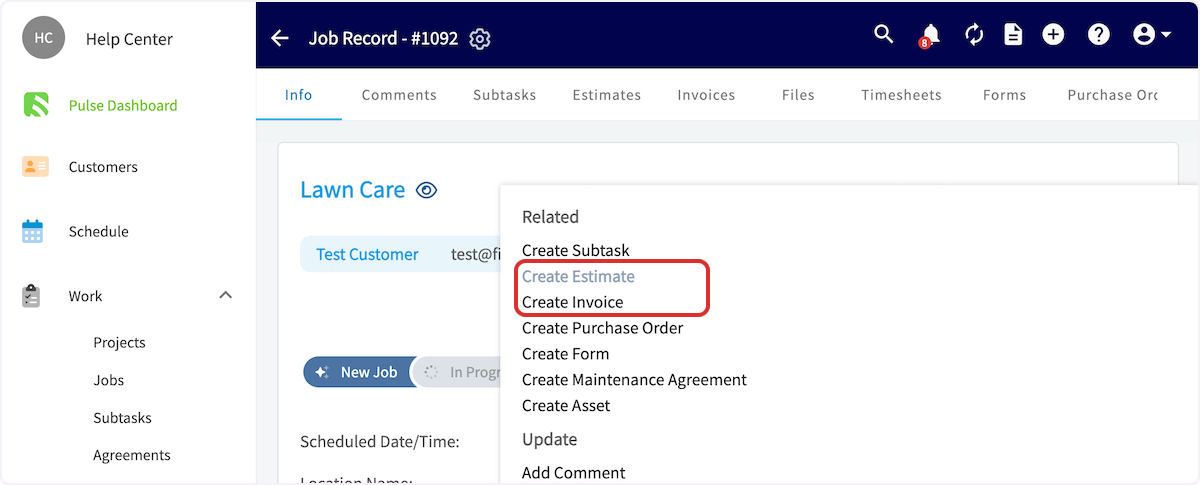
Starting from a job record links both the customer and the job for you.- Select Jobs under Work in the left-side menu.
- Search for and select the job you are billing for.
- Select the Actions drop-down, then Create Estimate or Create Invoice under Related.