
Who uses this: Admins — only Admins can see Company Settings. Availability: Enable it from Features & Plugins in Company Settings.Automatic Tax Rates fills in the tax rate on an estimate or invoice for you, so your team stops looking up the tax code for every service area by hand. An Admin turns the feature on once in Company Settings, and you can still set a different rate on a record that needs one.
Overview
Automatic Tax Rates applies the tax rate to an estimate or invoice based on the location of the job or customer. That saves time on every estimate and invoice, and it reduces the errors that come from entering tax rates by hand for areas with different tax codes. When the service address and the billing address on a record are different, FieldPulse bases the automatic tax rate on the service address zip code. The rate FieldPulse fills in is not fixed. You can change the tax rate on an individual estimate or invoice when that record needs a different rate. See How to Create an Estimate and How to Create an Invoice for where the tax rate sits on the record.Tax rates with QuickBooks Online
To set up your individualized tax rate settings for QuickBooks Online, see the default tax rate section of How to Manage QuickBooks Online After Syncing.
Before you begin
- Confirm your user role is Admin. Only Admins can see Company Settings, which holds this setting.
- Set up your custom tax rates in QuickBooks Online before you use them in FieldPulse. The rates need to exist in QuickBooks Online first.
Step-by-step setup
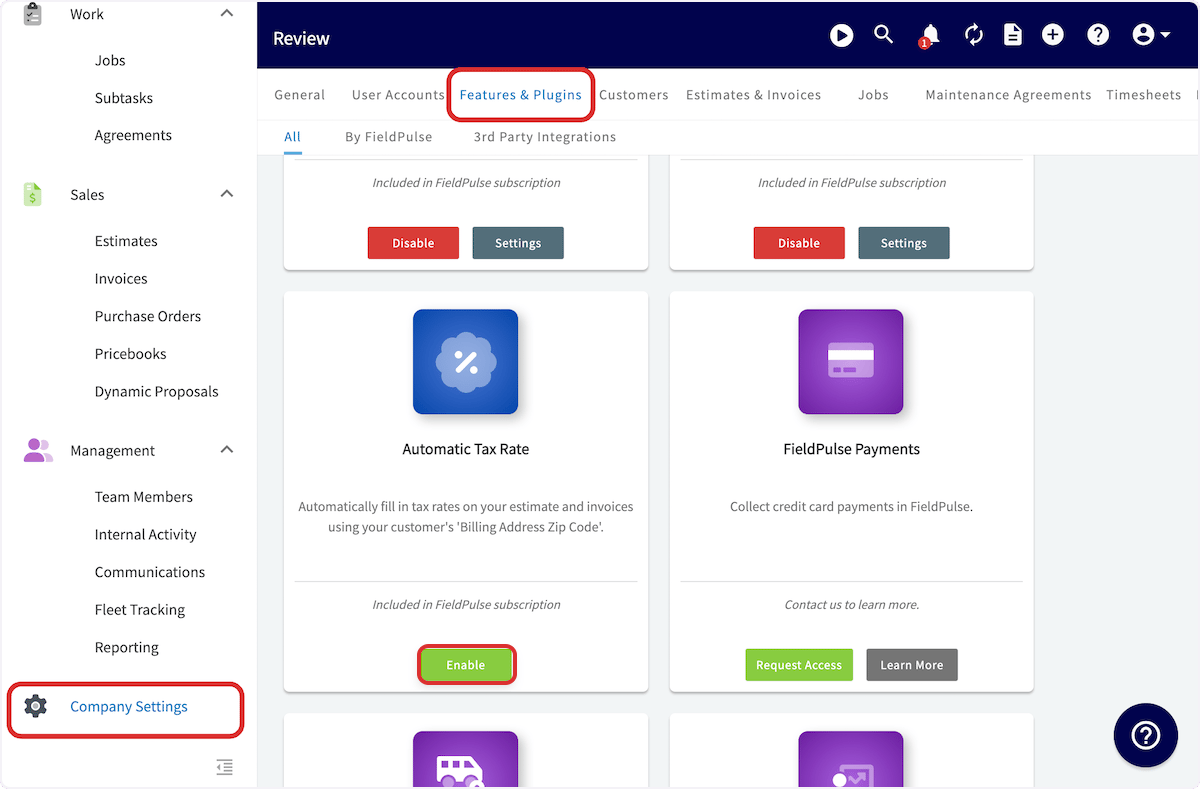
- Select Company Settings in the left-side menu.
- Select Features & Plugins in the header.
- Select Enable on the Automatic Tax Rate card.
Settings reference
Tips
- Use Automatic Tax Rates for the most accurate setup with the least manual work.
- Review your tax settings in QuickBooks Online regularly.