Customers, line items, estimates, invoices and payments created or edited in FieldPulse will be automatically created or edited in QuickBooks. Any customers, line items, estimates, invoices and payments created or edited in QuickBooks will be automatically created or edited in FieldPulse. Once you’ve connected FieldPulse with your QuickBooks account, all of your existing QuickBooks data will be automatically imported into your FieldPulse account. (Note: QuickBooks Online integration is only available for customers in the United States, Canada, and Australia.)

Which QuickBooks Online plans sync with FieldPulse?

QuickBooks Online Essentials, Plus, and Advanced plans will sync successfully. We recommend using Plus or Advanced, as the Essentials plan does not allow for inventory tracking. Those using the Essentials plan will only be able to use Service and Product Non-Inventory line items in FieldPulse.

How long will the sync take?

Data AmountTimeframe
0-5,00024-48 hours
5,000-10,00048-72 hours
10,000-20,0001 week
20,000-50,0002 weeks

What will sync?

CustomersPrimary Contact
• Full Name
• Company Name
• Phone
• Email
Notes (Sync to “Note to Customer” in QuickBooks)
Service Address
Billing Address
• Address Line 1
• Address Line 2
• City, State, Zip Code
Line ItemsItem Name
Description
SKU/Item #
Unit Cost/Price
Quantities
Related Sales/Purchase Accounts
Total Inventory
Tax/Non Tax
EstimatesEstimate Date
Expiration Date
Line Items
For QuickBooks created Estimates, the QuickBooks author will not carry into FieldPulse. Instead, the author will be filled in as the FieldPulse founding admin user.
Estimate Notes
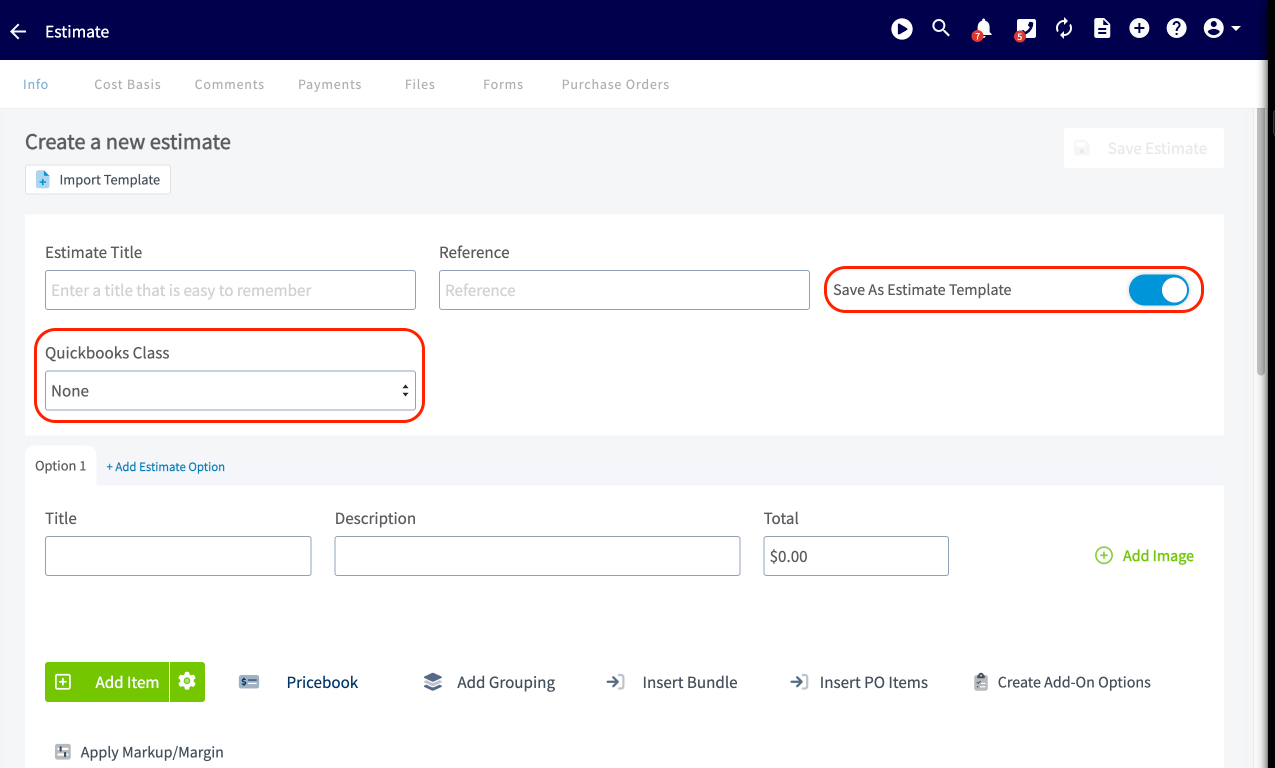
Business Class
InvoicesInvoice Date
Expiration Date
Line Items
Internal Notes (Sync to “Memo on Statement” in QuickBooks)
For QuickBooks created Invoices, the QuickBooks author will not carry into FieldPulse. Instead, the author will be filled in as the FieldPulse founding admin user.
Invoice Notes
Business Class
Related Payments
message on statement
PaymentsPayment Method
• Cash
• Check
• Card
• Bank Transfer
• Other
Payment Total
Payment Notes

What won’t sync?

CustomersAdditional Contacts
Additional Locations
Custom Fields
Files
Tags
Line ItemsCustom Fields
Links
Tags
UPC Barcode
EstimatesCustom Fields
Un-Selected Estimate Options
InvoicingContracts
Custom Fields
Groupings
’Shipping’ and ‘Deposit’ fields if they contain values
*Surcharges become unavailable after integrating with QuickBooks
PaymentsCredits (unless they are applied to an Invoice)
Custom Fields
Journal Entries
Refunds
Voiding Payments
OtherCustom Fields
FieldPulse Jobs and Projects
Groupings
QuickBooks Receipts
Purchase orders can be synced. The sync will push newly created and updated purchase orders between FieldPulse and QuickBooks Online. Click here to learn more about our purchase order sync. Reach out to us via support@fieldpulse.com or use the chat in the bottom right corner if you want to enable this sync. Timesheets can be synced if you use QuickBooks Time. FieldPulse clock-in and clock-out dates/times will sync as well as the timesheet duration. (Note: This is a one-way sync from FieldPulse Timesheets to QuickBooks Time.) Reach out to us via support@fieldpulse.com or use the chat in the bottom right corner if you want to enable this sync. QuickBooks Online projects sync to FieldPulse as related customers.
  • If you joined FieldPulse before 7/16/2024 and would like to disable the sync of QuickBooks Online projects to FieldPulse, reach out to us via support@fieldpulse.com or use the chat in the bottom right corner. (Note: If the project sync is disabled, the estimates or invoices within that project will also not sync.)
  • If you joined FieldPulse after 7/16/24, the QuickBooks Online project sync is disabled in your account. Reach out to us via support@fieldpulse.com or use the chat in the bottom right corner if you want to enable this sync.

Before Syncing

Be sure to turn off the QuickBooks Online Automatically apply credits setting.

To do so:
  1. Click on the Gear Icon.
  2. Choose Accounts and Settings.
  3. Select Advanced and click the Automation section.
  4. Disable Automatically apply credits.
  5. Click Save and Done.
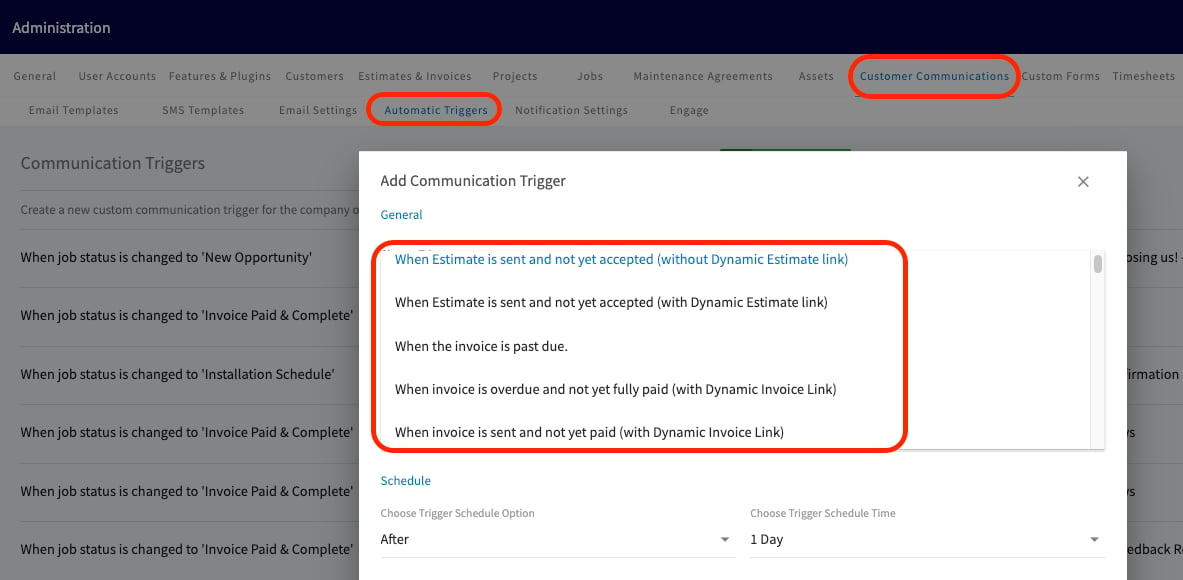
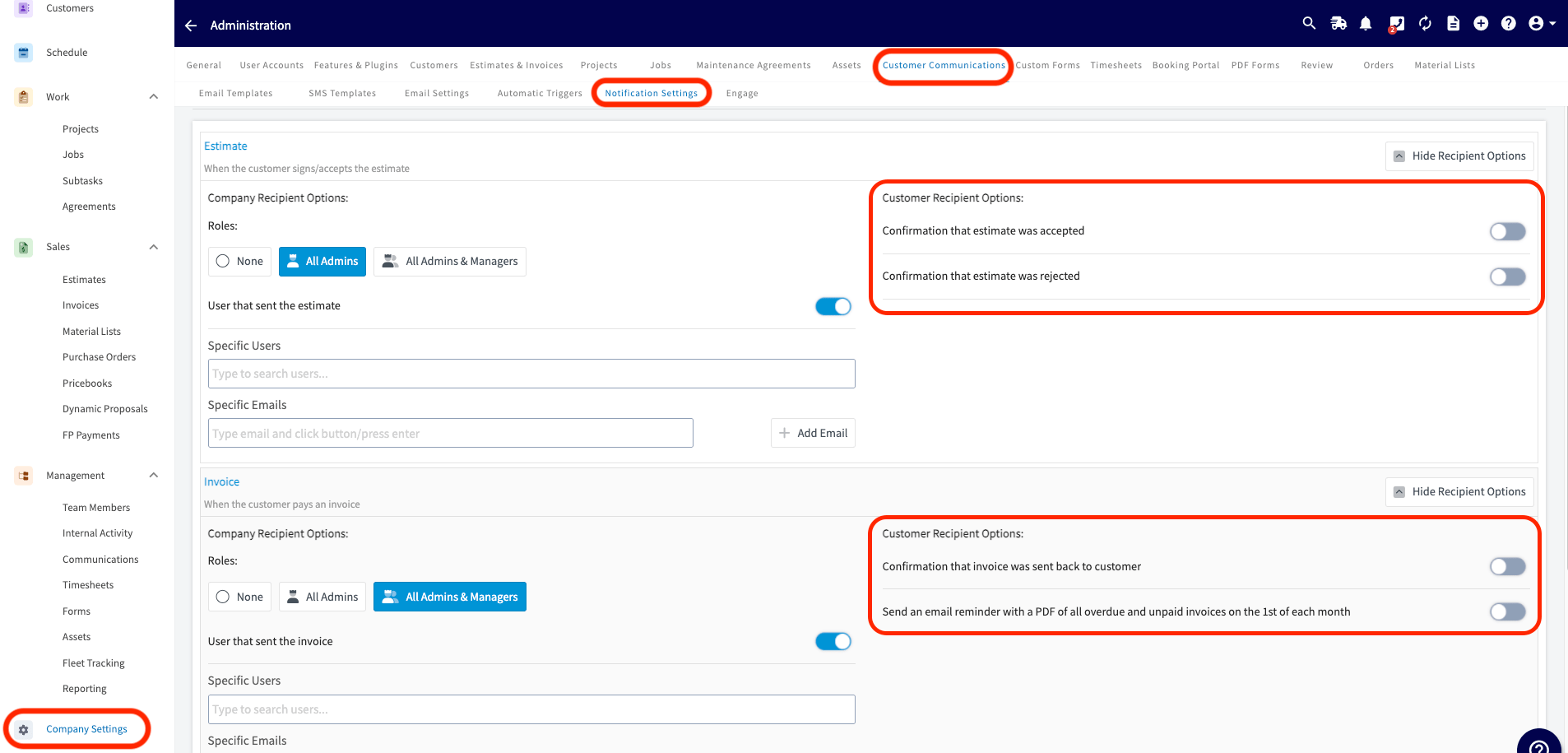
  • If you utilize Customer Communications within FieldPulse:
    • Turn off your Automatic Triggers linked to Estimate and Invoice records.
    • Disable Notification Settings to prevent customers from receiving updates about all Estimate and Invoice records.
Please Note

  • Custom Transaction numbers
    • If turned on in QuickBooks, invoice numbers will follow the FieldPulse numbering sequence.
    • If turned off, invoice numbers will follow whatever numbering is setup in QuickBooks.
  • FieldPulse uses QuickBooks “Shipping Address” as our service address. If only “Billing Address” is filled in in QuickBooks, no address will display on the customer record in FieldPulse.
  • Enable Discounts in your QuickBooks account in order to use discounts on FieldPulse estimates and invoices.

Do not sync if…

  • You currently have your QuickBooks synced with another FSM system.
  • You have been using QuickBooks and FieldPulse simultaneously and duplicating efforts (creating estimates/invoices in QuickBooks and FieldPulse prior to syncing).
  • You are using projects in QuickBooks. Contact us to learn more.
  • You do not have a quantity and price in QuickBooks for every line item - the line item will come over as $0 in FieldPulse.
  • You do not have Tax Rate set up in QuickBooks, as FieldPulse pulls tax rates from QuickBooks.
If any of these apply to you, please reach out to support@fieldpulse.com for assistance.

FAQs

Does FieldPulse sync classes for QuickBooks Online? Yes, FieldPulse will sync classes on estimates and invoices for QuickBooks Online. Classes can also exist on individual line items, but we we do not sync these. Can I have my Estimate and Invoice numbers automatically come from QuickBooks Online? Yes, you can. To ensure your invoice and estimate numbers sync directly from QuickBooks Online to FieldPulse, you need to disable Custom Transaction Numbers in your QuickBooks Online settings. To set this up, you’ll need to go into your QuickBooks Online account:
  • Log in to QuickBooks Online.
  • Navigate to your company’s settings.
  • Find the option for Custom Transaction Numbers and make sure it is turned off.
When this setting is off, QuickBooks will automatically assign the next number in its sequence to new estimates and invoices. FieldPulse will then sync and use this same numbering. When QuickBooks Online syncs, do estimates in Draft or Rejected status sync over, or are they only synced when the estimate is Accepted or Completed? Estimates sync to QuickBooks regardless of their status. All estimates, including those that are rejected, lost, or still in draft, will sync over. FieldPulse maps the different estimate statuses to corresponding statuses in QuickBooks:
  • FieldPulse Status: Draft, Estimate, Sent
    • QuickBooks Status: Pending
  • FieldPulse Status: Accepted, Scheduled, Ready, Completed
    • QuickBooks Status: Accepted
  • FieldPulse Status: Rejected
    • QuickBooks Status: Declined
  • FieldPulse Status: Lost
    • QuickBooks Status: Closed
Do tips sync to QuickBooks Online? Tips do not sync through the QBO integration. If a payment exceeds the invoice total due to a tip, QBO may create a negative balance on the record. To avoid sync issues, tips should be tracked separately from invoice payments. Does FieldPulse support Intuit Enterprise Suite (IES)? Yes, FieldPulse supports QuickBooks Online’s Intuit Enterprise Suite (IES).
Have additional questions? Contact us at support@fieldpulse.com or use the chat feature in the bottom right corner of your screen.