
Who uses this: An admin reviews sync stats and clears failed records; the sync itself runs on its own. Availability: Requires QuickBooks Desktop + the sync connector.After syncing with QuickBooks Desktop, you check the sync statistics in FieldPulse to see when the last sync ran and which records failed to transfer, then open each failed record, fix the cause, and let it re-sync. This is the routine that keeps a synced record from quietly sitting broken in your books.
Overview
The problem here is the record that never made it across — an invoice that looks fine in FieldPulse but never reached QuickBooks, so the books don’t match and nobody notices until reconciliation. The Statistic page names those records and the reason each one stalled, so you can correct and re-sync them instead of hunting. FieldPulse integrates with QuickBooks Desktop 2024 and newer.Before you begin
- The sync must be connected and running — see How to Sync With QuickBooks Desktop.
- If the last sync date looks stale, confirm the computer’s sleep mode is off and the Web Connector is running before troubleshooting individual records.
Check your sync stats
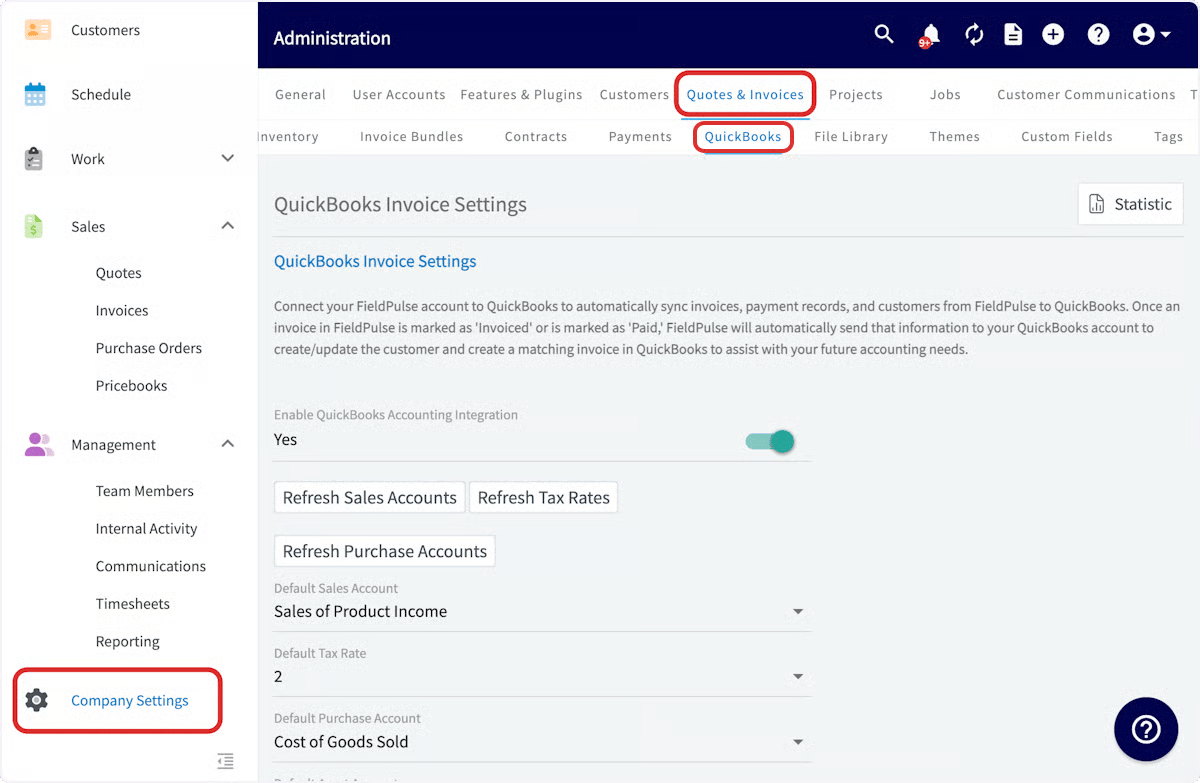
- In the left menu, go to Company Settings.
-
Select Estimates & Invoices, then QuickBooks.
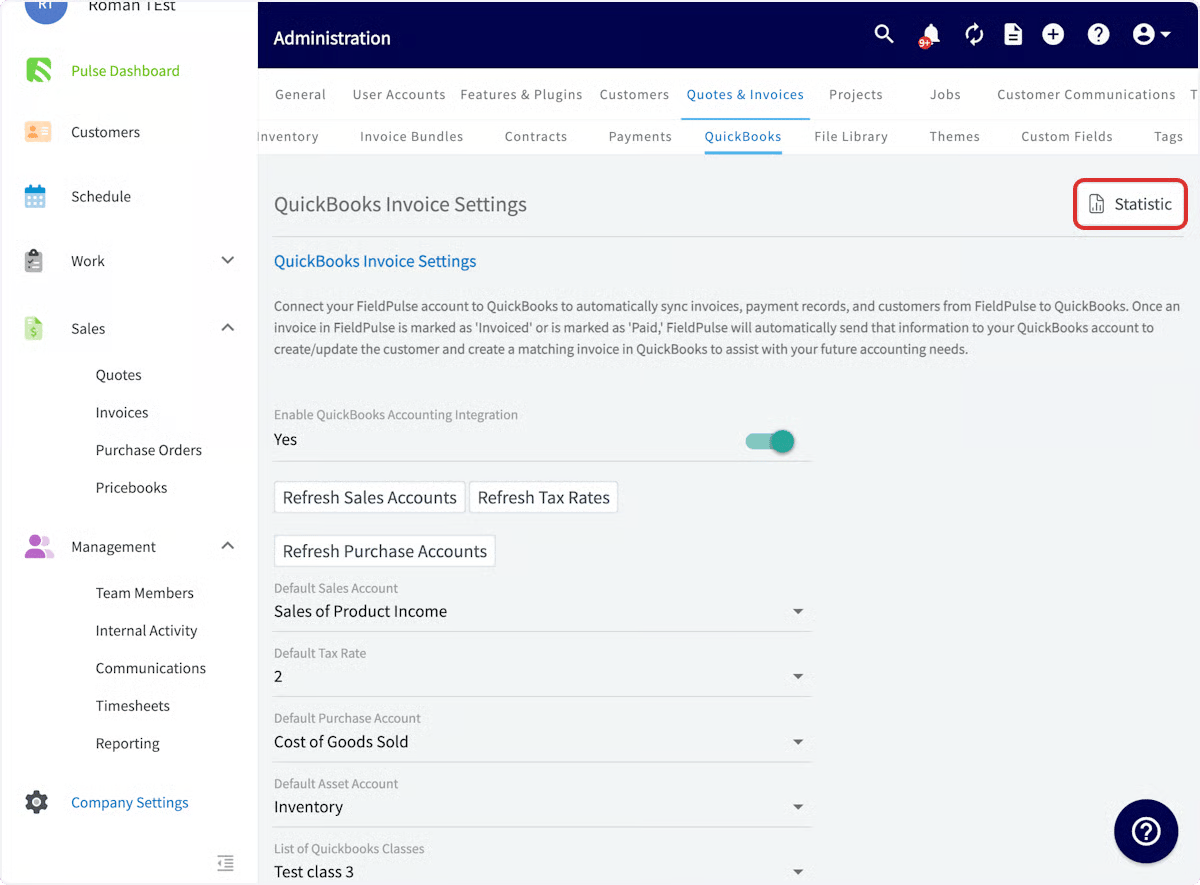
- Select Statistic to see which records have and haven’t synced.
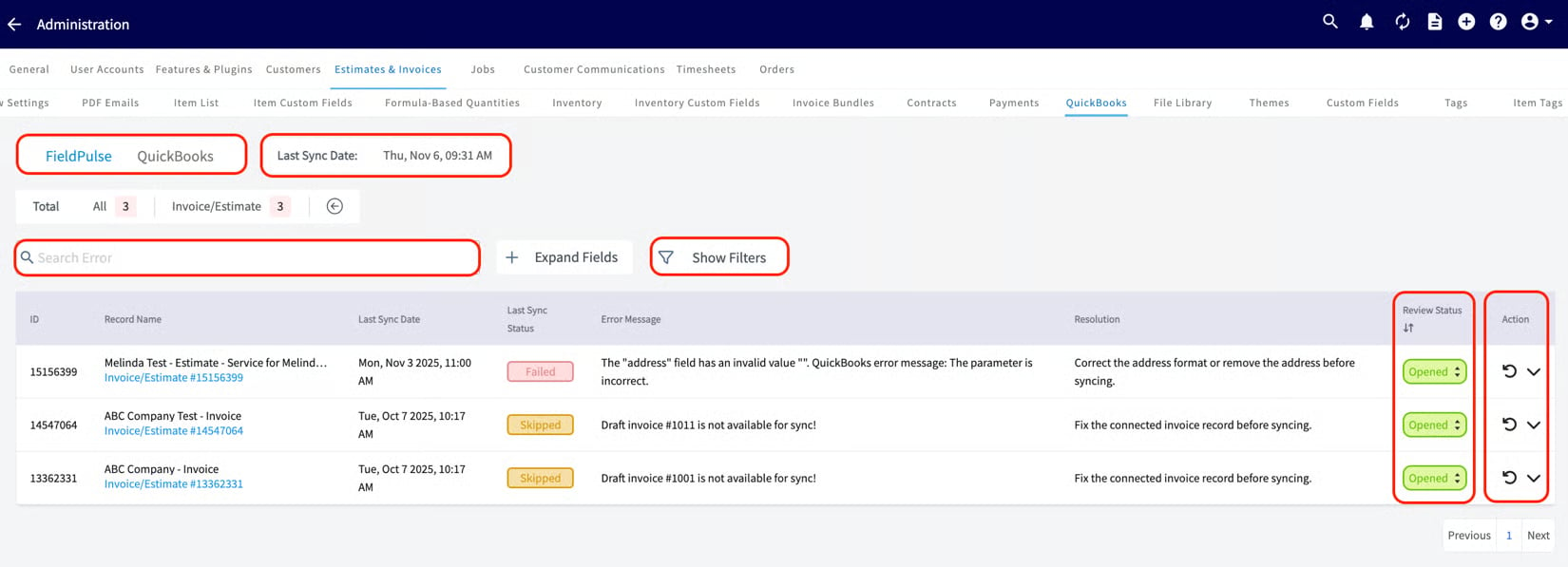
- Date and Time — when your most recent sync occurred (the Last Sync Date).
- Unsuccessful Records — exactly which records haven’t synced, and the reason for each.
- Search — search among your records.
- Review Status — close and filter out resolved errors.
Fix and re-sync a failed record
- On the Statistic page, switch between the FieldPulse and QuickBooks views to locate where the sync issue sits.
-
Once you’ve found a failed record, select the record details to open that record.
- Correct the cause of the error (see the error messages below), then let the record re-sync.
Common error messages
Use this table to read the Statistic page and QuickBooks Desktop error messages, and the action each one needs. For the complete error catalog, see Troubleshooting QuickBooks Desktop Sync Errors.Why a record may not have synced
When the reason isn’t obvious, these are the usual causes by record type. The sync hasn’t run recently: Check the Last Sync Date on the Statistic page. If it’s stale, turn off sleep mode on the device and confirm the Web Connector is running. A customer may not sync because:- The customer name duplicates another customer.
- The customer name includes non-ASCII characters.
- The email, phone number, or customer name exceeds 31 characters, or the notes exceed 4,000 characters.
- The customer is archived in QuickBooks Desktop.
- The customer is the child of a parent customer that isn’t synced.
- Fields are incorrect or missing (item name, item price, SKU, etc.).
- The item name exceeds 31 characters, or the SKU exceeds 30 characters.
- The item name duplicates another line item.
- The item name includes non-ASCII characters.
- The item isn’t marked as a product or service in QuickBooks Desktop.
- The related sales or purchase account isn’t active in QuickBooks Desktop.
- Unit of measure is used in FieldPulse but not enabled in QuickBooks Desktop.
- The customer is archived or not synced.
- A line item is archived or not synced.
- The notes exceed 4,000 characters.
- The estimate or invoice is in a closed accounting period in QuickBooks Desktop.
- There’s an archived payment on the invoice already synced to QuickBooks Desktop.
- The related invoice isn’t synced.