
Who uses this: An admin prepares QuickBooks Desktop and configures the sync; it then runs on its own. Availability: Requires QuickBooks Desktop + the sync connector.Preparing to sync with QuickBooks Desktop means confirming your QuickBooks version, turning off the settings that break the connection, and setting the Web Connector user’s permissions — so the first import lands clean and you avoid version mismatches. Do this before you connect the integration.
Overview
Once FieldPulse and QuickBooks Desktop are connected, customers, line items, estimates, invoices, and payments created or edited in either system sync to the other, and all of your existing QuickBooks data imports into FieldPulse. The most important condition for a clean sync is a connection that runs constantly: your computer’s sleep mode must be off and the QuickBooks Web Connector must stay open. This page covers the checks and settings to complete first; the connection steps live in How to Sync With QuickBooks Desktop.Before you begin
Confirm each of these before you start:- QuickBooks Desktop 2024 or newer. FieldPulse does not integrate with older versions.
- Windows only. QuickBooks Desktop for Mac and other systems are not supported.
- Supported editions: Contractor, Pro, Premier, and Enterprise.
- Single-user mode. Setup must be completed in single-user mode within QuickBooks Desktop.
- A stable internet connection.
Step-by-step setup
- Disable sleep mode on the computer that runs QuickBooks Desktop. The sync runs continuously, so the machine cannot sleep. Go to Settings > System > Power & Sleep and set sleep to Never. If sleep mode is left on, the sync will not work.
- Confirm your QuickBooks Desktop version and edition meet the requirements above.
-
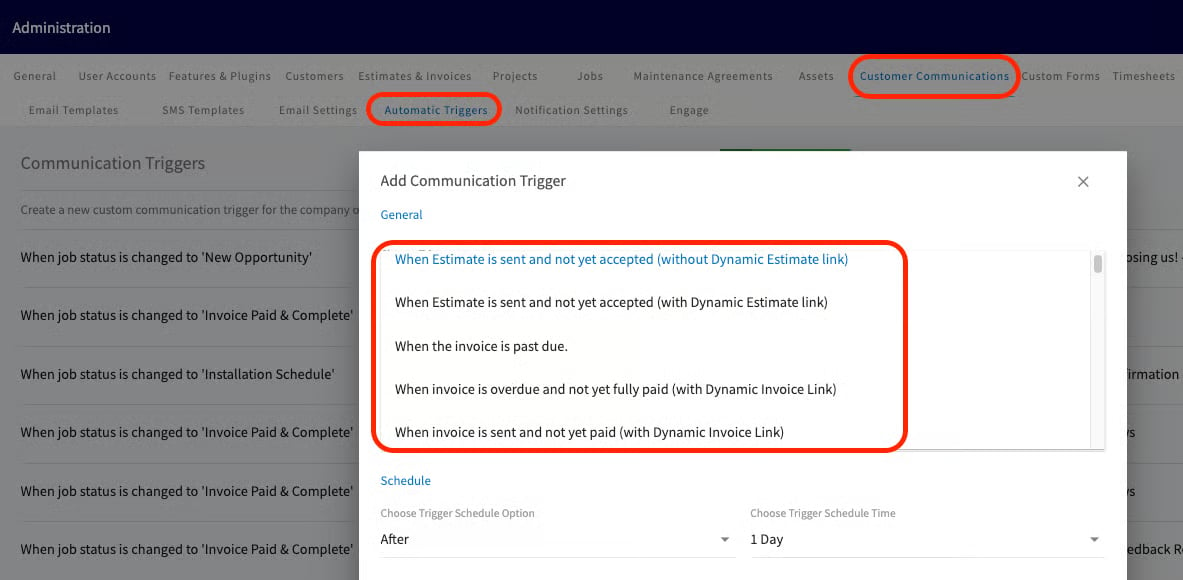
If you use Customer Communications in FieldPulse, turn off the automatic triggers tied to estimate and invoice records. The first import touches many records at once, and leaving triggers on would send your customers a flood of updates.
-
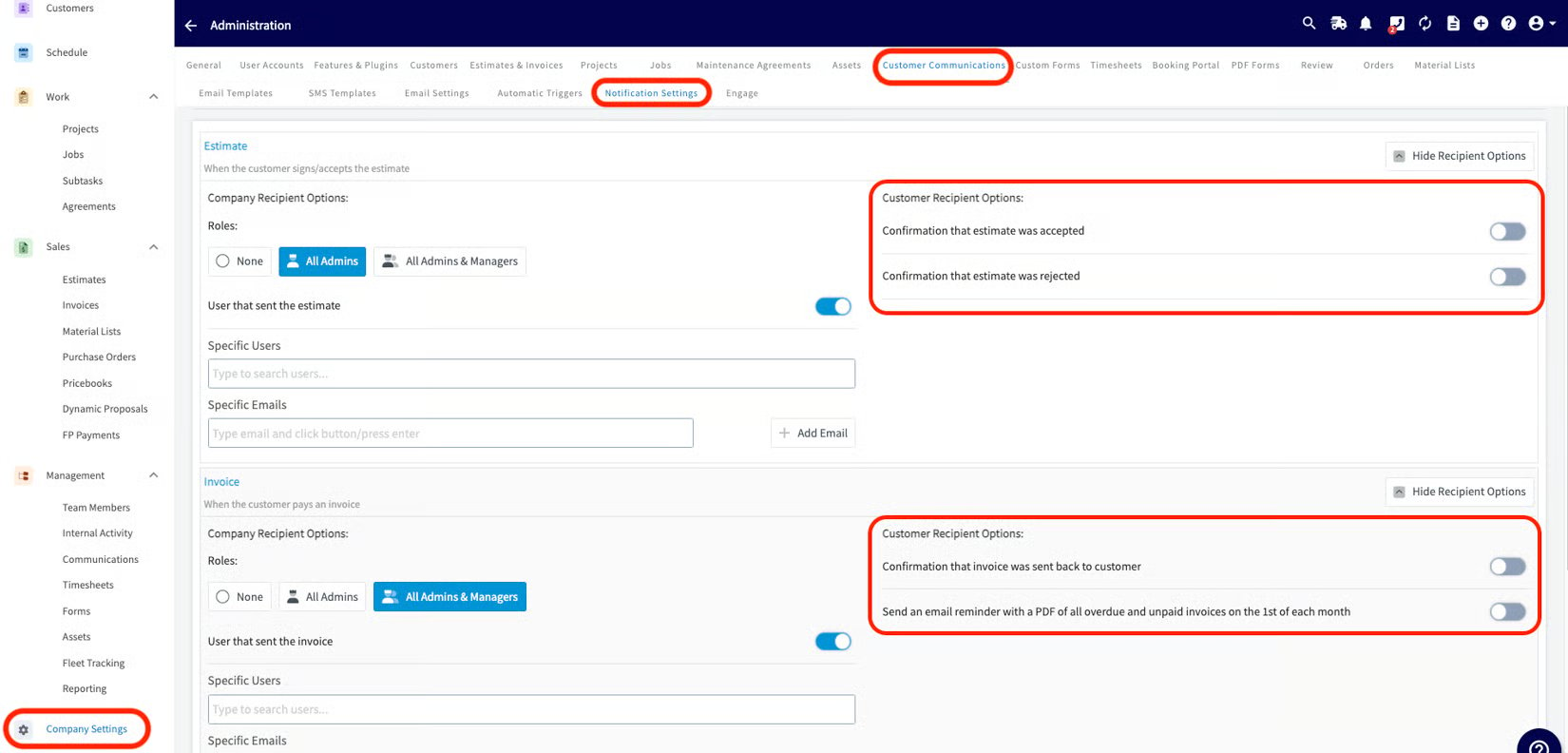
Disable notification settings for estimate and invoice records, for the same reason — to stop customers from receiving updates during the import.
- Set the Web Connector user’s role permissions in QuickBooks Desktop. The sync runs under one QuickBooks user, and that user needs the permissions listed in QuickBooks Desktop user permissions below. In QuickBooks Desktop, go to Edit Role to make these changes.
What will sync
Most records sync both ways. A few sync one way only — noted below.What won’t sync
Knowing these up front prevents most first-sync failures. The character limits and special characters below are the most common cause of a failed record.QuickBooks Desktop user permissions
For the sync to work, enable these role permissions for the QuickBooks user under whom the Web Connector will run. In QuickBooks Desktop, go to Edit Role.
Your books are ready when sleep mode is off, your estimate and invoice triggers and notifications are turned off, and the Web Connector user has the permissions above — then you can connect the integration and let the first import run clean.