
Who uses this: Anyone confirming how a record will transfer before or after connecting; the sync runs on its own once an admin configures it. Availability: Requires QuickBooks Desktop + the sync connector.This page shows how records map between FieldPulse and QuickBooks Desktop — which direction each record type moves and which fields land where — so you can preview a transfer before it happens. FieldPulse integrates with QuickBooks Desktop 2024 and newer.
Overview
Most records in the QuickBooks Desktop sync move both ways, but several move one way only, and a few behave differently once they arrive. Use the tables below as a reference map: sync direction by record type first, then the field-level mapping for customers and addresses, then the specific behavior of tax rate items. For records that fail to transfer, see Troubleshooting QuickBooks Desktop Sync Errors.Sync direction by record type
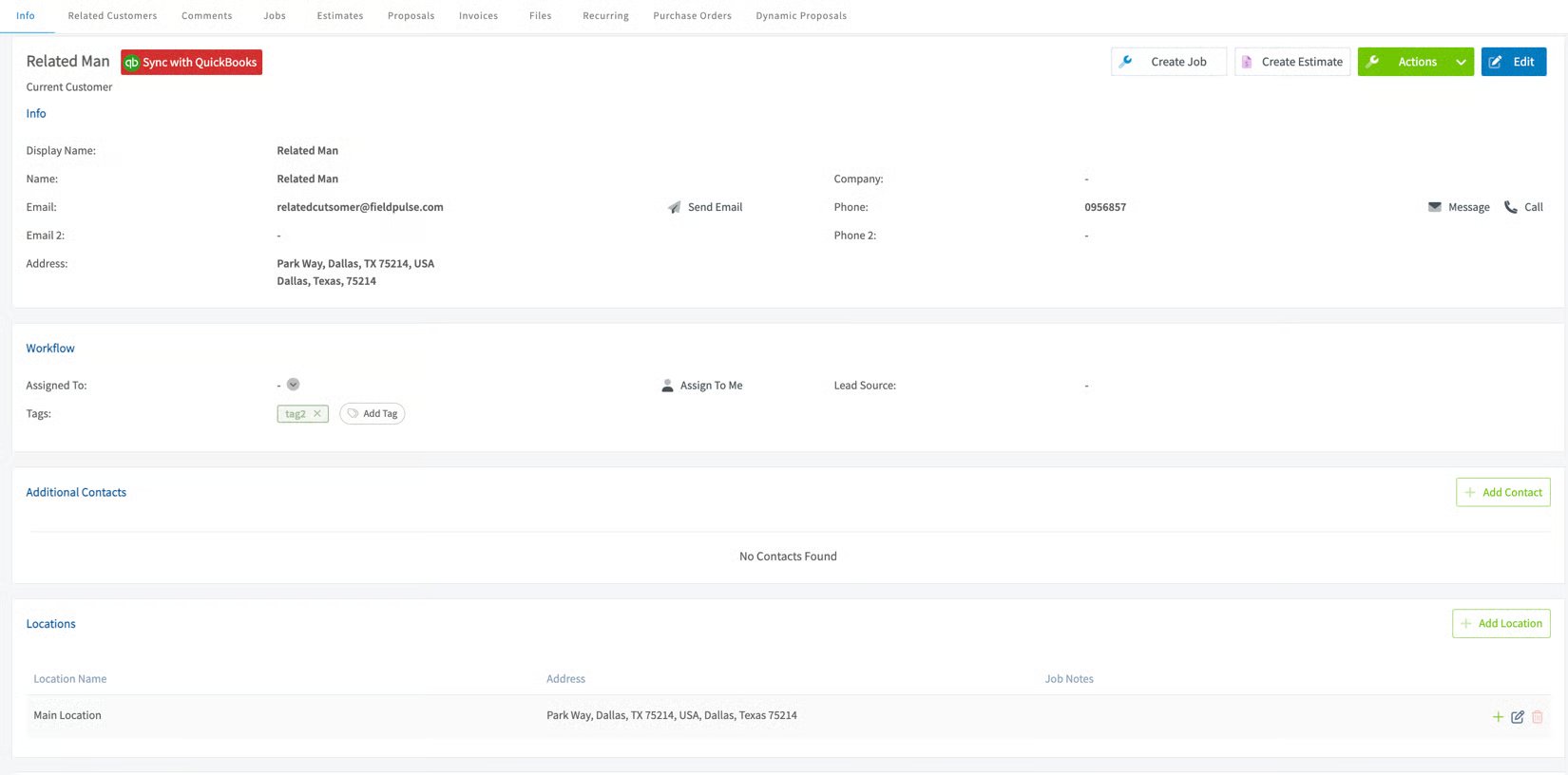
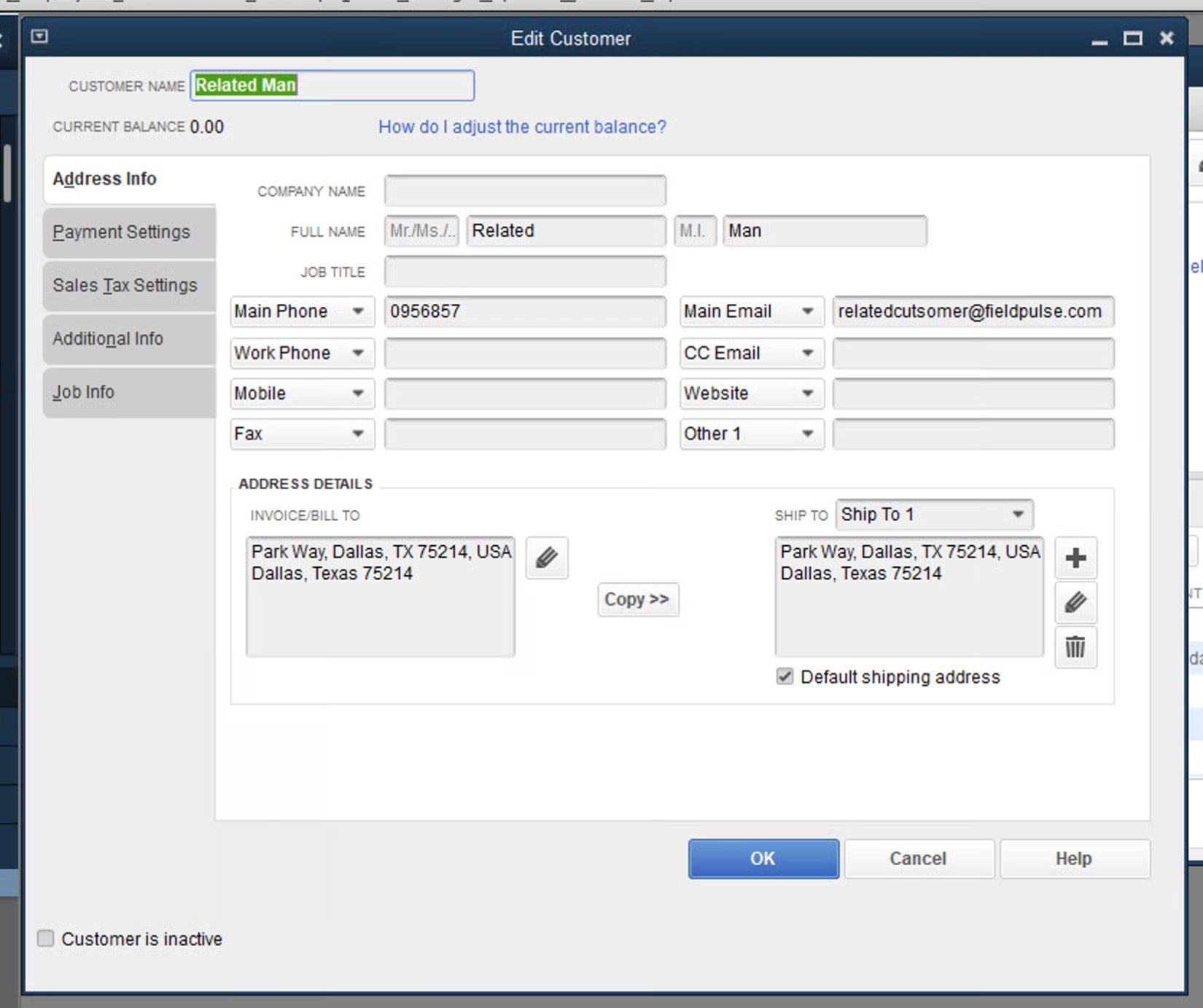
Example: customer and address mapping
When a customer syncs from QuickBooks Desktop, the address fields map to a FieldPulse Location like this:
FieldPulse:
Example: tax rate items
Tax rate items in QuickBooks Desktop sync to FieldPulse one way, arriving as a line item. Once a tax rate item has synced into FieldPulse, it cannot be edited on any estimate or invoice within FieldPulse — you make changes on the QuickBooks Desktop side.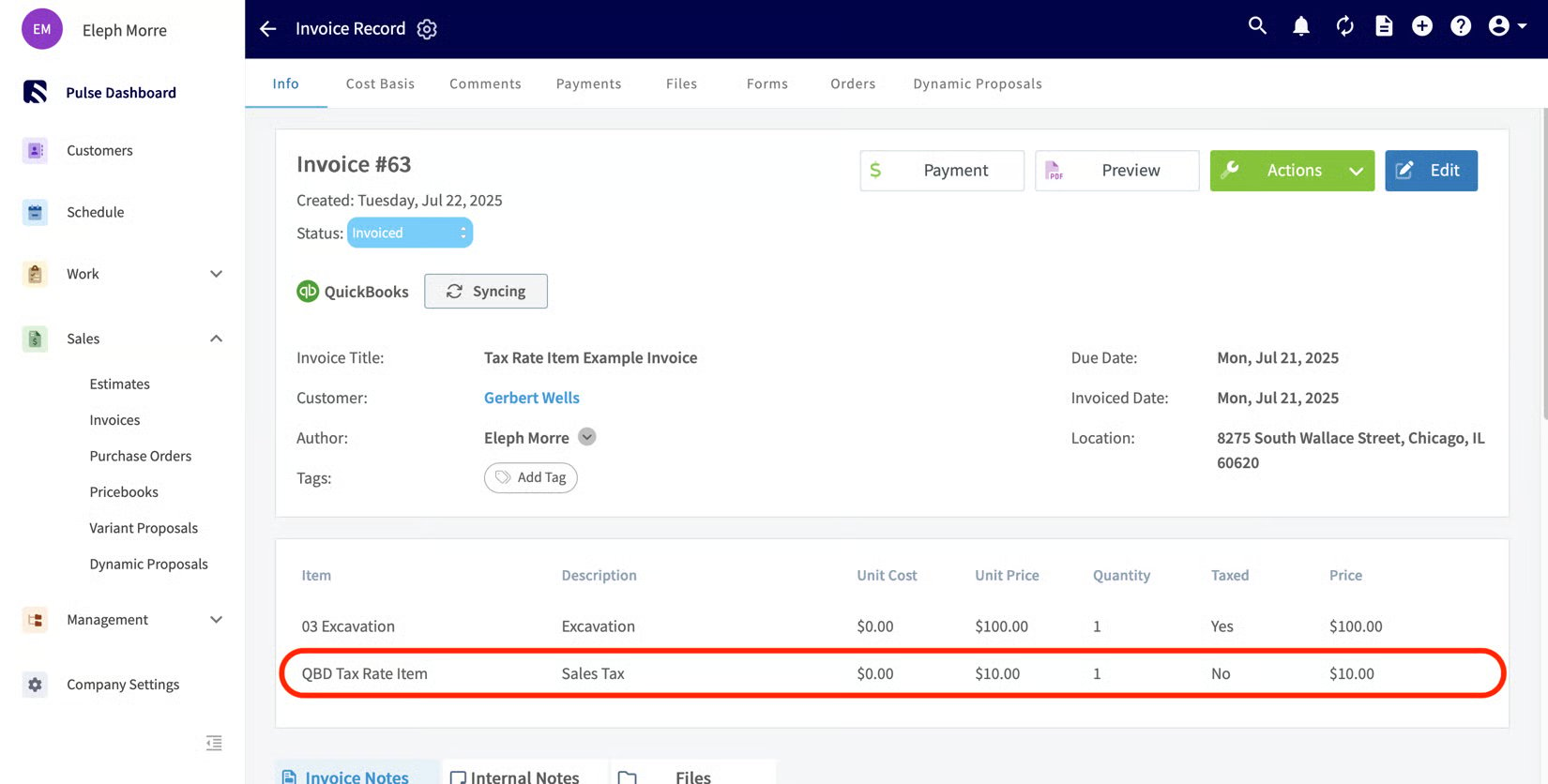
Example: Line Items
FieldPulse: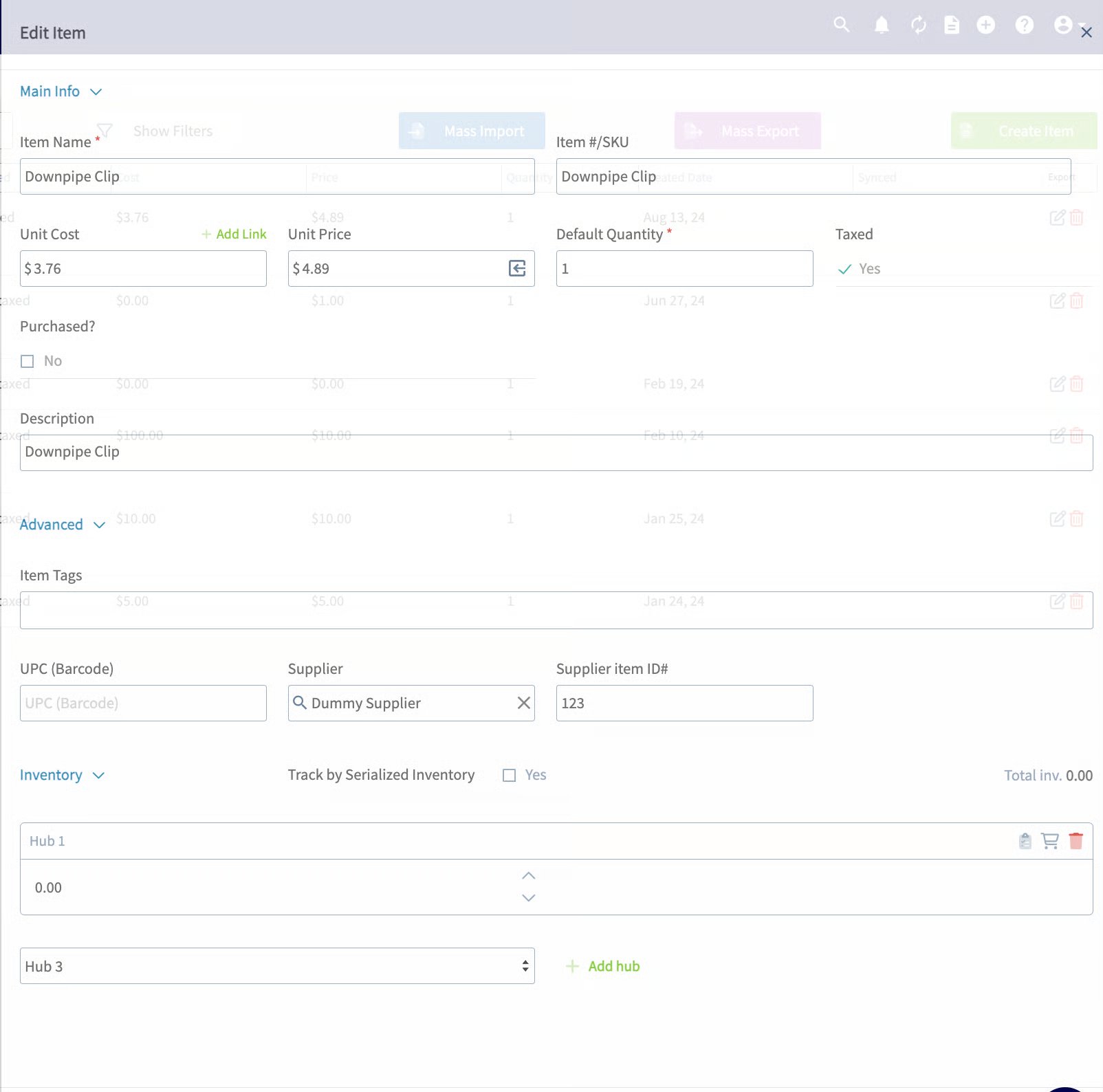
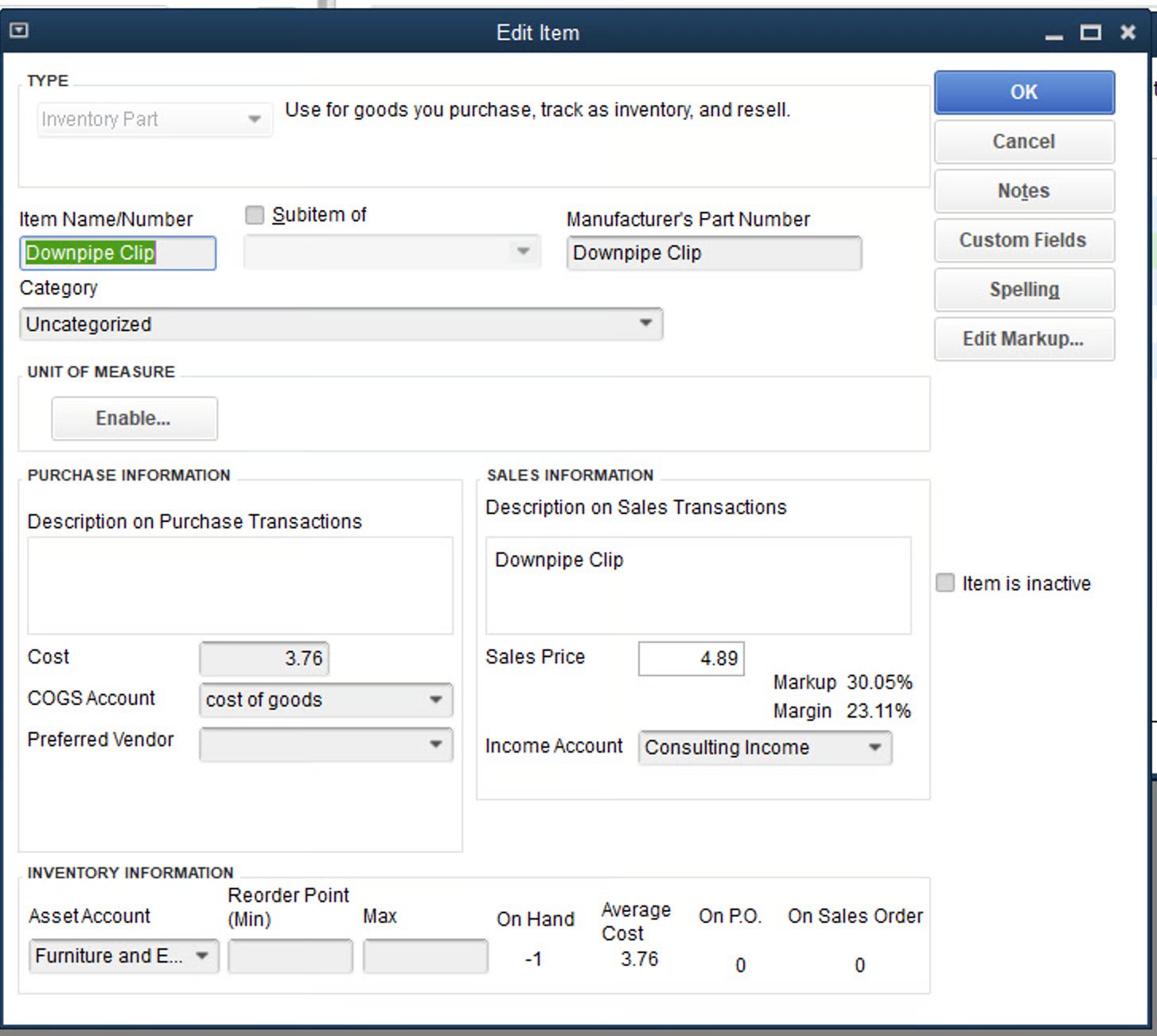
Example: Estimates
FieldPulse: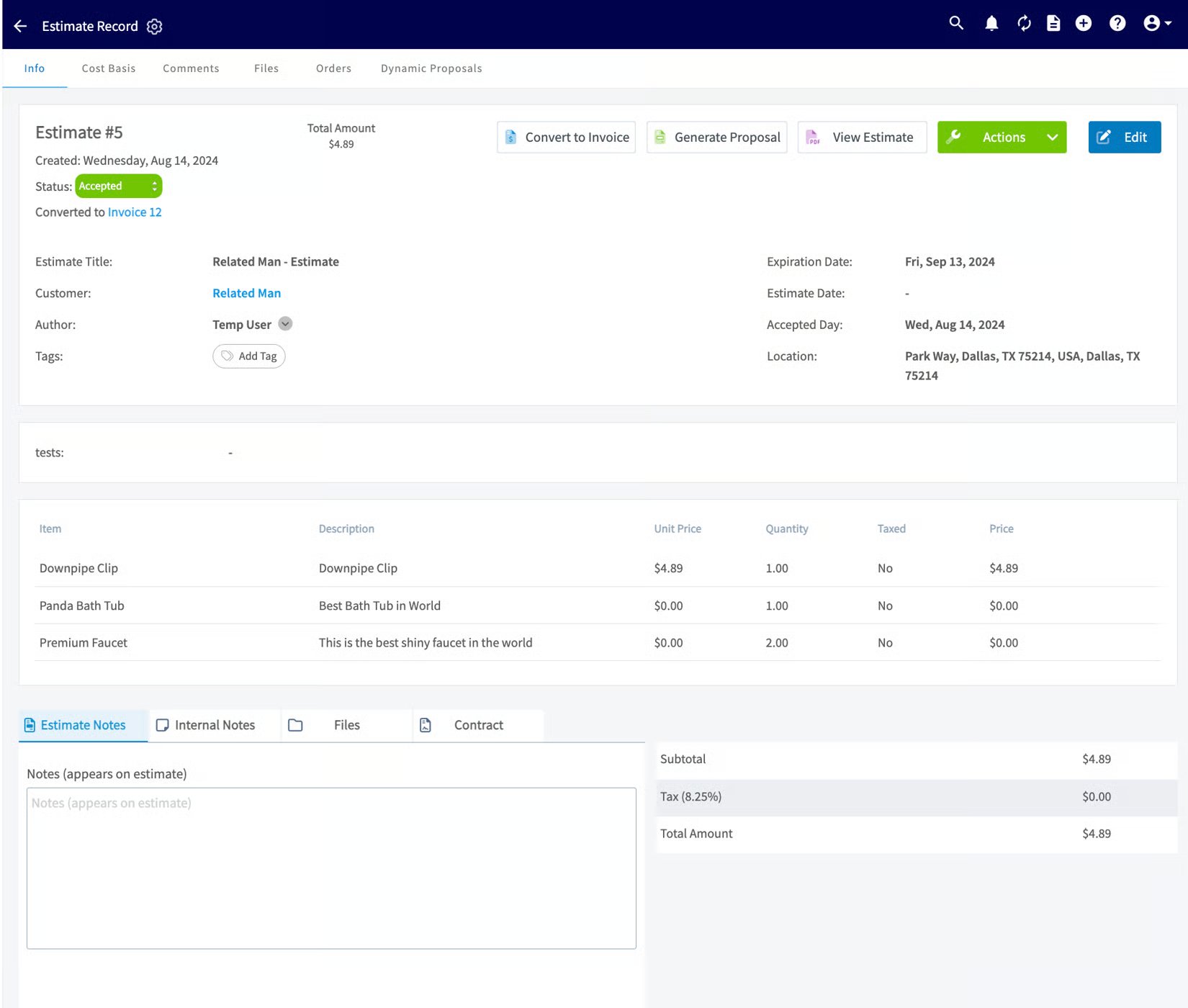
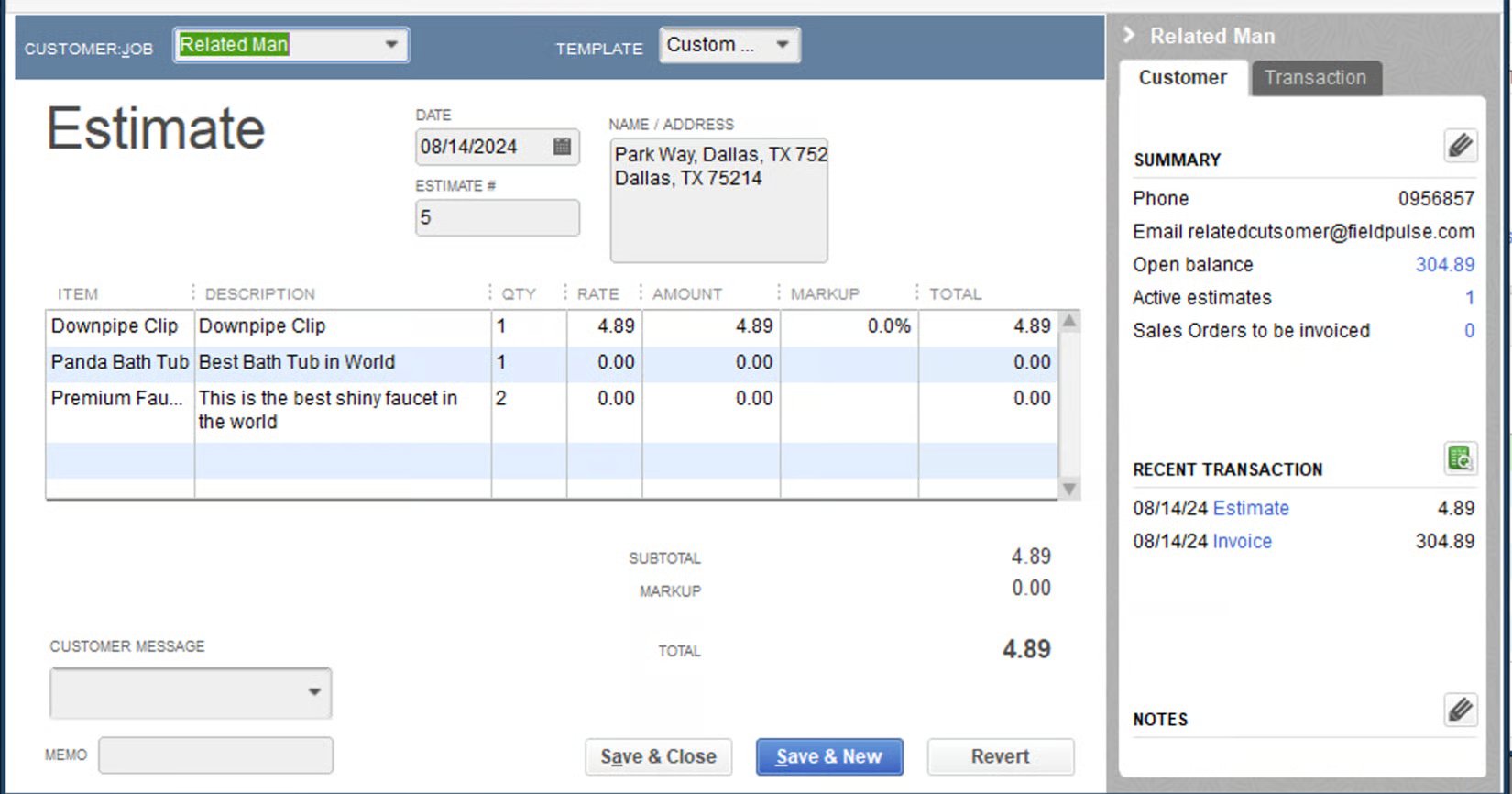
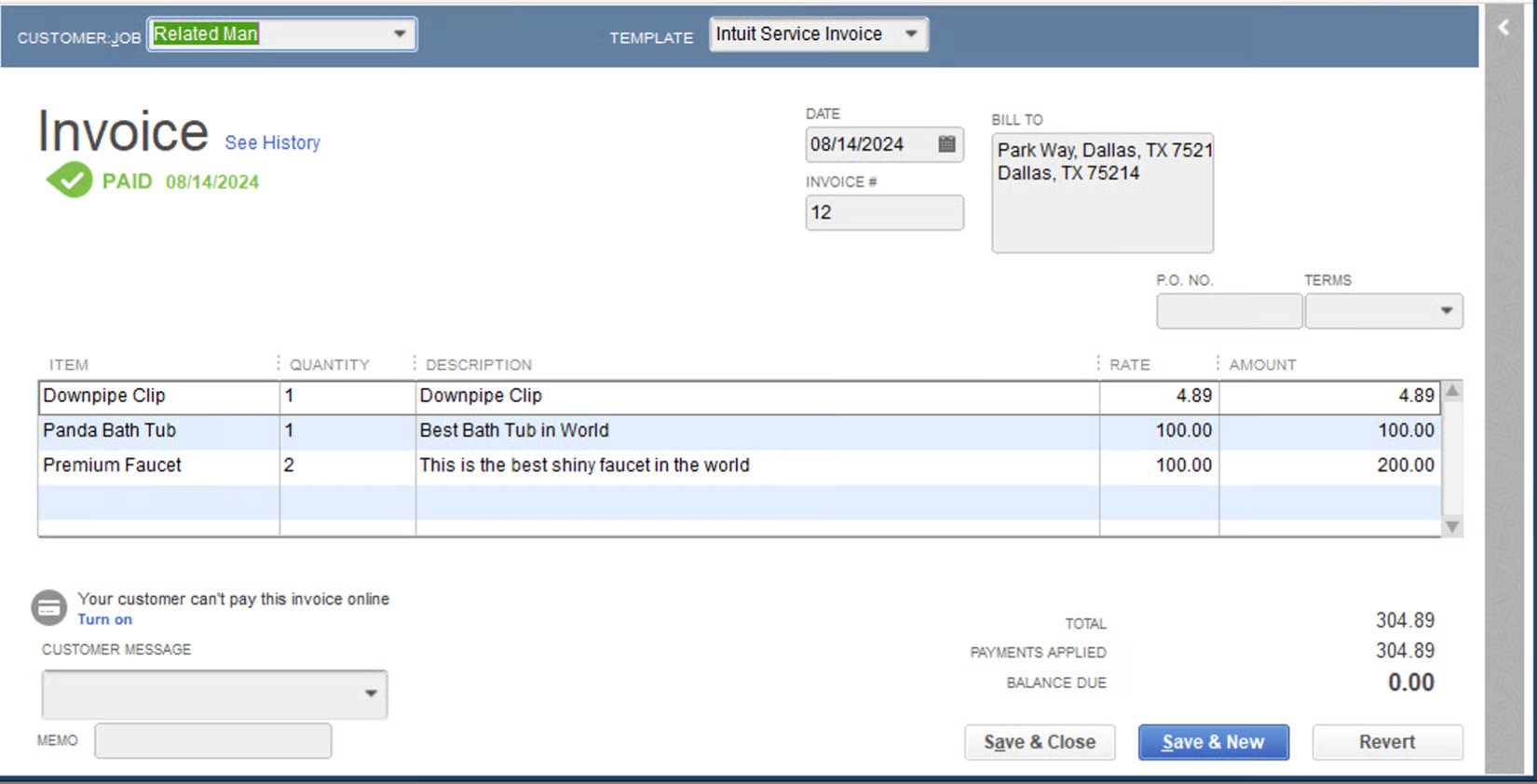
Example: Invoices
FieldPulse: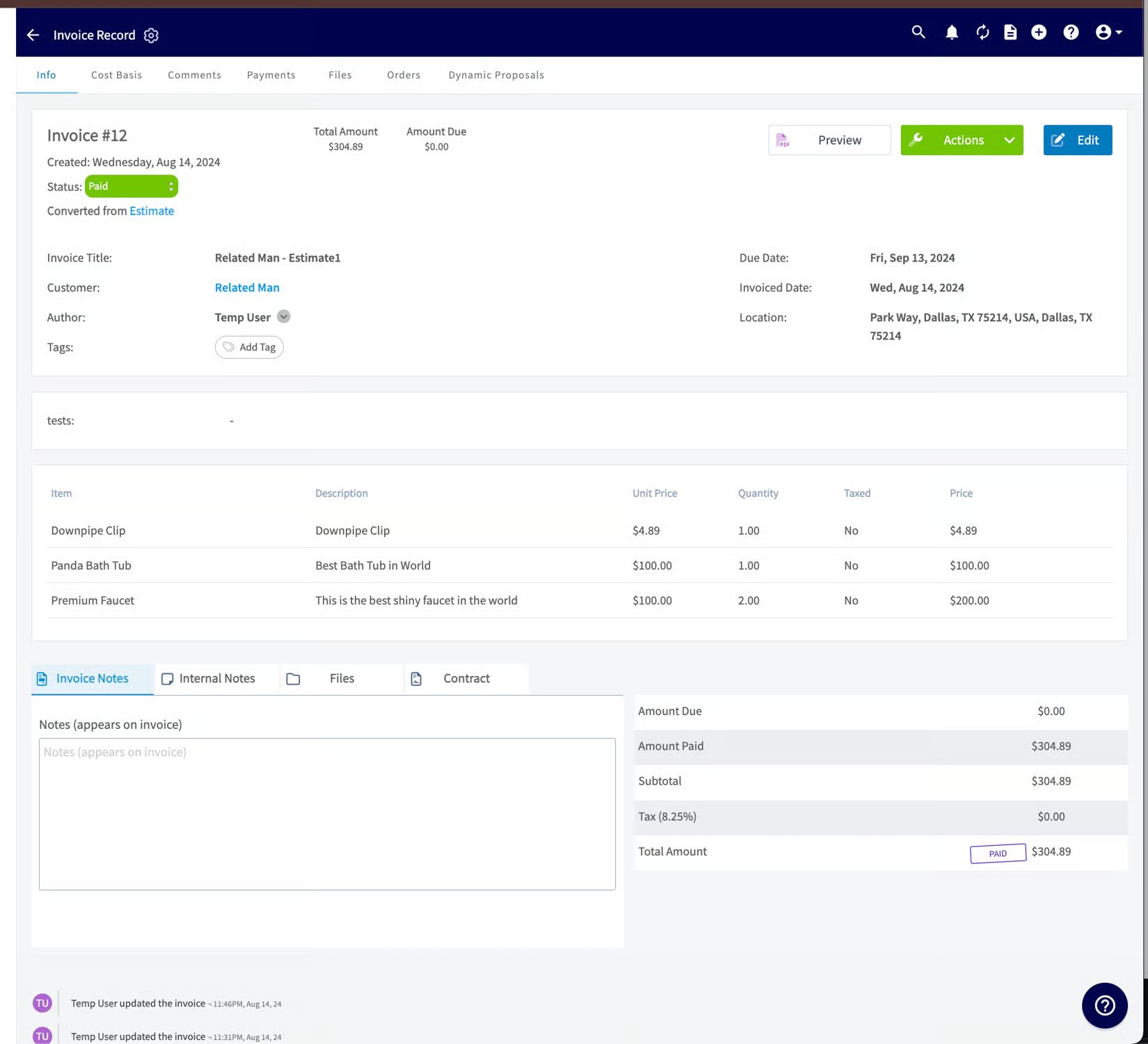
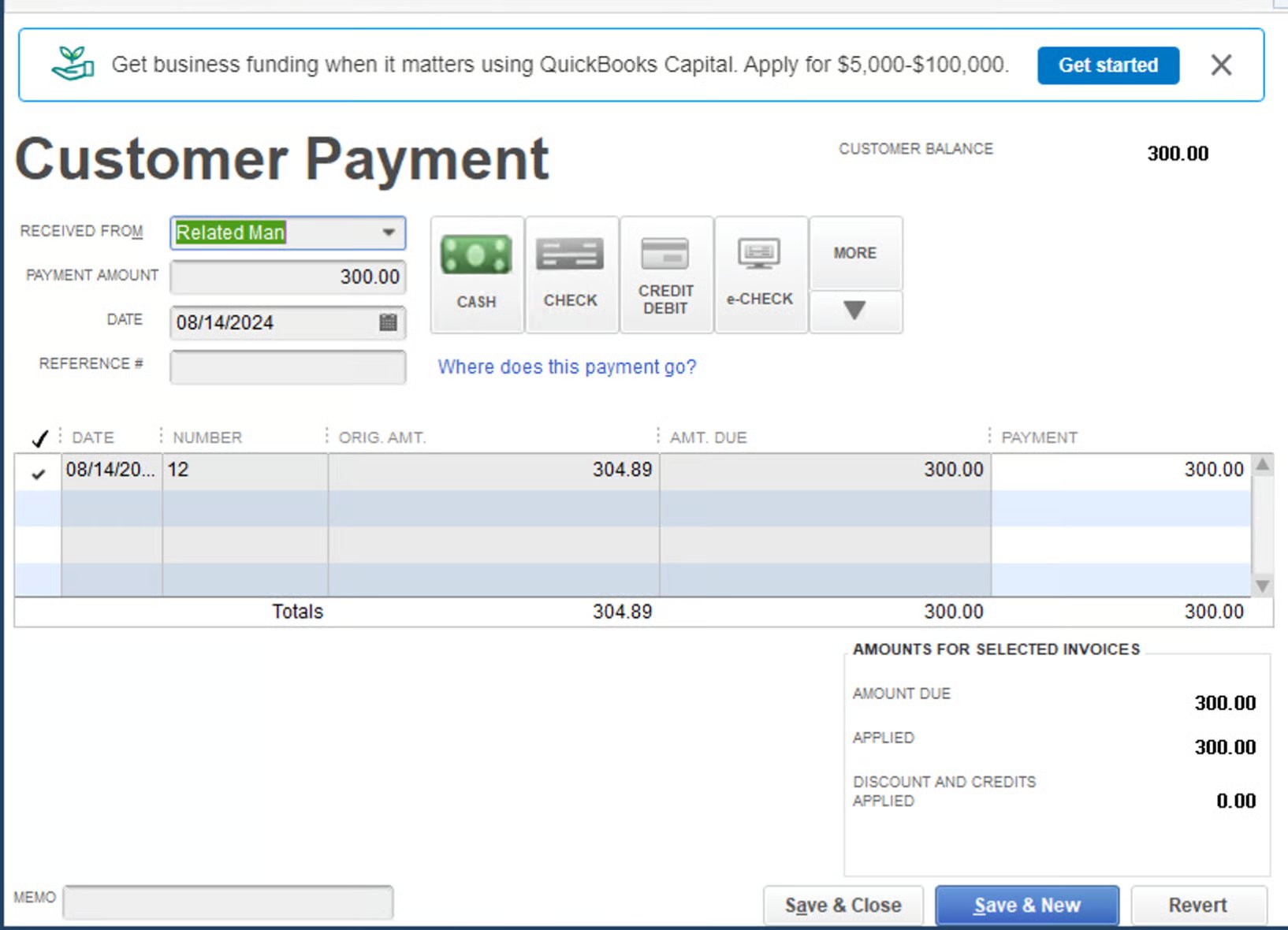
Example: Payments
FieldPulse:
Notes & limitations
- Direction can differ from the general rule. Purchase orders, timesheets, credit memos, and tax rate items are one-way; check the direction table above before assuming an edit will flow back.
- Tax rate items are read-only in FieldPulse after syncing — edit them in QuickBooks Desktop.
- Credit memos arrive as general payments, and FieldPulse can’t distinguish a credit from a direct payment; that distinction is only visible in QuickBooks Desktop.
- Character limits and special characters block transfers. Names over 31 characters and special characters ($, &, #, @, +, {, }, :) are the most common reasons a record won’t map. See the full list in Setting Up QuickBooks Desktop Before Syncing.
Related articles
- Setting Up QuickBooks Desktop Before Syncing — the full what-will-and-won’t-sync list
- Troubleshooting QuickBooks Desktop Sync Errors
- How to Sync Purchase Orders With QuickBooks Desktop
- QuickBooks Desktop Overview