Who uses this: Admins can enable it, plus a Marketing 360 admin who can create API keys. Availability: Requires a Marketing 360 account. Setup is completed by the FieldPulse Support team.The Marketing 360 integration pushes customer data one-way from FieldPulse into Marketing 360, so the leads and customers you manage in FieldPulse feed straight into your Marketing 360 ad campaigns and CRM. Because the sync is one-way, FieldPulse is the source and Marketing 360 receives the data.
Eager to learn more about our partner? Connect with them here.
Overview
The Marketing 360 integration sends the following FieldPulse data into Marketing 360:- Customer Name
- Phone Number
- Email Address
- Address
- Lead Source
- Customer Type / Status
- Pipeline Status
- Custom Tags

Before you begin
- You need a Marketing 360 account.
- You will generate an API key in Marketing 360 and hand the Client ID and Client Secret to the FieldPulse Support team, who complete the connection on our side.
Connect Marketing 360
-
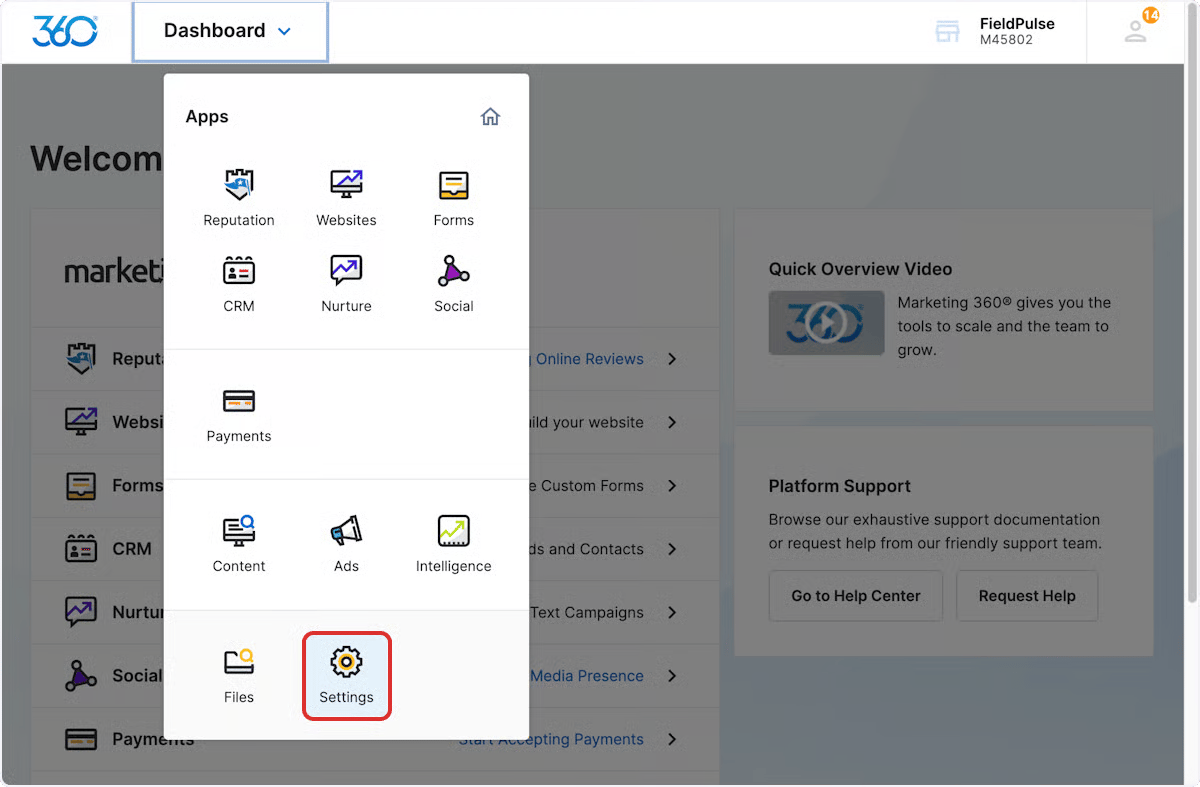
In Marketing 360, go to Dashboard > Settings.
-
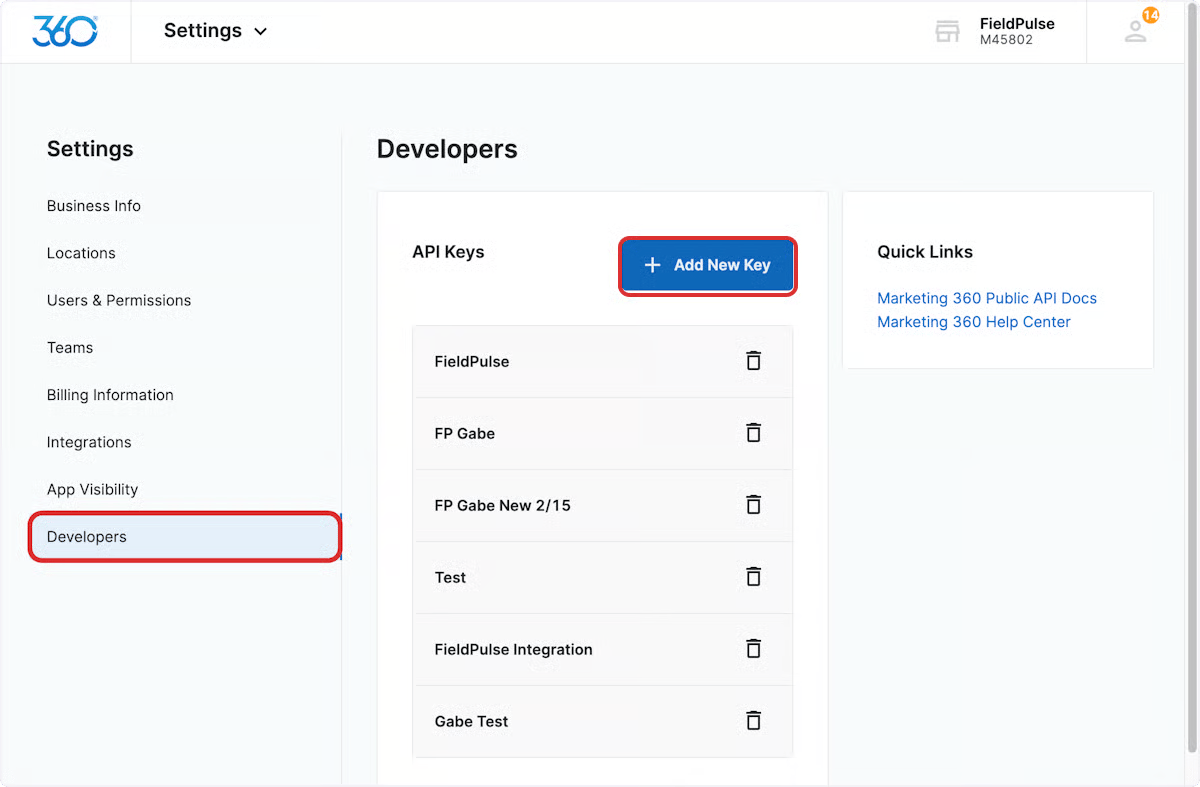
Select Developers, then select Add New Key.
-
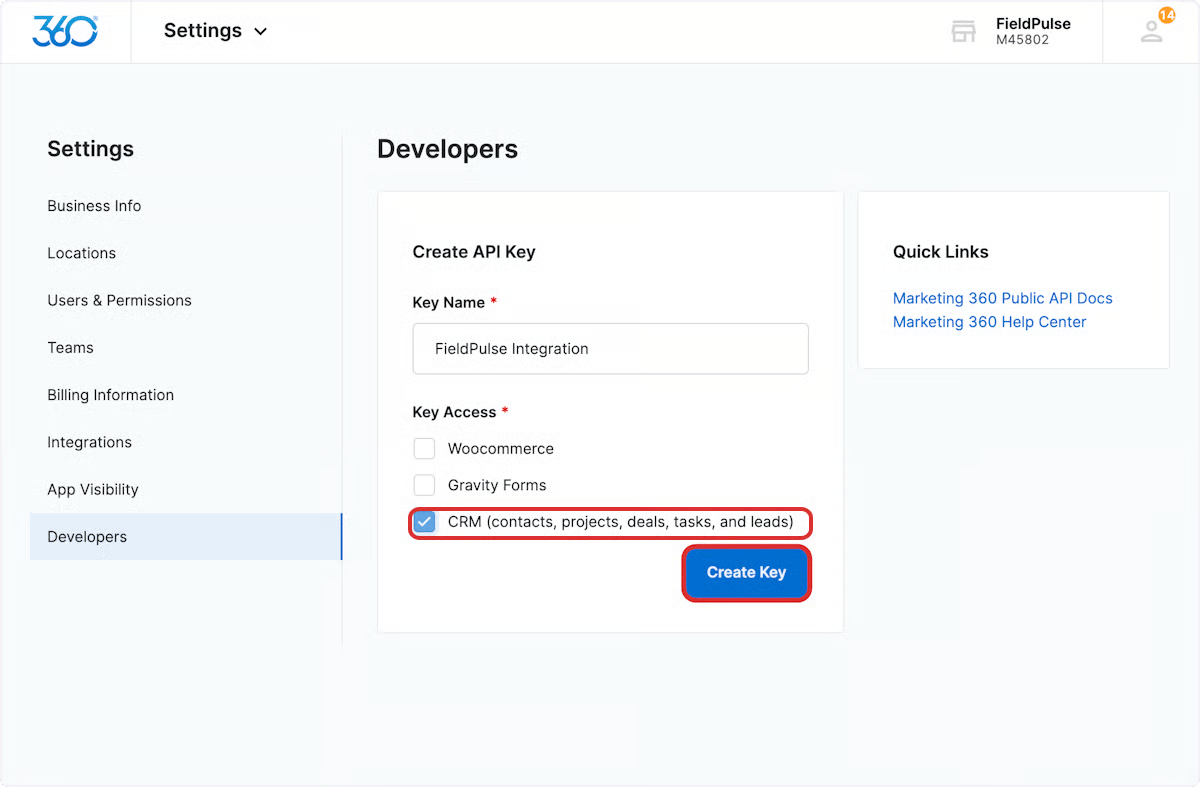
Enter FieldPulse as the Key Name, select the CRM checkbox, then select Create Key.
-
Copy the Client ID and Client Secret. Copy them now — once you leave the page or select Done, you cannot view them again without repeating these steps.
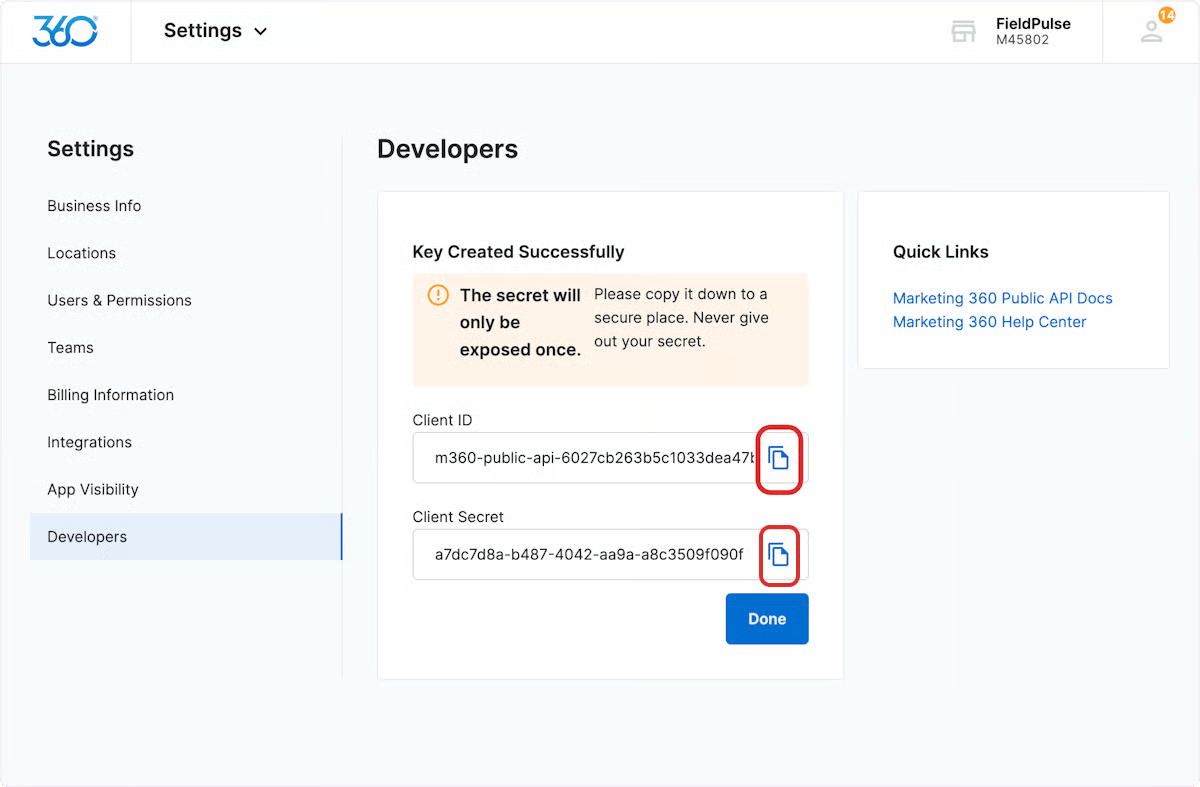
- Use the chat in the bottom-right corner of FieldPulse to send your Client ID and Client Secret to the FieldPulse Support team. Support completes the remaining setup.
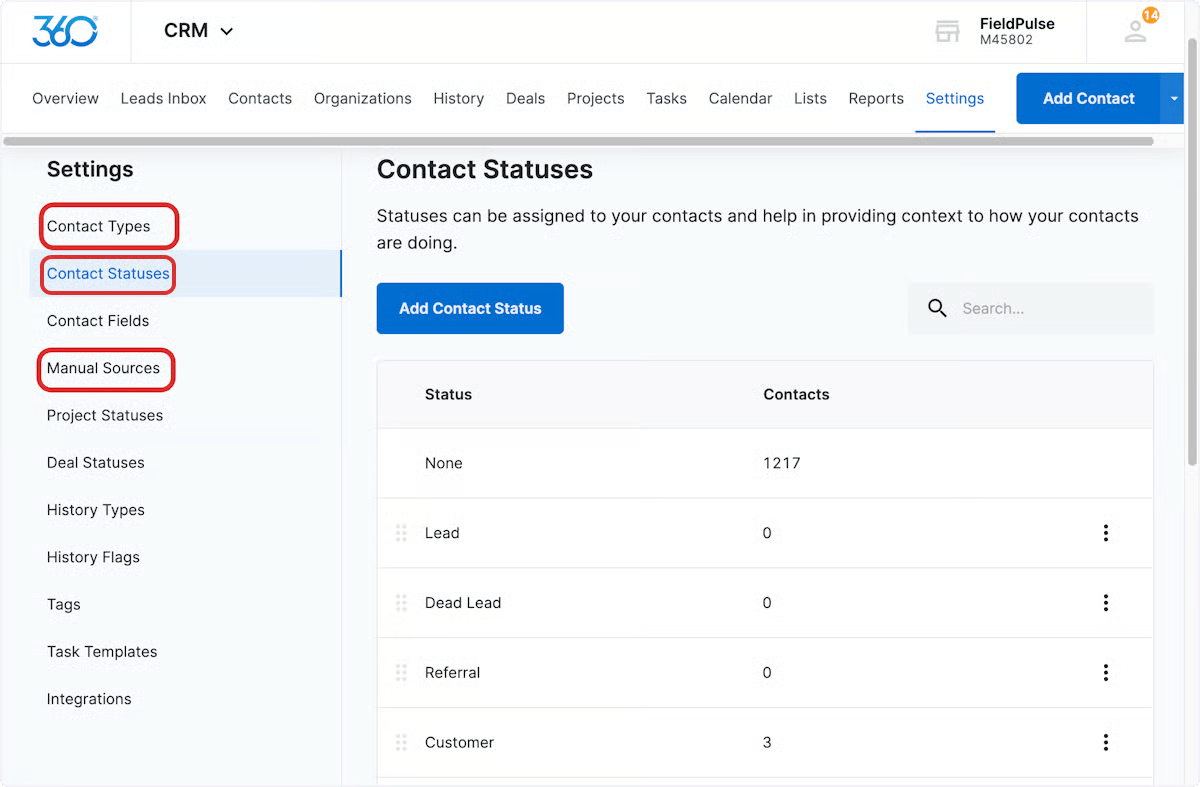
Match your fields so data syncs
Before data can sync, align these FieldPulse fields with their Marketing 360 equivalents. In Marketing 360, go to Dashboard > CRM > Settings to add or adjust the values.