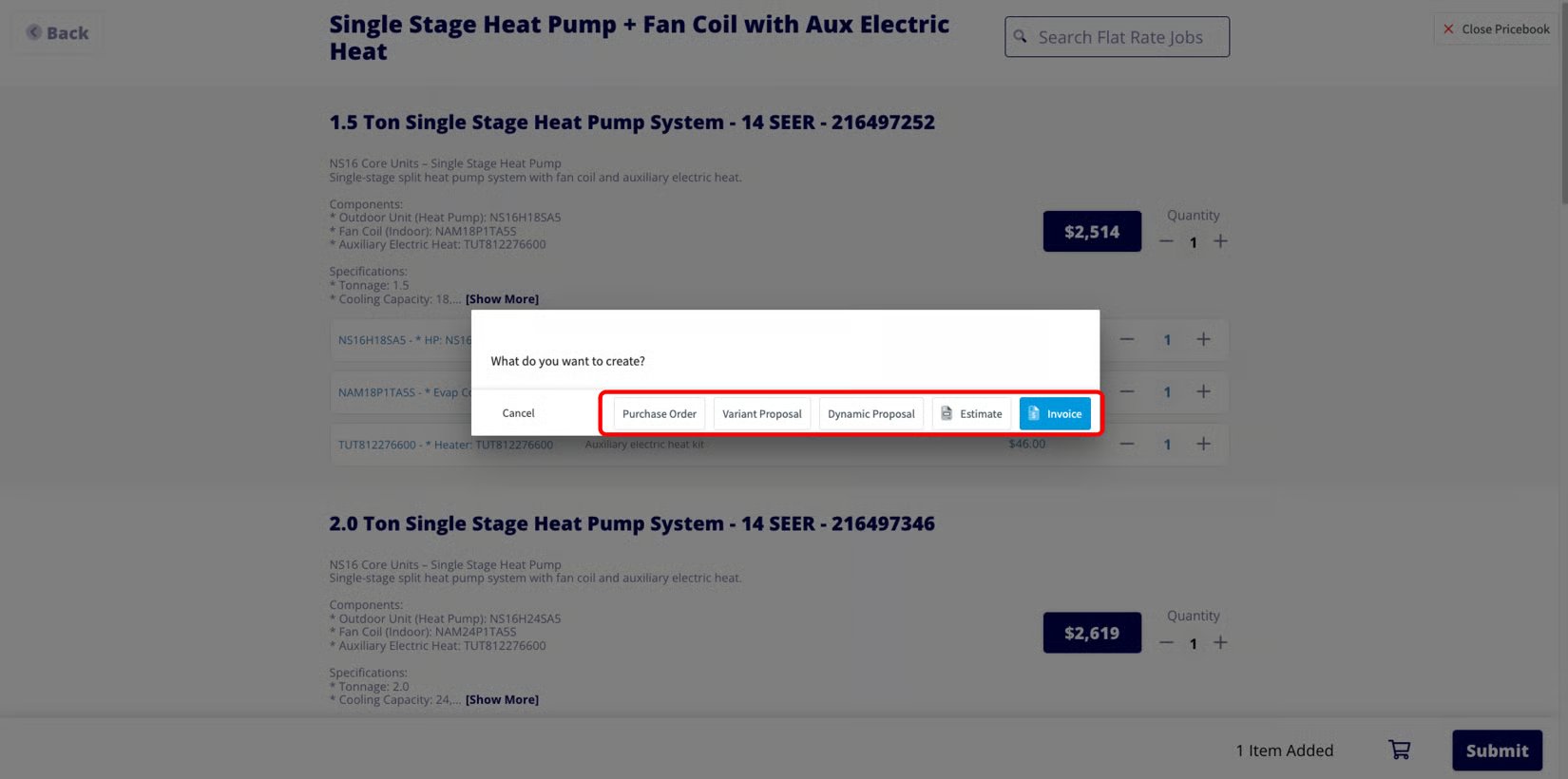
Who uses this: An Admin requests the costbook; anyone who prices HVAC work in estimates, invoices, purchase orders, or Dynamic Proposals uses it. Availability: Requires a Winsupply account.The Winsupply Costbook is a digital costbook inside FieldPulse that gives Winsupply customers an interactive way to price HVAC systems and items on web and mobile. FieldPulse updates the costbook automatically, so your pricing stays current. To turn it on, you tell the FieldPulse Support team your company name and how you plan to use it.
Overview
The Winsupply Costbook integration adds a Costbooks tab to FieldPulse stocked with Winsupply HVAC system and item pricing. Once it’s enabled, here’s what flows and what you can do:- Catalog — Browse Winsupply HVAC systems and items in an interactive digital interface on web and mobile.
- Pricing — FieldPulse updates your costbook automatically, so pricing is always up to date.
- Ordering — Add a costbook option to an estimate, invoice, purchase order, or Dynamic Proposal by selecting its total price.

Before you begin
- You need a Winsupply account.
- The costbook is currently only available to Winsupply customers in Austin, TX. To express interest in a costbook for another Winsupply branch, contact the FieldPulse Support team.
- Have your company name ready.
- Decide how you’ll use the costbook (pricing only, or also as a pricebook for flat-rate jobs) so the team can set it up accordingly.
Connect the Winsupply Costbook
- Contact the FieldPulse Support team at support@fieldpulse.com or through the in-app chat, and tell them you want to enable the Winsupply Costbook.
- Provide your company name, and note whether you’ll also use the costbook as a pricebook for flat-rate jobs.
- Wait for the FieldPulse team to enable the costbook on your account.
What syncs
Once the costbook is enabled, here’s how you use it:-
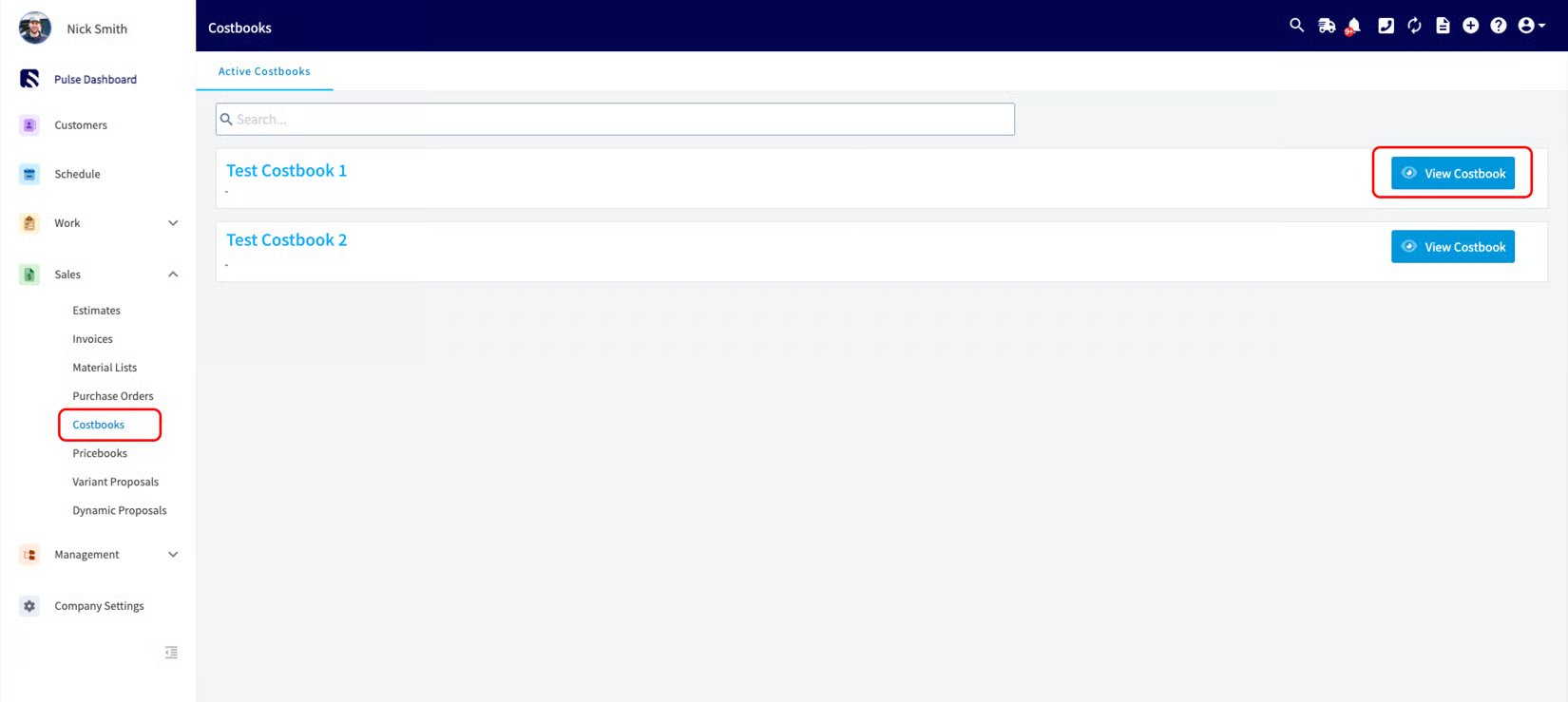
In the left-side menu, open Sales and select Costbooks, then select View Costbook next to your Winsupply Costbook.
-
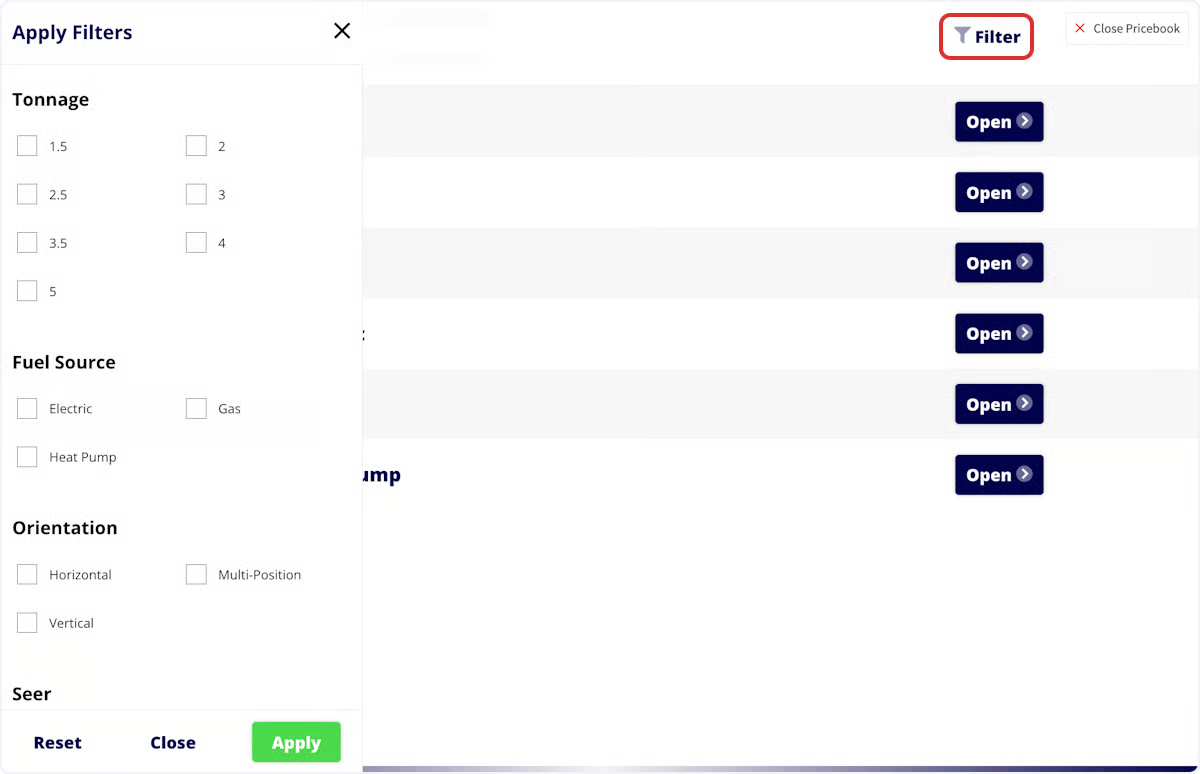
Select Filter to open the Apply Filters panel and narrow results. Available filters include Tonnage, Fuel Source, Orientation, Seer, and Compressor.
- Click an option’s total price to add it to an estimate, invoice, purchase order, or Dynamic Proposal.