
Who uses this: Admins and anyone with access to Company Settings create the fields; each field’s own visibility is set for the Managers and Service Agent roles. Availability: All regions and all plans.A material list custom field stores a piece of information the standard material list does not already capture — a supplier reference, a bin location, an expected delivery date, or anything else your business tracks. You create each field once in Company Settings, set the order the fields appear in, and decide which roles can see the field and whether it shows on the documents your customers and suppliers receive.
Overview
A material list custom field is an extra field you define in Company Settings that then appears on every material list in your account. Each field has three parts you control:- Type — what kind of data the field holds. There are five types: Free Text, Number, Date, Drop-down, and Checkbox.
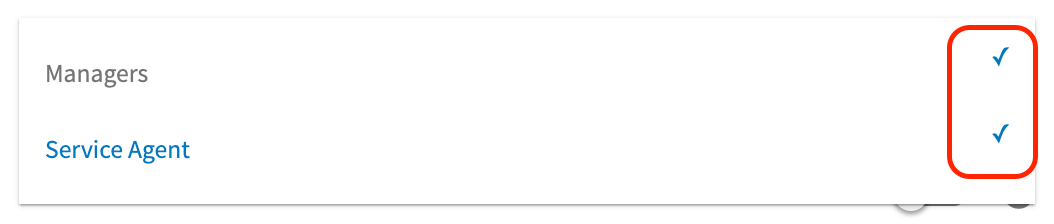
- Field Visibility by Role — which team members can see the field.
- Is visible to customer & supplier — whether the field also shows on purchase order PDFs, job reports, estimates and invoices, and asset reports.
Before you begin
- Decide who should see each field. Every custom field carries role-based visibility, so know whether the field is for Managers, Service Agent, or both before you create it.
- Name each field for the data it holds, not for one job. A custom field applies to every material list in the account.
- Plan the options for any Drop-down field in advance, including which option should be the default. You add the options while you create the field.
Step-by-step setup
Create a custom field
- Go to Company Settings.
- Select Material Lists.
- Select the Custom Fields tab.
-
Select Create New.
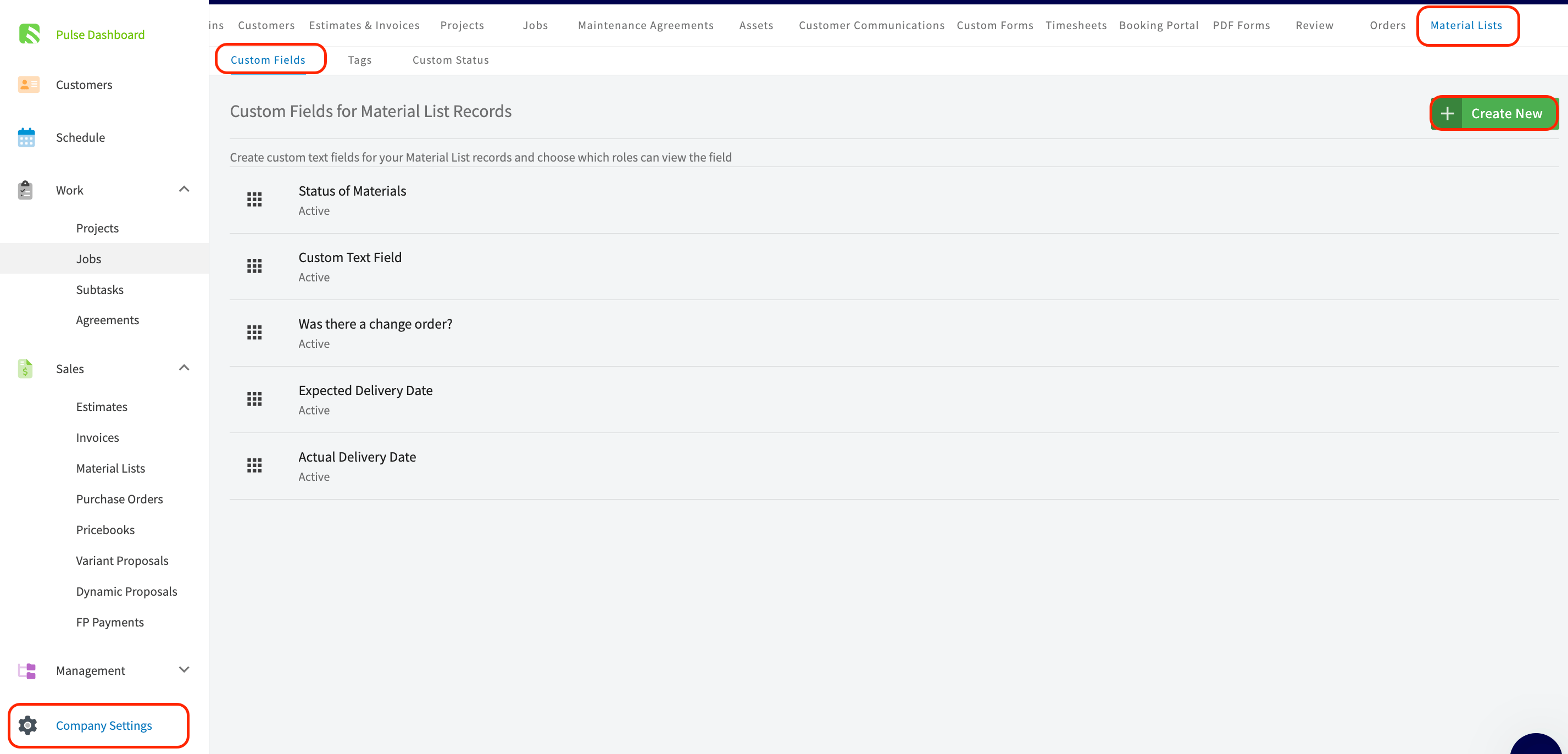
-
In the Add Custom Field window, enter the Field Name.
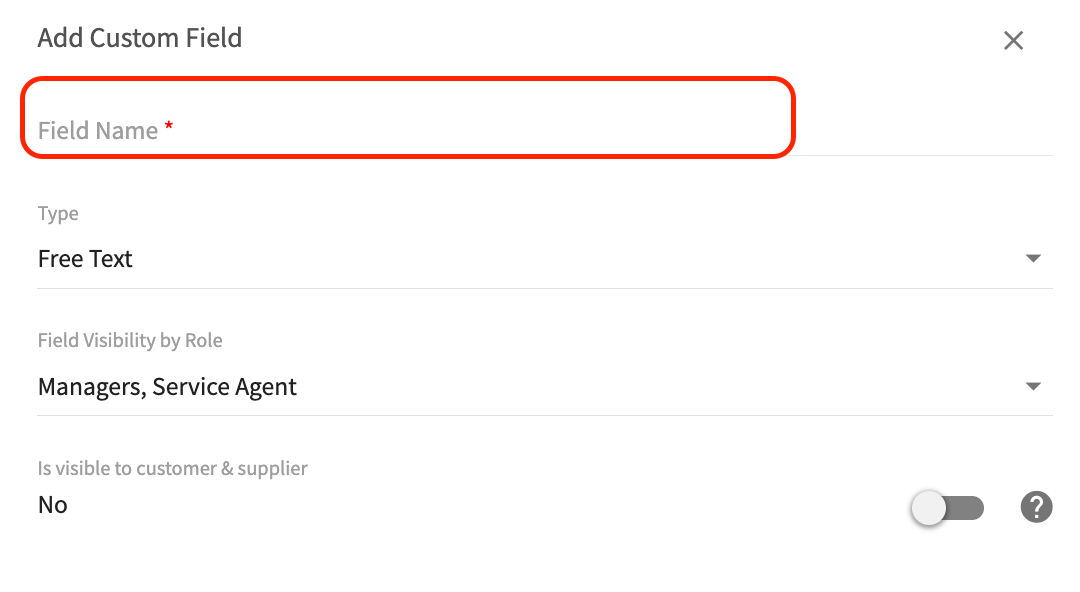
-
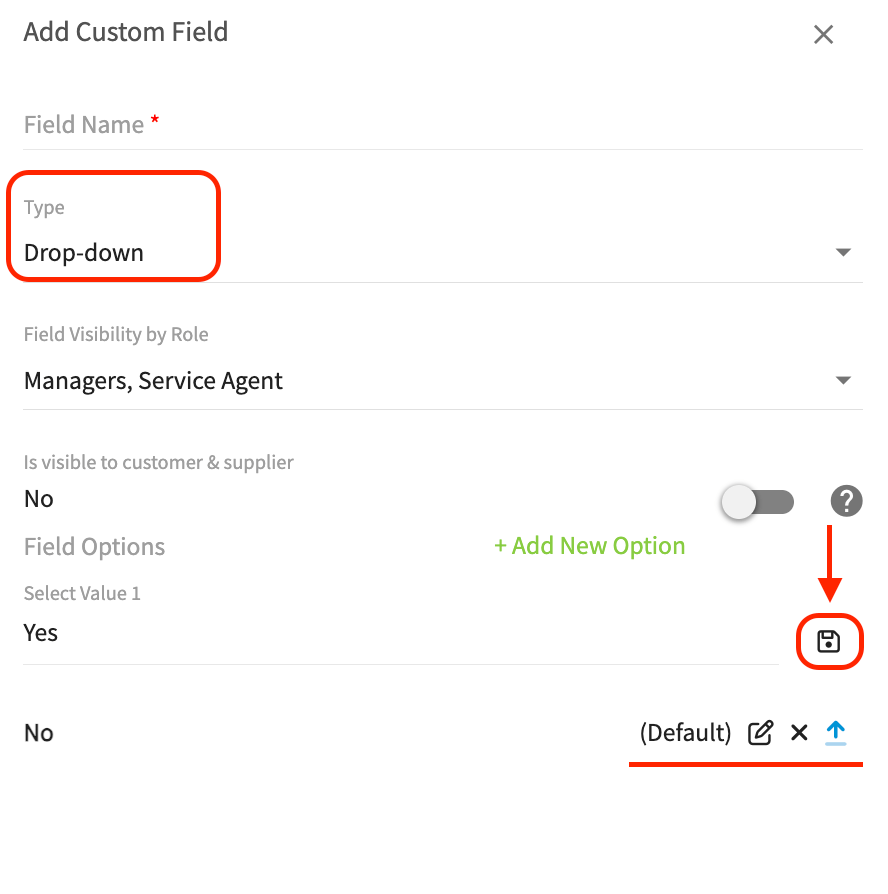
Select a Type from the dropdown. See the Settings reference below for what each type stores.
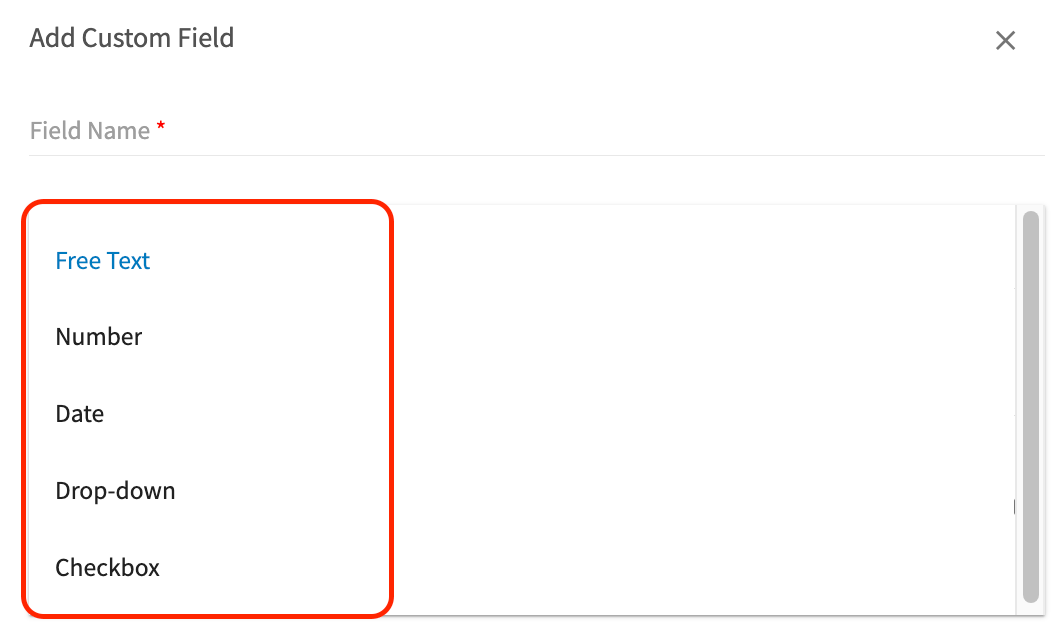
-
For a Drop-down field, select + Add New Option.
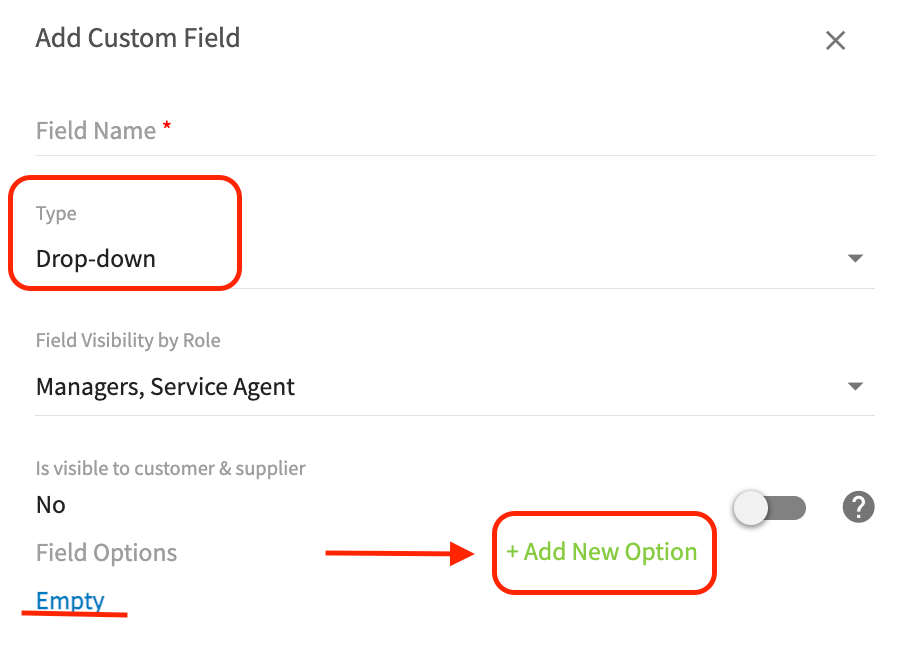
- Enter the option name and select the save icon to keep it. Repeat for every option you need.
-
Mark one option as the Default. The default option is the value that shows on the material list until a user with permissions edits it.
-
Set Field Visibility by Role by checking or unchecking Managers and Service Agent.
- Set Is visible to customer & supplier on or off.
- Save the field. The field is now active and appears on every material list for the roles you selected.