Who uses this: Admins, Team Managers, and Service Agents — Team Manager and Service Agent commenting depends on the user feature permissions set by the founding FieldPulse user, and sending a comment to the Customer Portal requires the Ability to Leave Customer Portal Comment permission for Service Agents. · Availability: All regions.When a tech needs a part or the office needs a status, that conversation shouldn’t live in a group text no one can find later. Comments keep it on the job record, where the whole team and — when you choose — the customer can see it.
Overview
A comment is a note left on a FieldPulse record so your team can talk on the record itself. Comments do two jobs: they carry communication between the field and the office, and on jobs and projects they can be sent to the customer through the Customer Portal. Either way, the exchange stays documented on the record.Where you can leave comments
You can leave comments on these records in FieldPulse:- Customer
- Job
- Project
- Subtask
- Estimate
- Invoice
- Material List
- Purchase Order
What teams use comments for
- Office and technician communication — a technician can request additional resources, ask for a scheduling change, or ask for clarification on instructions, and office staff can answer on the record so the technician has the details before heading to the job site.
- Communication between technicians — a technician who hits an unexpected issue on site can comment on the job record to tell internal staff about the problem and ask for advice.
- Customer communication through the Customer Portal — comments left through a job or project give the customer visibility into the work being completed, and the customer can reply with questions or feedback.
- Sharing best practices — Team Managers can use comments to discuss strategies that worked on similar jobs, so the rest of the team can learn from them.
Before you begin
Access to comments depends on the user’s role and on the user feature permissions the founding FieldPulse user sets. See User Roles and Permissions Details for how those permissions work.
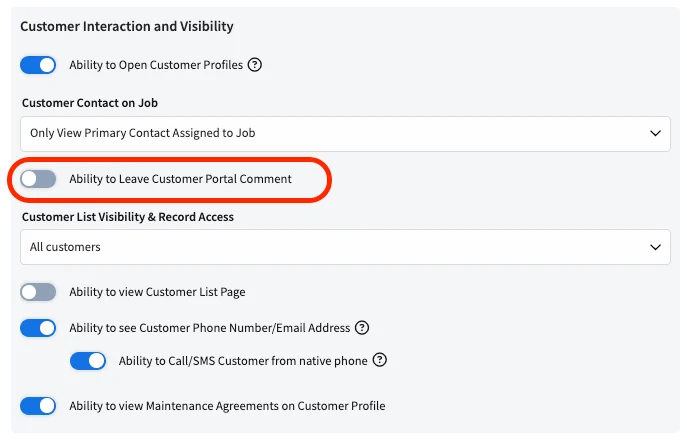
An admin turns the Ability to Leave Customer Portal Comment permission on or off for a Service Agent under Customer Interaction and Visibility in that user’s feature permissions.
On web
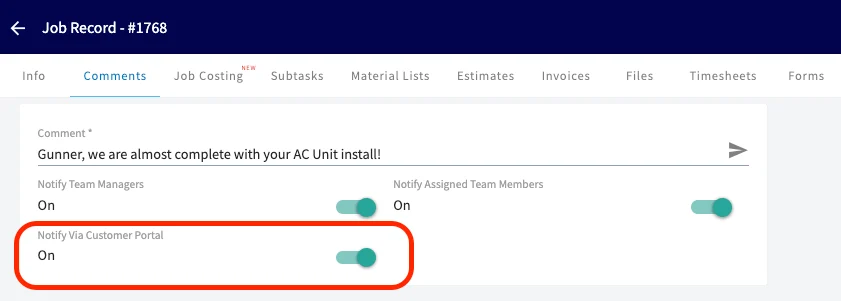
- Open the record you want to comment on and select the Comments tab.
- Type your note in the Comment field.
- Set the notification toggles for this comment — Notify Team Managers, Notify Assigned Team Members, and, on jobs and projects, Notify Via Customer Portal.
- Select the send arrow to post the comment.
On mobile
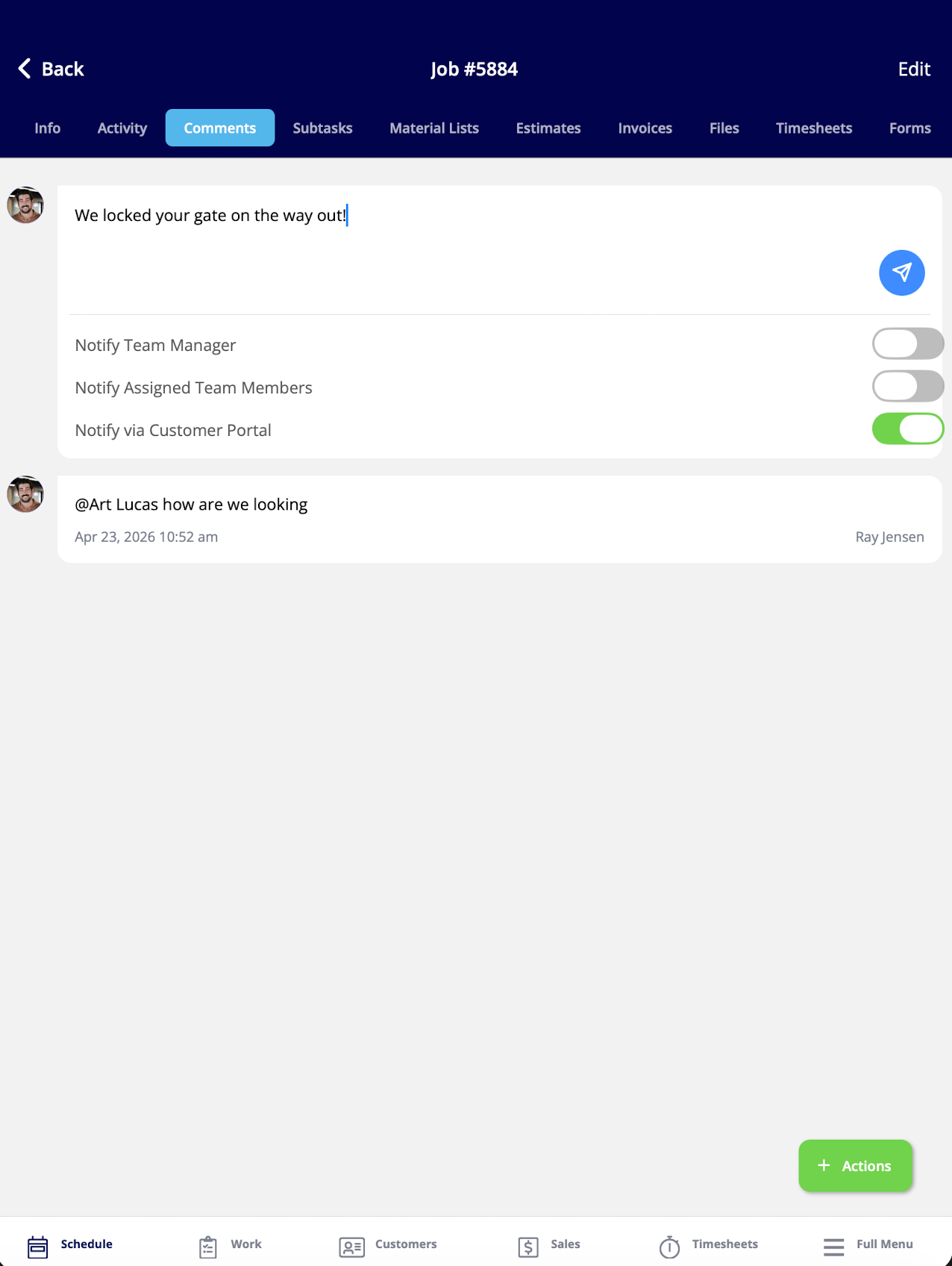
- Open the job or record you want to comment on and select the Comments tab.
- Type your note in the comment field.
- Set the notification toggles for this comment — Notify Team Manager, Notify Assigned Team Members, and, on jobs and projects, Notify via Customer Portal.
- Select the send arrow to post the comment.
Share a comment with the customer
Comments left on job and project records can also be sent to the Customer Portal, where your customers can read them. Turn on the Notify via Customer Portal toggle when you leave the comment, and the comment cascades to the related job or project in the Customer Portal. The customer also receives an email notification whenever a comment is left. The email shows the comment and includes a link that opens it in the Customer Portal.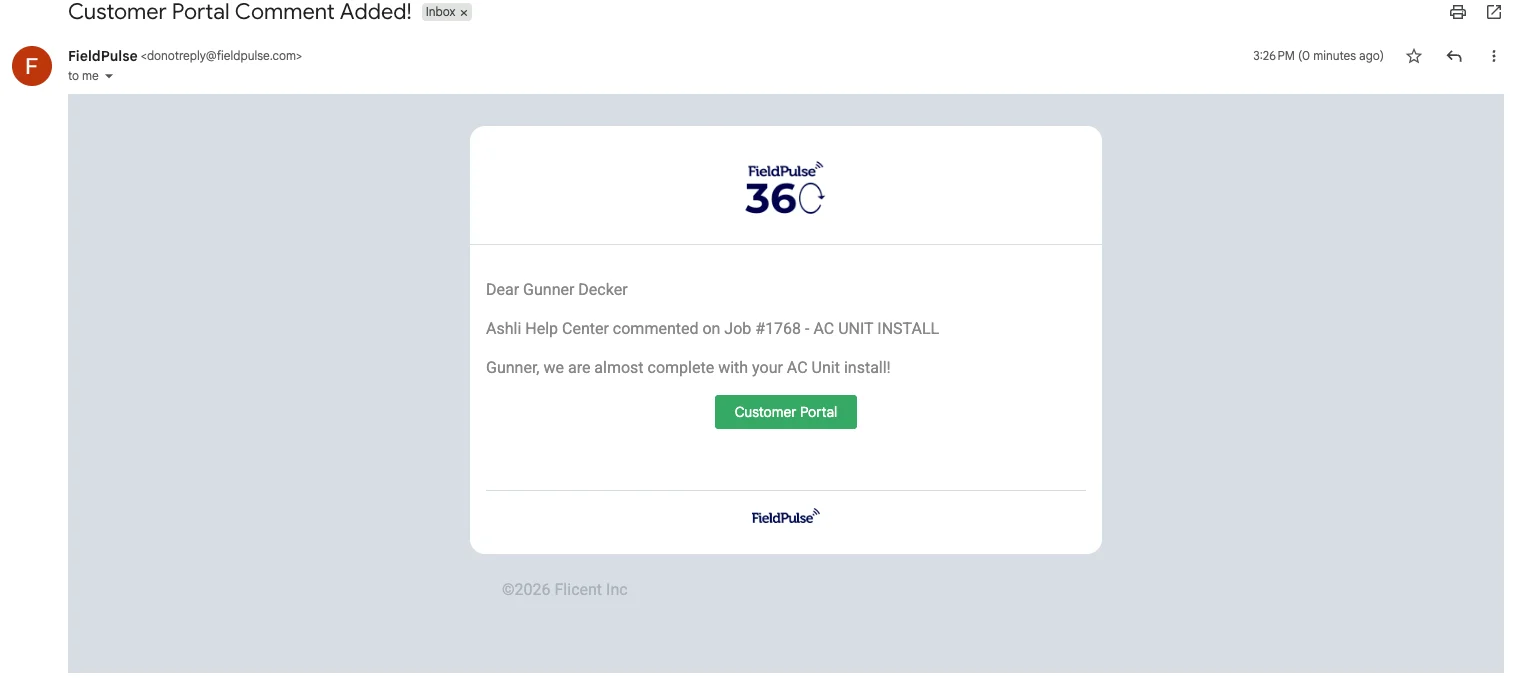
Set your notification preferences
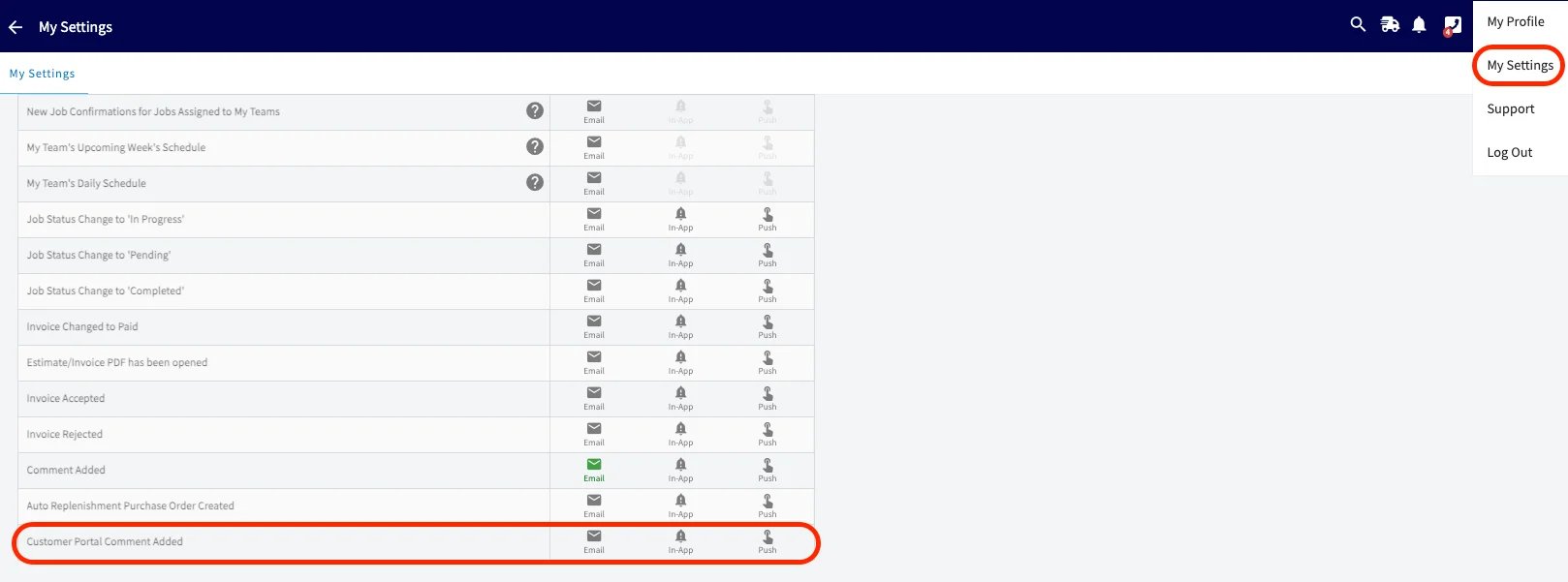
Each Admin, Team Manager, and Service Agent decides how they are notified when a customer adds a comment in the Customer Portal. Choose one or more of these methods for Customer Portal Comment Added in My Settings:- In-app notifications
- Push notifications