
Who uses this: Admins, Team Managers, and Service Agents generate a job report from a job record — on web or in the FieldPulse mobile app — and email it to the customer; Limited Agents cannot. Service Agent access is set in Company Settings > Jobs > General > Job Report Visibility. Availability: All regions.After the work is finished, the customer wants a clean record of what happened, not your internal notes. A dynamic job report turns what your team already recorded in job management into a report you send as a link, a PDF, or both, and you decide which details appear before it goes out.
Overview
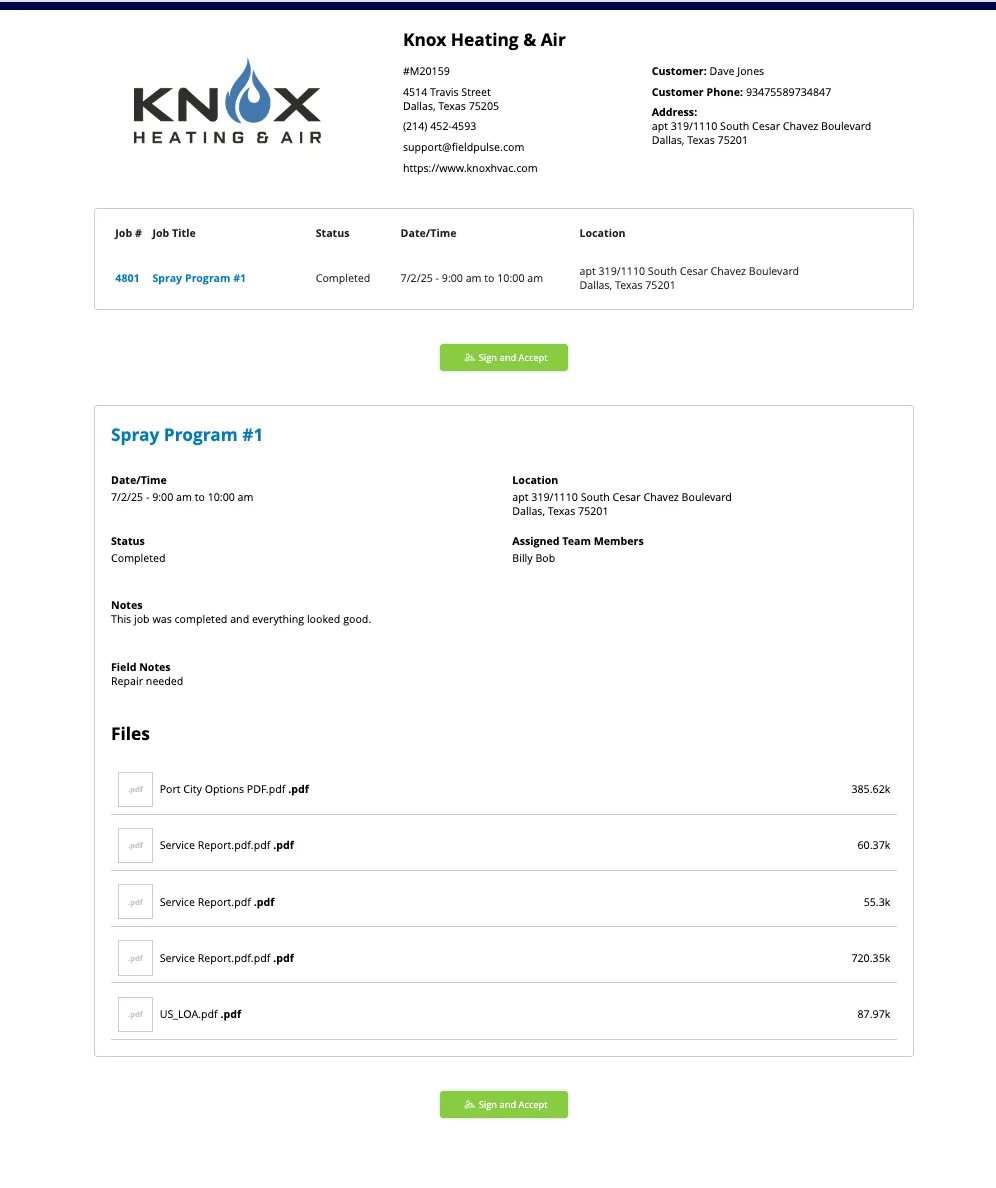
A dynamic job report is a customer-facing summary built from a job record’s own data. You open the report from the job, preview it as a Dynamic URL or a PDF, turn individual details on or off in Display Settings, then email it to the customer. One report can cover a single job, or several jobs selected from a customer record and combined into one document. You can create a report on web and in the FieldPulse mobile app.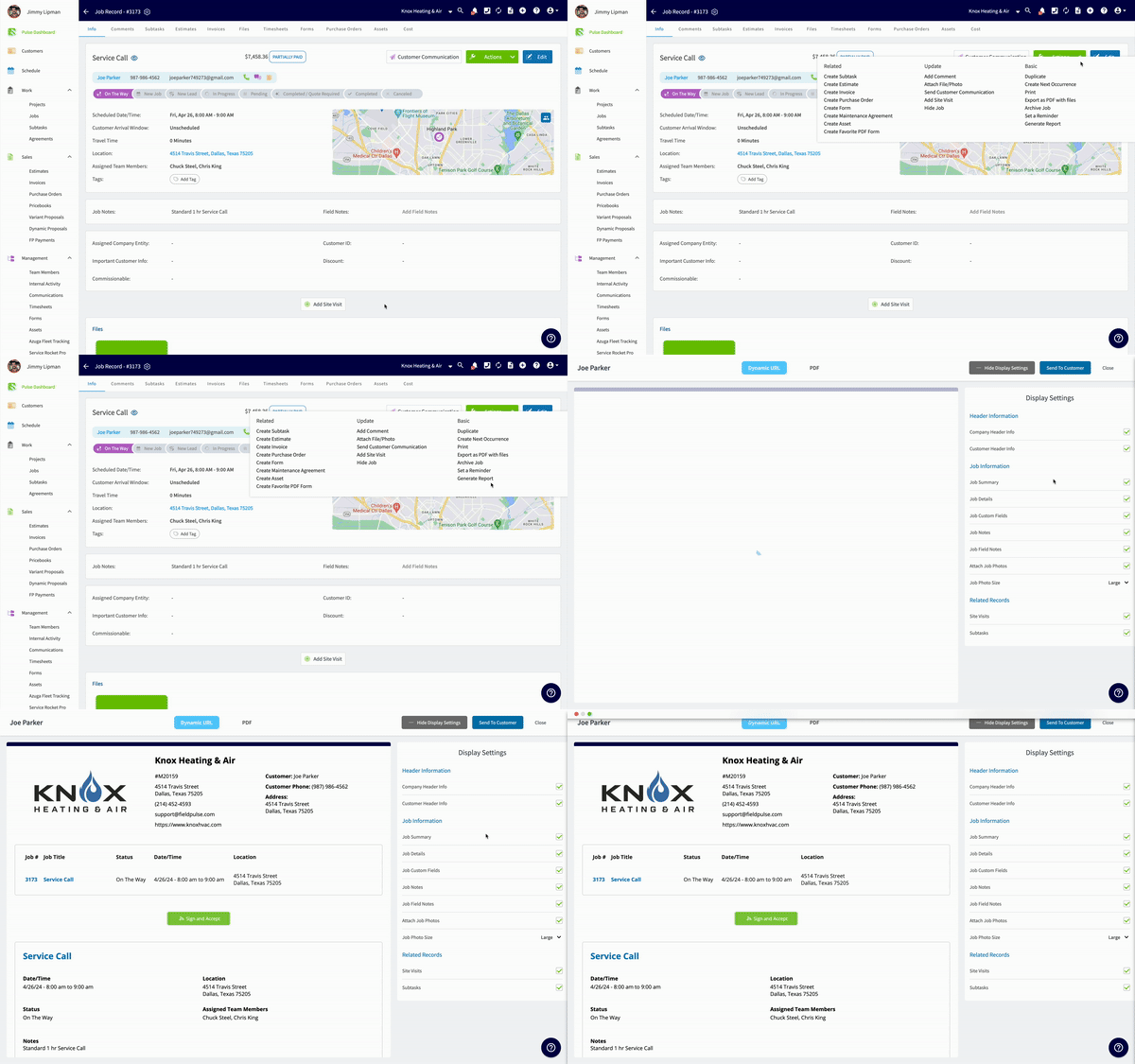
What you can show or hide
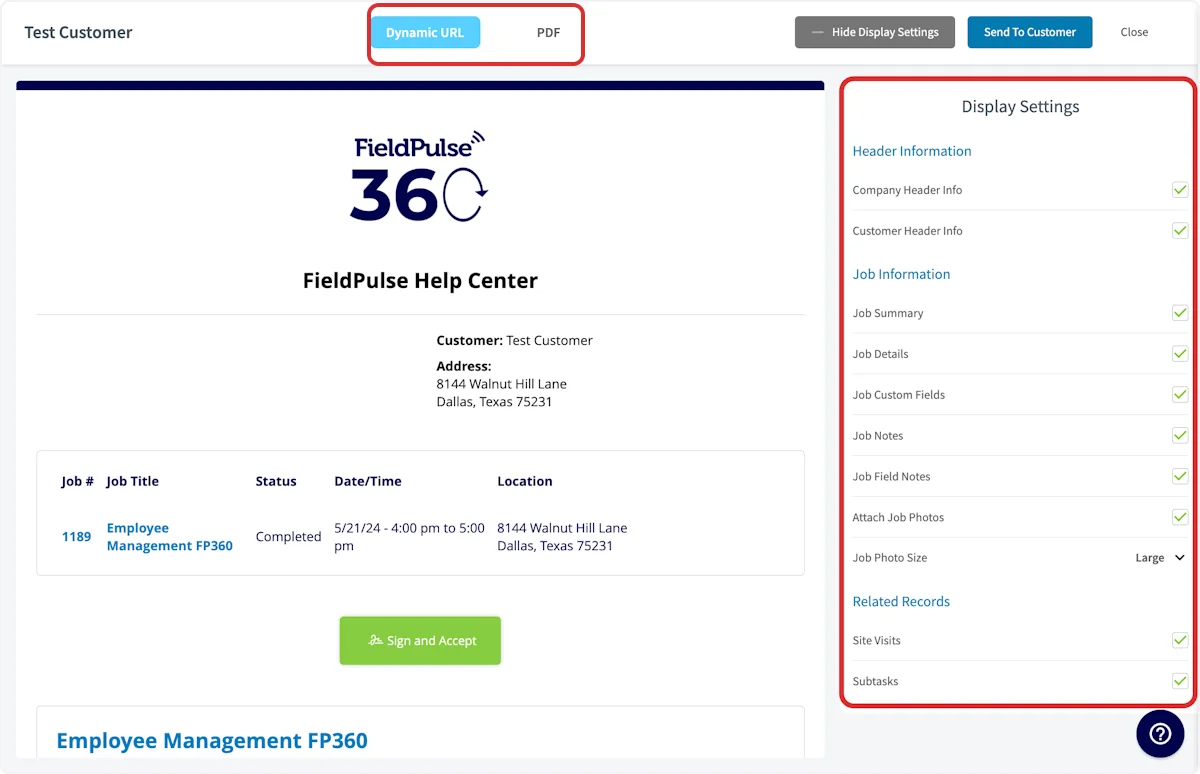
Display Settings controls what the customer sees. Select or deselect each detail before you send the report.
The Job Information group also holds Job Photo Size, which is a dropdown rather than a show-or-hide setting — it sets the size of the job photos in the report.
Display settings apply to the individual report you are working on, not to any other job report.
Before you begin
- Create the job you want to report on. FieldPulse builds the report from the job record, so the record has to exist first — see How to Create a Job.
- To combine several jobs into one report, start from the customer record those jobs belong to. You select the jobs from that customer’s Jobs tab.
On web
Create a report from one job
- Open the job record you want to report on.
-
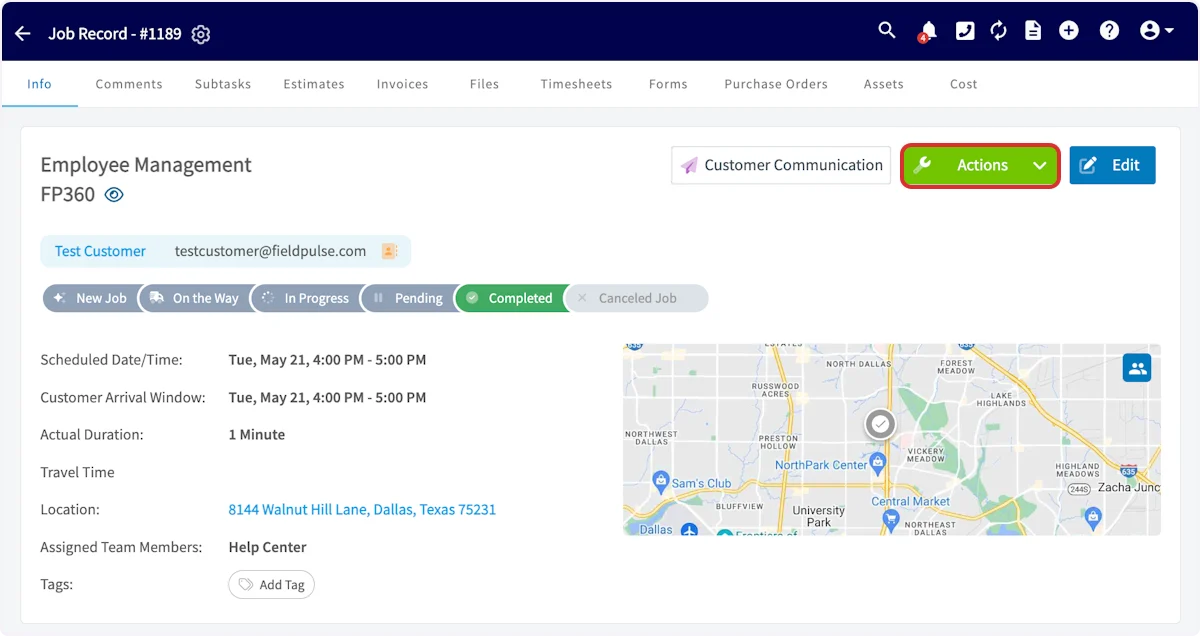
Select Actions, then select Generate Report.
- Select Dynamic URL or PDF at the top of the preview to see the report in that format.
- Use the Display Settings panel on the right to select or deselect the details you want the customer to see.
Send the report to the customer
-
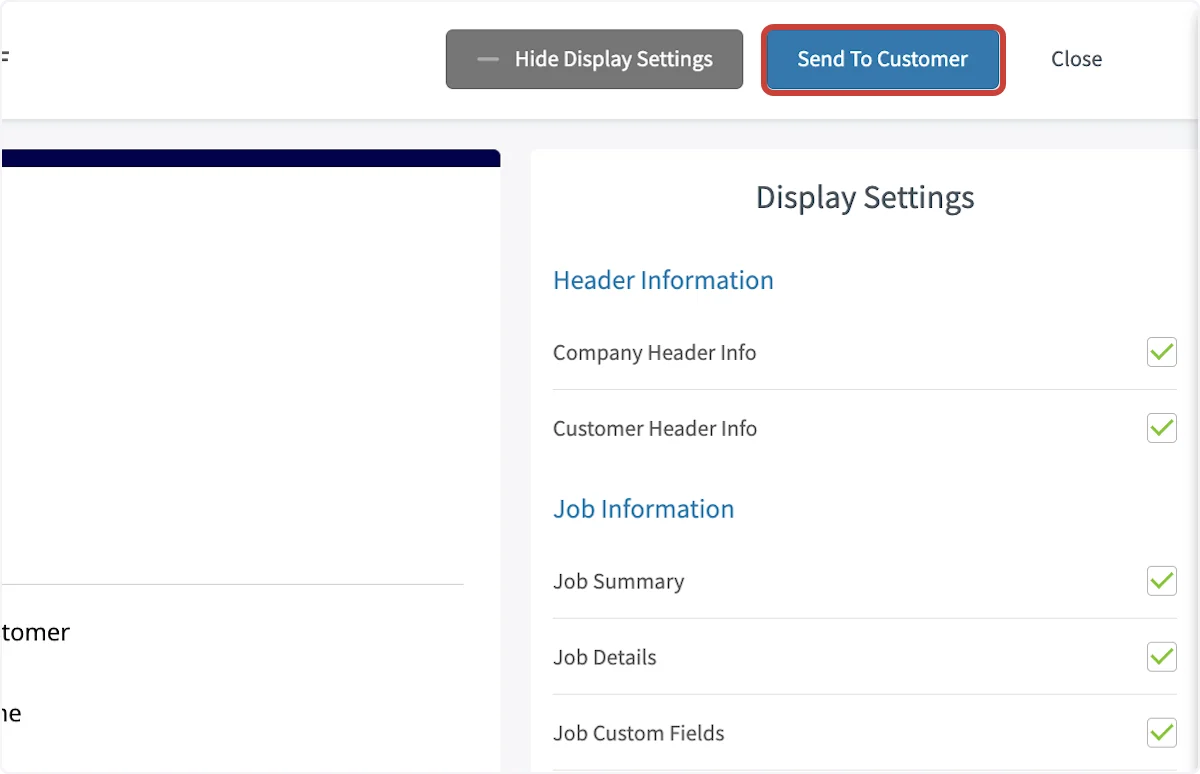
Select Send To Customer at the top of the preview.
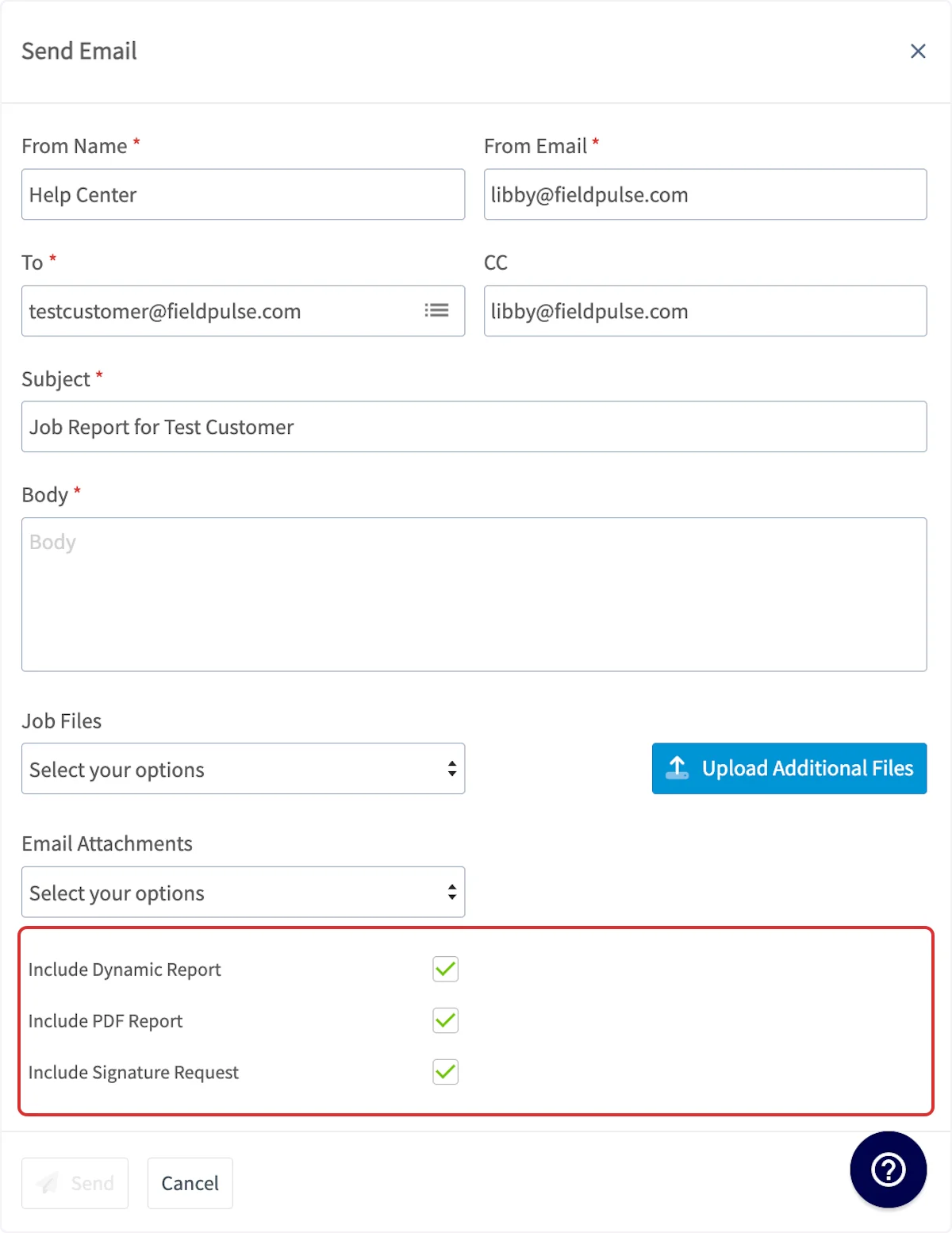
- Set the From Name and From Email the message goes out under.
- Enter the customer’s address in To, and add anyone else in CC.
- Write the Subject and the Body.
- Attach any files the customer needs — choose from Job Files, add new ones with Upload Additional Files, or pick from Email Attachments.
- Select Include Dynamic Report, Include PDF Report, and Include Signature Request to set what the email carries.
- Select Send.
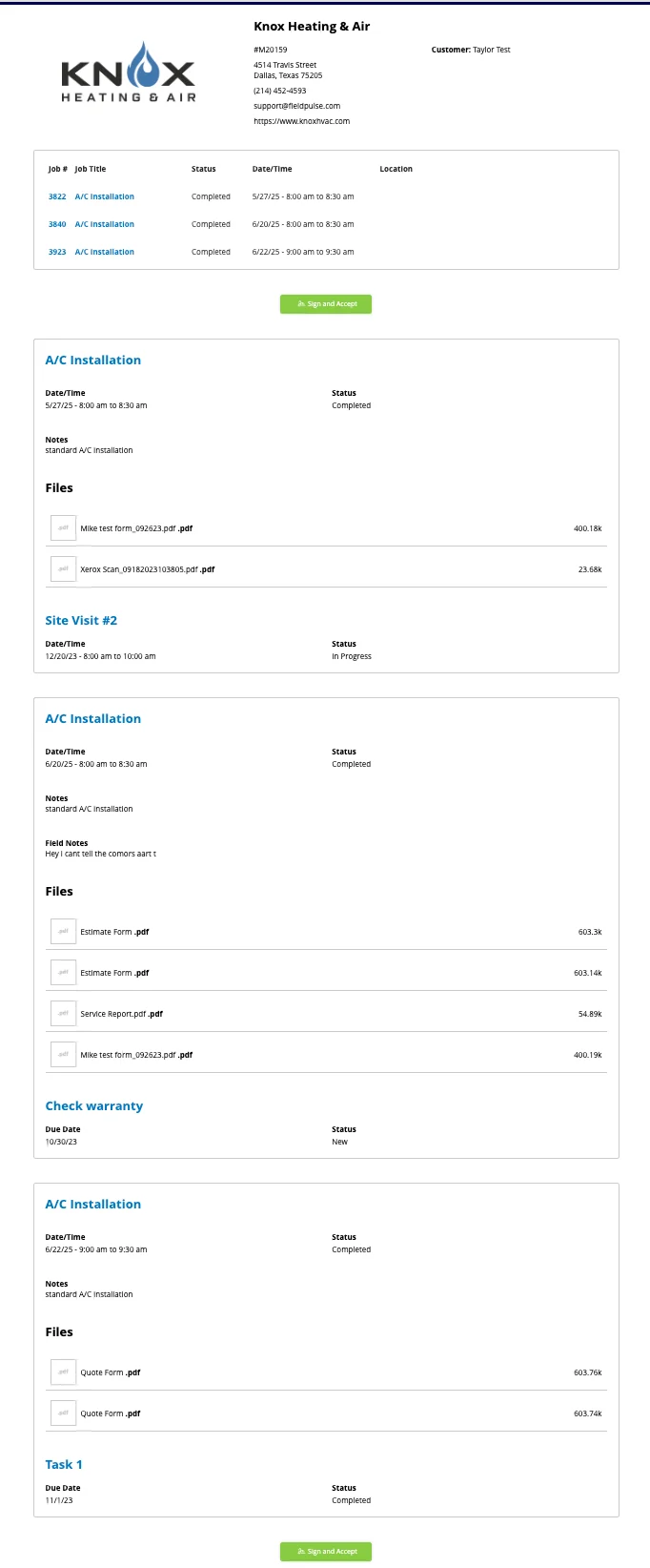
Combine several jobs into one report
- Open the customer record for the jobs you want to combine, then select the Jobs tab.
-
Select the checkbox icon in the toolbar above the job list.
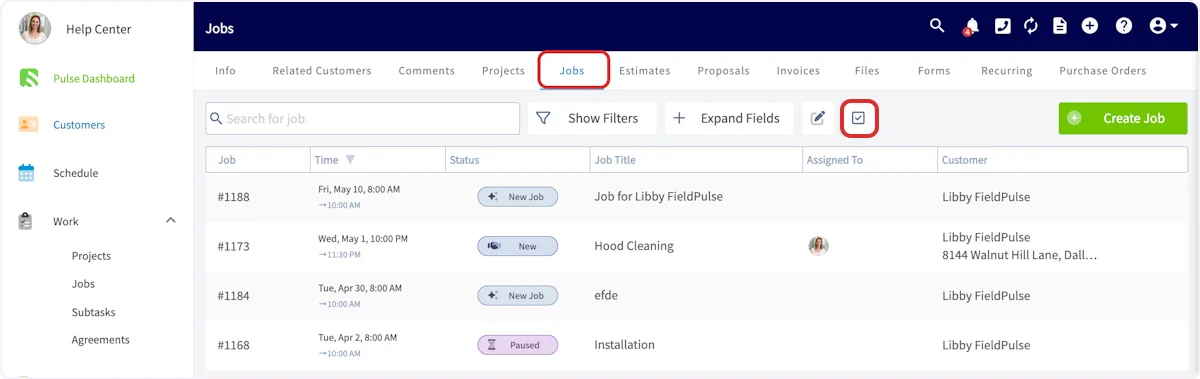
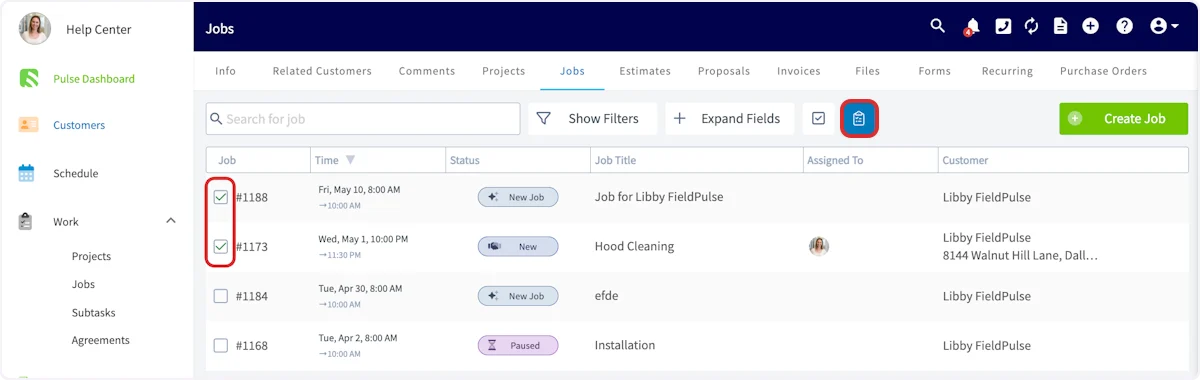
- Check every job you want in the report.
-
Select the clipboard icon to generate the combined report.
- Use Display Settings to select the details the customer sees.
- Select Send To Customer and fill in the email the same way you would for a single job.
On mobile
Create the report
-
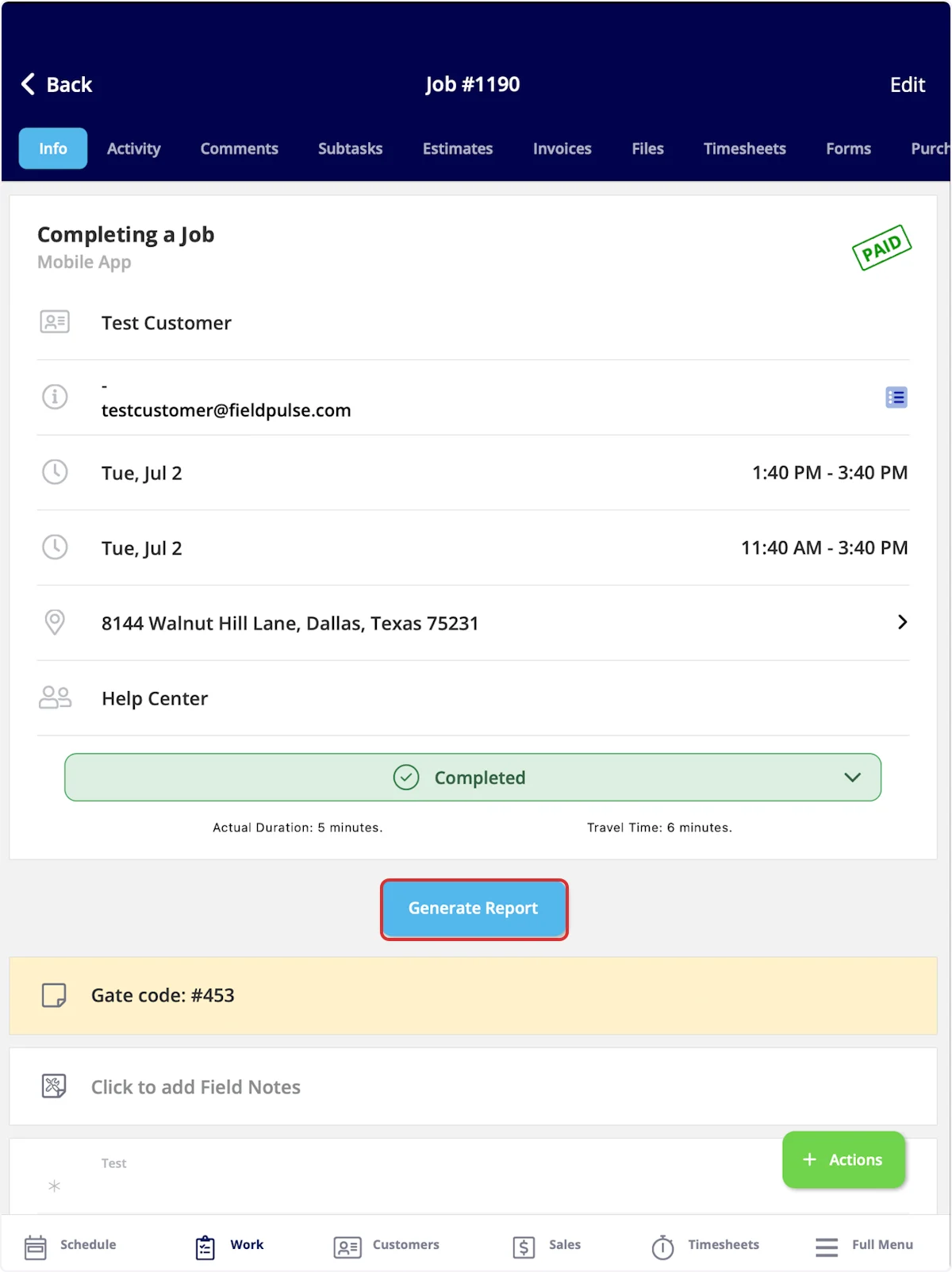
Open the job record and select Generate Report. You can also select Actions, then Generate Report.
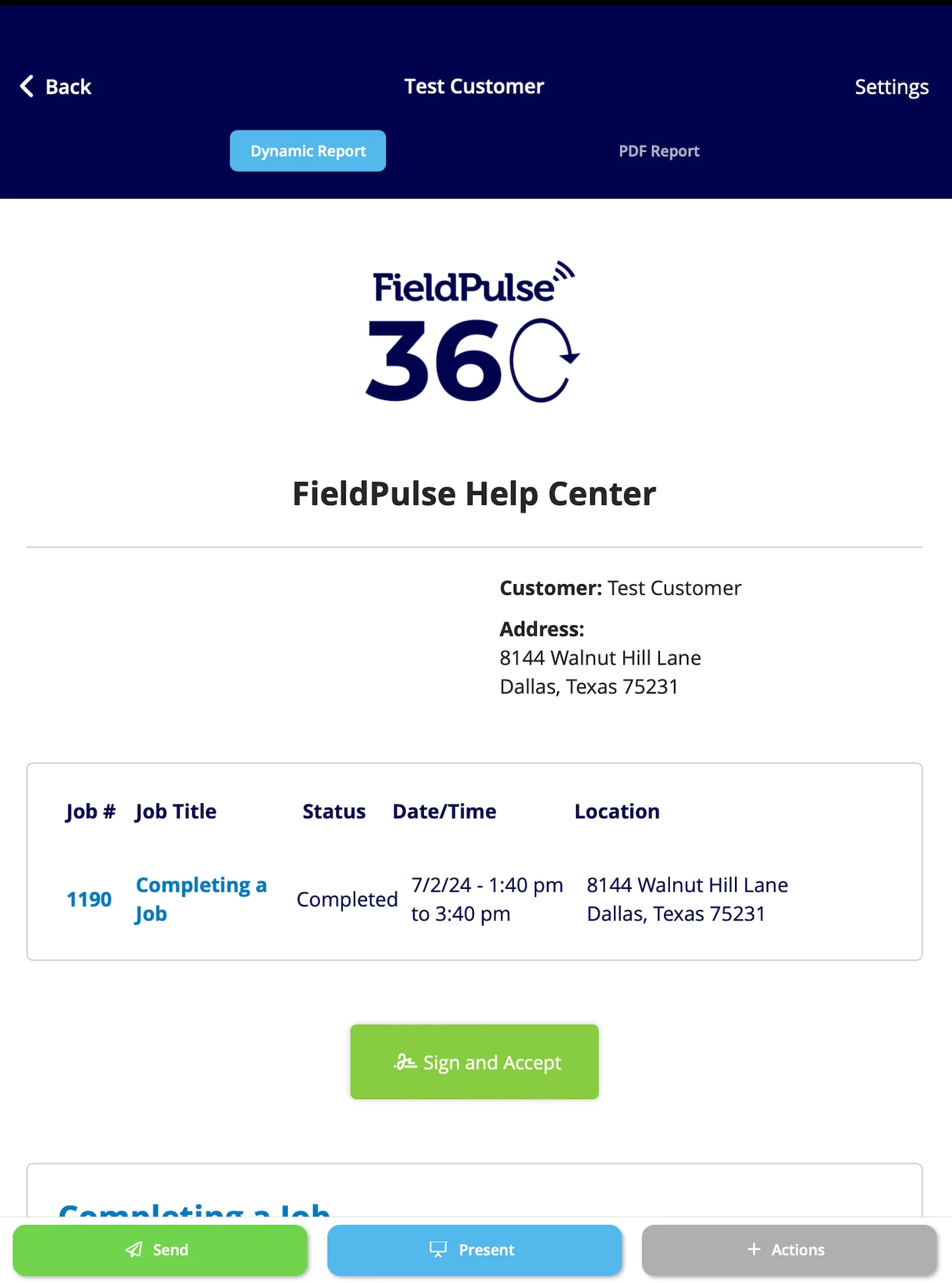
- Select Dynamic Report or PDF Report at the top of the preview to see the report in that format.
- Select Settings in the top right to select or deselect the details you want the customer to see.
Send the report
- Select Send at the bottom of the preview.
- Set who the email goes to, then write the subject and the body.
- Attach any files the customer needs.
- Choose whether to include the Dynamic Report, the PDF Report, and a Signature Request, then send the email.