
Who uses this: Admins create job custom fields in Company Settings, which only Admins can see, and set each field’s visibility and editability for the Managers, Service Agent, and Subcontractor roles. Availability: All regions.Every business tracks something the standard job record has no spot for — a warranty number, a gate code, an equipment model. A custom field gives that detail a permanent home on the job record instead of leaving it in a tech’s head or buried in a note. You create the field once in Company Settings, choose the kind of data it holds, and decide which roles can see it and which can change it.
Overview
A job custom field is an extra field you define in Company Settings. The next time you create a job, that field appears on the job record under Additional Fields. Each field carries a Type that sets the kind of data it holds, its own Field Visibility by Role and Field Editability by Role settings, and a Cascade to Related Record setting — see Settings reference below for what each one controls. The Custom Fields for Job Records page lists every field you have created. You can set the order your custom fields appear in, so you control how they are displayed to your team members.Video walkthrough
Video walkthrough: creating custom fields on job records
Before you begin
- Decide who should see the field and who should be able to change it. You set visibility and editability separately, for Managers, Service Agent, and Subcontractor.
- Name the field for the data it holds rather than for one specific job.
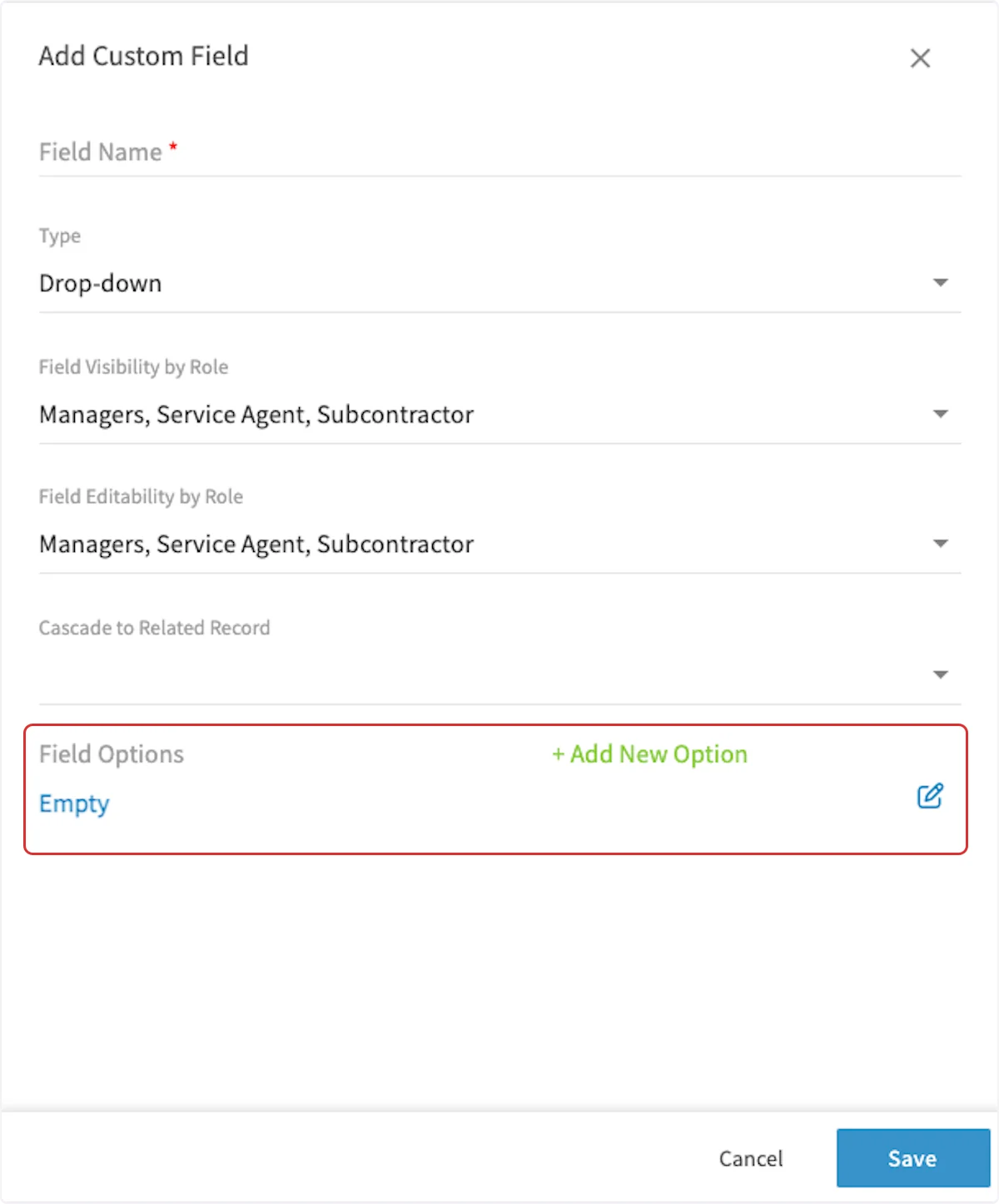
- Plan the choices for a Drop-down field in advance. You create and edit the drop-down options before you save the field.
Step-by-step setup
Create each job custom field once in Company Settings, then open a job to confirm it landed where you expect.Create a custom field
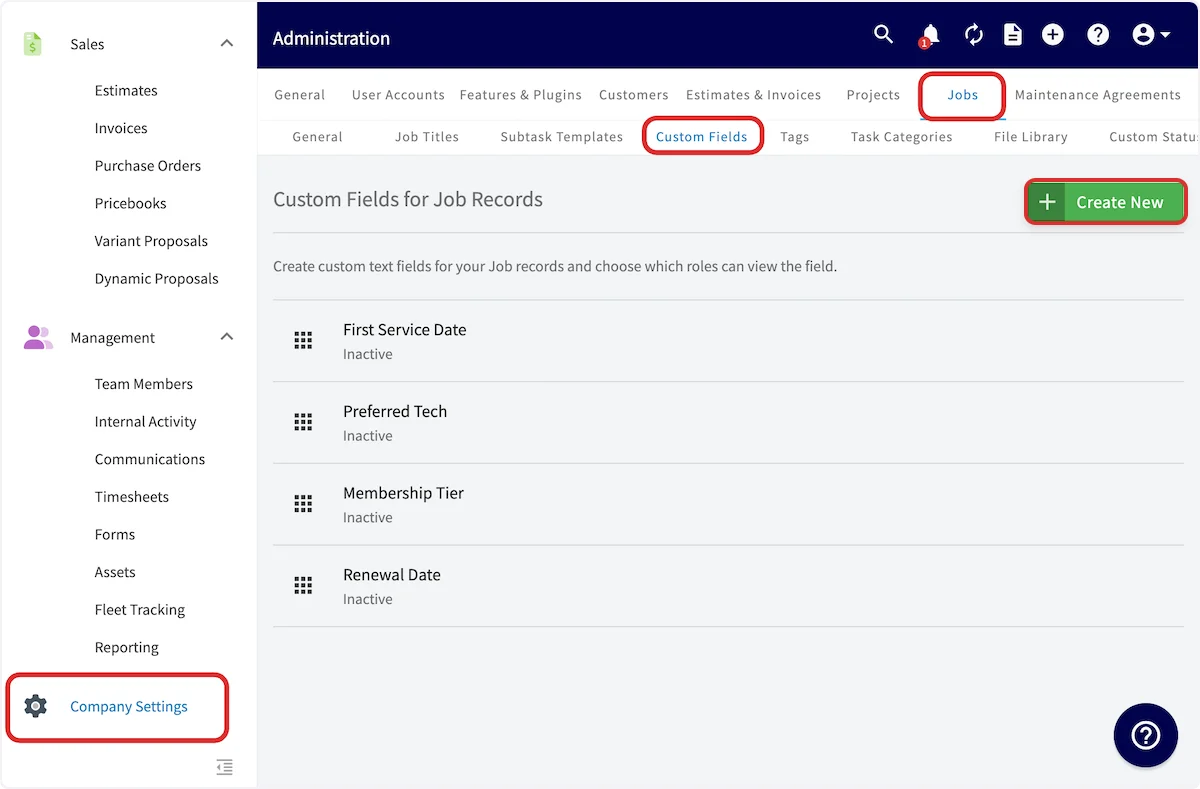
- Go to Company Settings.
- Select the Jobs tab, then the Custom Fields tab.
-
Select Create New.
-
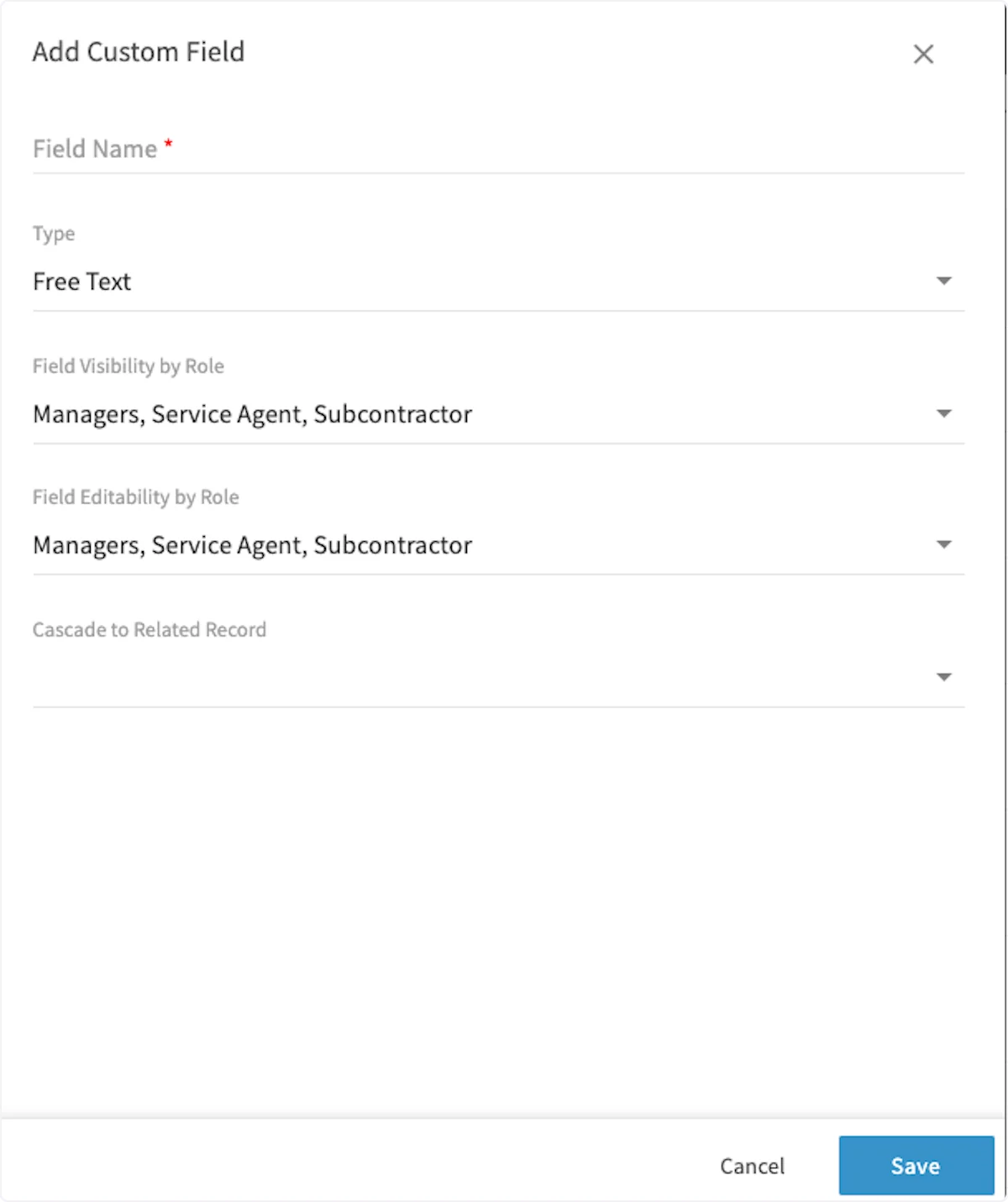
In the Add Custom Field window, enter the Field Name. This is the label your team sees on the job record.
-
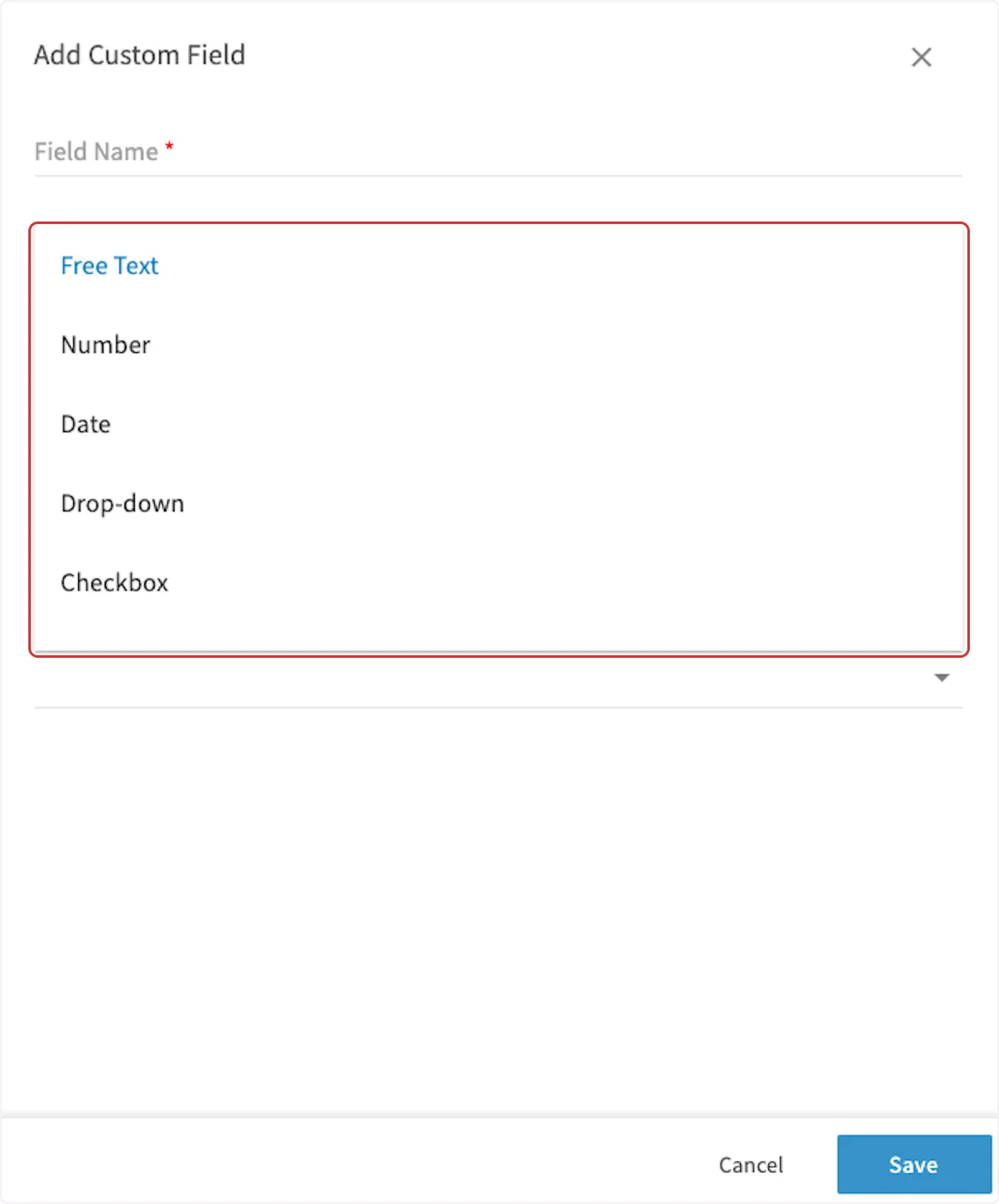
Select the Type of data the field holds: Free Text, Number, Date, Drop-down, or Checkbox.
-
For a Drop-down field, select + Add New Option and enter each choice you want. Create and edit the drop-down options now, before you save the field.
- Set Field Visibility by Role for the roles that should see the field, and Field Editability by Role for the roles that should be able to change its value.
- Use Cascade to Related Record to select the additional FieldPulse records where the information recorded in this custom field should also appear.
- Select Save.
Check the field on a job record
The next time you create a job, your new custom field appears under Additional Fields, and each type takes its own kind of entry.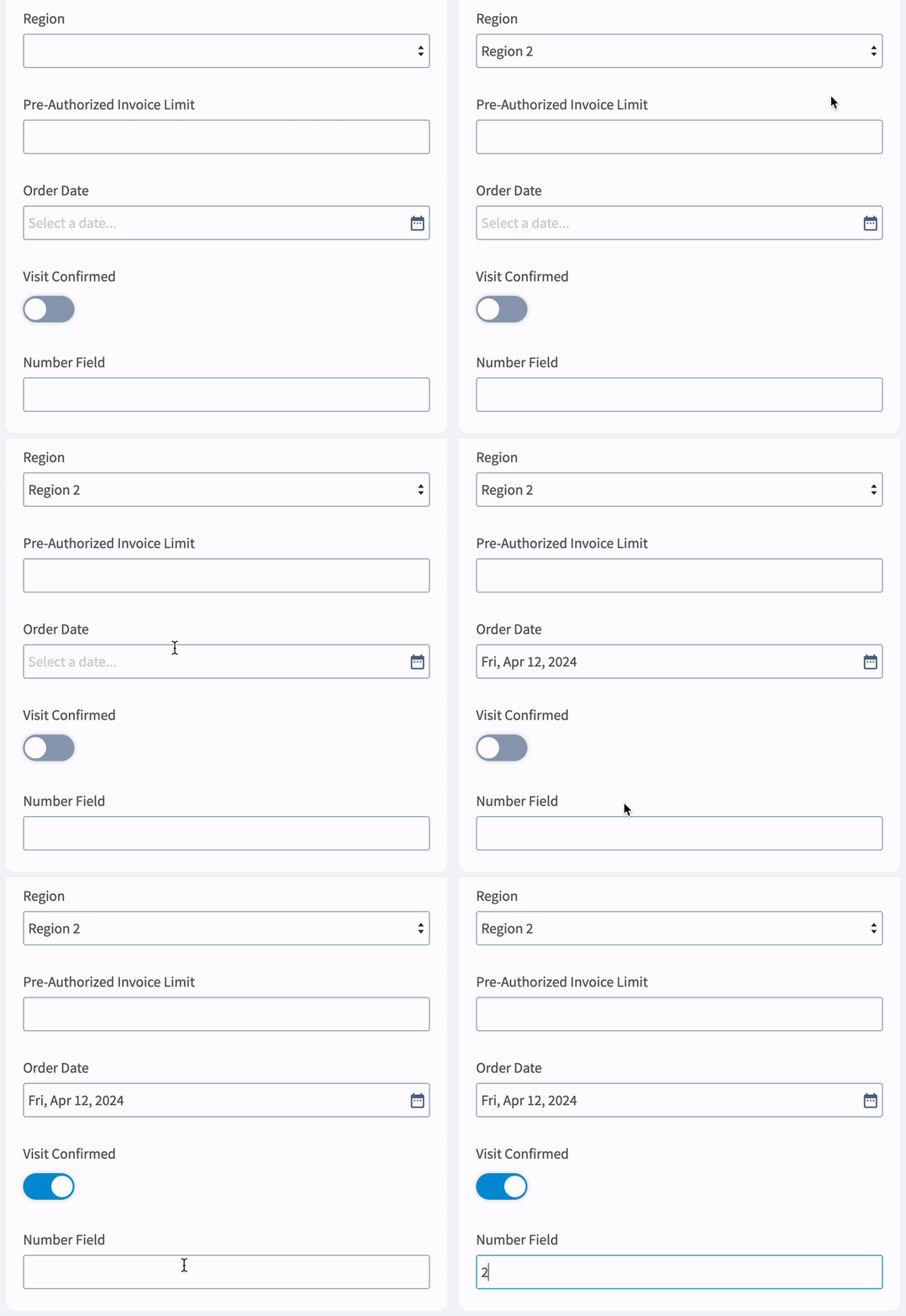
The mobile apps need a full re-sync before newly created custom fields show up there. That sometimes means logging out and logging back in.