
Who uses this: An Administrator turns Project Management on in Company Settings; each Project is then assigned to a team, and comments on a Project are visible to every member of that team. Availability: All regions. Project Management is included in the FieldPulse subscription — the Project Management card in Company Settings > Features & Plugins lists it as included — and is turned on per account.Some work does not fit inside a single job. A multi-week install, a scope that bills in stages, an engagement that spans several trips and several invoices — track that as one job and the details start slipping. A Project holds all of it in one place: every job, subtask, estimate and invoice, file, and timesheet tied to the same long-running engagement.
Overview
A Project is a long-term record that groups related work under one customer. Where a job covers a single unit of work, a Project covers the whole engagement — the jobs, subtasks, estimates, invoices, files, and timesheets that add up to one large or multi-week effort. Jobs can span multiple days on their own, so reach for a Project when the work carries complex assignments across a longer period, or needs more than one invoice before it is finished. For a side-by-side comparison of the three work records, see Projects vs. Jobs vs. Site Visits Details.How it works
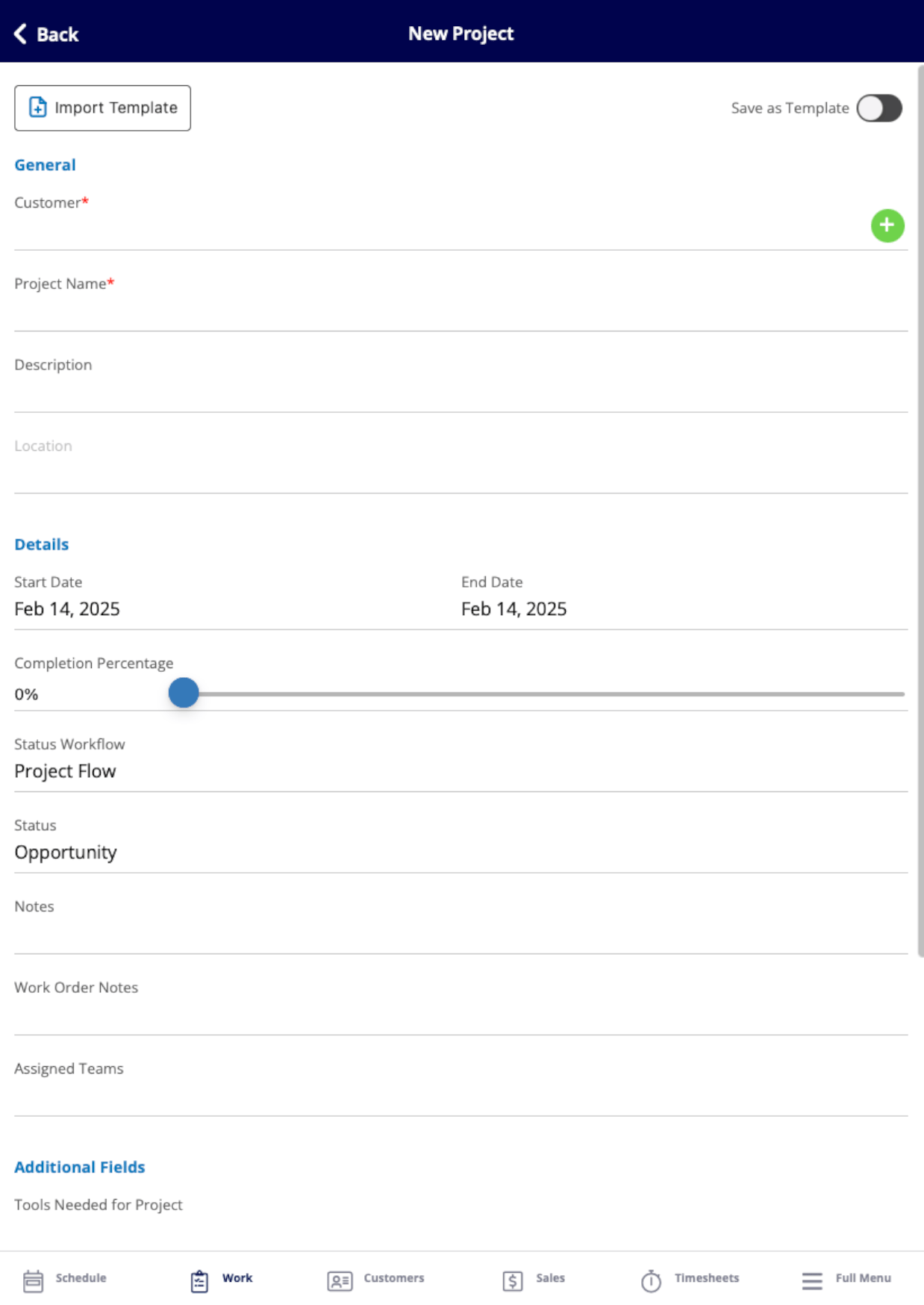
A Project sits above your jobs and collects everything attached to the same scope of work.- Every Project belongs to a customer. The project record carries a name, description, location, start and end date, status, completion percentage, and an assigned team.
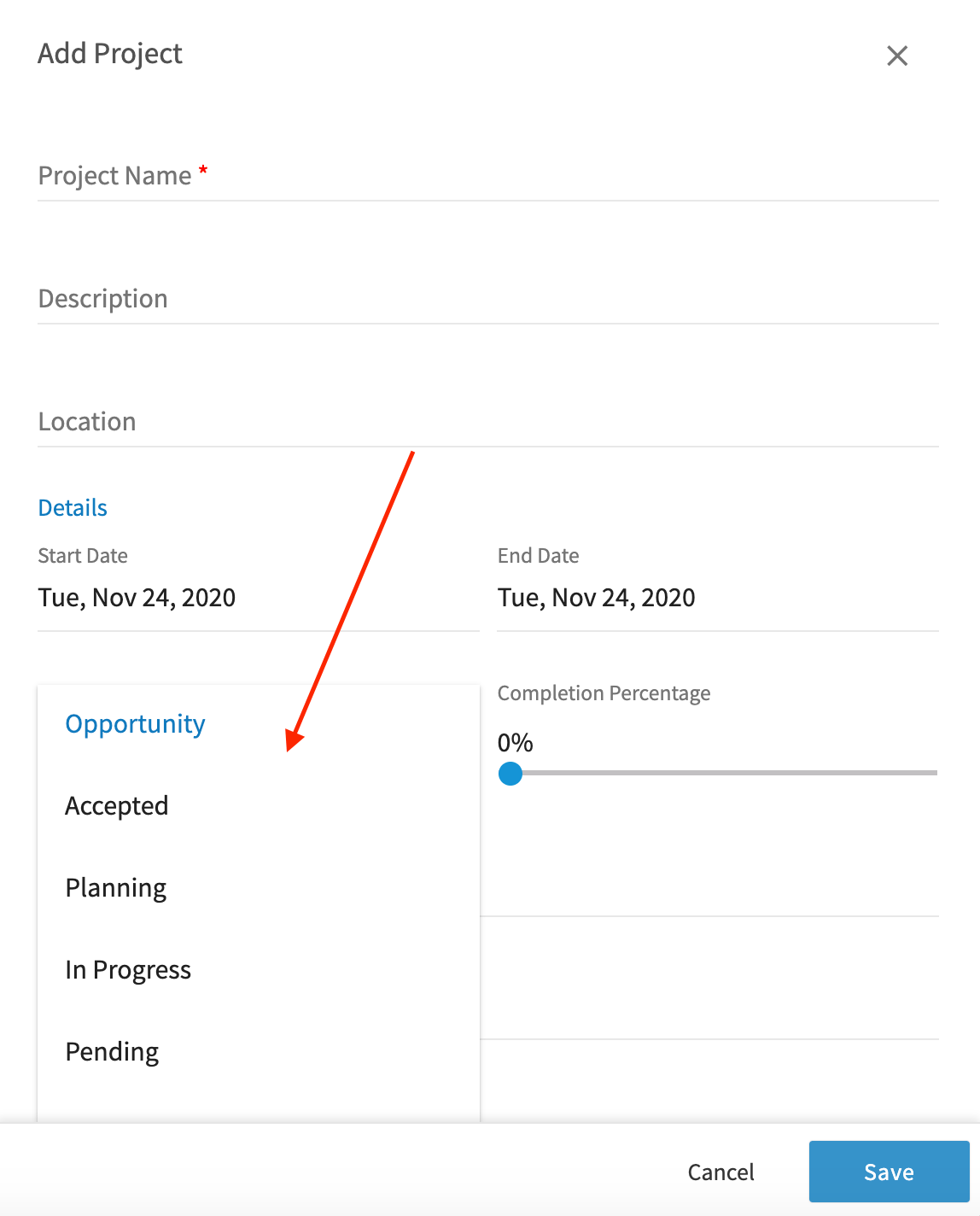
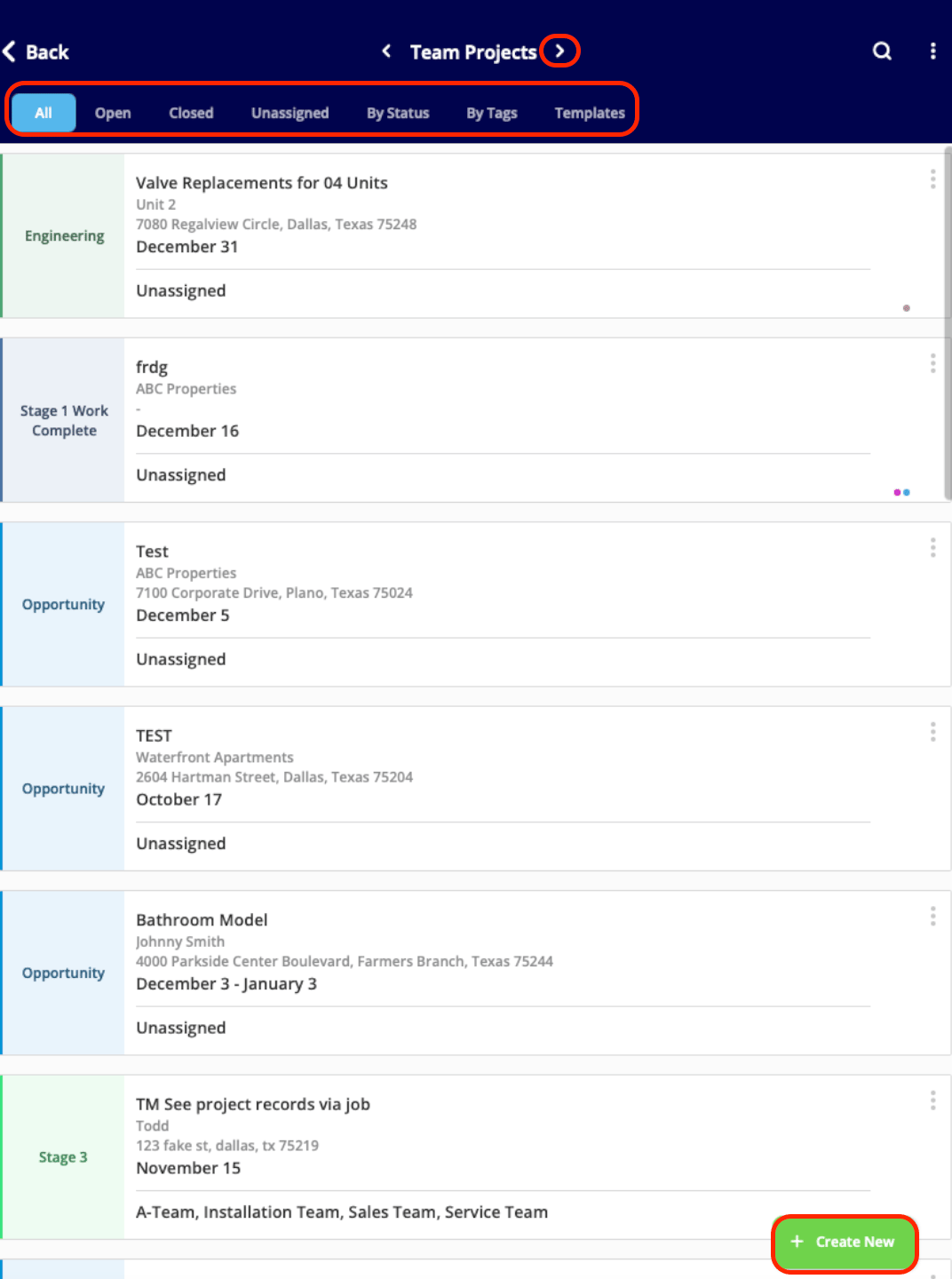
- Status tracks the stage, and completion percentage tracks progress. A Project follows a Status Workflow, and its Status reflects the stage the work is at — Opportunity, Accepted, Planning, In Progress, and Pending are the statuses shown in the project views. The completion percentage is a slider you move as the work advances.
- Jobs and subtasks are created underneath the Project. Each one is scheduled, assigned, and tracked on its own while staying attached to the Project.
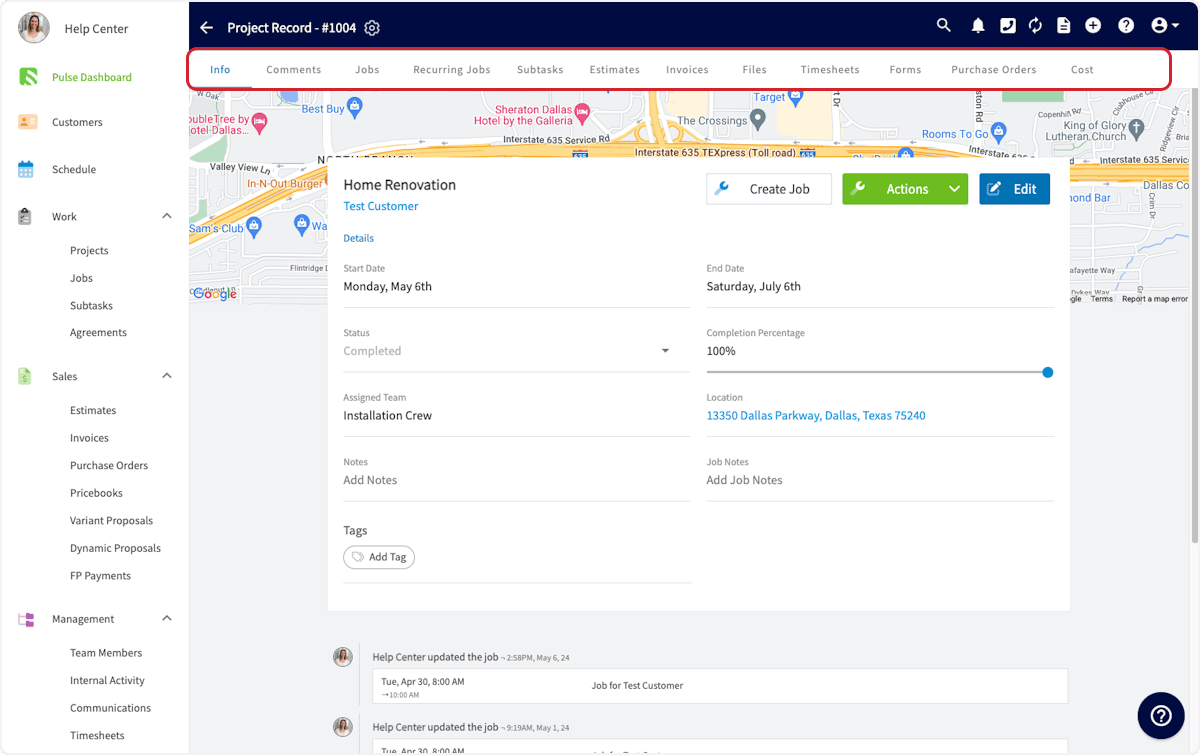
- Estimates, invoices, purchase orders, files, comments, and timesheets attach to the Project record through the tabs across the top of the record.
- Job Notes on the Project insert automatically into related jobs, so a crew opening a job started from the Project sees the same context.
- Any record linked to a Project can open the rest of them. A job, estimate, invoice, purchase order, or file tied to a Project shows a Related Project tab that lists everything else on that Project.
Before you begin
- Project Management is turned on per account. An Administrator opens Company Settings, selects Features & Plugins, finds Project Management, and selects Enable. Projects then appears under Work in the left menu.
- Once Project Management is on, a Projects area also appears in Company Settings, where you can add your own fields to project records — see Setting Up Custom Fields on Project Records.
On web
Finding your Projects
Projects live under Work in the left menu. The Projects page opens in List view, which shows each project’s number, name, status, date range, assigned teams, completion percentage, and customer.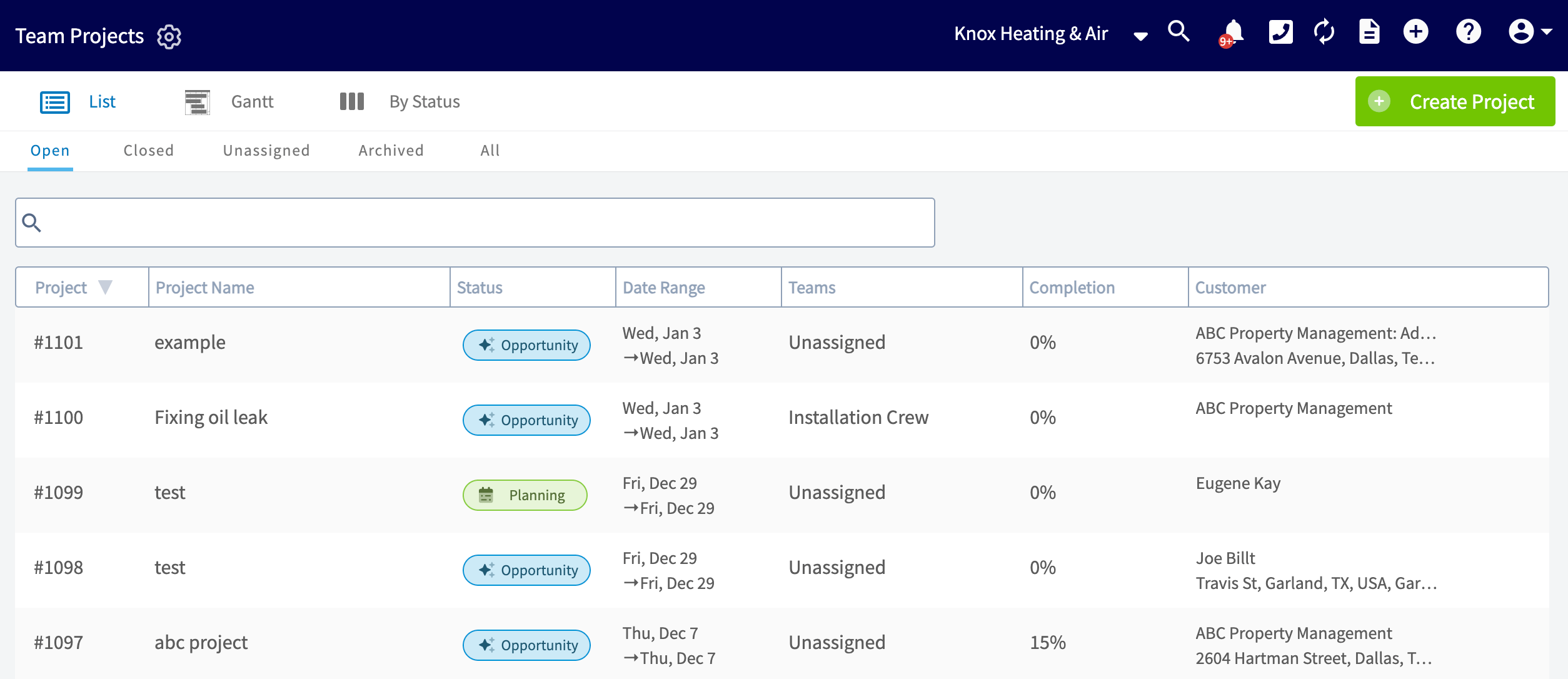
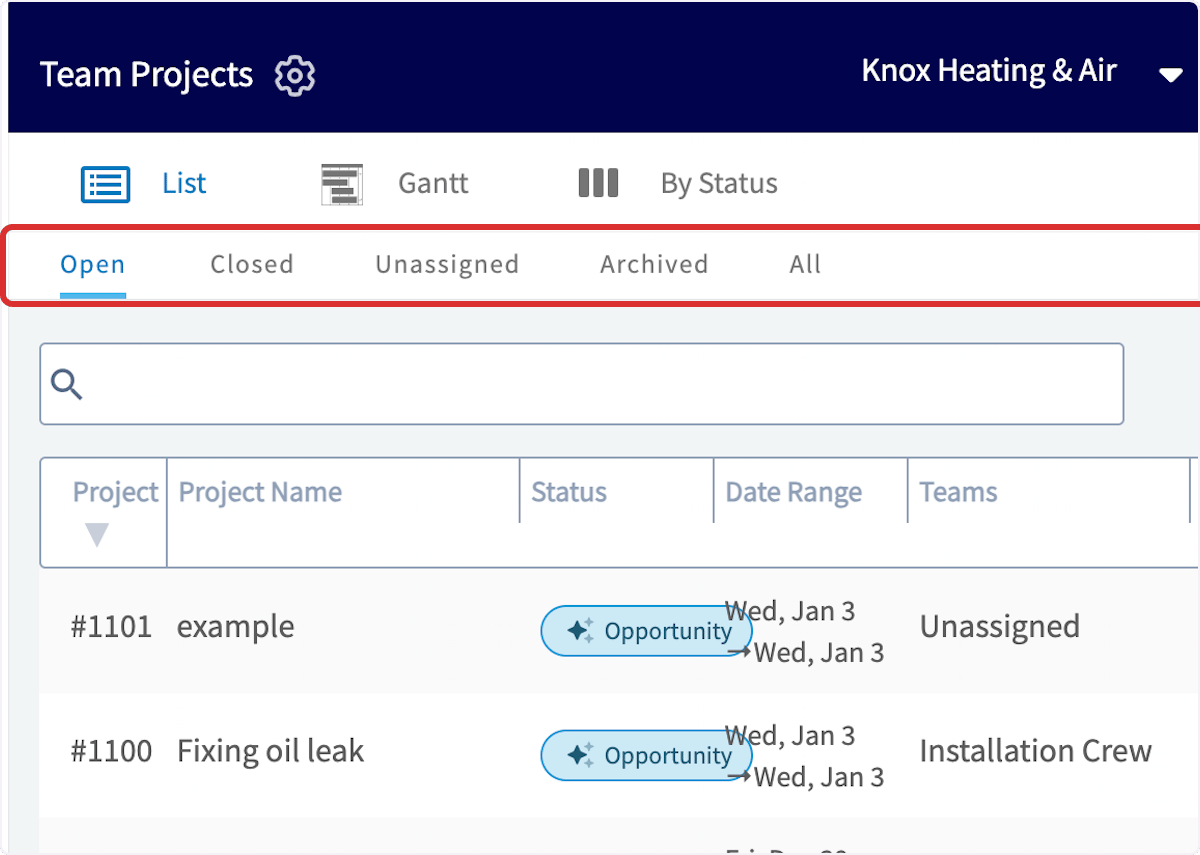
Gantt view
The Gantt tab organizes your projects by date so you can see the month at a glance. Hover over any project bar to show that project’s details.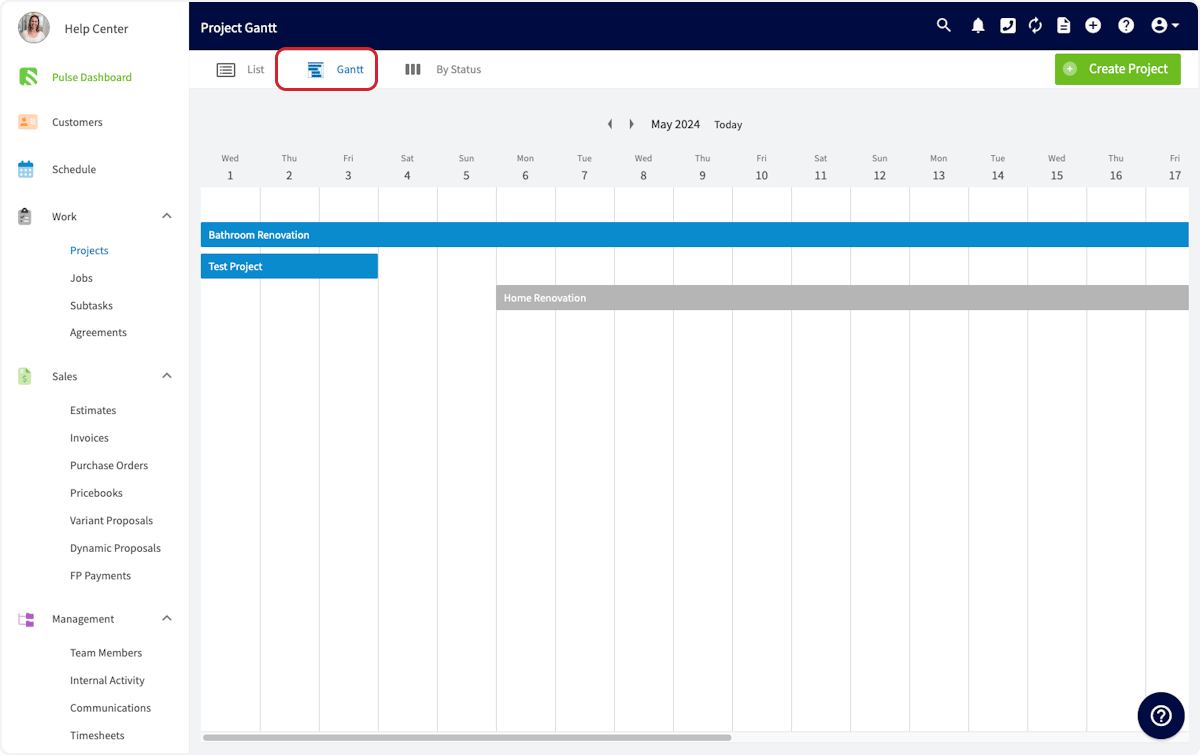
By Status view
The By Status tab groups your projects into columns by the status each one is in.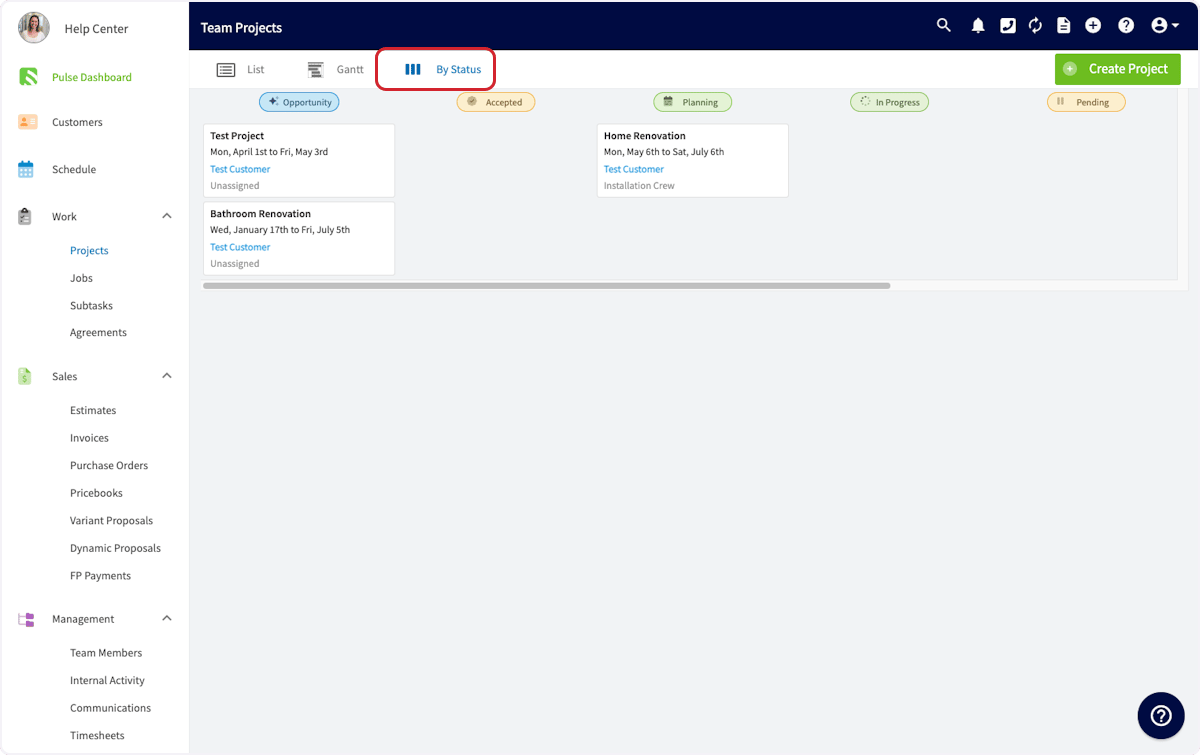
Creating a Project from scratch
- Select Create Project.
-
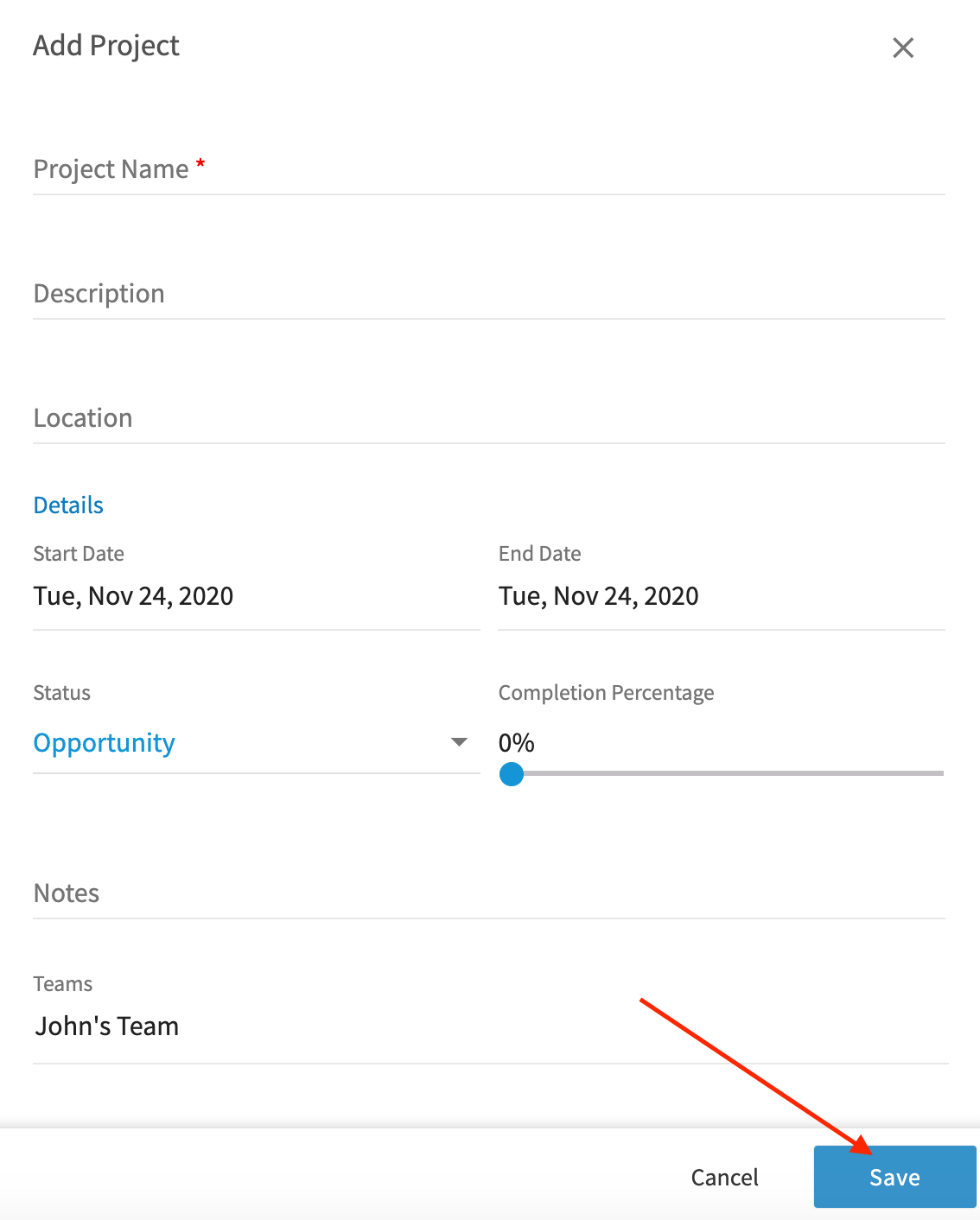
In the Add Project window, select the Customer, enter a Project Name and Description, and choose the Start Date and End Date. The location is pulled from the customer’s information automatically, or you can enter coordinates in Decimal Degrees (for example,
34.0522, -118.2437) or Degrees, Minutes, Seconds (for example,34°03'08"N, 118°14'37"W).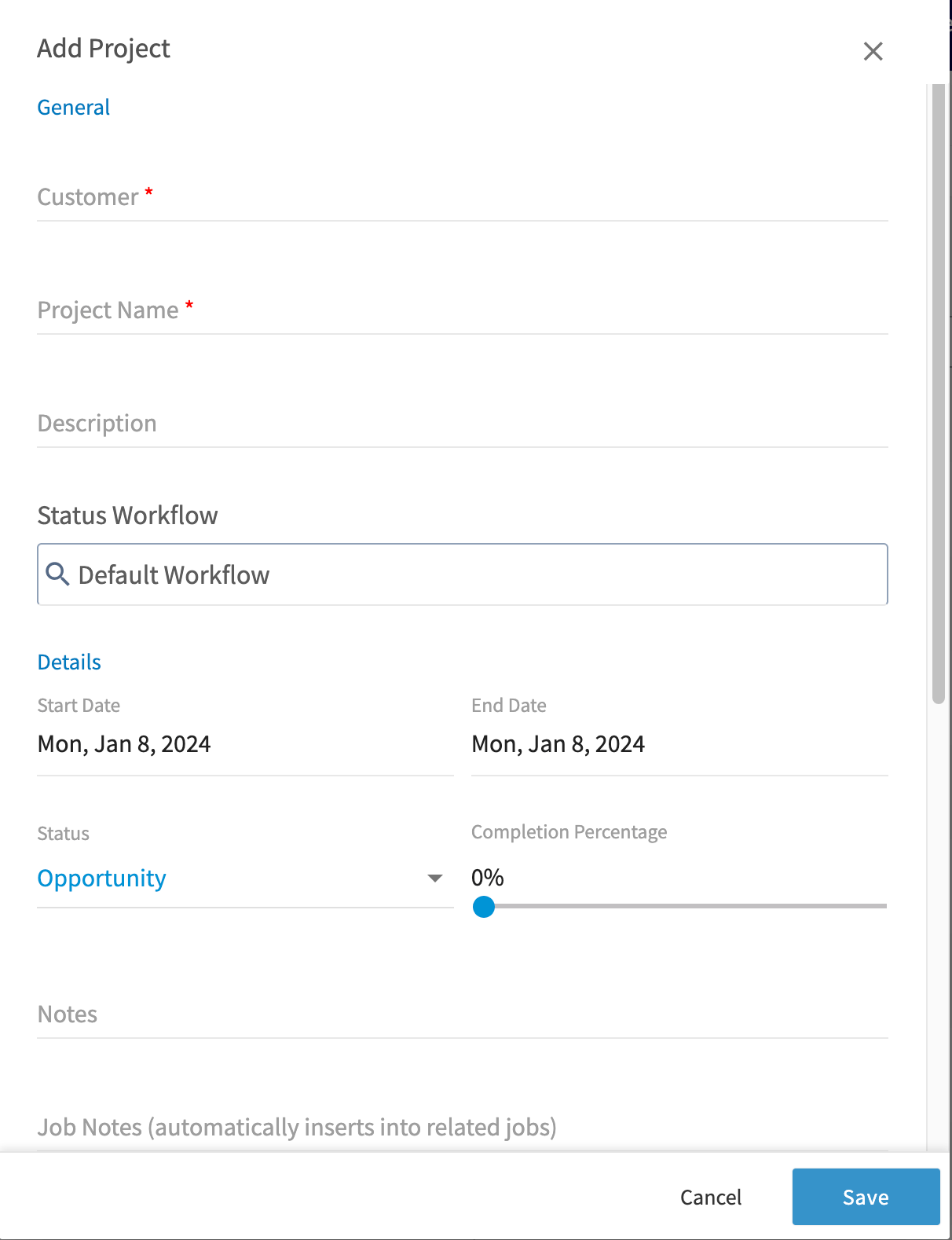
-
Set Status to the stage the project is at. You can update it as the project progresses.
-
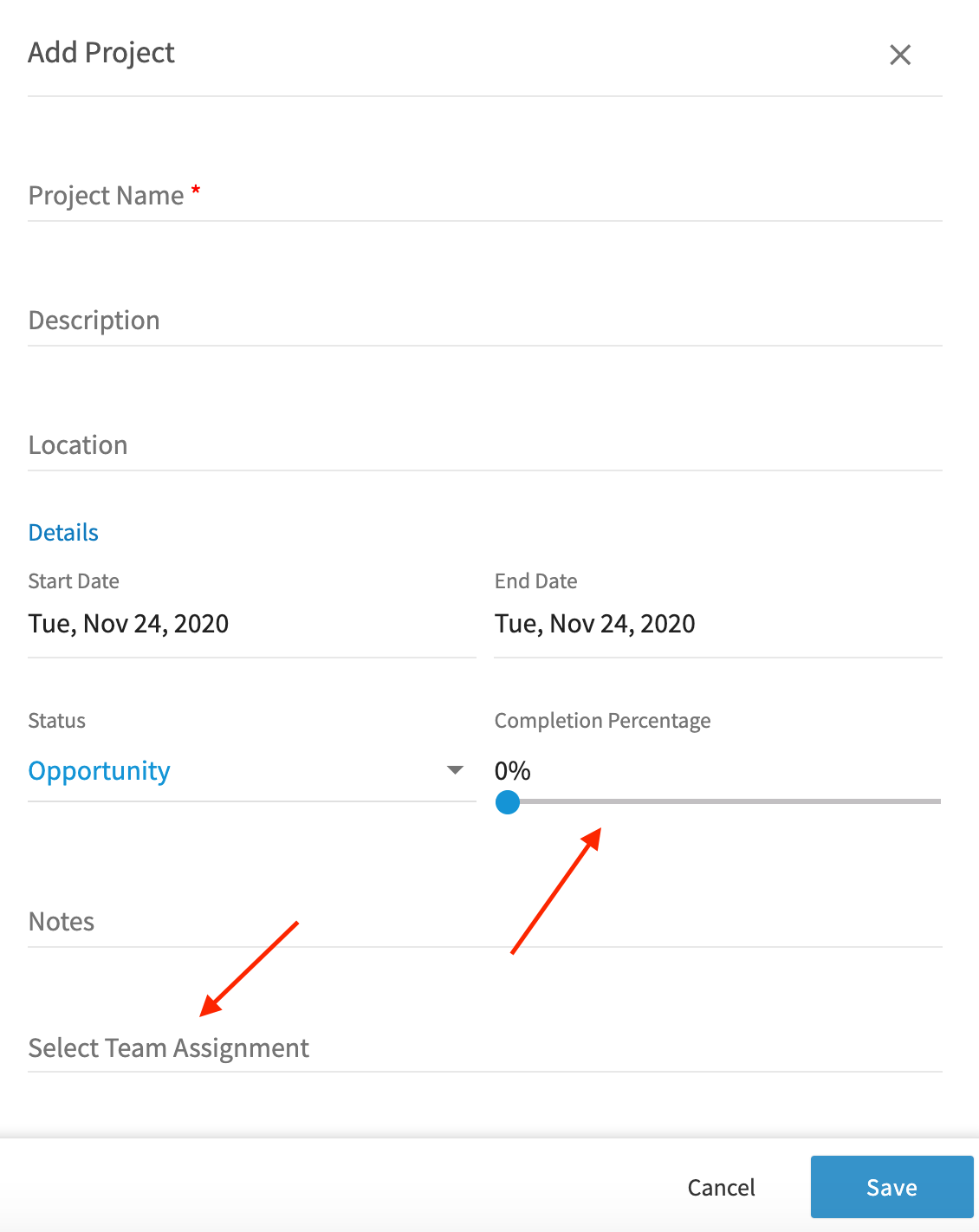
Move the Completion Percentage slider to your current level of completion, then select Select Team Assignment.
-
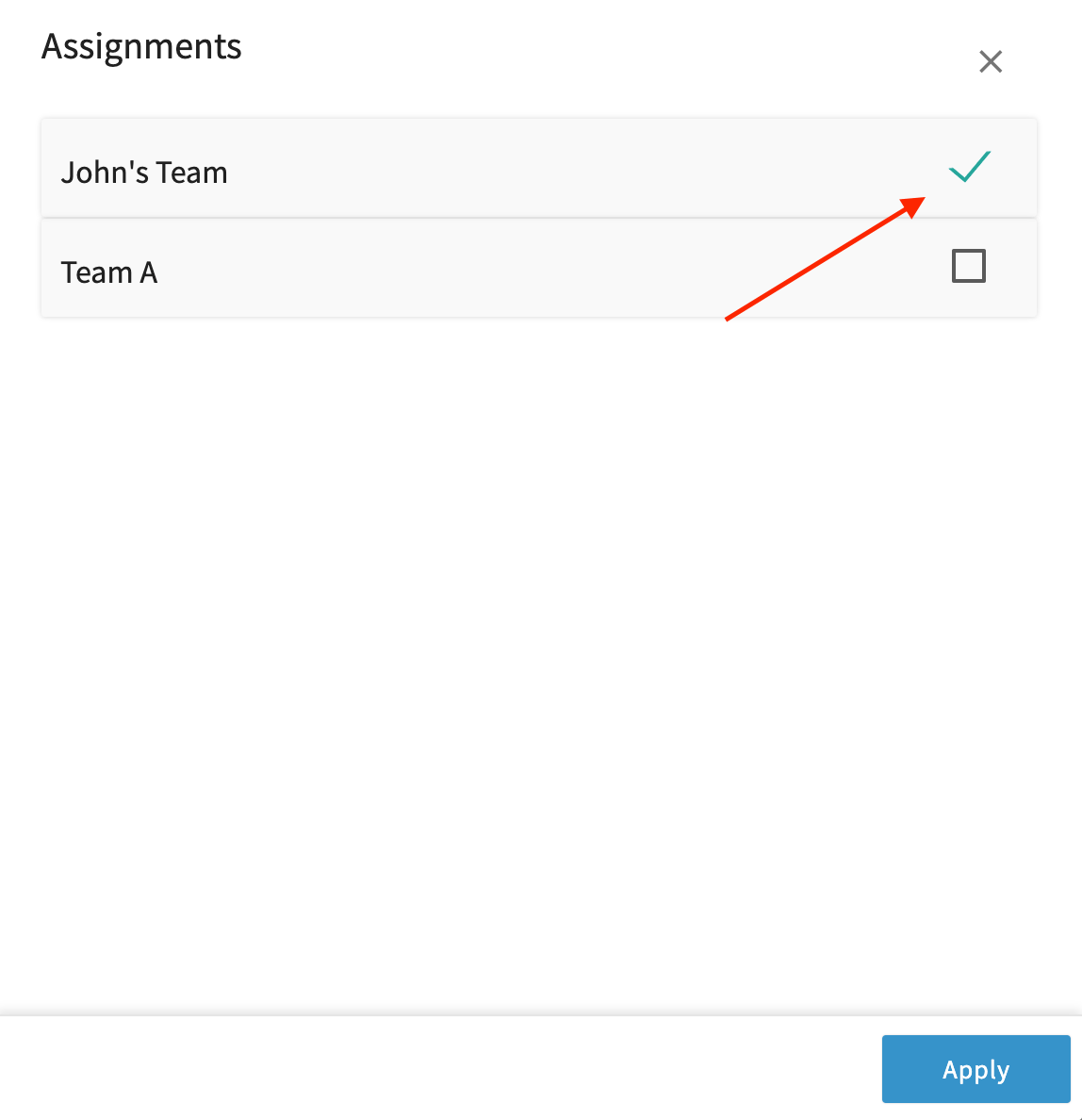
Choose a team in the Assignments window, then select Apply. See How to Create a Team if you have not built your teams yet.
- Select Save.
Creating a Project from a job
Start a Project from an existing job record to keep everything connected. This works well when a small job, an evaluation, or an estimate visit turns into a larger project. On the job record, select Actions, then Create Project, and fill in the project details the same way.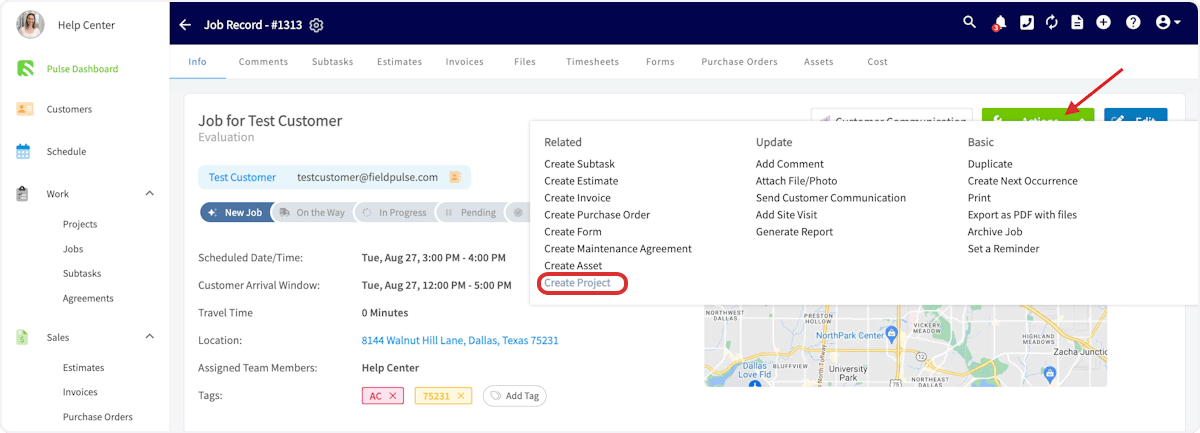
Creating a Project from a template
A project template saves the sub-records you build for every project of a given type — subtasks, estimates, and invoices — so a new project starts with them already attached. Turn on Save As Project Template while filling out your project details to save what you are building, or select Import Template to start from a template you already have.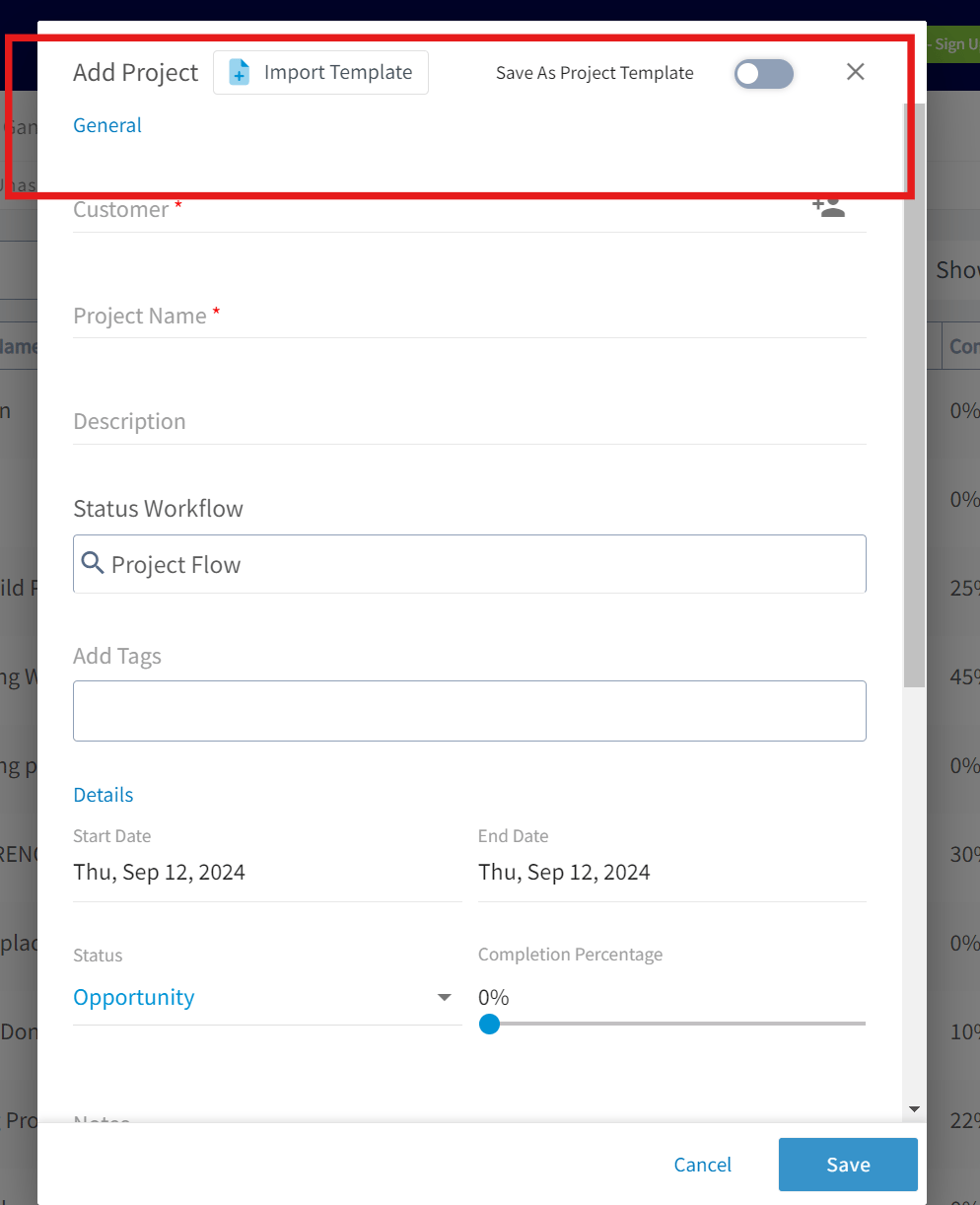
Project templates can include job templates inside them. Any preset jobs you have built as job templates can be nested in a project template, so your standard set of jobs is ready whenever you create a project from that template. See Setting Up Job Templates.
Working in the Project record
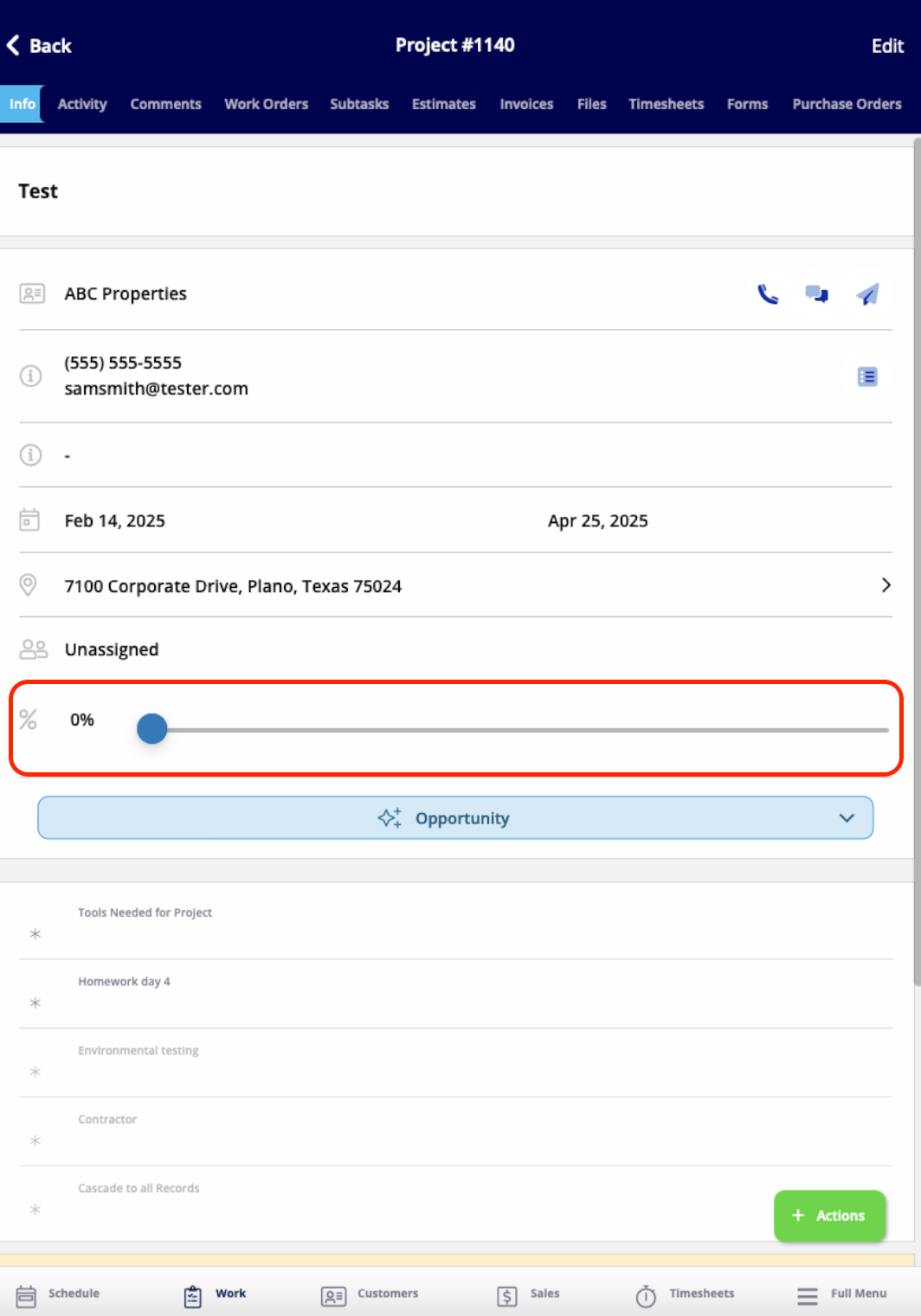
After you save, FieldPulse opens the project record. From there you can view and edit every detail you entered, add comments, add jobs or subtasks, create estimates and invoices, attach files, and track employee timesheets. Select Actions for those options, or use the tabs across the top of the project record.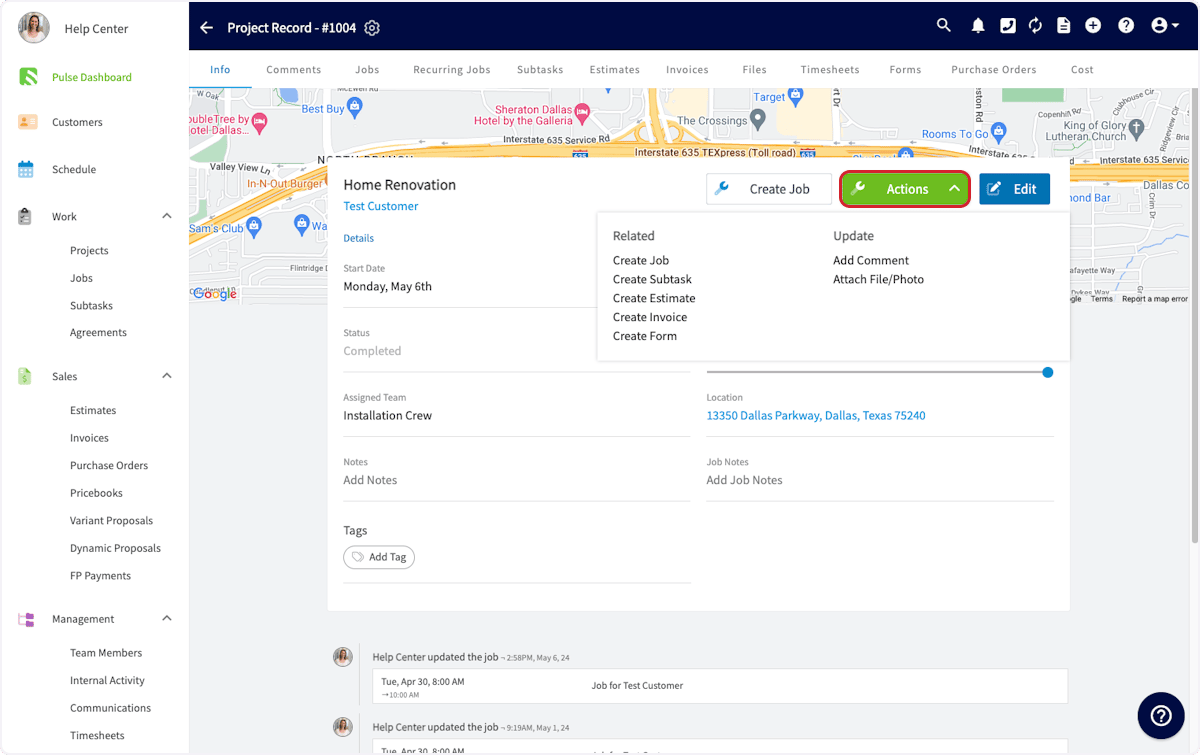
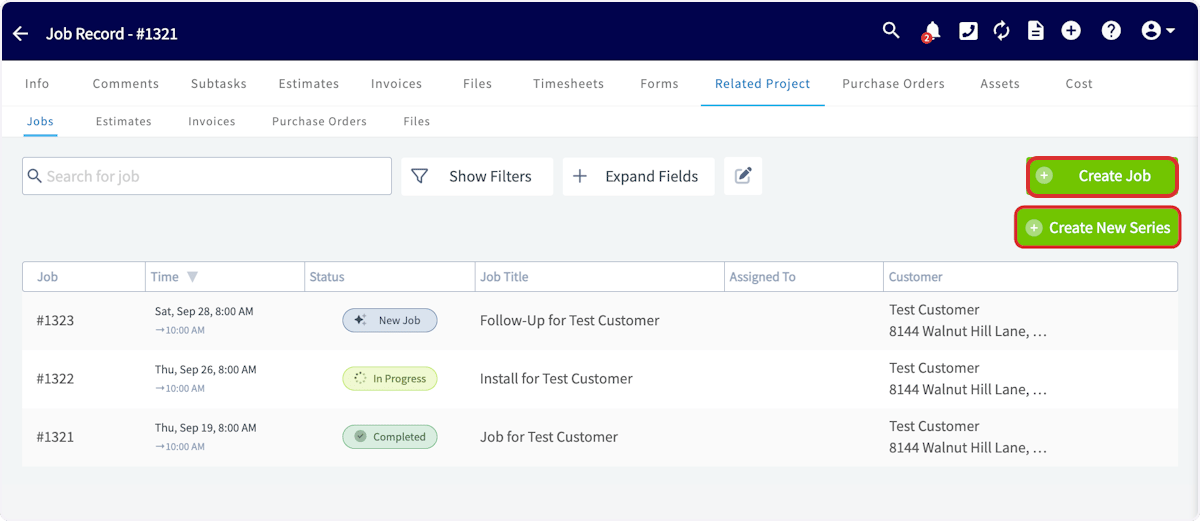
Adding jobs to a Project
Open the Jobs tab on the project record and select Create Job to set up the first job for this project.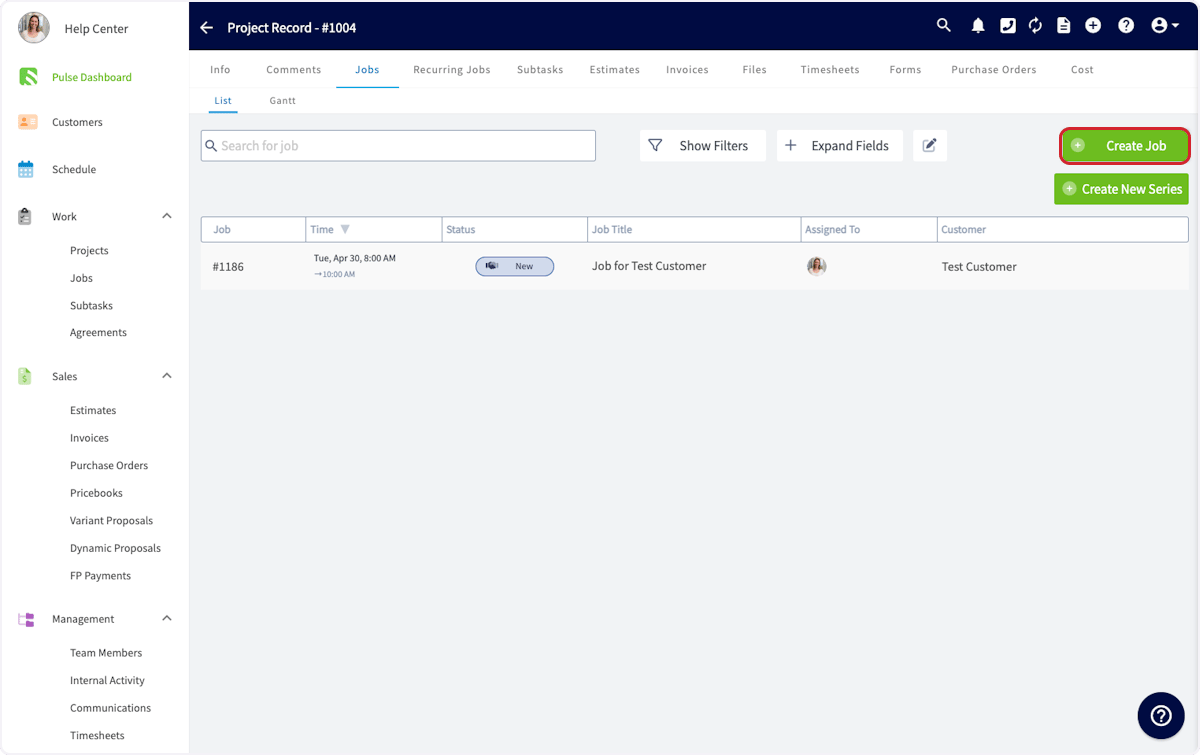
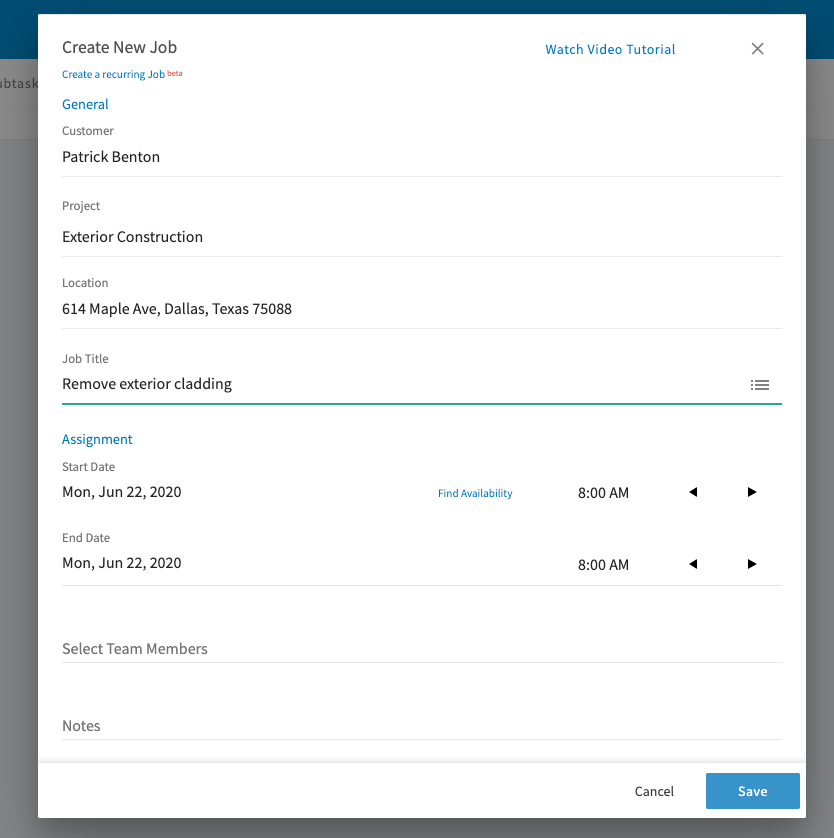
You can also create the job from Jobs in the left menu when you are not already in the project record. Link it to the related project as you create it.
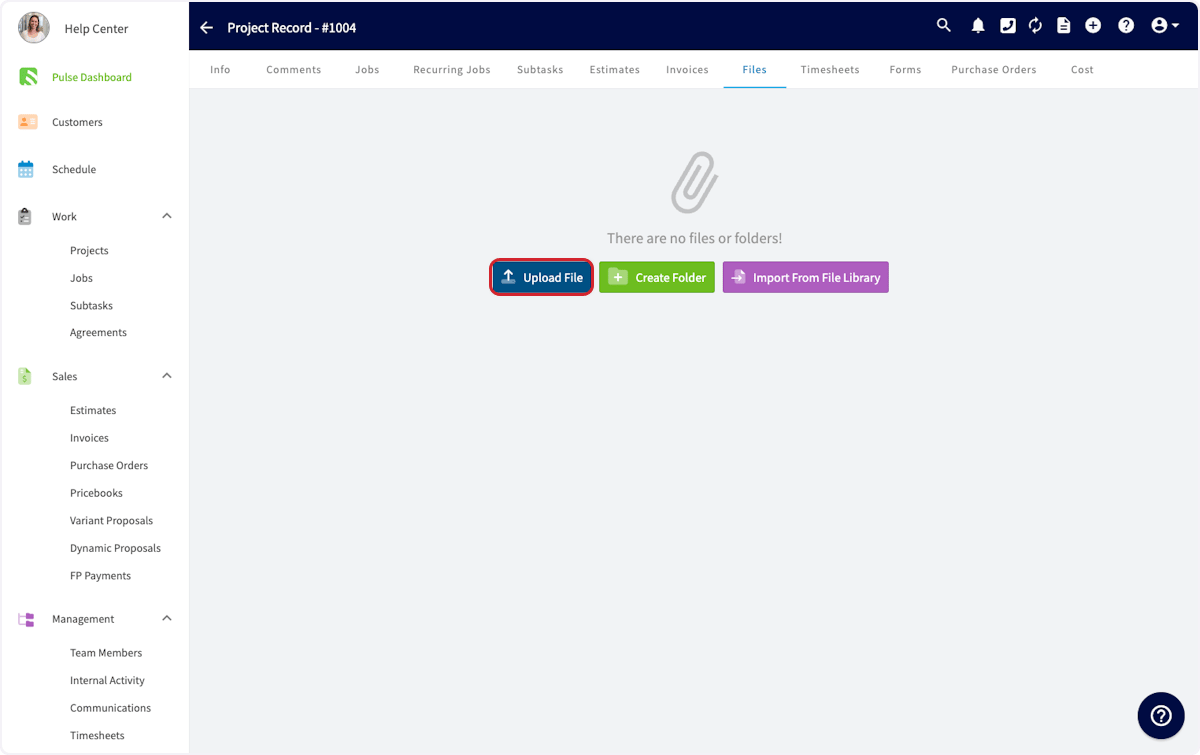
Adding comments and files
Team members are notified automatically as jobs are added to the project. To leave the team a note of your own, open the Comments tab, write your comment, and select the send arrow. Every member of the team assigned to the project can see it.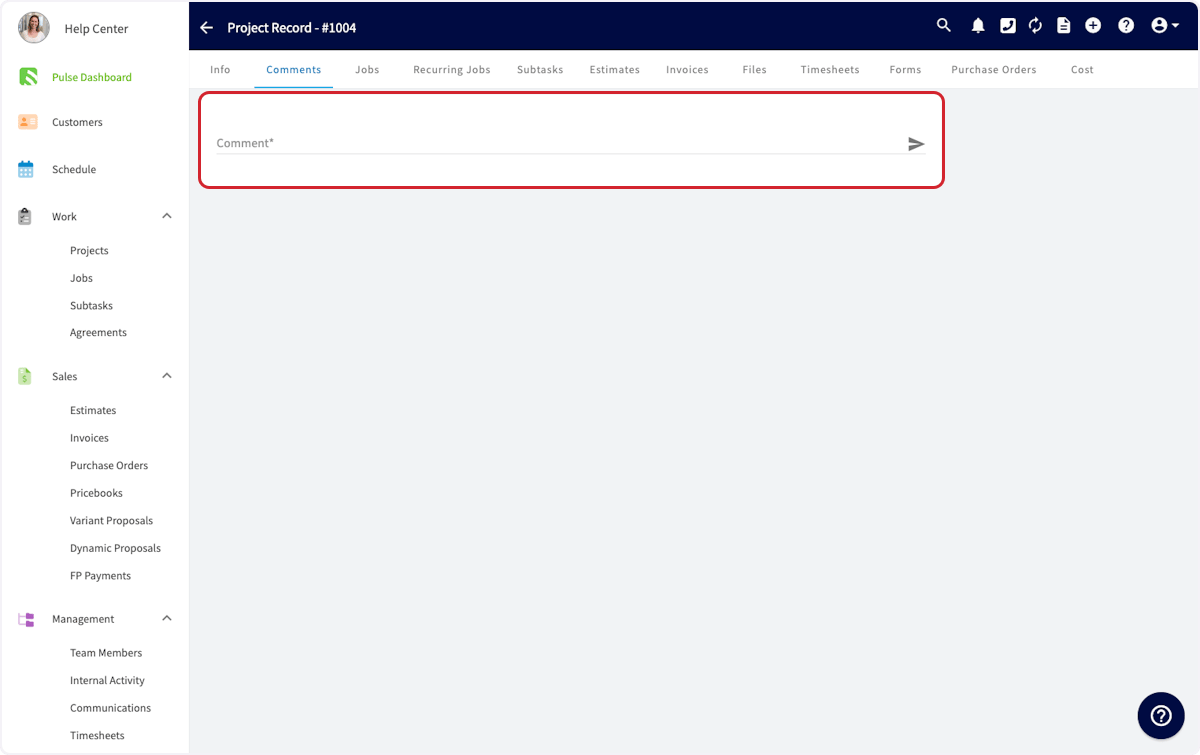
Using the Related Project tab
Any record linked to a project shows a Related Project tab at the top of the screen. Open it to reach everything else tied to the same project — jobs, estimates, invoices, purchase orders, and files — without leaving the record you are on. Teams often use it to reference files from an earlier job while working the project’s next job.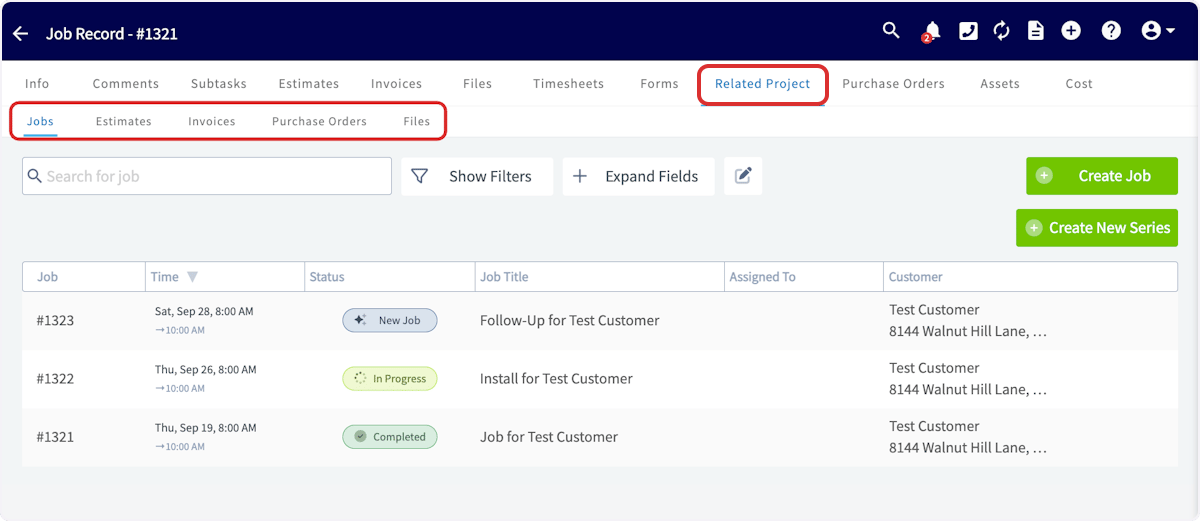
Completing a Project
When the work is finished, open the Info tab on the project record, change Status to Completed, and move the completion percentage to 100%.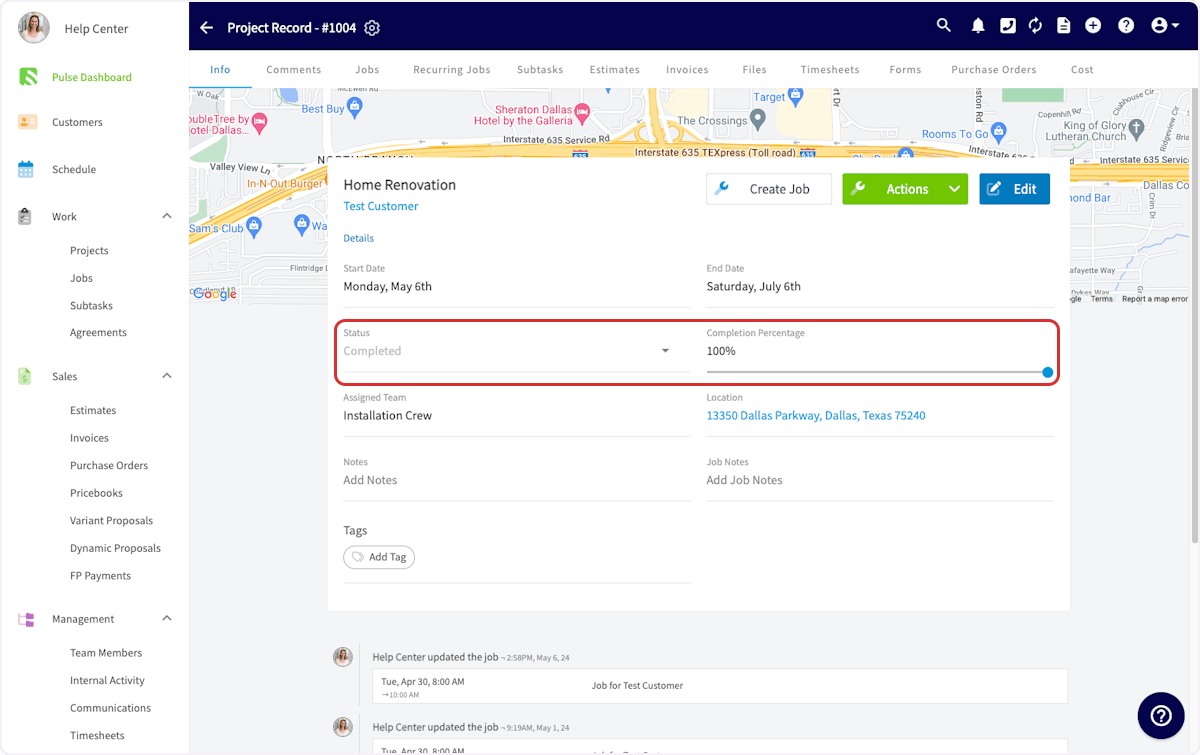
Video walkthrough: managing projects in the web app
On mobile
Open the Work tab in the bottom menu, then select Projects.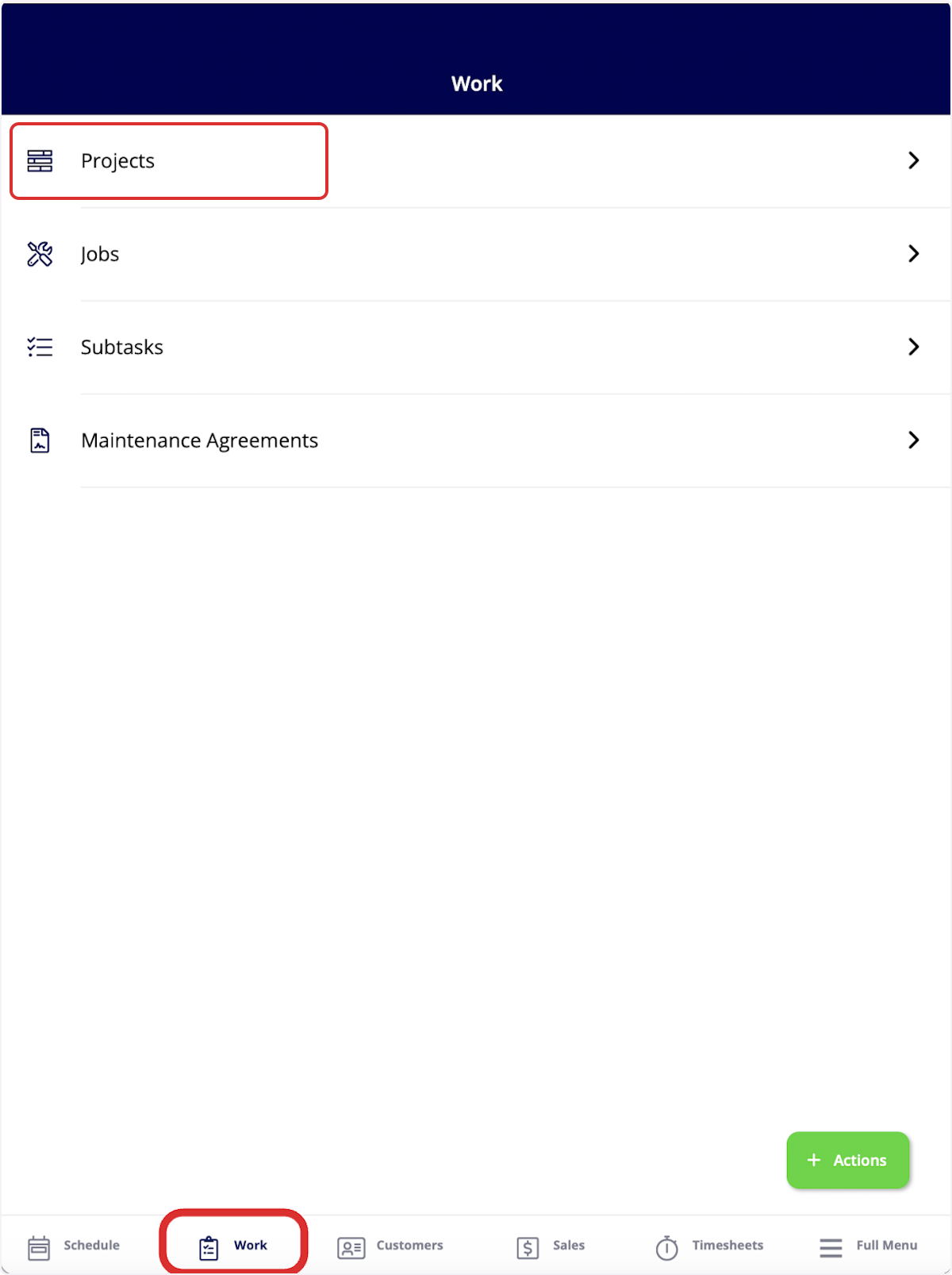
Video walkthrough: creating and managing projects in the mobile app