
Who uses this: Admins, and Team Managers with the Ability to View Project Costing Tab permission turned on. Availability: Web app only. Requires Project Management to be turned on.
Overview
Project Costing shows projected versus actual sales, costs, profit, and margin for an entire Project on one tab. Without it, a team running a multi-job Project opens each job’s Job Costing tab and totals the numbers by hand to find out whether the Project is on budget. The Project Costing tab works like the Job Costing tab, pointed at a Project instead of a single job. It combines the records from every included job into one view, so the Project reads like one large job. A Show Job Breakdown toggle splits the same data back out job by job, so you can see which jobs carried the Project and which ran over.How it works
Where to find it
Open a Project record and select the Project Costing tab, which is the third tab after Comments. The tab is headed Project Cost Analysis and is available on Projects in any status. The Project record also has a Cost tab that lists Invoice, Purchase Order, and Timesheet totals. Project Costing is a separate tab that adds the projected versus actual comparison, charts, and line item detail.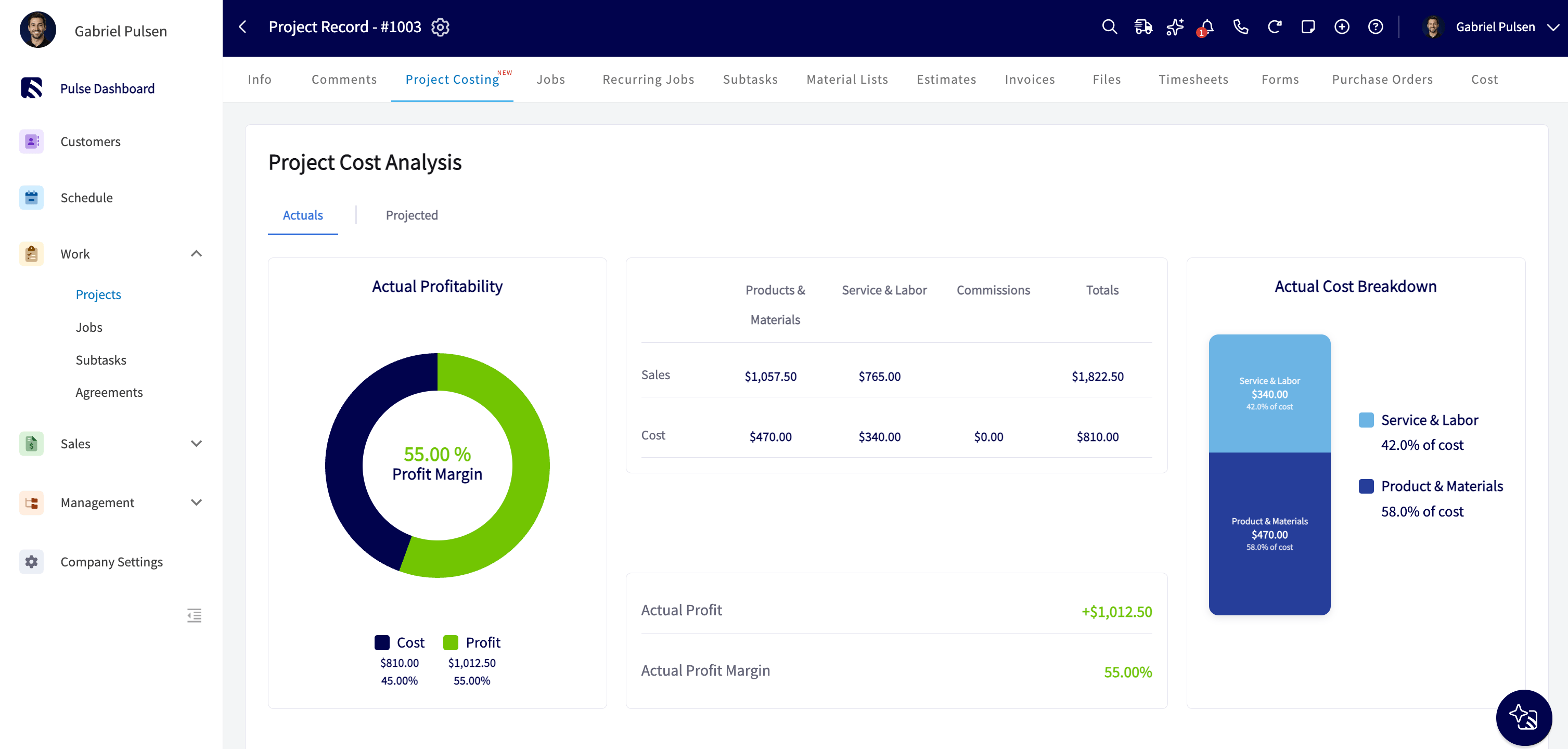
What rolls up
Project Costing can read: Estimates, Invoices, Purchase Orders, Material Lists, and Timesheets. It loads them from every job on the Project and from anything attached directly to the Project.- Included: Every job linked to the Project, including jobs generated by Recurring Services and Maintenance Agreements under the Project. Estimates, Invoices, Purchase Orders, Material Lists, and Timesheets attached directly to the Project with no job attached.
- Not included: Jobs whose status type is canceled, regardless of what you named the status. Archived jobs. Tasks (non-billable jobs). Voided invoices and archived invoices.
How the totals are calculated
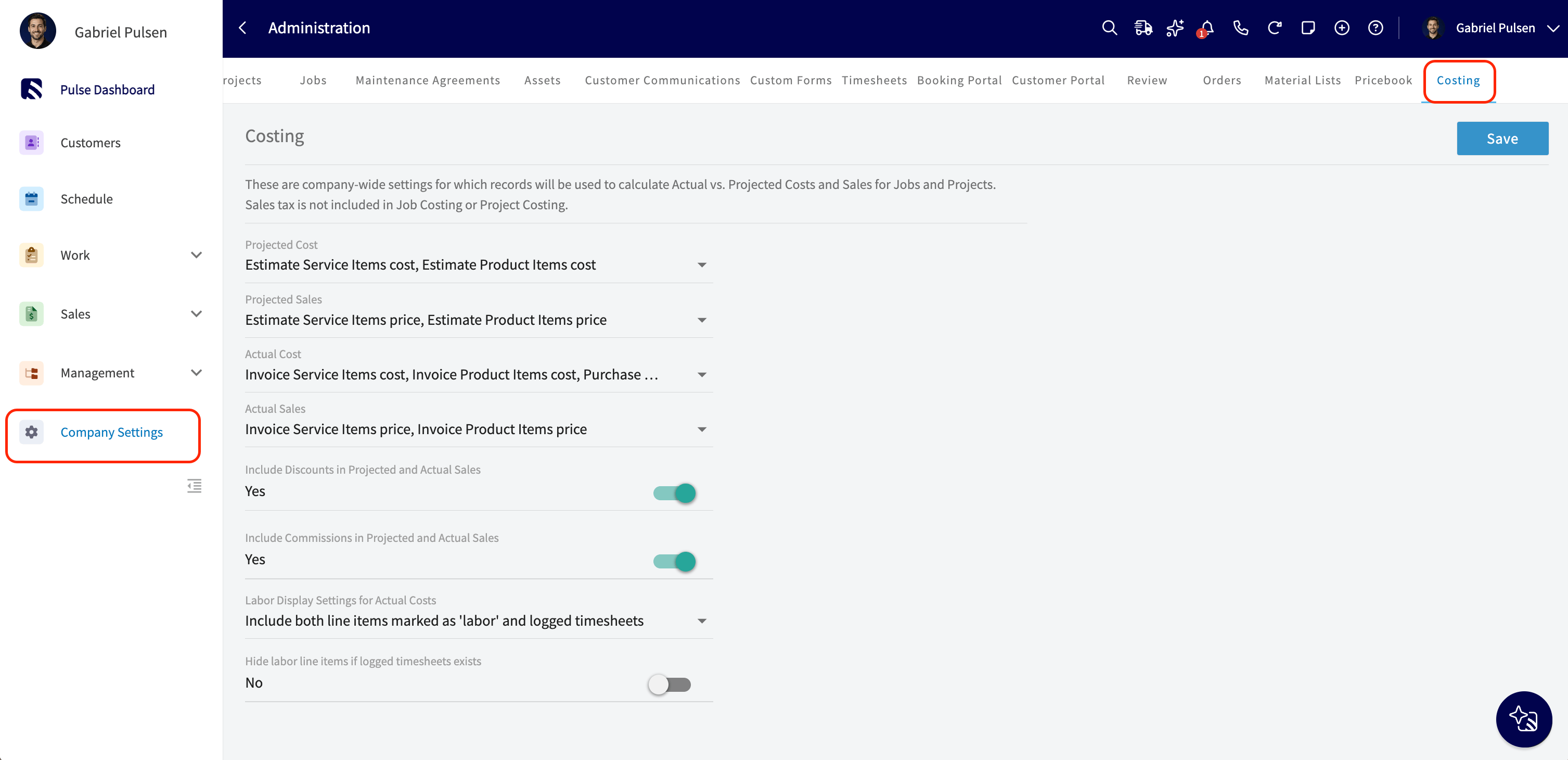
Project Costing adds up the jobs. FieldPulse calculates each job, and the records attached directly to the Project, using your Costing settings. It then sums the subtotals for Products & Materials, Service & Labor, and Commissions into the Project totals. Project Profit and Profit Margin come from those summed totals. Sales tax is not included. No Job Costing calculation rule changes on a Project. The same Costing settings drive both tabs. Costing sources are company-wide settings that decide which records feed the Actual vs. Projected calculations on your jobs.- As an admin, go to Company Settings > Costing.
- Set the records that feed each metric: Projected Cost, Projected Sales, Actual Cost, and Actual Sales.
- Choose whether discounts and commissions count toward your margins with the Include Discounts in Projected and Actual Sales and Include Commissions in Projected and Actual Sales toggles. You have full control over both, so the calculations can match your accounting practices.
- Select Save.
Comparison views
The three comparison views match Job Costing: Actual Margin, Projected vs. Actual Costs, and Projected vs. Actual Sales. Each shows line item detail for the whole Project.Show Job Breakdown
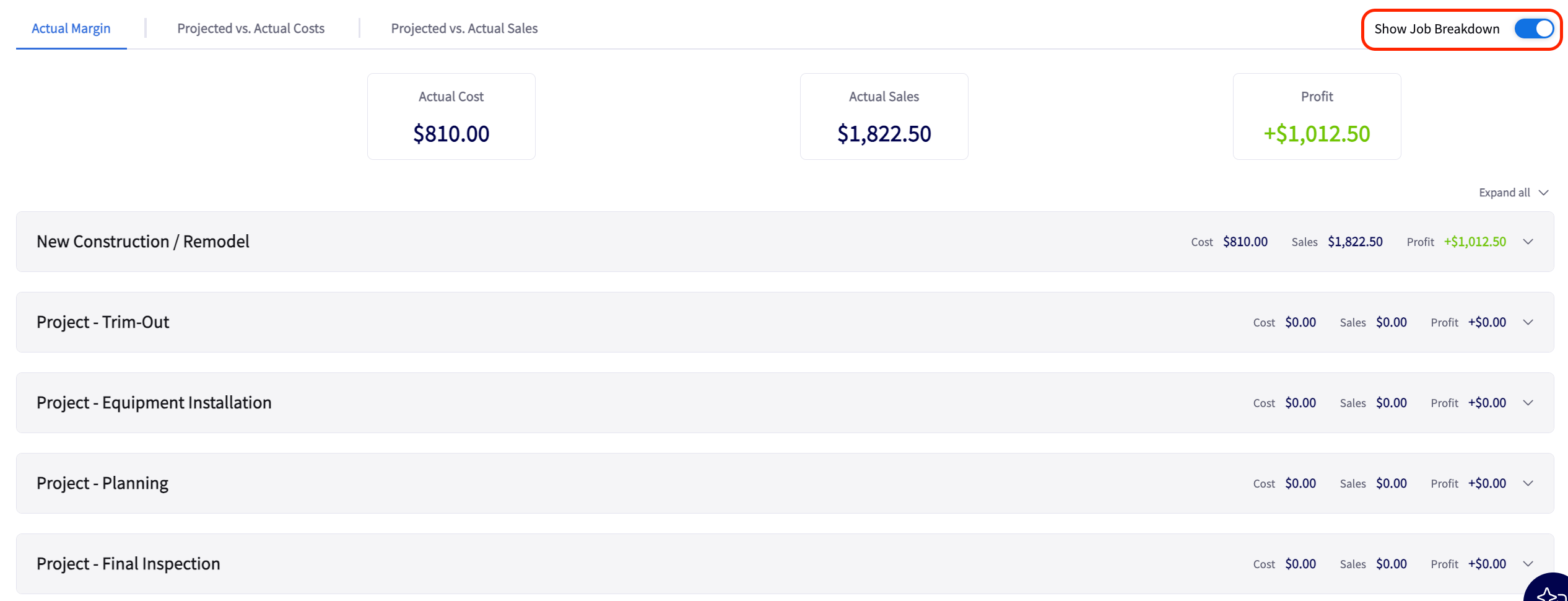
The tab opens on the combined view. One set of item tables lists the line items from every included job and the Project-direct records, with one subtotal per category and a single Commission row. Identical items from different jobs combine into one row with their quantities summed, the same way Job Costing combines identical items within a single job.- Open the Project Costing tab.
- Select the Show Job Breakdown toggle at the right end of the row that holds the three comparison view tabs.
- Review one section per job. Each job section carries its own item tables, Commission row, and category subtotals, and is labeled with the job’s title. Records attached directly to the Project appear in their own section above the jobs, labeled with the Project name.
- Switch between the three comparison views. The toggle stays on while you move between them.
Availability
Project Costing is available on the web app whenever Project Management is turned on. It is not available on mobile.
Each person sees only the data their existing permissions allow, in both the combined and job breakdown views. Invoice List Visibility, View Team Timesheets, View Unit Cost and View Unit Price on Estimates/Invoices, Purchase Order Access, and Material List Access all apply, and a banner tells the person they can only view the data they have permission to see.