
Who uses this: Admin — both settings live in Company Settings, which only Admin can view; once manual dispatch is on, the roles you choose can hide and unhide jobs. Availability: All regions.Schedule visibility controls how much of the schedule each service agent can see. As an Admin, you can restrict a service agent’s schedule view to the jobs assigned to them, which is useful for schedule simplicity, internal adjustments, and general schedule privacy.
Overview
Schedule visibility has two parts, and you set each one in a different place in Company Settings.- Per-user schedule visibility. A Schedule Visibility setting on each user’s User Feature Permissions limits which of the jobs assigned to that service agent appear on their schedule — every assigned job, one open job at a time, or only the jobs assigned for today, for today and tomorrow, or for today plus the next two days.
- Manual dispatch. A company-wide setting called Ability to control visits visibility lets the roles you choose hide and unhide individual jobs and site visits on the schedule at their discretion.
Video walkthrough
Video walkthrough: schedule visibility settings
Before you begin
- Sign in as an Admin. Both settings live in Company Settings, and Admin is the only role that can view Company Settings.
- Decide which service agents should have a limited view. You set Schedule Visibility on each user record, one user at a time.
- Limited Agents only see the jobs they are directly assigned to, and their schedule view cannot be customized further. Move a user to the Service Agent role to use the schedule visibility options on this page — see User Roles and Permissions Details.
- You turn manual dispatch on once for the whole company. After that, the roles you pick can hide and unhide jobs on the schedule.
Step-by-step setup
Set a service agent’s schedule visibility
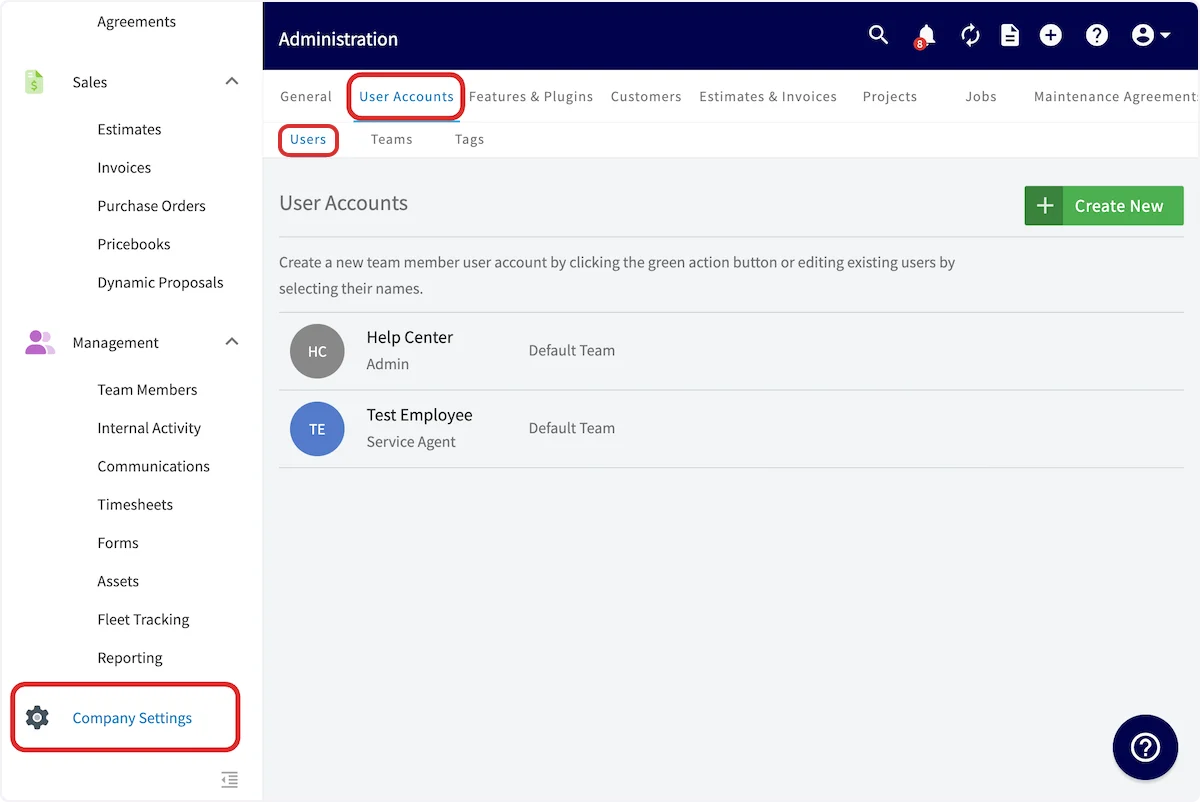
You set a service agent’s schedule visibility on that agent’s own user record, under User Feature Permissions.- Go to Company Settings, select User Accounts, then select Users.
- Select the user you want to limit.
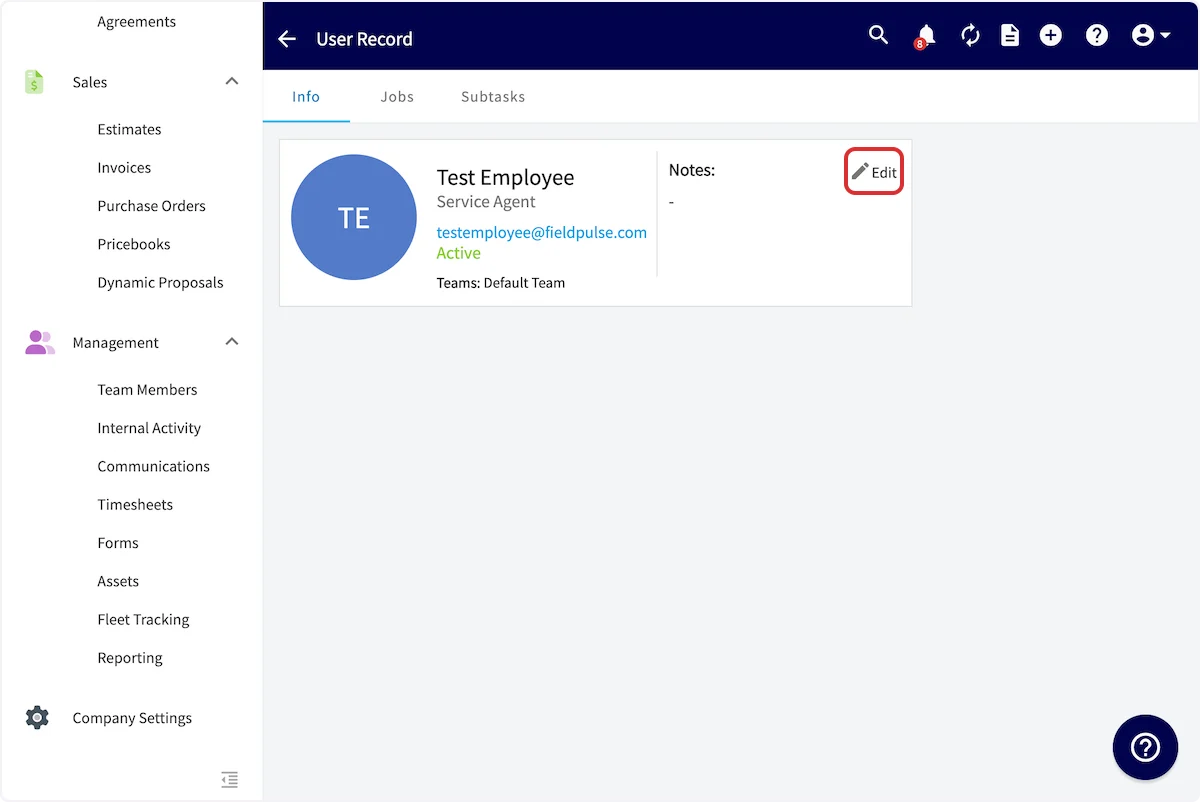
- On the user record, select Edit.
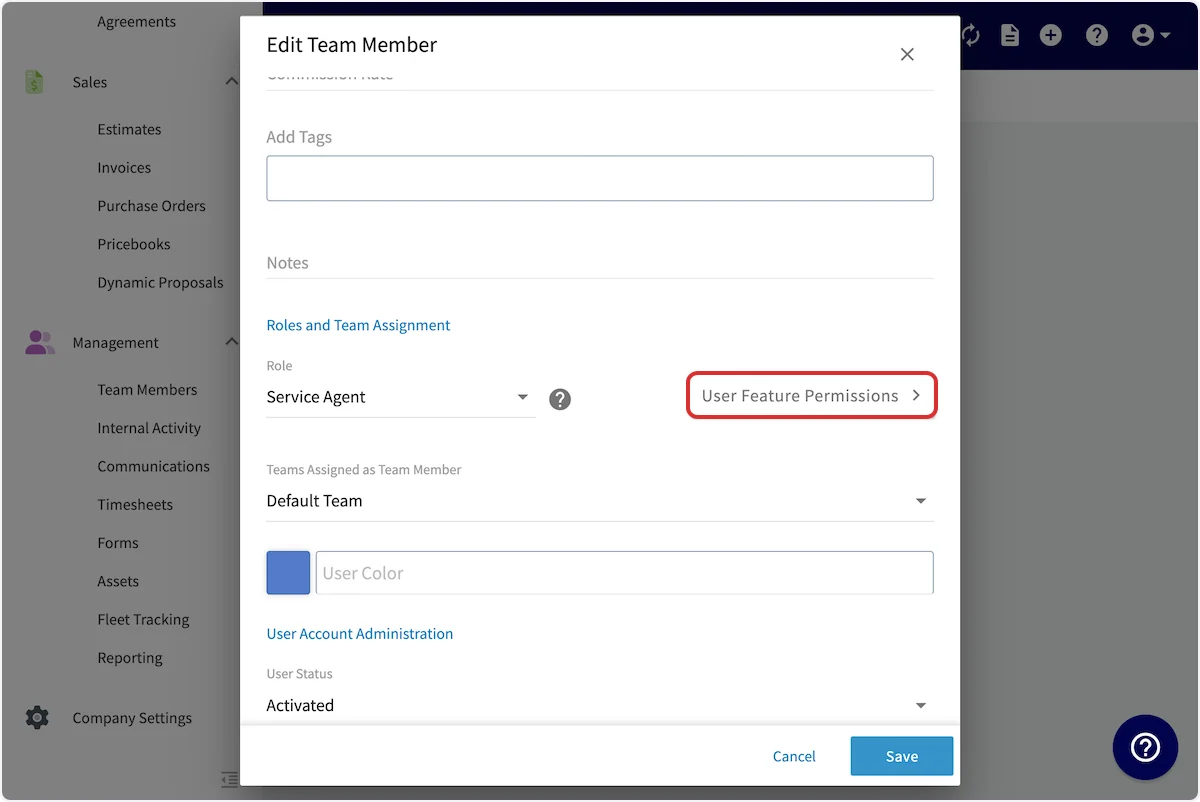
- Select User Feature Permissions.
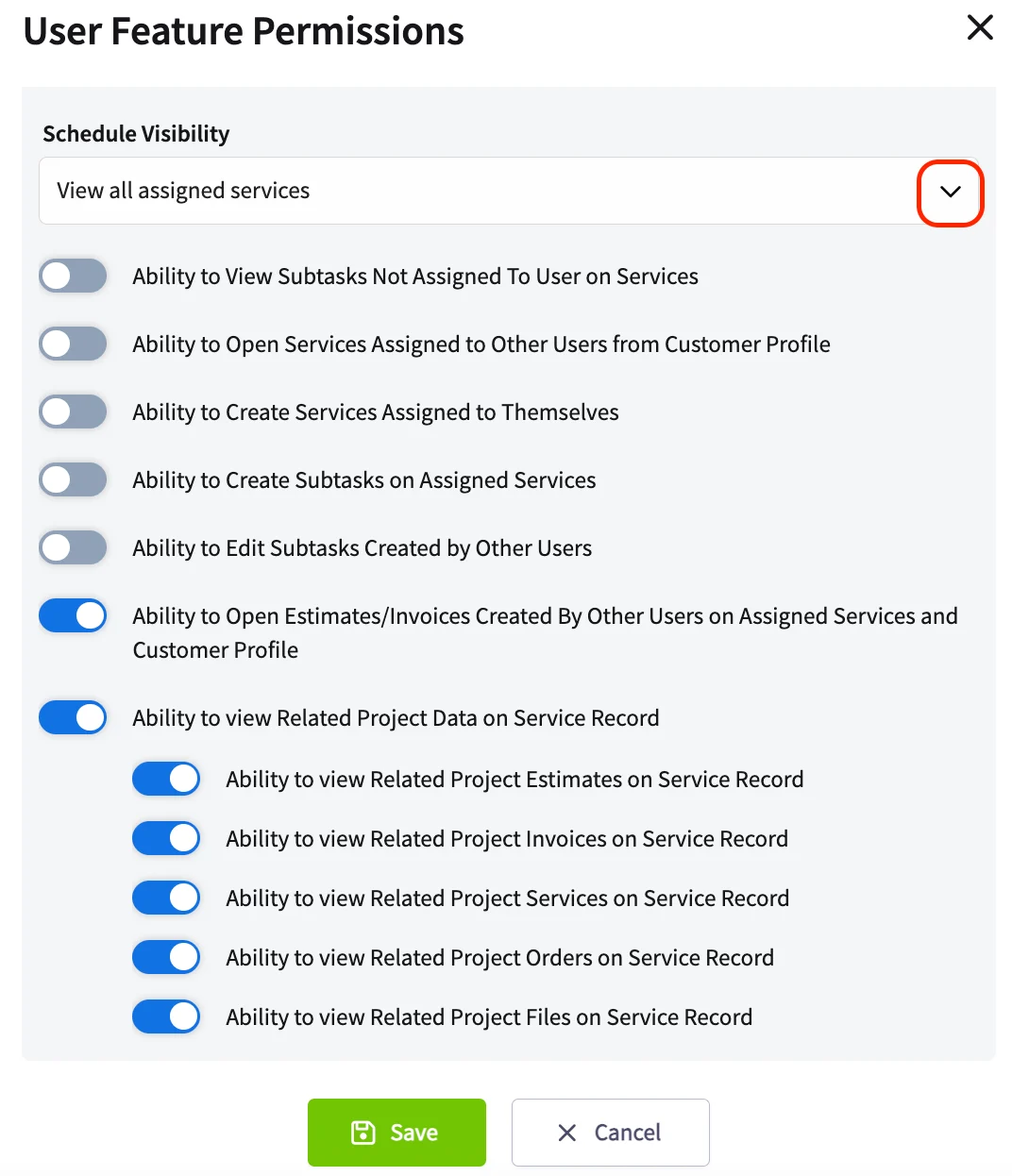
- Open the Schedule Visibility dropdown and choose one of the five options — the full list is in the settings reference below.
- Save the user record.
Turn on manual dispatch
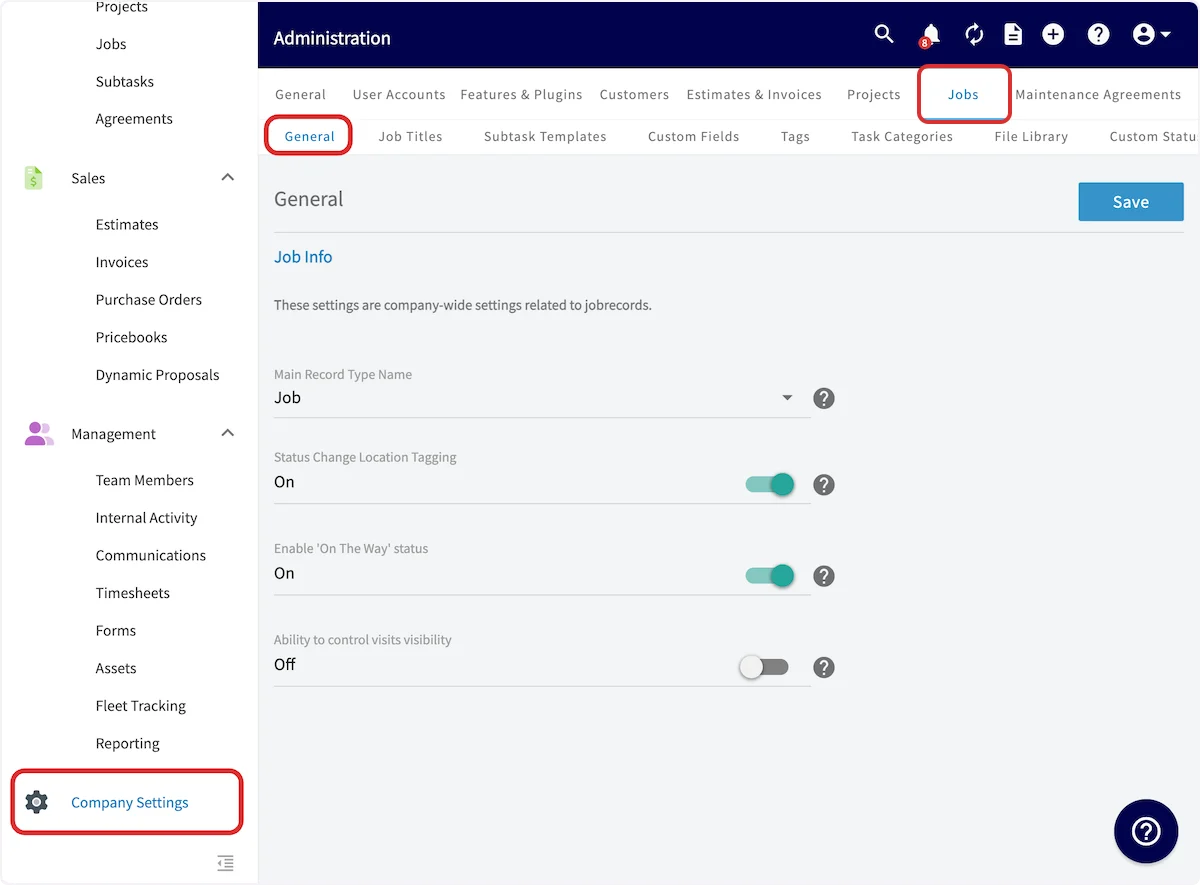
Manual dispatch lets you hide and unhide jobs and site visits so you keep control over what each assigned team member sees on the schedule.- Go to Company Settings, then select Jobs. Stay on the General subtab.
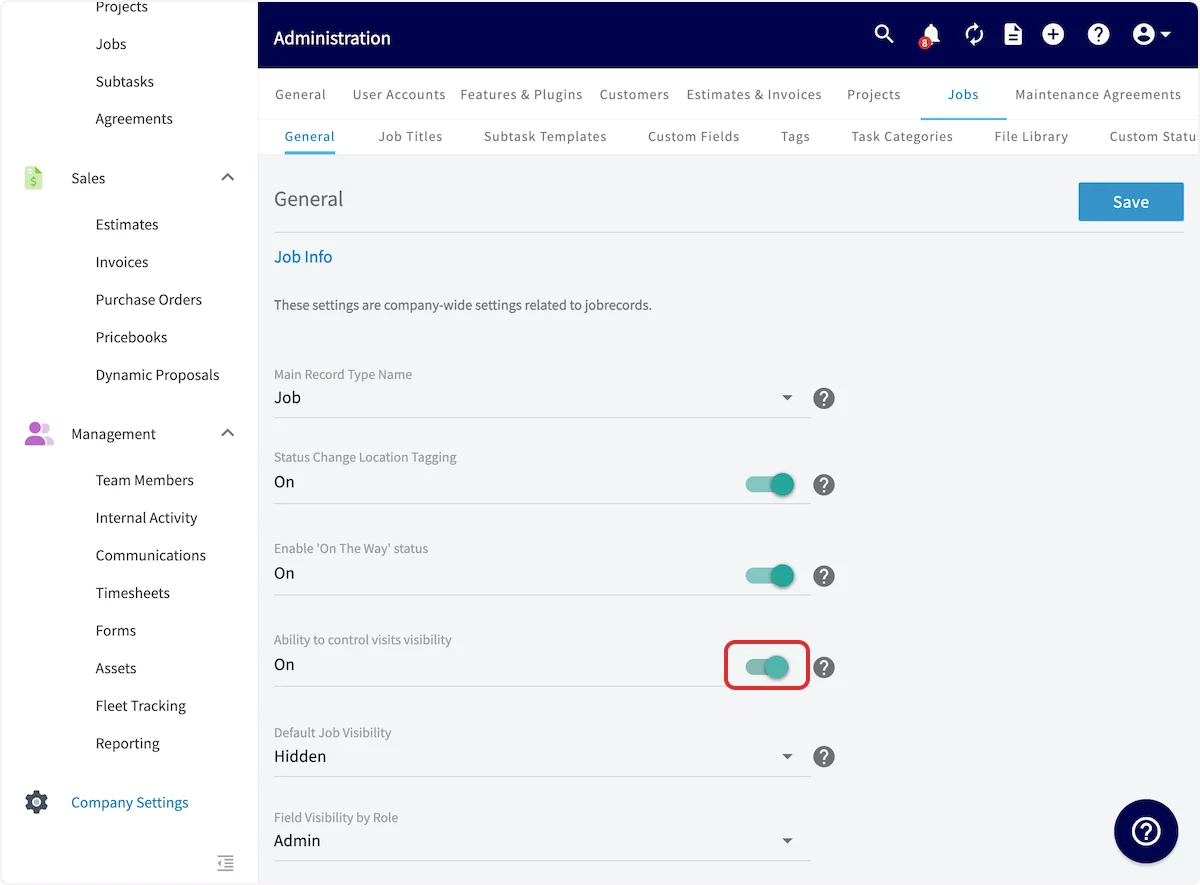
- Toggle on Ability to control visits visibility.
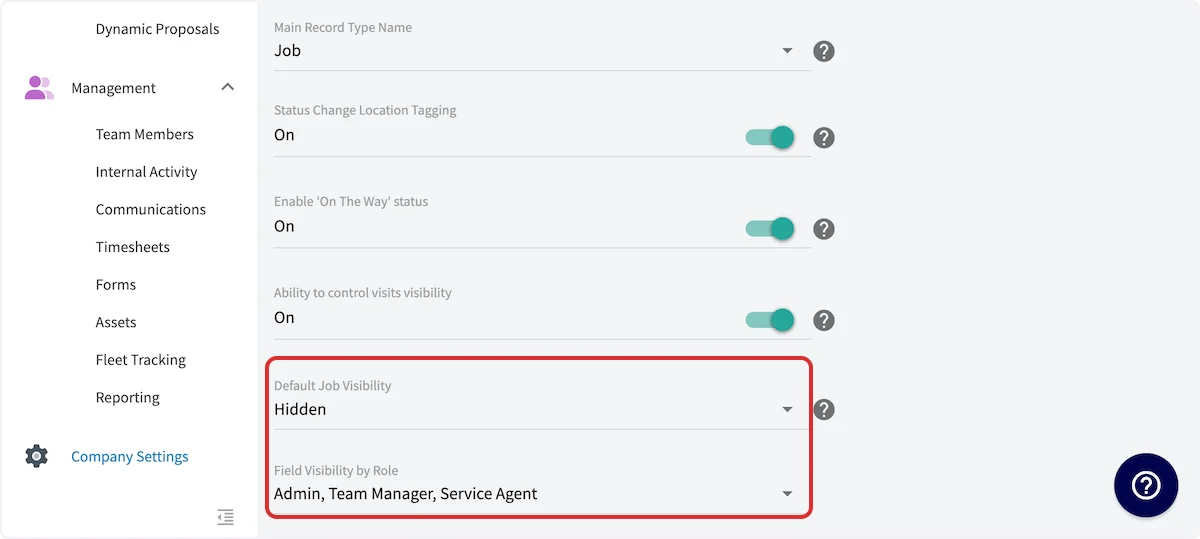
- Set Default Job Visibility to Hidden or Un-Hidden. This is the visibility every new job starts with.
- Choose which roles can hide and unhide jobs in the Field Visibility by Role dropdown below it.
- Select Save at the top right of the General subtab.
Hide or unhide a job on the schedule
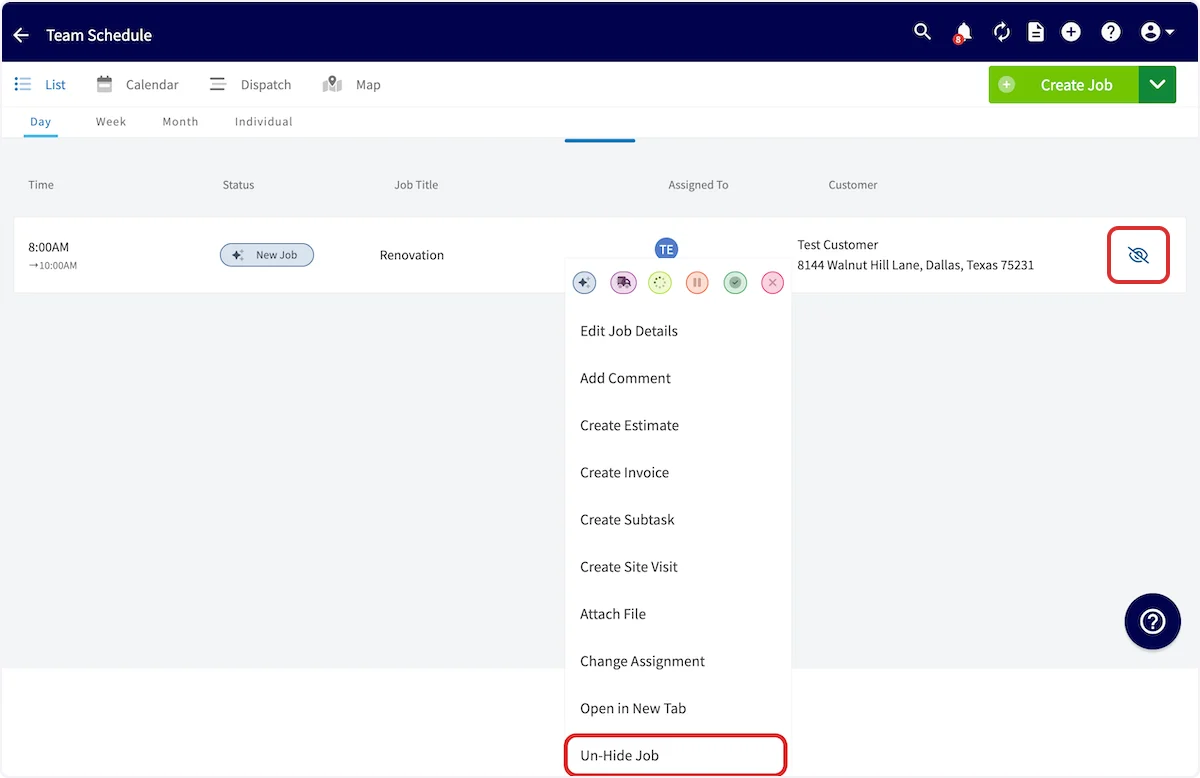
Once manual dispatch is on, the eye icon on each job on the Team Schedule shows whether that job is visible to the team members assigned to it. A slashed eye icon means the job is not visible to them.- Go to the Team Schedule and find the job.
- Right-click the job to open its menu.
- Select Un-Hide Job or Hide Job.

Settings reference
Schedule Visibility controls which of the jobs assigned to a service agent appear on that agent’s schedule.
Manual dispatch adds three company-wide settings on top of the per-user option, all on the General subtab of Company Settings > Jobs.