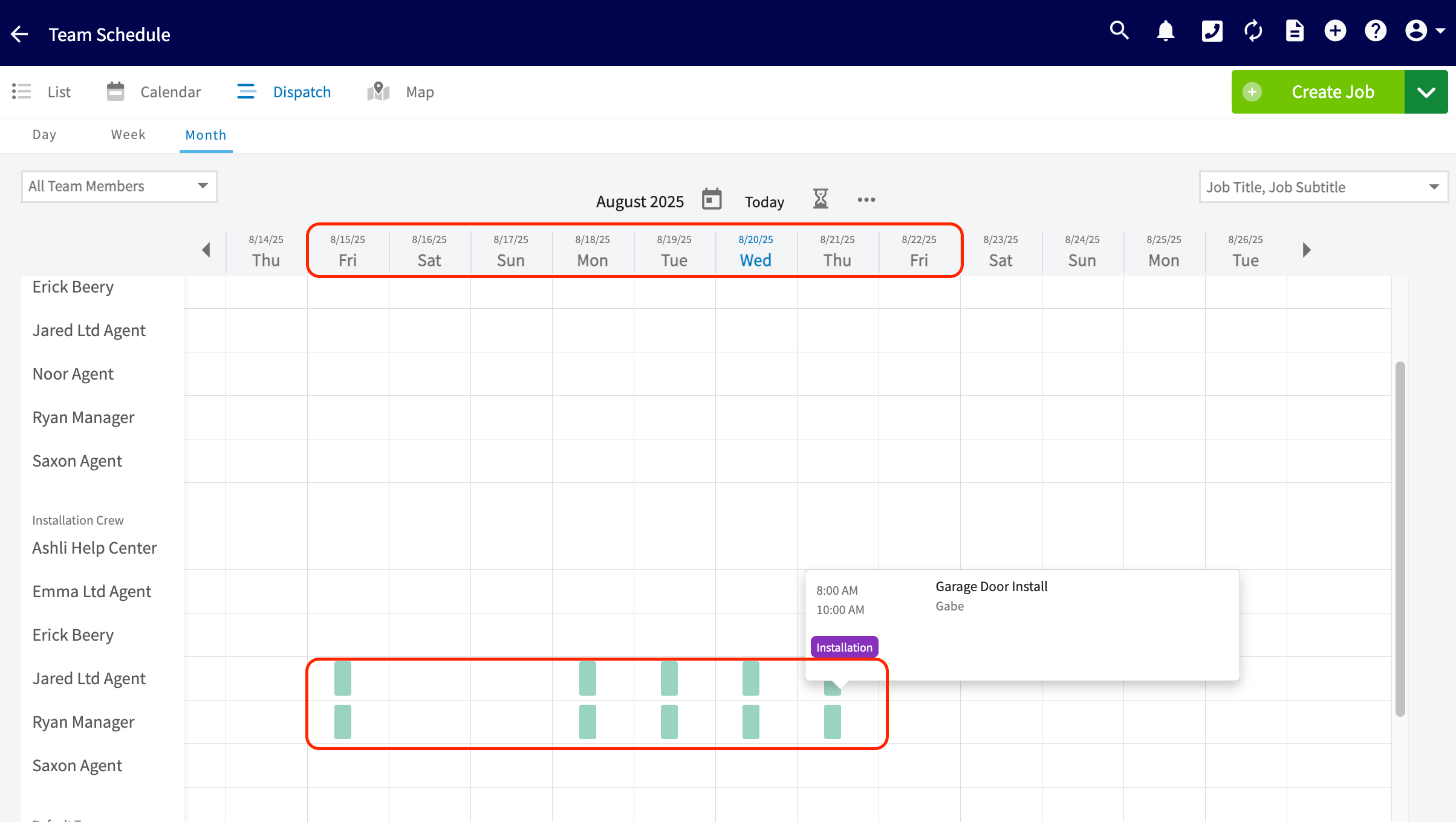
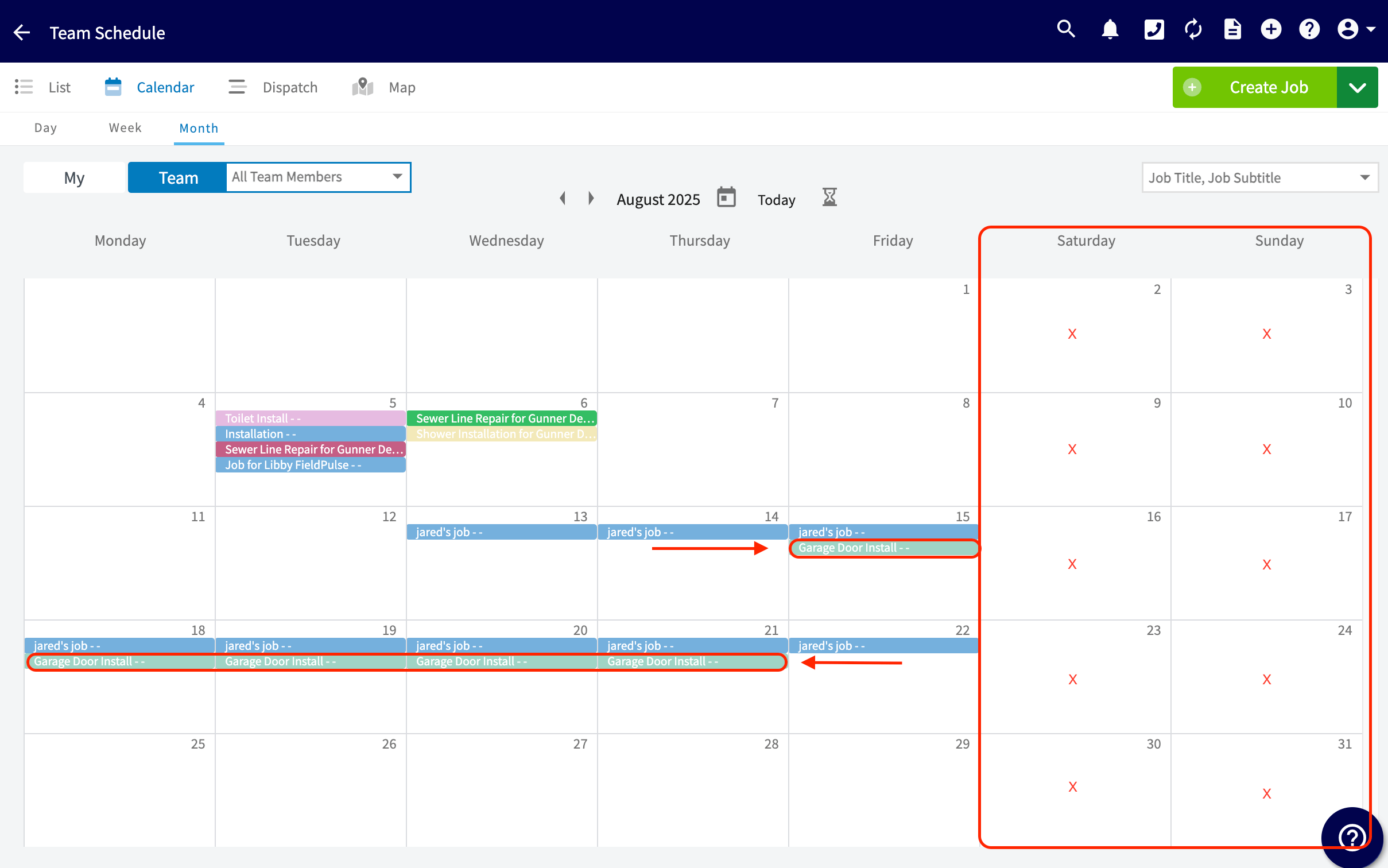
Who uses this: Admins — the setting lives in Company Settings, which only Admins can view. Availability: All regions.Working hours for multi-day jobs is a Company Settings option that defines the start and stop times for a job or service that spans several days. Without it, a job that covers several days reads on the schedule as running 72 hours straight. With it turned on, that same job shows its scheduled hours on each of the days your business operates.
Overview
Working hours for multi-day jobs control how a job that covers more than one day appears on the schedule. You turn the setting on once in Company Settings > Jobs > General, then check the days of the week — Monday through Sunday — your business actively completes services for customers. The days you check become your active service days. Two things then work together on the job record. You set a start time, an end date that differs from the start date, and check Display on calendar within work hours only. FieldPulse sets the job for the same hours on each of the selected days and excludes any day your business is not actively completing services. That gives your team and your customers a clear outline of when services will be performed across the whole job.Before you begin
- The setting lives in Company Settings > Jobs > General, so you need to be an Admin to turn it on.
- Decide which days of the week your business actively completes services for customers, Monday through Sunday.
- Know the start and stop times you want the job to run each day, along with the date the job ends.
Step-by-step setup
Turn on working hours for multi-day jobs
- Go to Company Settings > Jobs > General.
- Set Enable working hours for multi-day Jobs to On.
- Check the box for each day your business operates, from Monday through Sunday.
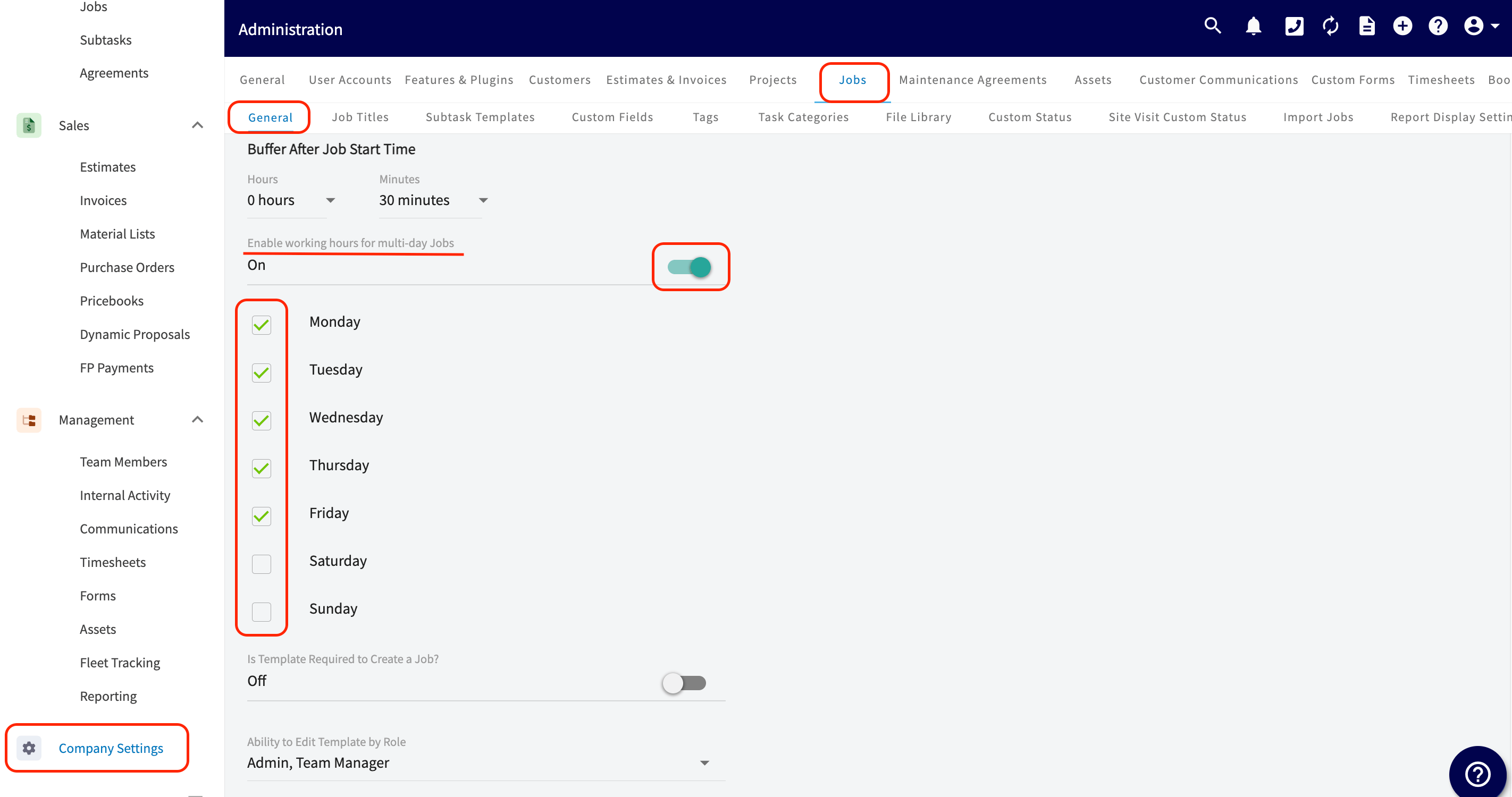
These changes apply only to new jobs or services added to your schedule. Jobs already on the schedule are not updated.
Schedule the multi-day job
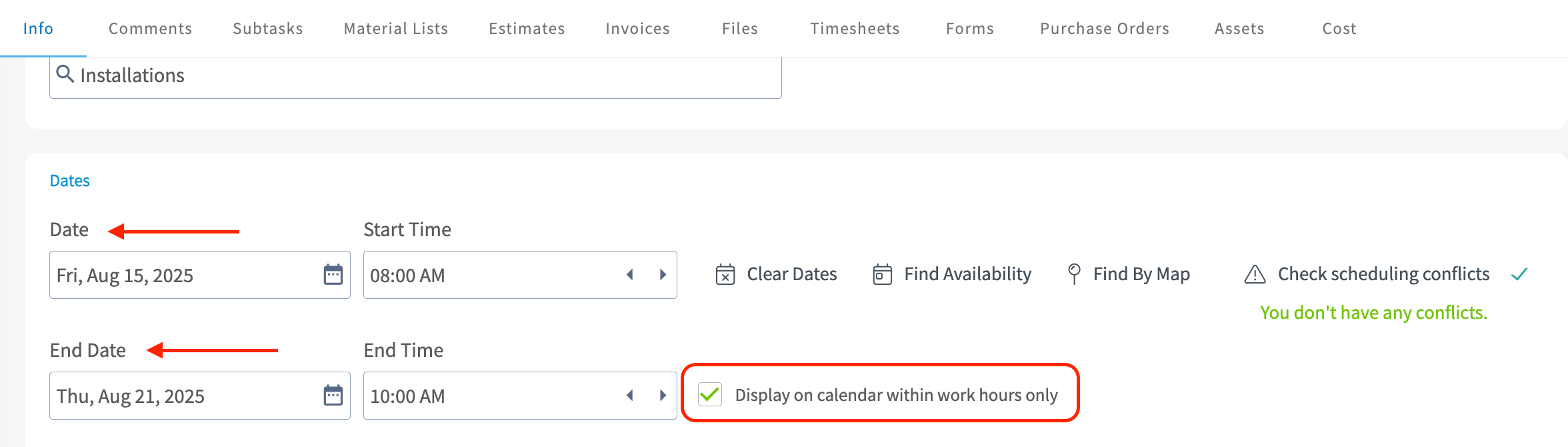
- Open the job record and go to the Dates section.
- Set the Date and Start Time the job begins — for example, 08:00 AM.
- Set an End Date that differs from the start date.
- Set the End Time the job stops each day — for example, 10:00 AM.
- Check Display on calendar within work hours only.
Example
With Monday through Friday checked as working days, a Garage Door Install scheduled from 08:00 AM on Friday, August 15 to 10:00 AM on Thursday, August 21 lands on the schedule like this:
The same pattern shows in the Dispatch and Calendar views of the Team Schedule — a block on each working day, and nothing on the weekend.