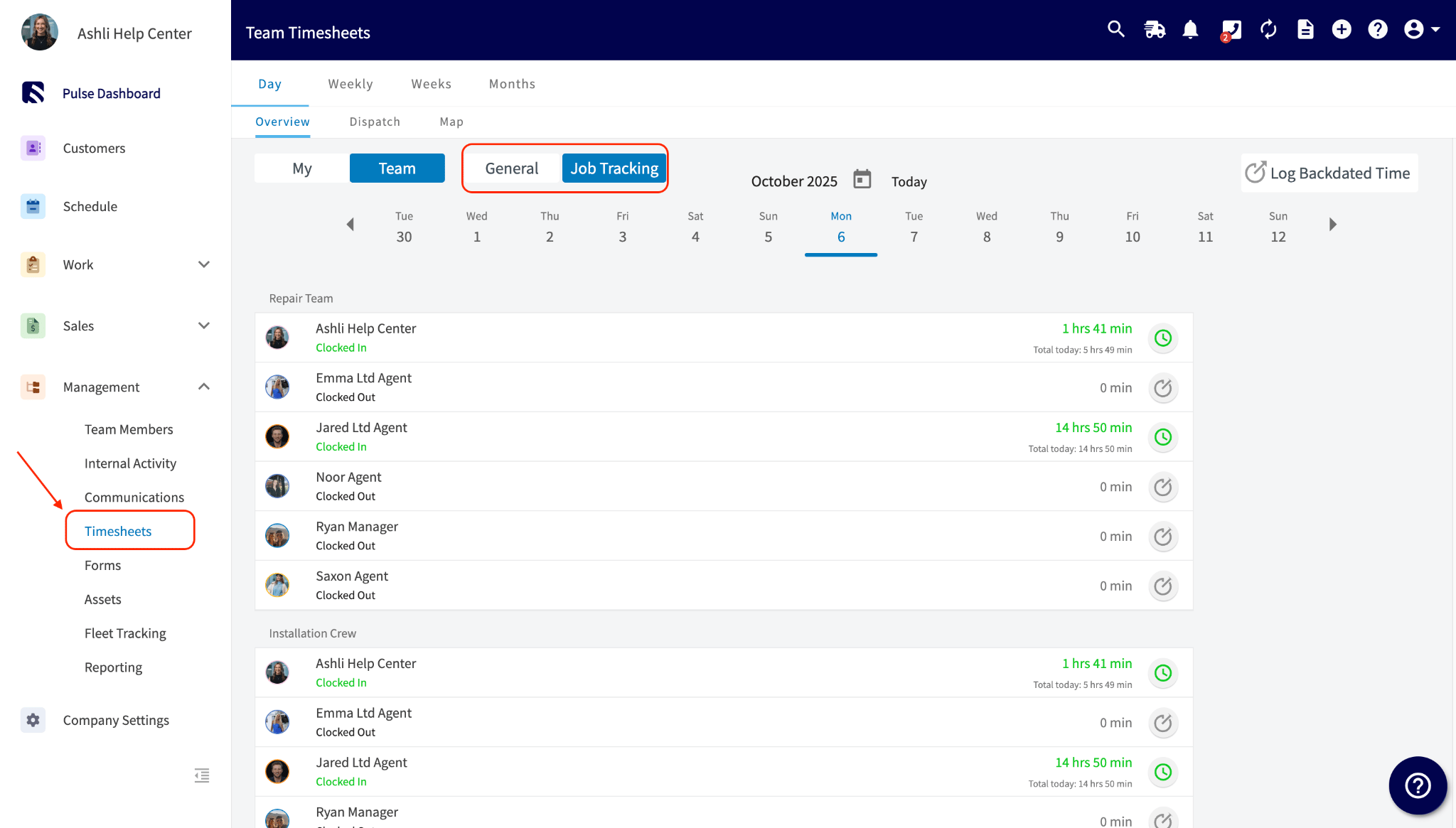
Who uses this: Admins set up each tracking method — the Lunch Break task category and the timesheet settings live in Company Settings, which only Admins can view; technicians record their own lunch breaks. Availability: All regions · Employee Timesheets, which the clock-out note and separate timesheet methods run on, is included in the FieldPulse subscription.FieldPulse tracks technician lunch breaks three ways — a recurring task on the schedule, a note added at clock-out, or two separate timesheets that split general time from job time. Each method keeps lunch time visible in your timesheets and reporting. Pick the one that matches how your crew already takes lunch.
Overview
Tracking lunch breaks means recording the time technicians are off the clock for lunch so it shows up in timesheets and reporting instead of sitting inside job hours. FieldPulse gives you three methods:- A recurring task suits technicians who break at the same time every day. The task blocks the time on the schedule, which prevents accidental job assignments during the break.
- Clock-out notes suit technicians who take lunch at different times and already clock in and out. Each break is tagged with a note you can pull into timesheet reporting.
- Separate timesheets suit teams that need general time at work kept apart from time spent on specific jobs.
Before you begin
- Choose the method that matches how your crew takes lunch. Fixed daily breaks point to a recurring task, staggered breaks point to clock-out notes, and a need to separate general time from job time points to separate timesheets.
- The clock-out note and separate timesheet methods both run on Employee Timesheets, found in Company Settings > Features & Plugins. For how timesheets work day to day, see How to Use Employee Timesheets.
- The recurring task and separate timesheet methods are set up in Company Settings, so an Admin turns them on.
Track lunch with a recurring task
A recurring lunch task puts the break on each assigned technician’s schedule and blocks that time, so no one is assigned a job over lunch. Use it when technicians break at a consistent time, such as 12:00 PM to 12:30 PM every weekday.Create the Lunch Break task category
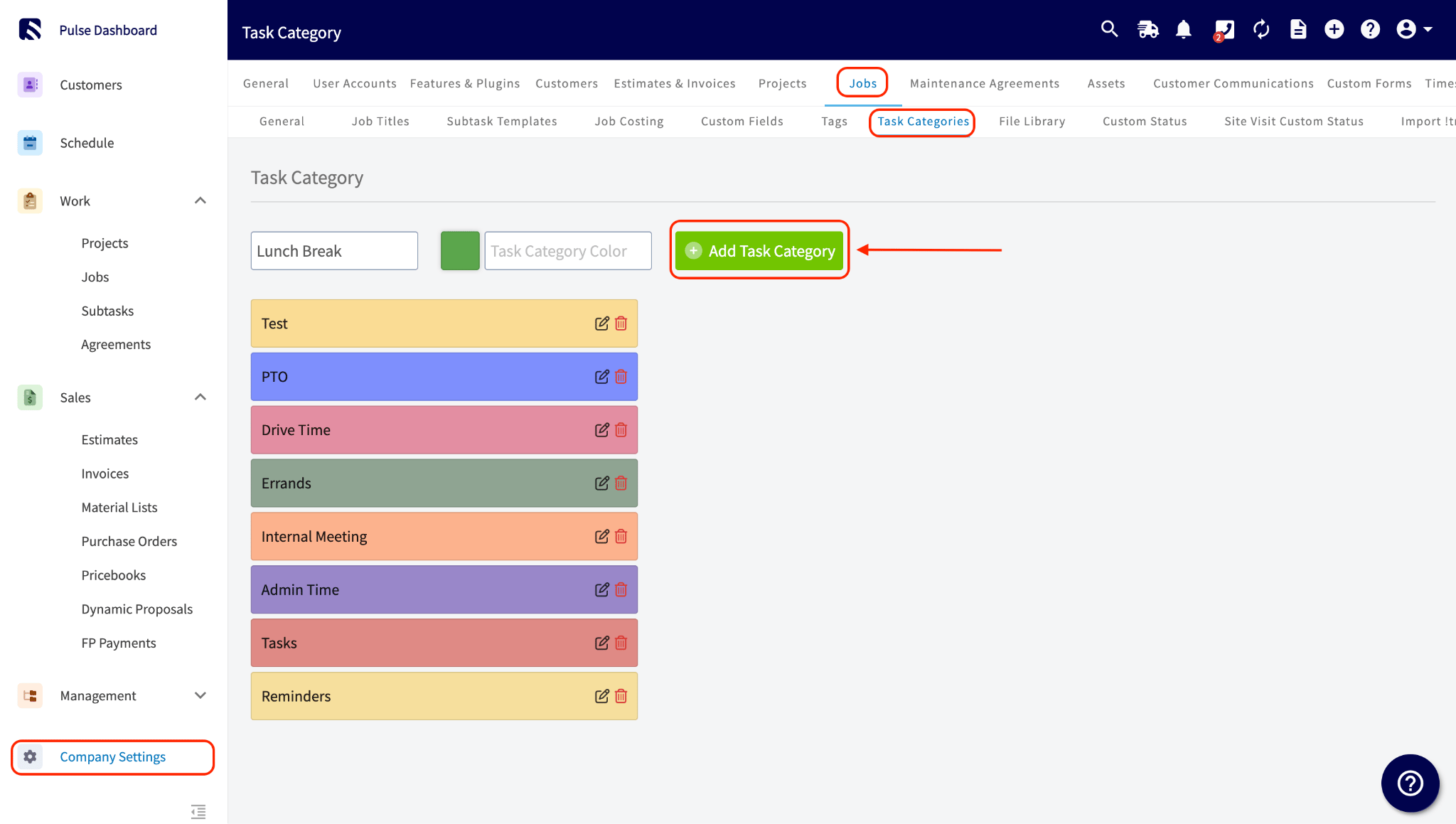
- Go to Company Settings > Jobs > Task Categories.
- Enter Lunch Break as the category name and pick a color.
- Select Add Task Category.
Create the recurring lunch task
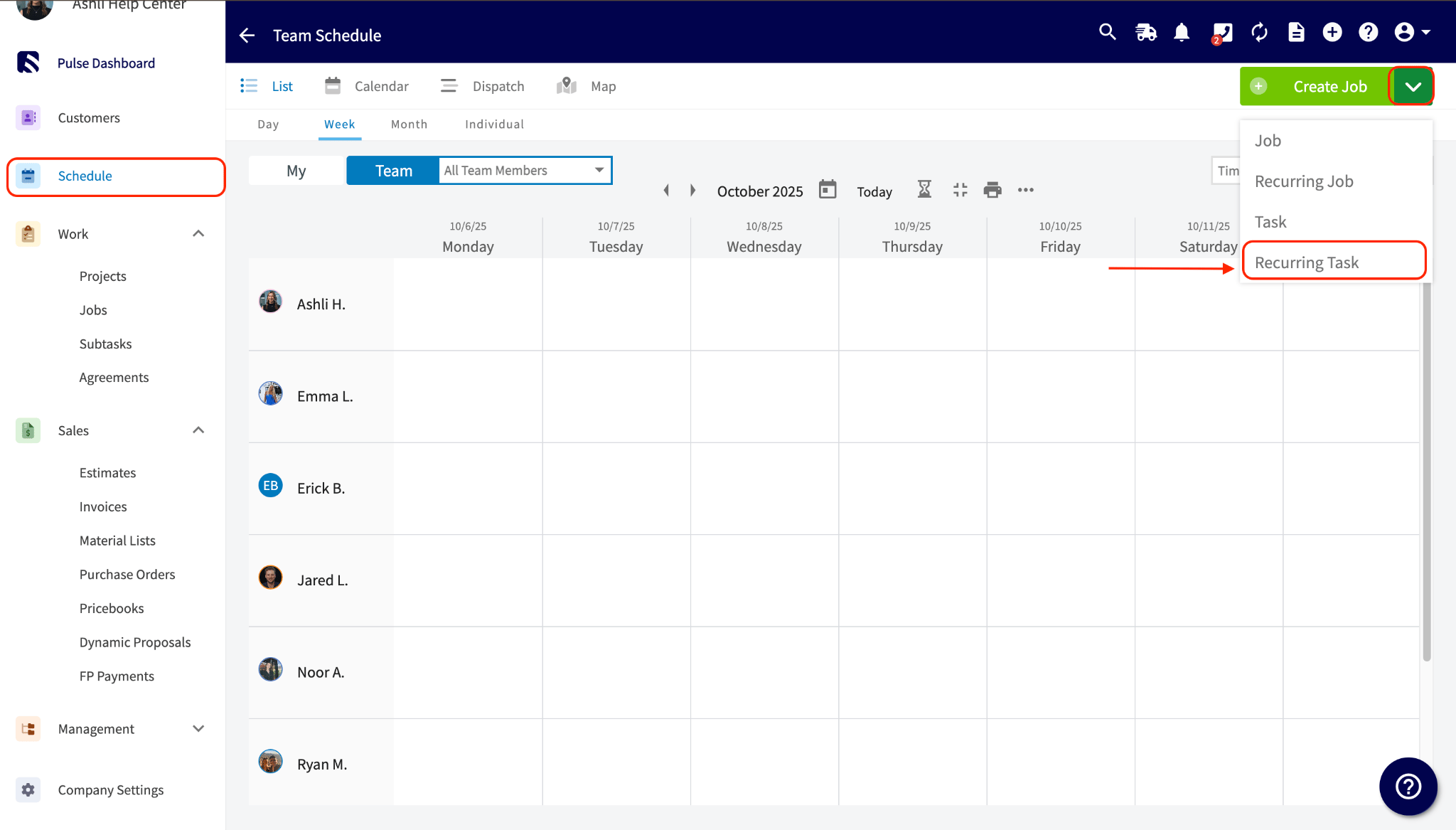
- Go to Schedule and select the arrow next to Create Job, then select Recurring Task.
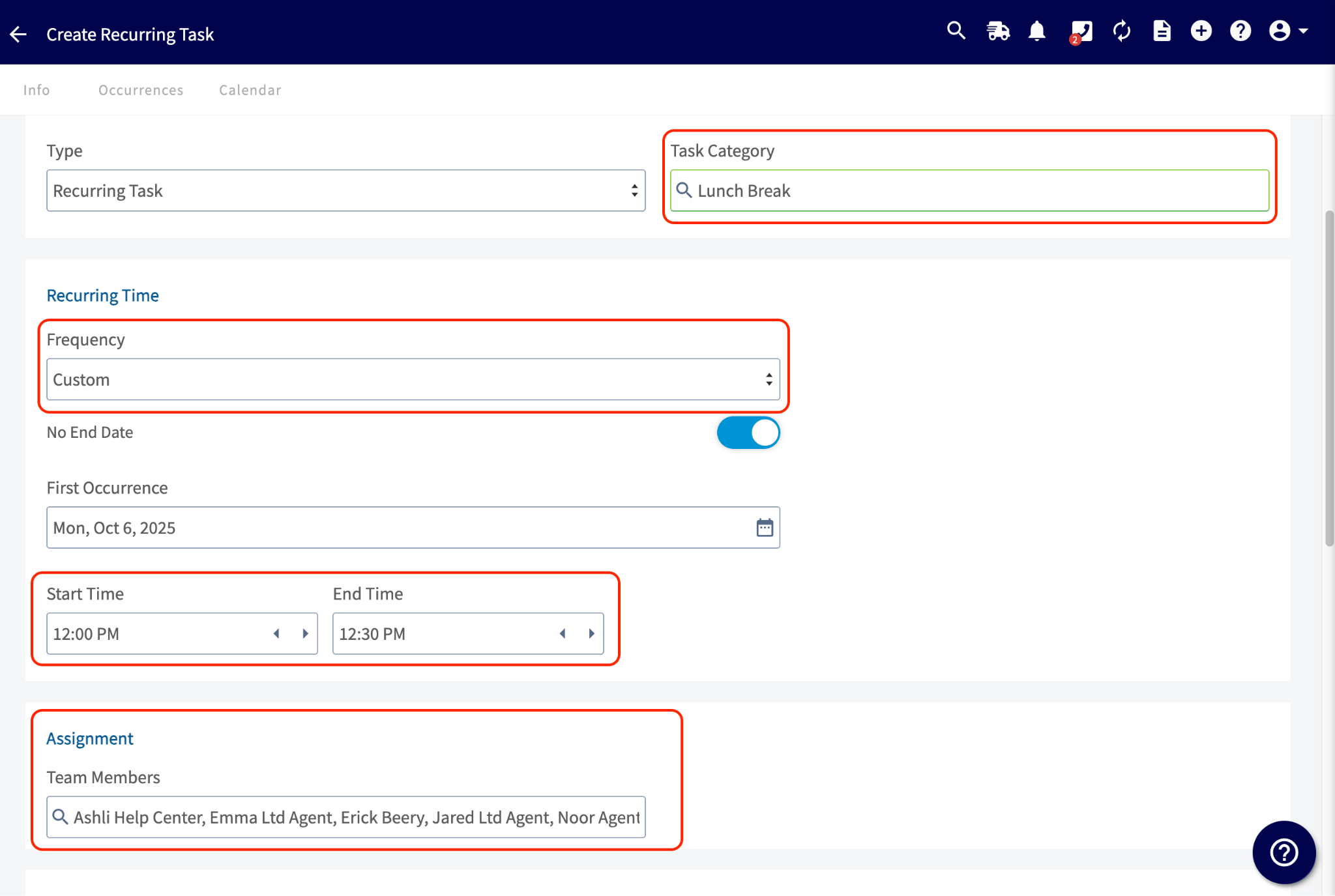
- Title the task Lunch Break.
- Select Lunch Break as the Task Category.
- Under Recurring Time, set the Frequency to the days the break repeats — for example, Monday through Friday — and set the First Occurrence date.
- Set the Start Time and End Time to the fixed break window.
- Under Assignment, add the Team Members the break applies to.
Track lunch with clock-out notes
A clock-out note tags a break on the technician’s timesheet, and the note carries through to timesheet reporting so you can pick lunch entries out of the day. Use it when technicians take lunch at different times and already use clock in and clock out.Record the break
- When lunch starts, the technician clocks out using the standard Clock Out process in the FieldPulse mobile app.
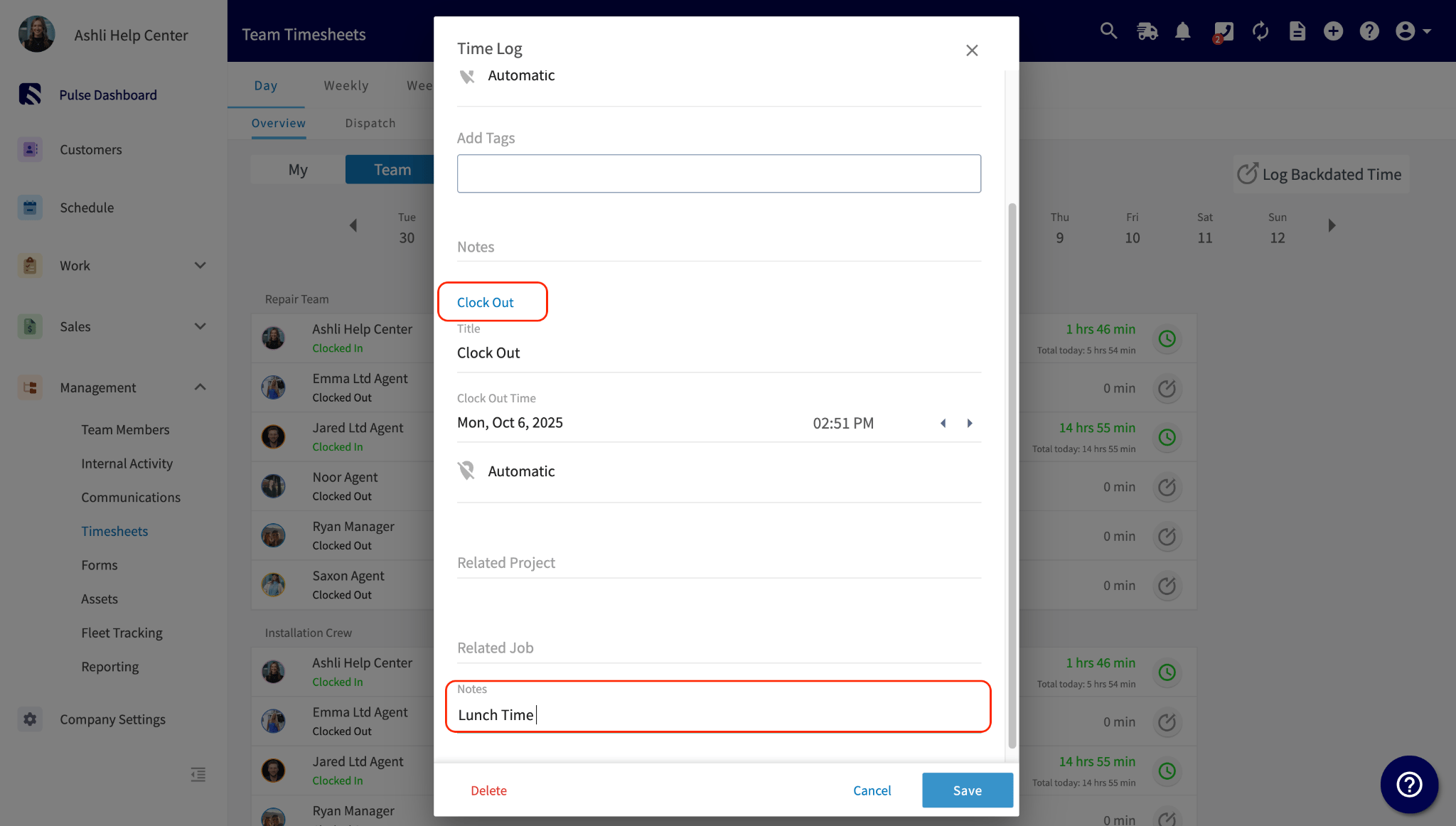
- Before finalizing the clock out, the technician adds a Note — for example, “Lunch”.
Pull the breaks into reporting
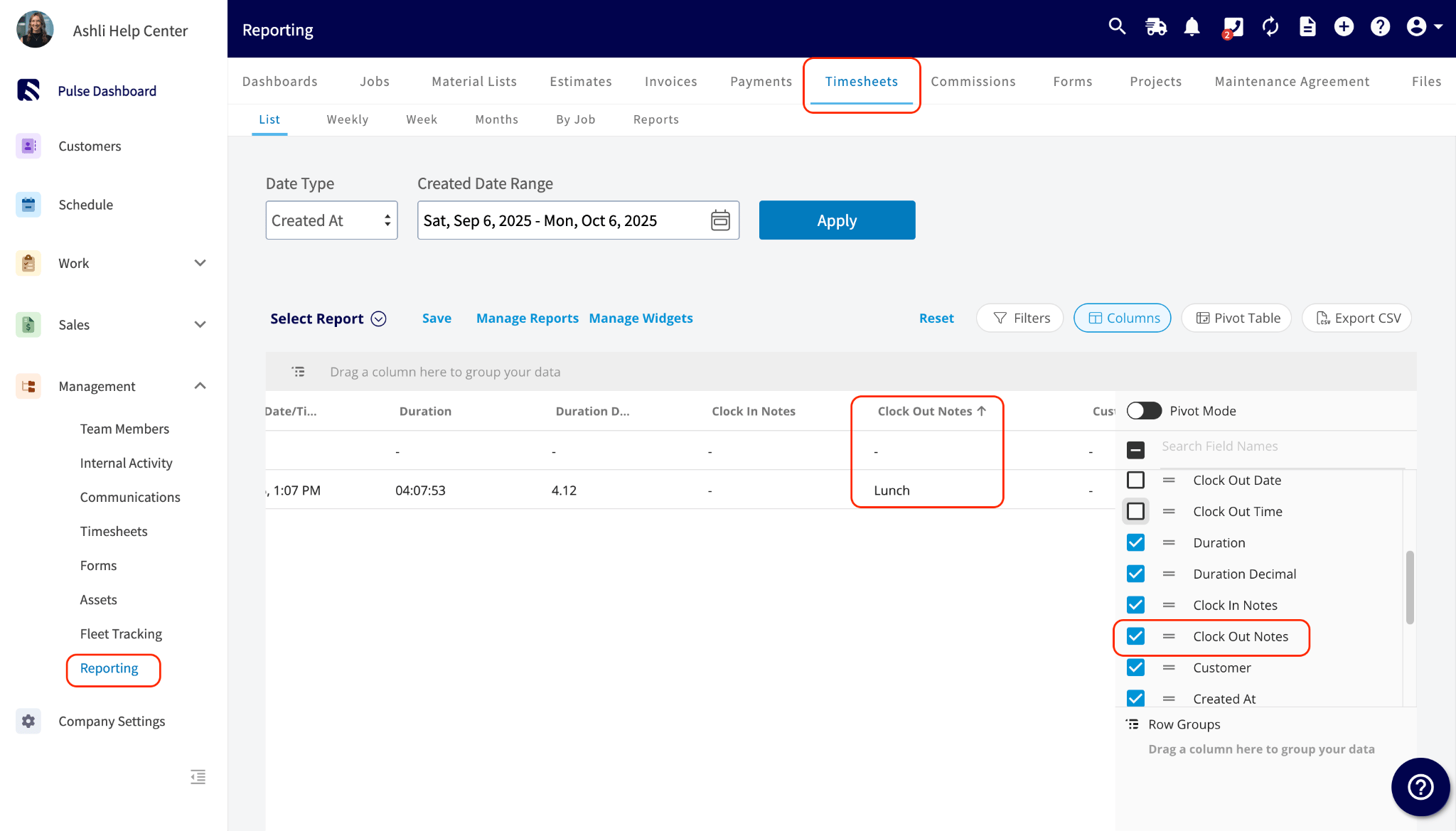
- Go to Reporting and open the Timesheets tab.
- Select Columns and turn on Clock Out Notes.
Track lunch with separate timesheets
Separate timesheets split a technician’s general time at work from the time they spend on specific jobs, and lunch is recorded on the general timesheet. Use it when you need those two kinds of time kept apart.Turn on the two timesheet system
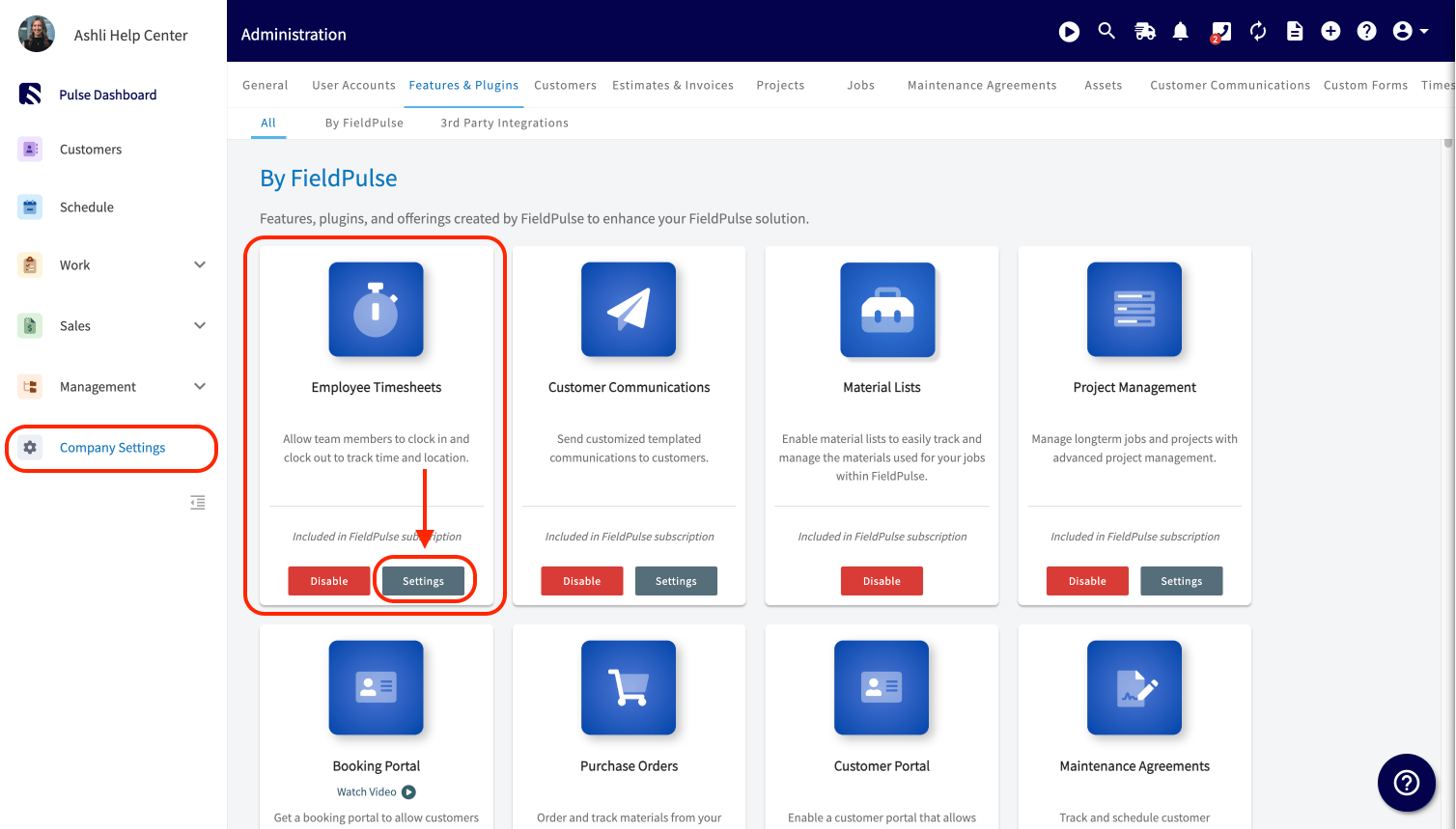
- Go to Company Settings > Features & Plugins.
- On the Employee Timesheets card, select Settings.
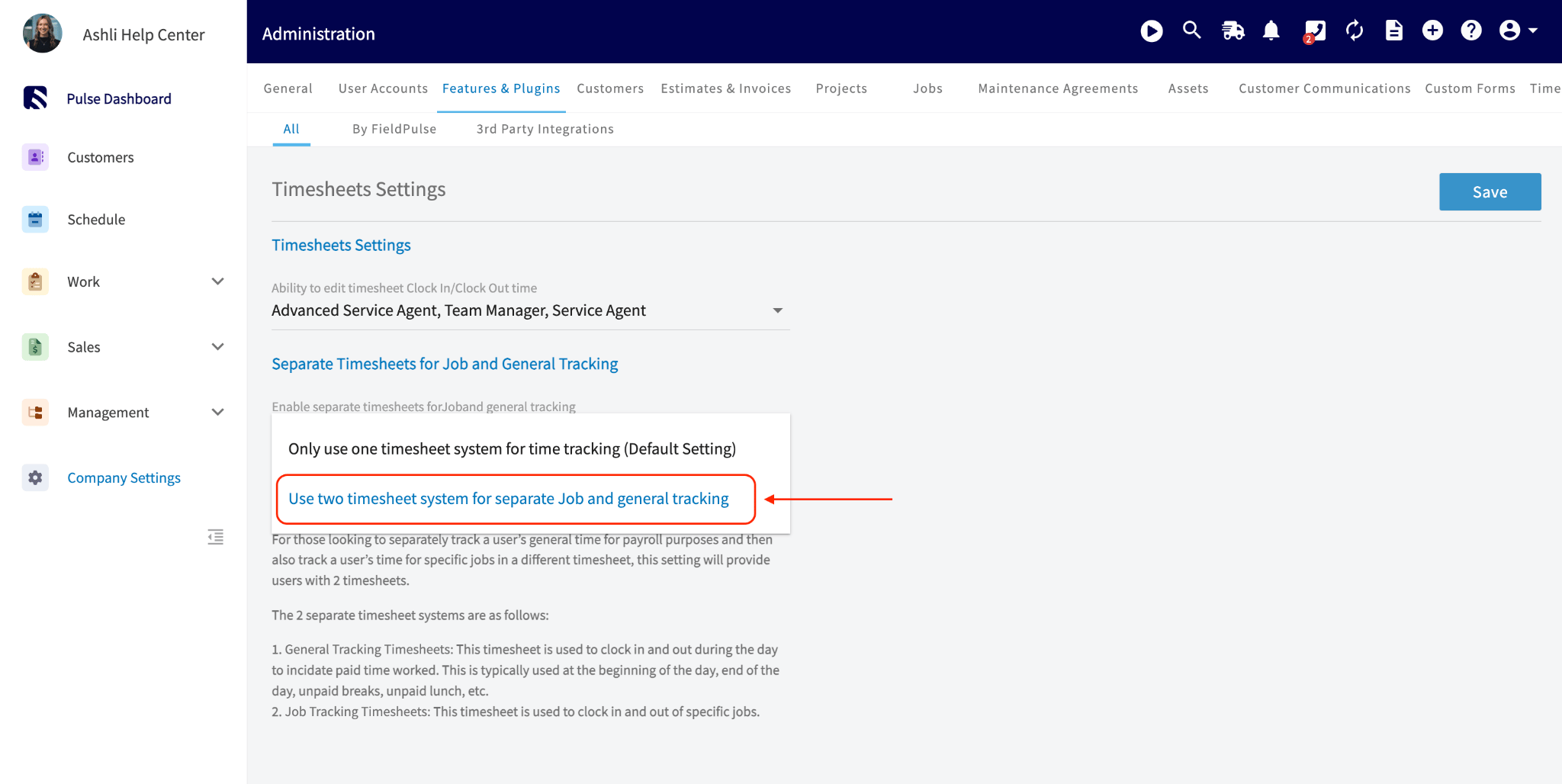
- Under Separate Timesheets for Job and General Tracking, select Use two timesheet system for separate Job and general tracking.
- Select Save.
How technicians use the two timesheets
- General records paid time worked across the day — the start of the day, the end of the day, and unpaid breaks and lunch. Technicians clock out and back in on this timesheet for lunch.
- Job Tracking records clocking in and out of specific jobs.