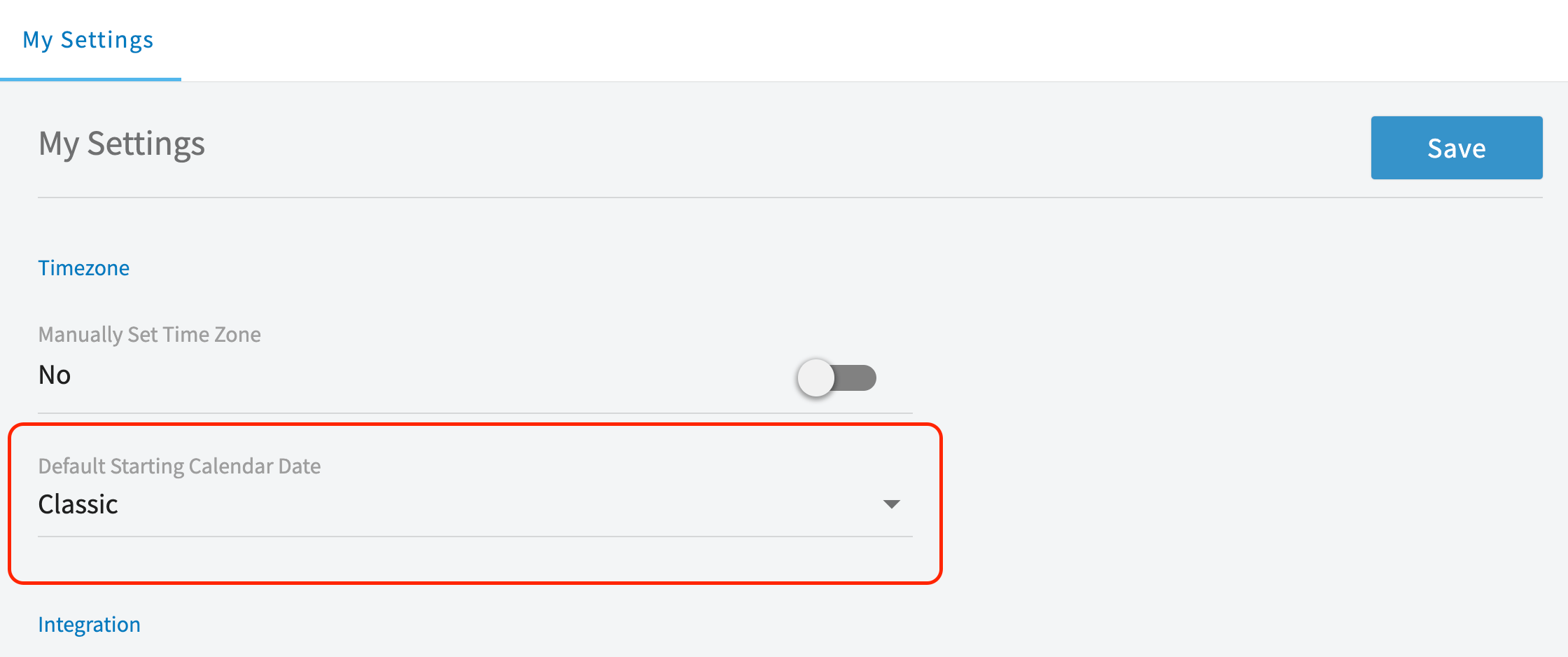
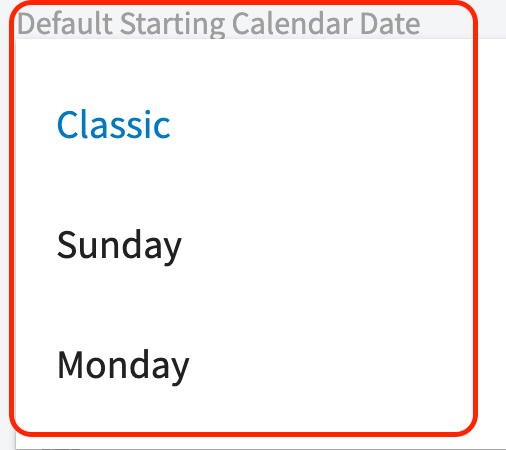
Who uses this: Any user with access to My Settings on their own FieldPulse profile. Availability: All regions.Default Starting Calendar Date sets which day the week starts on in your FieldPulse calendar and schedule. Choose Sunday, Monday, or Classic on the My Settings page so the week is laid out the way you and your team plan it.
Overview
Default Starting Calendar Date is a setting on the My Settings page that controls the day your calendar and schedule week begins on. FieldPulse offers three options — Sunday, Monday, or Classic. You open My Settings from the Profile icon at the top right of the screen. On that page, Default Starting Calendar Date sits in the Timezone area, directly below Manually Set Time Zone.Before you begin
- Decide which day you want your calendar week to start on — Sunday, Monday, or Classic.
- The steps below run in the FieldPulse web app and start from the Profile icon at the top right of the screen.
Step-by-step setup
Open My Settings
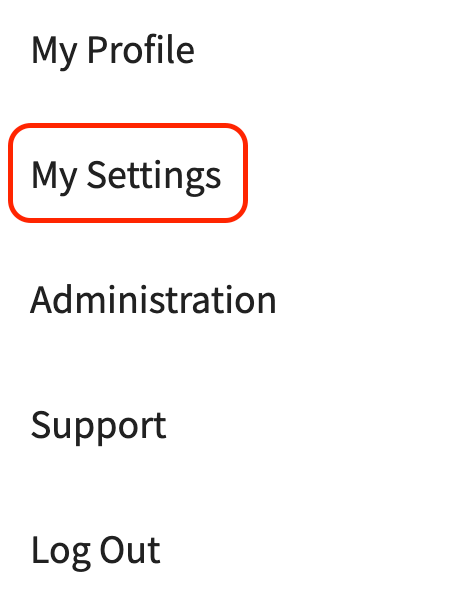
- Select your Profile icon at the top right of the screen.
- Select My Settings from the dropdown menu.

Choose your calendar start date
- On the My Settings page, find the Default Starting Calendar Date heading, below Manually Set Time Zone.
- Open the Default Starting Calendar Date dropdown and select Sunday, Monday, or Classic.
- Select Save at the top right of the My Settings page.