
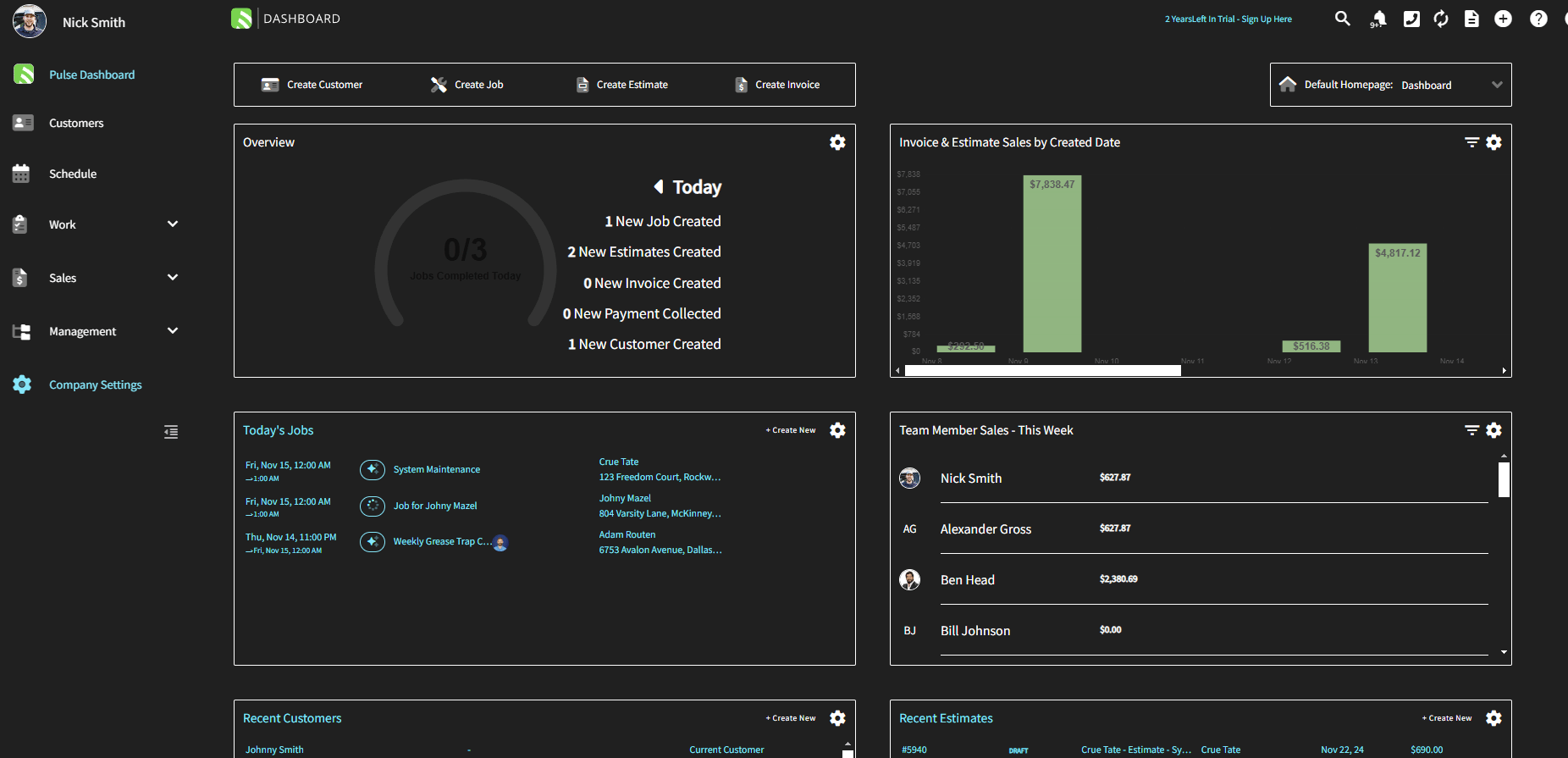
Who uses this: Any FieldPulse user, on their own computer. Availability: Windows and macOS display settings — FieldPulse does not currently have a built-in dark mode.If a darker, higher-contrast screen is easier on your eyes, both Windows and macOS have display settings that give you one. FieldPulse does not currently have a built-in dark mode, so you make the change at the operating-system level, and FieldPulse displays in whatever theme your computer is set to.
Overview
Screen contrast and display themes are set in Windows or macOS, not inside FieldPulse. A darker or higher-contrast view comes from your computer’s own display settings and carries across your whole screen, FieldPulse included. Both operating systems give you the same three adjustments:- Dark mode applies a darker theme across most system apps.
- Contrast settings make text and interface elements stand out more clearly against the background.
- Brightness and color temperature reduce blue light for a warmer, less glaring display. Windows calls this setting Night Light; macOS calls it Night Shift.
Before you begin
Every change on this page happens in your computer’s own settings, not inside FieldPulse. Decide which computer you want the darker display on, then open its settings app — Settings on Windows or System Settings on macOS — and follow the steps for that operating system below.On Windows
Turn on dark mode
- Open Settings > Personalization > Colors.
- Under Choose your color, select Dark. Most system apps and the taskbar switch to dark mode.
Apply a high-contrast theme
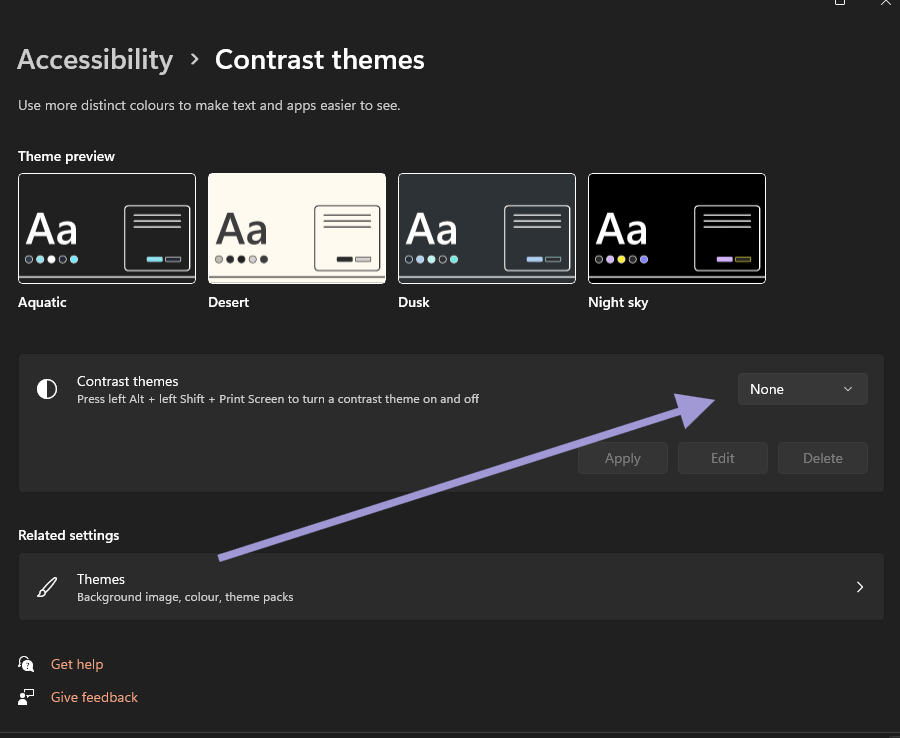
- Open Settings > Accessibility > Contrast themes. On Windows 10, open Settings > Ease of Access > High contrast instead.
- From the Contrast themes menu, select a theme, such as Aquatic, Desert, Dusk, or Night sky, then select Apply to make text and backgrounds easier to read. A contrast theme raises visibility across the whole screen, which helps if you are sensitive to bright displays.
Adjust brightness and color temperature
- Adjust brightness from the Action Center, or open Settings > System > Display.
- Turn on Night Light to reduce blue light for a warmer display.
On macOS
Turn on dark mode
- Open System Settings > Appearance. On macOS Monterey or earlier, open System Preferences > General instead.
- Select Dark to apply a darker theme across most native macOS apps.
Increase contrast and reduce transparency
- Open System Settings > Accessibility > Display.
- Check Increase contrast to make text and interface elements stand out more clearly.
- In the same Display section, check Reduce transparency to make the interface simpler and easier on the eyes.
Warm the screen and adjust text
- Open System Settings > Displays, then select Night Shift.
- Set Night Shift to turn on automatically from sunset to sunrise, or move the color temperature toward a warmer tone to reduce blue light.
- Back in Accessibility > Display, adjust the text size and turn on Reduce motion for a more readable experience.