
Who uses this: Find Availability runs from inside a job record; an Admin enables and configures the Booking Portal where booking windows are set. Availability: All regions. Using multiple booking windows with online scheduling requires the Booking Portal.Find Availability surfaces open time slots across your team in real time, so you can schedule and dispatch the right person at the right time without the back-and-forth of checking calendars one at a time. FieldPulse factors in your team’s existing schedule, the job’s requirements, and any booking windows you have configured.
Overview
Find Availability returns the time slots that work for both the job and the team. You can run it in two places — from inside a job record while you are building a new job, and while creating a job template. In both places FieldPulse factors in your team’s existing schedule, the job’s requirements, and any booking windows you have configured, including multiple windows per day for businesses with split-shift or non-standard hours. A booking window is the range of hours a job can be scheduled within. Booking windows are set per service in your Booking Portal, and the windows you configure feed both Find Availability’s time slot suggestions and the times customers see when they book online.Before you begin
- You can run Find Availability from a new job record without any additional setup.
- To use multiple booking windows with online scheduling, the Booking Portal must be enabled — see Setting Up the Booking Portal.
- Admin access is required to enable and configure the Booking Portal.
- For jobs not tied to a job template, the booking window defaults to Monday through Friday, 8am to 6pm.
On web
Find availability from a job record
Run Find Availability without leaving the record you are building.- Start creating a new Job record.
- Scroll down to the date/time area and select Find Availability.
- Review or adjust your scheduling requirements, including team members, skills, duration, and booking window.
- Select Suggest Times. FieldPulse returns available combinations of team members based on your criteria.
- Select your preferred time slot and confirm. The job is assigned to those team members and scheduled at that time.
Set multiple booking windows
You can define more than one booking window per day for each service in your Booking Portal. Use this when your business operates in shifts, offers emergency hours, or needs to separate overnight availability from standard business hours.- Go to Company Settings and select Booking Portal, then Job Booking.
- Open the service you want to configure.
- In the Booking Window section, find the day you want to update.
- Select the green plus symbol to the right of that day’s existing time range.
- Set the start and end times for the new window.
- Repeat for any other days or windows you need.
- Select Save.
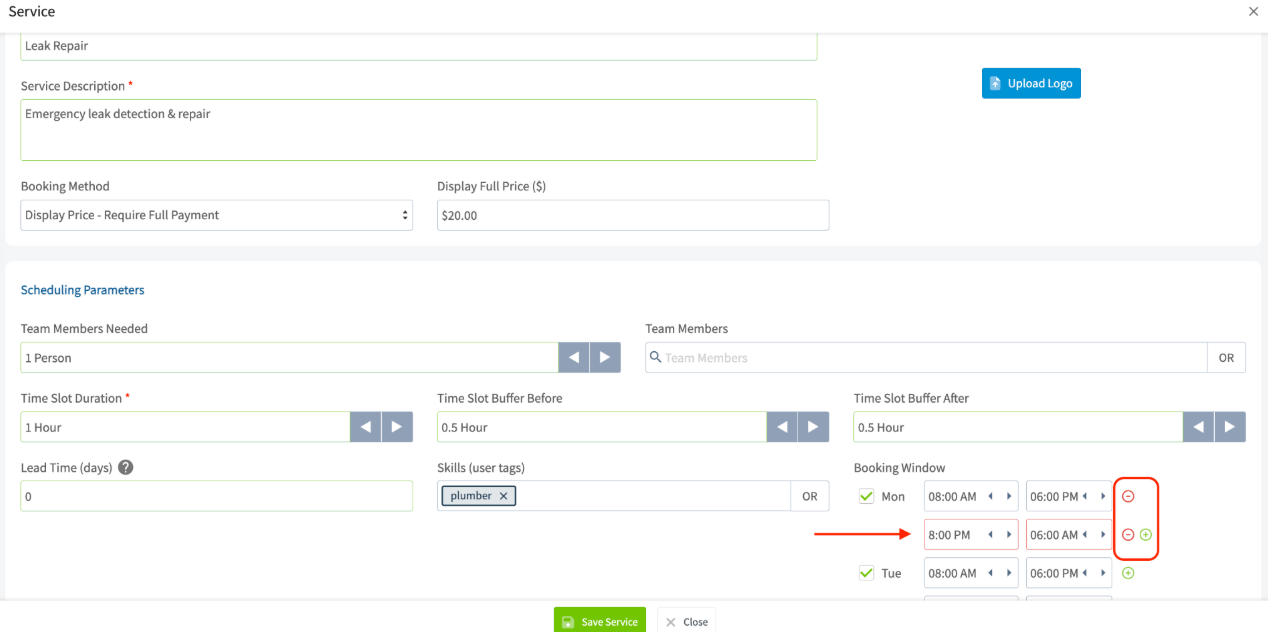
- Add as many windows per day as your schedule requires.
- Windows for the same day cannot overlap. If they do, FieldPulse shows an error before saving — “Each Booking Window within the same day for [day] must have unique time ranges without overlap.”
- Any additional windows you configure are included in the time slots presented to customers through your Booking Portal.
- These windows are also factored into Find Availability’s automatic time slot suggestions for job instances created from job templates that reference those services.