Who uses this: An Admin sets up Customer Communications in Company Settings; the View Customer Communications permission controls who else can review sent messages. Availability: All regions · Customer Communications must be enabled; Engage add-on to send from your own phone lines.Customer Communications is the part of FieldPulse that sends emails and text messages to your customers — appointment reminders, “your tech is on the way” texts, invoice links, feedback requests — without anyone on your team remembering to send each one. This page covers what Customer Communications includes, how the pieces fit together, and where to review everything your team has sent.
Overview
Customer Communications is the email and SMS system built into FieldPulse for messaging customers about their work. It does three things:- Templates — Build reusable email and SMS messages that fill in job and customer details through Field Values, so every message reads like you wrote it by hand.
- Automatic triggers — Tie a template to a moment in the work — job created, job status changed, invoice past due — and FieldPulse sends the message on its own.
- Manual sends — Send a template, or a one-off message, to a customer from any job or customer record when you need to.
Video walkthrough
Two recorded walkthroughs cover Customer Communications end to end — one for the web app, one for the mobile app:How it works
Customer Communications closes the gap between what happened on the job and what the customer knows. A tech finishes early, an invoice goes past due, an appointment is tomorrow — and nobody tells the customer until they call to ask. Customer Communications closes that gap in four moves:- Set up templates once. Write your email and SMS templates in Company Settings > Customer Communications, using Field Values to drop in the customer’s name, job time, and location. See Setting Up Email & SMS Templates.
- Decide what sends on its own. Create automatic triggers so the right message goes out at the right moment, with no one hitting send. See Setting Up Automatic Communication Triggers.
- Send the rest by hand. For anything you do not automate, send a template from the job or customer record. See How to Send Communications to Customers.
- Check what your customer got. FieldPulse records every send with a delivery status, so you know whether the message landed.
What your customer receives
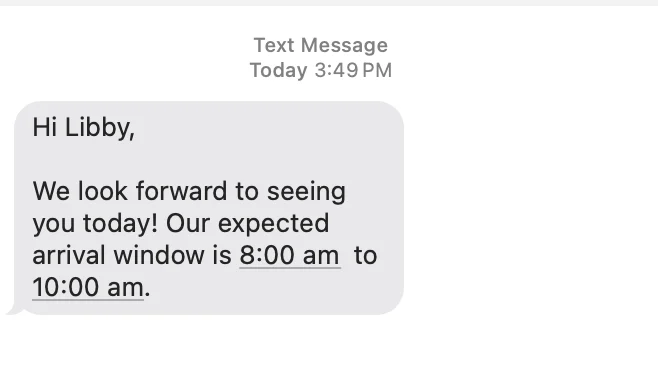
Your customer receives an ordinary email or text message — no app to install and no login. The message body comes from your template, with each Field Value replaced by that customer’s details, so the text reads as though you typed it for them.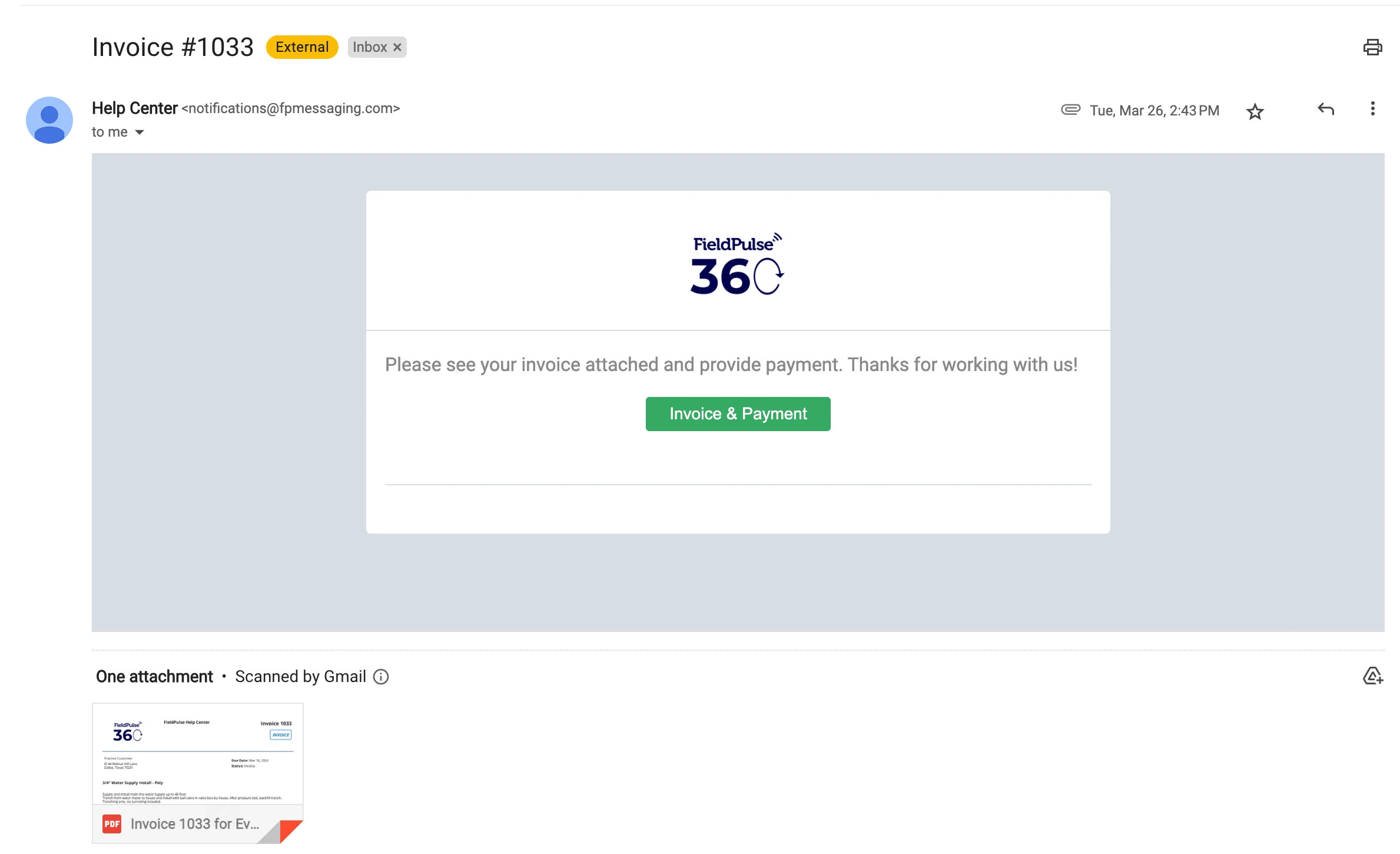
- Job-related communications go to the main customer contact, or to any additional contact on the customer record that you designate as the job’s contact.
- All other communications go only to the main customer contact, never to additional contacts.
Files and photos
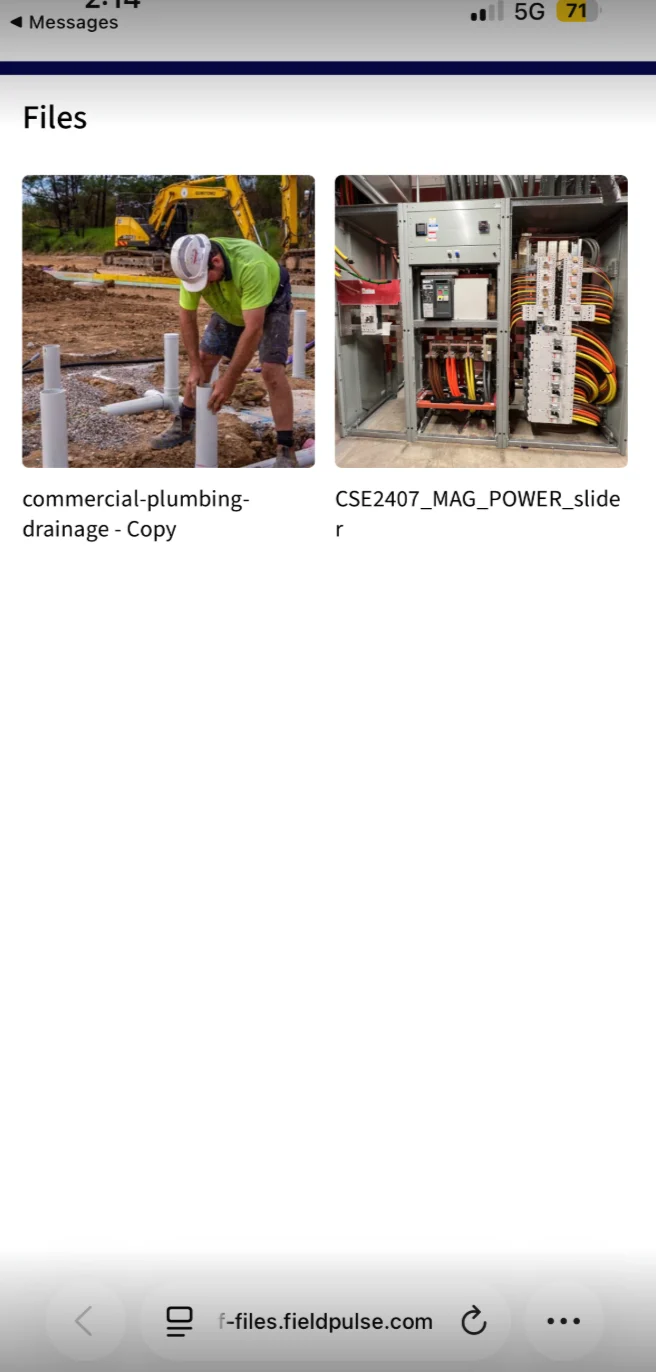
You can attach files and photos to SMS and email communications sent from web or mobile, on both one-off and templated messages. One message can carry several attachments, though you select and upload the files one at a time.- Email attachments are capped at 10 MB per file.
- SMS attachments have no size limit, because FieldPulse texts your customer a link to a file viewer instead of the files themselves.
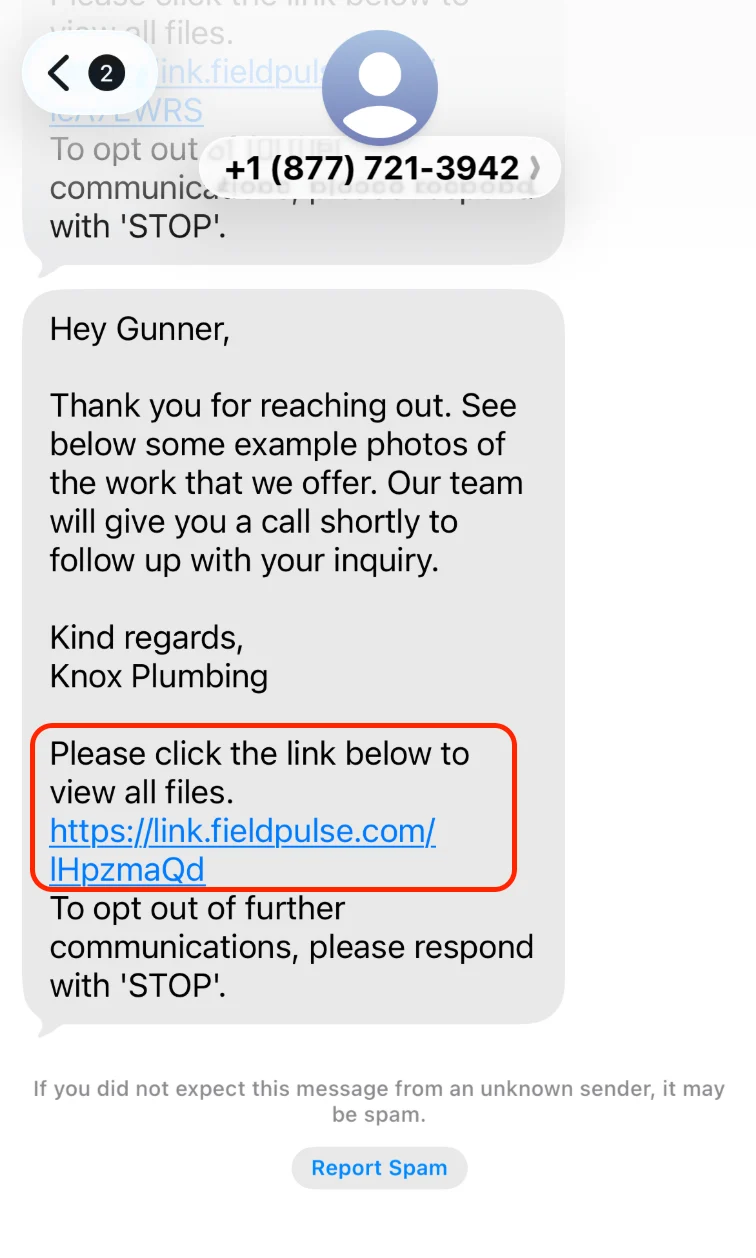
“Please click the link below to view all files.” is default FieldPulse text on SMS attachment messages and cannot be removed or edited.
Profile photo messages
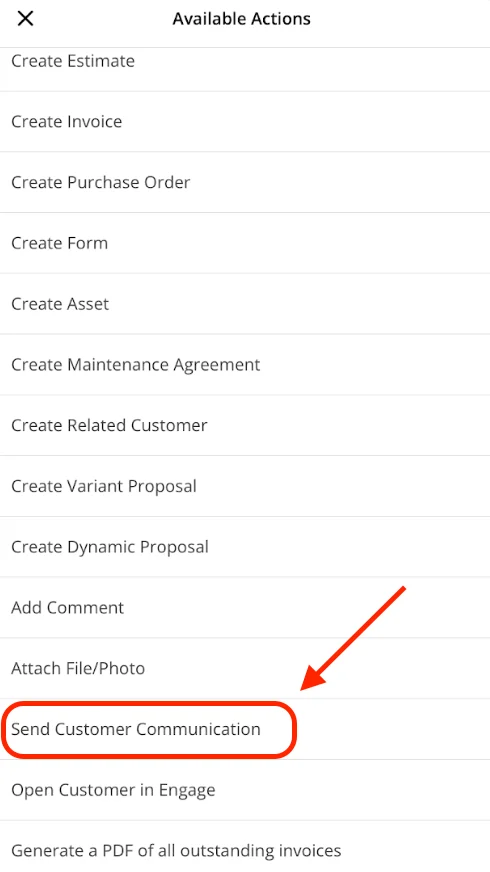
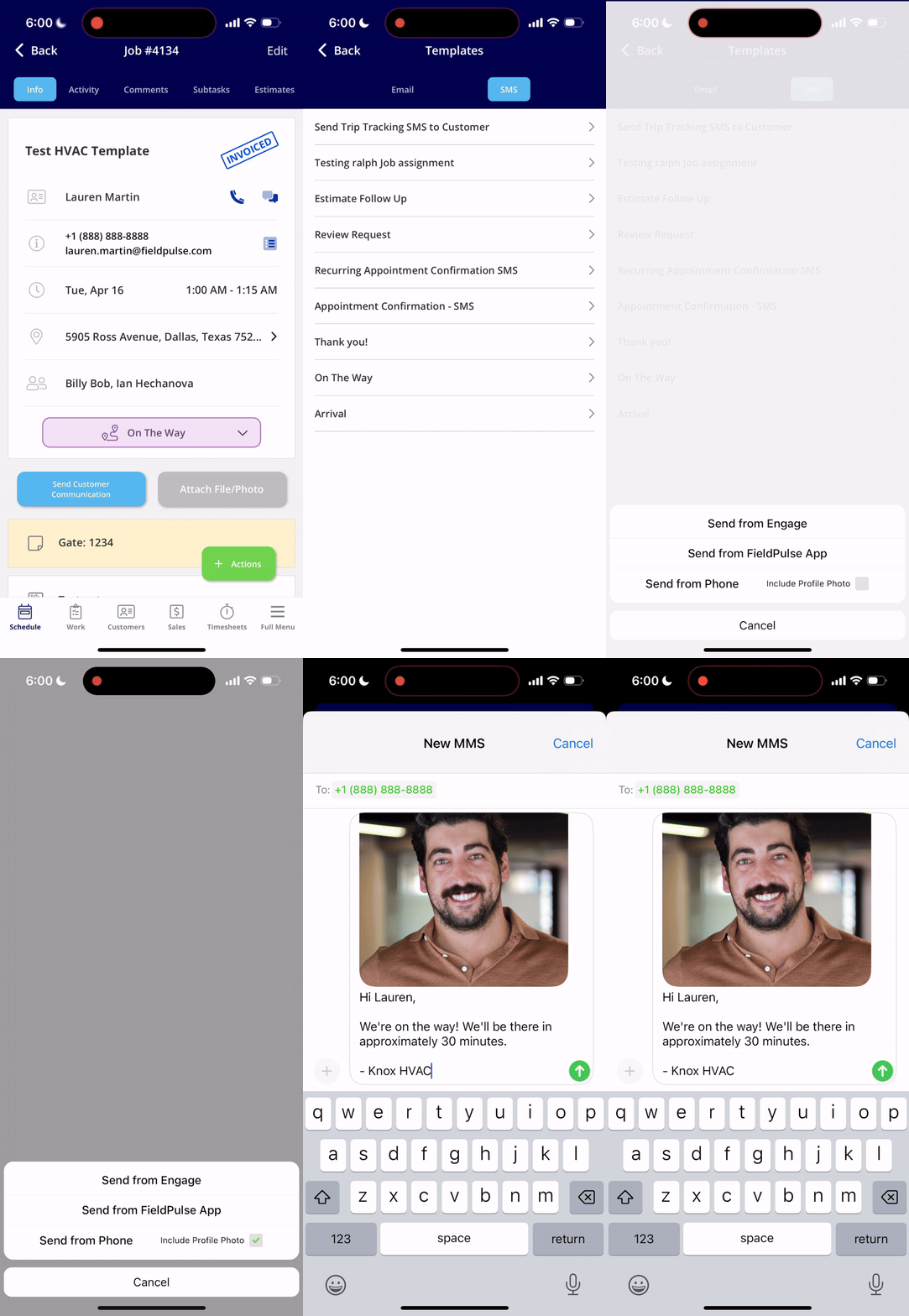
Let your customers know who to expect: from the FieldPulse mobile app, you can send the assigned user’s profile photo along with a customer communication SMS. This is available when sending the SMS from your phone’s own messaging app, and can’t be used with automatic communication triggers at this time. On the customer record, select the green Actions button: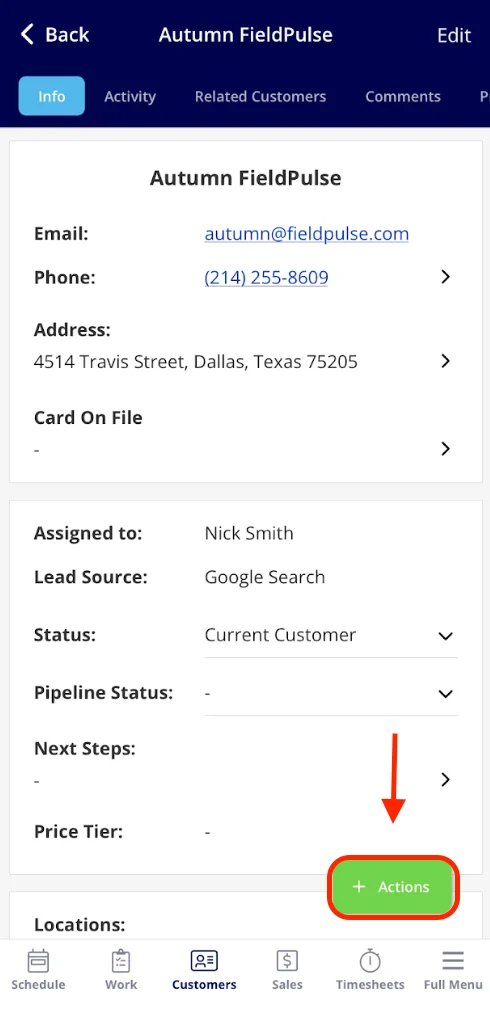
Live trip tracking
A technician on the way to a job can text the customer a live trip tracking link from the FieldPulse mobile app: on the job record, select Actions > Send Customer Communication > SMS > Send Trip Tracking SMS to Customer. The first time your account sends one, the technician writes a default trip tracking message and presses Save, and FieldPulse reuses that message on every send after it. The link opens a map with the technician’s real-time location and an ETA the technician can adjust before sending, and the message can include a photo of the team member so the customer knows who to expect. Trip tracking needs two things:- Location services turned on for FieldPulse on the technician’s phone. Without location access, FieldPulse cannot share the vehicle’s position with your customer.
- A send method. The text goes out either from the FieldPulse app or from the phone’s own messaging app — sent from the phone’s messaging app, it comes from the technician’s personal phone number.
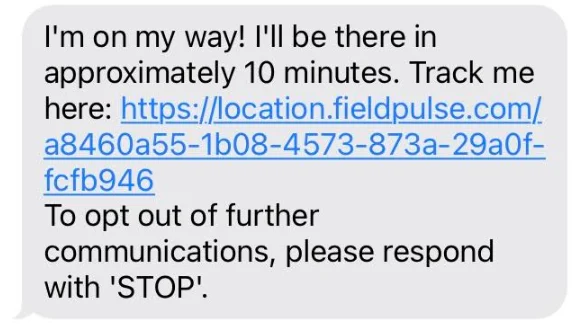
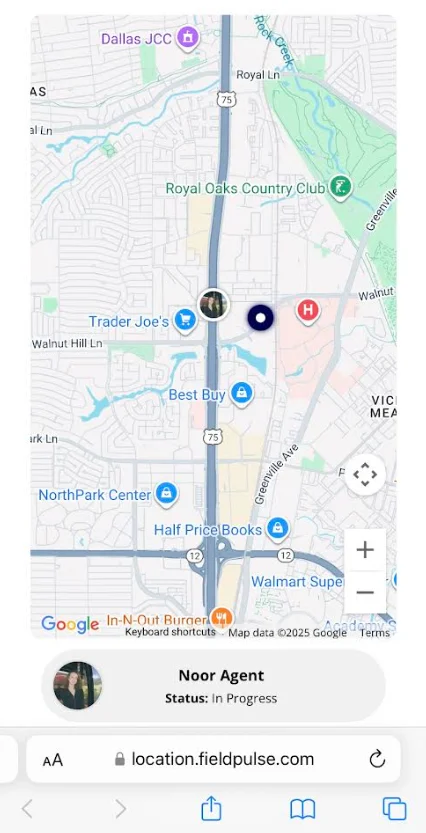
The live trip tracking link stays active for one hour after it is sent, so your technician’s location is shared only while they are on the move rather than for the rest of the day. Trip tracking messages cannot be tied to automatic triggers — a technician always sends them manually.
Message tracking and delivery statuses
FieldPulse keeps every communication your team sends in one place. Go to Management in the left menu and select Communications.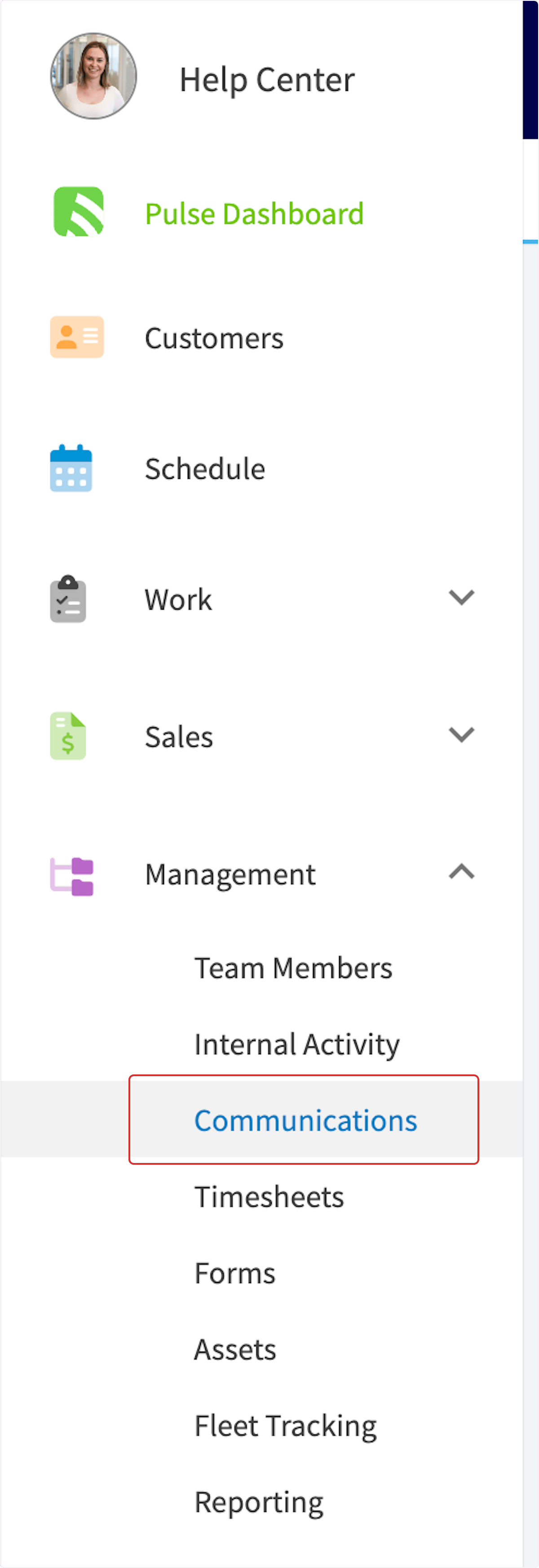
- Review every message your team sends, in one list.
- Filter by related record type using the tabs at the top.
- Open any message to see who sent it, the date and time, the delivery status, the customer, the related record, and the full message content.
Email communications can show three more statuses:
Availability
Customer Communications is available in all regions and has to be enabled on your account. How your messages send depends on whether your account has the Engage phone add-on — see Engage Overview:- Without Engage — every automatic email and SMS sends from a no-reply toll-free number provided by FieldPulse.
- With Engage — when the Send Customer Communication via Engage Account toggle is on, SMS and email triggers send through your Engage account. Choose Engage Smart SMS Delegation, which picks the sender’s assigned line, then the company owner’s line, then any available Engage line; or choose a Custom Phone Line so every SMS always sends from the same number.
- Texting U.S. numbers through Engage requires 10DLC registration with The Campaign Registry before carriers will deliver your messages. See Setting Up 10DLC Compliance Registration.
- Trip tracking is a mobile-app feature and needs location services enabled on the technician’s device.
FAQs
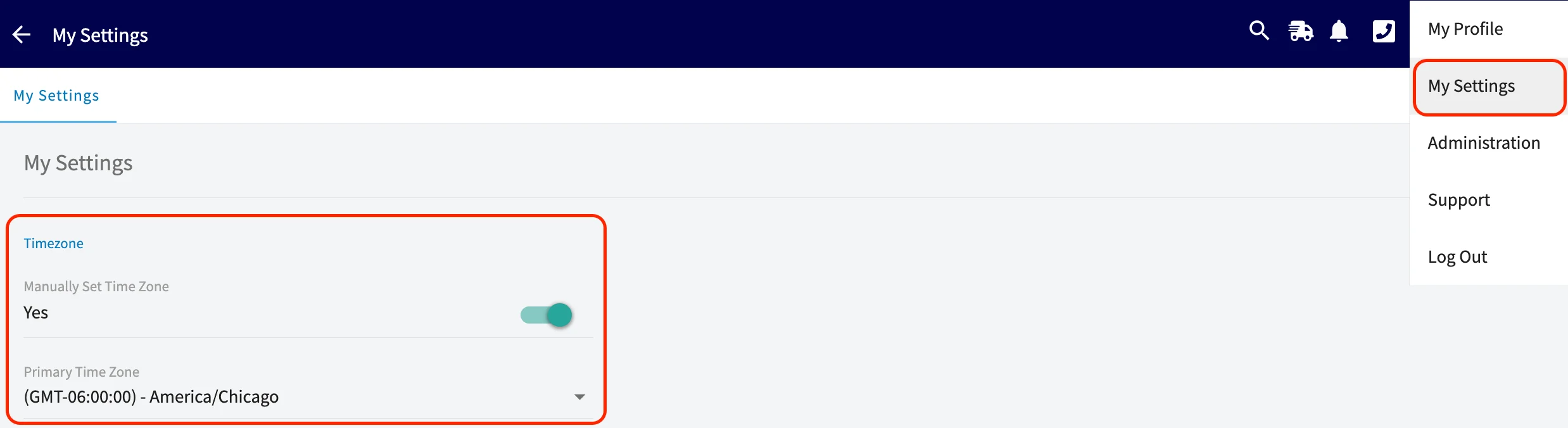
What time do communications send to my customers? Date-based triggers send at 8:00 AM in the timezone set on your FieldPulse account, so a message set for 3 days after a job is completed goes out at 8:00 AM on that day. Hour-based triggers send the exact number of hours after the event — 30 hours after completion means 30 hours after that job entered the Completed status. See Setting Up Automatic Communication Triggers for every trigger option.