
Who uses this: Admins or the account owner, who provide the business and website details; publishing the two compliance pages also needs someone who can edit your business website. Availability: Engage add-on · United States and Canada · registration applies to any organization that sends SMS to US numbers.10DLC registration is the process of registering your Engage phone numbers with The Campaign Registry (TCR) so US mobile carriers do not block the business texts you send. Every number that sends SMS to US numbers must be registered — whether you purchased it new through Engage or ported it in from an outside carrier.
Overview
10DLC registration is an industry-wide compliance program that US mobile carriers enforce to reduce spam and protect consumers. It is not a FieldPulse requirement. Two facts to know up front:- 10DLC affects texting (SMS) only. Calling is not affected.
- If you do not complete registration, your business may be unable to send texts.
Changes as of January 2026: Mobile carriers now require proof that a business texting customers has proper SMS compliance content published online — Terms, Privacy, and SMS opt-in information — before campaigns can be reviewed and verified.That requirement is why Engage registration now runs as two registrations: brand registration first, then campaign registration once your compliance pages are live on your own website. For the customer-facing side of SMS, see Customer Notification Preferences and SMS Opt-Out Details.
Before you begin
Have the following ready before you start:- Your company details — legal business name, EIN / Tax ID, business type, website URL, and business address.
- Your account representative’s details — first and last name, job title, phone number, and email address.
- Access to publish two pages on your business website, or someone on your team who can. Carriers require the SMS compliance pages to be hosted on your own domain.
Step-by-step setup
The two registrations take three steps — register your brand, publish your compliance pages, then submit those page URLs so FieldPulse can register your campaign.Step 1: Register your brand
- Log into Engage. You are prompted for the company details and account representative details listed under Before you begin.
- Submit the details. FieldPulse sends this information to TCR for brand registration.
Sole Proprietor brands are limited to one 10DLC campaign per brand, and one phone number per campaign. You can still add multiple phone numbers to your account and make or receive calls on each one, but only the number linked to the campaign can send text messages.
Step 2: Publish your SMS compliance pages
Mobile carriers require two SMS compliance pages published on your business website before your texting can be approved. Both must be public links with no login required, hosted on your own website domain (for example, yourcompany.com). Carriers need these pages to review and approve your texting — this is not a FieldPulse requirement. Publish both of these pages:- SMS Terms & Privacy Policy — a single public webpage containing both your SMS Terms and your SMS Privacy Policy content.
- SMS Opt-in Form — a single public webpage containing your SMS opt-in language and an opt-in form.
- Create two webpages on your site.
- Copy the iFrame snippet FieldPulse provides for each compliance page from the 10DLC Information page in Engage (Settings in the left navigation bar, then A2P 10DLC), then paste it into the matching page. The iFrame displays carrier-approved compliance wording that includes your brand information.
- Publish both pages.
Step 3: Submit your page URLs in Engage
Once your two compliance pages are live, paste their public links into Engage:- In Engage, click Settings in the left navigation bar, then click A2P 10DLC to open 10DLC Information.
- Under Campaign Registration Inputs, paste your live page link into SMS Terms & Privacy Policy URL.
- Paste your live page link into SMS Opt-in Form URL.
Approval timeline
SMS verification may take 2 to 6 weeks after you submit all required information and compliance links.Check your 10DLC status
To view your 10DLC status in Engage:- In Engage, click Settings in the left navigation bar.
- In the Settings list, click A2P 10DLC. The 10DLC Information page opens.
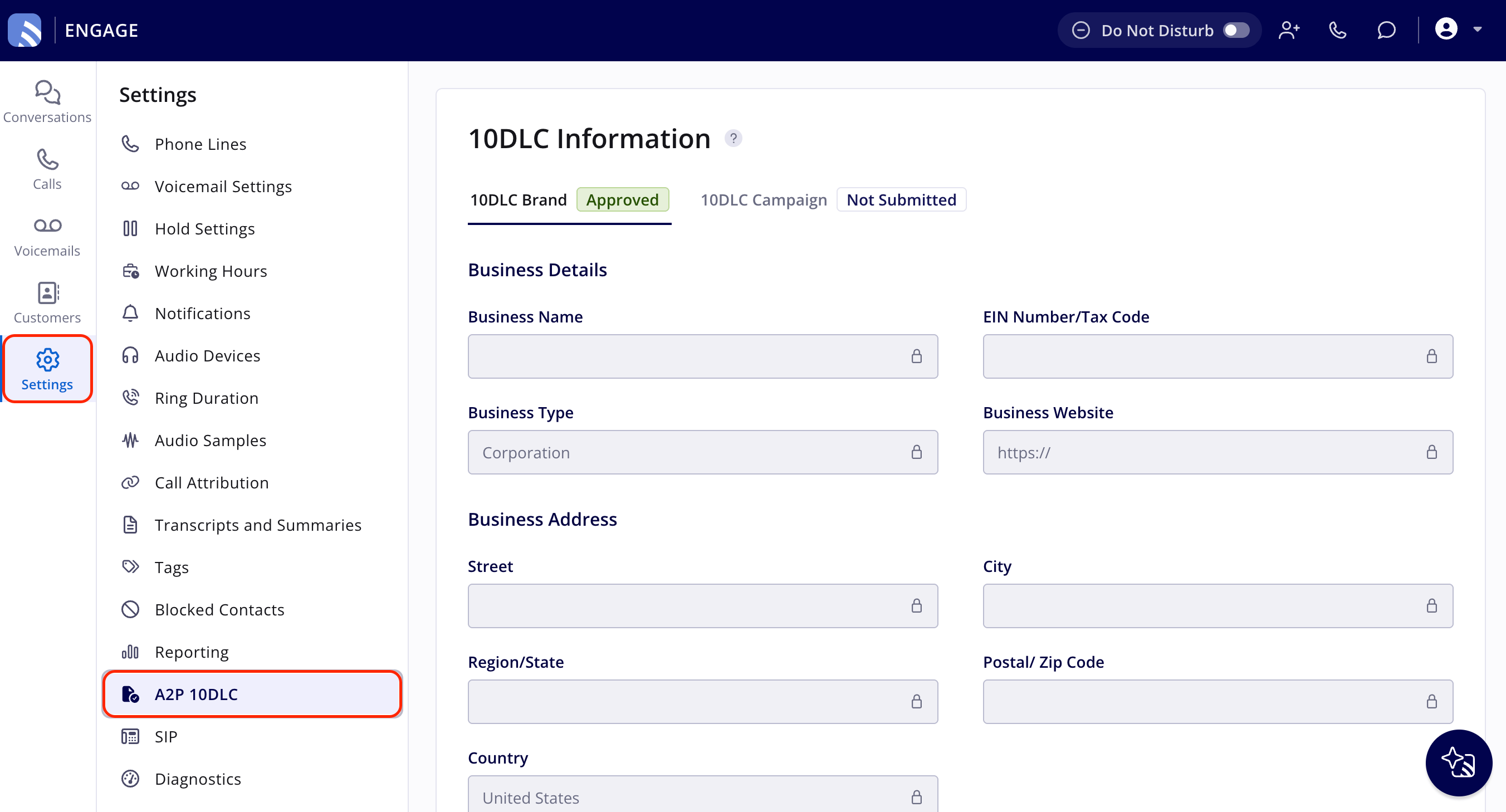
If your registration is rejected
If your 10DLC registration is rejected, contact FieldPulse Support. Provide any updated information and URLs, and the team resubmits on your behalf. Your registration is working when the 10DLC Information page shows your 10DLC Brand as Approved and your 10DLC Campaign as Verified, and your team can send texts to US customers without carrier blocking.Settings reference
Still need help?
For questions or help pasting the iFrame code on your website, contact the FieldPulse Support team:- Email support@fieldpulse.com
- Use the chat bubble in the bottom-right corner of FieldPulse