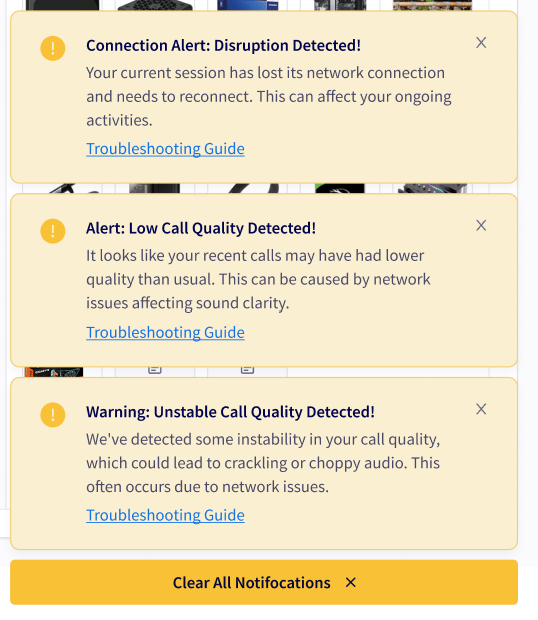
| Warning Text | Proactive Steps |
|---|---|
| Title: Attention: Network Delay Detected! Message: We’ve noticed that your calls might be experiencing some audio delays. This usually happens due to a slow network connection. | • Check your Internet connection: Make sure you’re connected to a stable Wi-Fi network. If you’re using mobile data, try switching to Wi-Fi. • Restart your router: Sometimes, simply restarting your router can improve your connection speed. • Close unused apps: Apps running in the background can slow down your connection. Close any apps you’re not using. |
| Title: Alert: Low Call Quality Detected! Message: It looks like your recent calls may have had lower quality than usual. This can be caused by network issues affecting sound clarity. | • Check your network speed: Use a speed test appto ensure your internet speed meets the minimum requirements for high-quality calls. • Limit bandwidth usage: Try to minimize the number of devices and applications using your network during calls. • Improve your Wi-Fi signal: Move closer to your Wi-Fi router or remove obstacles between your device and the router. |
| Title: Warning: Unstable Call Quality Detected! Message: We’ve detected some instability in your call quality, which could lead to crackling or choppy audio. This often occurs due to network issues. | • Stabilize your Internet connection: Avoid moving around if you’re using a mobile device during the call. • Use a wired connection: If possible, switch from Wi-Fi to a wired Ethernet connection to increase stability. • Restart your network devices: Sometimes, simply rebooting your modem and routercan help stabilize your connection. |
| Title: Caution: Potential Call Disruptions Detected! Message: Your call quality might be affected due to some data not reaching its destination. This can cause choppy audio or even dropped calls. | • Check Internet connectivity: Ensure yourinternet connection is active and stable. If it’s unstable, tryrestarting your modem/router. • Reduce network load: Limit the number of devices and applications using your network to free up bandwidth. • Use a wired connection: If available, switch to a wired Ethernet connection for more reliable performance. |
| Title: Alert: No Data Received! Message: It appears that your device is not receiving any data, which might interrupt your current session. This can happen if your network connection is lost. | • Check your Internet connection: Ensure that your device is connected to the internet. You may need to check if your Wi-Fi is on or if you have mobile data available. • Restart your device: Sometimes, restarting your device can help restore connectivity. • Contact your ISP: If the issue persists, there may be a service disruption. Contact your Internet Service Provider for more information. |
| Title: Warning: Data Transmission Issue Detected! Message: We’ve noticed that no data is being sent from your device, which may cause communication problems. This typically indicates a connection or software issue. | • Check your network connection: Ensure you have a stable internet connection. If you’re using Wi-Fi, try moving closer to the router or switching to a wired connection. • Restart your device and router: This can often resolve issues with data transmission. • Check for software updates: Ensure that your device and any relevant software are up to date. |
| Title: Connection Alert: Disruption Detected! Message: Your current session has lost its network connection and needs to reconnect. This can affect your ongoing activities. | • Wait for automatic reconnection: Your system will attempt to restore the connection. Please give it a moment. • Check your network settings: Ensure your internet connection is active. Consider restarting your modem or router if issues persist. • Restart your application: If reconnection delays continue, try restarting your application to initiate a new connection attempt. |
Have additional questions? Contact us at support@fieldpulse.com or use the chat feature in the bottom right corner of your screen.