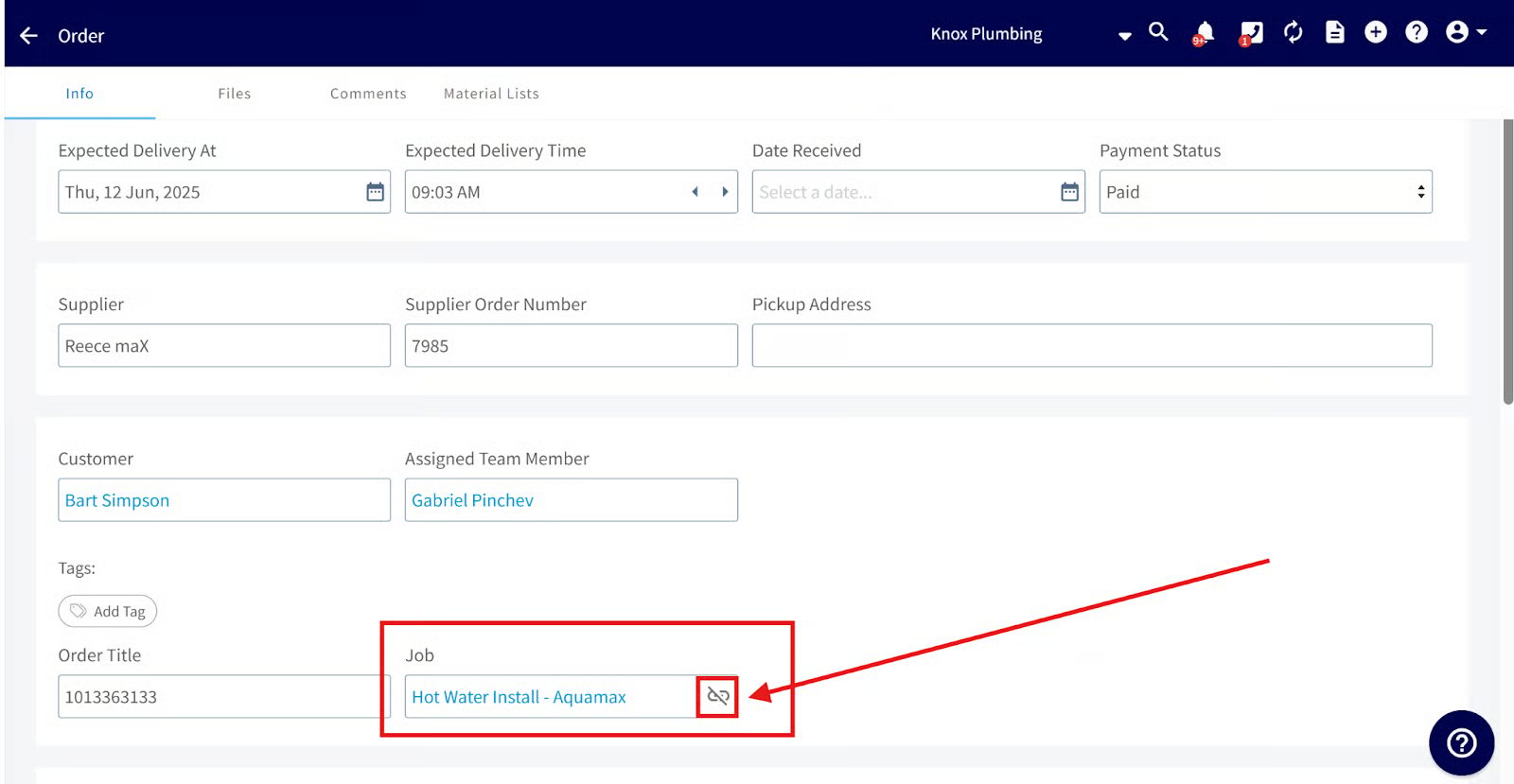
Who uses this: Roles with Purchase Orders and job/project costing permissions. Availability: Australia and New Zealand (ANZ) — requires the Reece maX integration and a Reece maX account.When you return items to a Reece branch, Reece issues a credit note, and FieldPulse now shows Reece credit notes in a dedicated tab and automatically adjusts your job and project cost summaries. Before this, Reece credit notes came in as supplier invoices, which made returns hard to tell apart and threw off cost tracking. Now returns are distinct and their impact on job costs is applied for you.
Overview
A Reece credit note is issued by Reece when you return items to one of their branches. It lists the credited items and references the original supplier invoice they came from. FieldPulse displays each credited item individually so you can track returned products and see their effect on job or project costs. Reece credit notes appear in a dedicated Reece Credit Notes tab in several places:- Sales > Purchase Orders > Reece Credit Notes tab
- Supplier Invoices — each supplier invoice includes a Reece Credit Notes subtab
- Jobs and Projects — if linked to a supplier invoice, they show a Reece Credit Notes subtab
- Invoices — any invoice connected to a job or project with a credited supplier invoice shows a Reece Credit Notes subtab
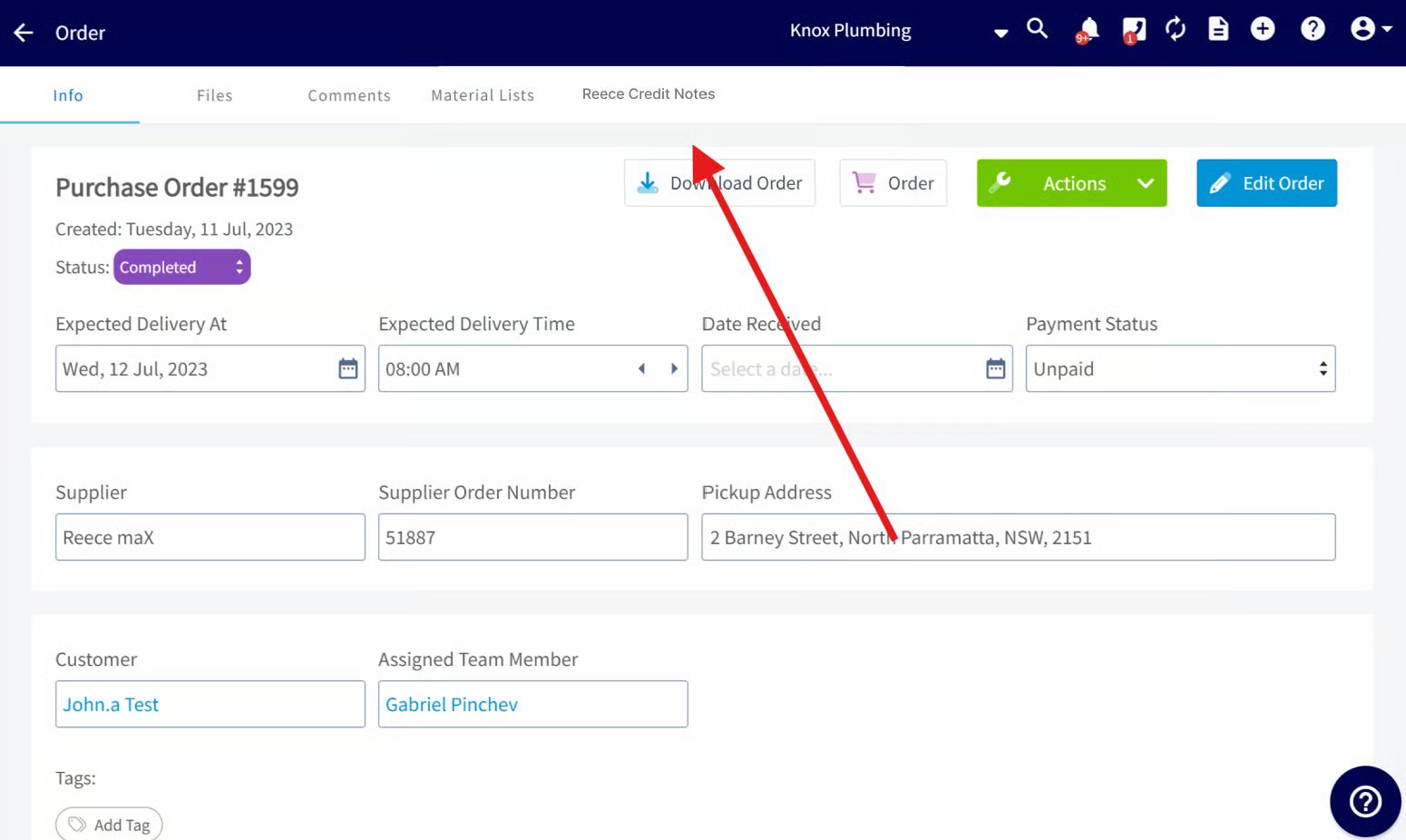
FieldPulse connects a credit note to its job or project through the original supplier invoice number on the credit note. If a supplier invoice is linked to a job or project, any items later credited against it appear on that same job or project under the Reece Credit Notes subtab.
Before you begin
- The Reece maX integration must be set up and authenticated.
- To get automatic linking, reference your FieldPulse job number when you place the Reece order. Do not put a # in front of the job number.
- Reece orders take up to 24 hours to appear in FieldPulse as a supplier invoice or credit note.
Link a FieldPulse job to a Reece order for automatic job sync
Reference your FieldPulse job number at the point of order so the supplier invoice — and any later credit notes — link to the right job. Use the field for wherever you place the order:-
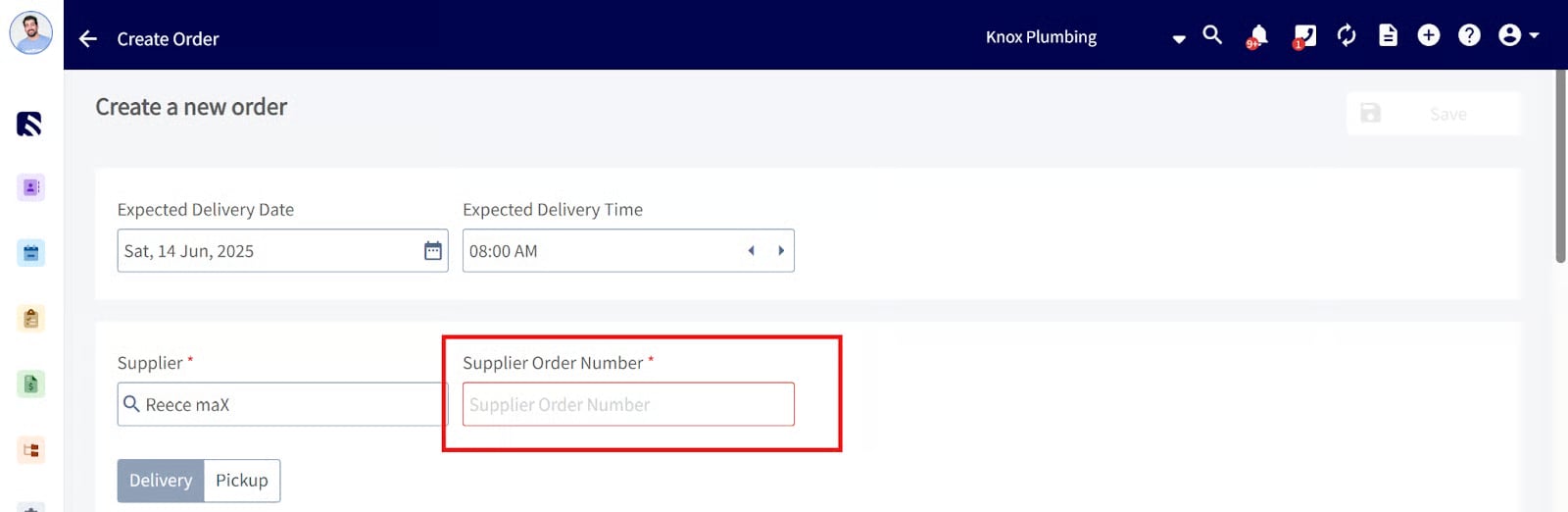
In FieldPulse: Create a purchase order and enter the related FieldPulse job number in the Supplier Order Number field.
-
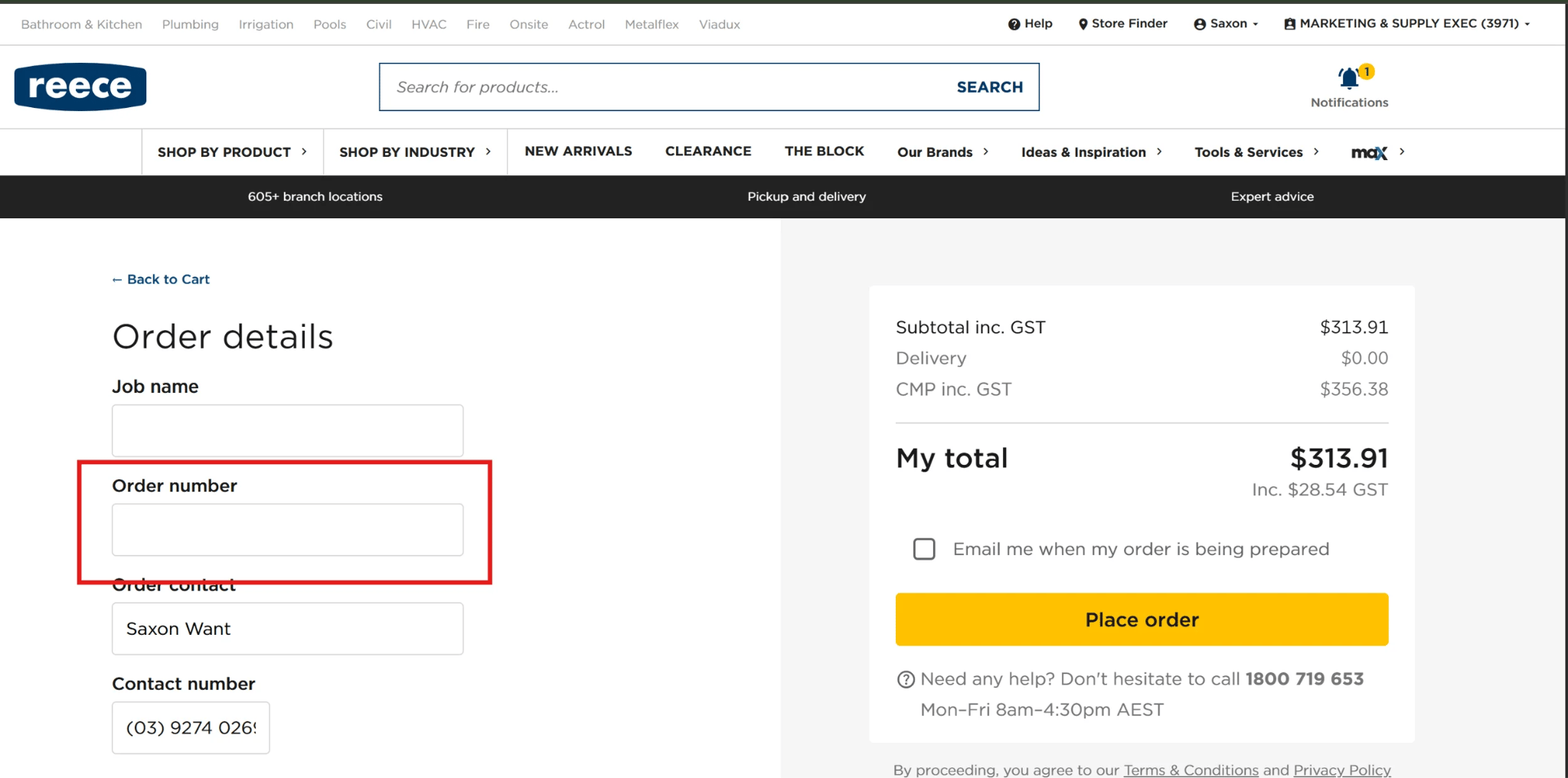
On the Reece maX website: When placing an order, enter the related FieldPulse job number in the Order Number field.
-
In the Reece maX mobile app: When placing an order, enter the related FieldPulse job number in the Order Number field.
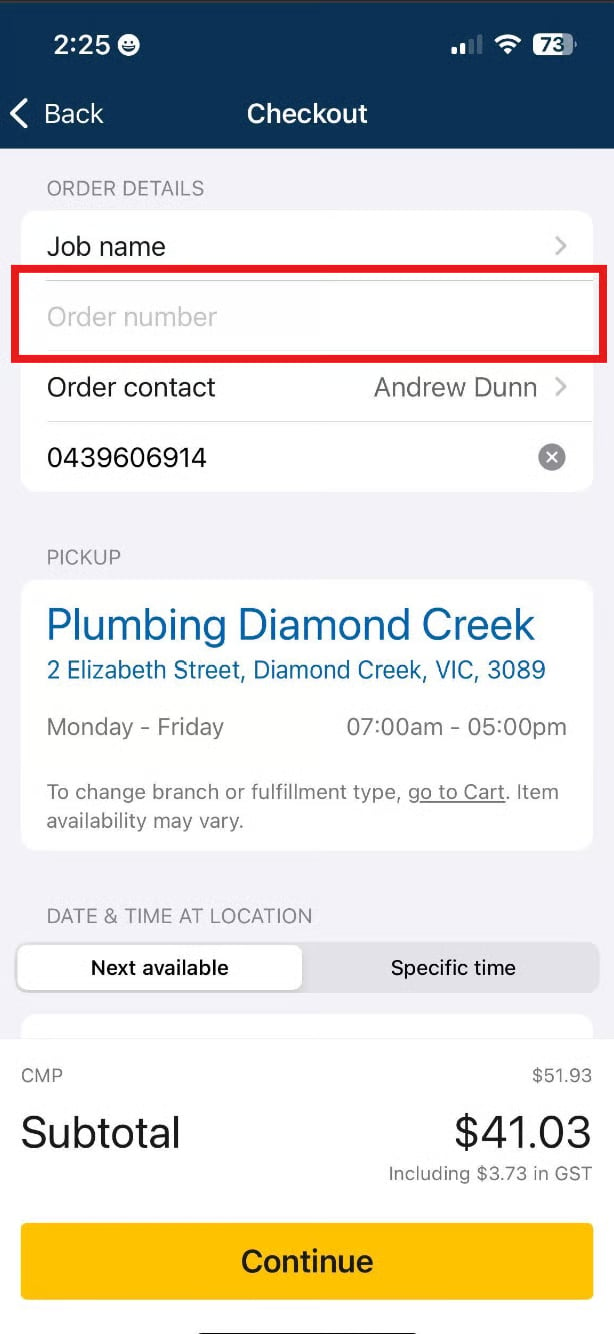
- At a Reece branch: Tell the Reece team member you want to link the order to a FieldPulse job, and give them the FieldPulse job number to enter in their checkout system.
Link or relink a supplier invoice manually
If you are not using automatic job linking, you can connect a supplier invoice to a job at any time:- Open the supplier invoice.
- Select Actions, then Connect to Job or Connect to Project under Connect. Once linked, any credited items from that invoice also display under the job or project.
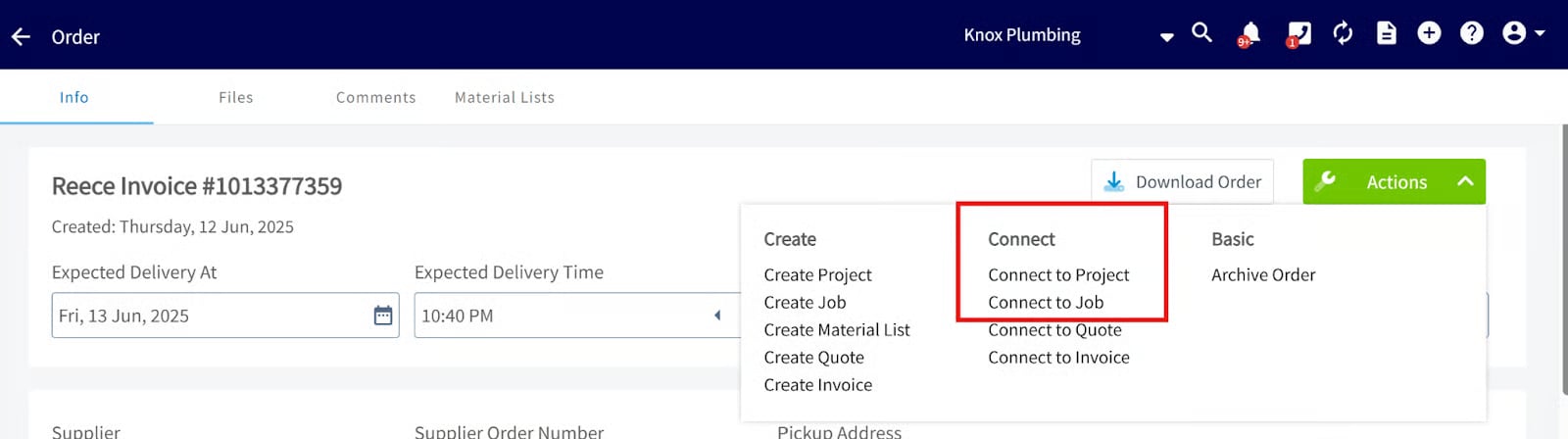
- Unlink the current job first.
- Connect to the new job. Both the supplier invoice and any credited items from it move to the new job.