
Who uses this: Admins. Availability: All regions · included in the FieldPulse subscription; Maintenance Agreements must be enabled in Company Settings > Features & Plugins.Maintenance agreement automation creates a maintenance agreement for you when you sell a line item on an estimate or invoice. You link a maintenance agreement template to an item once, and FieldPulse generates the agreement from that template when the trigger you choose happens.
Overview
Setup has two parts. First, you turn on automation and choose the trigger in Company Settings > Maintenance Agreements > General. Second, you link a template to each item in Company Settings > Estimates & Invoices > Item List. You cannot link a template from an estimate or invoice. The link must come from the item. For how to build the agreement itself, see How to Create a Maintenance Agreement.Video walkthrough
Before you begin
- Enable Maintenance Agreements in Company Settings > Features & Plugins.
- Save at least one maintenance agreement template. See the Use templates section of How to Create a Maintenance Agreement.
- Sign in as an Admin, since these settings live in Company Settings.
Step-by-step setup
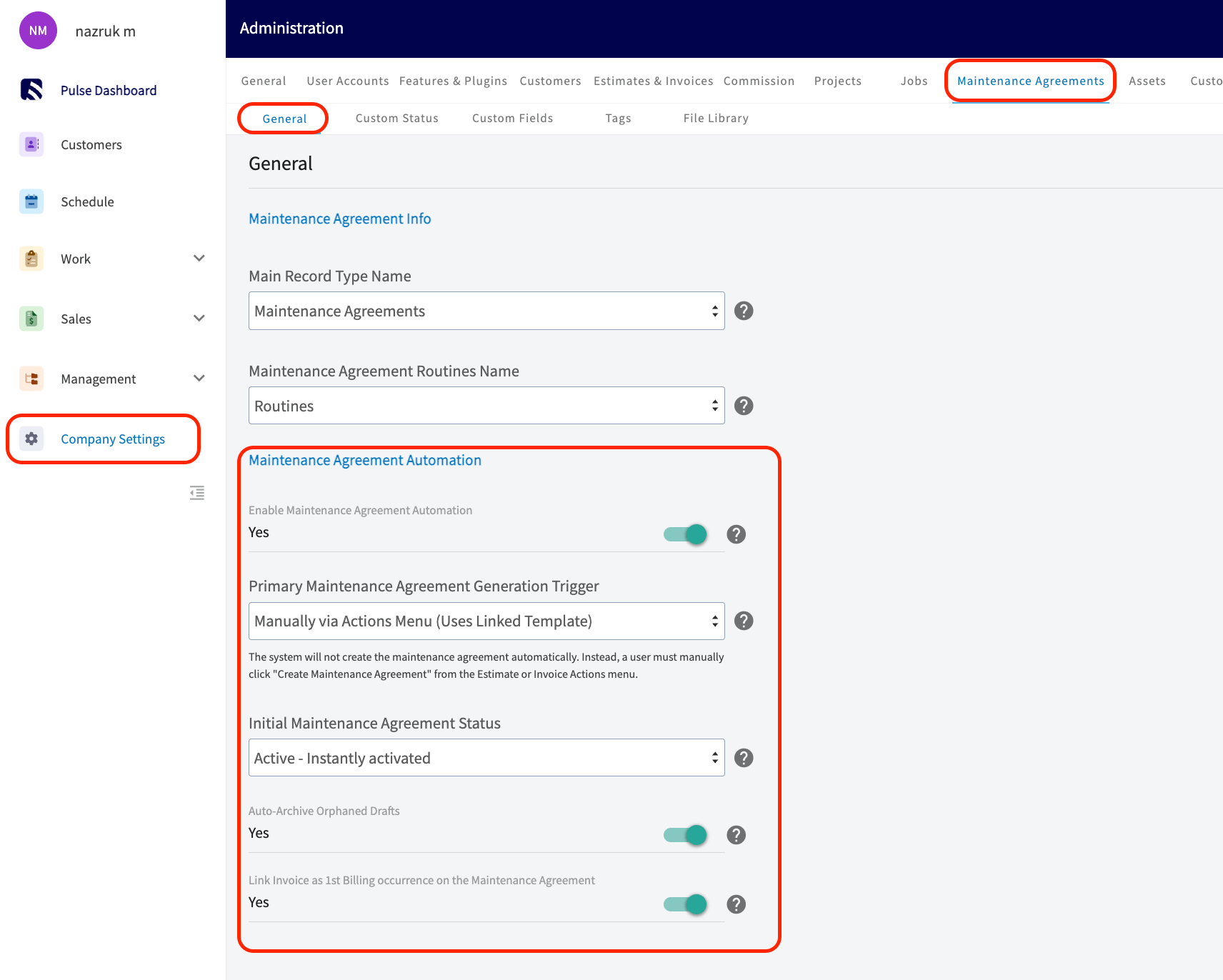
Step 1: Turn on automation and choose a trigger
- Go to Company Settings > Maintenance Agreements > General.
- Turn on Enable Maintenance Agreement Automation.
- Select a Primary Maintenance Agreement Generation Trigger. This field is required while automation is on. The Settings reference below describes each option.
- Select the Initial Maintenance Agreement Status: Draft (the default) or Active. This field appears only when the trigger creates agreements automatically.
- (Optional) Leave Auto-Archive Orphaned Drafts on to archive an automatically created Draft agreement when its estimate is rejected or its invoice is voided.
- (Optional) Turn on Link Invoice as 1st Billing occurrence on the Maintenance Agreement to count the sold invoice as the agreement’s first billing. This toggle is off by default. When it is on and the trigger is On Estimate Acceptance, FieldPulse converts the accepted estimate to an invoice and links it as the first billing.
- Select Save.
Step 2: Link a template to an item
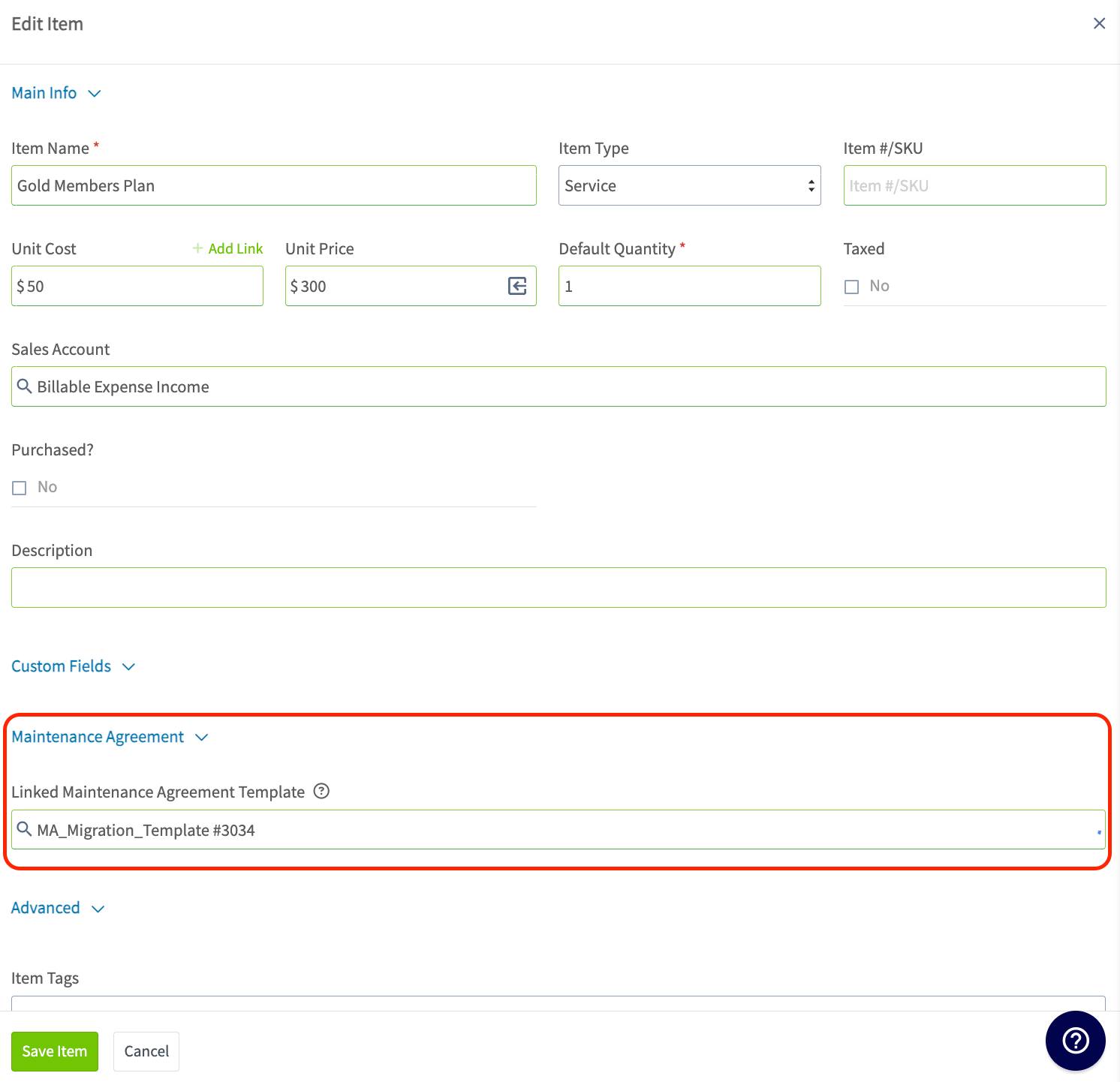
- Go to Company Settings > Estimates & Invoices > Item List.
- Open an existing item, or create a new one.
- In the Maintenance Agreement section, select a Linked Maintenance Agreement Template. This section appears only when Maintenance Agreements are enabled and automation is on.
- Select Save Item.
Step 3 (optional): Link templates in bulk
- Download the item import template from Company Settings > Estimates & Invoices > Item List.
- Enter a maintenance agreement template ID in the Maintenance Agreement Template column for each item.
- Upload the file.
Settings reference
Generation triggers
The Primary Maintenance Agreement Generation Trigger decides when FieldPulse creates the agreement. Every automatic trigger first checks whether the estimate or invoice already has a linked agreement, and skips creation if it does.Settings
What happens when FieldPulse creates an agreement
The agreement appears in the Maintenance Agreement field at the top of the estimate or invoice, with a link. If several line items generate agreements, each agreement appears there, separated by commas. FieldPulse fills the agreement’s Sales Source field with the estimate or invoice, and you can change it later in edit mode. When you create an agreement manually from the Actions menu, FieldPulse always asks whether to use the linked template and set the current record as the sales source, even when the trigger is automatic. If you create the agreement manually before an automatic trigger fires, FieldPulse skips the automatic creation so the record does not get a duplicate agreement. A line item that comes from a recurring billing invoice never creates an agreement, even when its item has a linked template. Automatic creation applies only to one-time invoices. If you delete a maintenance agreement template, items linked to it become unlinked, and automatic creation stops for those items. If you edit a template, agreements created afterward use the updated version.Estimate and invoice settings
An estimate or invoice with a template-linked line item shows a Maintenance Agreement Generation field. The field displays the trigger and initial status from Company Settings. Select the gear icon to review them and to adjust Link as First Payment on the Maintenance Agreement for that one record.Link an invoice as the first billing
Payment is collected on an invoice, so an estimate serves as an agreement’s first billing only once FieldPulse converts it to an invoice. FieldPulse offers this link when you save an invoice that has a template-linked line item, or when you create an agreement from an invoice. The pop-up Does this invoice fulfill the first billing sequence? gives two choices.- Select Yes, Link as Billing Sequence 1 to count the invoice as the first billing. The invoice appears first on the agreement’s Invoices tab, and the Sales Source field keeps the link.
- Select No, Keep Invoice Separate to treat the invoice as a standalone bill. Recurring billing then creates its own invoice for the first billing sequence.
Related articles
- How to Create a Maintenance Agreement
- Setting Up Recurring Billing
- Setting Up Custom Status Workflows