
Who uses this: Field technicians work from Focus View in the FieldPulse mobile app; Admins configure what each status shows. Availability: Included with your FieldPulse subscription at no extra cost.Focus View is the screen your technicians work from in the FieldPulse mobile app. It shows only what matters for the current status of the job — the instructions, buttons, and details you chose — so the tech follows the plan you set instead of searching the app. This is the technician’s side of ClearPath.
Overview
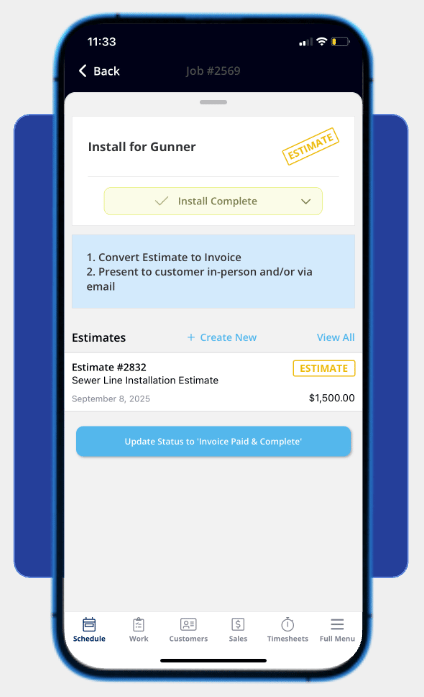
Focus View is ClearPath’s customizable, mobile-first screen that shows a technician everything they need for the current job status — and nothing they don’t. When a job uses a Status Action Flow, the technician opens the job and lands in Focus View. The screen shows three things for the current status:- The Status Instructions — the written directions for this step.
- The Action Buttons — quick-tap buttons that complete tasks without leaving the screen.
- The widgets — the job details you chose to display, in the order you set them.
Before you begin
- Your admin attaches a Status Action Flow to the Job record or Job template that guides the job — see Setting Up ClearPath Status Action Flows.
- What you can tap on the screen depends on the settings your admin chose for each status — the action menu, manual status changes, and navigation away from Focus View can each be turned on or off.
Action Buttons, Status Instructions, and Focus View can be used independently or together, so a job may use some of these pieces without the full guided screen.
On mobile
- Open the assigned job in the FieldPulse mobile app. When the job uses a Status Action Flow, you land in Focus View.
- Read the Status Instructions for the current status — they list what to do at this step.
- Complete each task with the Action Buttons — for example, fill out a form, send a reminder, or add photos to document your work.
- Review the job details in the widgets on screen, such as the customer’s contact info, the arrival window, and the service address.
- Advance the job when the step is done — tap the Action Button that moves the status forward, or the button that pauses the job if the flow includes one.
Settings that change what you see
Three settings your admin controls decide how much freedom you have on the screen:
Video walkthrough: ClearPath mobile view — setup tips & tricks