
Who uses this: Administrators choose and order widgets as part of each Status Action Flow’s setup in Company Settings; Service Agents use the widgets in the mobile-first Focus View. Availability: Included with your FieldPulse subscription at no extra cost.Widgets are the building blocks of the ClearPath Focus View. Each widget displays one piece of the current job in an easy-to-read format, and widgets appear only on the Focus View screen. Up to 32 unique widgets are available, and you select and order them separately for each Status Action Flow. This page groups the widgets by type, with what each widget shows and what a technician can do from it.
Add, remove, and reorder widgets while Setting Up ClearPath Status Action Flows — the widget layout is part of each Status Action Flow’s setup.
Overview
A widget is a block on the Focus View screen that shows one detail of the current job — the status, the customer’s contact information, the attached estimates — so a technician can read and act on the job from one screen. A technician sees only the widgets selected for the job’s Status Action Flow, in the order they were arranged in that flow. In that setup, the Focus View Layout picker lists the available widgets on the left and the visible widgets on the right, with arrows to move a widget between the two lists and to reorder the visible ones.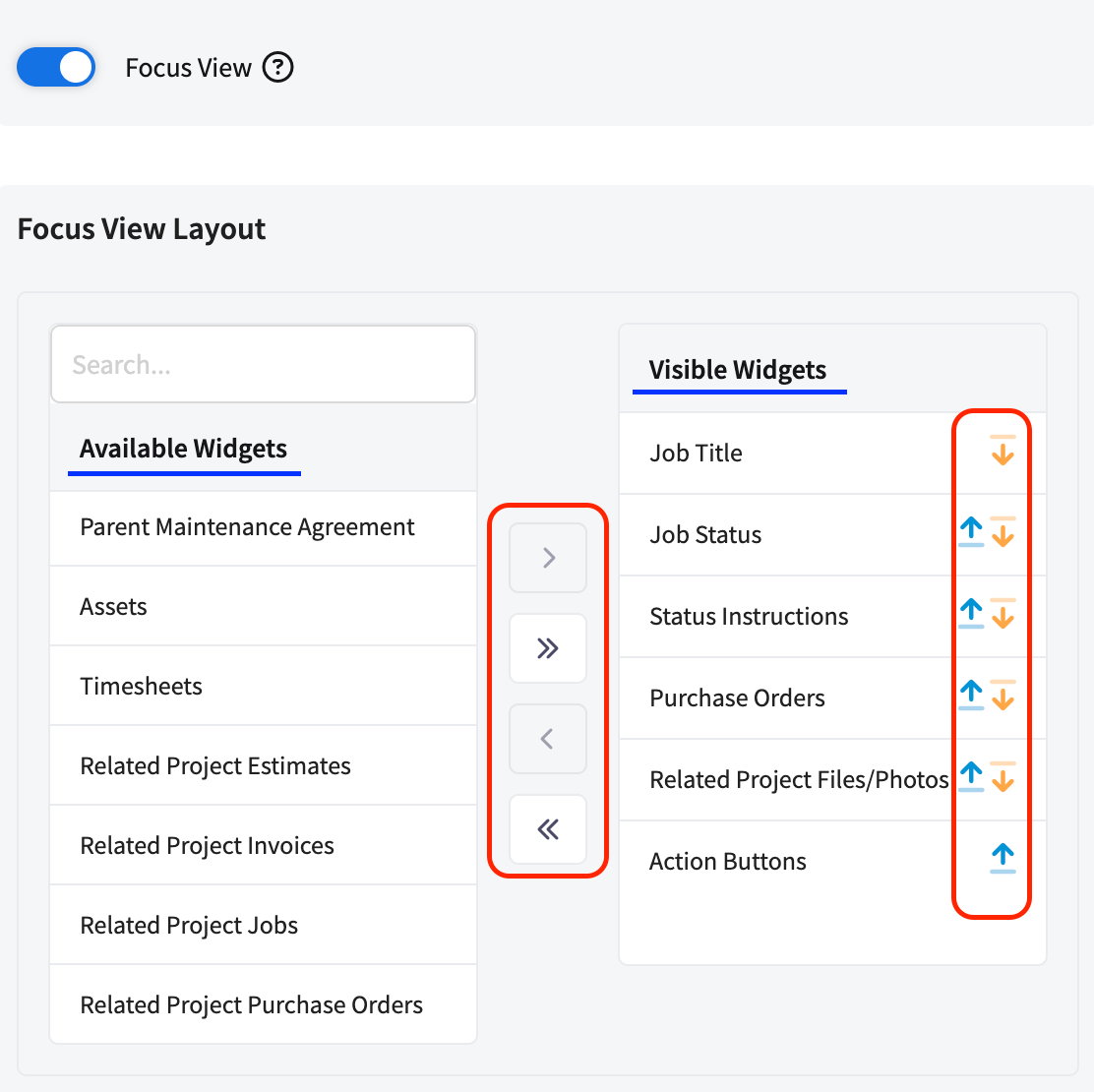
For how a technician works through a job with these widgets, see How to Use ClearPath in the Field (Focus View).
Job details widgets
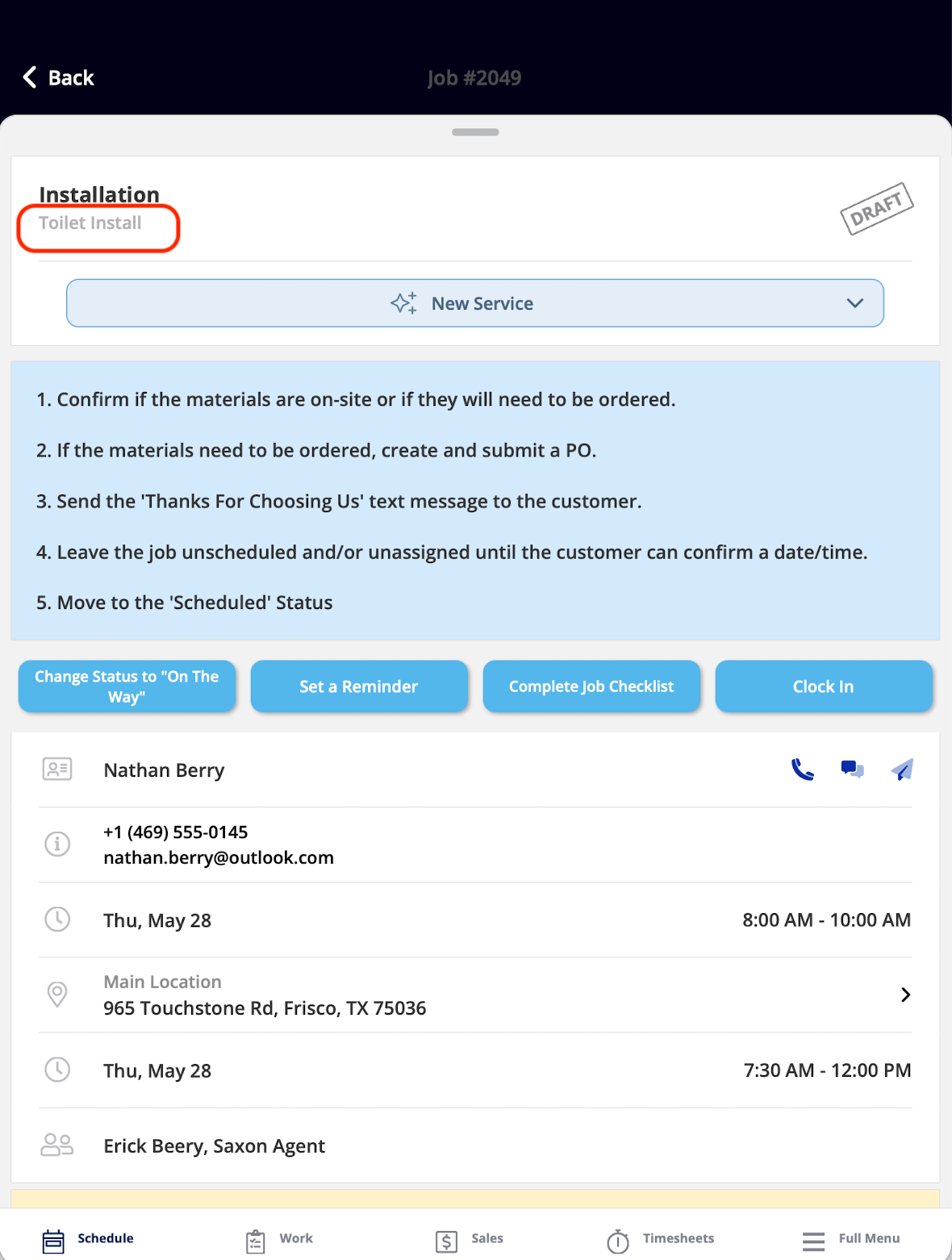
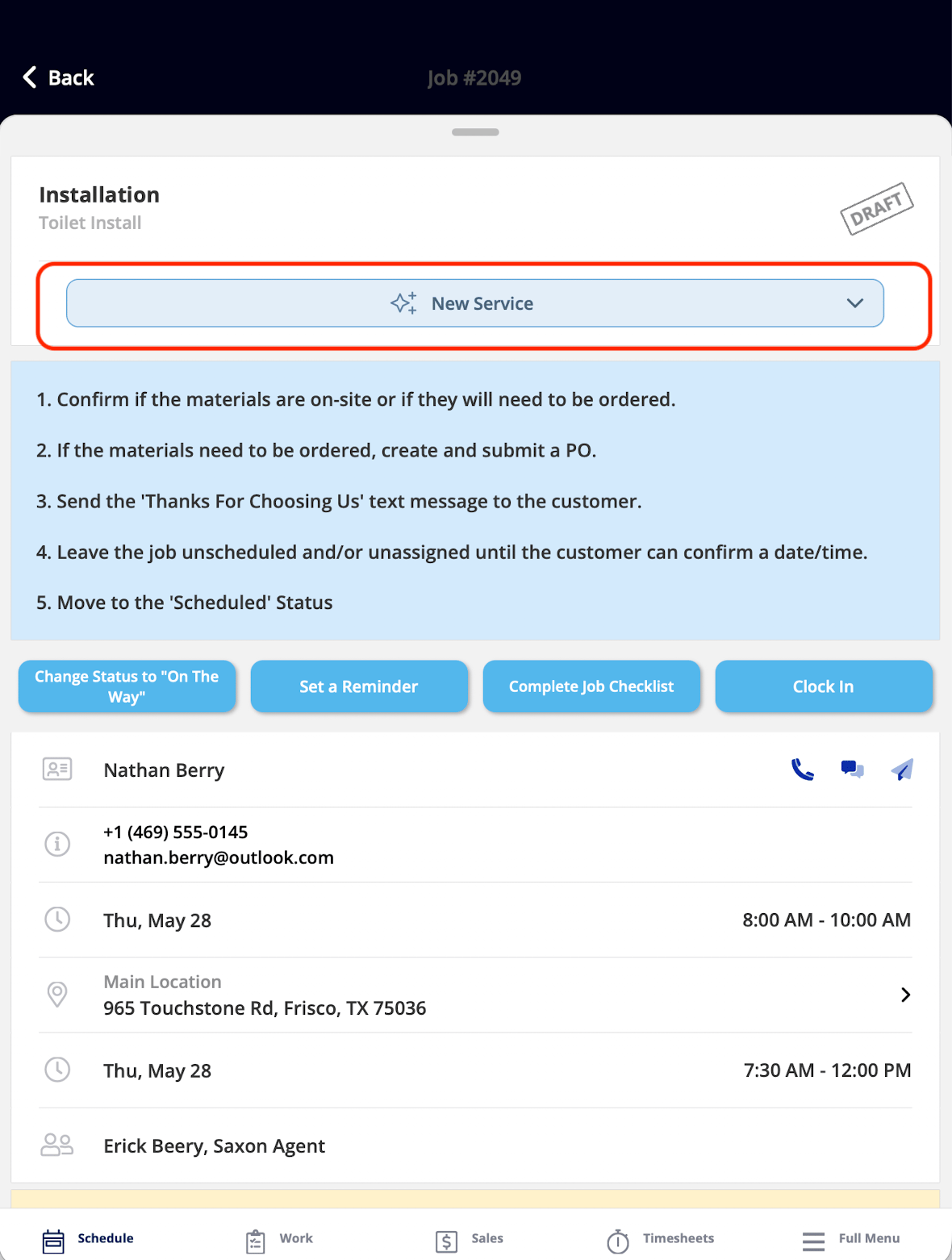
The Job details widgets are the core building blocks of the Focus View experience — they put the essential job information in front of the technician on one screen. Status Instructions and Action Buttons are both configured per status in the Status Action Flow — see Setting Up ClearPath Status Action Flows.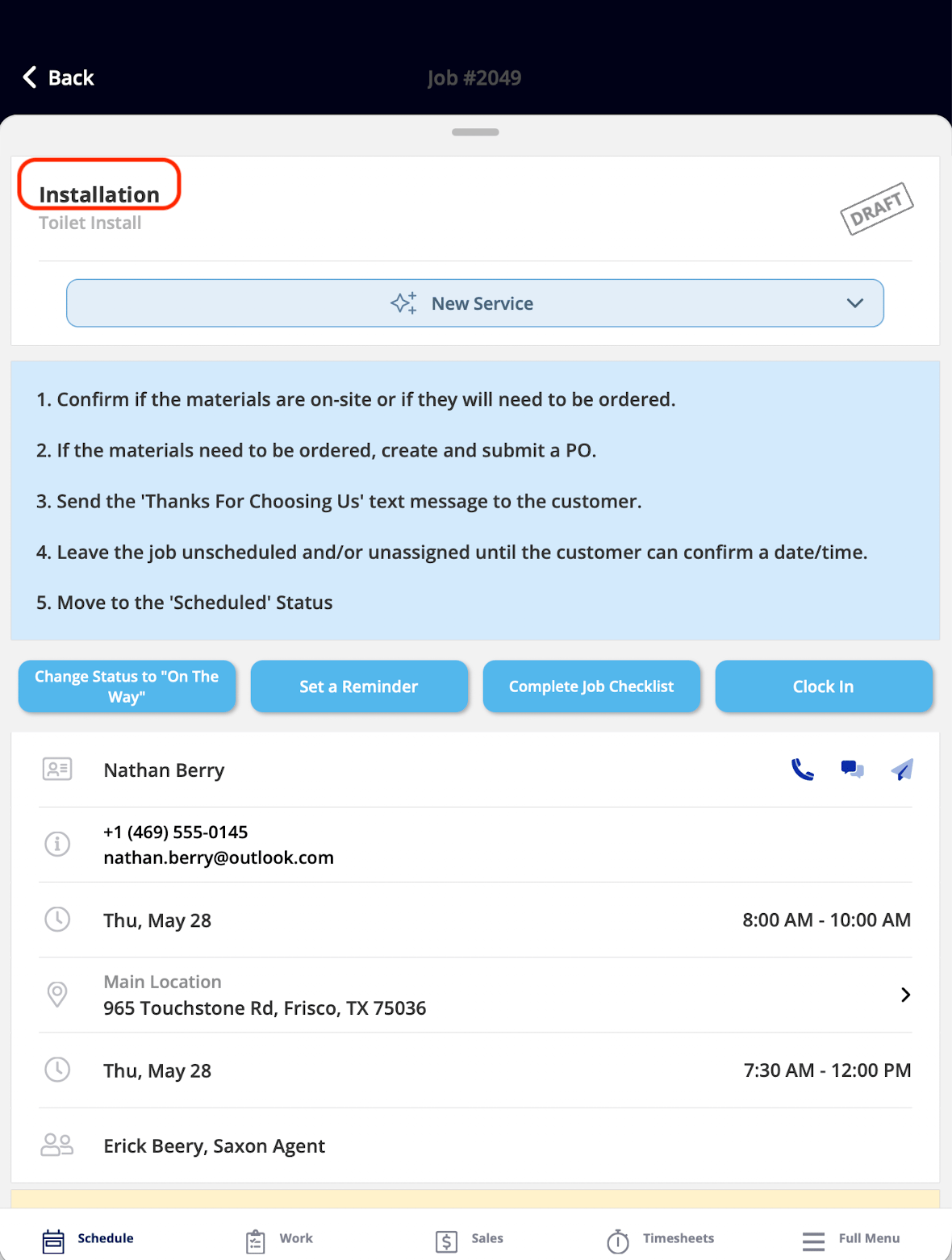
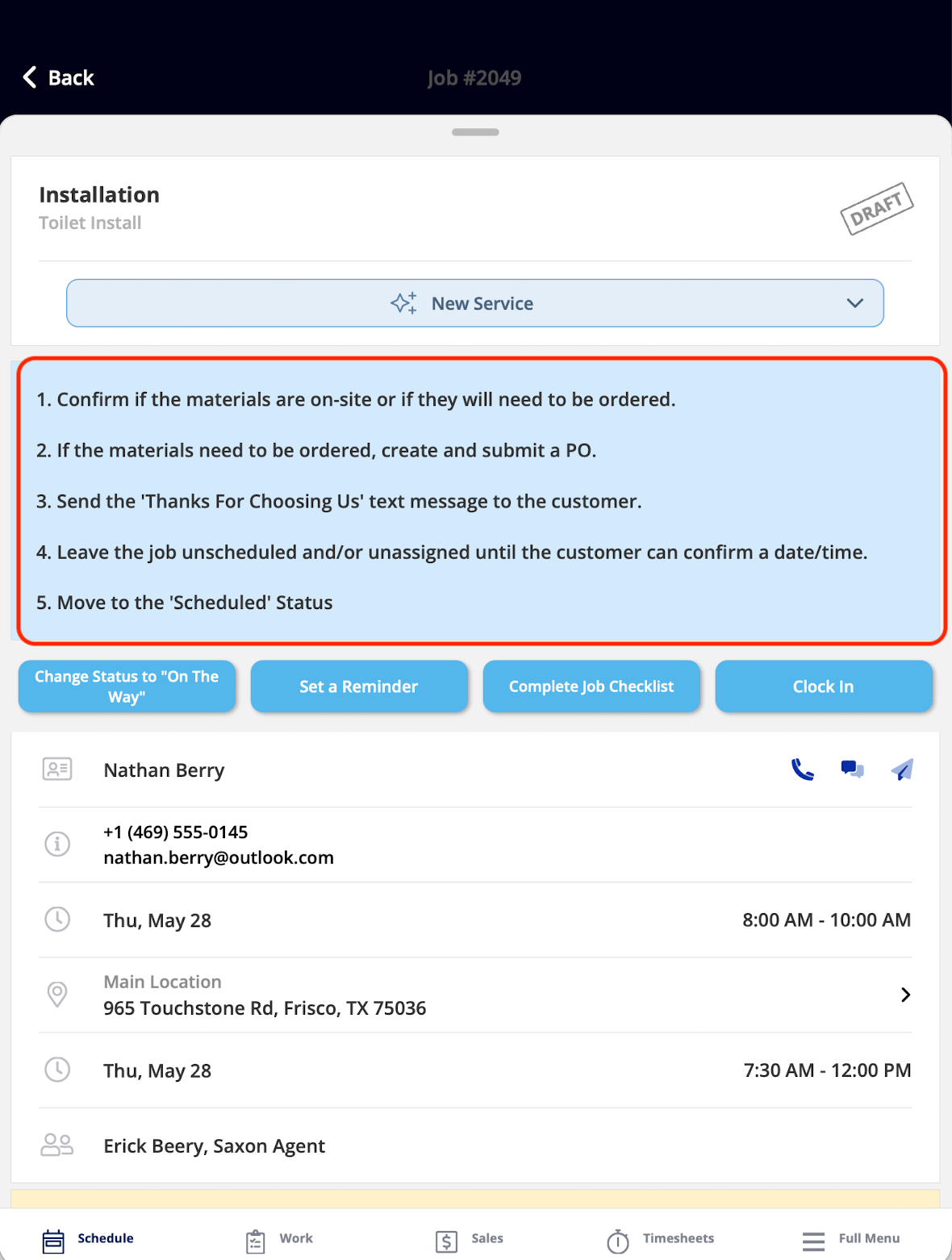
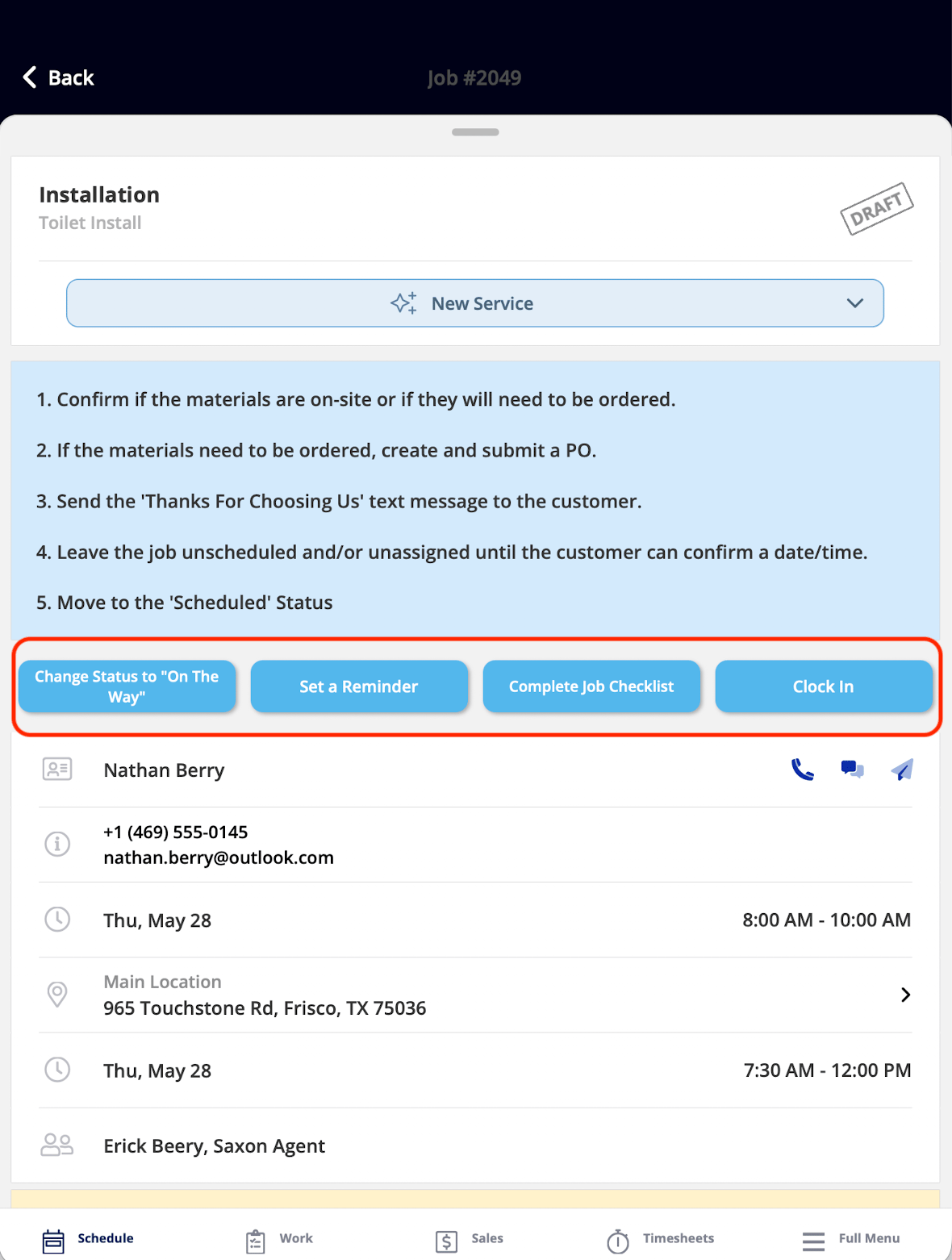
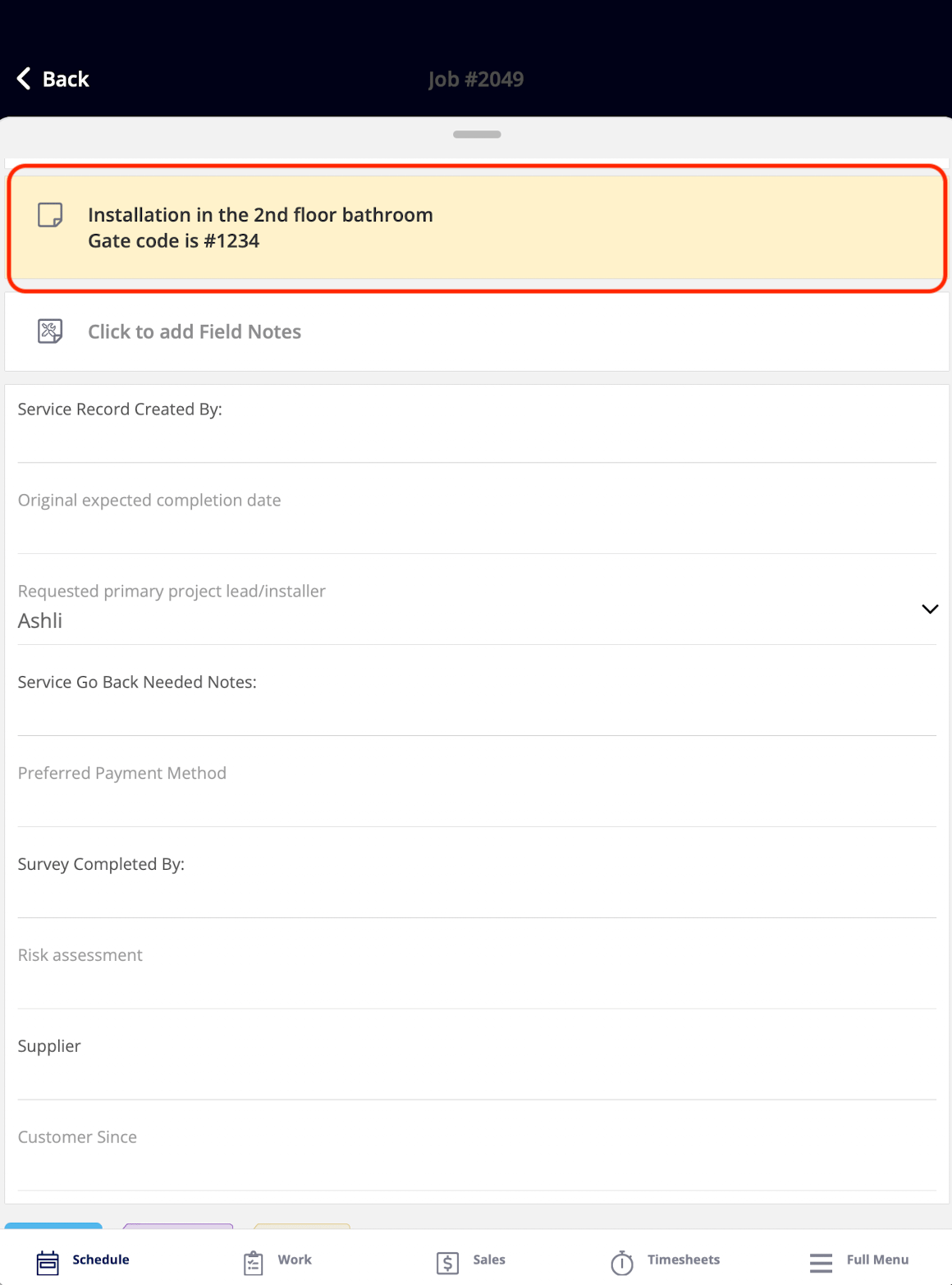
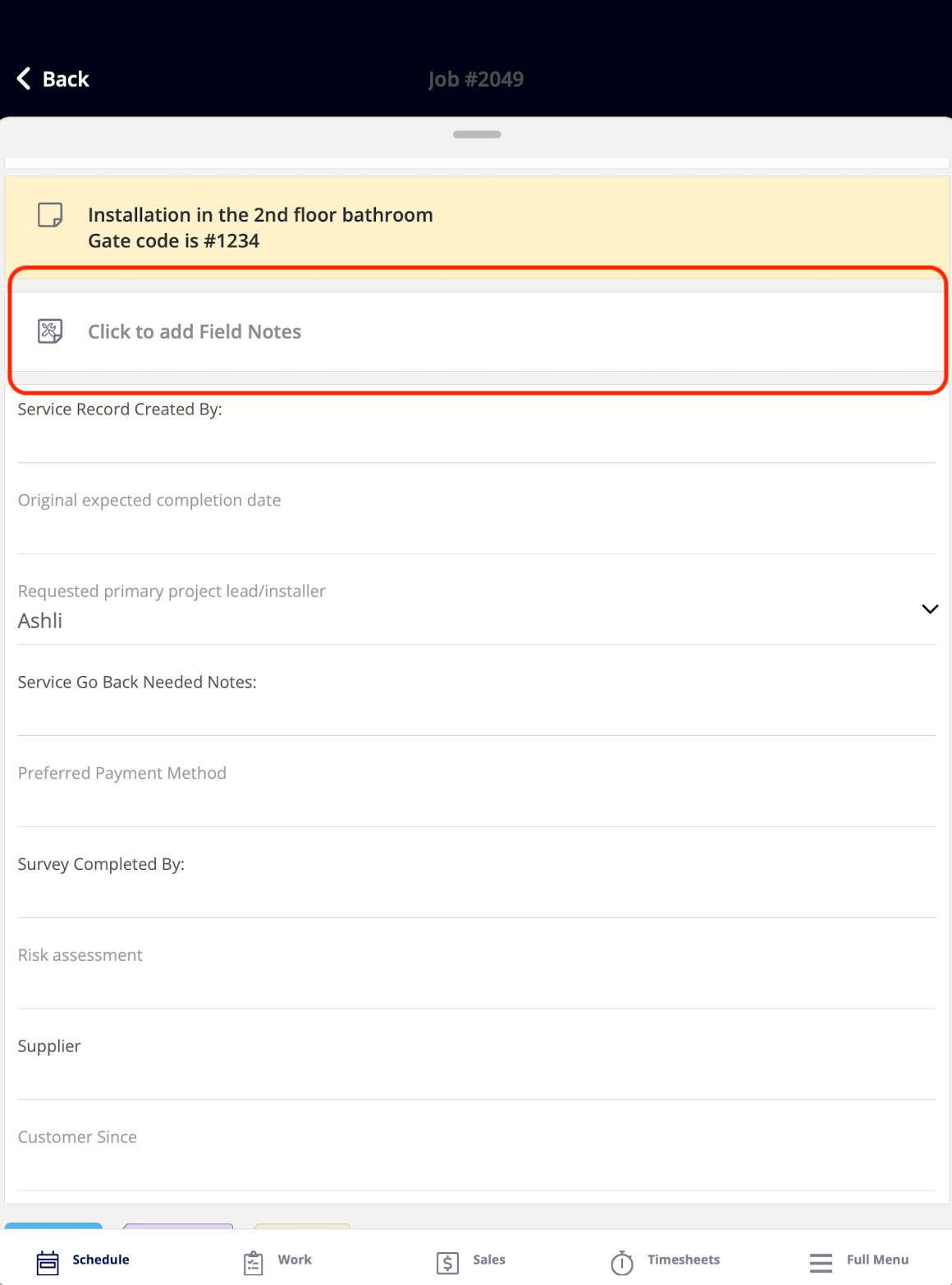
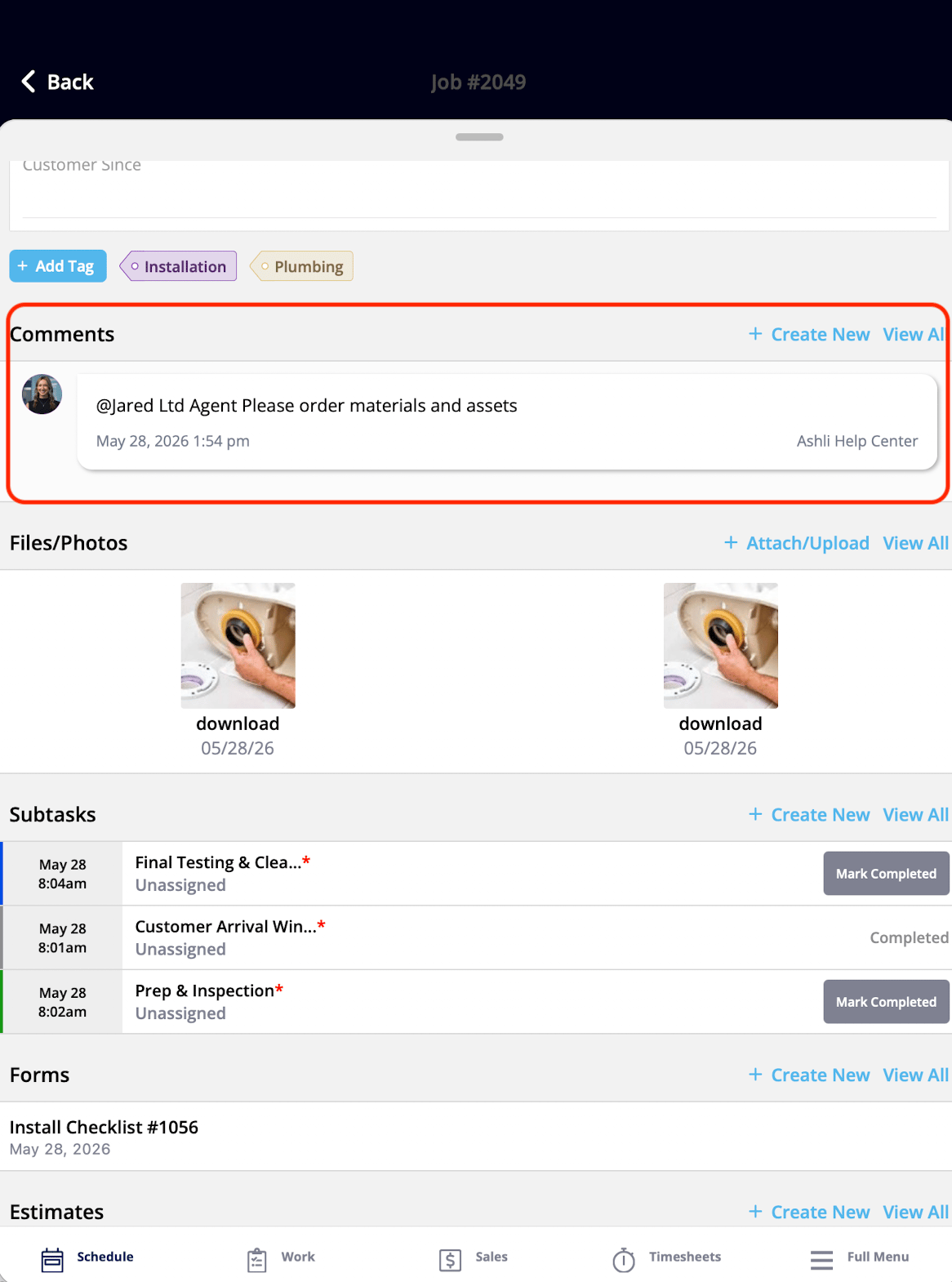
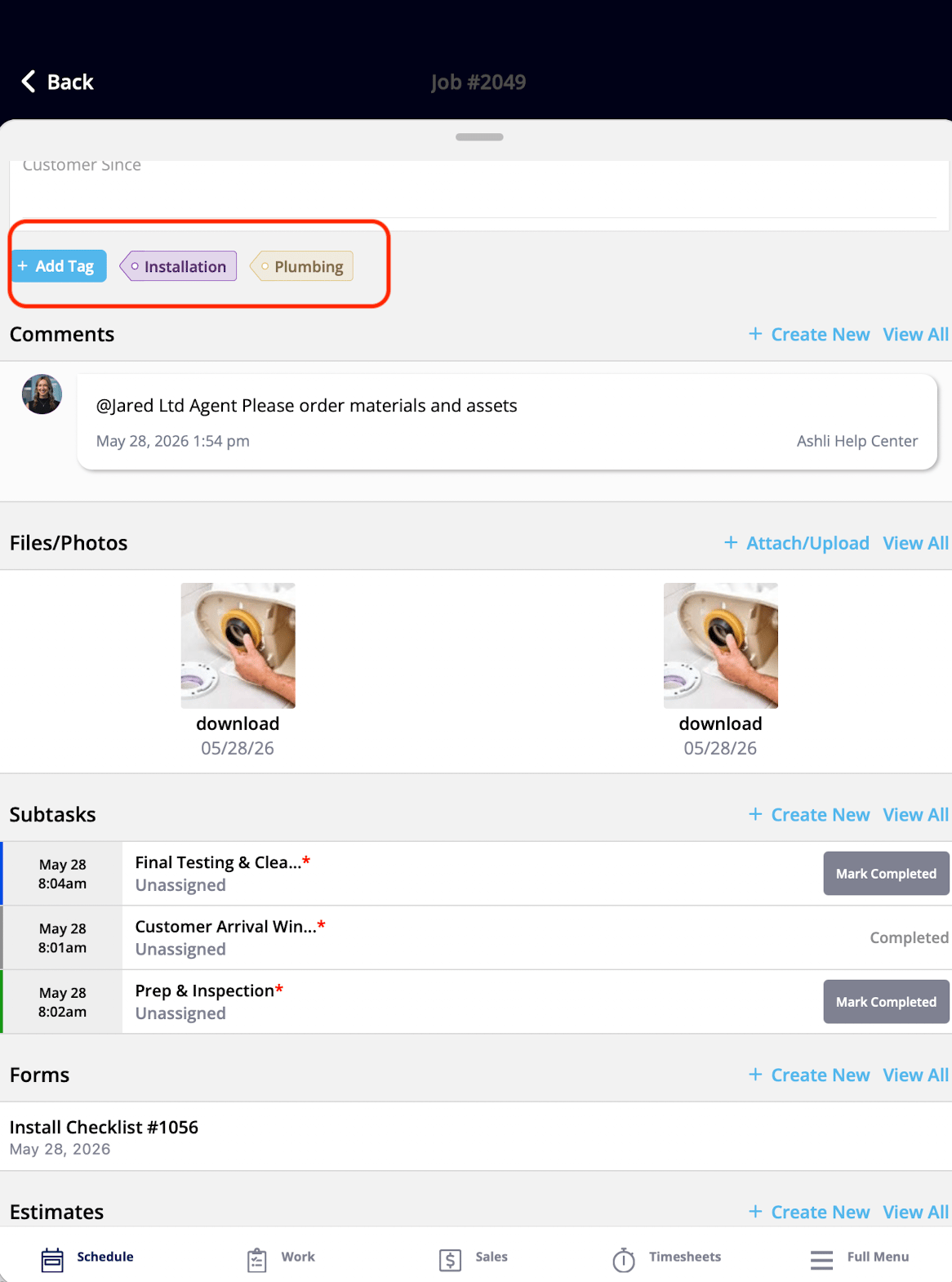
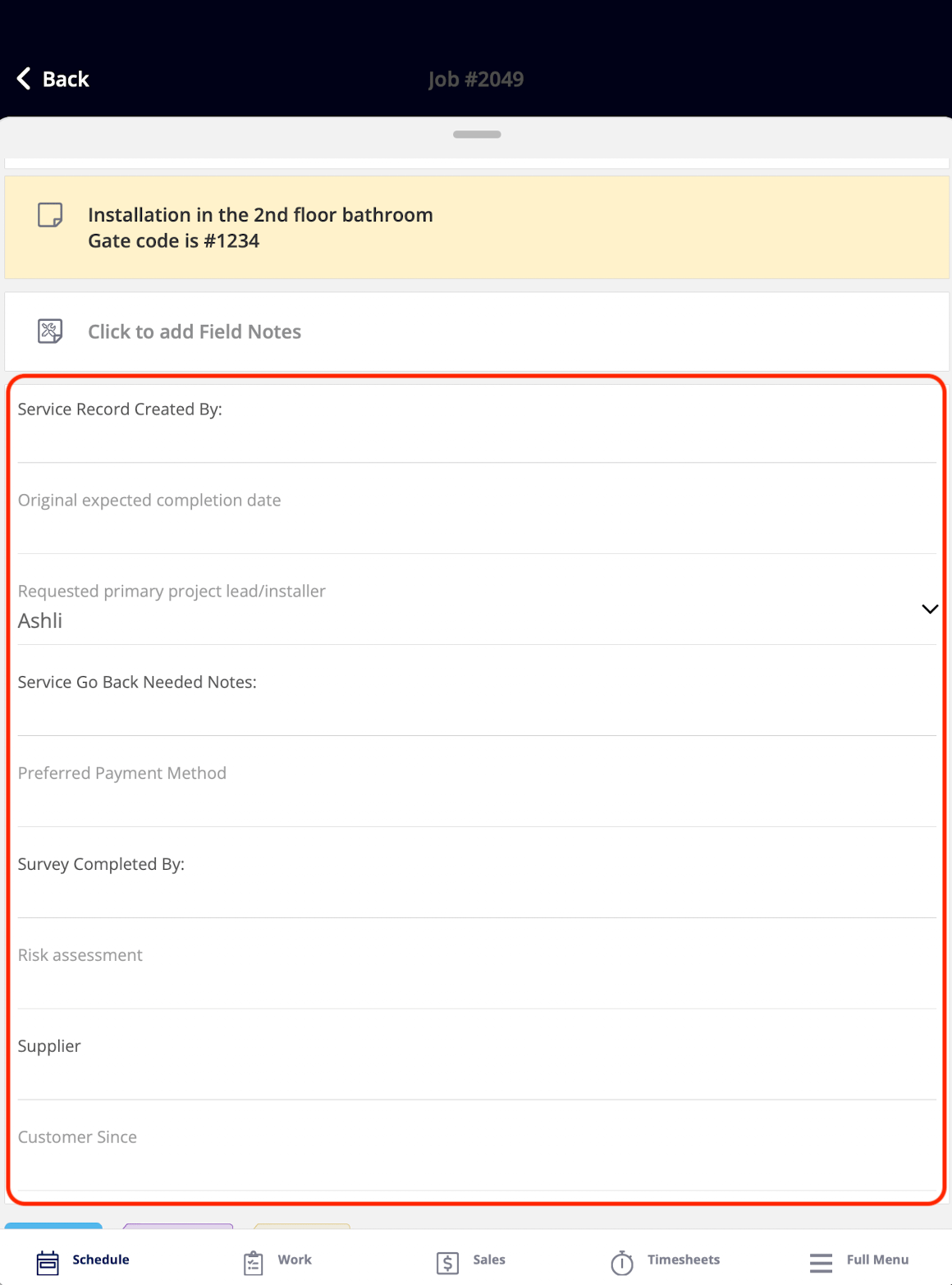
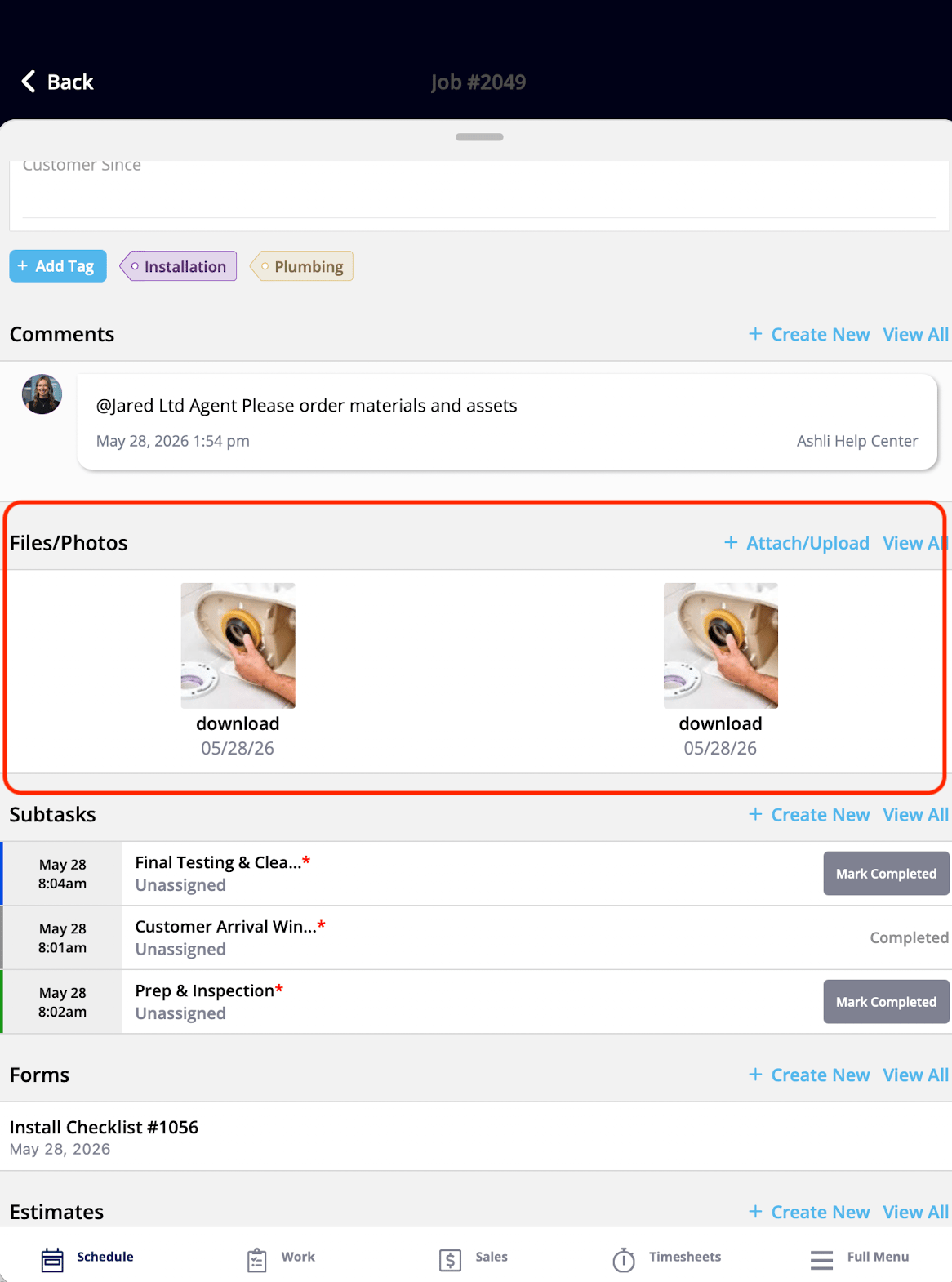
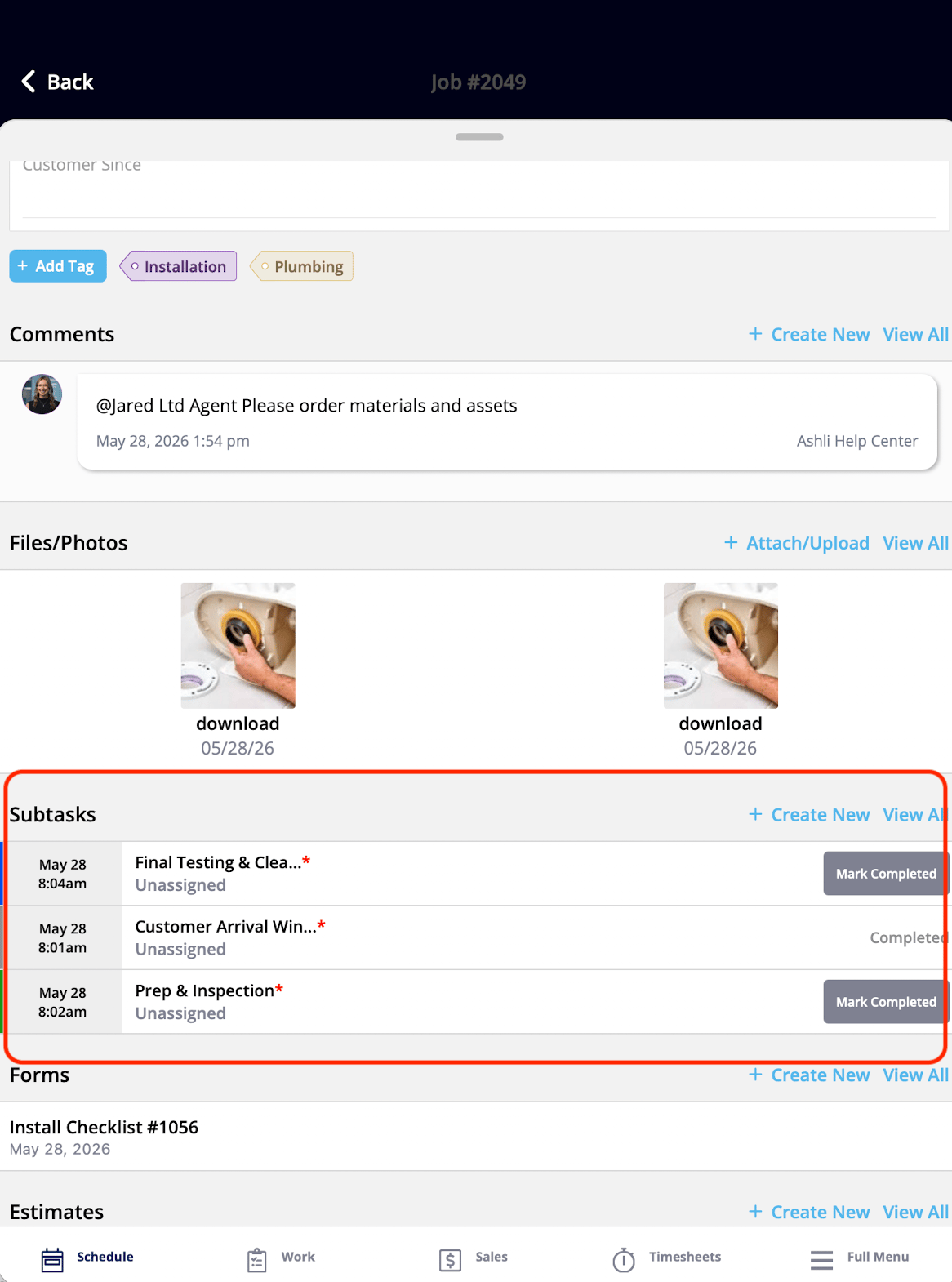
Customer details widgets
The Customer details widgets put the customer’s name, contact details, and quick-contact actions in front of the technician, so there is no hunting for how to reach the customer.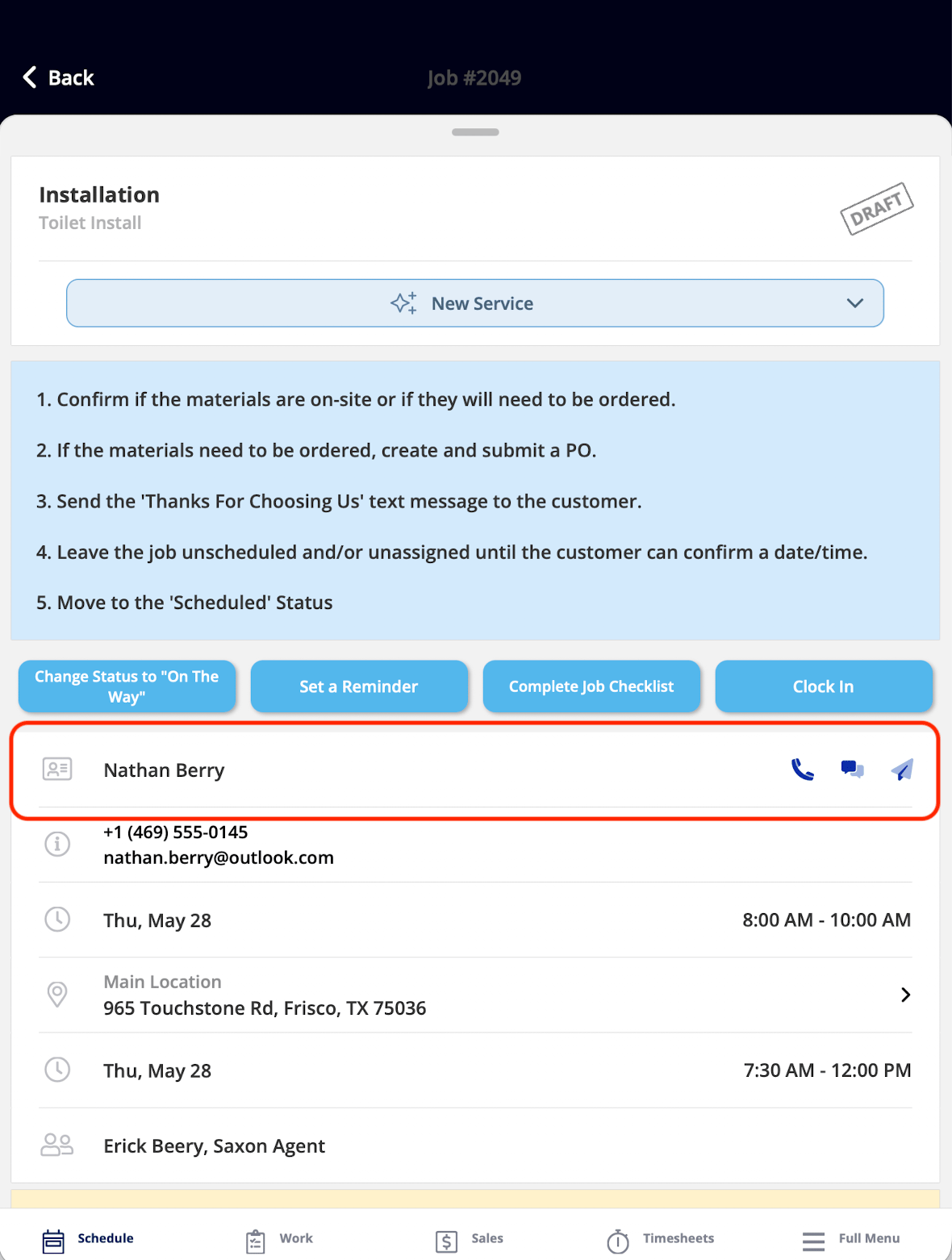
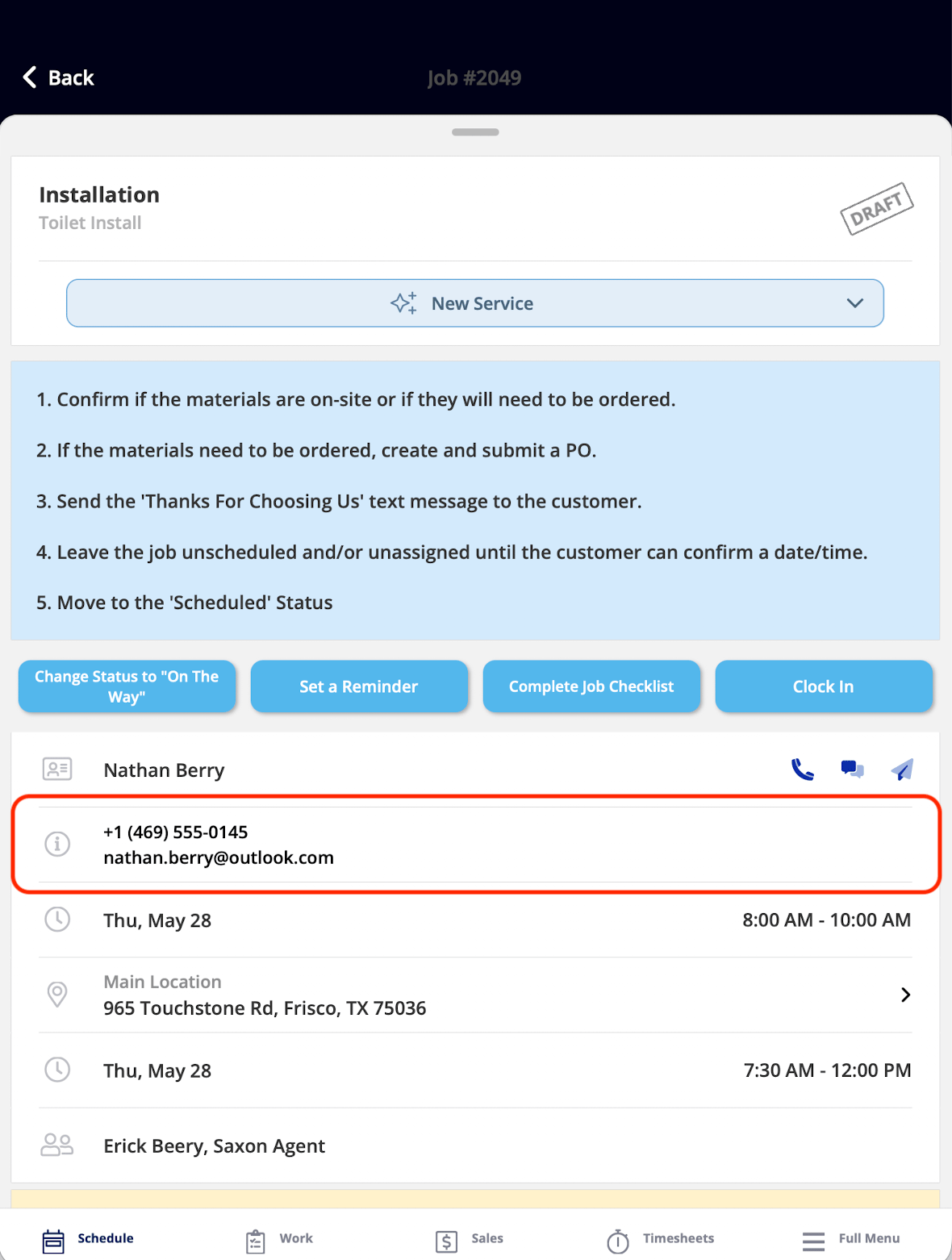
Scheduling & team widgets
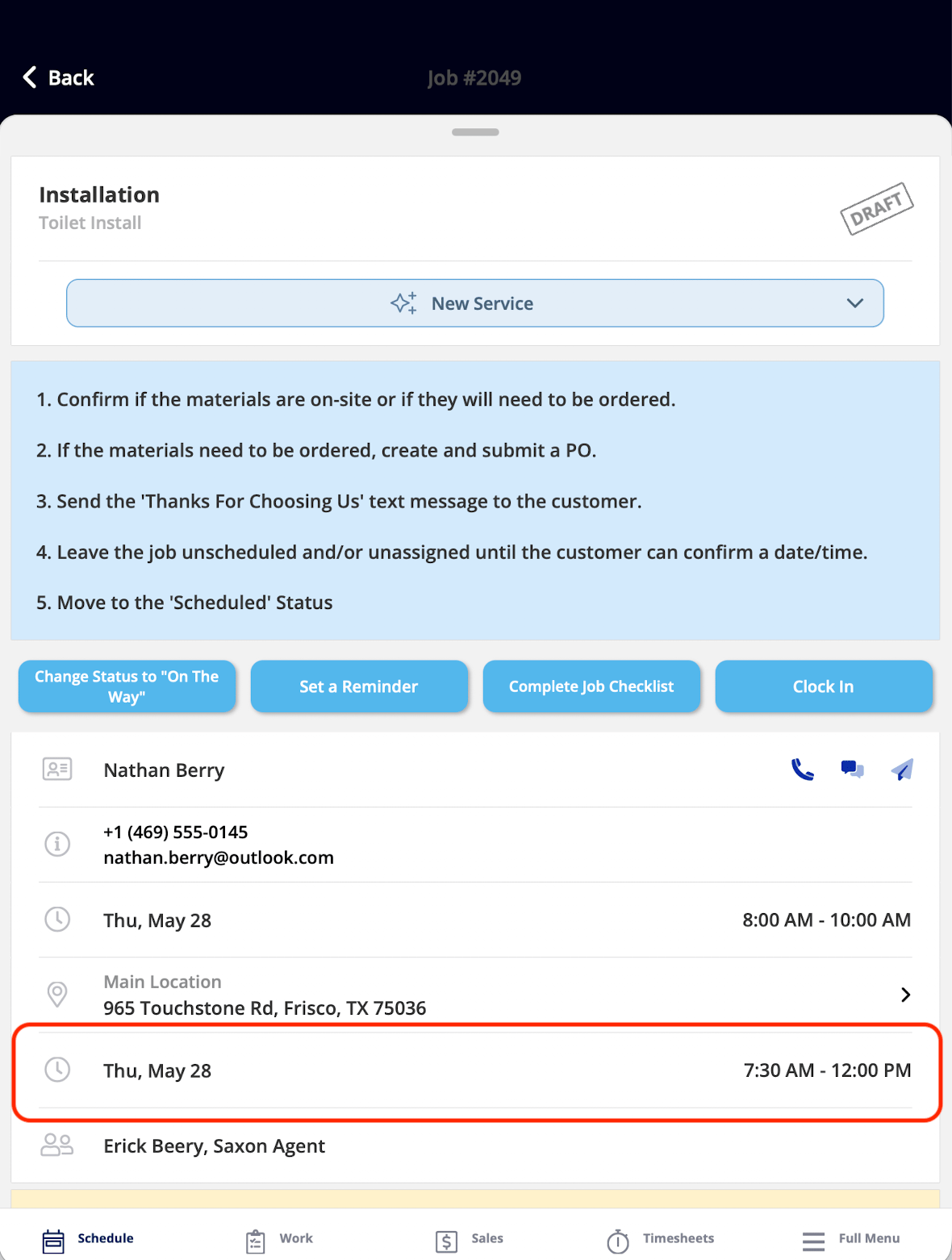
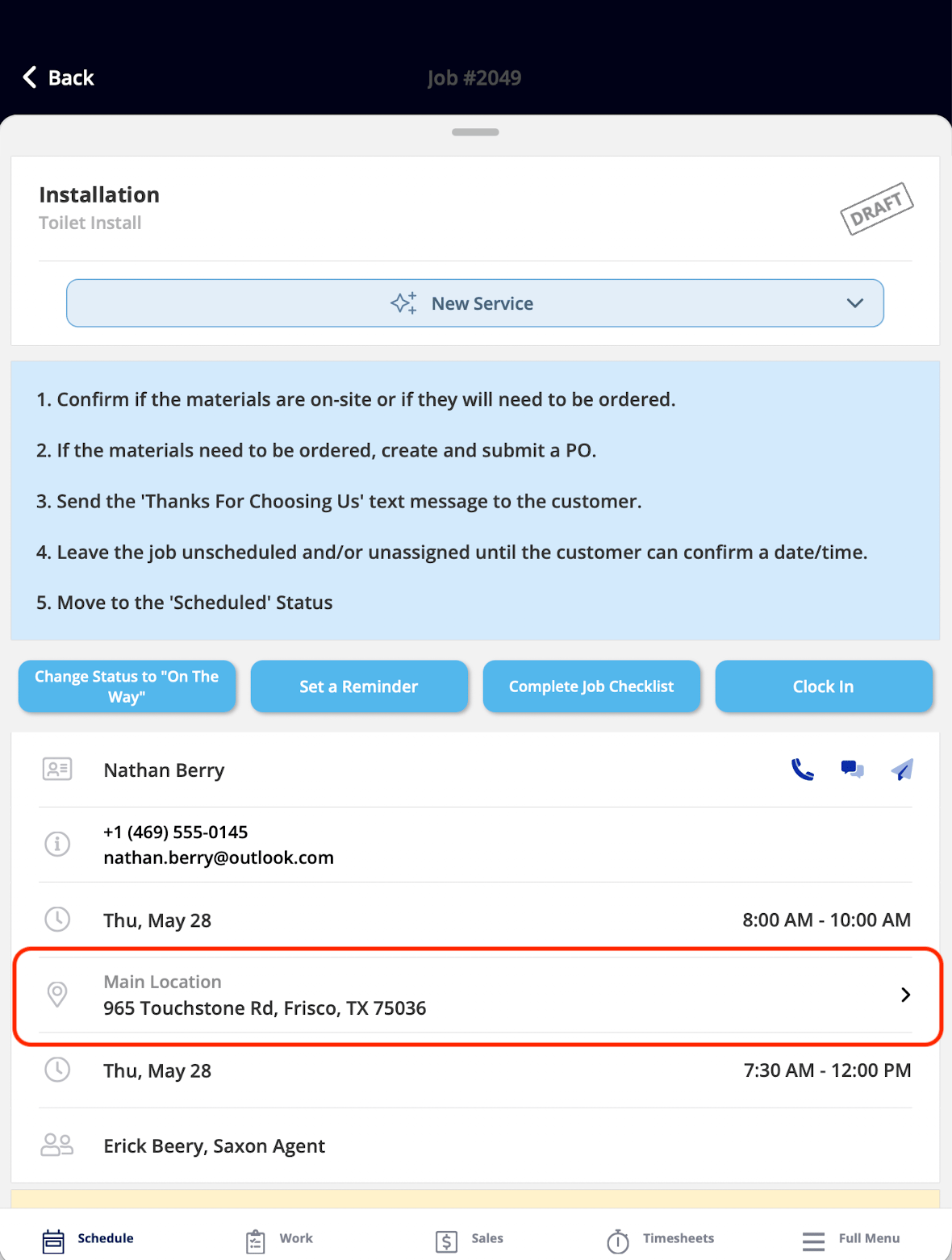
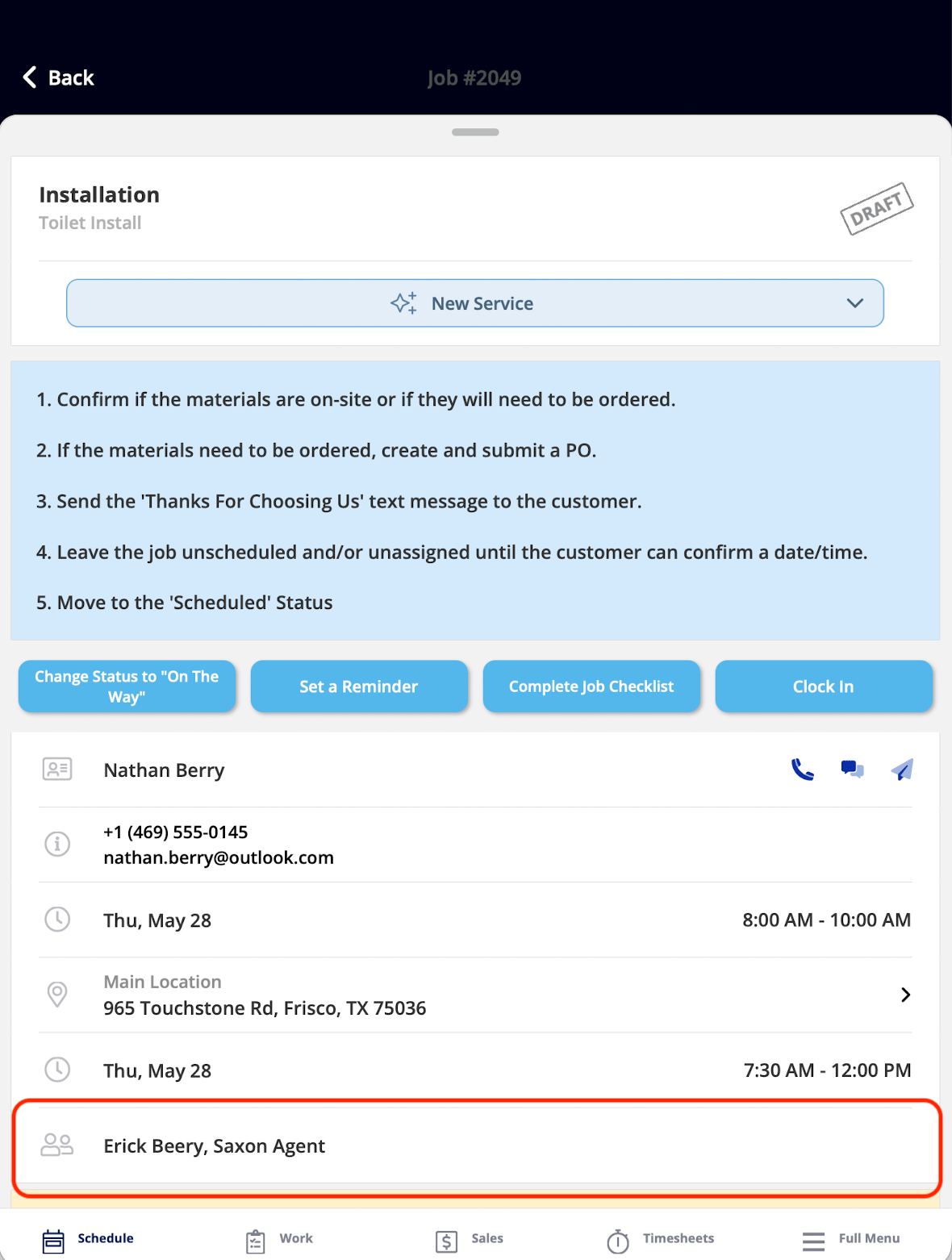
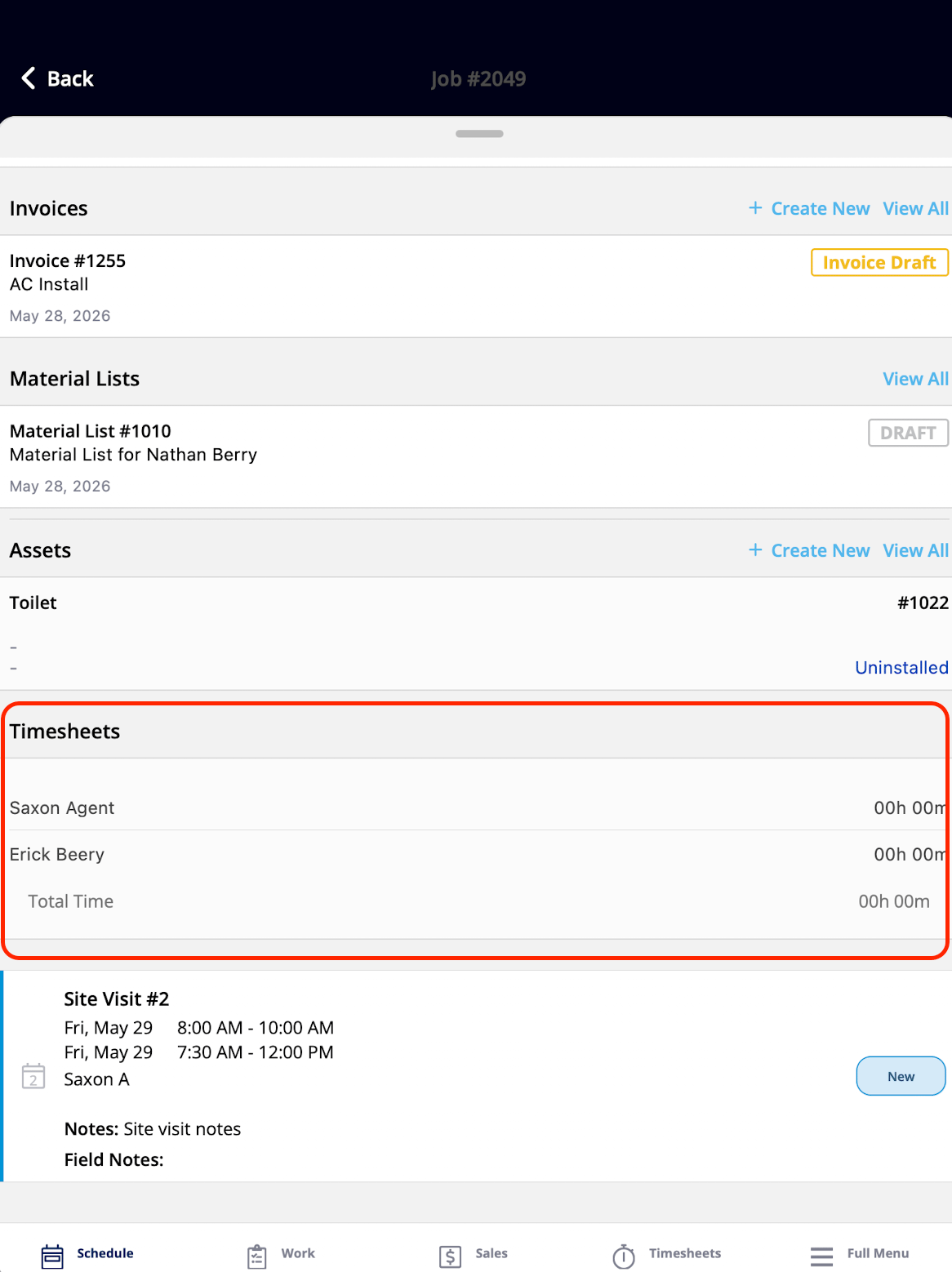
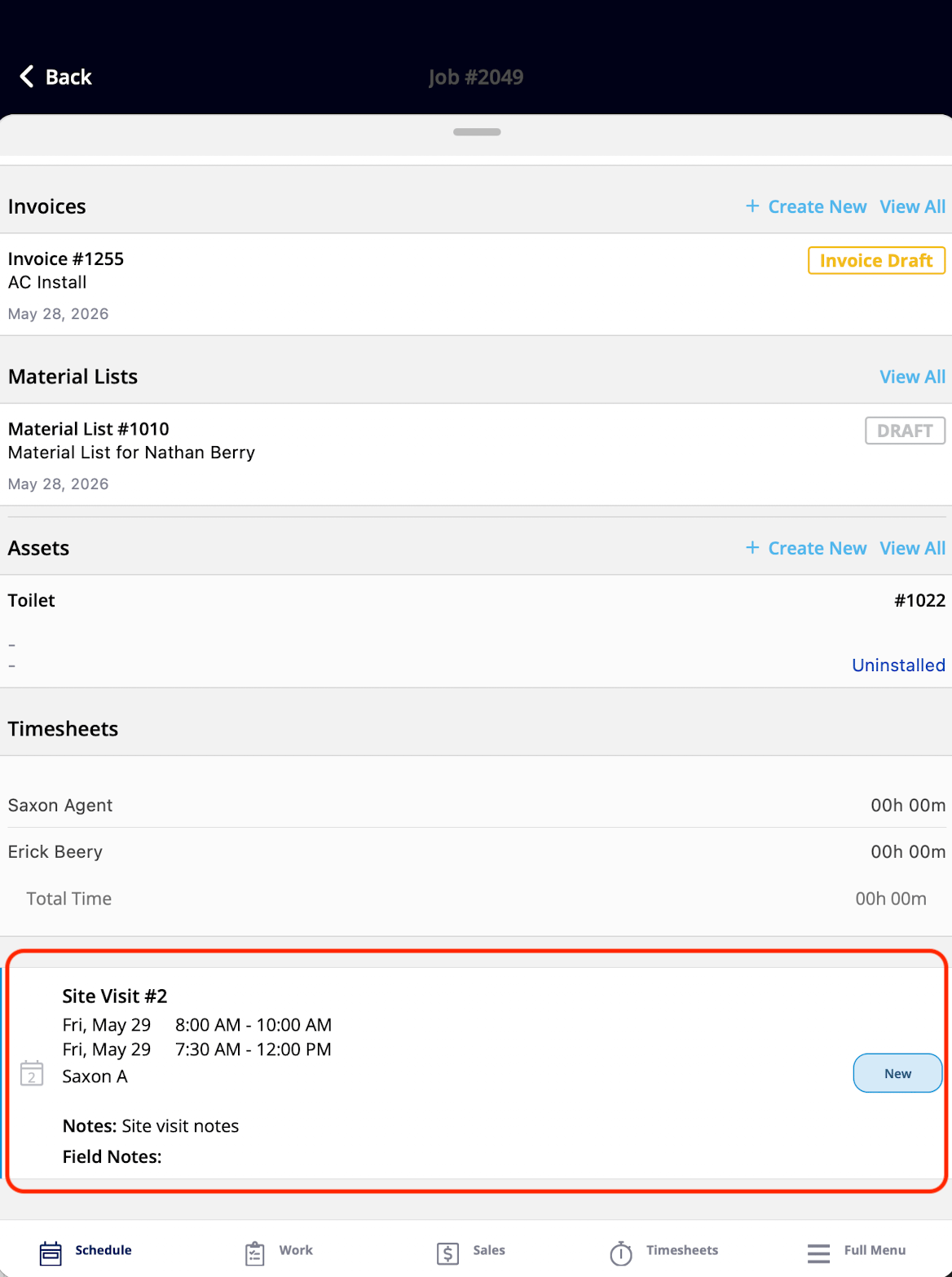
The Scheduling & team widgets cover the job’s logistics — when and where the job is, who else is assigned, and the time tracked on the job.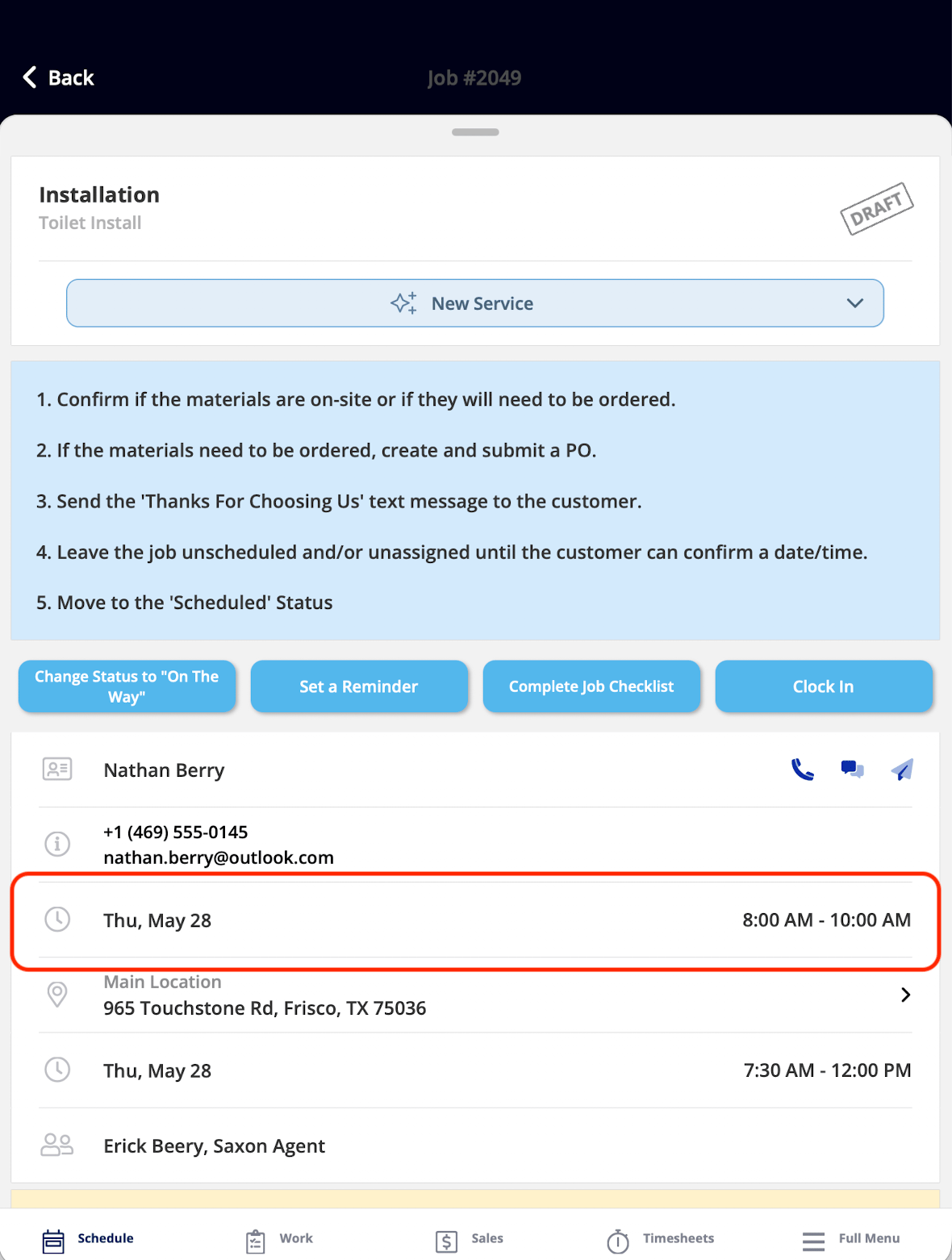
Related project widgets
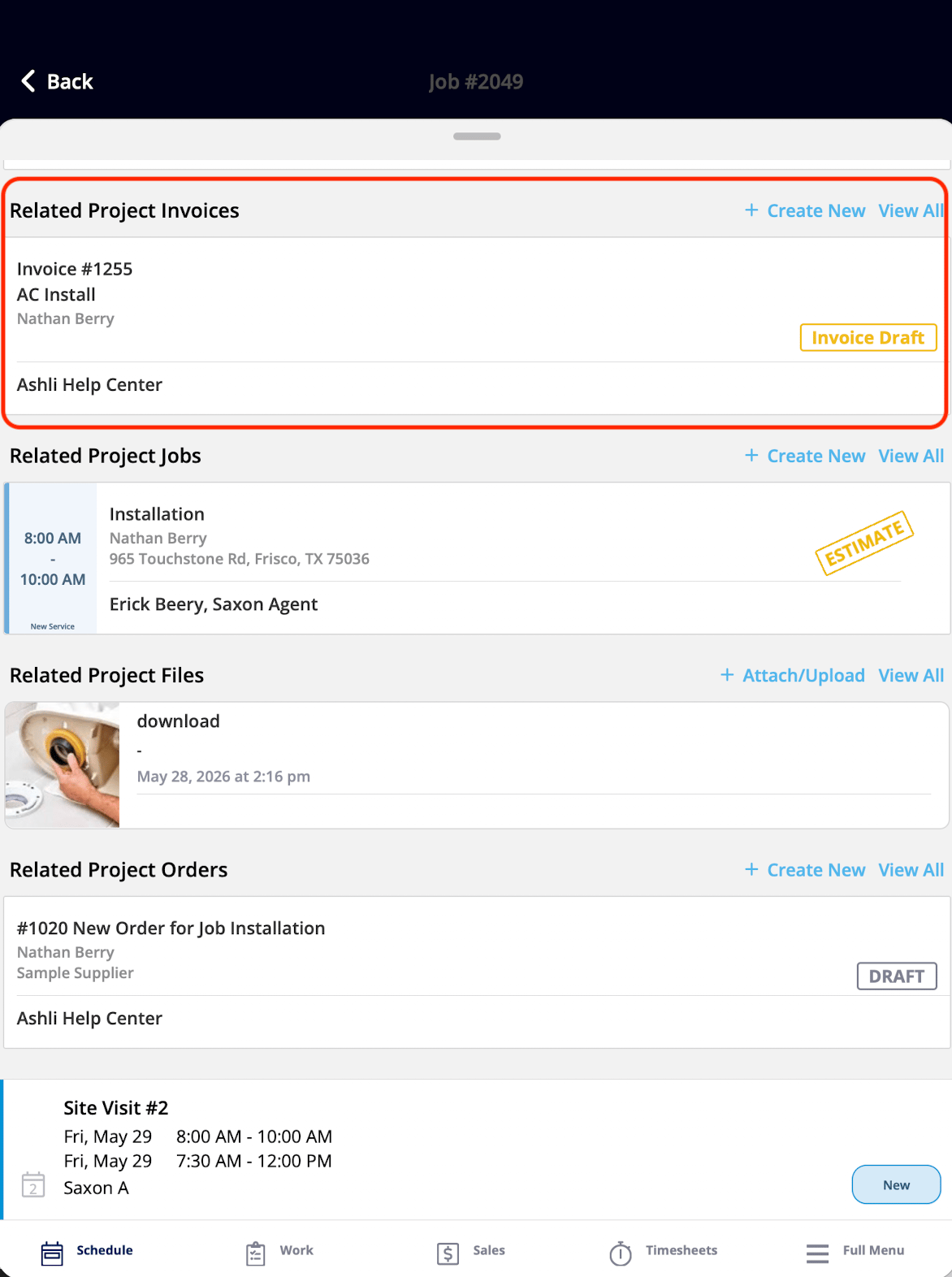
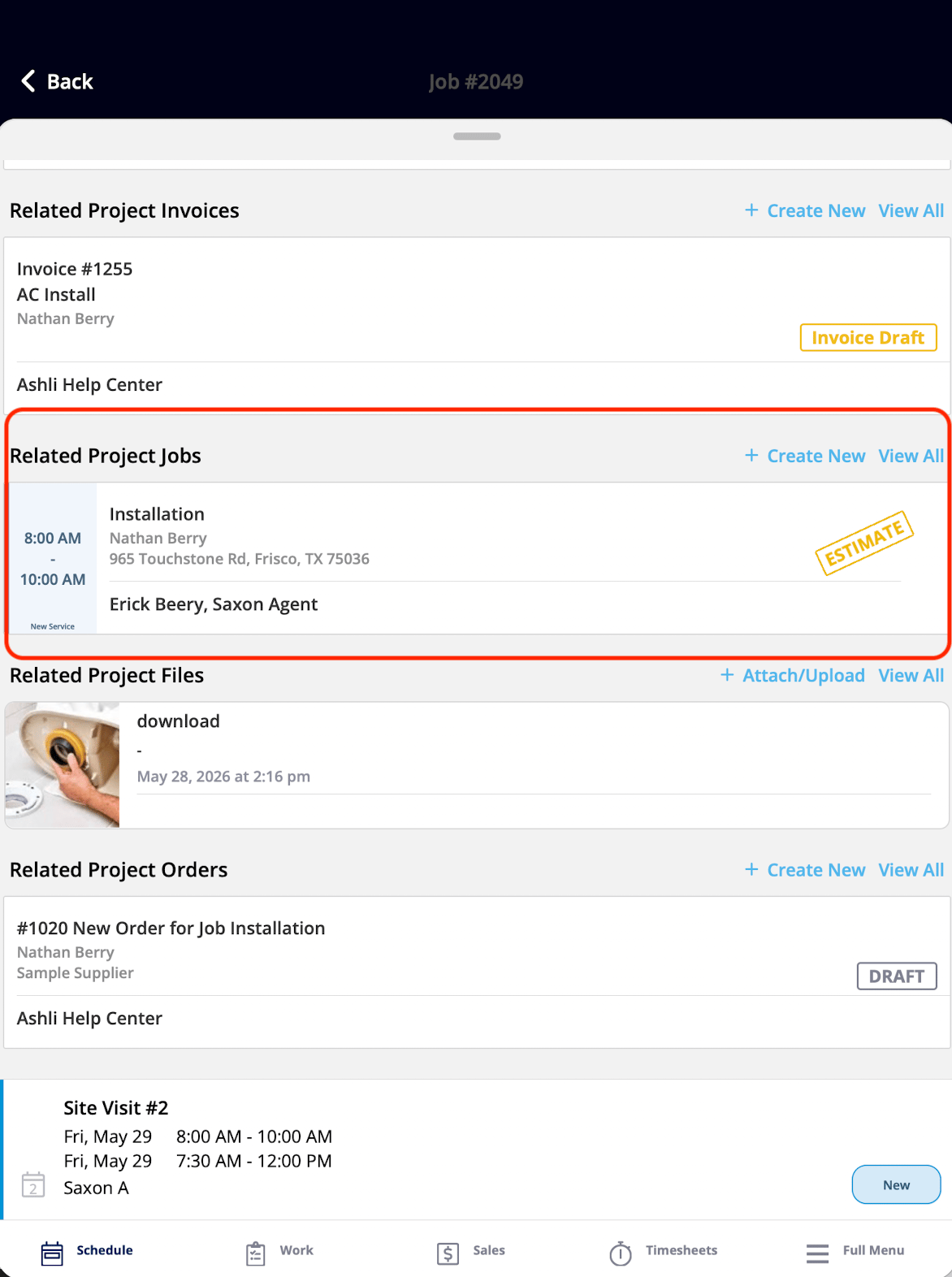
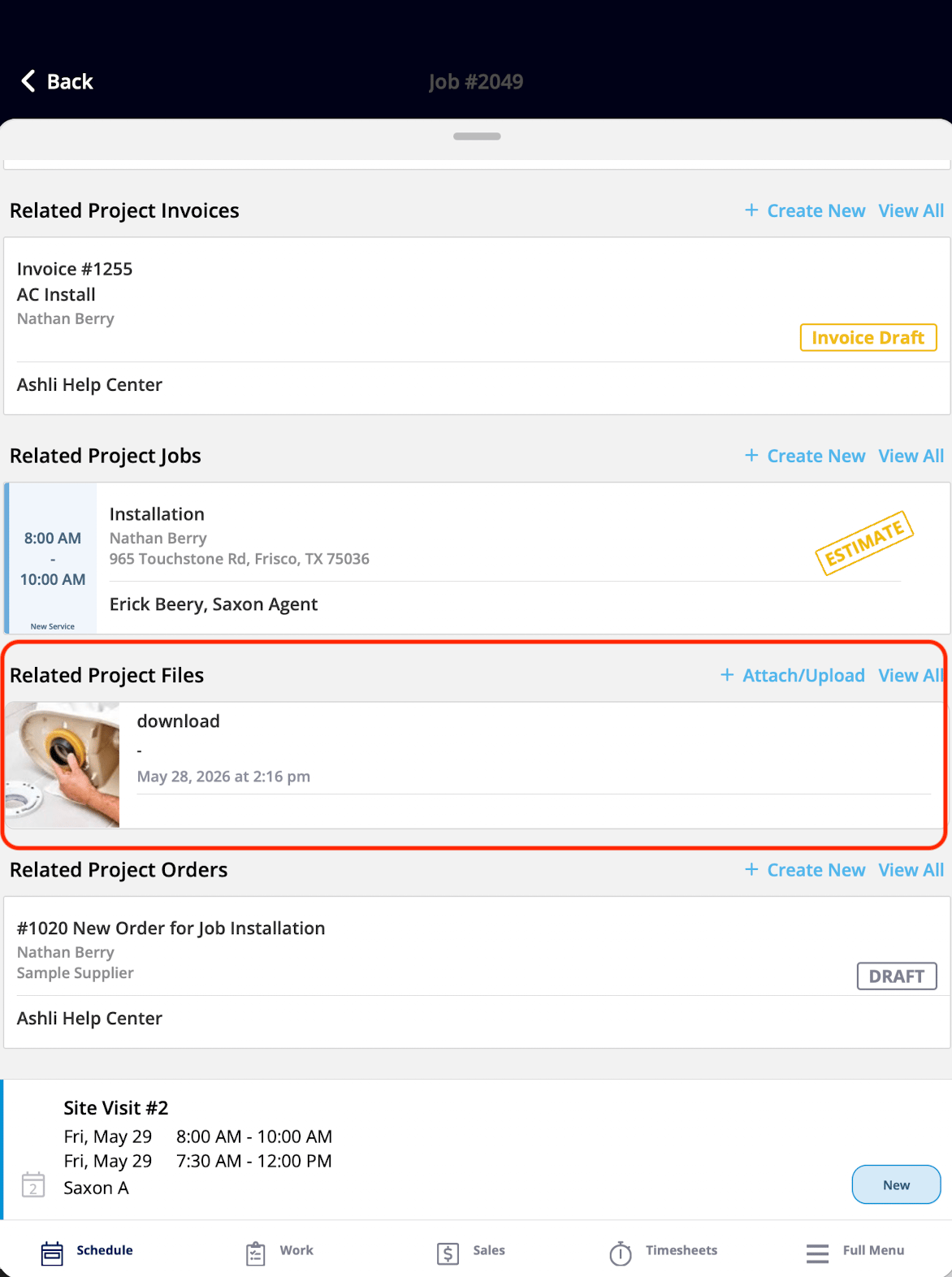
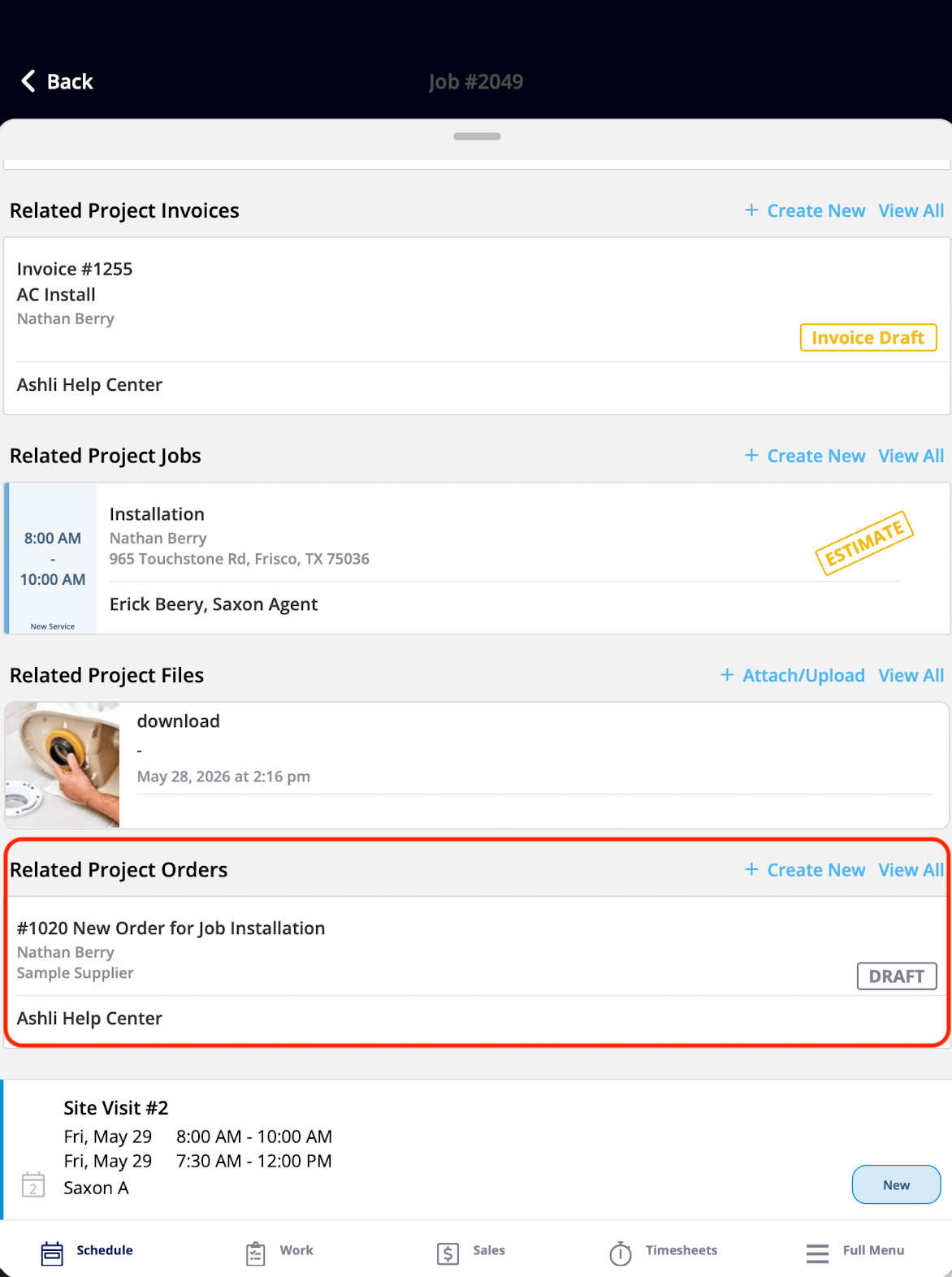
The Related project widgets display records from the project the current job is associated with, and they are shown when the job belongs to a project. These widgets give the technician visibility into the broader project context — estimates, invoices, other jobs, files, and purchase orders — all from the Focus View.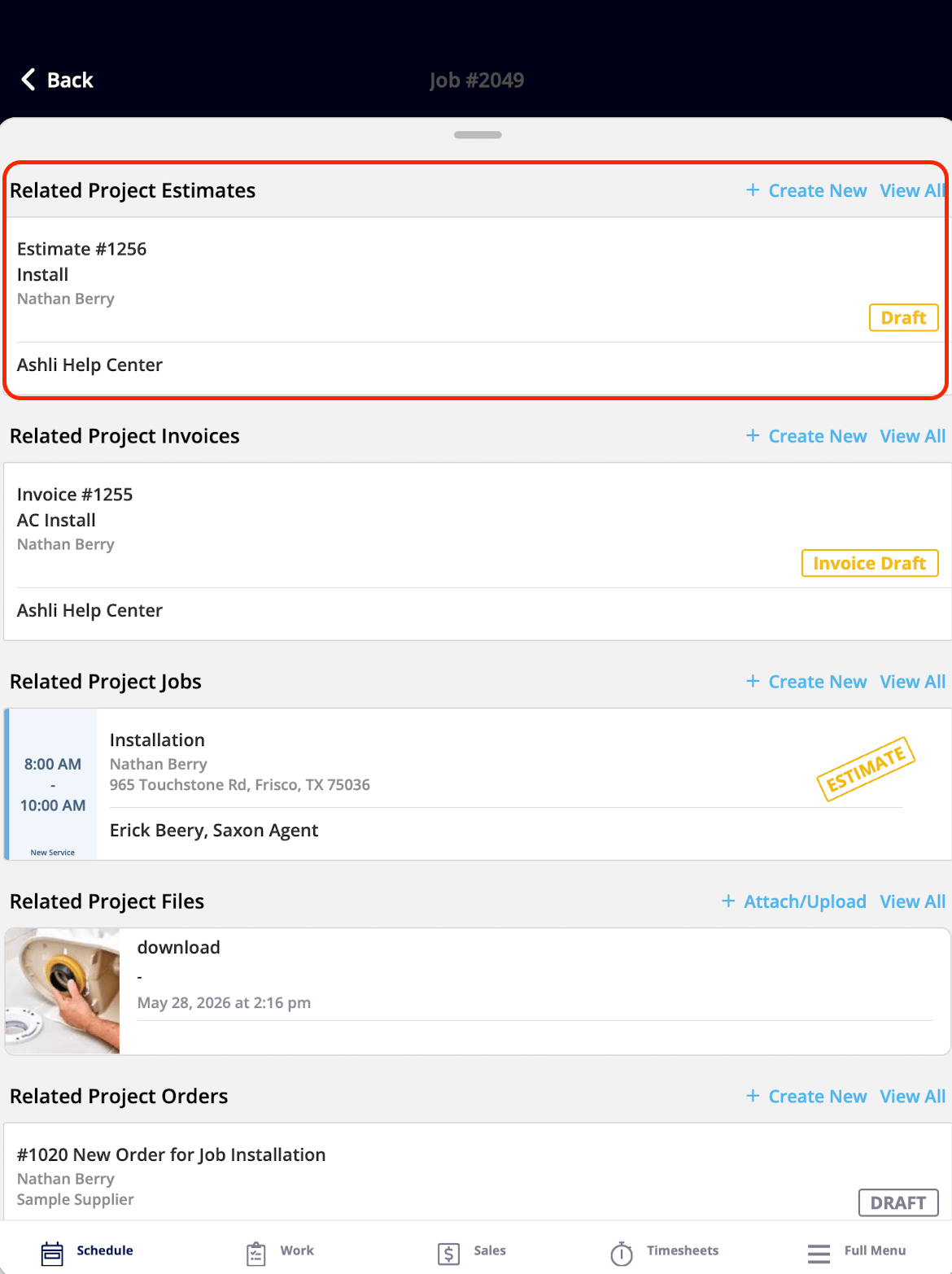
Related records widgets
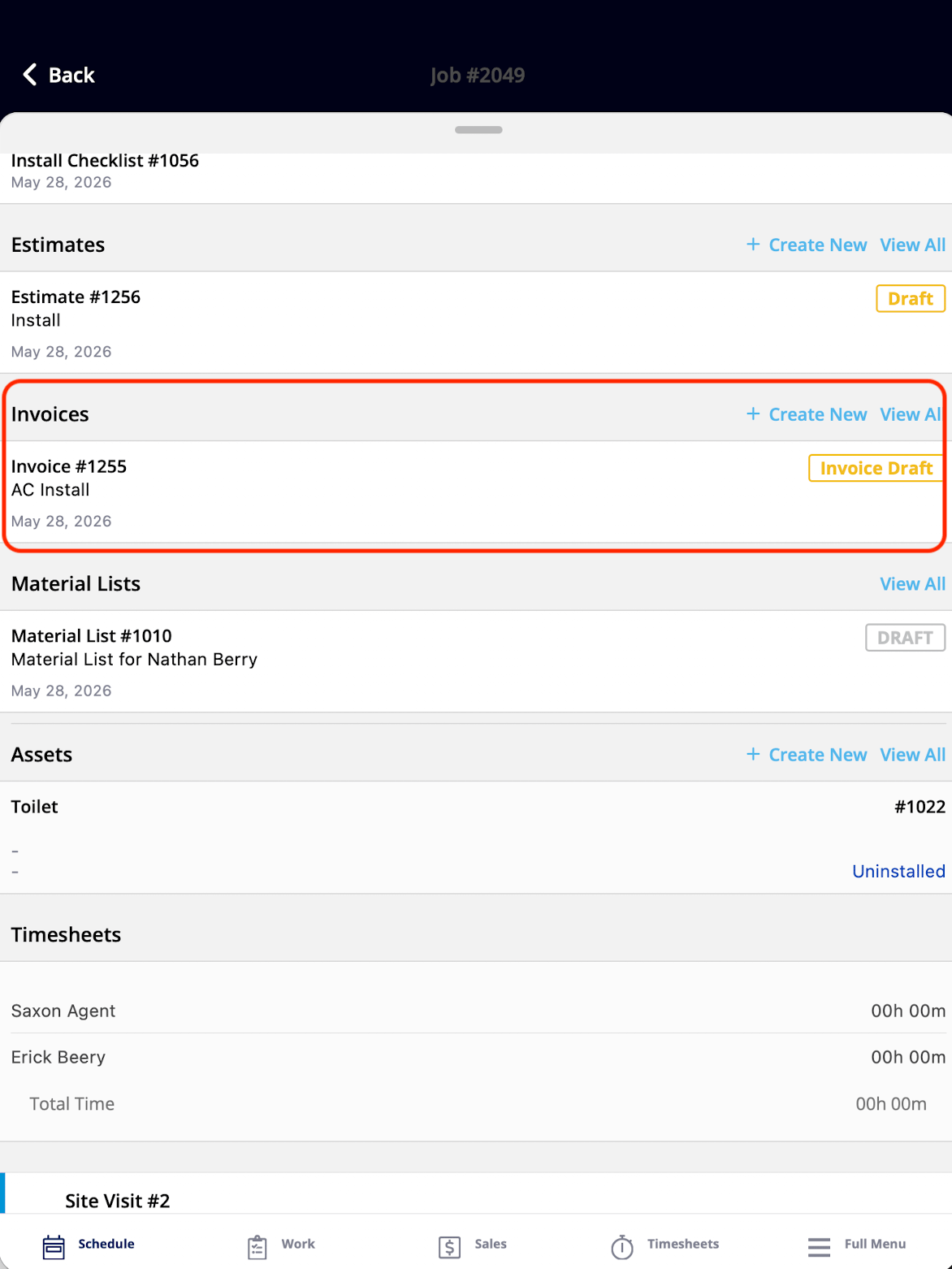
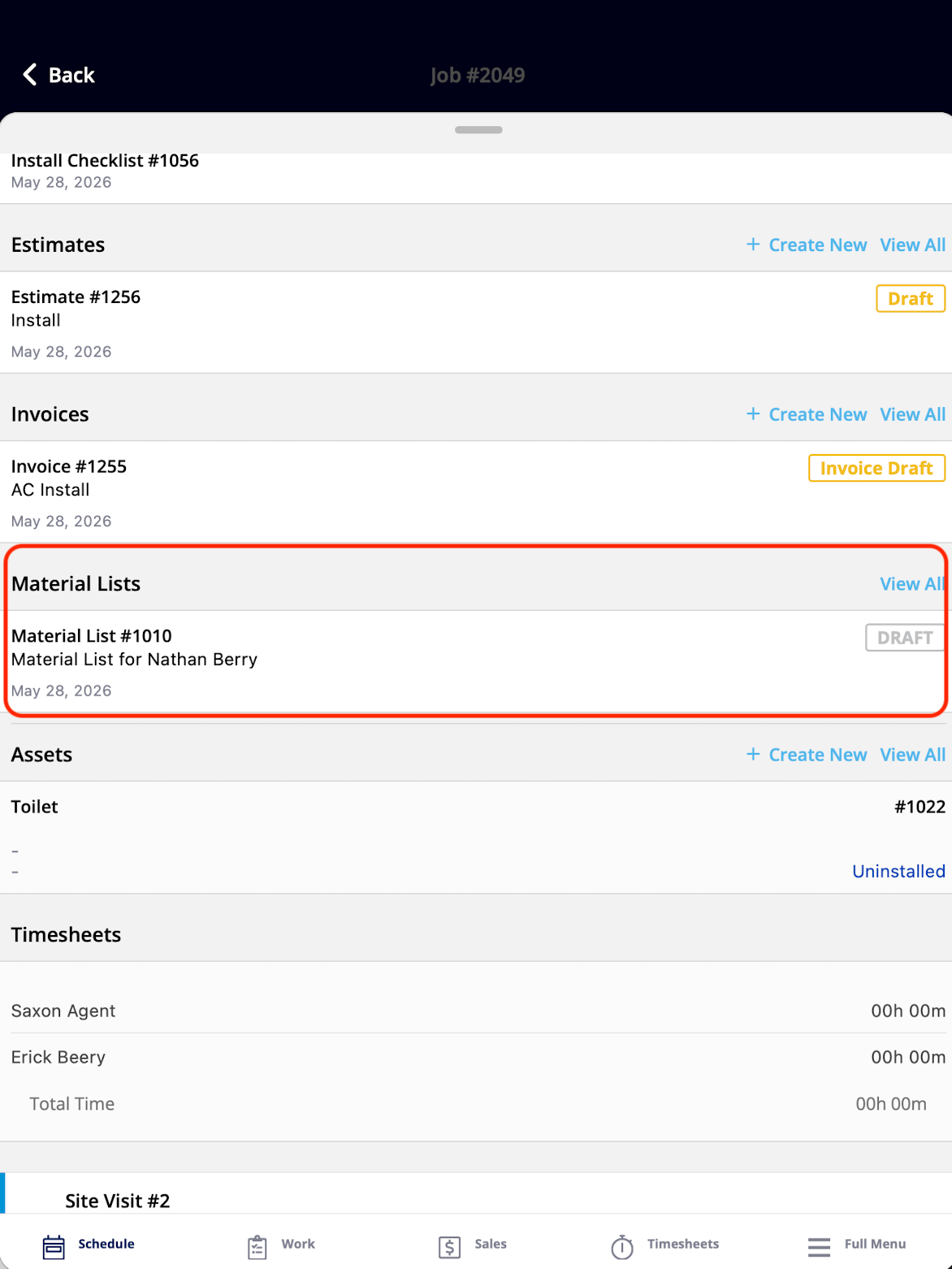
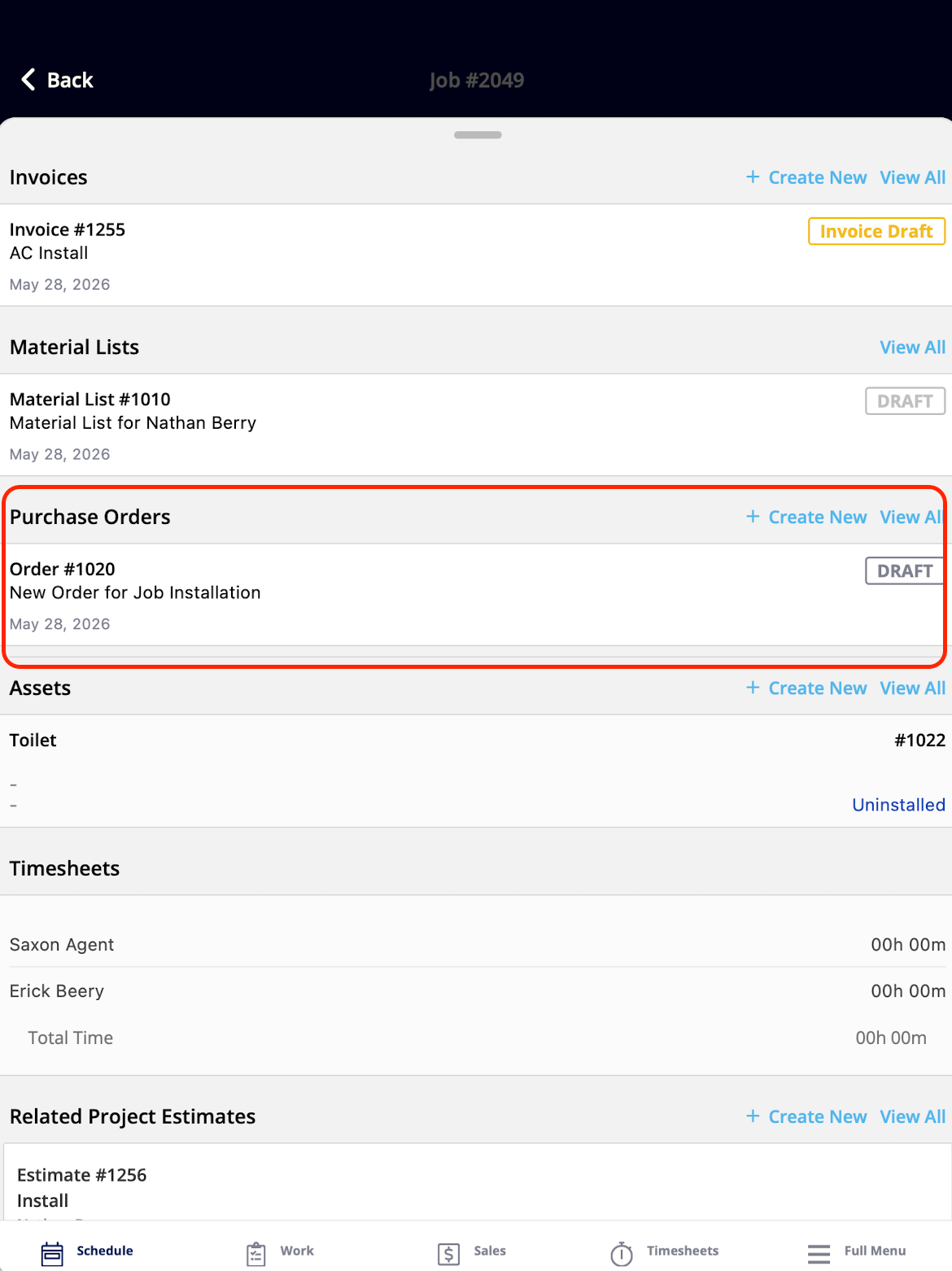
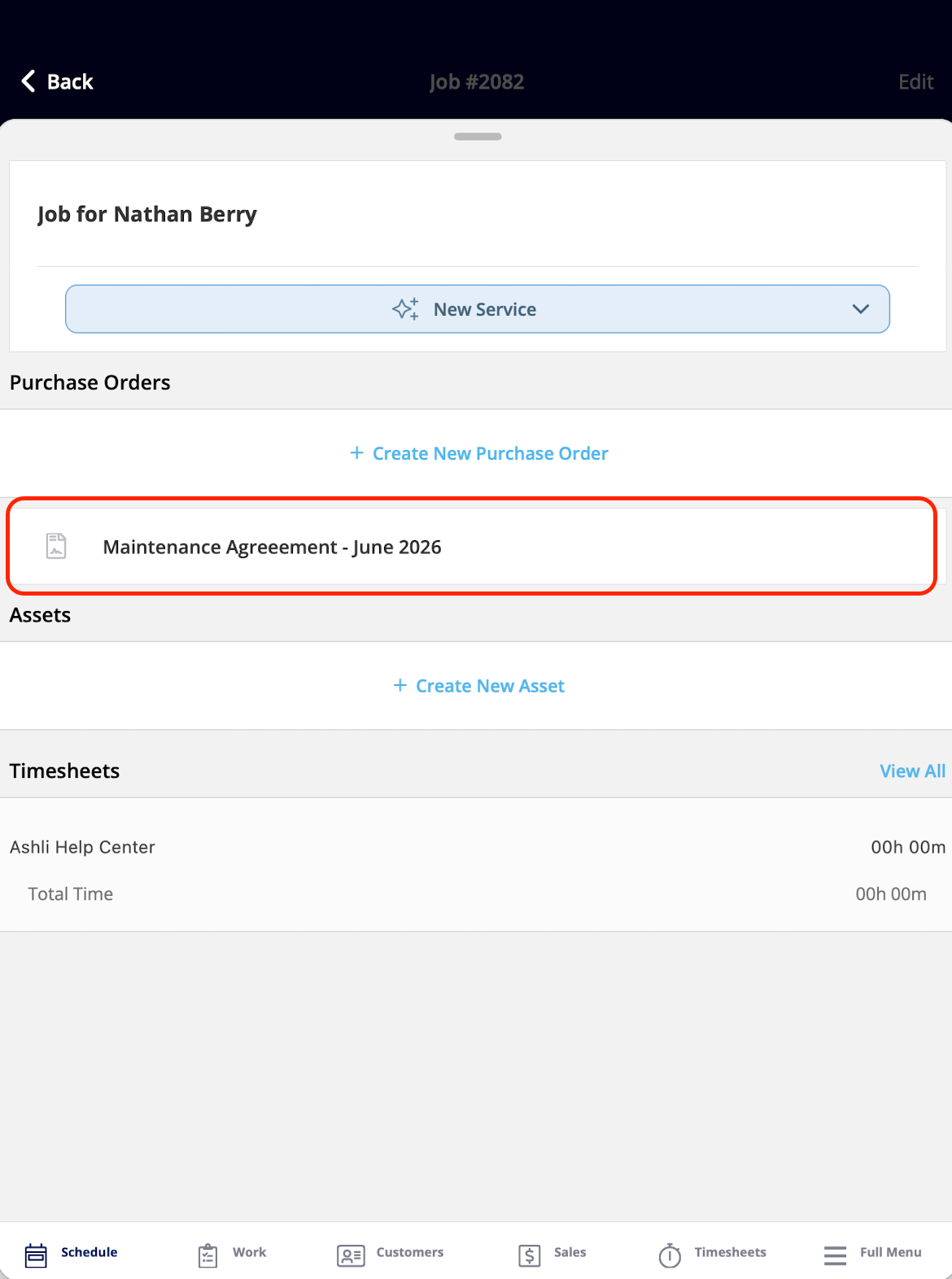
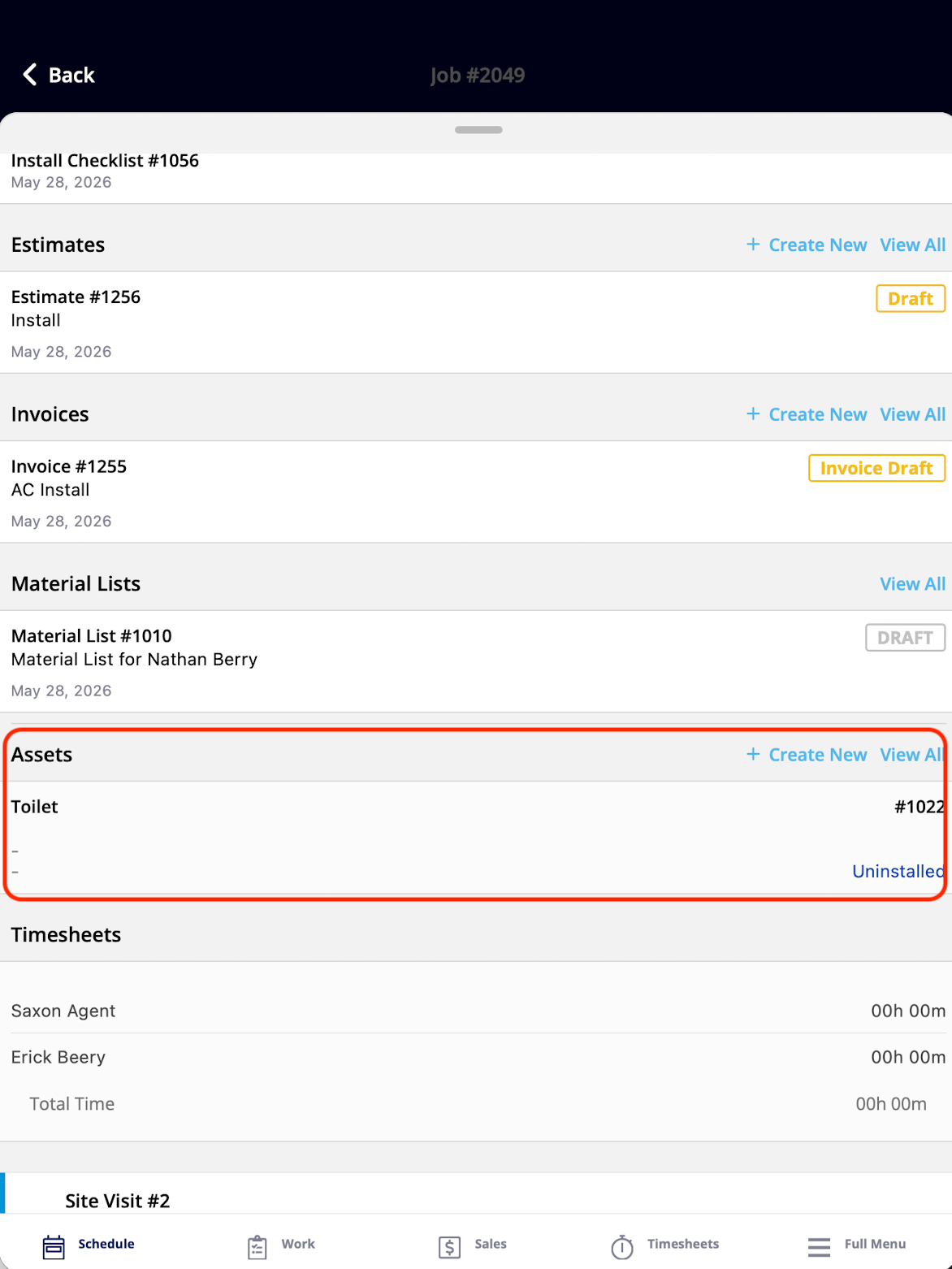
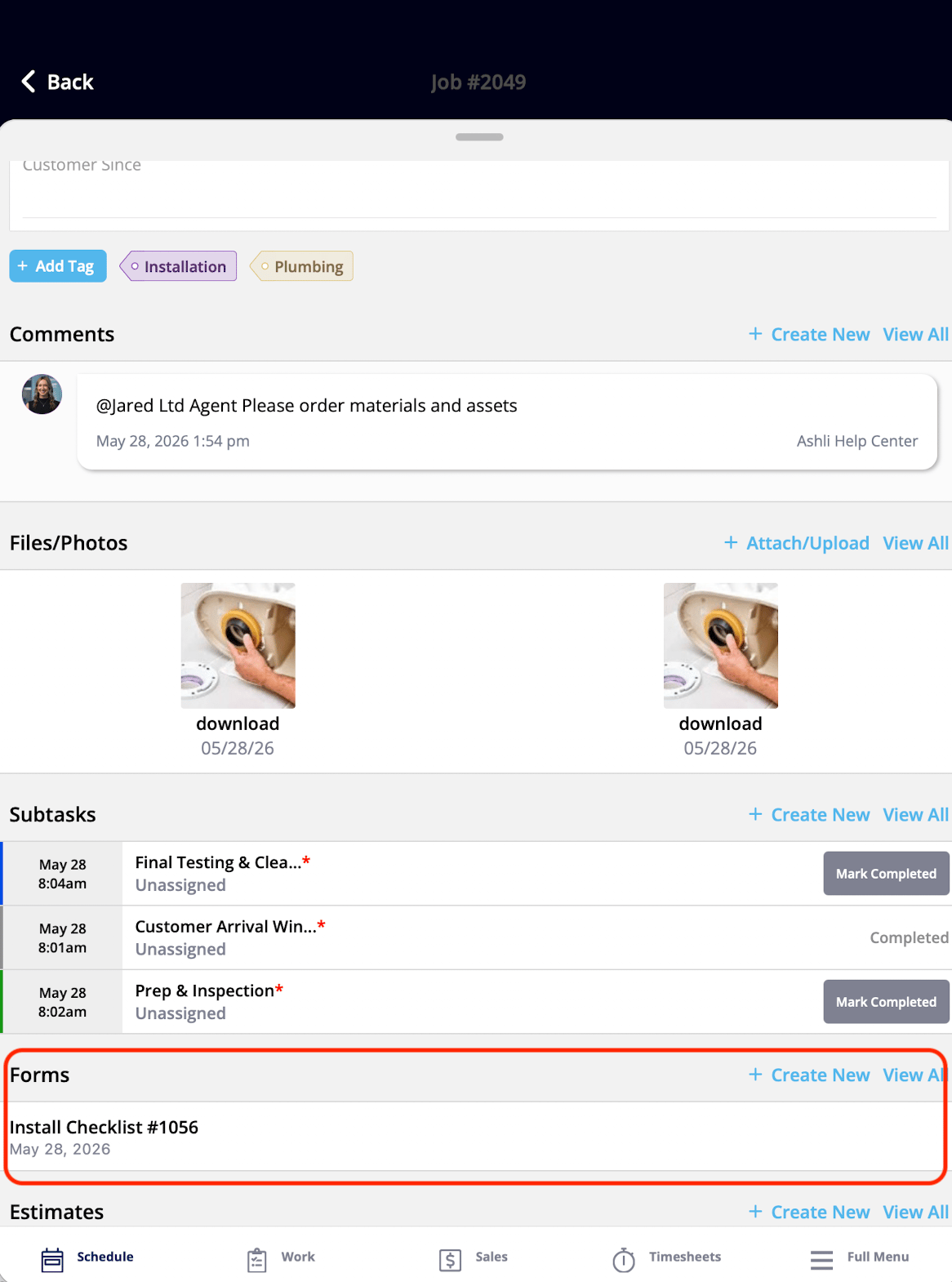
The Related records widgets give the technician access to the records tied to the current job — estimates, invoices, material lists, purchase orders, the parent maintenance agreement, assets, and forms. A technician can review, open, and create these records without ever leaving the Focus View.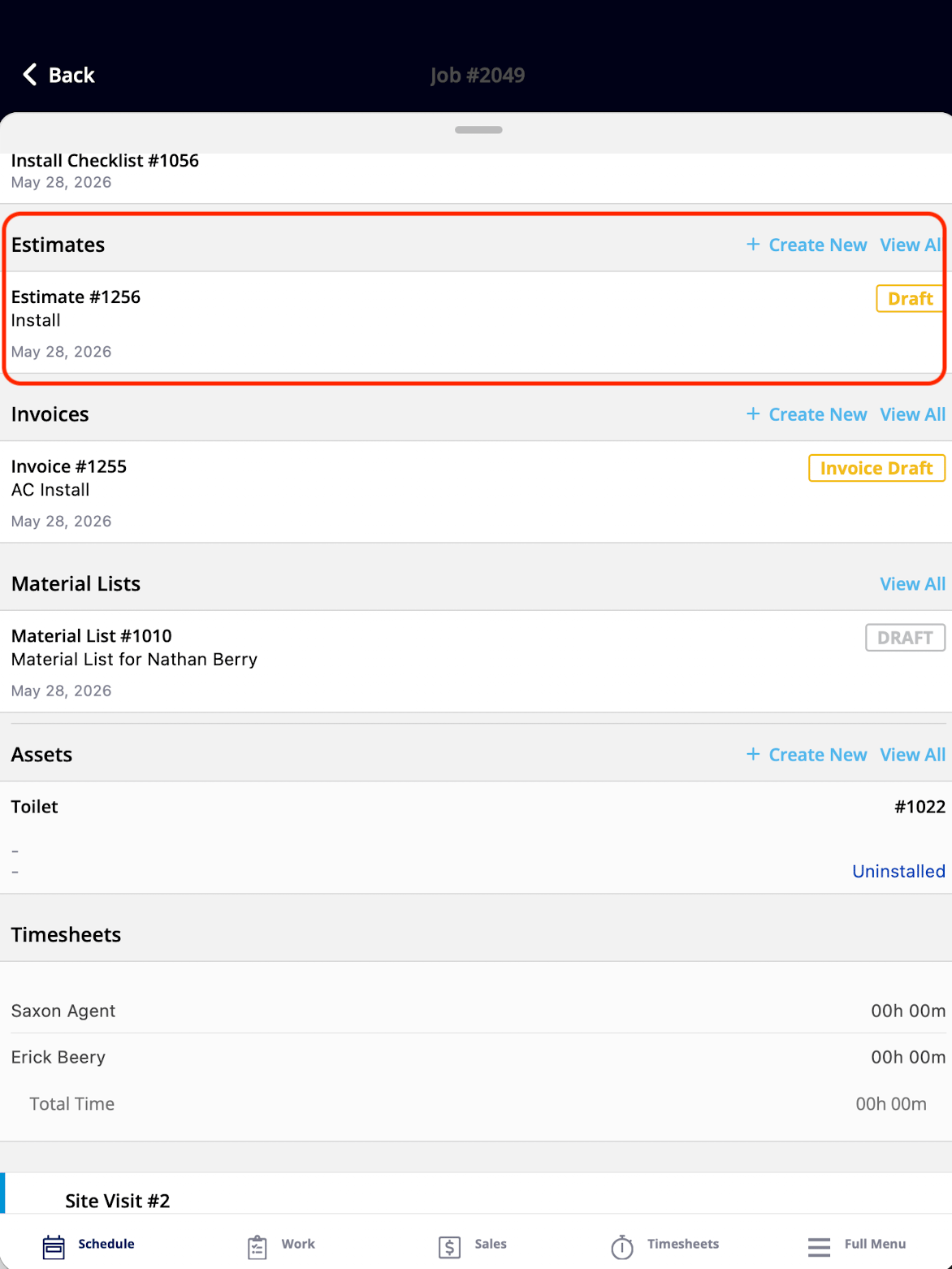
Notes & limitations
- Creating records requires the matching permission. The create actions in the Related records widgets — estimates, invoices, material lists, purchase orders, assets, and forms — only work when the technician’s user account has the required permission.
- Custom Field access is controlled per field. Custom Fields are configured in Company Settings, and a technician can edit a custom field’s value only when that field’s permissions allow it. Custom field permissions are managed at the field level in your account settings.
- Manual status changes can be turned off. When the Ability to Change Status toggle is off in a Status Action Flow, the Job Status widget cannot be used to change the job’s status manually. The toggle is covered in Setting Up ClearPath Status Action Flows.
- The Notes widget is view-only for Service Agents. The Notes widget shows notes added when the job was created, typically by the office; a technician adds their own on-site notes through the Field Notes widget instead.