
Who uses this: An Admin configures commission structures in Company Settings; the commission recipient on an estimate or invoice earns the payout. Availability: All regions.A commission structure is the rule FieldPulse uses to decide how much commission a job earns and who earns it. FieldPulse gives you four commission types — company default, user-specific, flat-rate job, and ad-hoc — so you can match the payout to how your team actually gets paid, whether that is the same rate for everyone or a one-off spiff for selling a specific service.
Overview
Commissions in FieldPulse close the gap between what a tech sold and what they get paid. When commission is tracked in a spreadsheet on the side, the number your tech expects and the number you calculate rarely match — and every mismatch is a conversation nobody wants to have. FieldPulse calculates commission on the estimate or invoice itself, so the payout follows the work. The four commission types differ in one thing: what the commission is based on.How it works
Company default commission
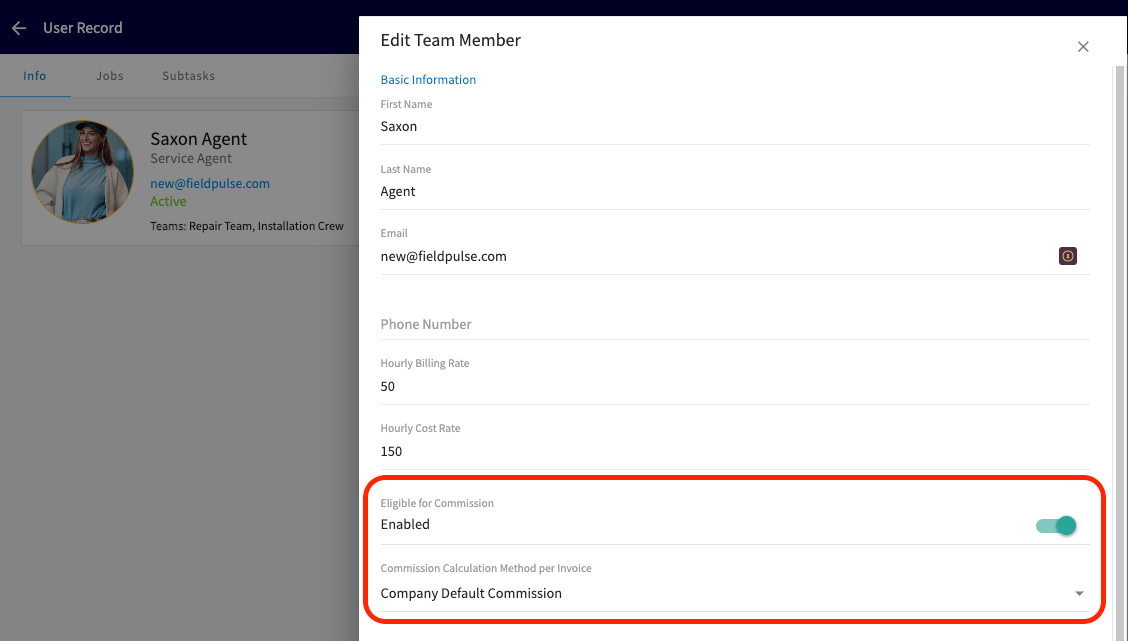
Company default commission pays every eligible user the same way — a flat dollar amount per invoice, a percentage of gross sales, or a percentage of margin. You configure the default once in Company Settings, and the commission recipient on an invoice automatically earns that amount, split evenly if more than one person qualifies. See Setting Up Invoice-Level Commission.For the default to apply to a team member, toggle on Eligible for Commission in their user record and set Commission Calculation Method per Invoice to Company Default Commission.
User-specific commission
User-specific commission sets a different rate for individual team members — useful when senior staff earn a higher percentage, or a manager earns commission while techs are paid hourly. Enable the commission toggle for the user, then set their rate — for example, Bill earns 5% of invoice margin while Peter earns a $40 flat commission per invoice. You can run a company default and override it for specific users. See Setting Up Invoice-Level Commission.Flat-rate job commission (Pricebook)
Flat-rate job commission attaches a fixed dollar amount to a grouping or flat-rate job in your Pricebook — for example, a shower upgrade pays a $50 commission and a water filter add-on pays $30. The amount is added to the commission recipient for each flat-rate job included on the invoice. See Setting Up Flat Rate Job Commissions. Flat-rate job commissions follow a first commission wins rule: the first commission type added to an invoice becomes the commission method for the whole invoice.- If a flat-rate job with a commission is added first, no company or user-level commission is generated on any items added after it.
- If the invoice starts with items or flat-rate jobs without commission, the company or user-level rules apply. Adding a flat-rate job with its own commission later won’t add that job’s commission value — it only contributes to the invoice total used for the percentage-based calculation.
Ad-hoc commission
Ad-hoc commission is added by hand at the invoice level, either by importing a saved template or creating a new commission entry on the spot. Use ad-hoc commission when payouts vary job to job, when special circumstances apply, or when you need flexibility outside your standard rules — one-off incentives, custom deal structures, or occasional spiffs. Save the entries you repeat as templates. See How to Create and Use Commission Templates.Splitting commission across multiple people
Whichever commission type you use, you are not limited to paying one person per estimate or invoice. Commission can automatically route to the Related Work Order Assignees or the Related Customer Assignee instead of only the Record Author, and split evenly across everyone who qualifies. This works with How to Create and Use Commission Templates too: build a template that assigns commission by role instead of by name, and it keeps working correctly as your team changes.How discounts affect commission
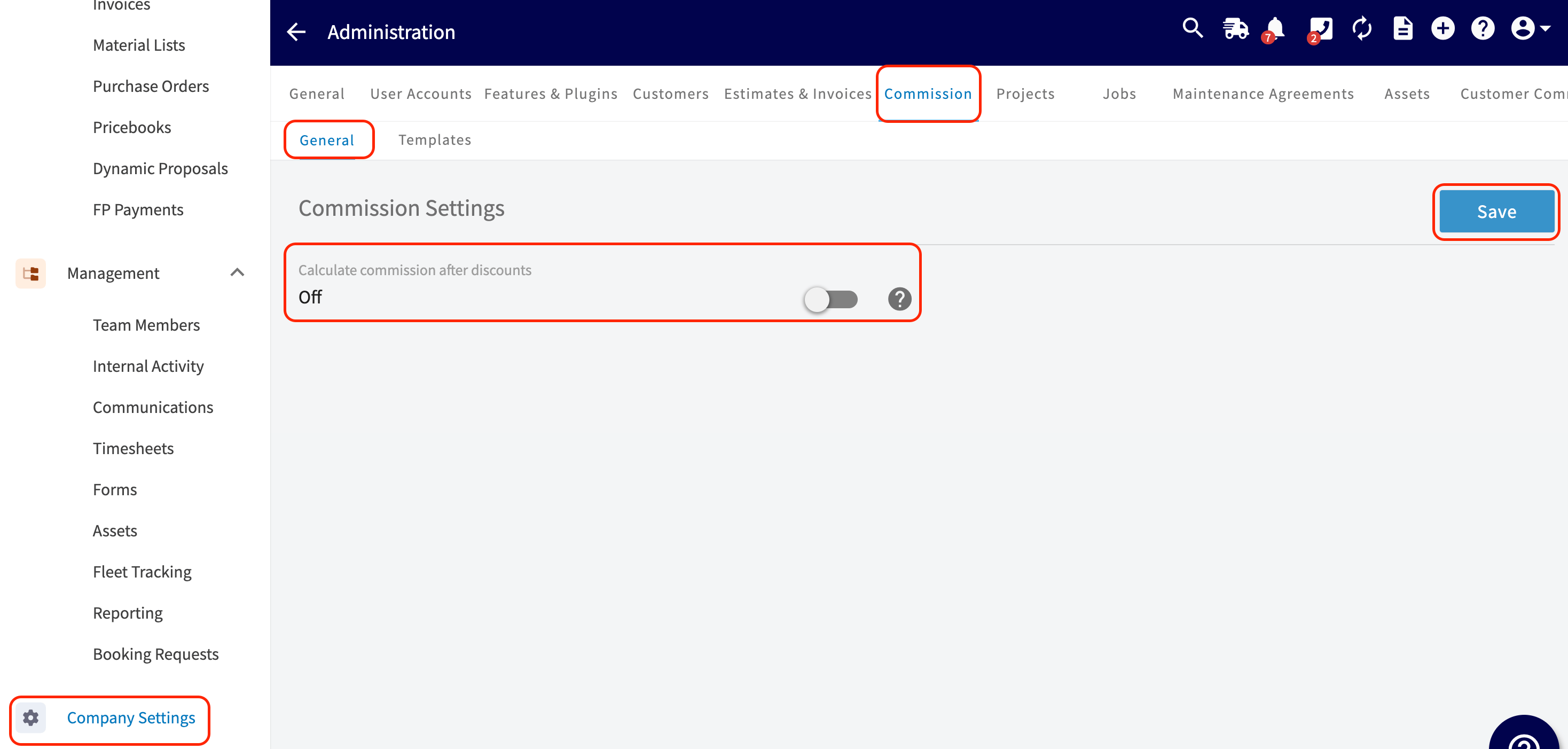
You decide whether commission is calculated before or after a discount is applied. Go to Company Settings > Commission tab > General subtab and set the Calculate commission after discounts toggle:- On — commission is calculated on the final invoice total after discounts.
- Off — commission is calculated on the original total before discounts.
Report commissions only on fully paid invoices. This keeps the commission you pay your team matched to the commission FieldPulse calculated, preventing discrepancies and avoiding over- or under-payment.