
Who uses this: An Admin creates commission templates in Company Settings; users with commission access import them onto estimates and invoices. Availability: All regions.A commission template is a saved commission — a title, a calculation method, an amount, and optionally who it pays — that you import onto an estimate or invoice instead of entering the details by hand. Build a template once for a commission you pay often, and every time you apply it the payout reads exactly the same, which keeps your team’s earnings consistent and cuts down on entry errors.
Overview
Commission templates cover the ad-hoc commissions you add on a record — the bonuses and spiffs that sit outside your company default and user-specific commission rules. You create the template in Company Settings > Commission > Templates, then import it from the Cost Basis tab of any estimate or invoice. Creating a template and applying it are two short tasks, so both live on this page. A template can also name its own recipient. Assign the Commission Recipient by role instead of by name, and the same template keeps paying the right people as your team changes. For how ad-hoc commission compares to the other commission types, see Commission Structures Overview.Before you begin
- Decide which repeat commission this template covers, for example a five-star-review bonus or an upsell spiff.
- Know the calculation method and amount you want to save — a flat dollar amount, a percentage of gross sales, or a percentage of gross margin.
- If you want the template to pay by role, confirm the jobs and customers you will apply it to have assignees set. Without an assignee, FieldPulse cannot calculate who gets paid.
- For how commission calculations are turned on and how the company default and per-user rates work, see Setting Up Invoice-Level Commission.
Not every role has commission access by default. To learn who can view or edit commission, see User Roles and Permissions Details. To adjust a user’s permissions, see How to Add New Users.
Create a commission template
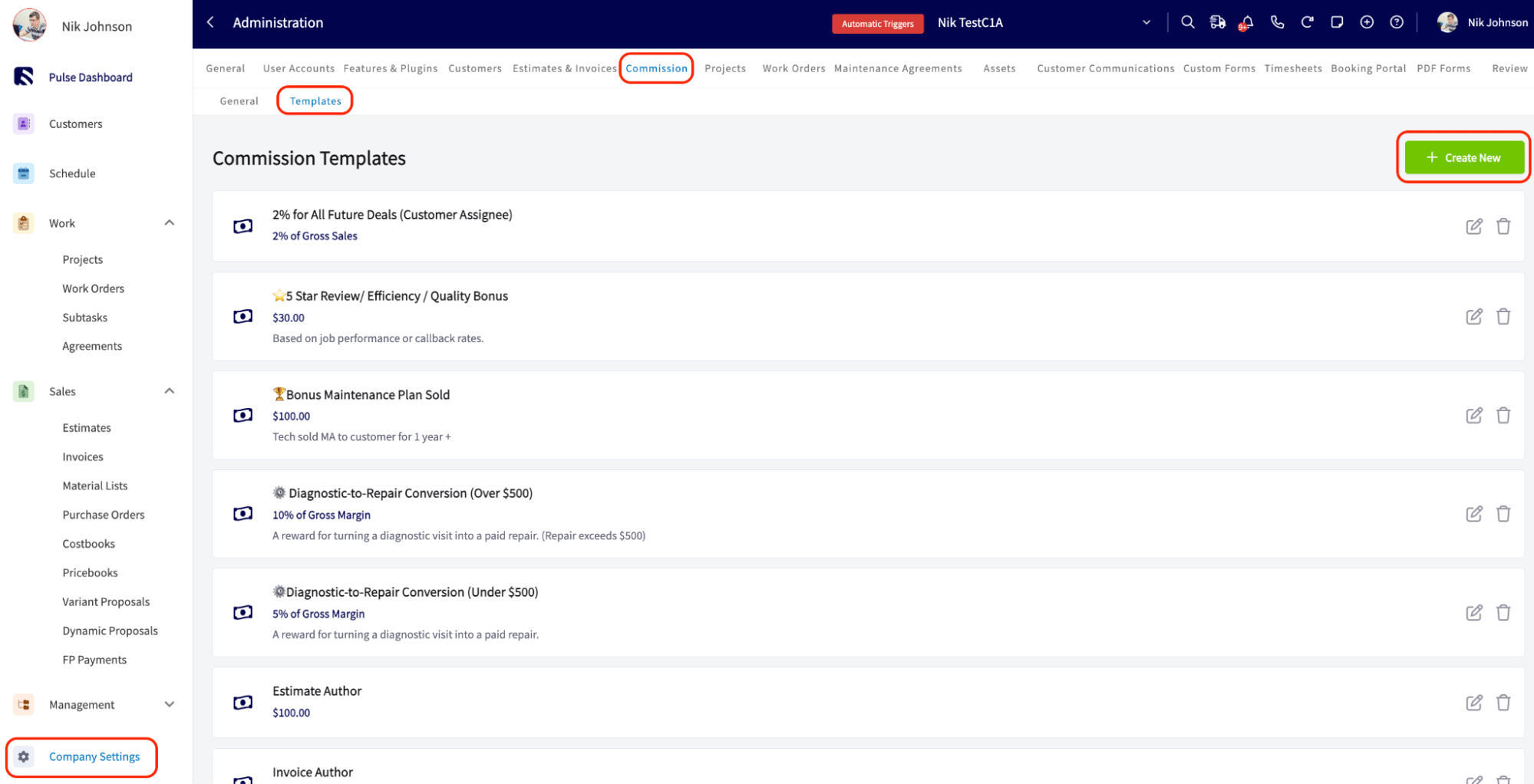
- Select Company Settings in the left-side menu.
- Select the Commission tab, then the Templates subtab.
-
Select Create New.
-
Fill in the template fields:
- Commission Title — a unique name for the template, so it is easy to find when you are building an estimate or invoice.
- Commission Description — optional context about the commission. Saved descriptions appear as selectable suggestions when you return to the field later, so no one retypes them.
- Calculation Method — choose Flat Dollar Amount, Percentage of Gross Sales, or Percentage of Gross Margin.
- Commission Amount — enter the percentage or dollar value. The field is pre-formatted and starts at $0.00, which reduces entry errors.
- Commission Recipient — choose who this template pays out when it is applied. Leave it blank to keep entering recipients by hand, or choose a role — Job Assignees, Job & Site Visit Assignees, Estimate Author, Invoice Author, or Customer Assignee — so FieldPulse fills them in for you. You can also select a Specific User if you would rather name one person.
- Save the template.
If a role-based template gets applied somewhere that role does not exist — for example, a Job Assignees template applied to an invoice with no job linked — FieldPulse blocks you from saving and asks you to assign a recipient by hand before you continue.
Apply a commission template to an estimate or invoice
- Open the estimate or invoice record.
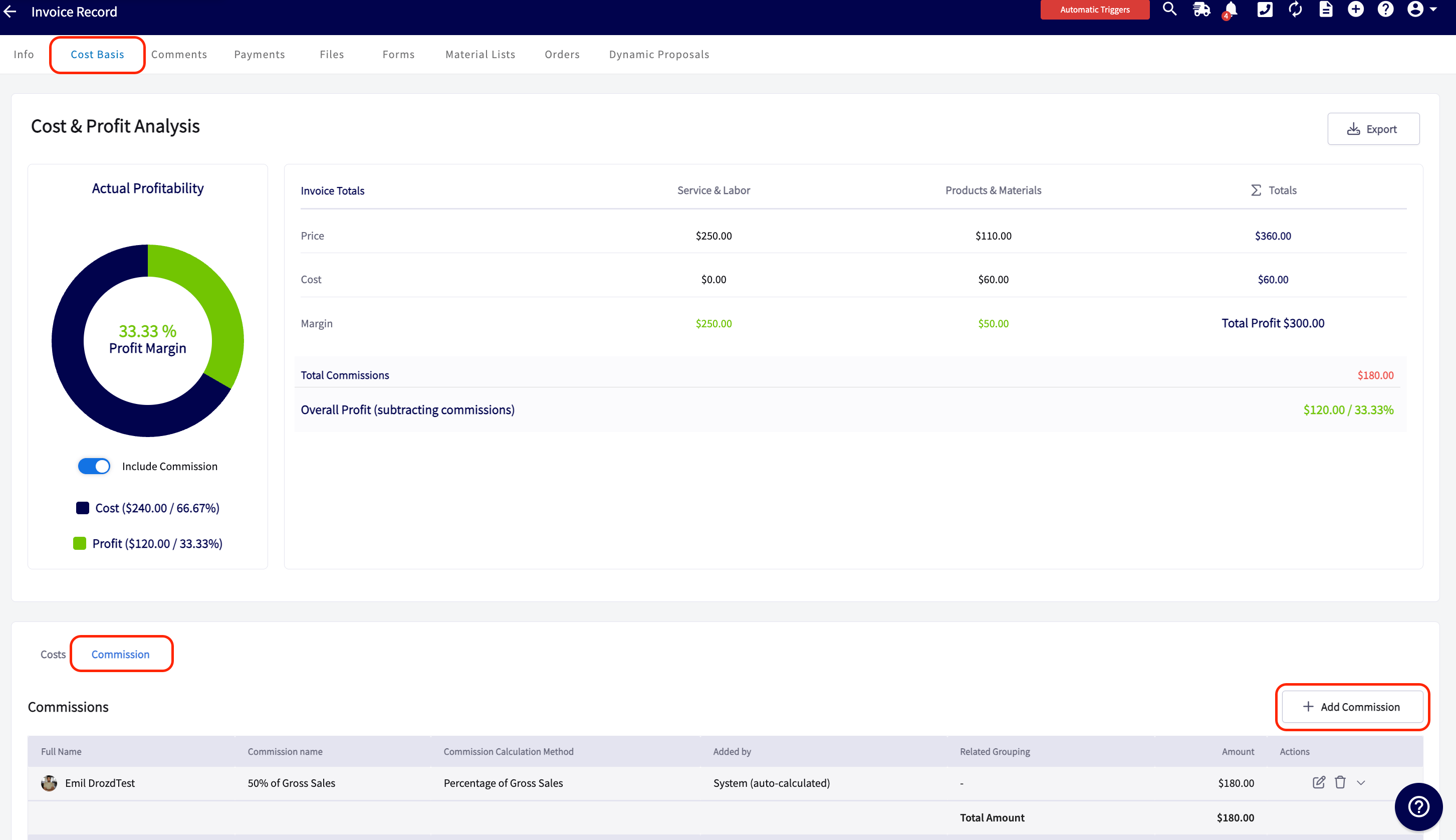
- Select the Cost Basis tab, then the Commission subtab.
-
Select Add Commission. A slide-out window opens.
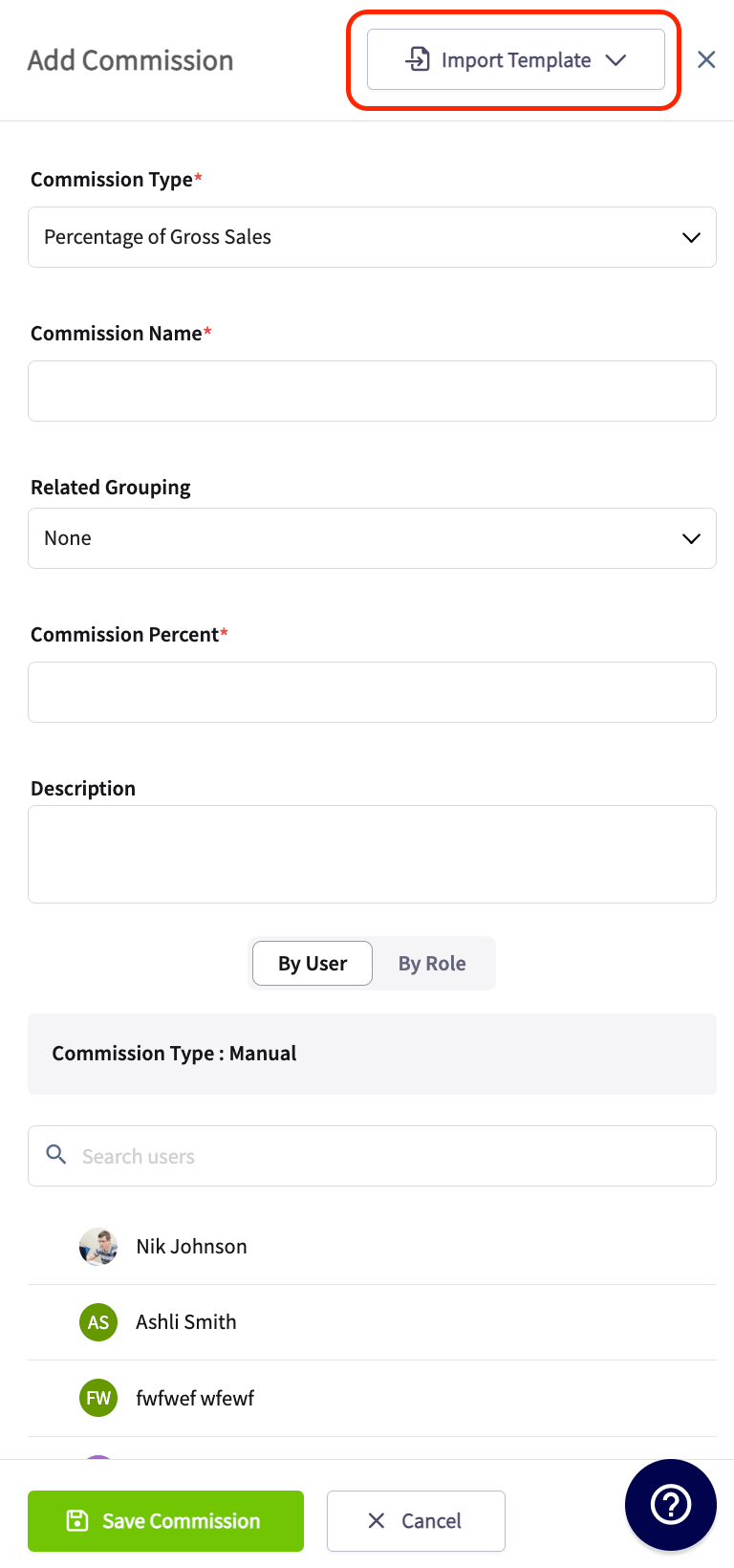
- Select Import Template, then choose the template you saved.
- Select Save Commission.
Estimate and invoice templates can be built with a commission template attached. When you insert that invoice template into a record, it pre-populates the invoice and any commission that is part of the template right along with it. See Setting Up Estimate & Invoice Templates.
Tips
Commissions worth saving as templates:- Customer satisfaction bonuses — reward a team member for securing a five-star review from a customer.
- Upsell commissions — pay a commission when a technician sells an additional service, such as a preventive maintenance plan during a service call.
- Crew-based job splits — if you always dispatch two or more technicians together, set Commission Recipient to Job Assignees so their commission splits evenly every time without anyone re-entering names.
- On-time arrival bonuses — recognize punctuality to improve reliability and customer satisfaction.
- Safety performance bonuses — recognize safe driving records or adherence to safety protocols.