
Who uses this: Admins and Team Managers with commission permissions — commission access is granted per user in their feature permissions, not by role alone. Availability: All regions · Web and mobile; the Cost Basis commission views are web only.A two-person crew on every large install used to mean splitting commission by hand in a spreadsheet after each invoice. With commission splitting, FieldPulse divides the commission on an estimate or invoice among everyone with a hand in it — the job assignees or the customer assignee — instead of crediting only whoever created the record.
Overview
Commission can route automatically by role rather than to one fixed person. Assign it to the Related Work Order Assignees — everyone assigned to the job, whether a lead tech, a helper, or anyone else on the crew — and FieldPulse splits it evenly among them. Or assign it to the Related Customer Assignee, the team member tied to that customer’s account, often the original sales representative or the person who handles their billing or scheduling. Either way, if the team changes, the split updates automatically unless someone has adjusted it by hand. For example, a plumbing company that dispatches a two-person crew to every large install has both techs added as Job Assignees, and commission divides evenly between them the moment the invoice is created — less time on commission math, fewer errors, and a commission structure that reflects how the team works.Before you begin
- Enable Commission Calculations must be turned on in Company Settings > Commissions > General. See Setting Up Invoice-Level Commission for the full setup.
- You need Admin or Team Manager permissions to view or edit commission settings. Commission access is granted per user, not automatically by role — see How to Add New Users for the user permission settings that control who can view or edit commission.
- If you want commission to route automatically to a role such as Job Assignees or Customer Assignee, make sure your jobs and customers have assignees set. Without one, FieldPulse cannot calculate who gets paid.
- Optional: build commission templates ahead of time if you want to reuse the same split logic across multiple estimates or invoices.
On web
Set your default commission recipients
By default, FieldPulse assigns commission to whoever creates the estimate or invoice, so nothing changes unless you want it to.- Go to Company Settings > Commissions > General.
-
Open the Default Commission Recipient(s) dropdown and choose one option:
- Record Author — the person who created the estimate or invoice. This is the default.
- Related Work Order Assignees — everyone assigned to the related job. If more than one person is assigned, FieldPulse splits your company’s default commission equally among them.
- Related Customer Assignee — whoever is assigned to the customer record the estimate or invoice is for, regardless of role, including Service Agents, Limited Agents, and Assignment Users. That person gets the commission.
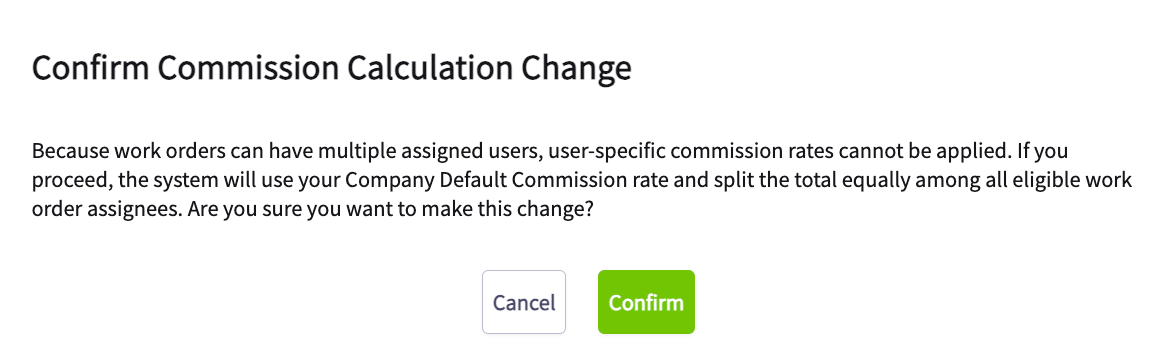
Because a job can have multiple assignees, FieldPulse always uses your company default commission rate and splits it evenly when you choose Related Work Order Assignees. Individual user commission rates are ignored in this case so the math stays consistent. A confirmation prompt appears when you select this option.
View and edit commission on a record
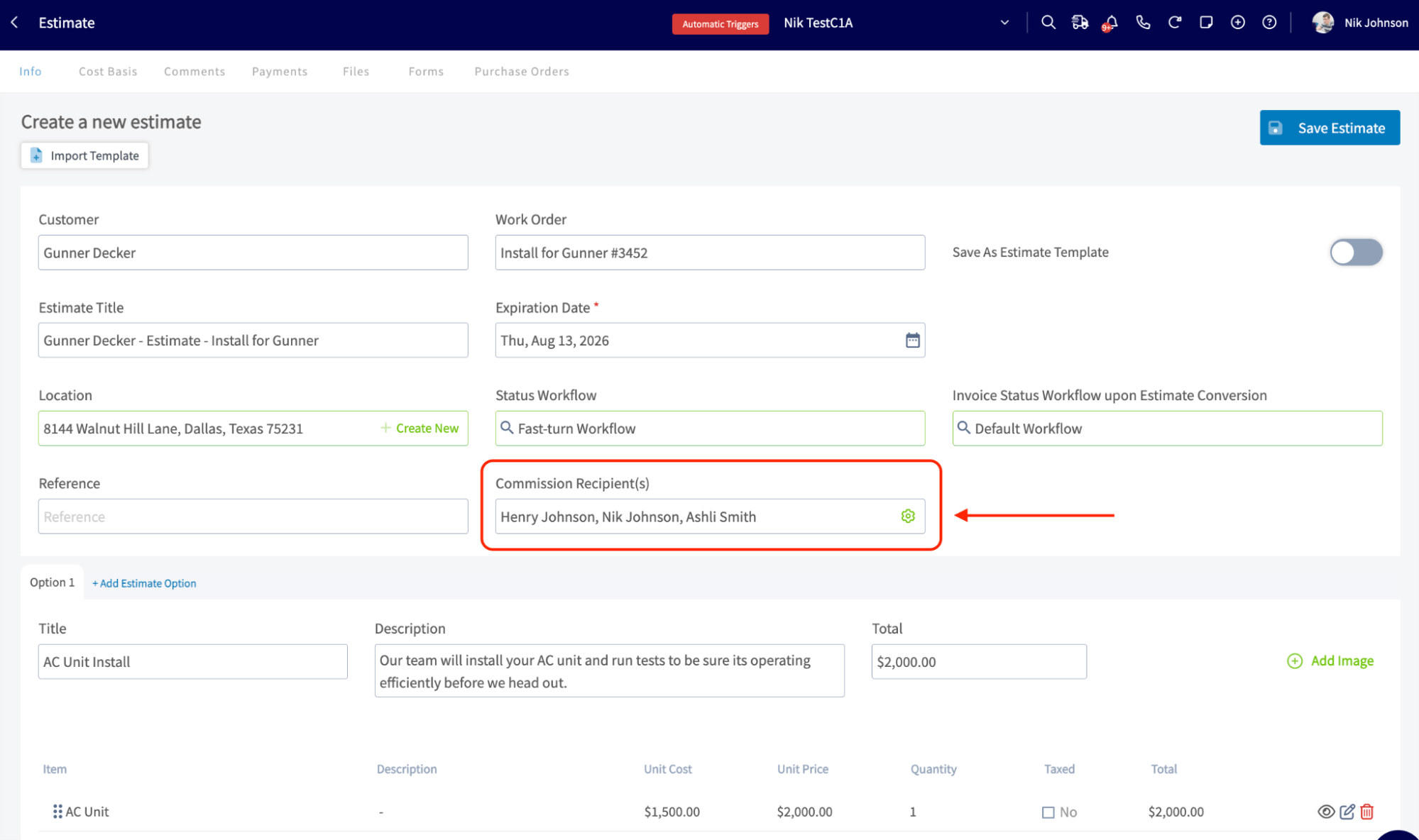
On any estimate or invoice, find the Commission Recipient(s) field. If more than one person is receiving commission, their names are listed and separated by commas. If there are too many to display, FieldPulse shows a “+X” count; hover over it to see everyone’s full name.- Select the gear icon next to Commission Recipient(s).
- Review each commission and its recipients in the Commission Configuration panel that opens.
- To add a recipient, select + Add Recipient, then choose By User to pick specific people, or By Role to assign by Job Assignees, Estimate Author, Invoice Author, or Customer Assignee.
- To add a new commission, select Add New Commission and either apply a template or fill in the details manually.
- To remove one person from a split, select the trash icon on their row.
- To delete an entire commission, select Delete in the top corner of that commission block.
Keep the math at 100%
Every commission split must add up to exactly 100%, and FieldPulse will not let you save otherwise. If you remove a recipient and it leaves commission unassigned, a warning shows how much is unaccounted for, and the Save button stays greyed out until it is fixed. You also see a warning if total commission is higher than the invoice’s margin. This does not block you from saving, because some businesses intentionally run a job at a loss, but it is worth checking before you move on.When commission updates automatically
FieldPulse keeps commission in sync with the record automatically until someone edits it manually.- If the Record Author changes, commission moves with them.
- If the Related Customer Assignee changes, the new assignee gets 100% of that commission going forward.
- If the Related Work Order Assignees change — a tech is added or removed — FieldPulse recalculates the split so it is always divided evenly among everyone currently assigned. Only users with commission eligibility turned on in their permissions are included.
Use role-based commission templates
Commission templates support the same role-based logic. Assign the Commission Recipient field by role — Job Assignees, Job & Site Visit Assignees, Estimate Author, Invoice Author, or Customer Assignee — so the same template works no matter who ends up on the job.- Build or edit a template, then select the gear icon next to Commission Recipient.
- Choose a role, or a specific person if you would rather fix it to one name.
- Apply the template from the Add Commission panel on an estimate, invoice, or their templates.
Existing commissions
Nothing changes for commissions you have already set up. Existing single-recipient commissions appear in the Commission Configuration panel as one commission block with that person allocated 100%. Leave it as is, or edit it to add more recipients and split it when you are ready.Review splits in the Cost Basis view
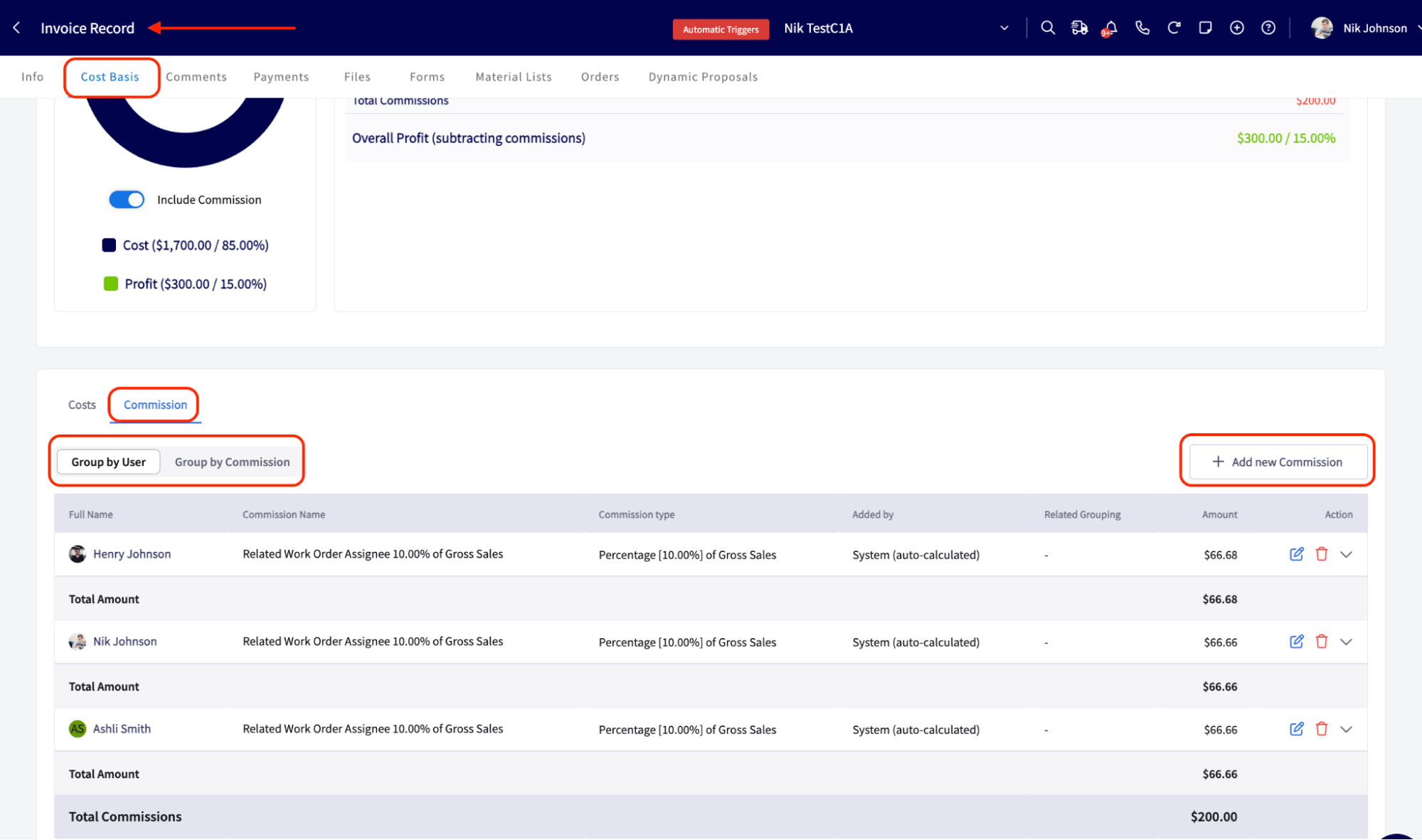
On any estimate or invoice record, open the Cost Basis > Commission tab and toggle between two views:- Group by User — each person and their individual commissions.
- Group by Commission — rows grouped by the commission itself, with each recipient’s split percentage and dollar amount listed underneath.
On mobile
Commission splitting works the same way in the FieldPulse mobile app. Tap the gear icon next to Commission Recipient(s) on an estimate or invoice to add, edit, or remove recipients, the same as on the web app.The Cost Basis page, with the Group by User / Group by Commission toggle, is web only. To review the full grouped commission table, use the FieldPulse web app.
Common issues
Related articles
- Setting Up Invoice-Level Commission
- How to Create and Use Commission Templates
- Commission Structures Overview
- How to Add New Users