
Creating a Material List
Material lists can be created from two places. To begin, select the Sales tab at the bottom of the screen, then click on Material Lists.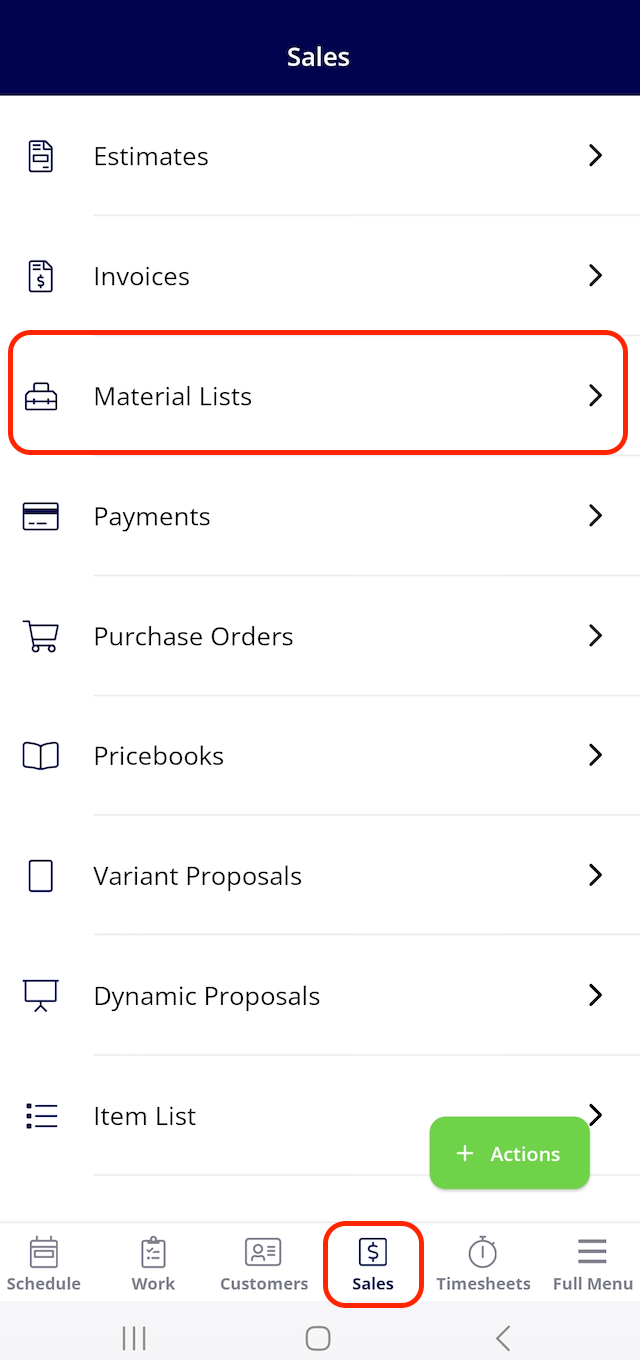
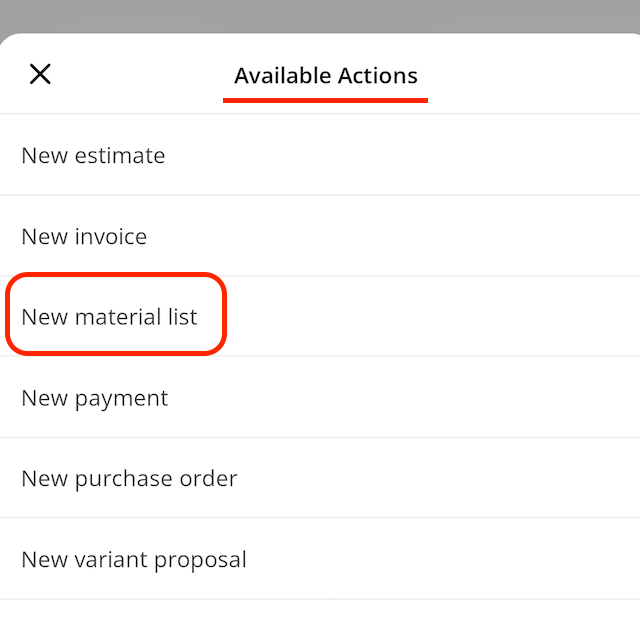
Material List Details
Links to Associated Records
Any records associated with this material list will be displayed here, and you can click on the blue hyperlinks to view the detailed information for each record (pictured in the 1st red box below).Adding Material List Items to a New Record
You have the option to quickly add items from your material list to a new record. You can choose from one of the one of the following records for these materials to be added to: Estimate, Invoice, Purchase Order, Material List, Job (pictured in the 2nd red box below).Adding Material List Items to an Existing Record
You also have the option to quickly add items from your material list to an existing record. You can choose from one of the one of the following records for these materials to be added to: Estimate, Invoice, Purchase Order, Job (pictured in the 3rd red box below). You can transfer all items or just a select few from your material list to a new or existing record. To specify which items to include, simply check the boxes to the left of each item name. By default, all items are selected, so be sure to uncheck any specific items, tools, or materials that you do not want to carry over (pictured in the 4th red box below).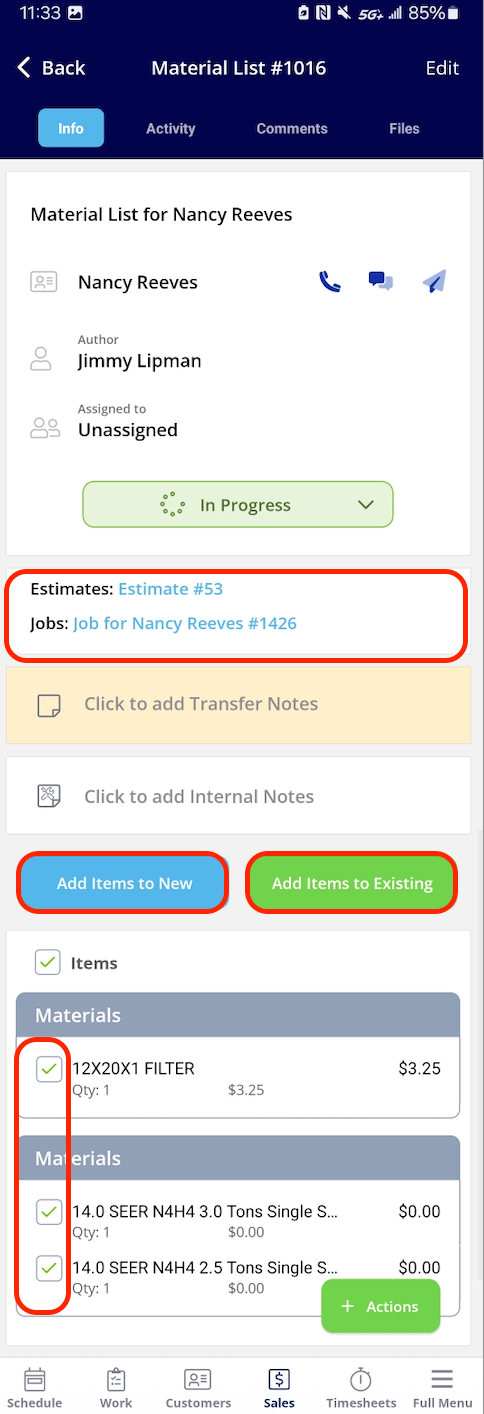
Viewing Material Lists Attached to a Job Record
Once on the job record, find the Material Lists tab at the top of your screen to view your associated material list.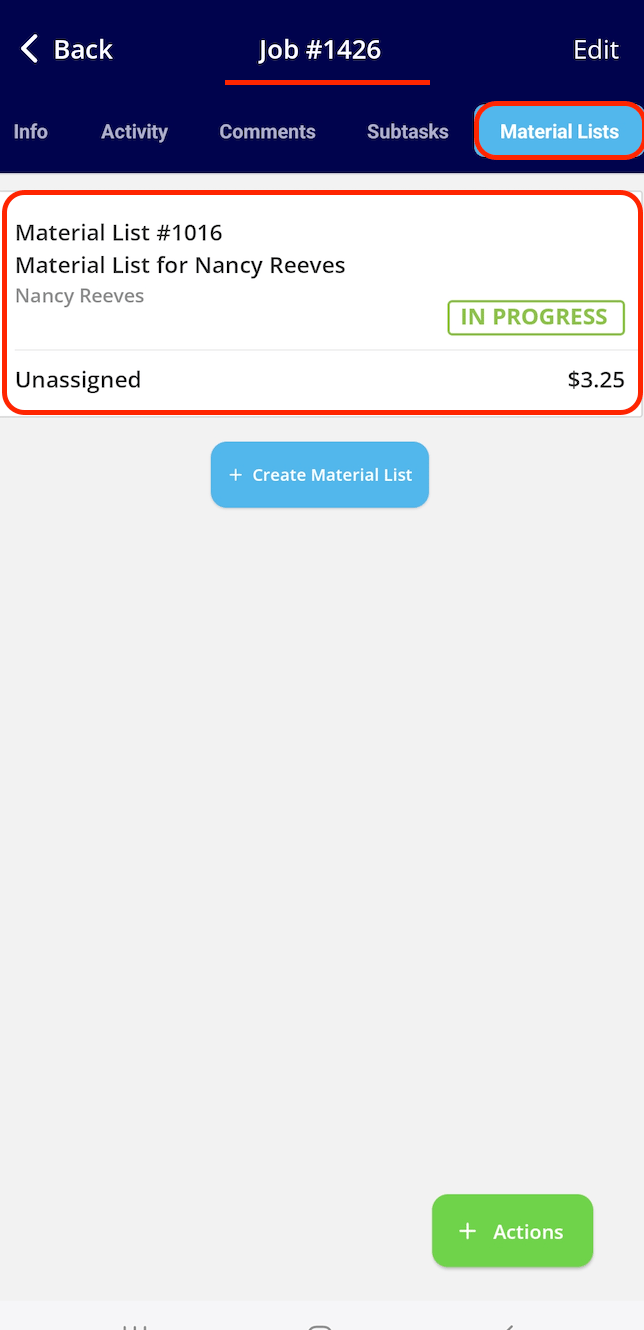
Pinning a Material List to a Record
Pin material lists on job or project records for quick access! Simplify navigation and quickly identify what materials you still need to load up for the day.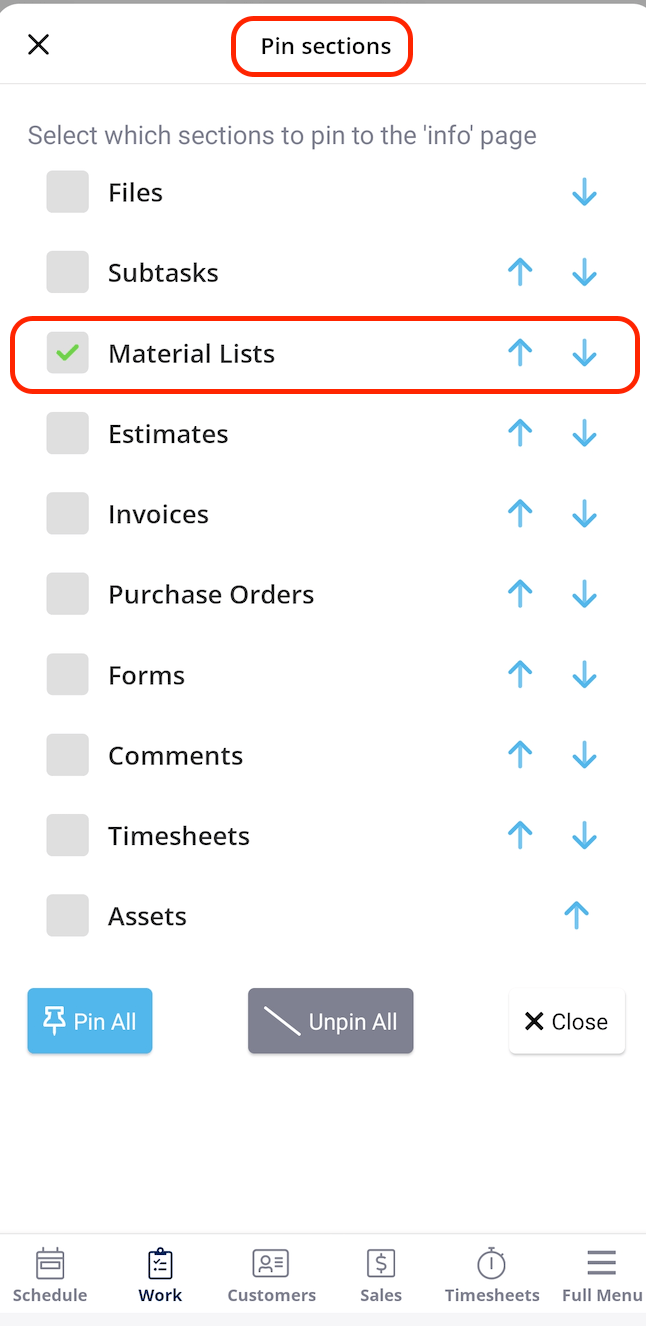
Viewing Material Lists
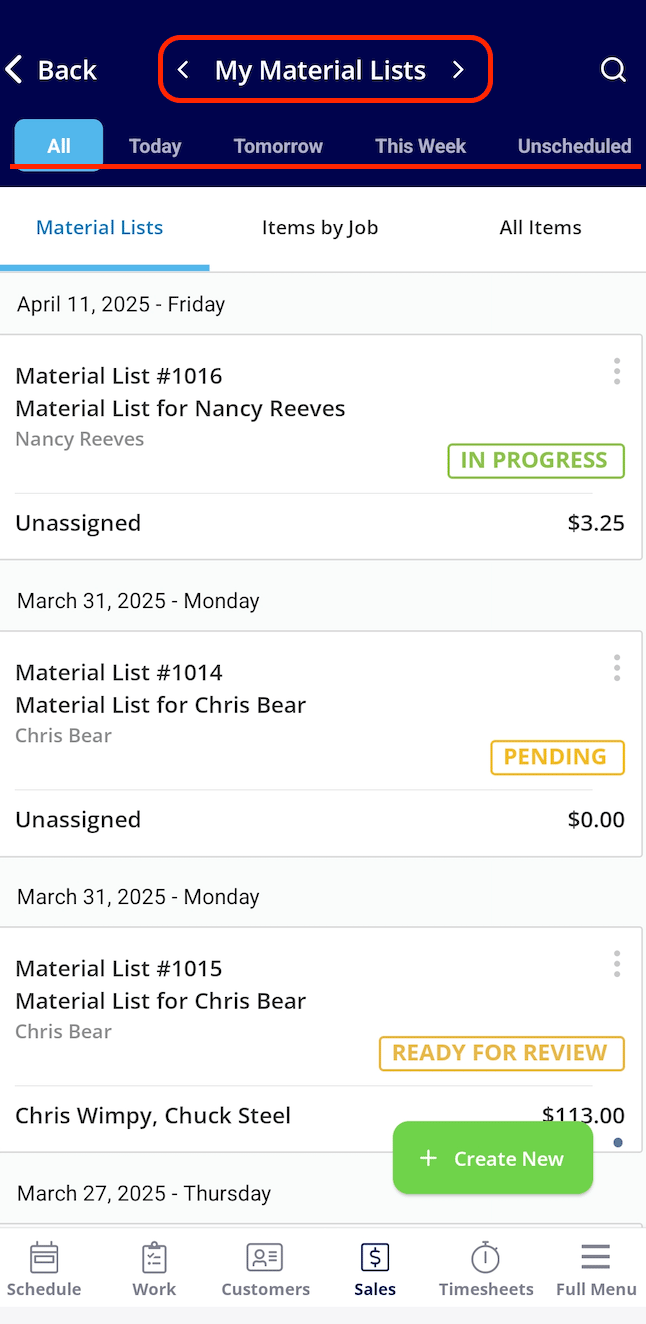
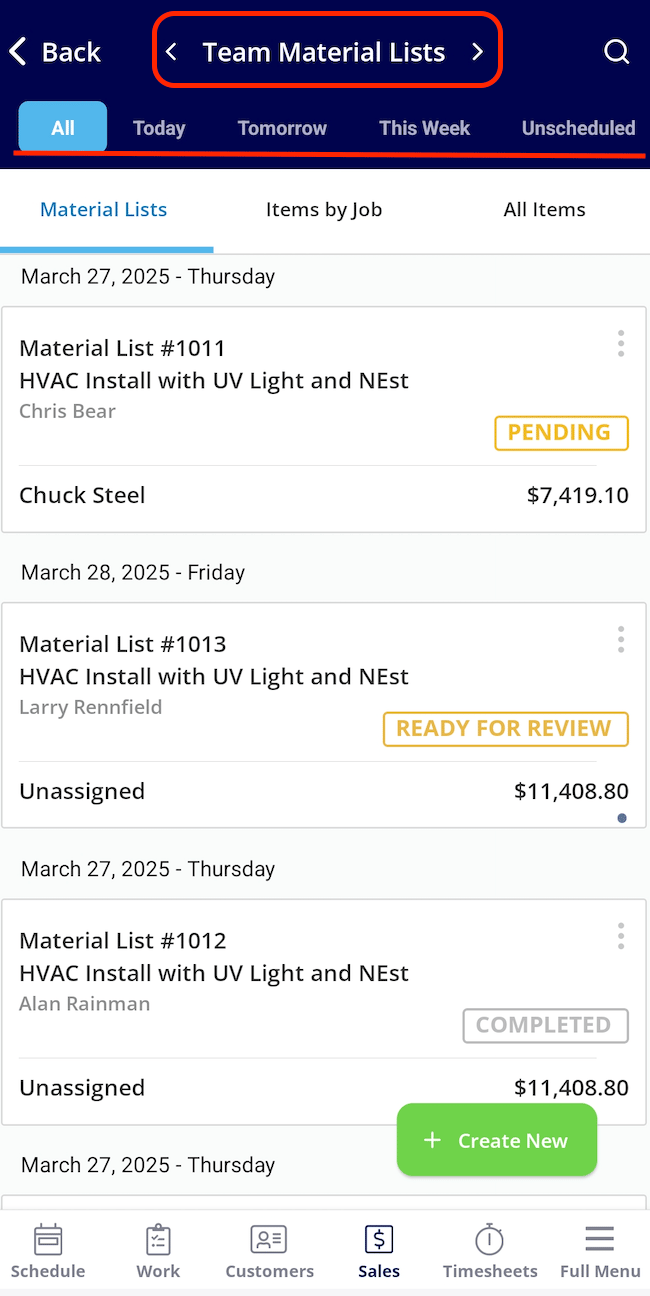
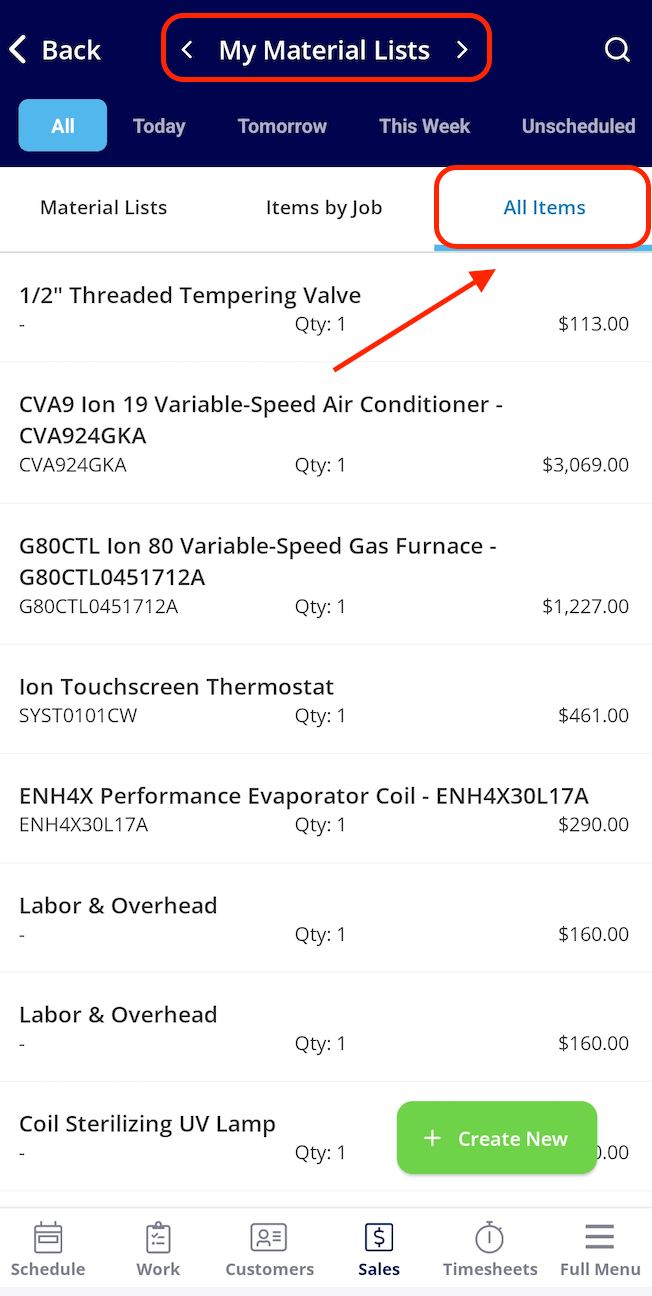
Below are the different ways you can view the material lists you have created.My Material Lists
Team Material Lists
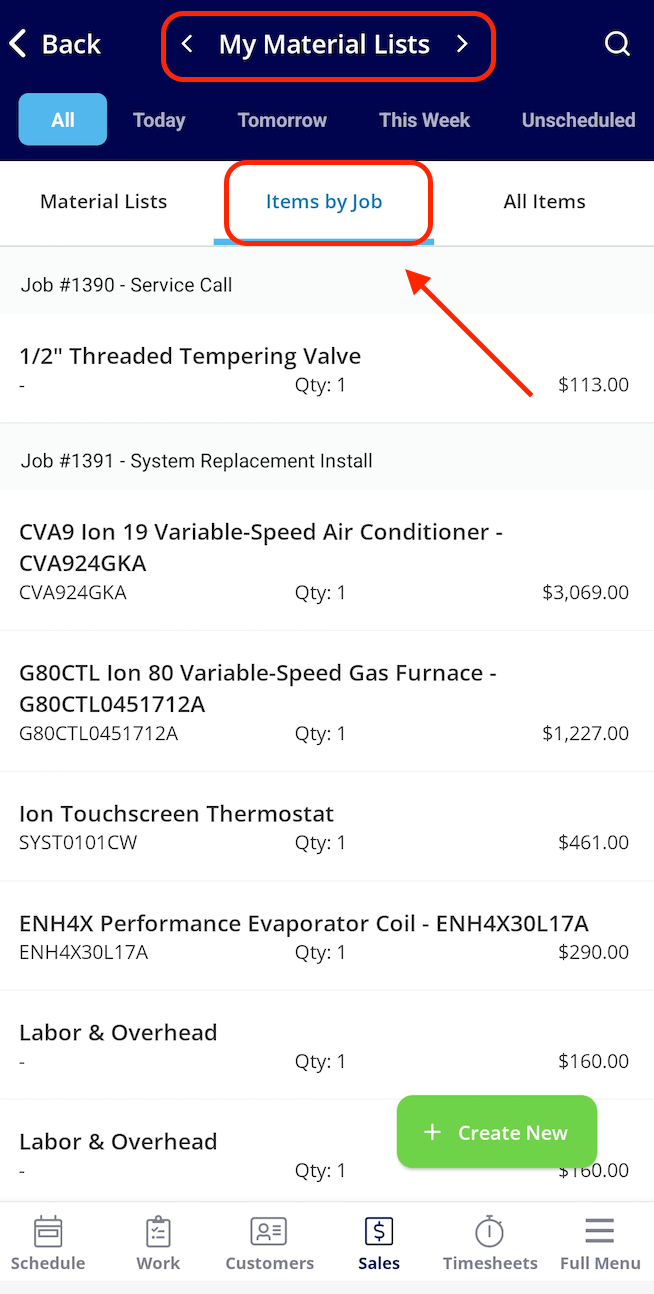
Items by Job
All Items
Have additional questions? Contact us at support@fieldpulse.com or use the chat feature in the bottom right corner of your screen.