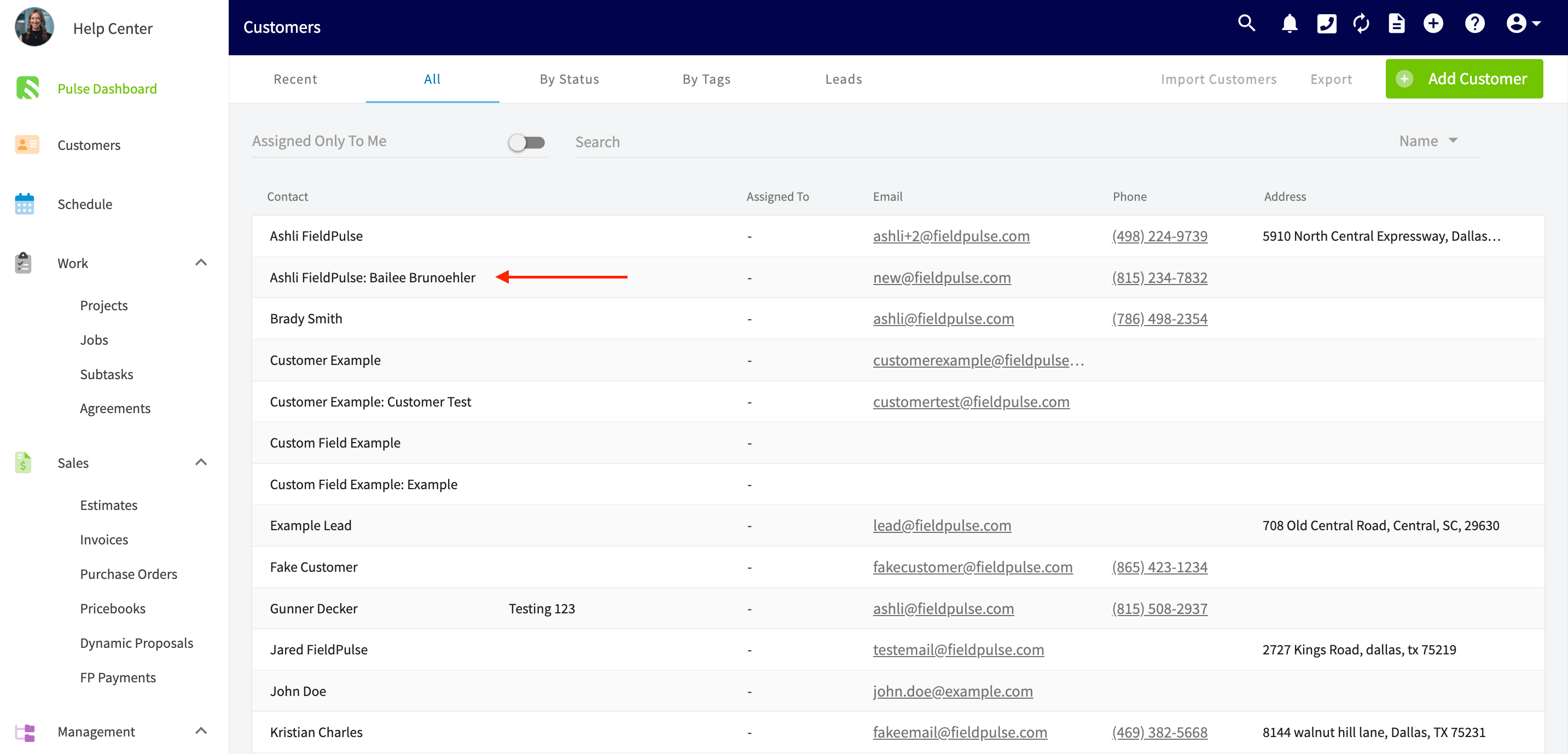
Who uses this: Creating a related customer creates a customer record — Create & edit Customers is Yes for Admins, configurable for Team Managers and Service Agents, and No for Limited Agents. Availability: All regions.When one customer has multiple locations that you service, you set that company up as a Parent Customer and set its locations up as Related Customers. Every location stays organized under one central customer, and you still set up individual jobs for each location.
Overview
Related customers are separate customer records linked to one parent customer record — a linked location is also called a Child Customer. You open the parent customer’s Related Customers tab and either create a new customer there or link a customer that already exists. Use related customers when a single company has several locations you service separately — for example, a property management company with buildings at different addresses. Related customers are not the same as a multi-location customer. Related customers are separate customer records linked under a parent, and each one still gets its own jobs. A multi-location customer is one customer record with additional locations added to it. To keep several addresses on a single record instead, see How to Manage Multi-Location & Multi-Contact Customers.Video walkthrough
Watch the related customers walkthrough to see the process in FieldPulse. The written steps below cover the same ground.Before you begin
- Create the company you want to use as the parent, if it isn’t in FieldPulse yet. See How to Create a Customer.
- Decide whether each location is a brand-new customer record or a customer record you already have. The Link Customer option only lists customers that already exist in your account.
On web
Open the parent customer’s record
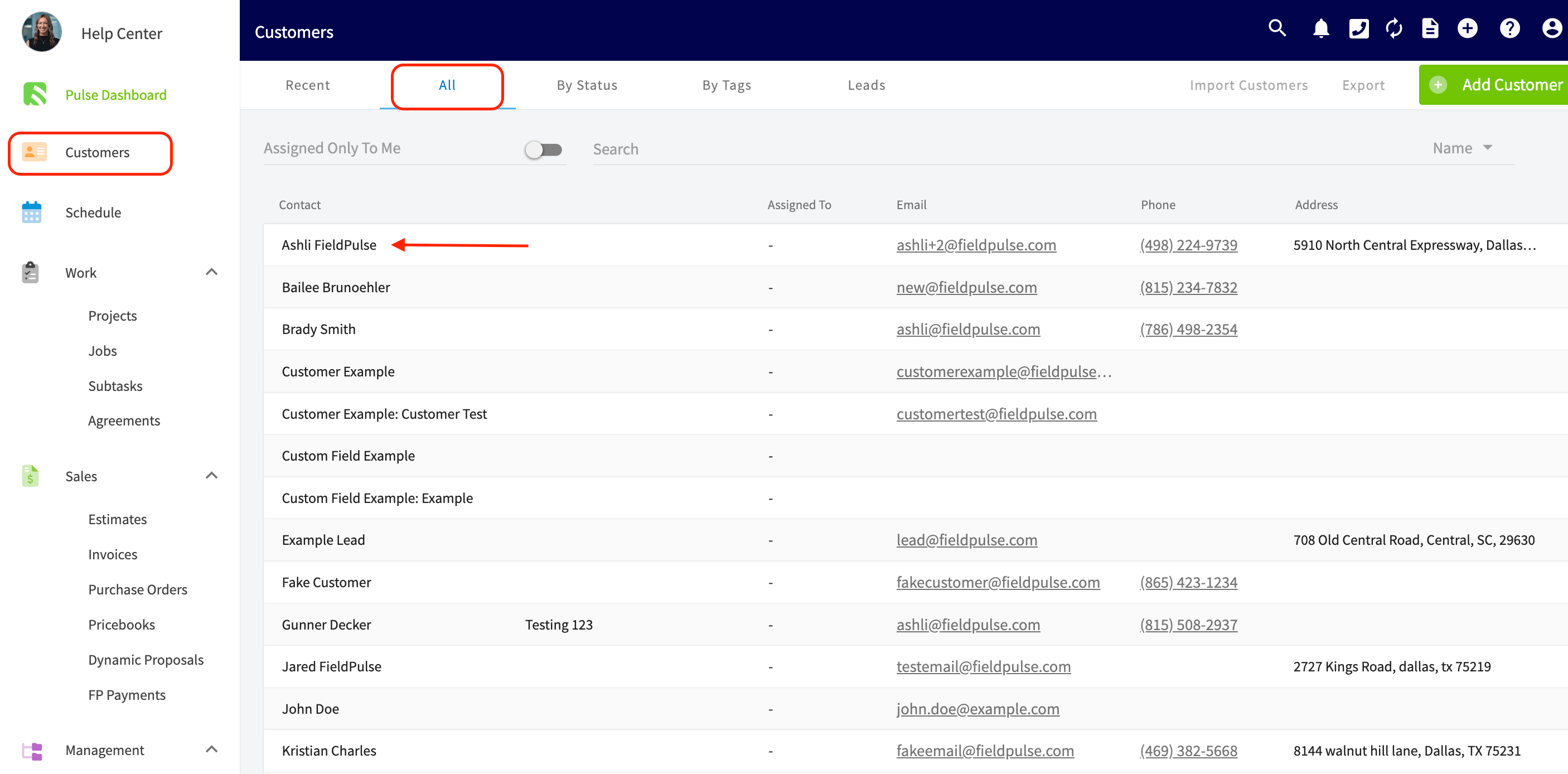
- Select Customers in the left menu.
- Select the company you want to set up as the parent customer.
Create a new related customer
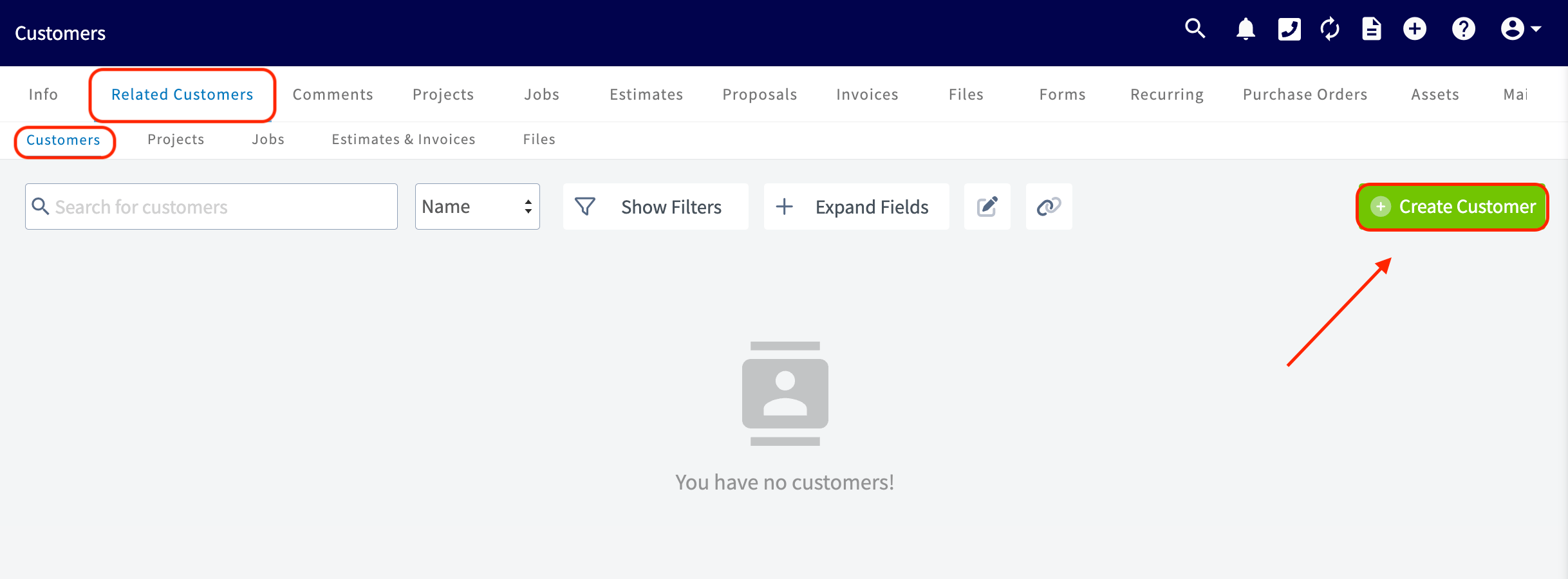
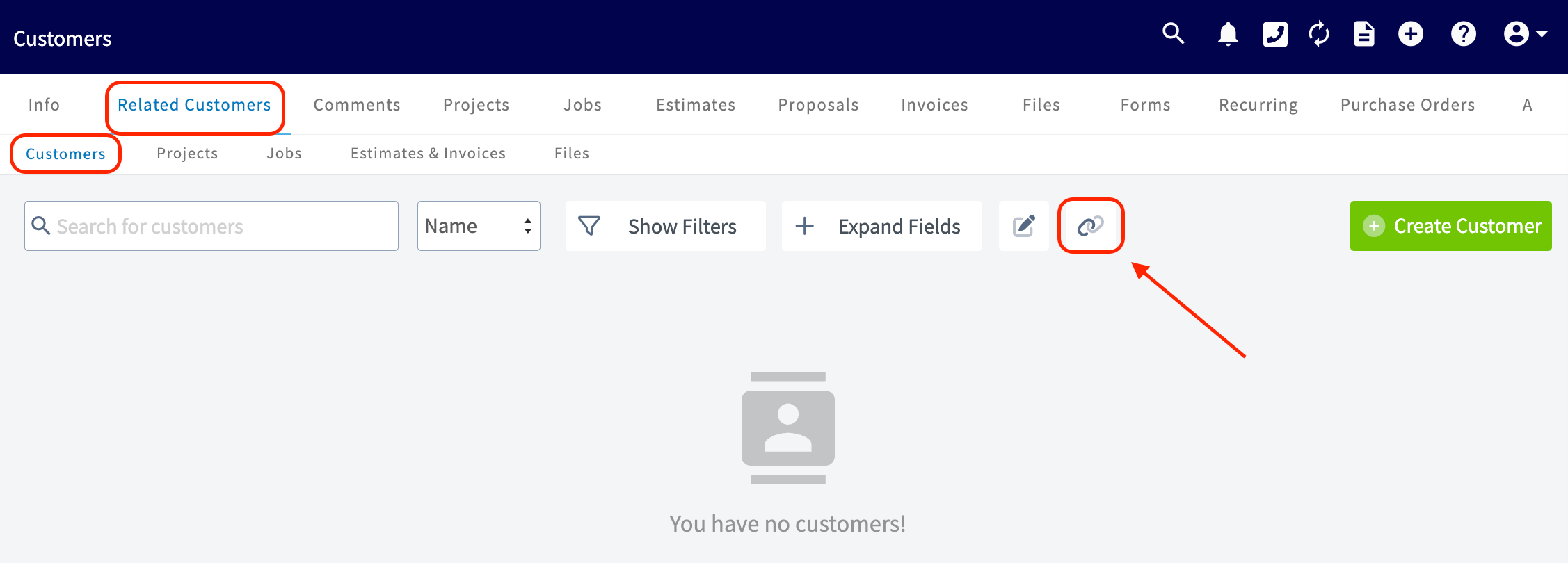
- On the parent customer’s record, select Related Customers in the header. The Customers sub-tab lists the locations linked to this parent, alongside sub-tabs for Projects, Jobs, Estimates & Invoices, and Files.
- Select Create Customer to create a new customer that is linked to this parent customer.
Link a customer you already have
-
On the parent customer’s Related Customers tab, select the Link Customer icon — the chain icon to the right of Expand Fields.
-
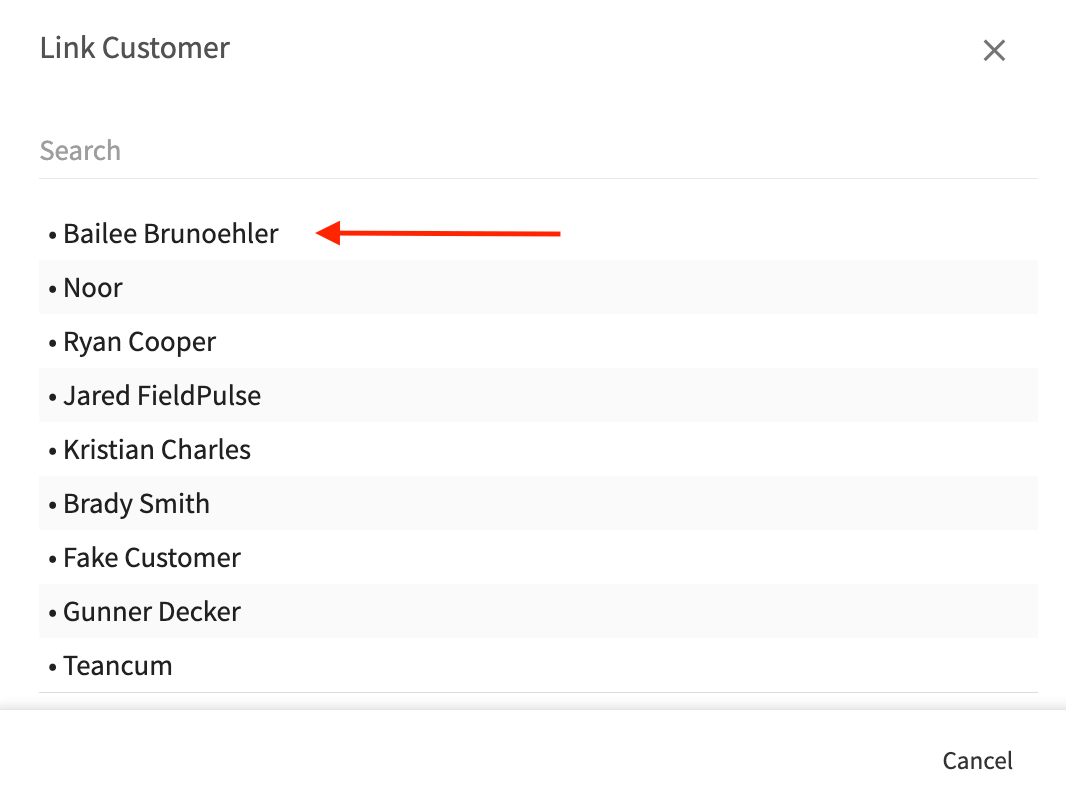
In the Link Customer pop-up, search for and select the existing customer you want to link to the parent.
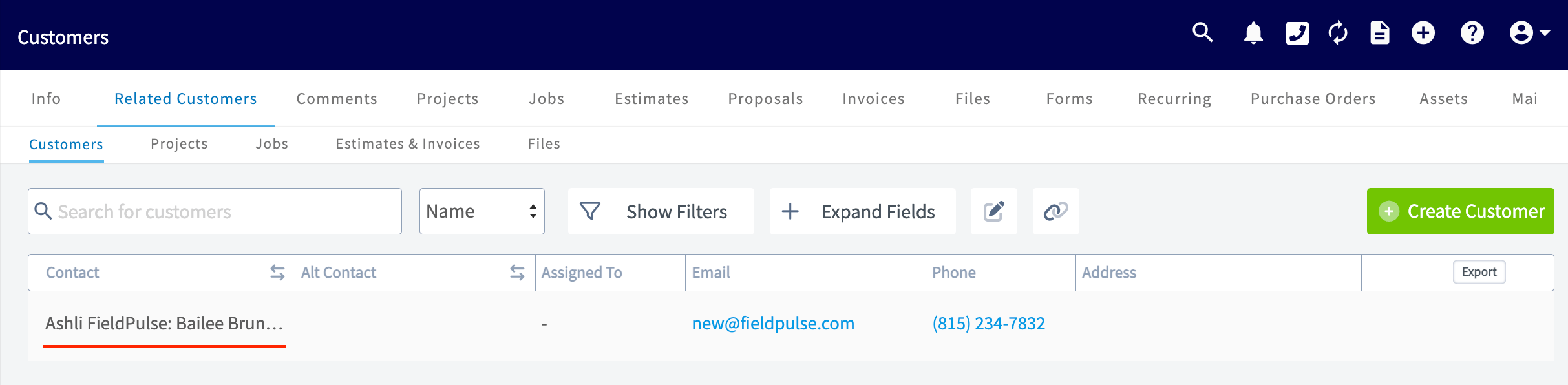
How related customers appear
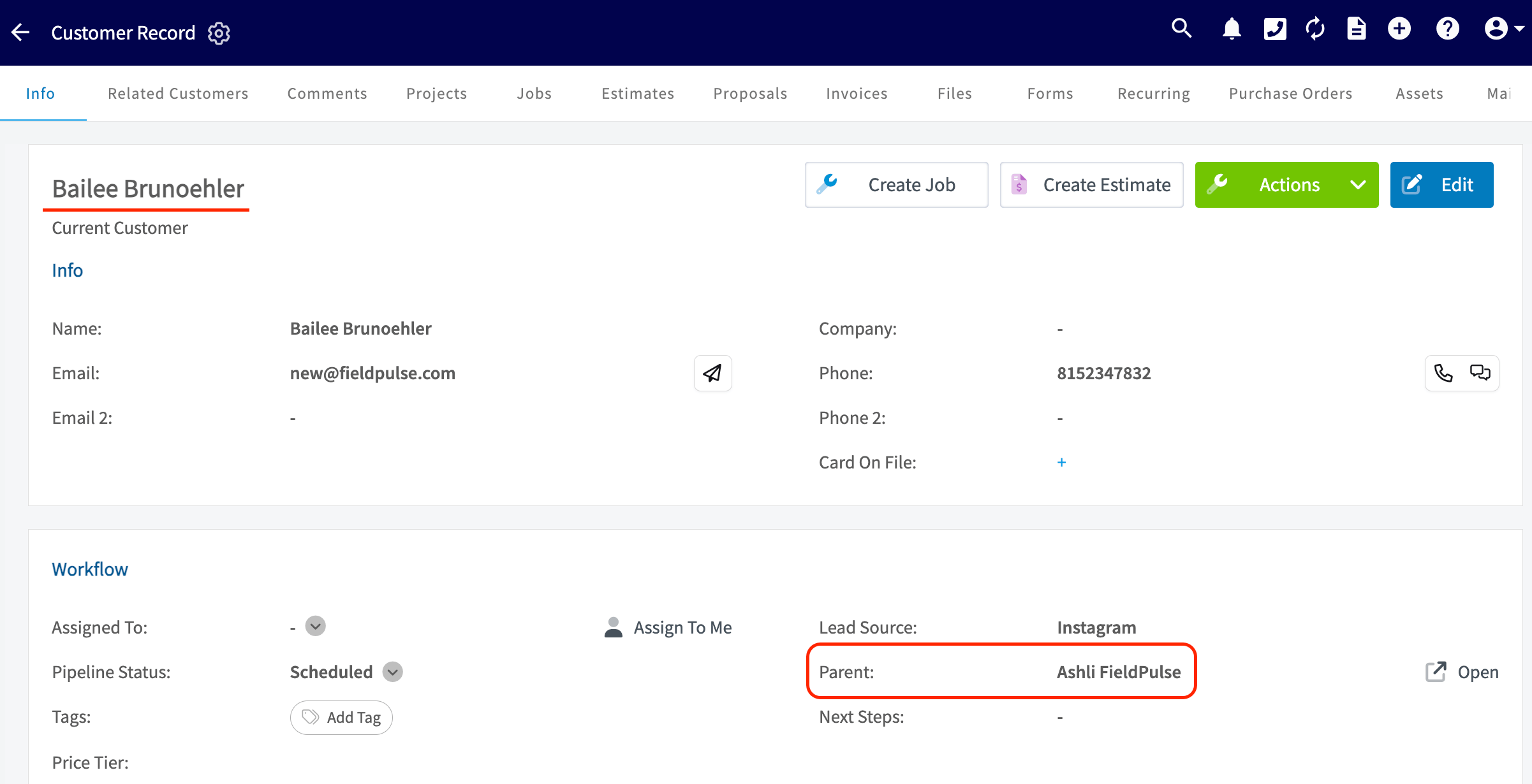
Once a location is linked, both records show the relationship. On the related (child) customer’s record, the Parent field in the Workflow section names the parent customer, with an Open link that takes you to the parent record.