Who uses this: Roles with the Create & edit Customers permission — Admin, and Team Manager or Service Agent where it is configured; not Limited Agent. See User Roles and Permissions Details. Availability: All regions.A customer record is where FieldPulse stores a customer’s details, notes, and related records — jobs, estimates, invoices, and files — in one place. You need a customer record before you can create a job, estimate, or invoice for that customer, so creating the customer is the first step in customer management.
Overview
You create a customer record from the Customers tab in the FieldPulse web app, or from three different starting points in the FieldPulse mobile app. Either way you set the account details, add the primary contact, enter the address, and save. You can also create a customer while you are creating a new job, estimate, or invoice. The customer record tracks where the customer stands with your business through a status — current customer, lead, opportunity, or lost customer — so your team can see who to follow up with. Once the record is saved, you can attach jobs, estimates, invoices, notes, and files to it and edit any part of it at any time.Before you begin
- Set up your lead sources if you want to pick one while creating the customer. Lead sources are managed in Company Settings — see How to Track Lead Sources.
- Decide which pipeline statuses you use. FieldPulse provides a set of pipeline statuses, and you can customize your own in Company Settings — see Setting Up a Custom Sales Pipeline.
On web
Create the customer record
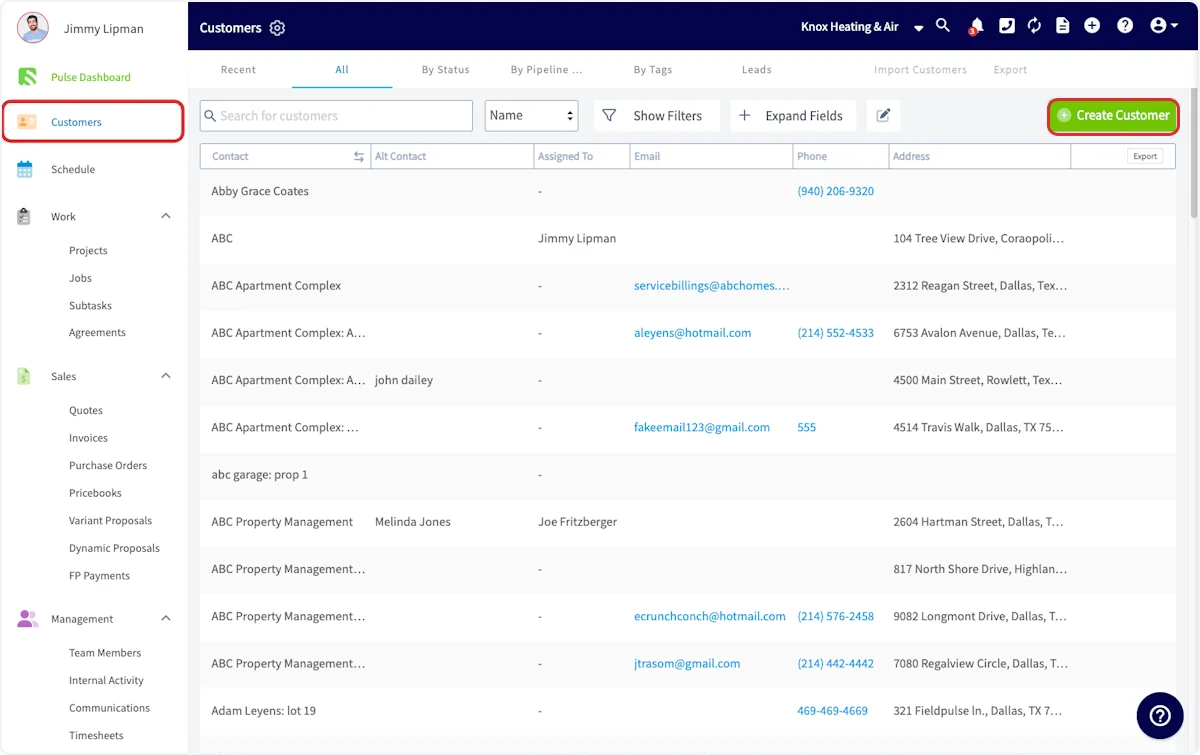
- Select Customers in the left menu.
-
Select Create Customer at the top right of the customer list.
-
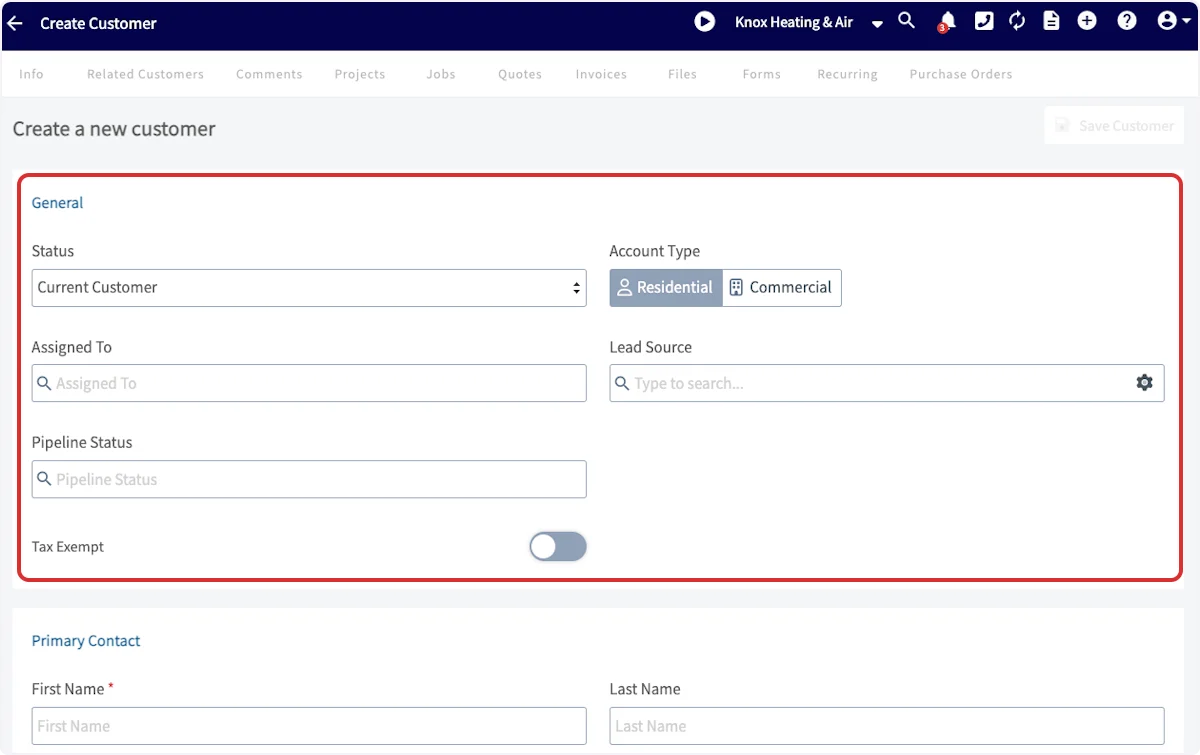
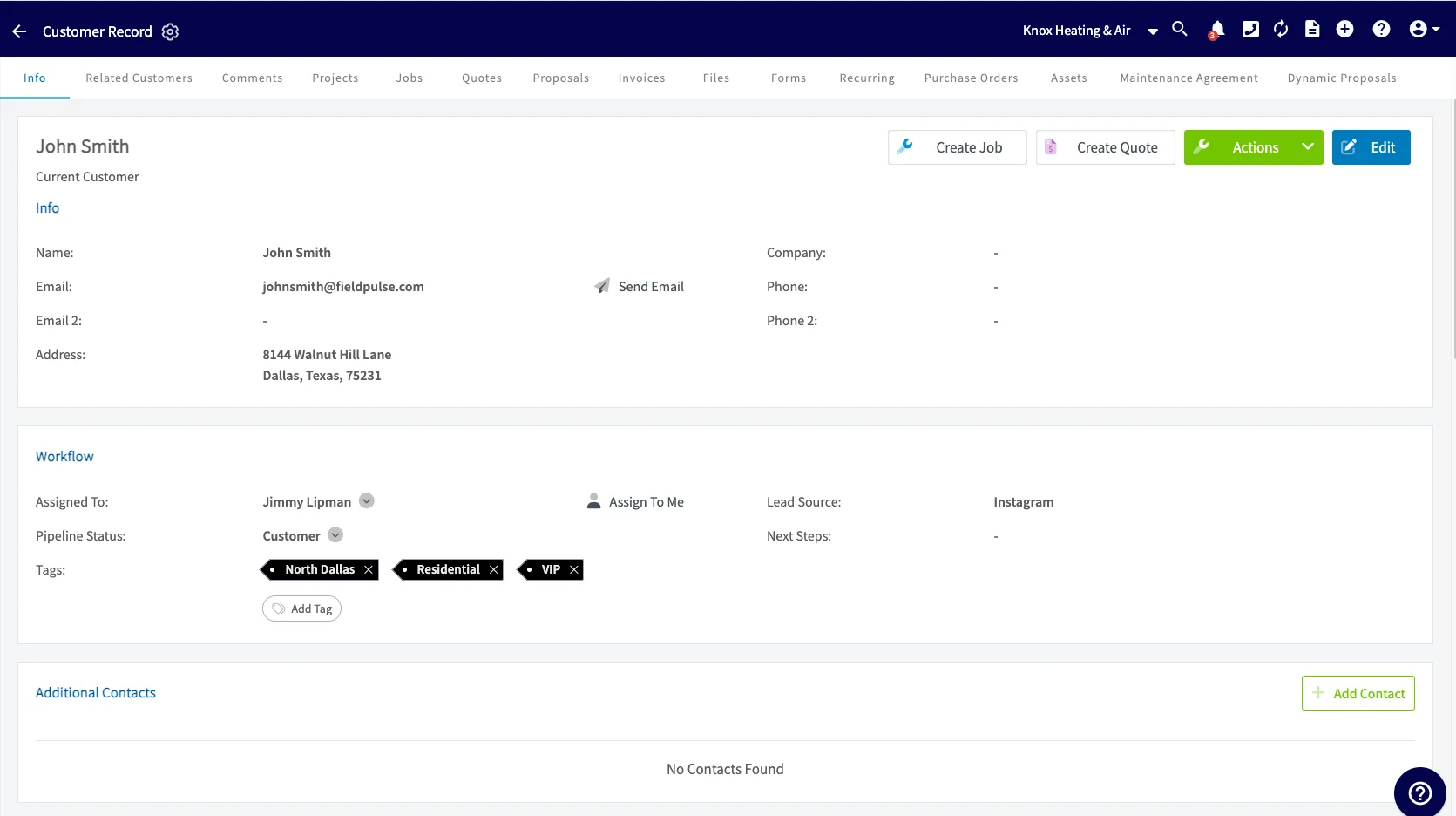
Complete the General section of the new customer record.
- Status — where the customer stands with your business. Update it as the relationship progresses.
- Account Type — Residential or Commercial.
- Assigned To — the user who owns this customer. Search or browse by team to select them. Any user in your company can be assigned, and each customer has one assigned user, so selecting someone new replaces the previous assignment.
- Lead Source — where the customer came from, if you track one.
- Pipeline Status — where the customer sits in your sales pipeline. Update it as the relationship progresses.
-
Tax Exempt — turn this on if the customer does not pay tax, so tax is applied appropriately on their estimates and invoices.
- Enter the Primary Contact details. FieldPulse recommends entering a first name, last name, email address, and phone number.
-
Select Alternate Email or Alternate Phone if that person has multiple email addresses or phone numbers, or Additional Contact to add another person to the record.
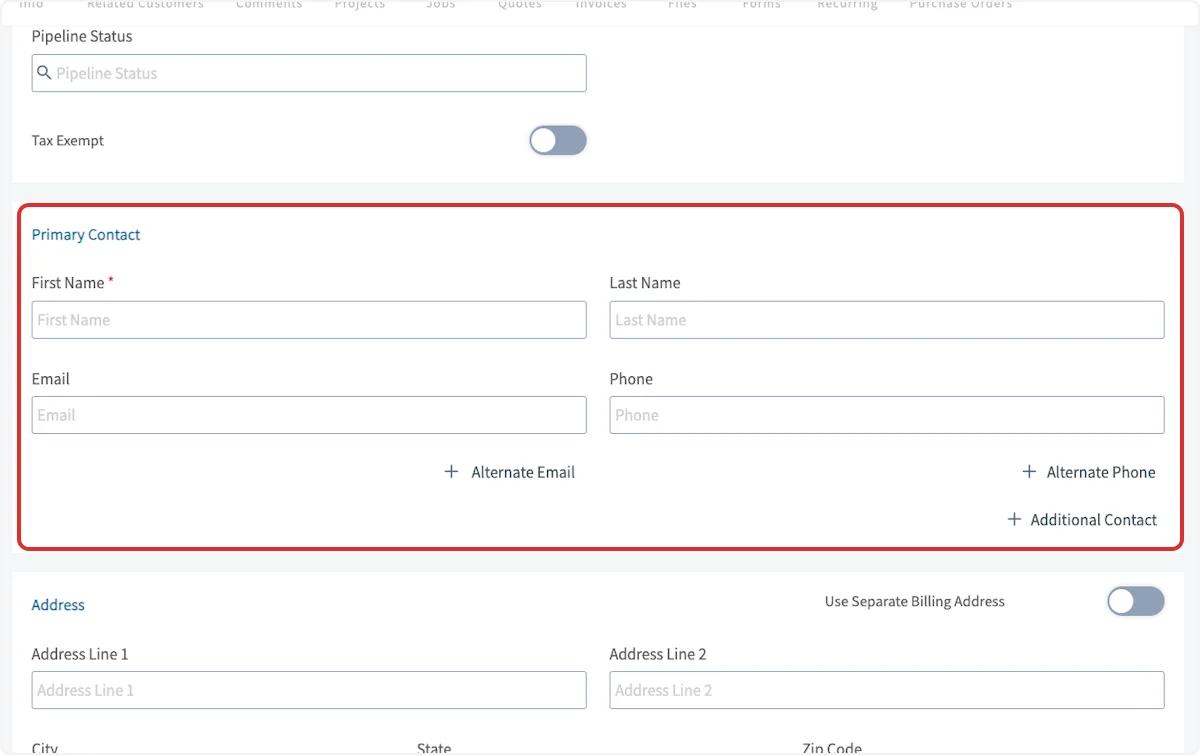 When you enter an email address, make sure the domain is lowercase.
 - Enter the customer’s address in the Address section. If you do not have a street address, enter GPS coordinates directly into Address Line 1.
-
Turn on Use Separate Billing Address if the service address and the billing address are different. Select Additional Location to add another address, and name each additional location to keep them organized.
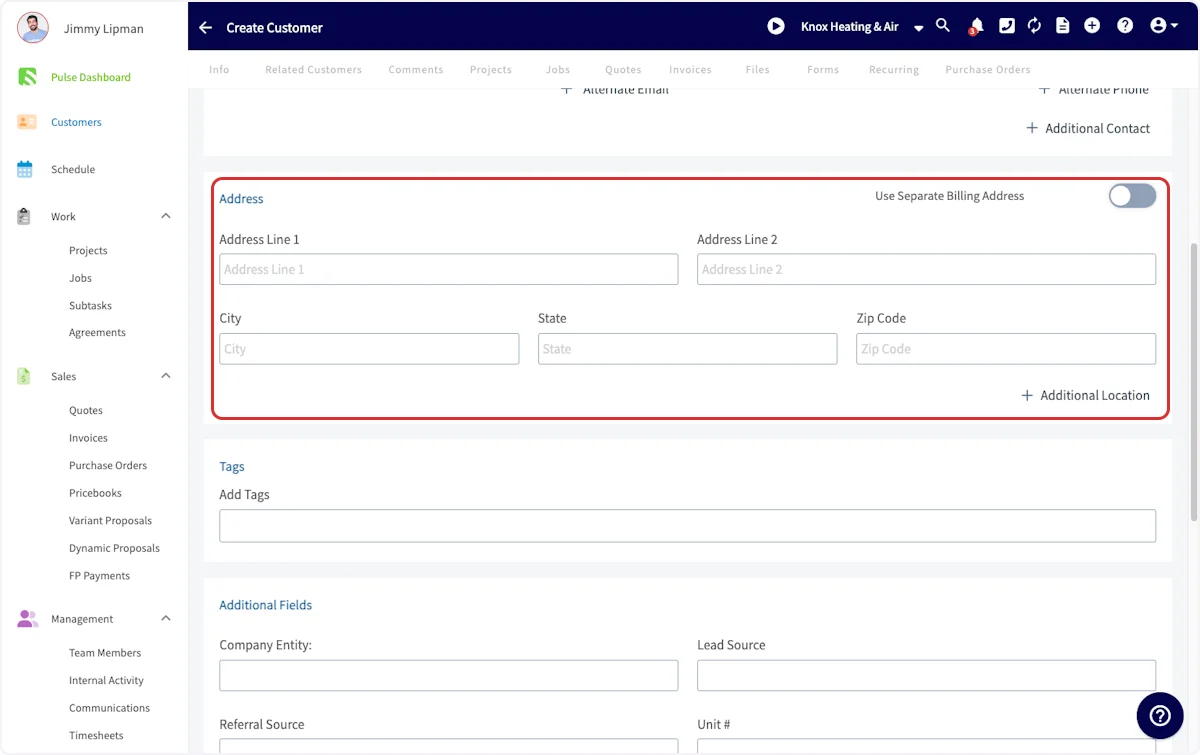
-
Add Tags to sort the customer by trade, service, or category. Type a tag and press Enter to save it — see How to Tag and Sort Customers.
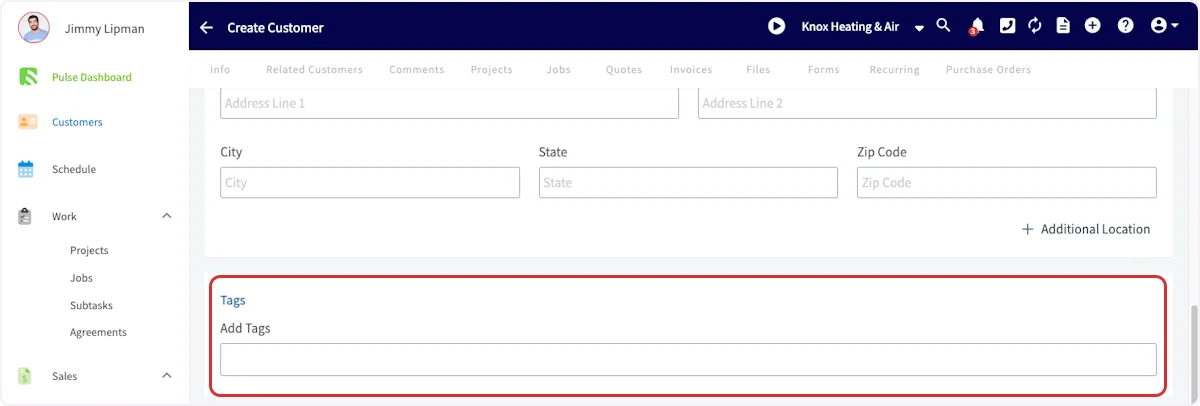
-
Add Notes and attach Files at the bottom of the record. Notes are internal — your customer never sees them.
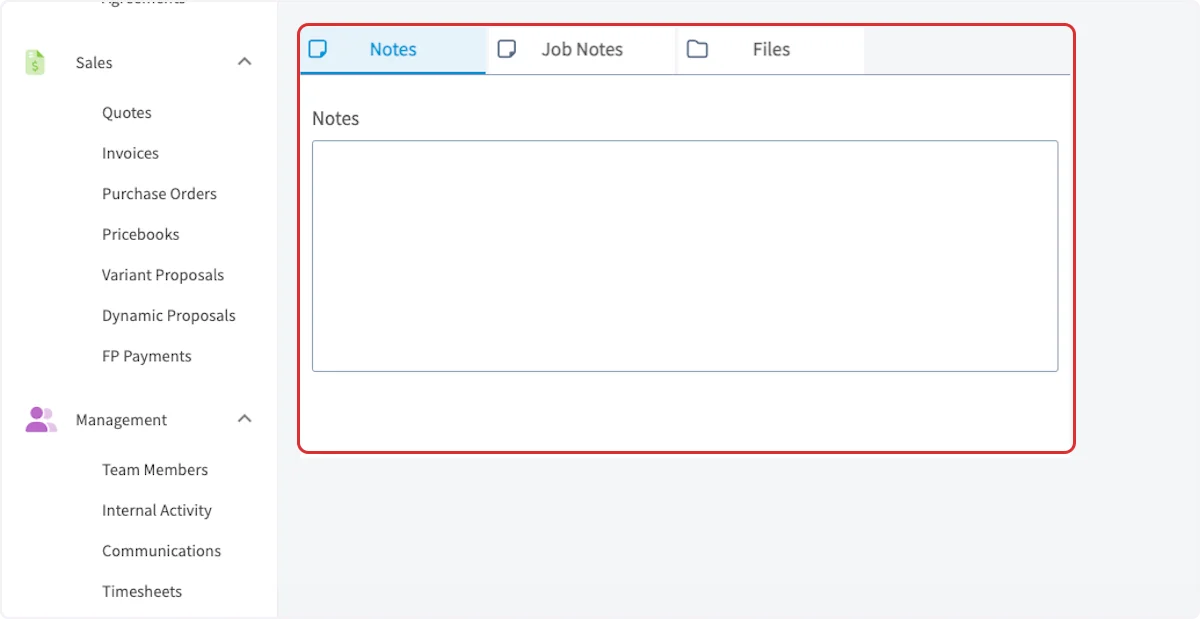
- Select Save Customer.
Video walkthrough: Creating a customer in the FieldPulse web app
On mobile
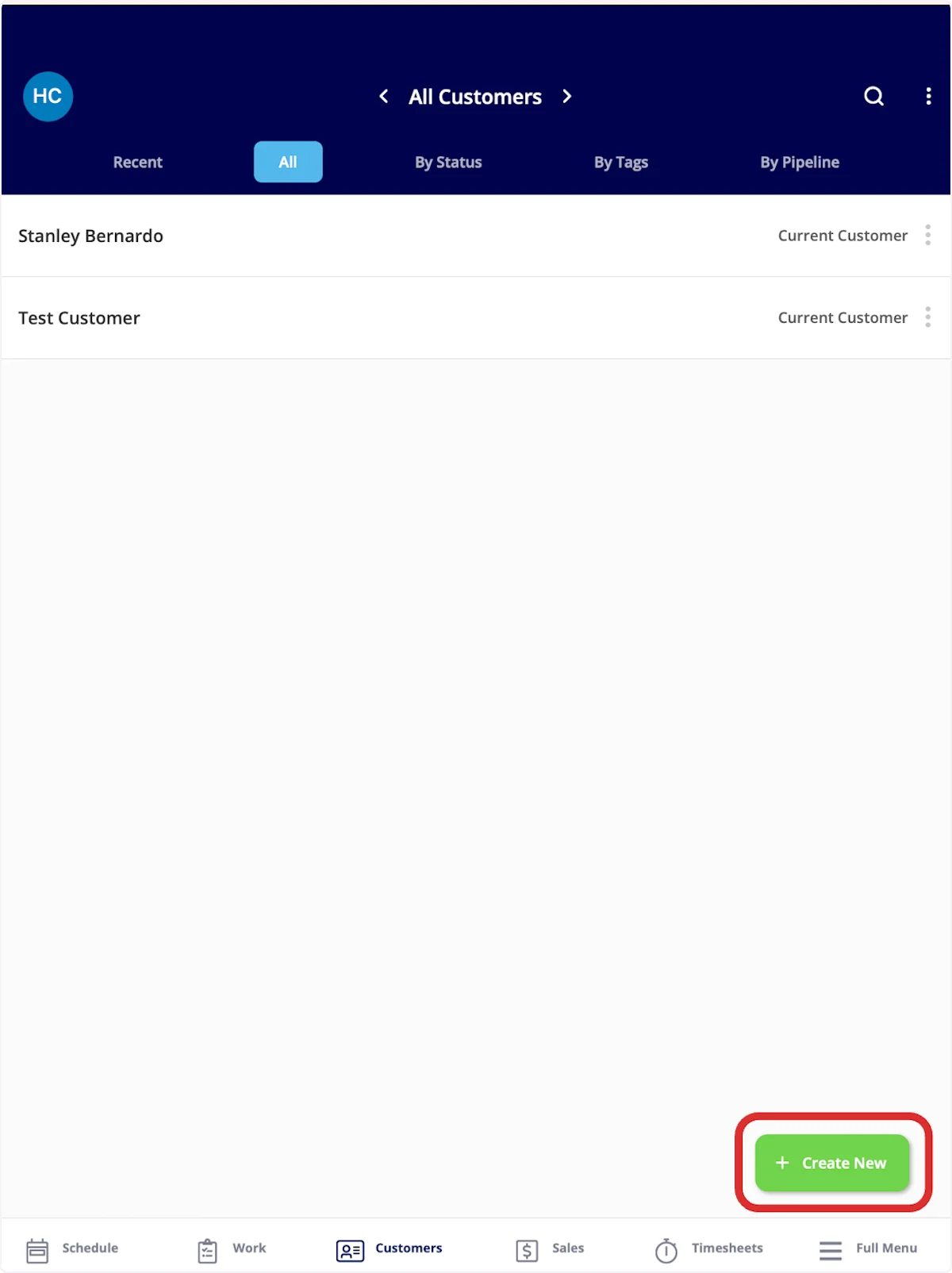
Choose where to start
You can start a new customer from three places in the FieldPulse mobile app. From the Pulse Dashboard — select Create Customer, or select Create New under Recent Customers.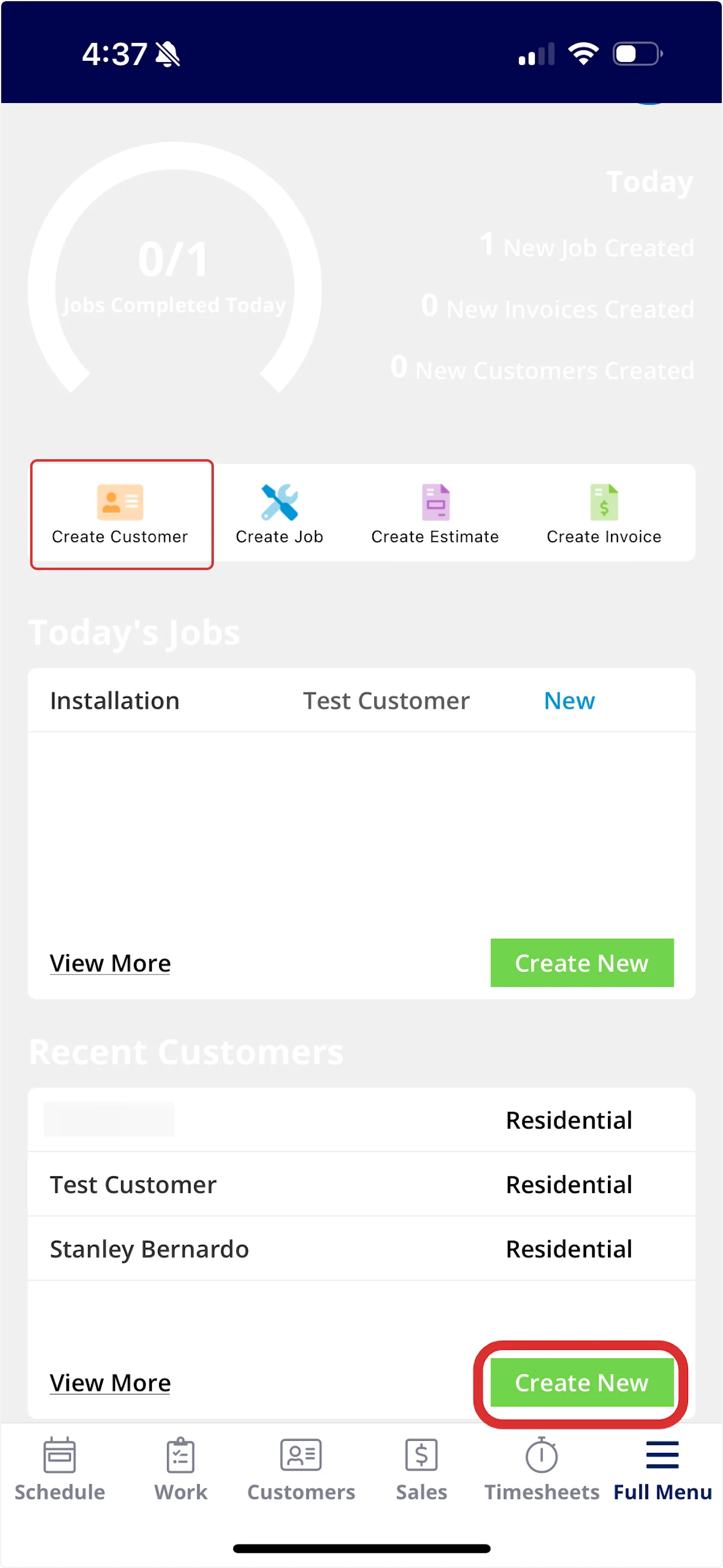
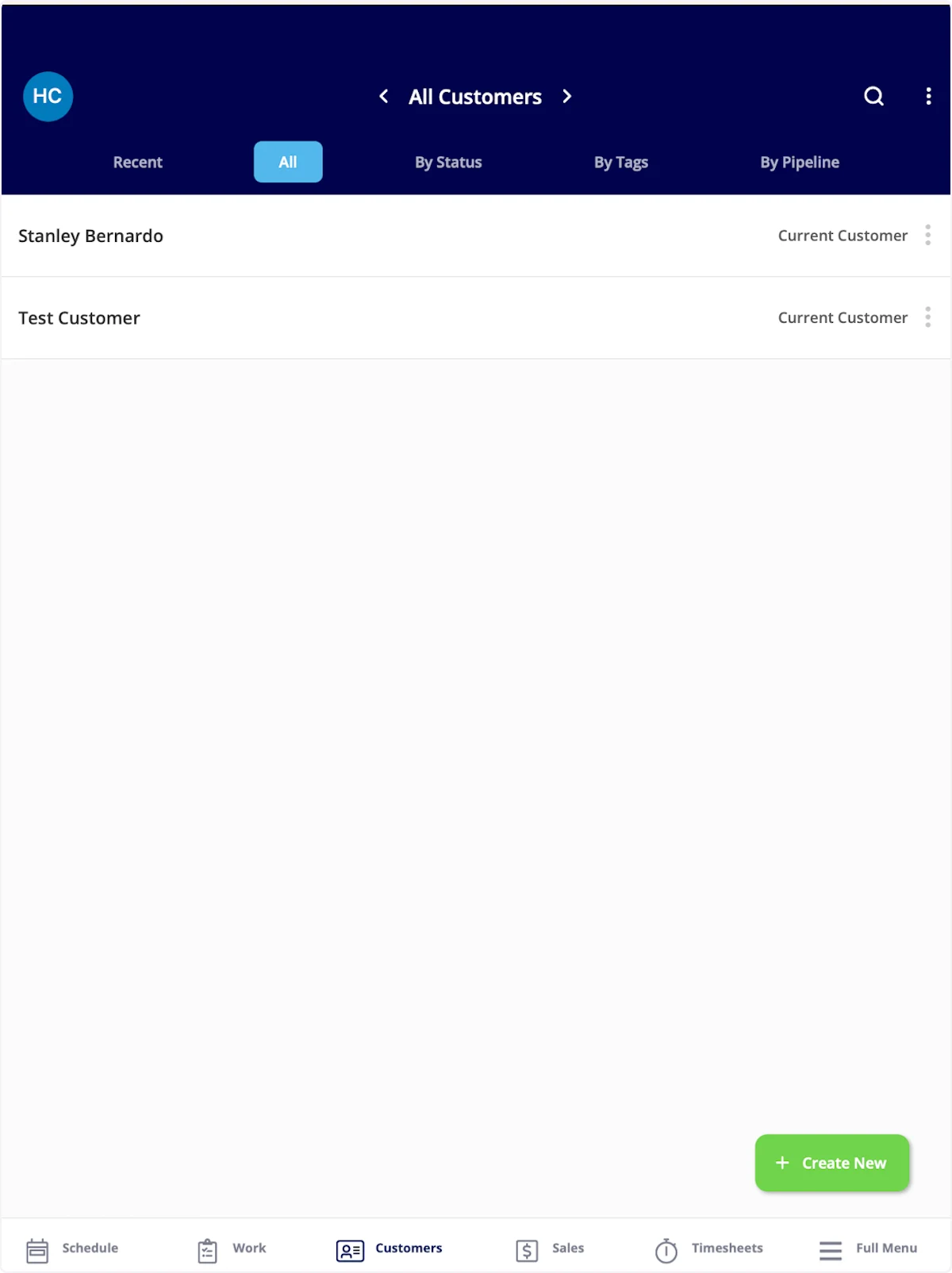
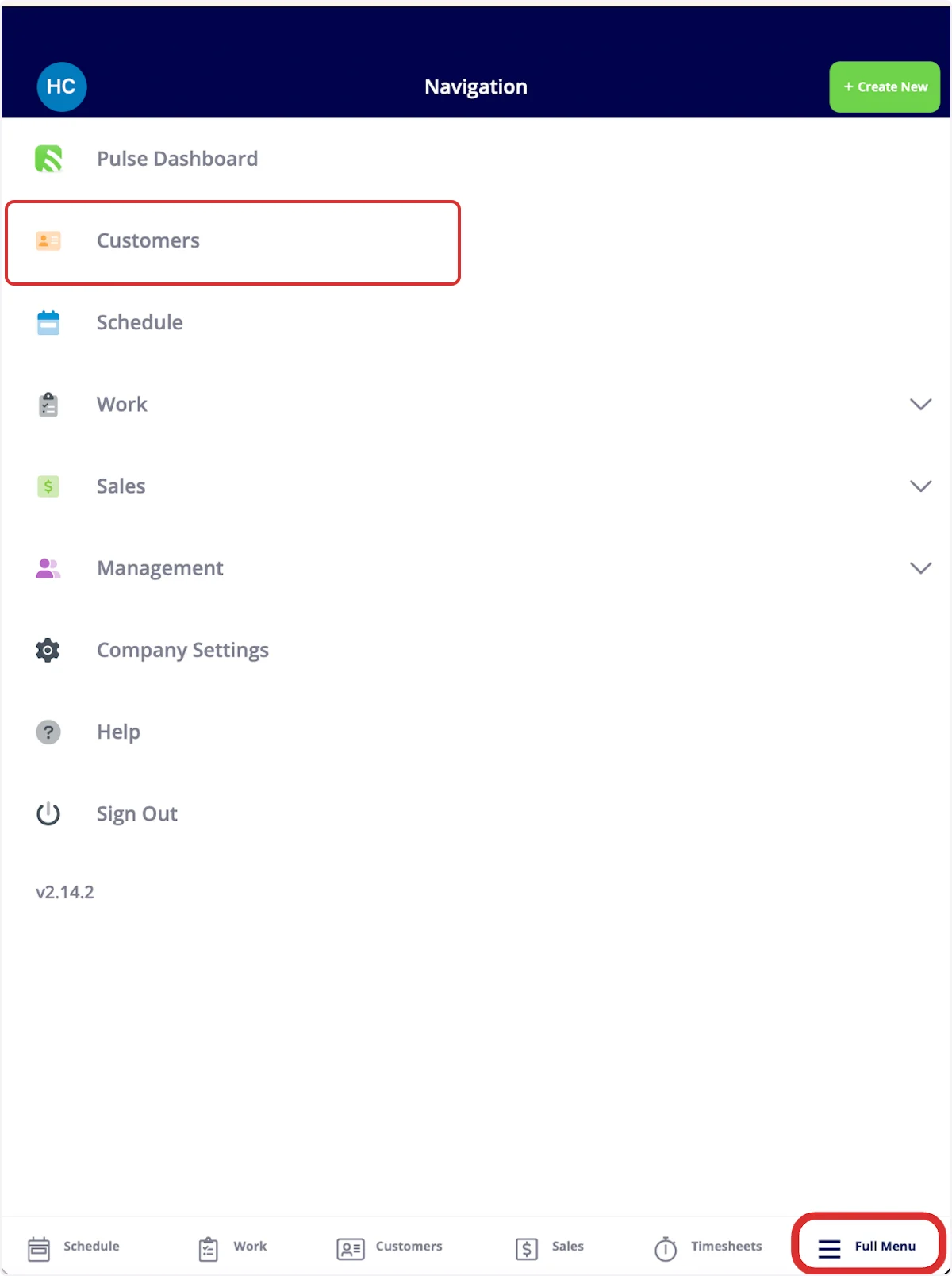
Enter the customer details
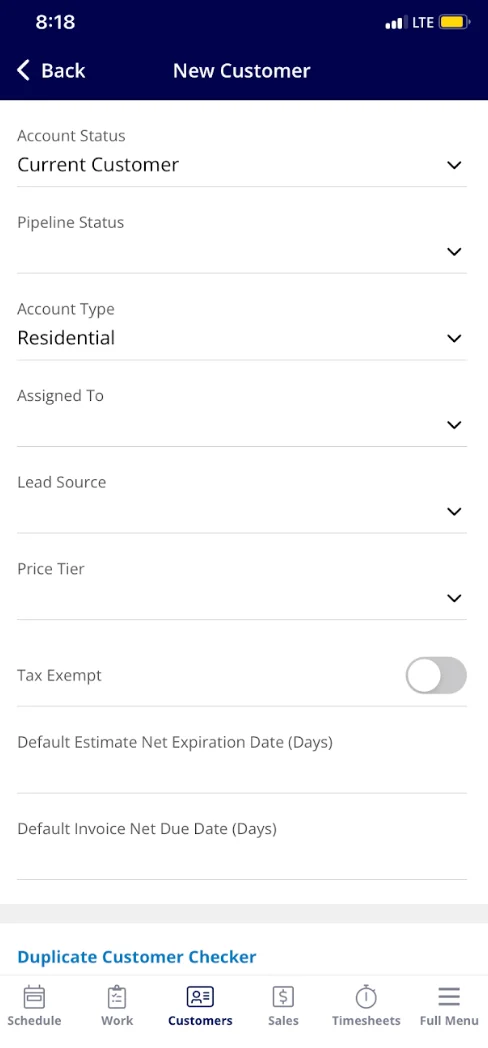
- Set the Account Status, Pipeline Status, and Account Type.
-
Assign the customer to a team member in Assigned To and set the Lead Source.
- Enter the Primary Contact information.
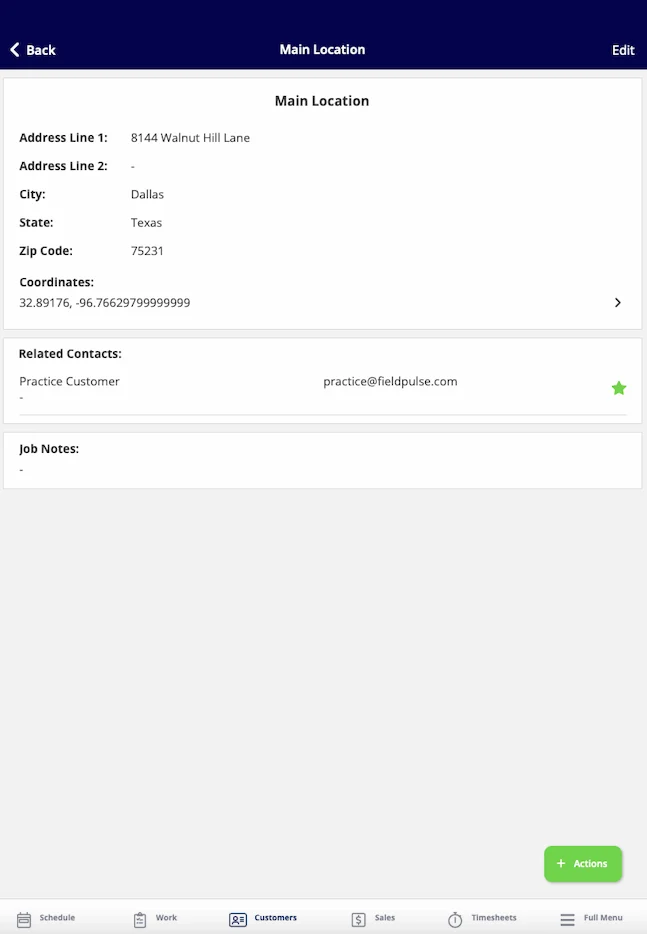
- Enter the customer’s address. You can enter GPS coordinates directly into Address Line 1 on the mobile app.
- Select Save in the top right corner.
Video walkthrough: Creating a customer in the FieldPulse mobile app
FAQs
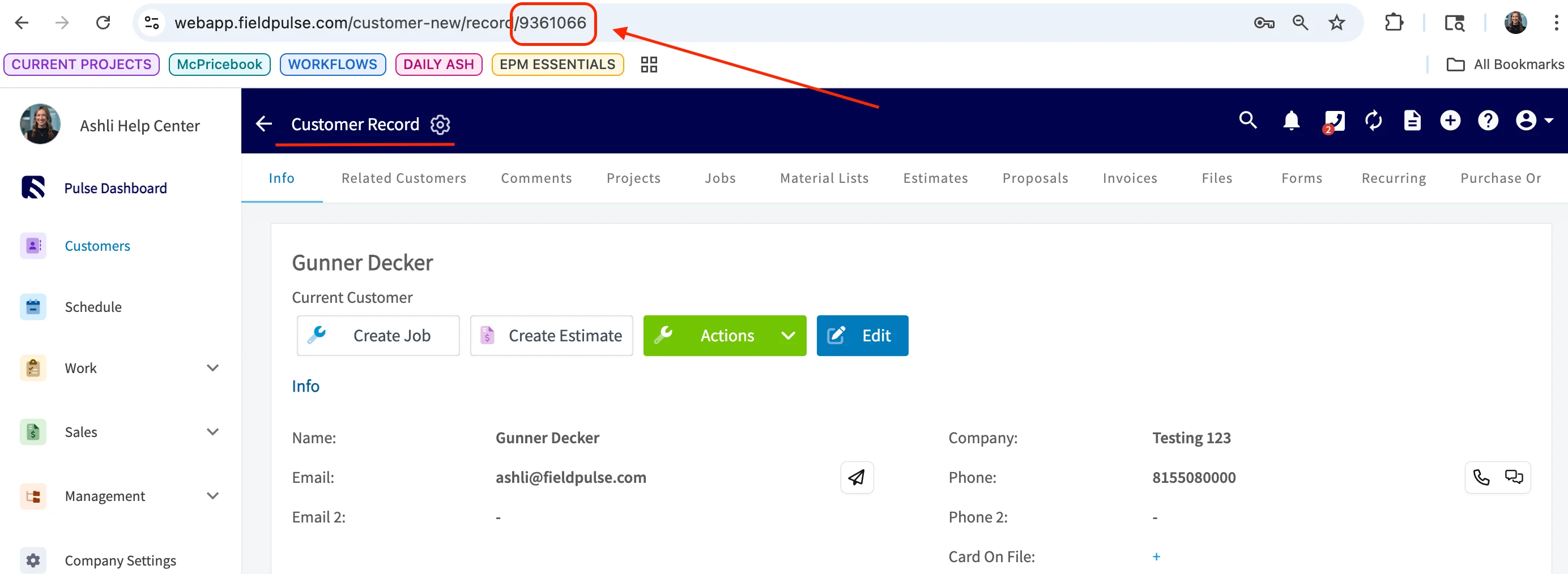
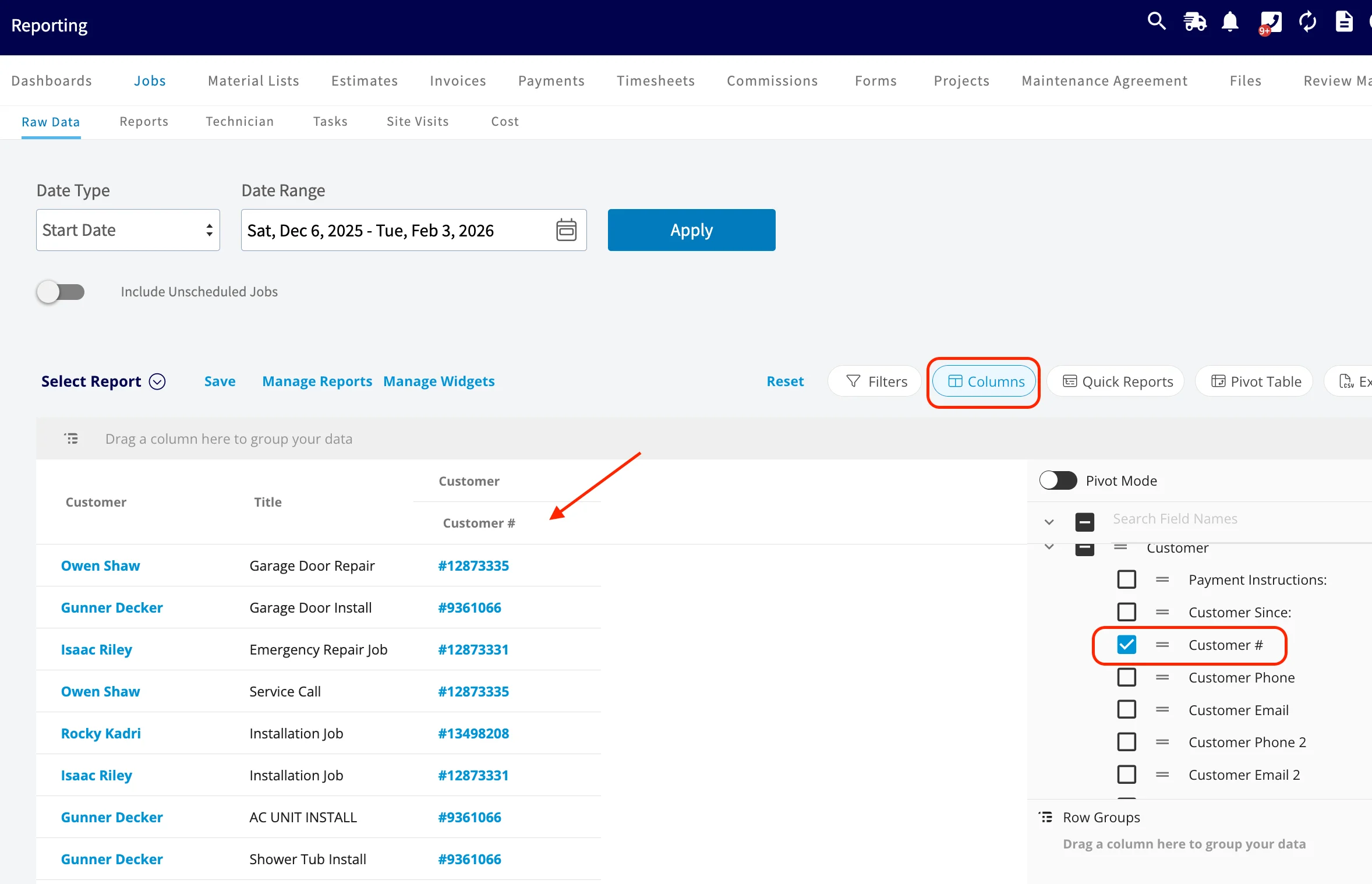
Is a unique customer ID assigned to each customer? Yes, though the ID is not shown on the customer record itself. You can find it in the browser address bar while a customer record is open in the web app, in the Customer # column that is available on every FieldPulse report, and in the customer export CSV you get from the Export button on the Customers tab or from Company Settings > Customers > Export Customers.