Overview

These widgets give you the logistical details you need like when and where the Job is, who else is assigned, and time tracked on the Job.
To learn how to add widgets to your Status Action Flow, click here.
ClearPath Scheduling and Team widgets shown on a job Status Action Flow

Widgets

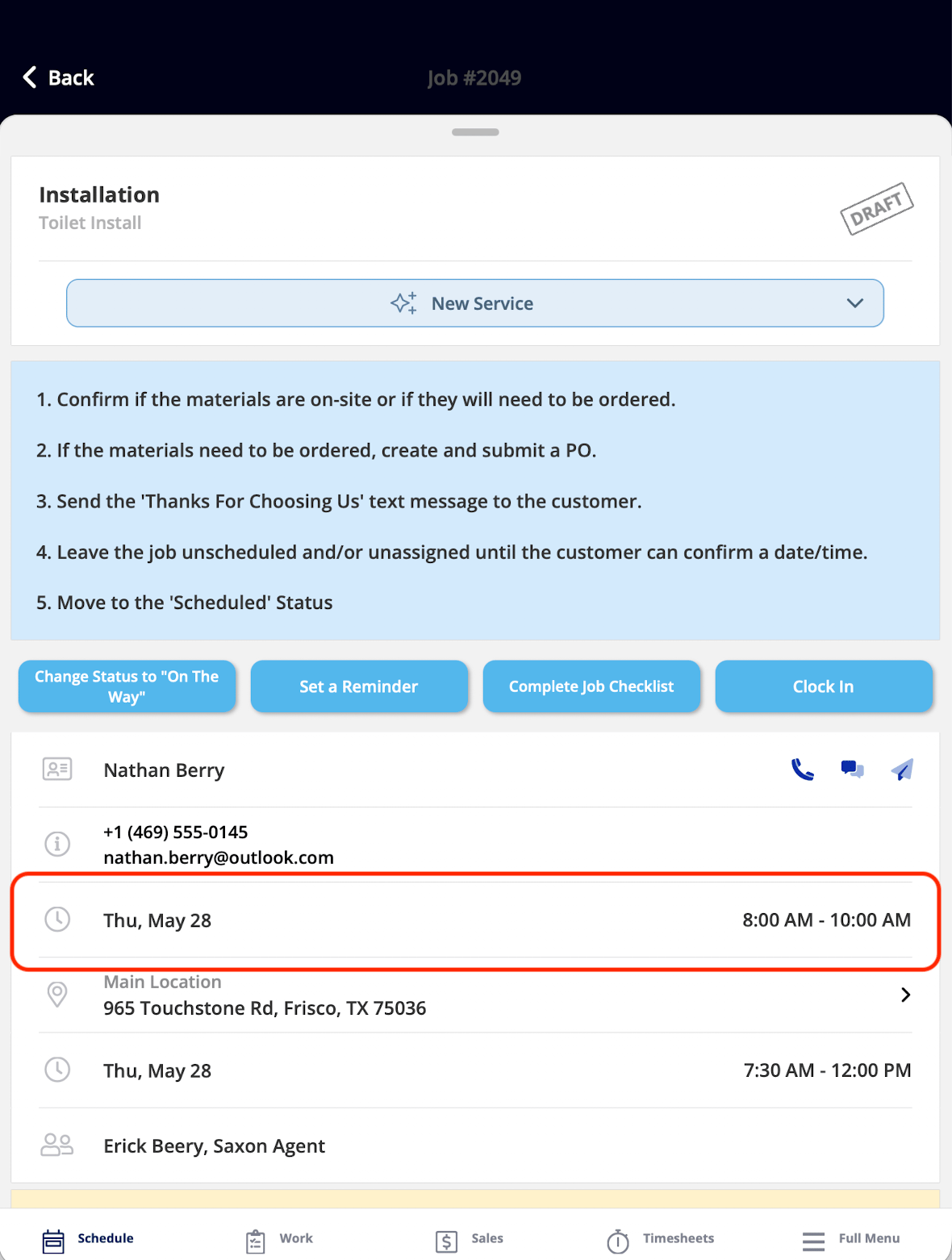
Scheduled Date/Time

Scheduled Date/Time widget showing when the job is scheduled What It Shows: The date and time your Job is scheduled for. What You Can Do: This widget is view-only. The scheduled date and time are set by Admins and Team Managers and cannot be modified by a Service Agent.

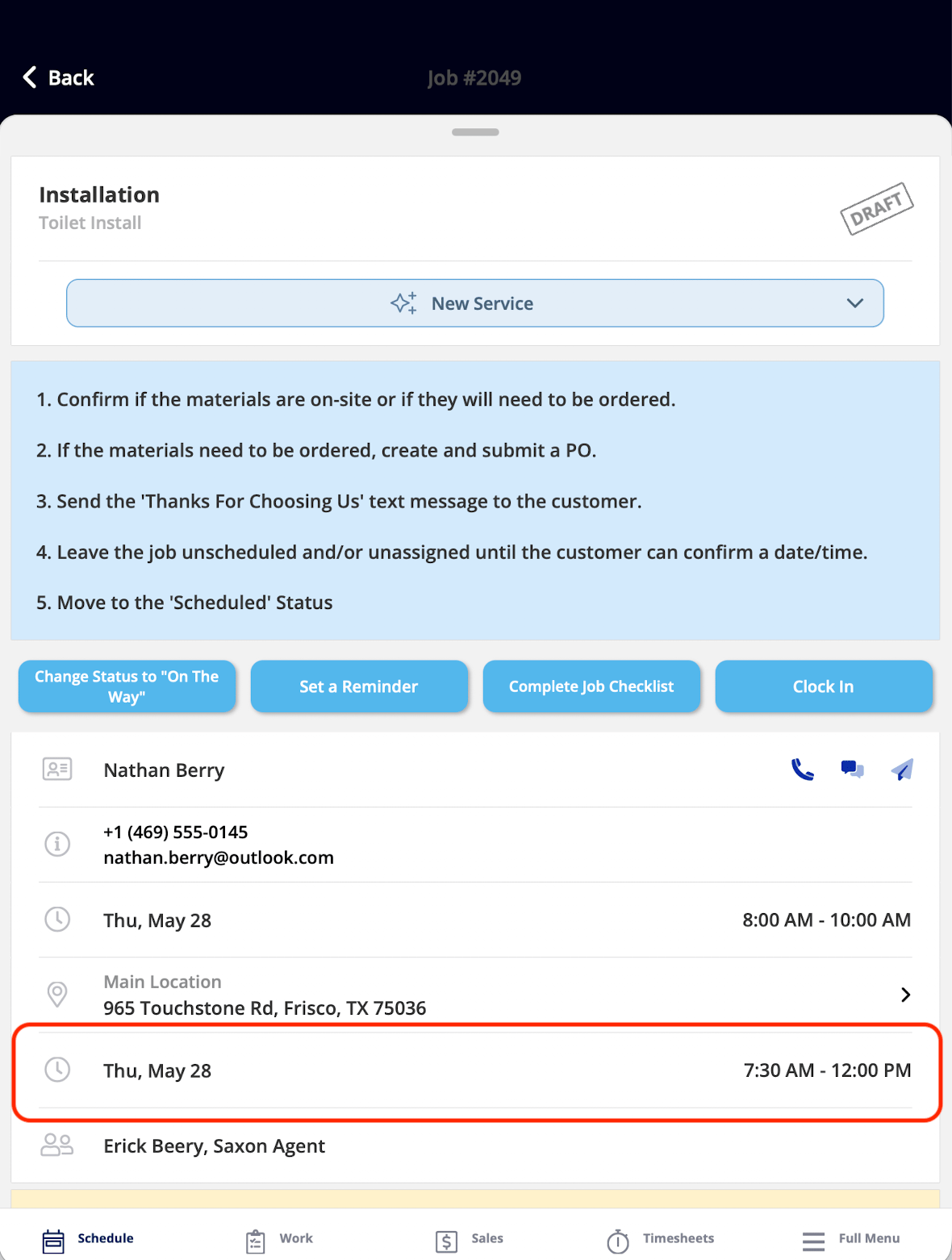
Customer Arrival Window

Customer Arrival Window widget showing the technician arrival time range What It Shows: The time window that has been communicated to your customer for when to expect the technician’s arrival. What You Can Do: This widget is view-only. The arrival window is set by Admins and Team Managers and cannot be edited by a Service Agent.

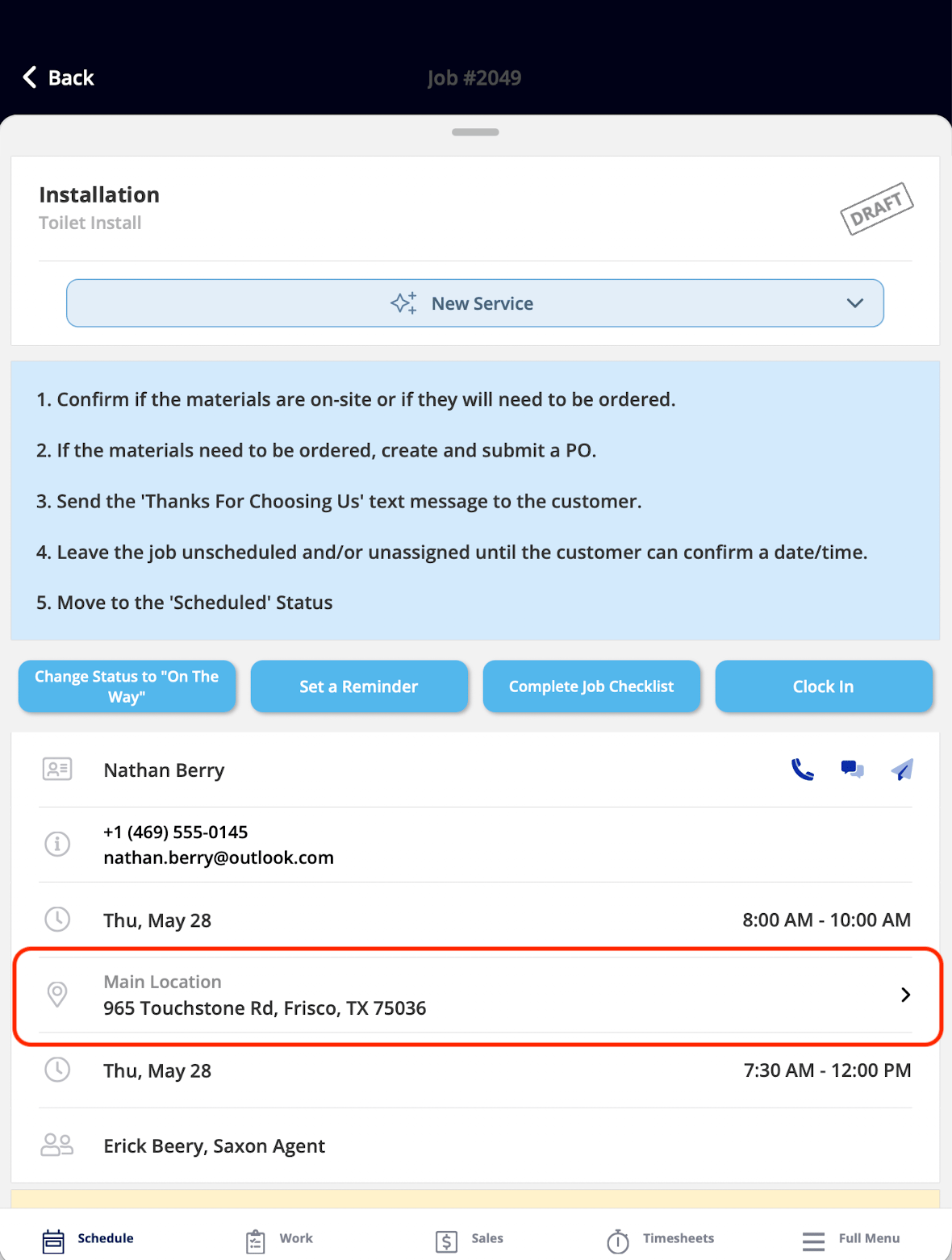
Location Address

Location Address widget showing the job service address What It Shows: The service address for your Job. What You Can Do: You can click this widget to see your Job on the FieldPulse map.

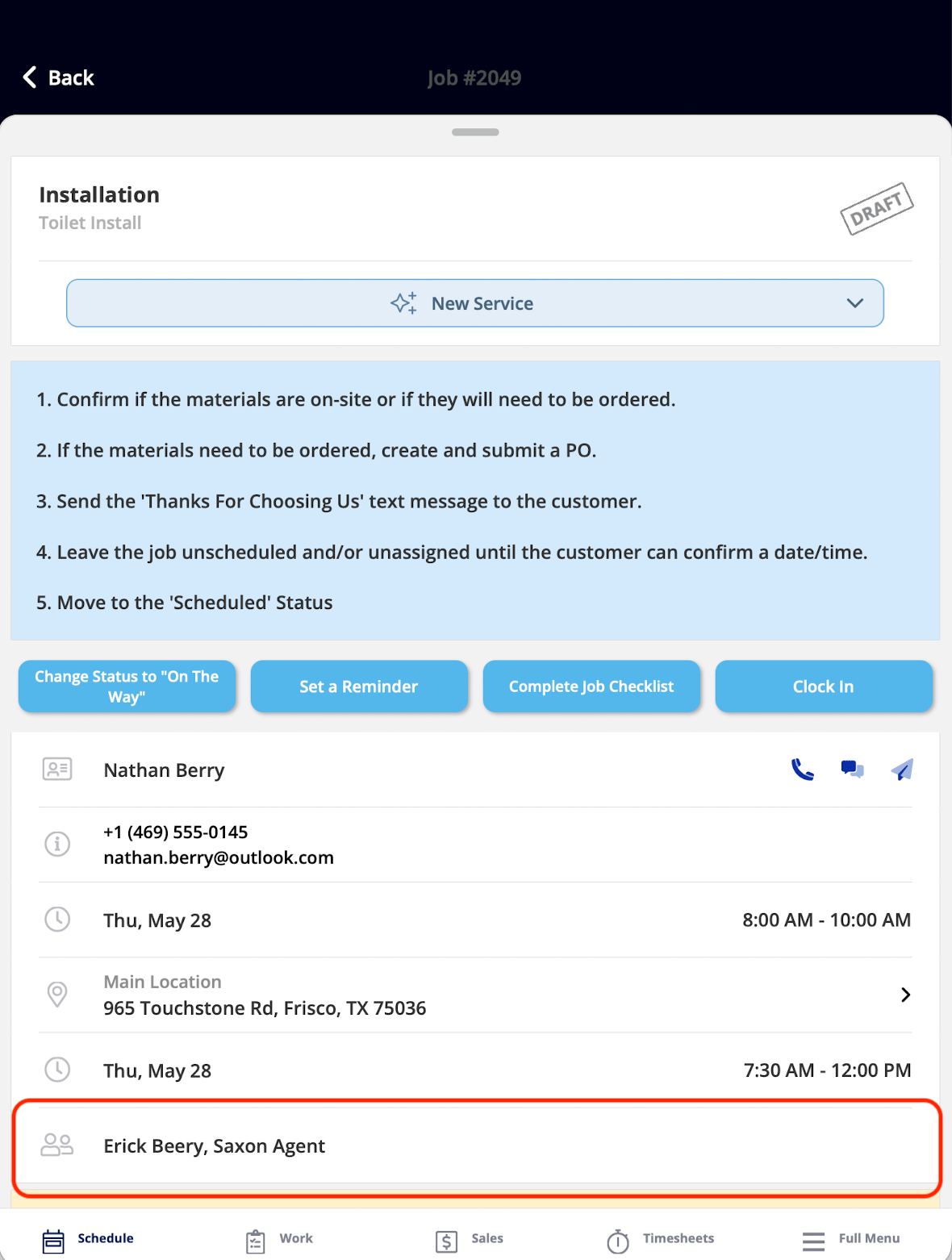
View Assigned Team Members

View Assigned Team Members widget listing technicians assigned to the job What It Shows: The Team Members currently assigned to your Job. What You Can Do: This widget is view-only. You can see who else is assigned to the Job.

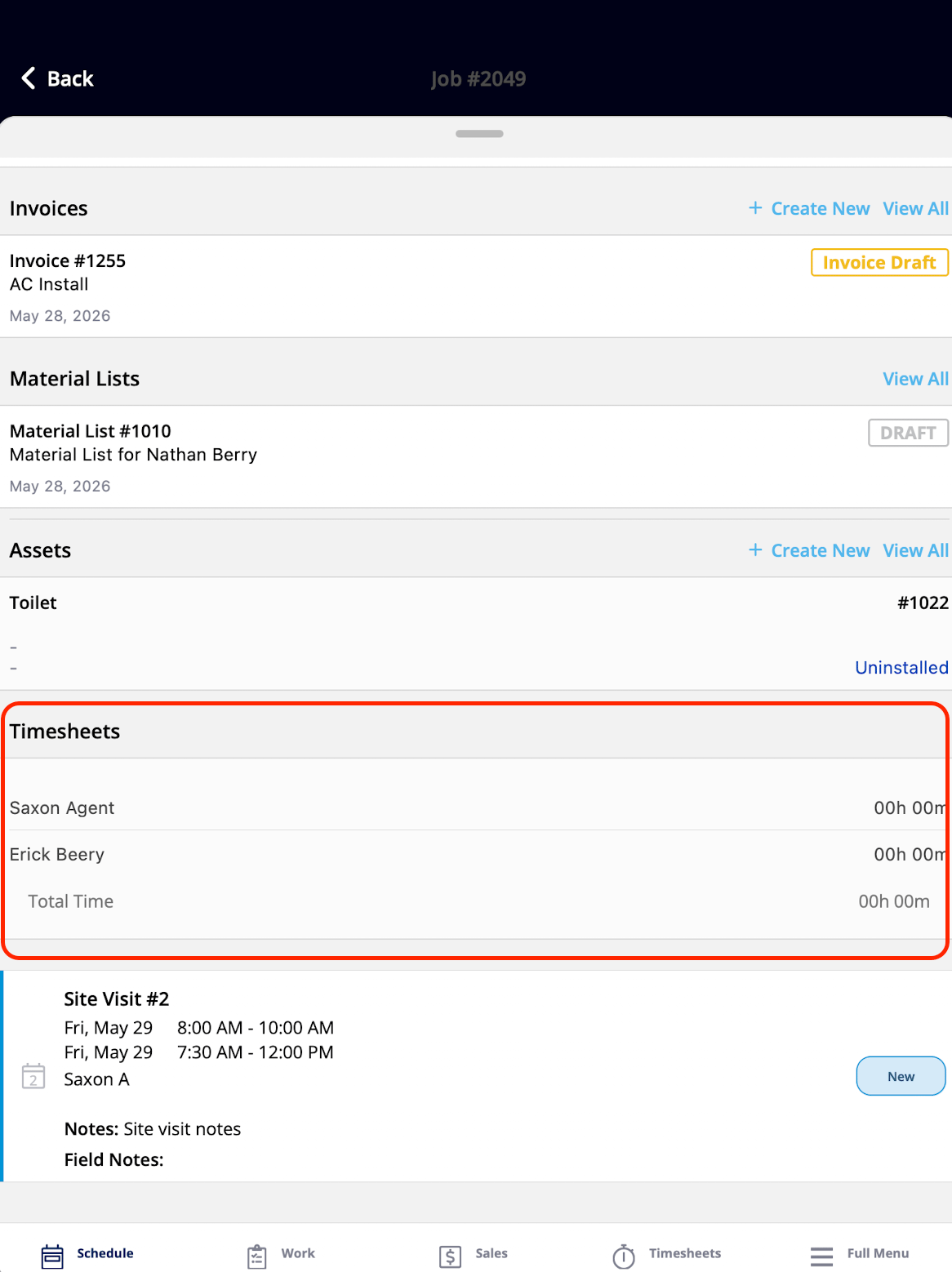
Timesheets

Timesheets widget showing time logged on the job so far What It Shows: The time logged on your Job so far. What You Can Do: You can tap the widget to navigate to the full Timesheets page, where your can clock in or out of the Job.

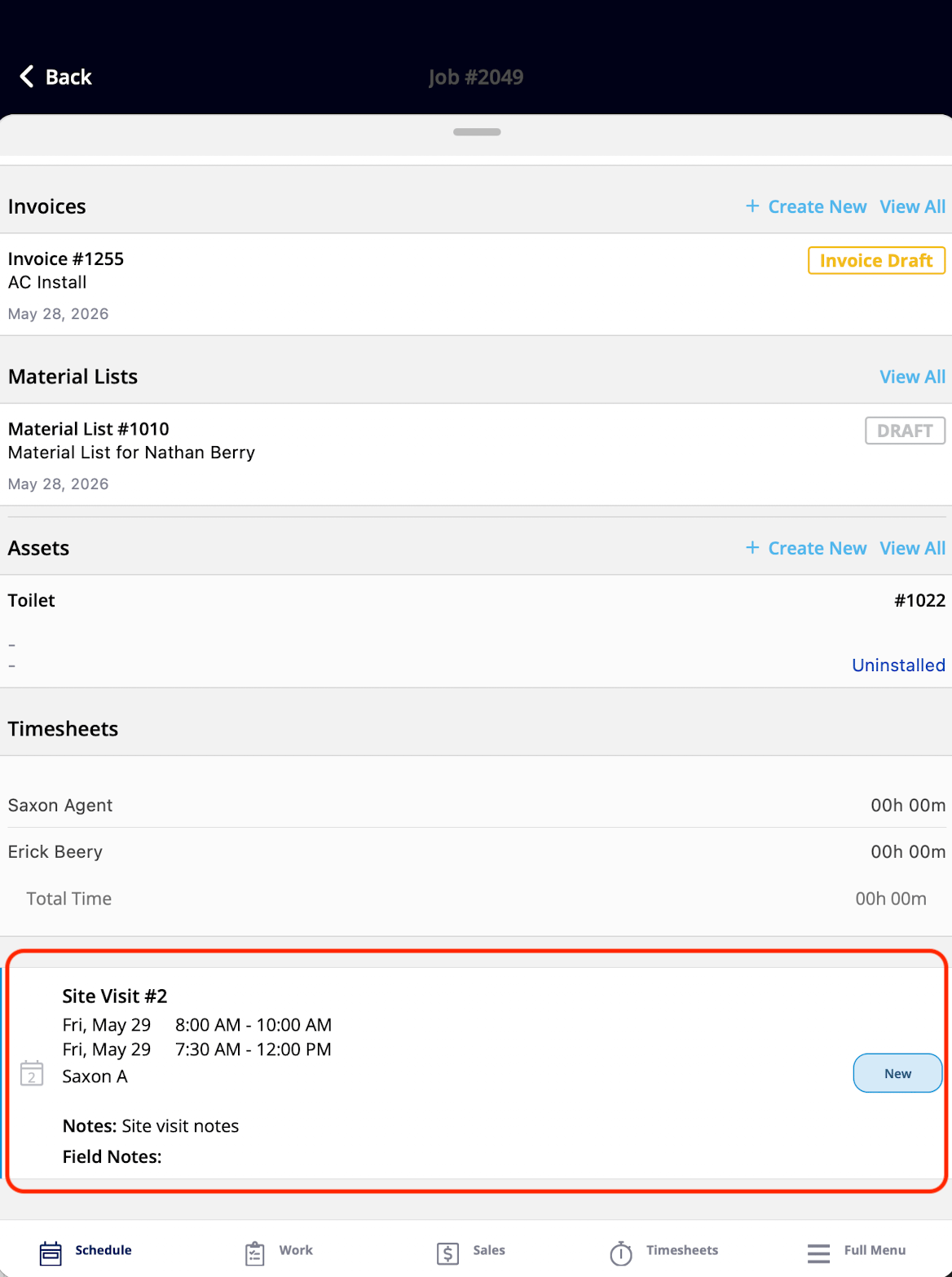
Site Visits

Download
What It Shows: All Site Visits associated with your Job, displayed as a list. What You Can Do: You can tap any Site Visit entry to open the full site visit record and view its complete details.
Have additional questions? Contact us at support@fieldpulse.com or use the chat feature in the bottom right corner of your screen.