
What is a Reece Credit Note?
A Reece credit note is issued by Reece when you return items to one of their branches. This document includes details of the credited items and references the original supplier invoice they came from.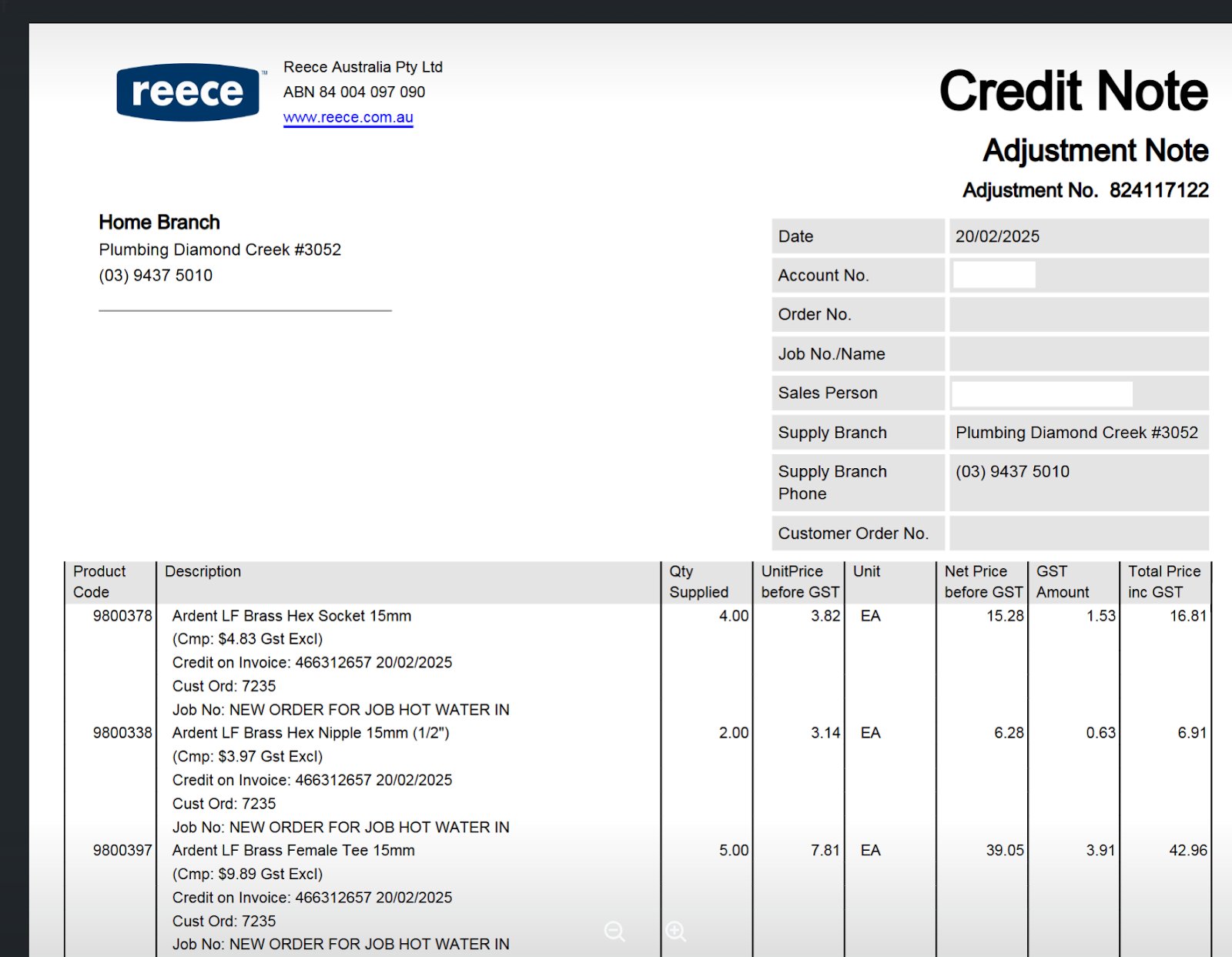
What’s New in FieldPulse?
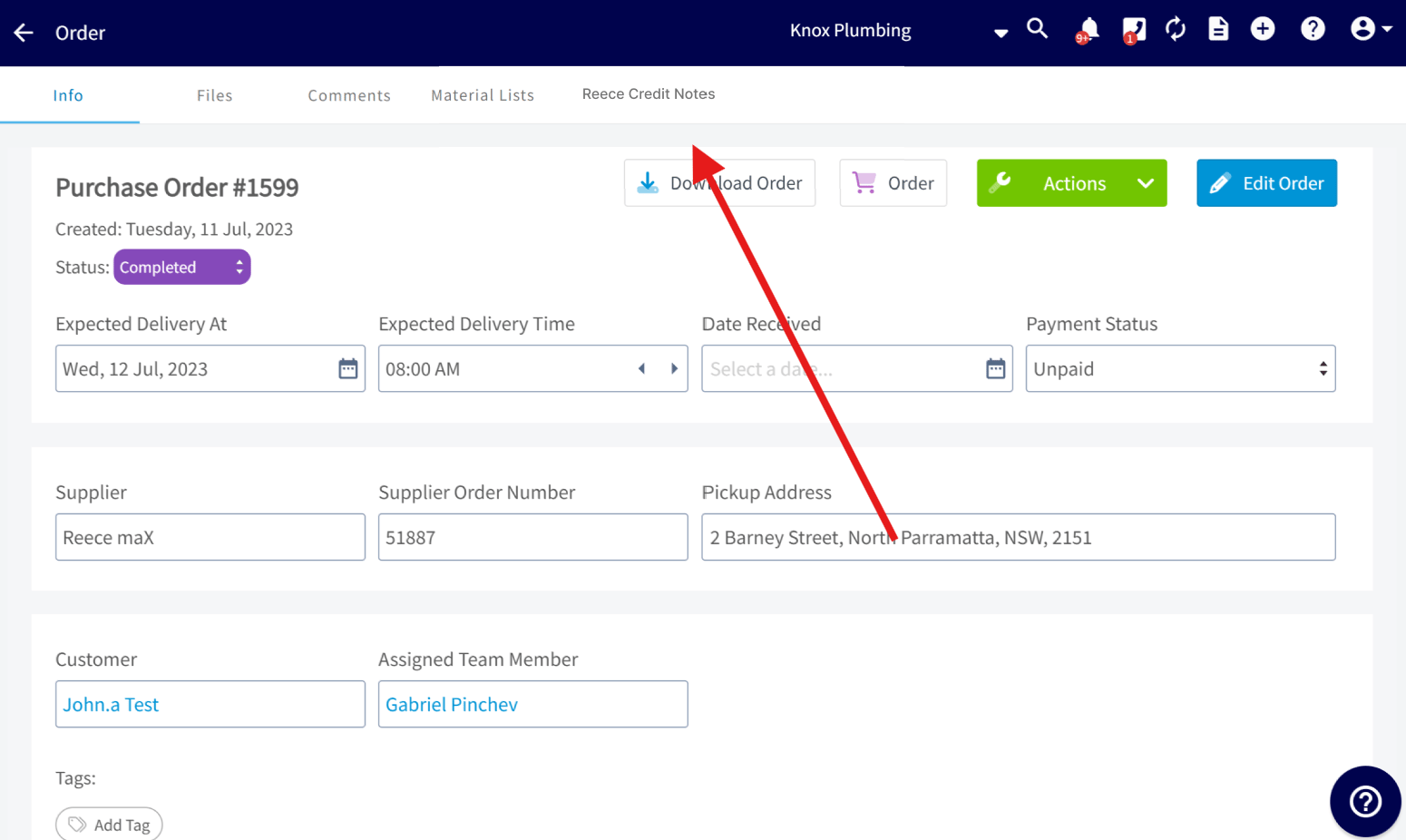
Reece Credit Notes will now appear in a dedicated Reece Credit Notes tab for improved visibility and tracking.You’ll find this tab in the following places
- Sales > Purchase Orders > Reece Credit Notes tab
- Supplier Invoices – Each supplier invoice will include a Reece Credit Notes subtab
- Jobs and Projects – If linked to a supplier invoice, they’ll show a Reece Credit Notes subtab
- Invoices – Any invoice connected to a job or project with a credited supplier invoice will also display a Reece Credit Notes subtab
-
Item Name
- The name of the returned product, exactly as listed on your original supplier invoice.
- Example: Ardent LF Brass Hex Socket 15mm
-
SKU (Reece Product Code)
- Reece’s unique product code for the item.
- Example: 9800378
-
Quantity
- The number of units returned.
- Example: 4.00
-
Price (ex. tax)
- Unit price before GST.
- Example: $3.82
-
Tax
- GST amount credited for the item.
- Example: $1.53
-
Total Price
- Full credited amount including GST.
- Example: $16.81
-
Credited Date
- The date the credit note was issued by Reece.
- Example: 20/02/2025
-
Credit Note Adjustment No.
- The reference number for the credit note, used to match it with Reece records (Located in the top right of Credit Note PDF).
- Example: 824117122
-
Related Supplier Invoice (Reece Number)
- The Reece invoice this credit note is tied to.
- Example: 466312657
-
Related Supplier Invoice (FieldPulse # & Link)
- The matching supplier invoice in FieldPulse, with a clickable link.
- Example: #XXXX
How will FieldPulse automatically connect a credit note to its related job or project?
Your Reece credit notes include the original supplier invoice number.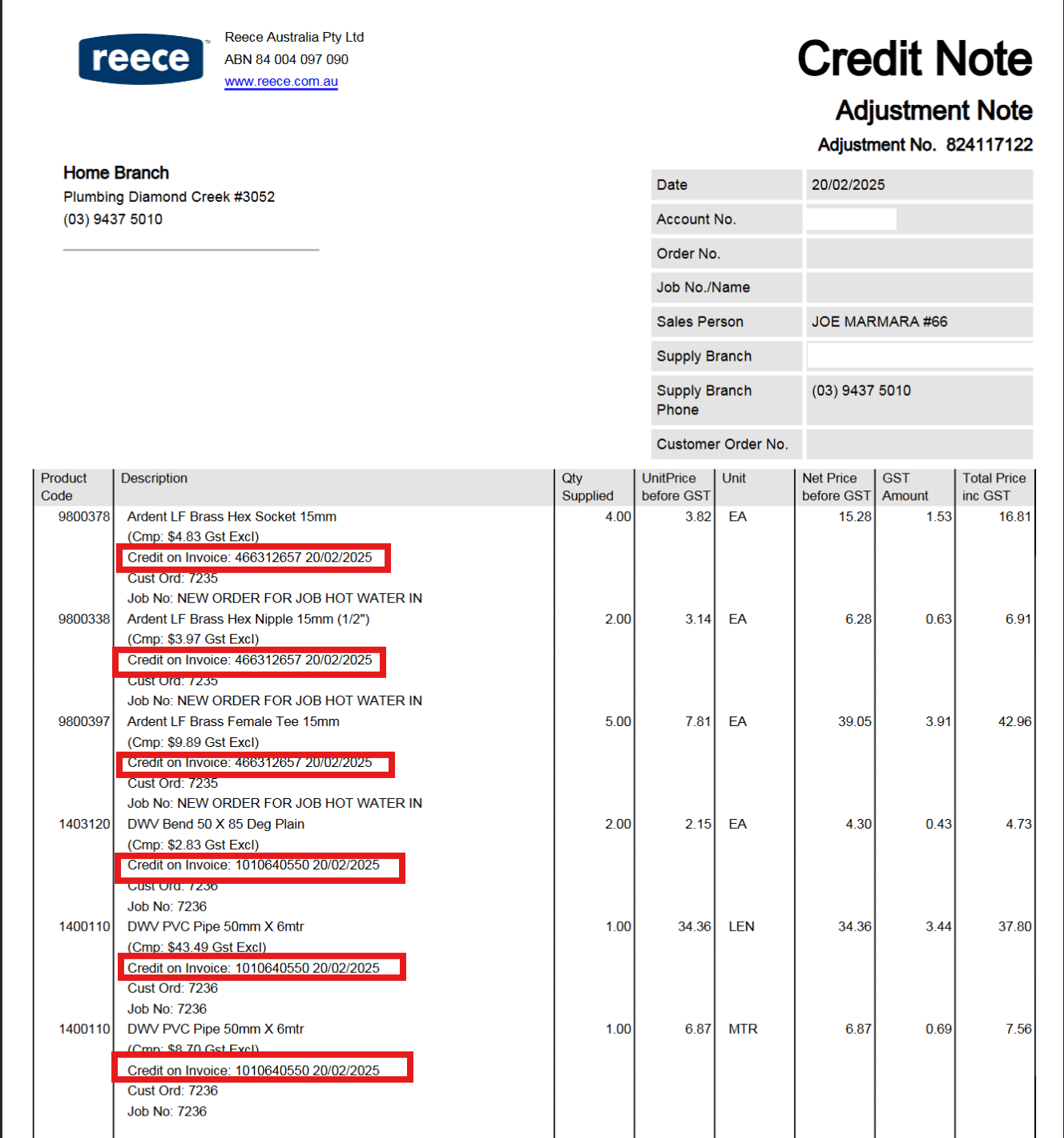
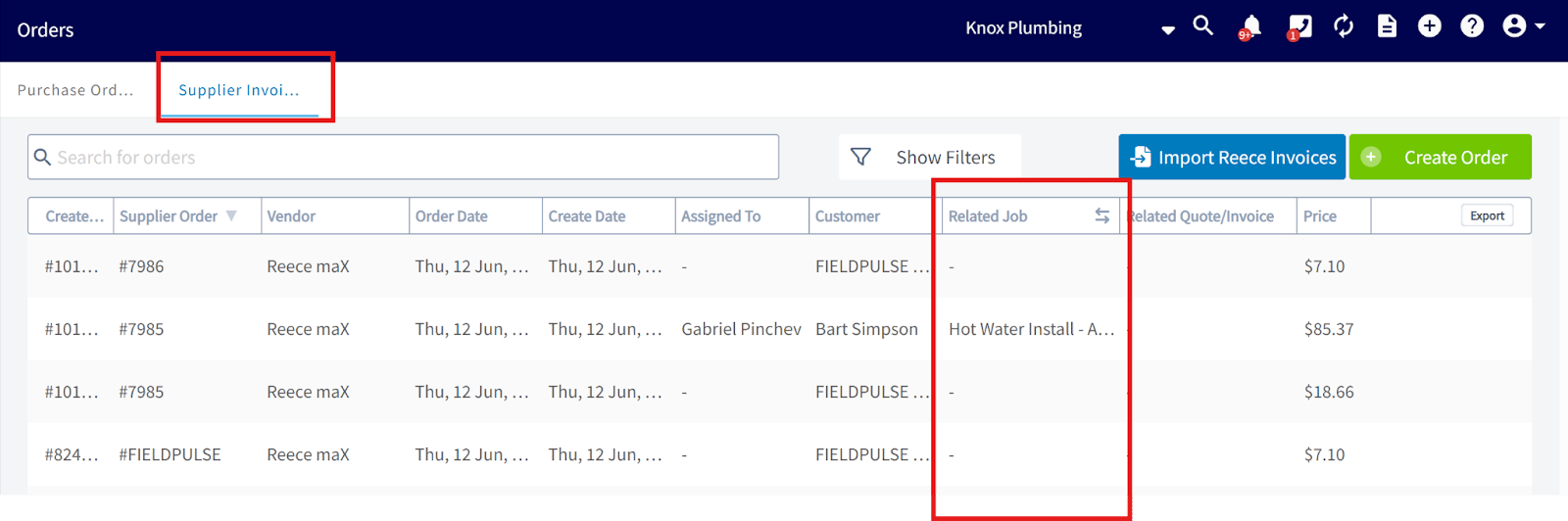
How to Link a FieldPulse Job to a Reece Order for Automatic Job Sync
Do not include a ’#’ in front of the job number!| In FieldPulse, create a Purchase Order and enter the related FieldPulse Job # in the ‘Supplier Order Number’ field. | 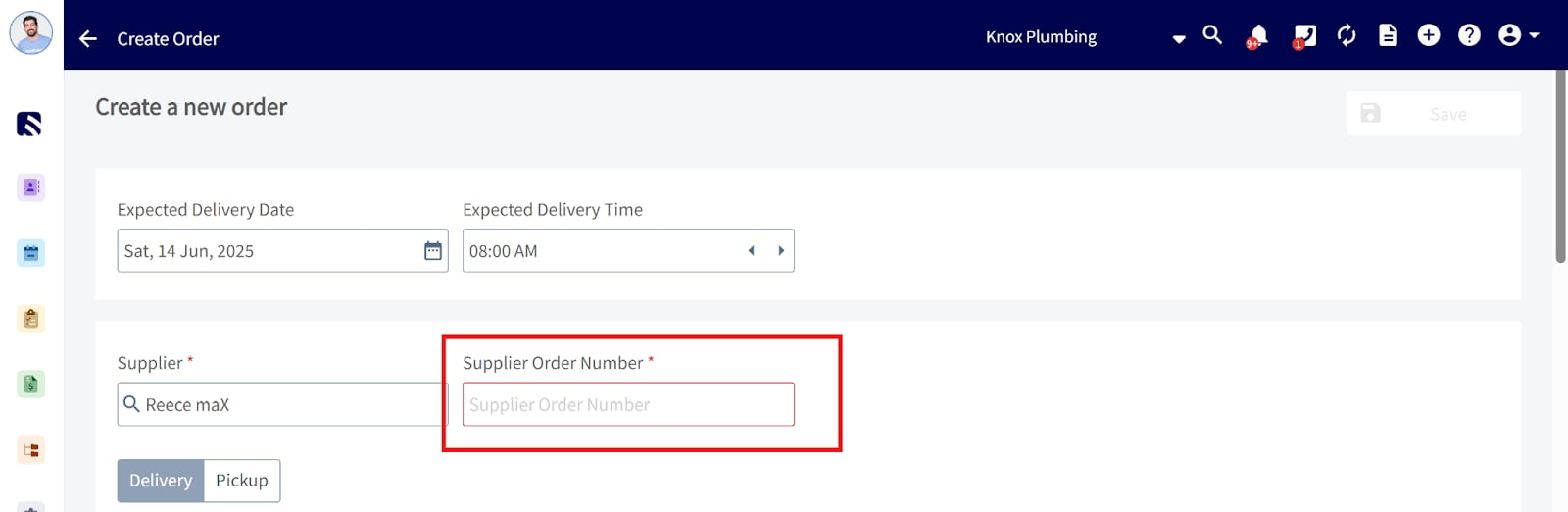 |
|---|---|
| In the ReecemaX website, when placing an order, enter the related FieldPulse Job # in the ‘ Order Number’ field. Note: Reece orders take up to 24 hours to appear in FieldPulse as a supplier invoice or credit note. | 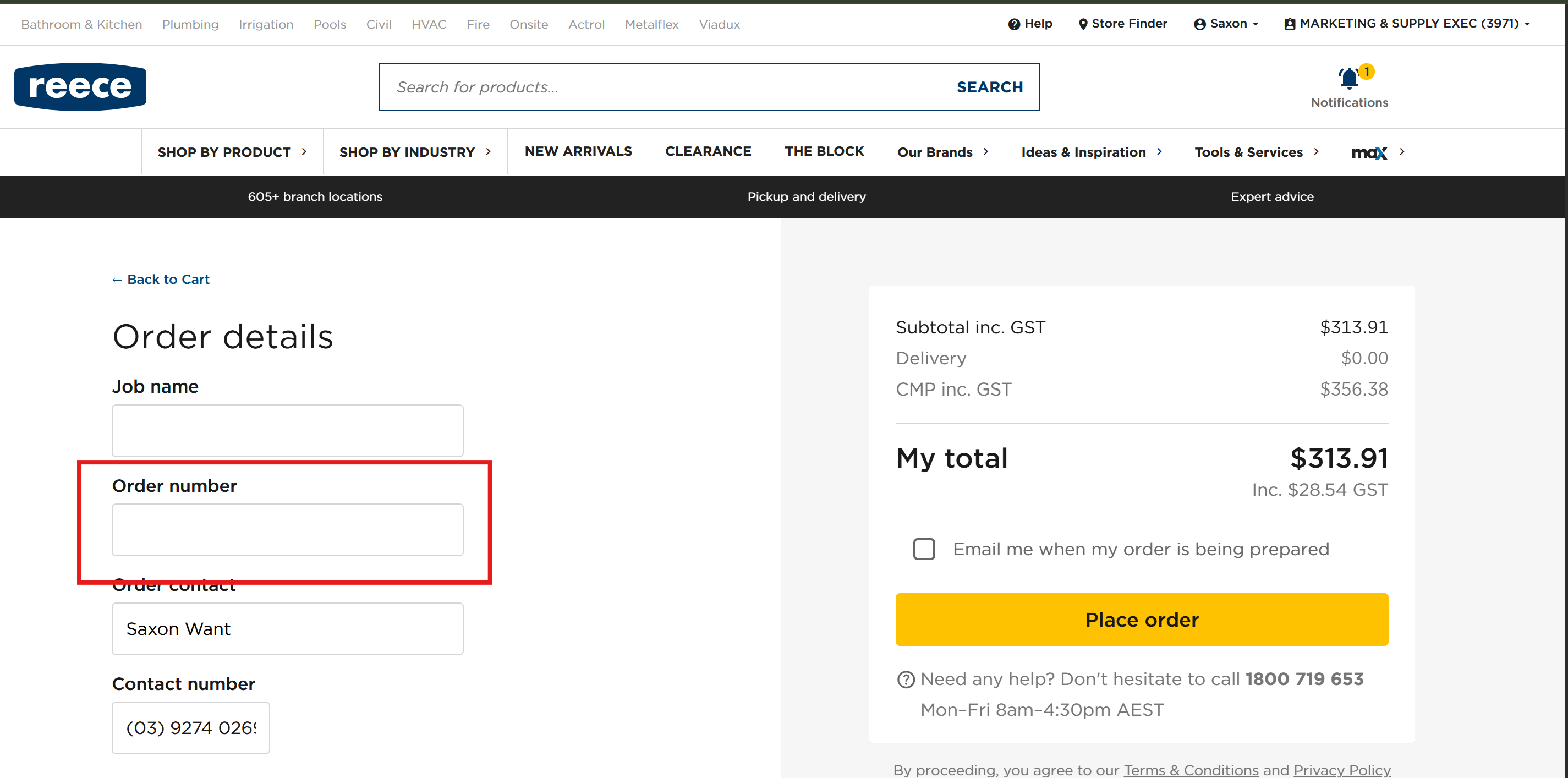 |
| In the ReecemaX Mobile APP, when placing an order, enter the related FieldPulse Job # in the ‘ Order Number’ field. Note: Reece orders take up to 24 hours to appear in FieldPulse as a supplier invoice or credit note. | 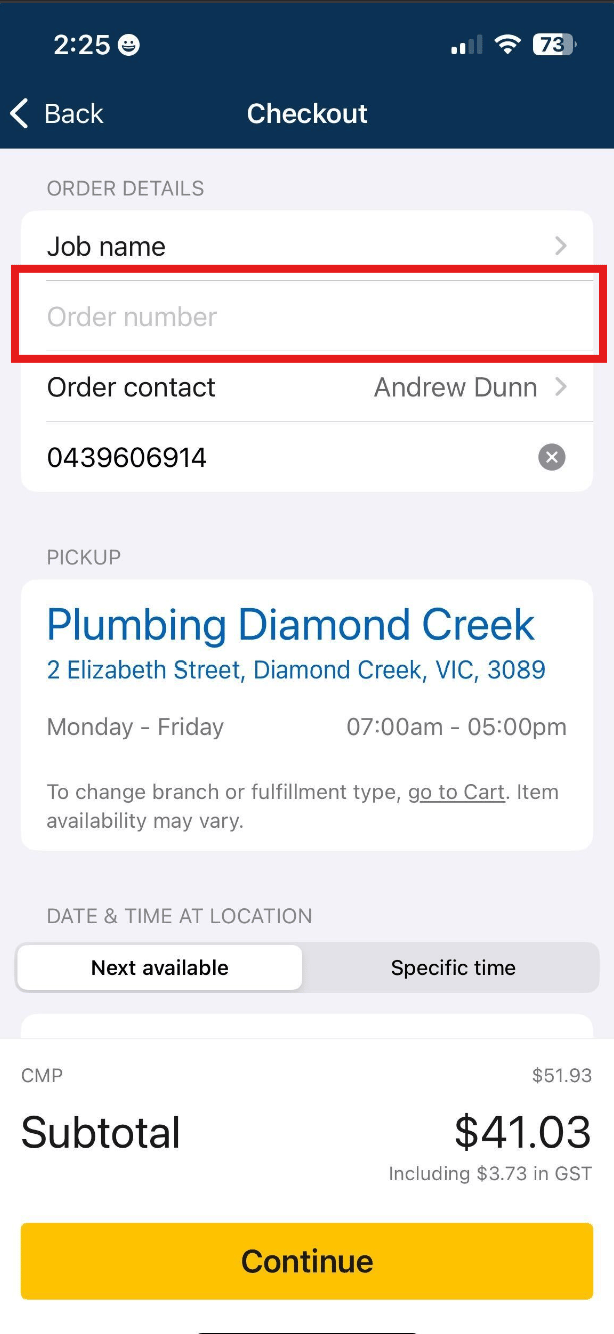 |
| At a Reece branch, let the Reece team member know you’d like to link the order to a FieldPulse job. Simply provide the FieldPulse Job Number, and they’ll enter it into the appropriate field in their checkout system. Note: Reece orders take up to 24 hours to appear in FieldPulse as a supplier invoice or credit note. |  |
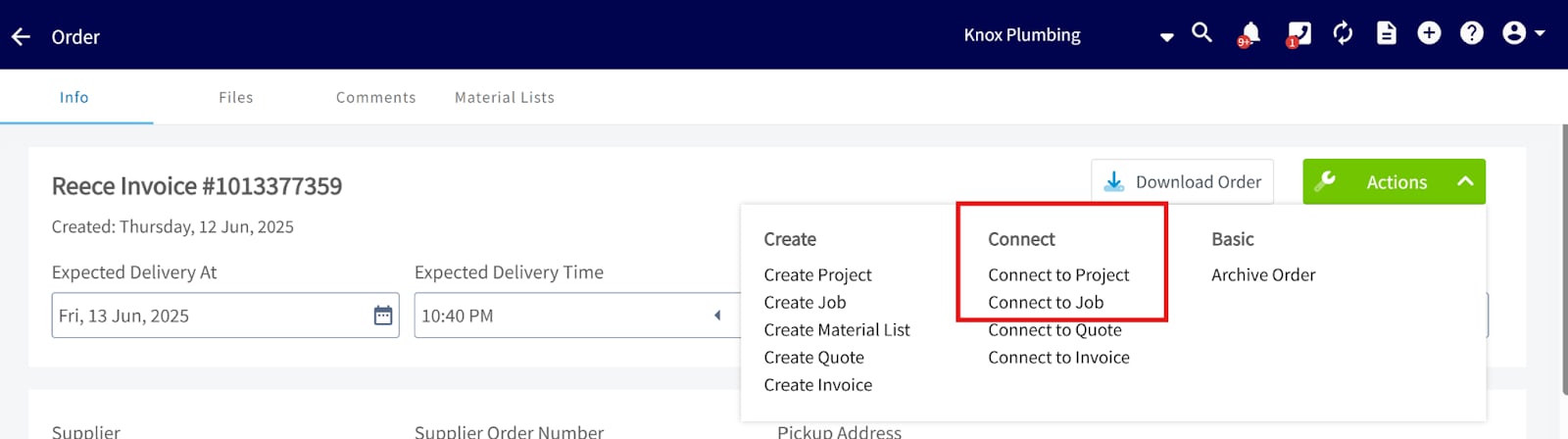
-
Unlink the current job first.
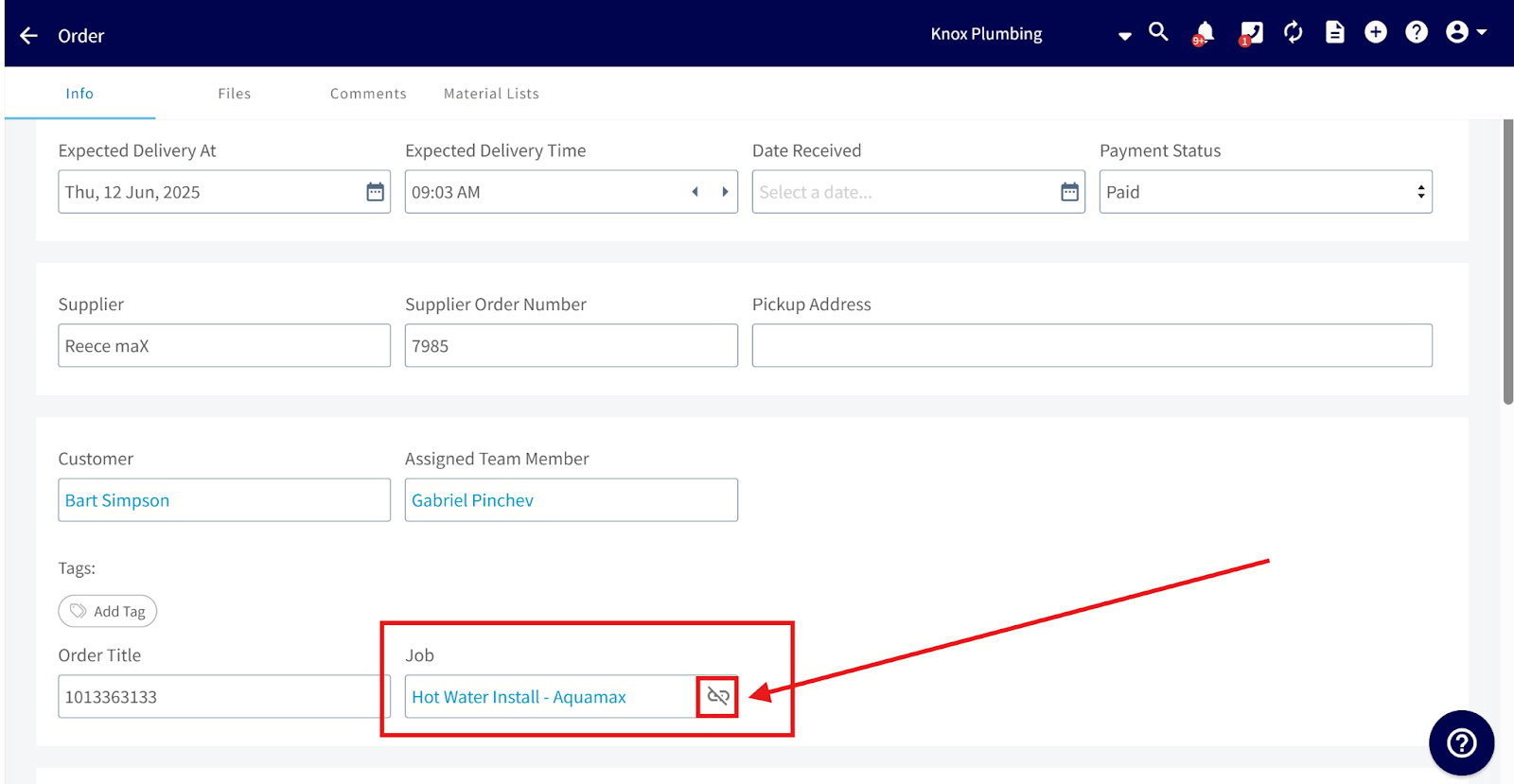
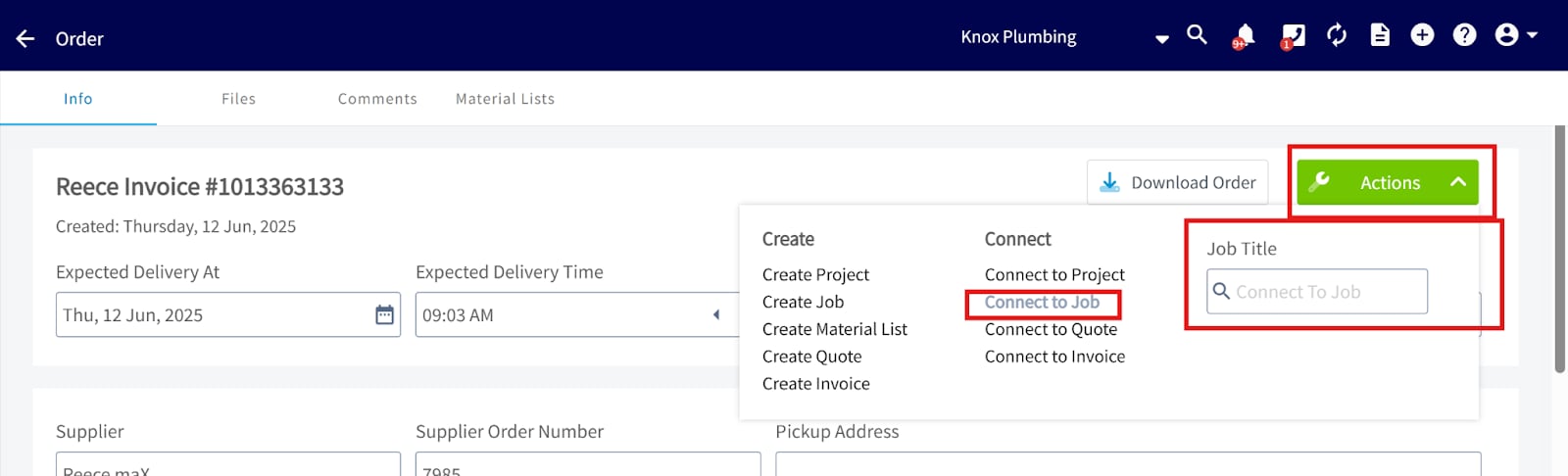
- Then connect to the new/replacement job.
How This Impacts Job & Project Costs
FieldPulse now recalculates costs by subtracting credit note values from total purchase order expenses.Have additional questions? Contact us at support@fieldpulse.com or use the chat feature in the bottom right corner of your screen.