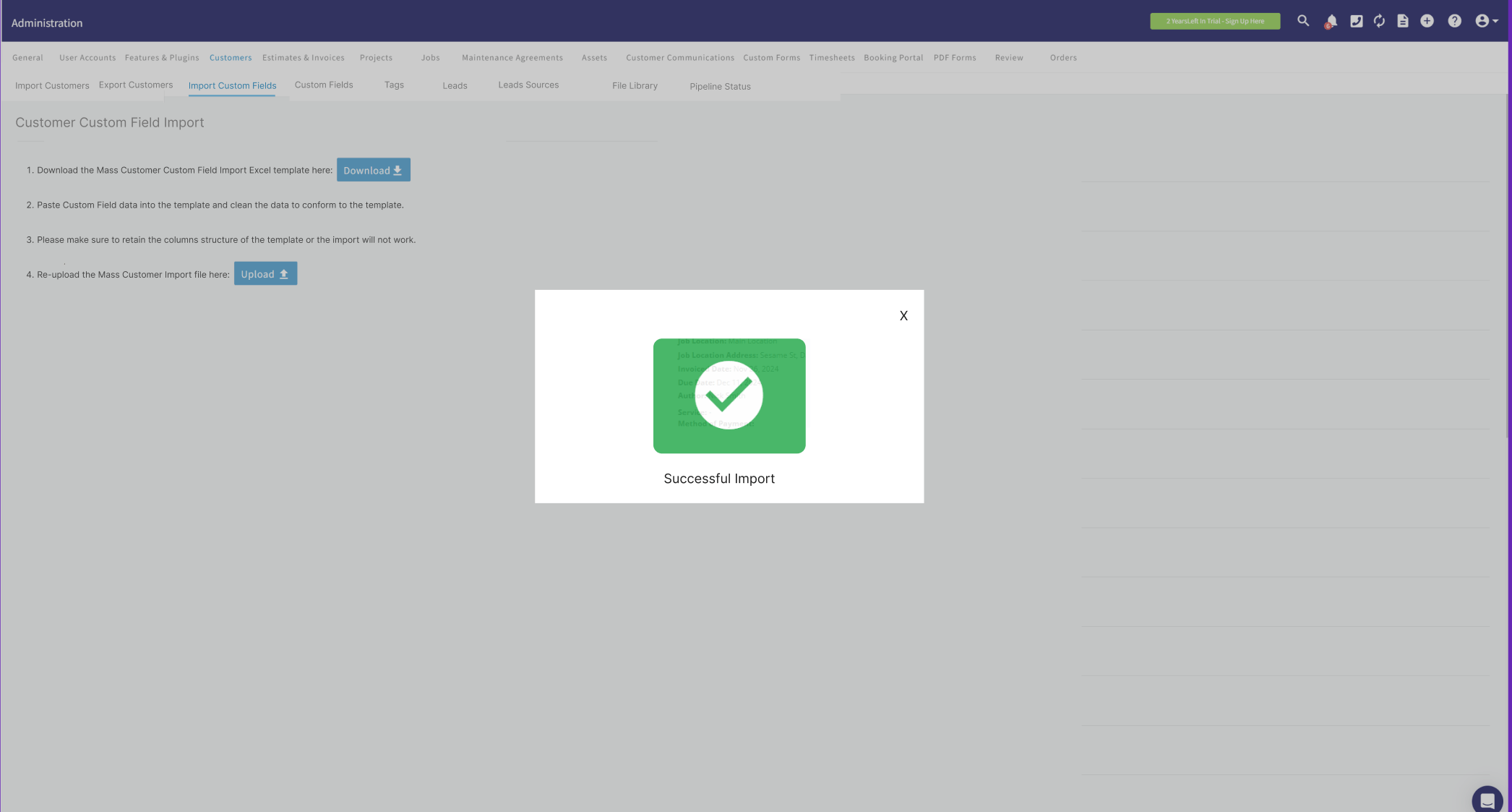
Who uses this: Anyone running a FieldPulse self-import who does not have Excel. Availability: All regions. Self-import is included with your subscription at no extra cost.Self-importing data with Google Sheets is how you finish a FieldPulse import when Excel is not installed on your computer. Every FieldPulse self-import starts by handing you an Excel template — you download that template, open it in Google Sheets, add your data, download the sheet back out as an Excel file, and upload that file to FieldPulse.
Overview
FieldPulse lets you self-import three kinds of records — customers, line items, and custom fields. Each self-import screen walks you through the same four steps, and step one asks you to download an Excel template.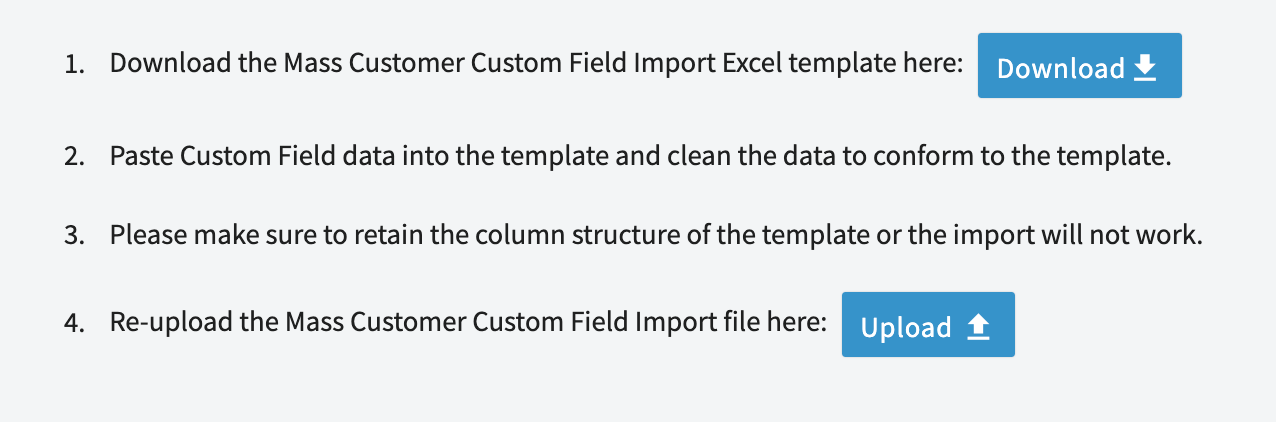
Before you begin
- Have a Google account so you can open Google Sheets in your web browser.
- Start the self-import you want in FieldPulse — customers, line items, or custom fields — so the Excel template is available to download at step one. See How to Import Data into FieldPulse for the import screen that matches your record type.
- Keep the FieldPulse tab open in your browser. You return to that tab at the end to upload the finished file.
On web
Upload the FieldPulse template into Google Sheets
- In FieldPulse, select the blue Download button on the import screen to save the Excel template to your computer.
-
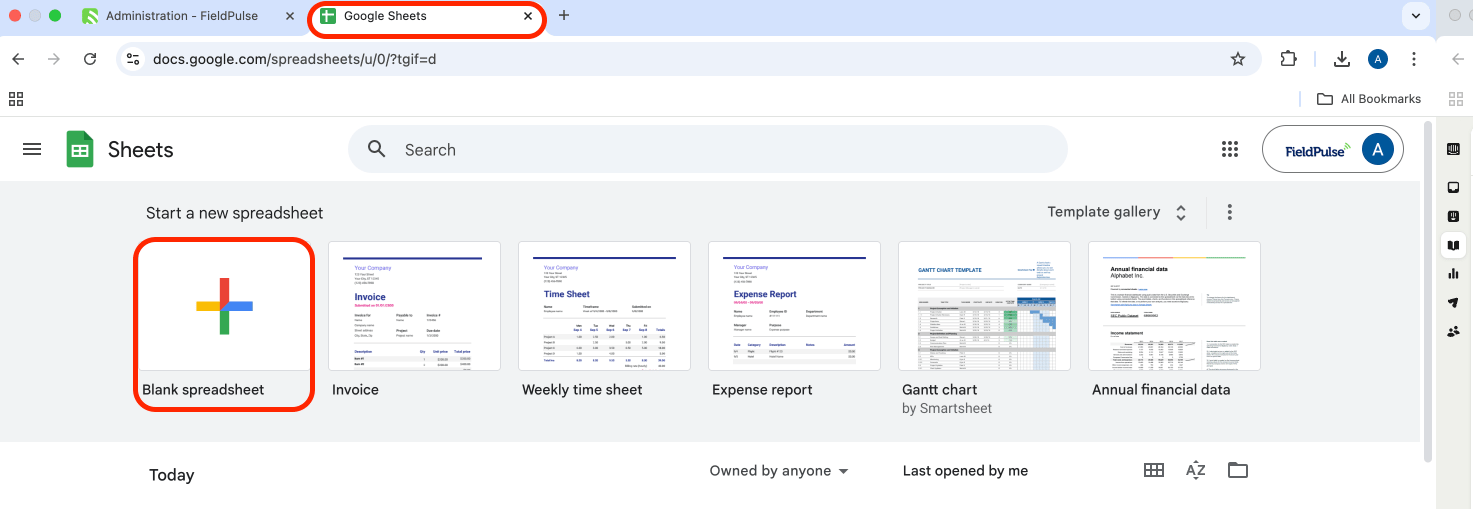
Open Google Sheets in a new browser tab and select Blank spreadsheet.
-
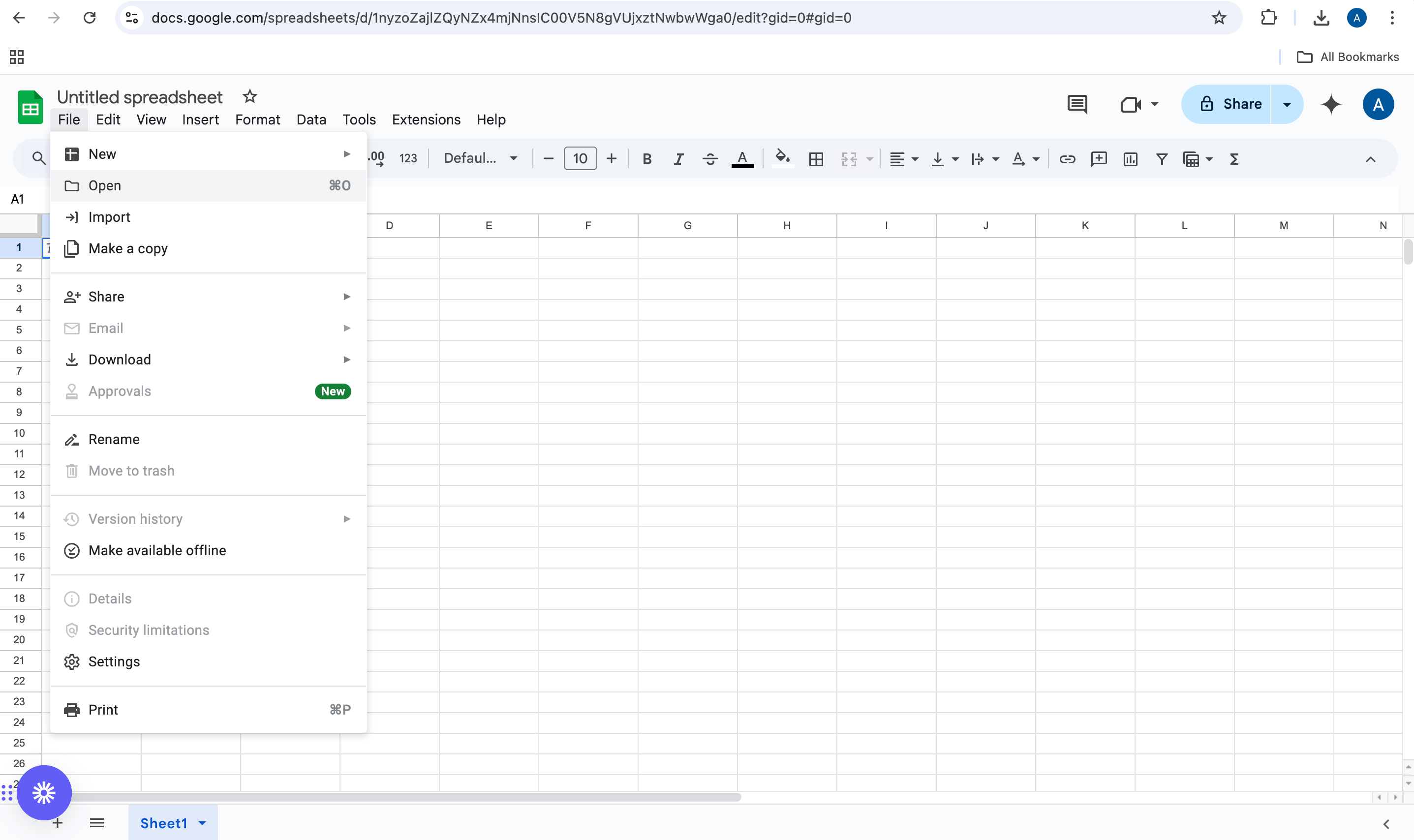
In the new spreadsheet, select File, then select Open.
-
In the Open a file window, select the Upload tab.
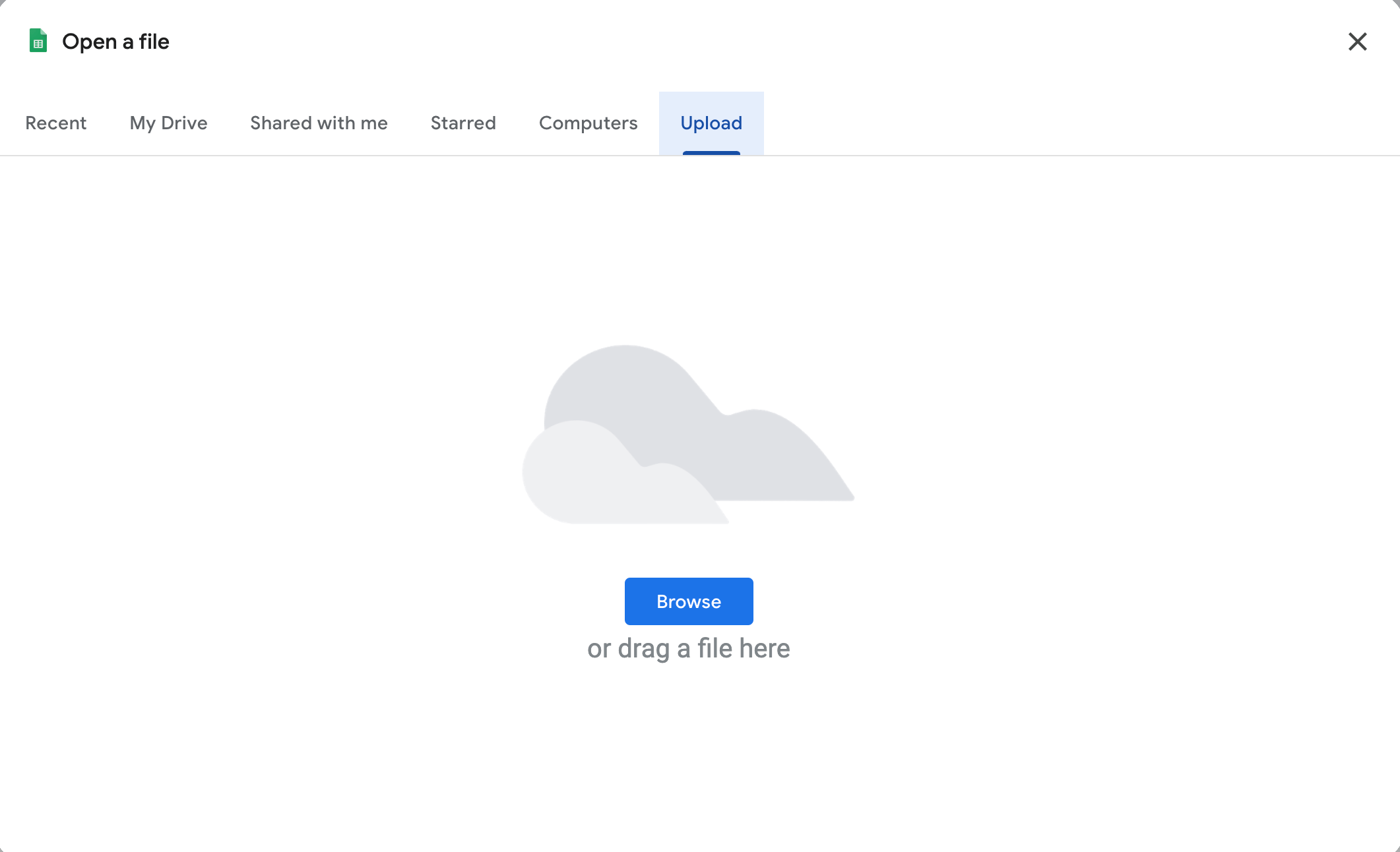
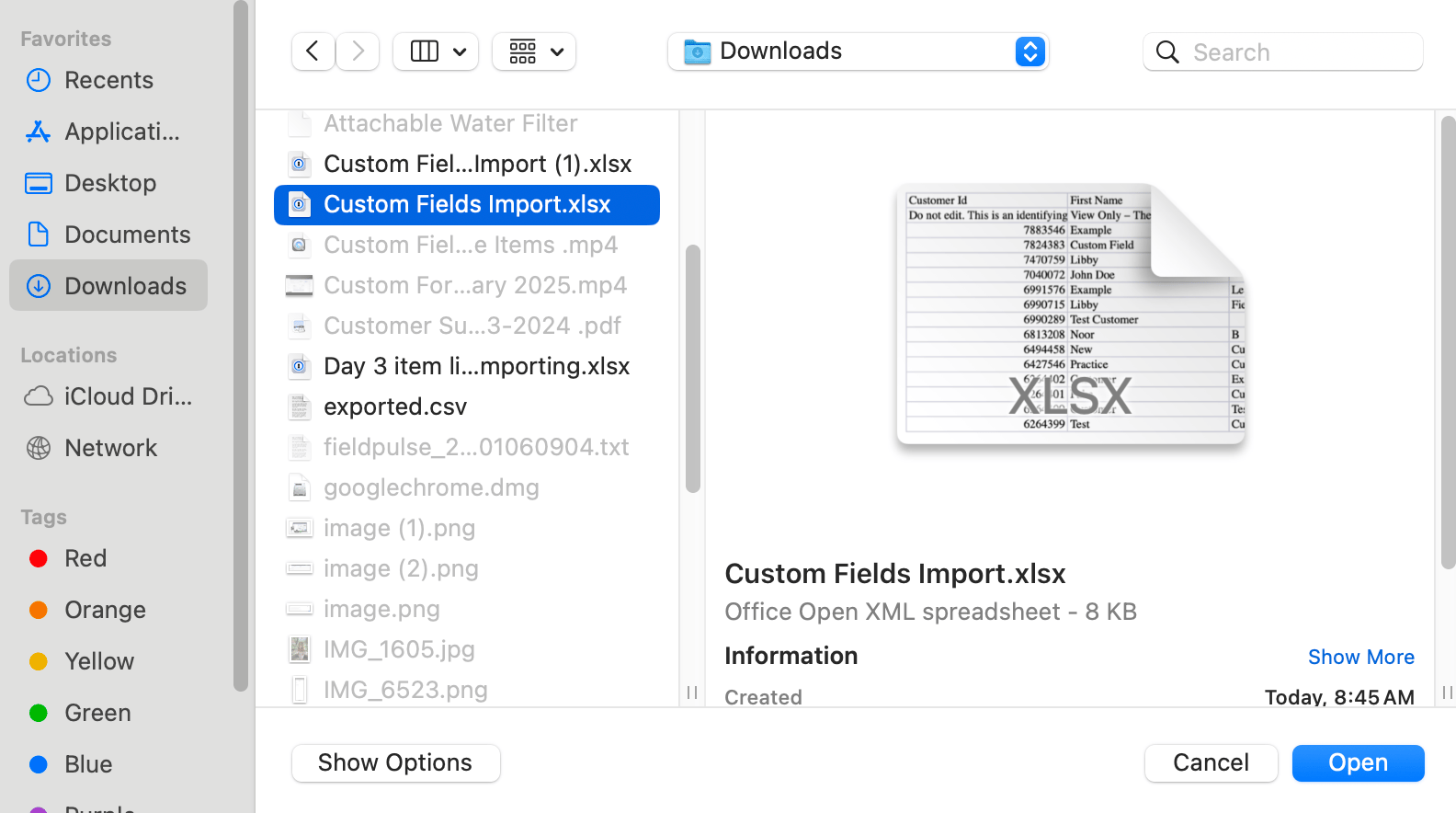
- Select Browse, find the Excel template you downloaded from FieldPulse, select it, and select Open. Google Sheets opens the template.
Add or edit your data
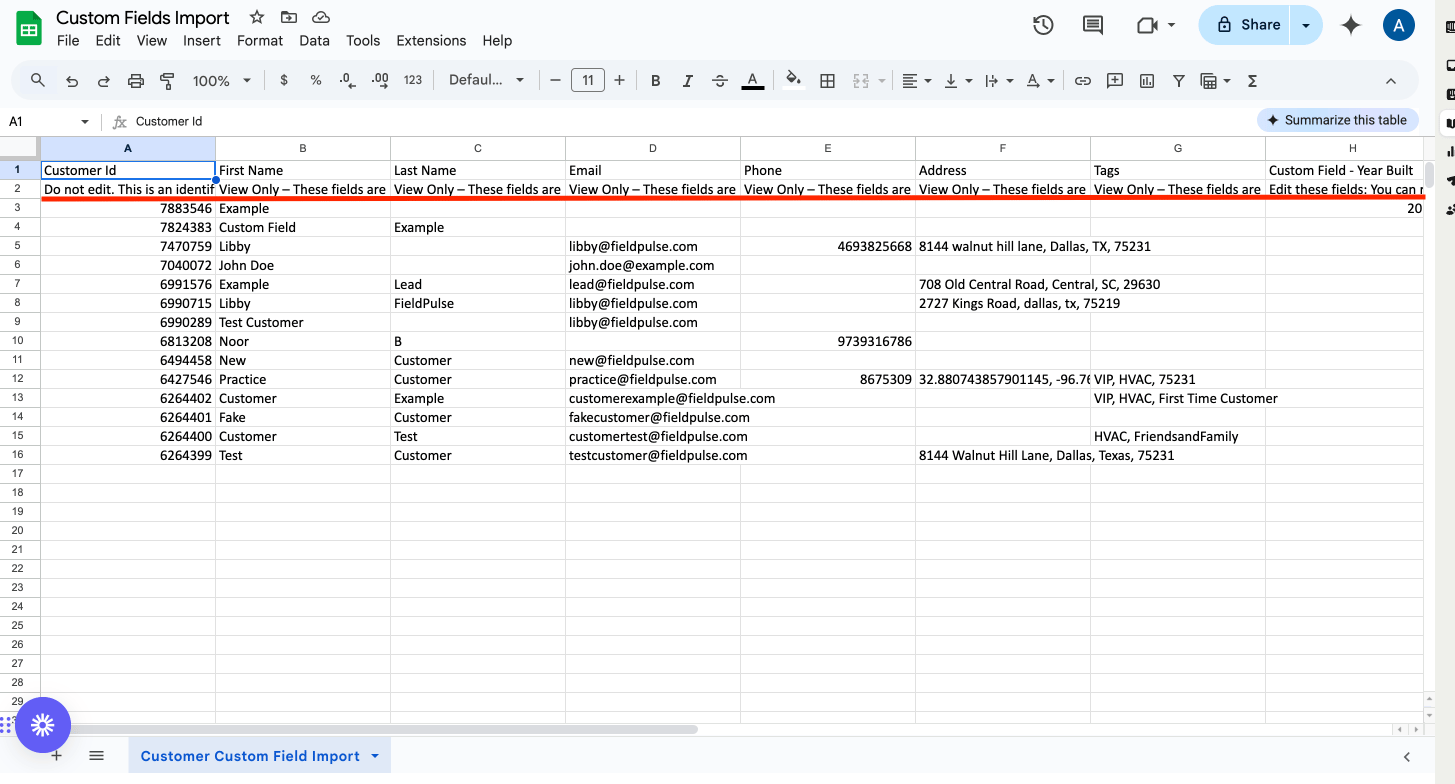
Enter your records in the template the same way you would in Excel, and leave the rows at the top of the sheet alone.- Read the instructions written into the template before you type anything.
- Add or edit your information in the rows below the red line.
Do not edit the cells above the red line, and keep the template’s column structure as it is. If the columns change, the import will not work.
Download the sheet and upload it back to FieldPulse
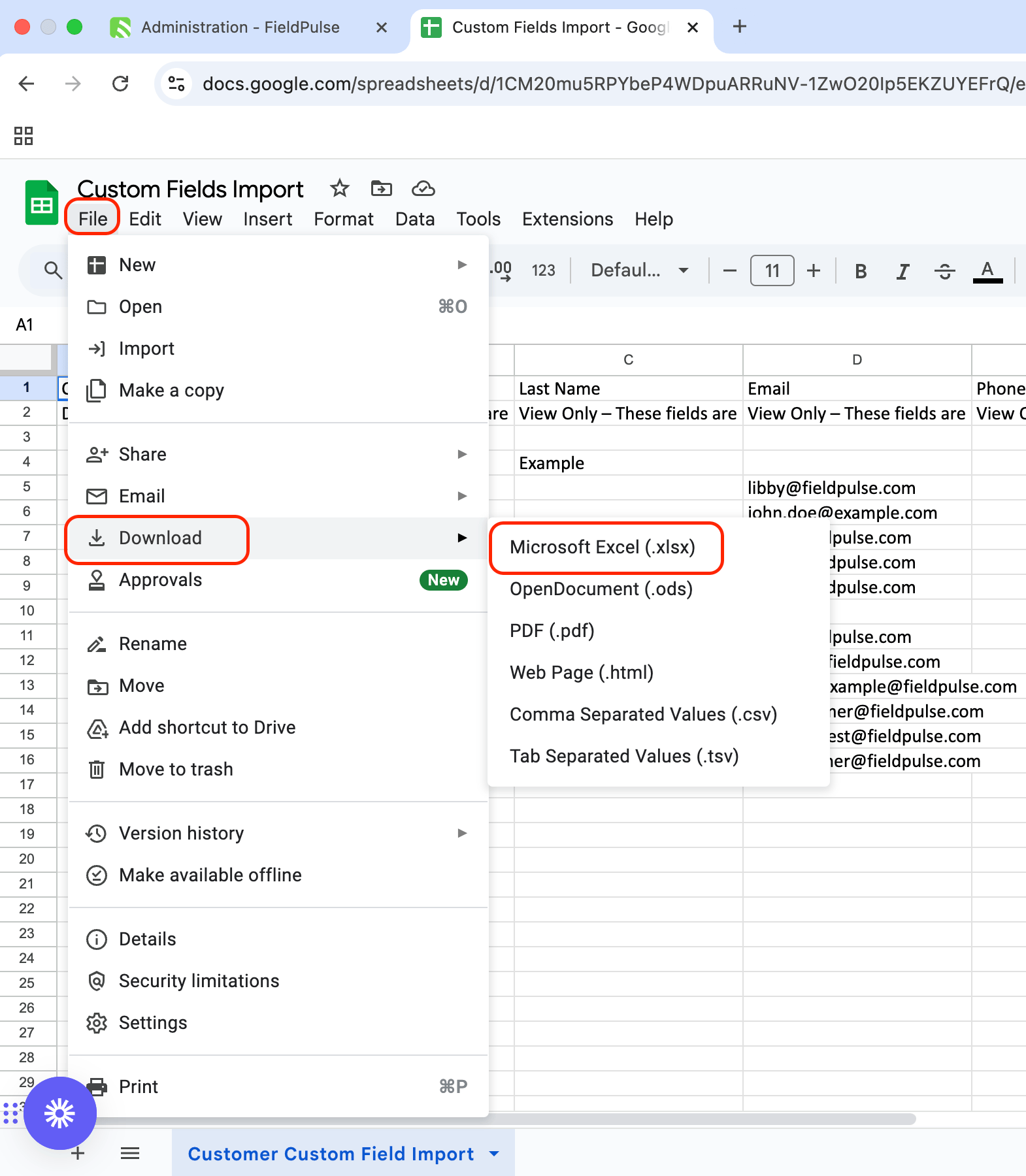
- In Google Sheets, select File, then hover over Download.
-
Select Microsoft Excel (.xlsx). Google Sheets downloads the sheet to your computer as an Excel file.
-
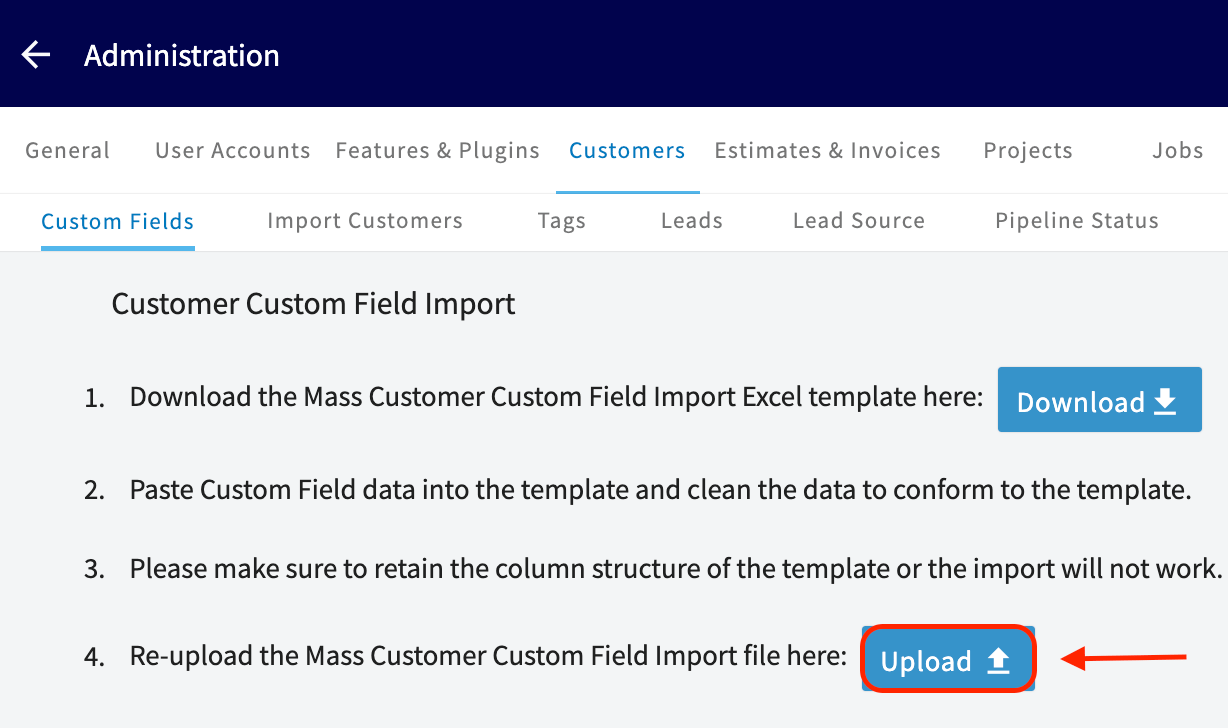
Return to the FieldPulse tab in your browser and select the blue Upload button on the import screen.
-
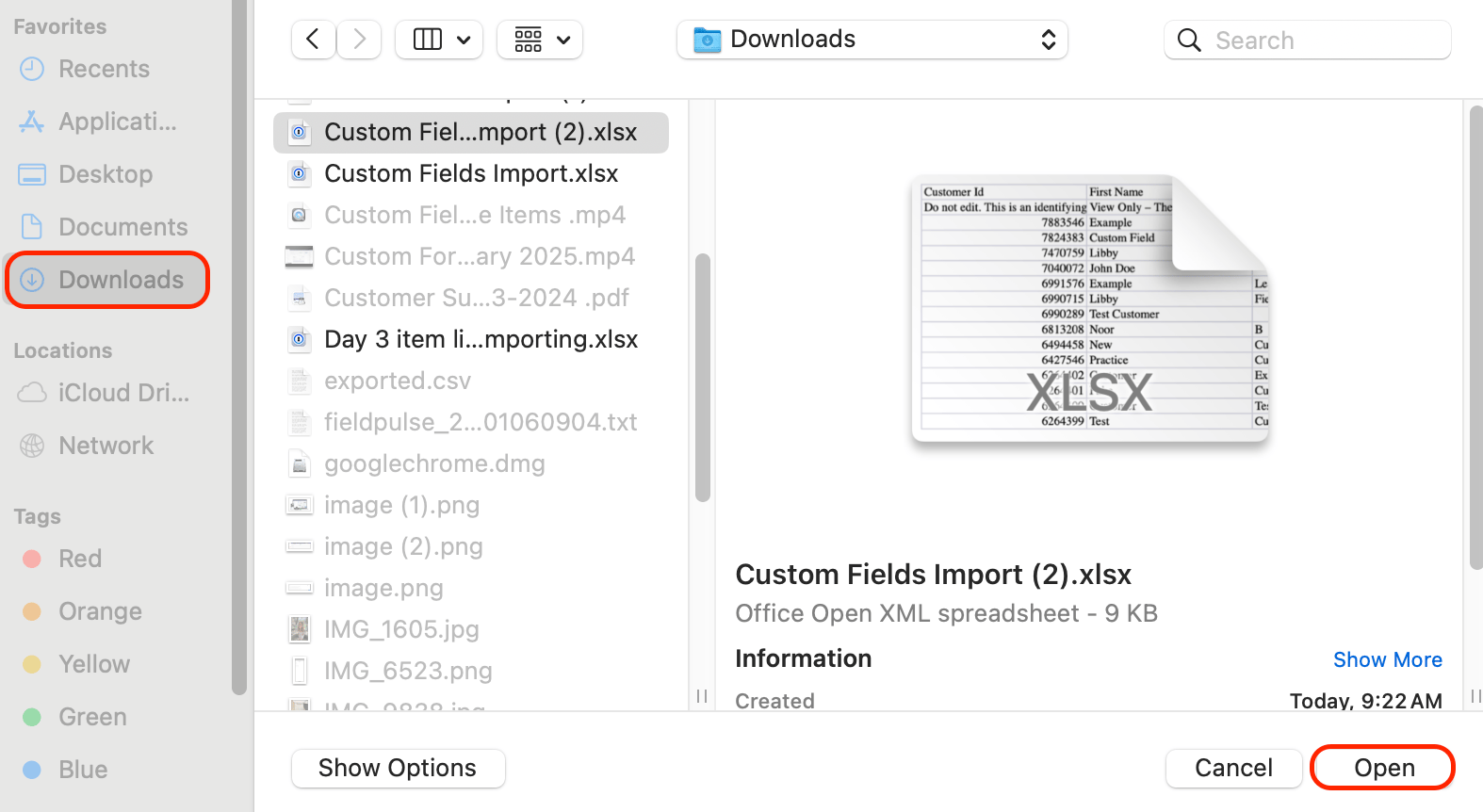
Find the file you downloaded from Google Sheets, select it, and select Open.
- Wait for the upload to finish. The more data the sheet holds, the longer the upload takes, and FieldPulse tells you when the import is complete.