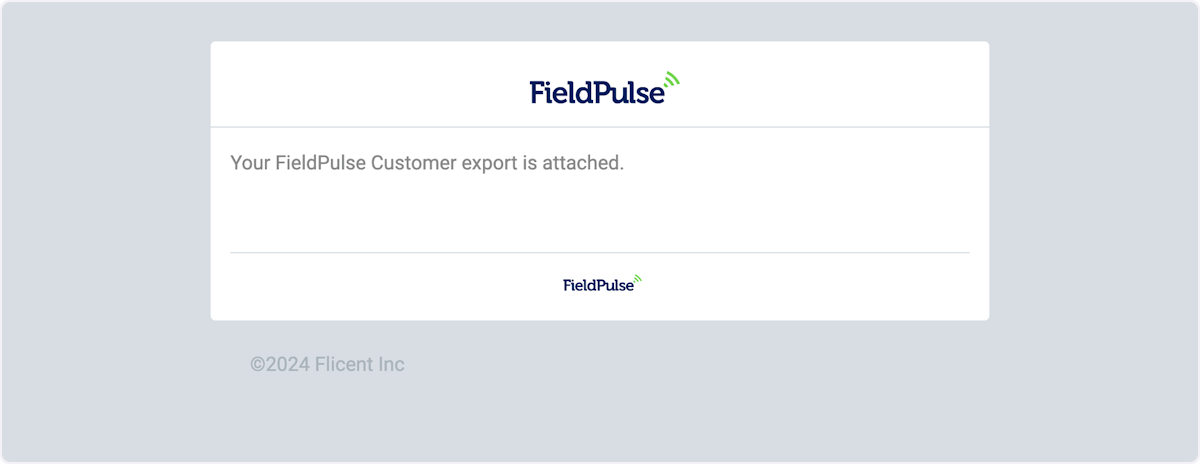
Who uses this: Only users with an Admin role can export customers. Availability: All regions.Exporting customers downloads all of your customer information from FieldPulse as a CSV file. You start the export from the Customers page, and FieldPulse sends the finished file to the email address registered with your FieldPulse account.
Overview
The customer export produces a CSV file of your customer information. You select Export on the Customers page, FieldPulse confirms on screen that the export has started, and a second confirmation appears once the export is complete. The finished CSV arrives as an attachment on an email sent to the address registered with your FieldPulse account, which you open and save to your computer.Before you begin
- Confirm you have an Admin role. Only users with an Admin role can export customers.
- Make sure you can get to the email address registered with your FieldPulse account, since FieldPulse sends the finished export there.
On web
Export your customer list
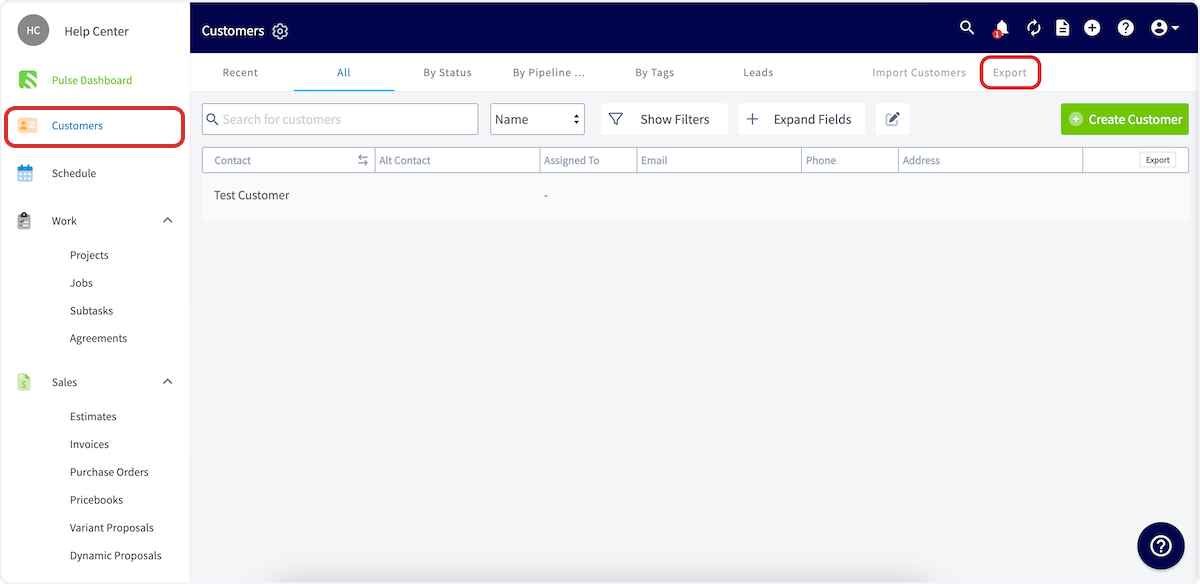
- Select Customers in the left-side menu.
-
On the Customers page, select Export at the top right.
-
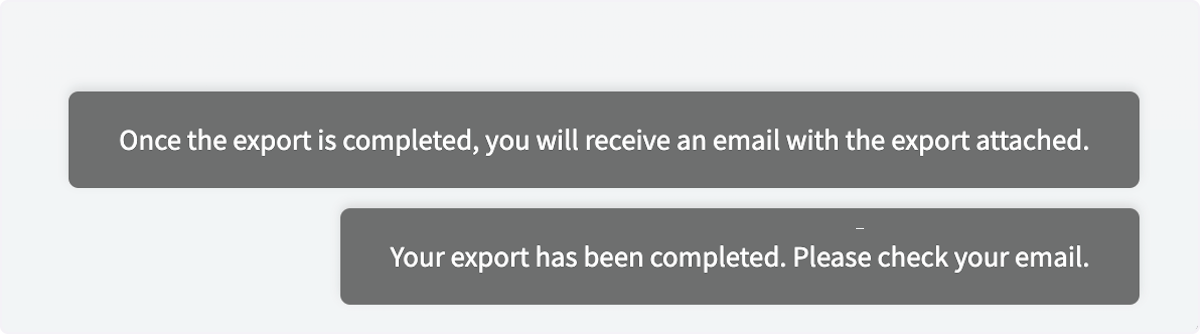
Watch for the confirmation messages at the bottom right of the screen. The first appears as soon as the export starts and reads “Once the export is completed, you will receive an email with the export attached.” The second appears when the export has completed and reads “Your export has been completed. Please check your email.”
- Open the email FieldPulse sends to your registered address and select the attachment to view and save the CSV to your computer.