
Method 1: For Fixed Lunch Schedules:
Create a Recurring Task
This is best if technicians have a consistent break time (e.g., 12:00 PM – 1:00 PM daily). It blocks the time on the schedule, preventing accidental job assignments.Quick Setup:
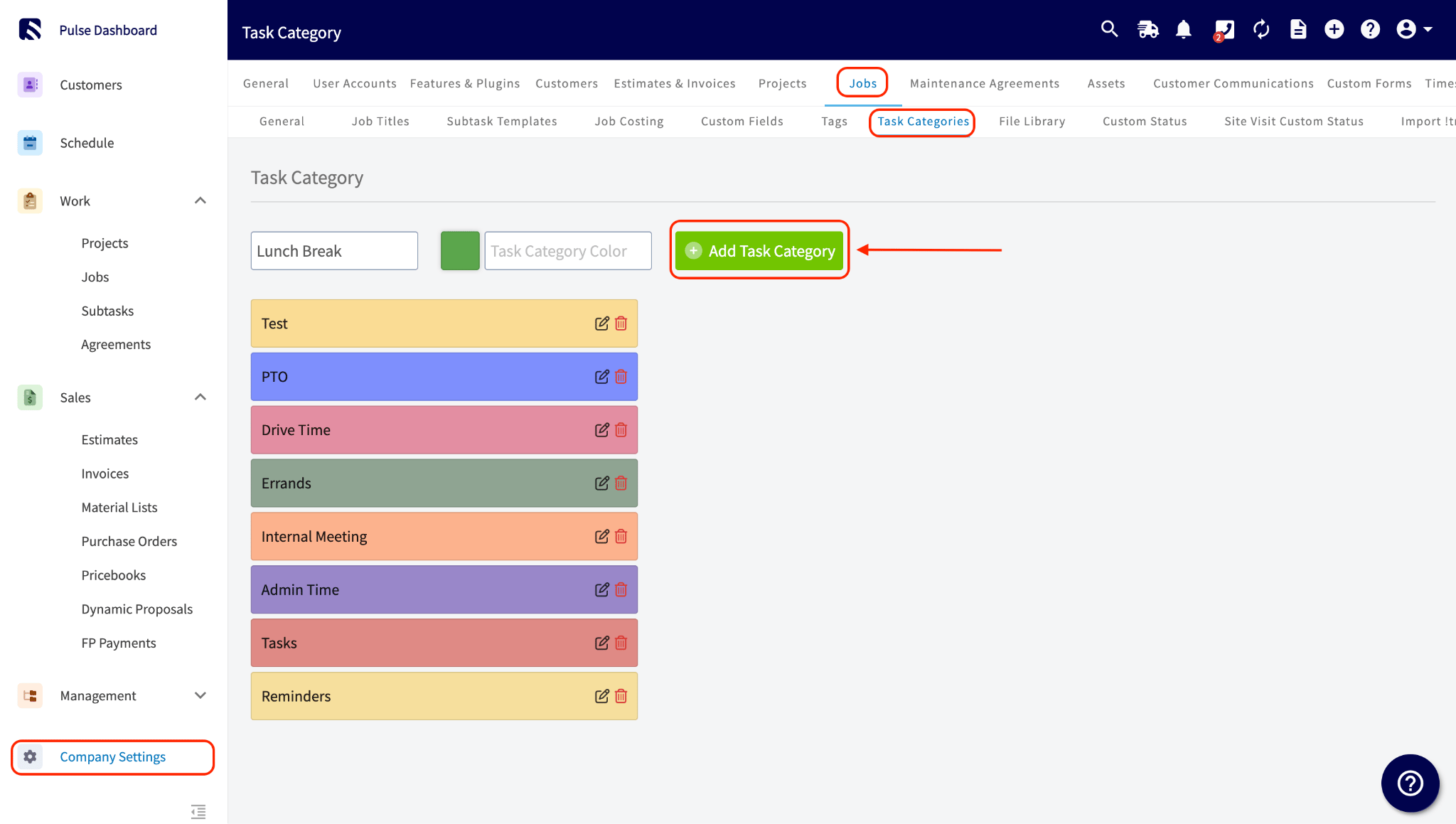
- Create a “Lunch” Task Category: Navigate to Company Settings > Jobs > Task Categories.
-
Create a Recurring Task on Your Schedule:
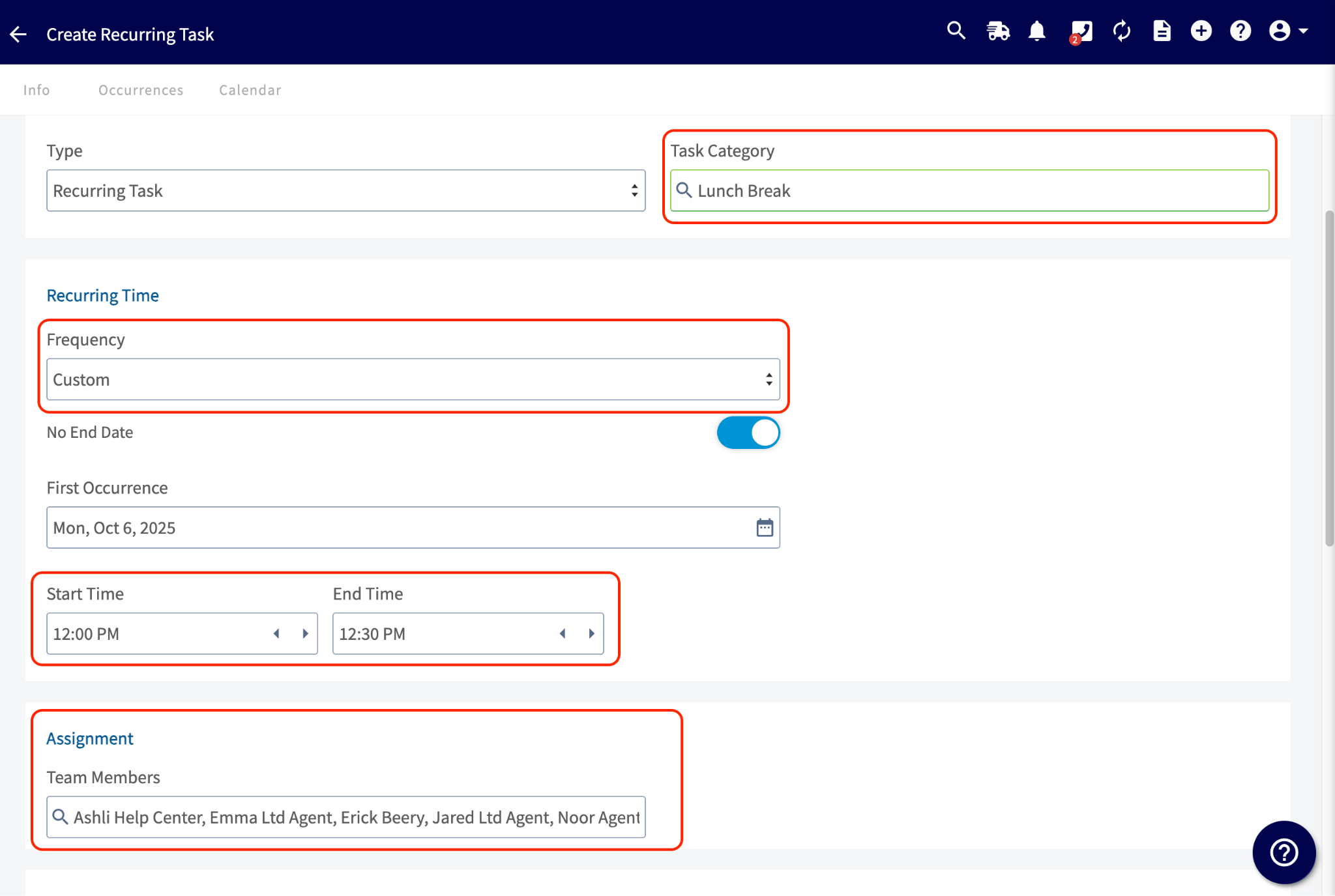
- Title it “Lunch Break”.
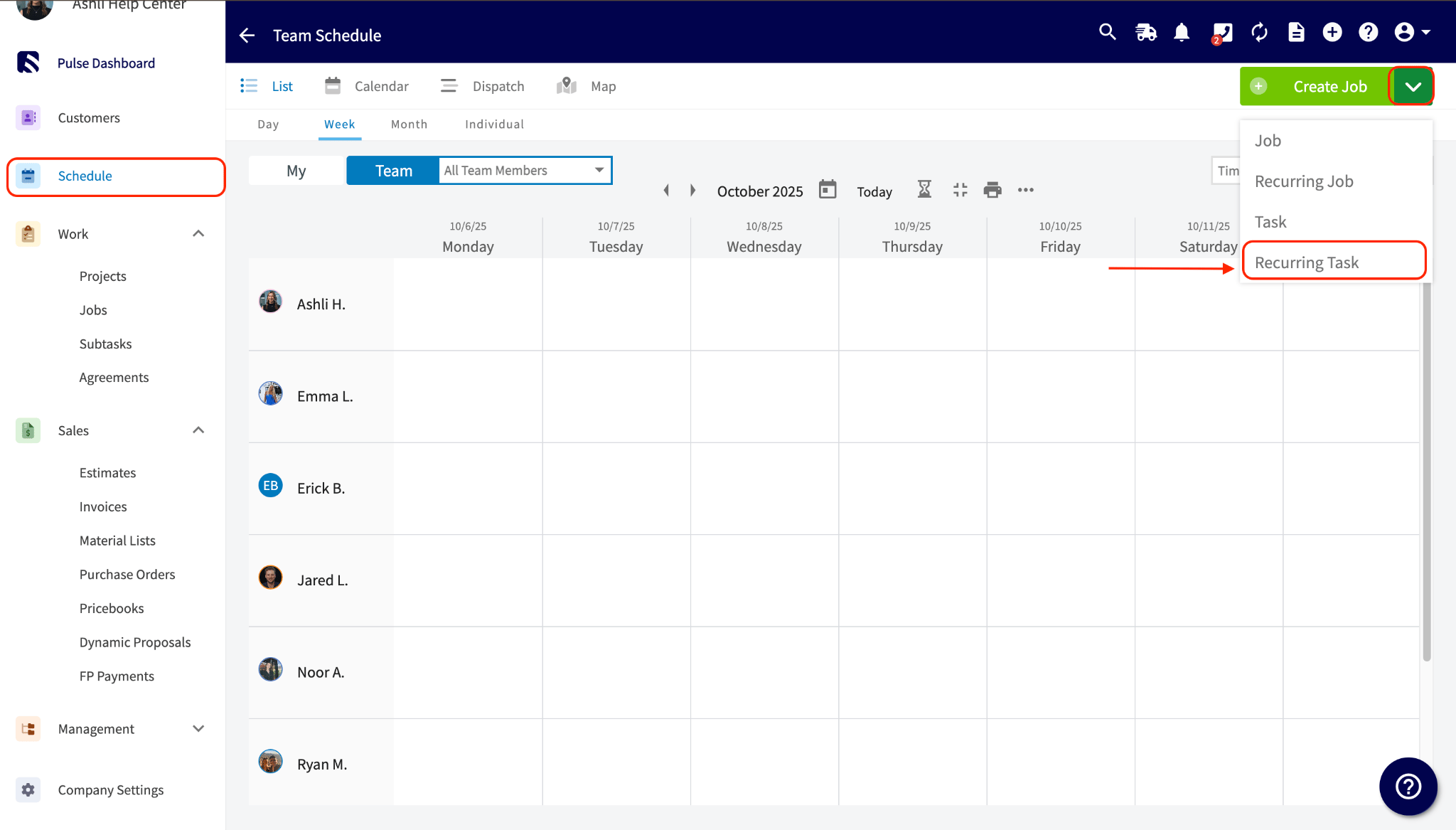
- Assign your technicians through Scheduling > Create Job Dropdown > Recurring Task.
- Set it to repeat daily (M–F) with the fixed start and end times.
- Assign the “Lunch” category.
Method 2: For Flexible Lunch Schedules:
Use Clock-Out Notes
This works best when technicians take lunch at different times and you want to use your existing clock-in/out system. It makes reporting easy by allowing you to filter by the tag.Technician Workflow:
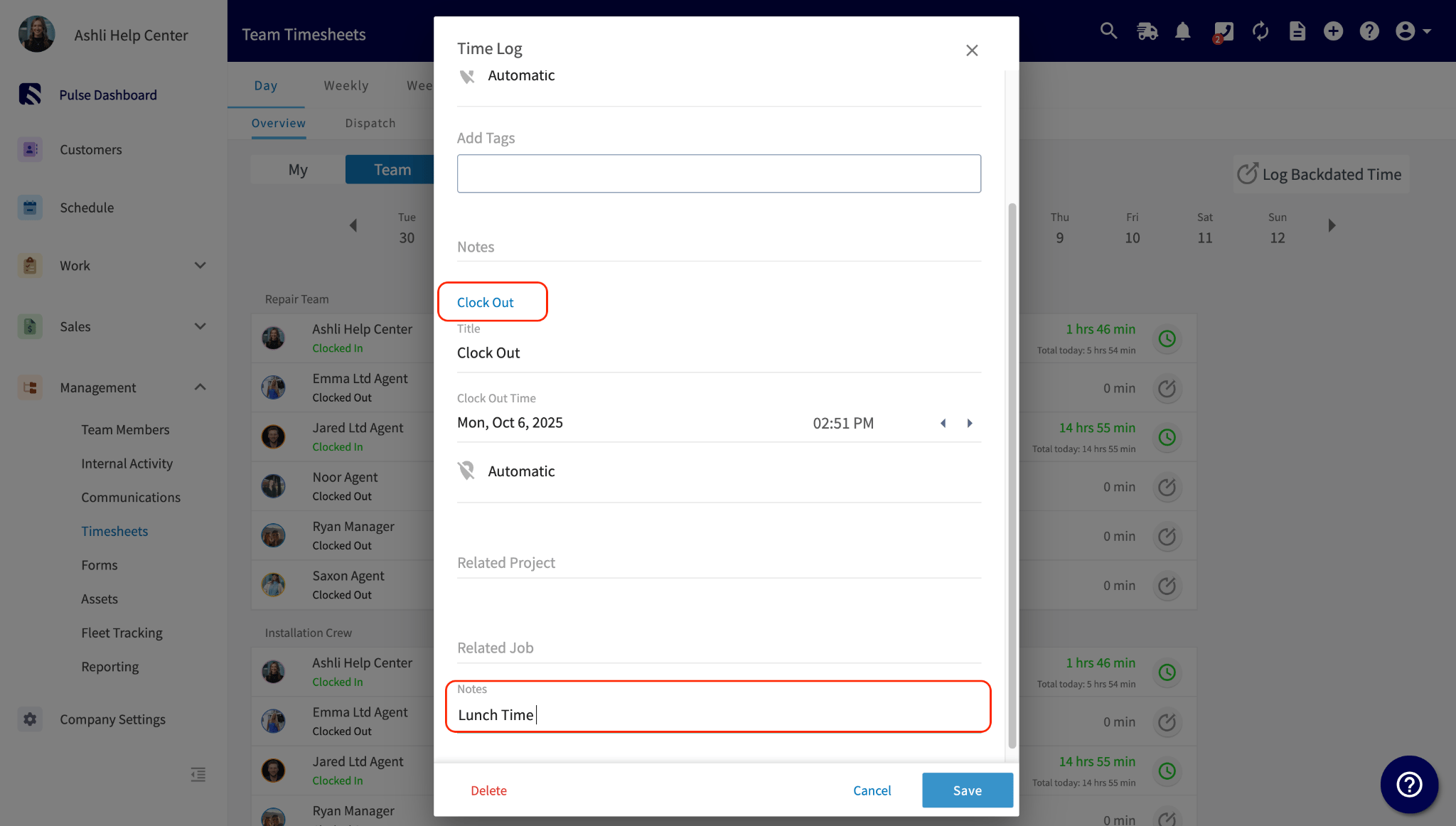
- When starting lunch, the technician uses the standard Clock-Out process on the mobile app.
- They add a Note (e.g., “Lunch”) before finalizing the clock-out.
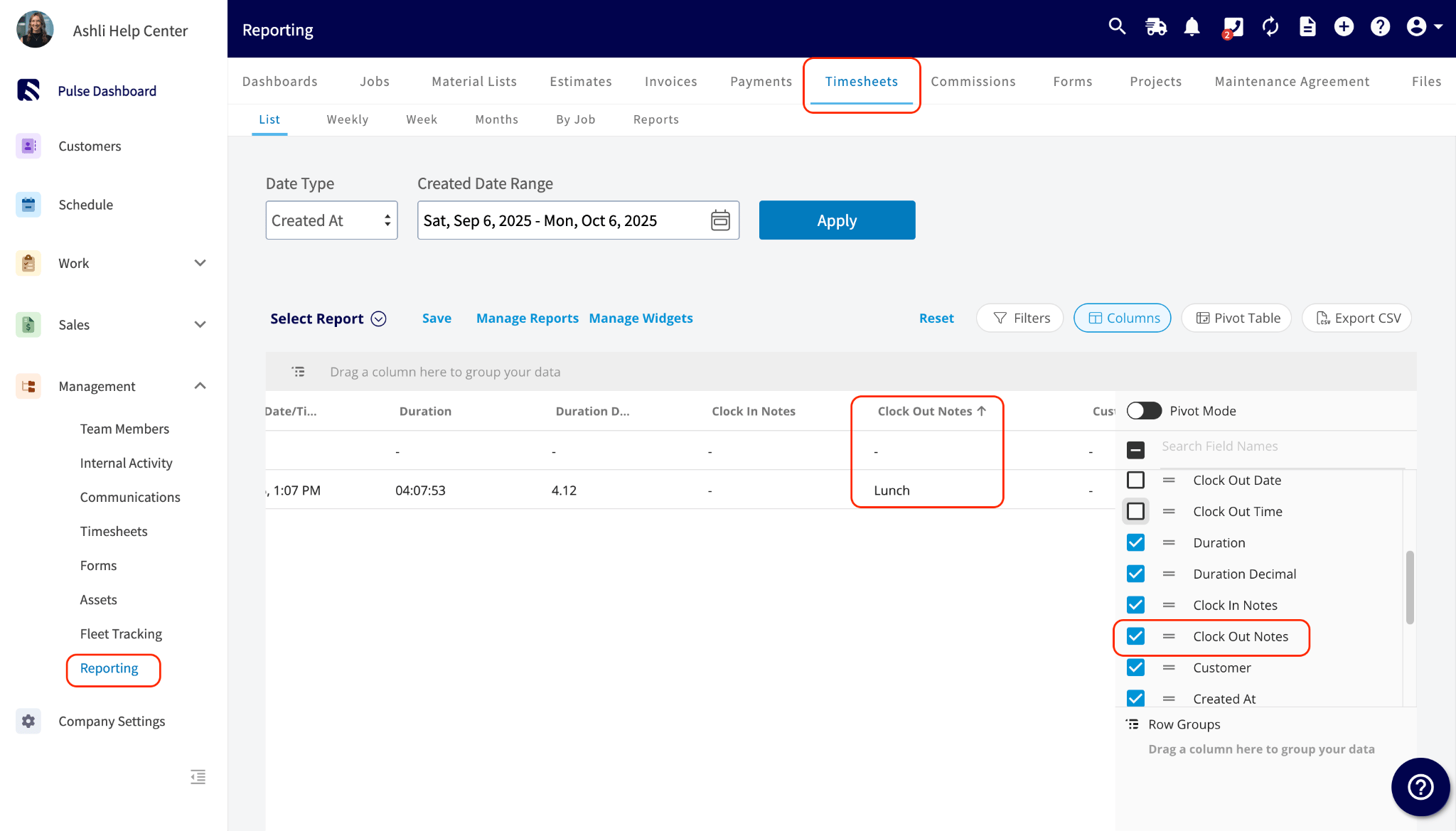
Reporting:
- Go to Timesheets Reporting.
- Ensure the Clock Out Notes column is visible.
Method 3: For Separated Time Tracking:
Enable Dual Time Sheets
If you need a clear separation between a technician’s total time at work and the time spent on billable jobs, use this method.Quick Setup:
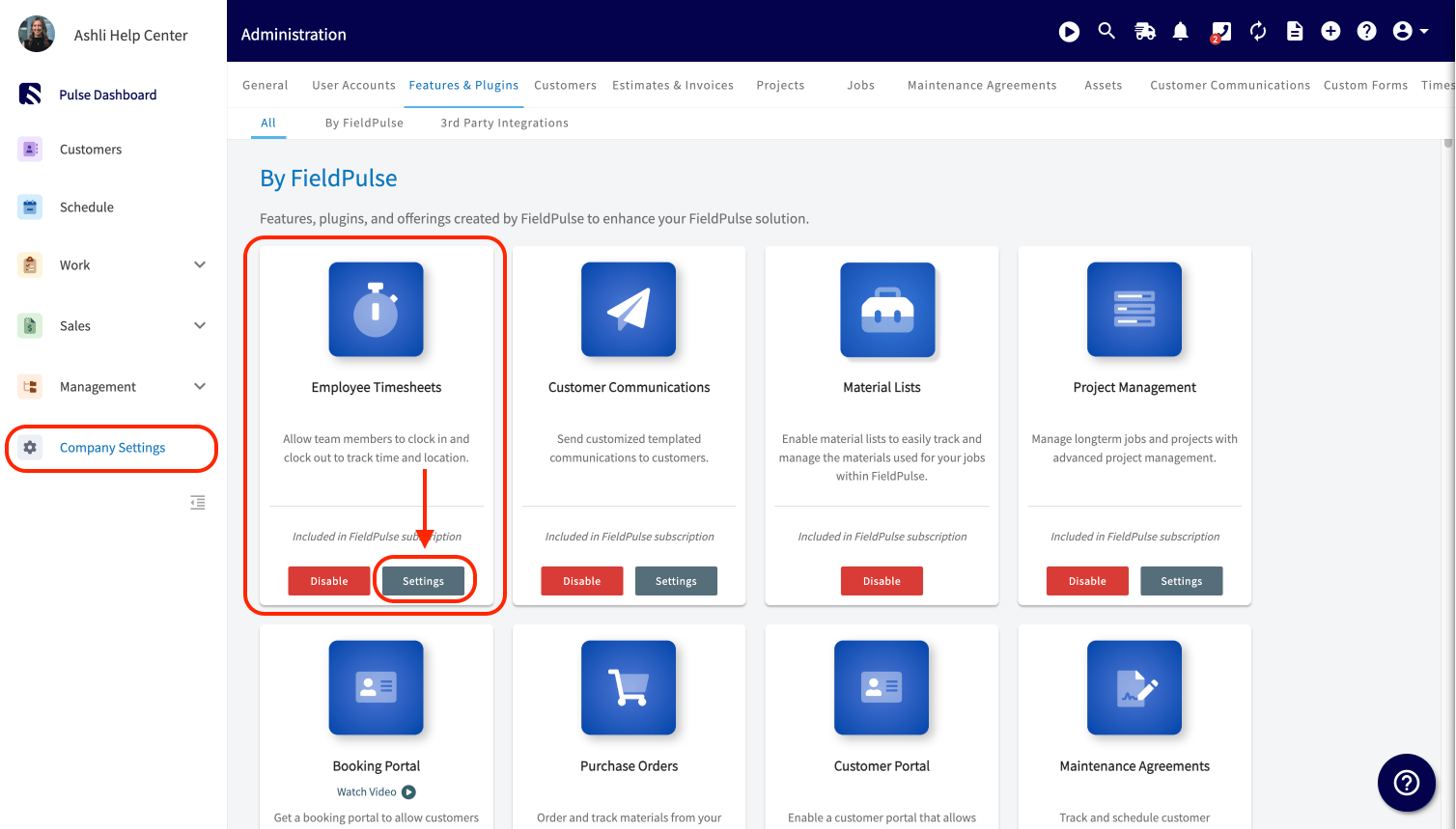
- Go to Company Settings > Features and Plugins.
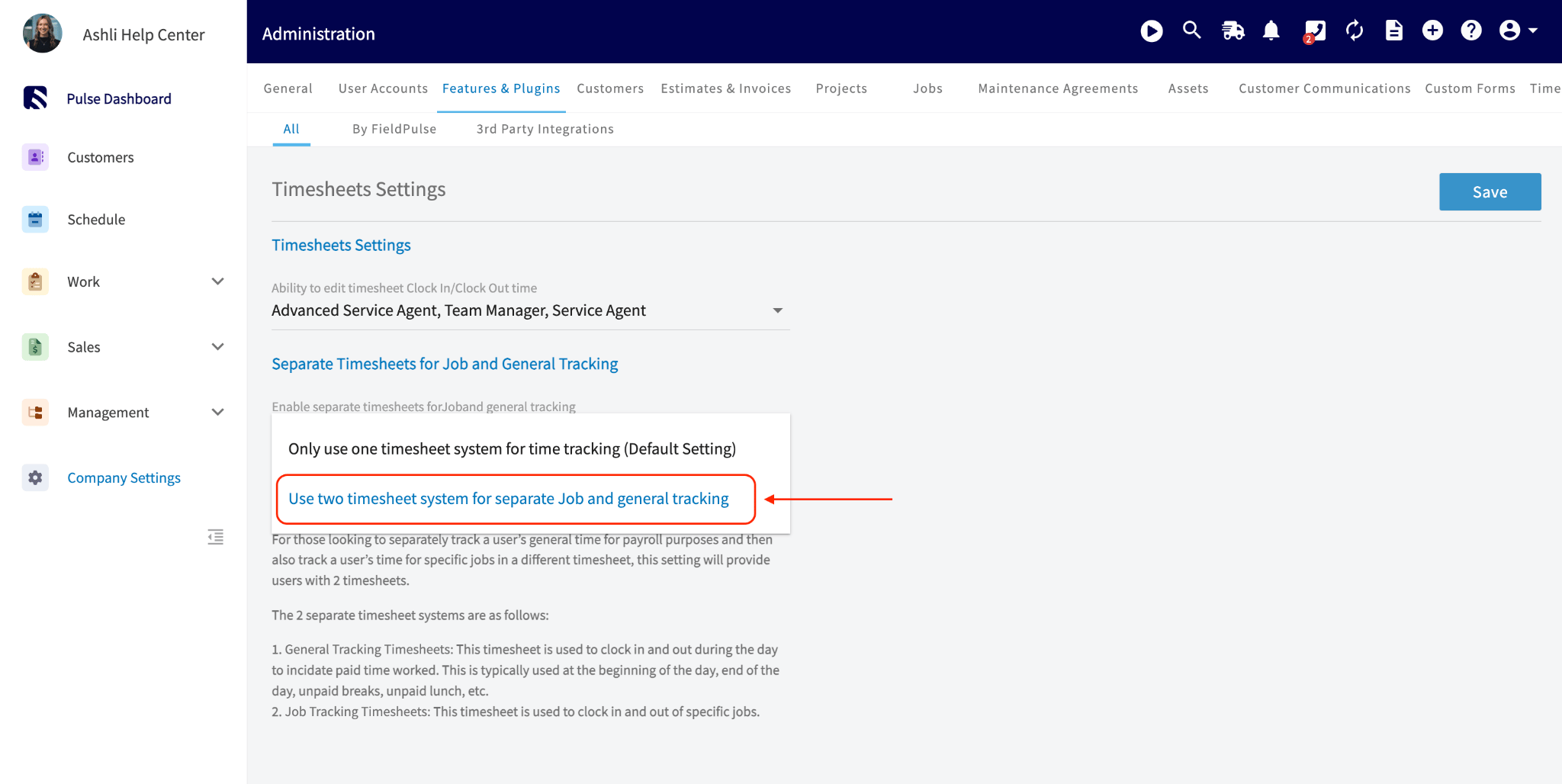
- Under EmployeeTimesheets, enable two separate time sheets (General Time and Job/Service/Work Order/Project/Project Tracking).
Technician Workflow:
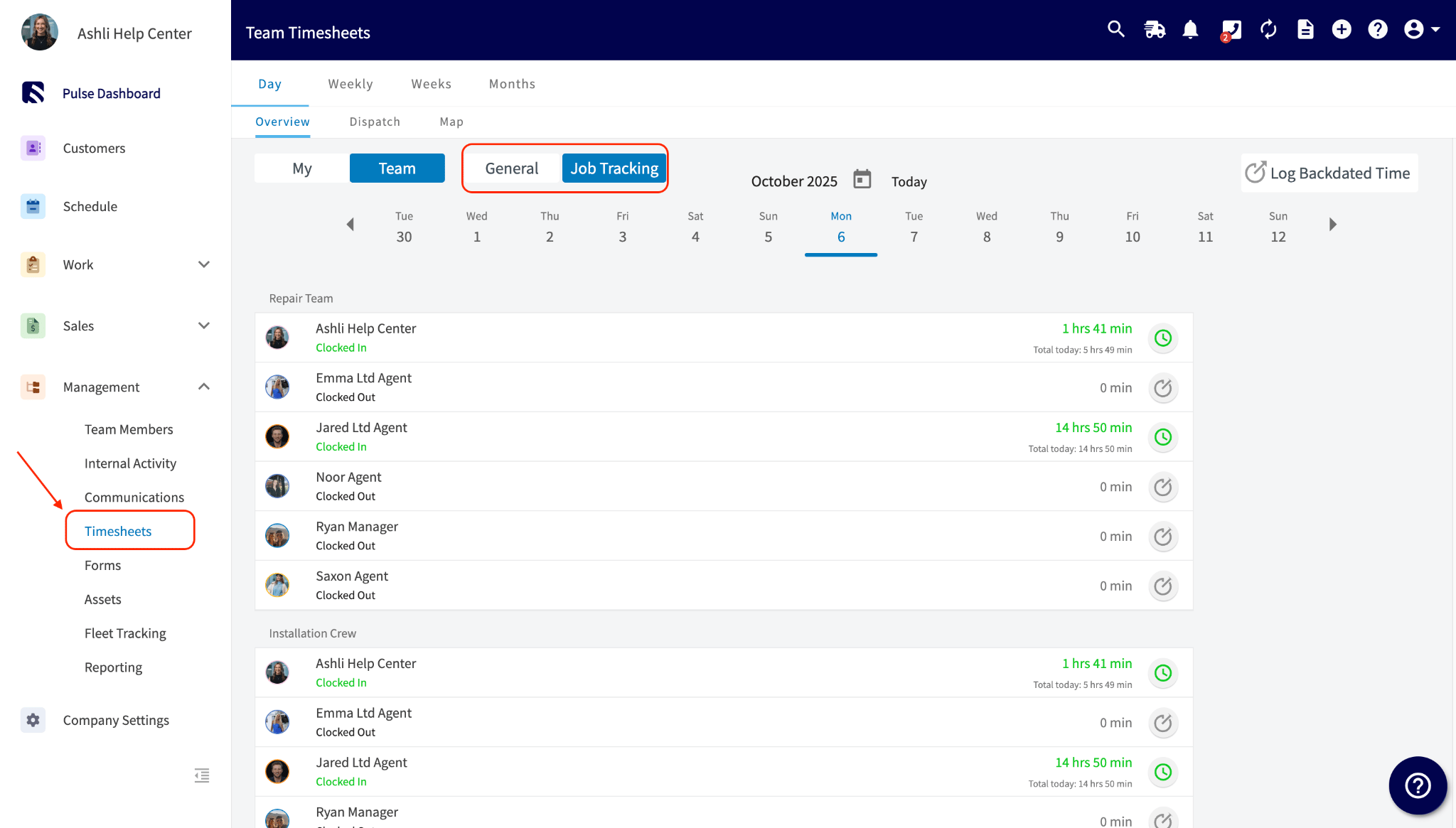
- General Time: Used for daily clock-in/out and for clocking out/in for lunch. This tracks their total hours.
- Job Tracking: Remains separate, only tracking billable time spent on specific jobs.
Have additional questions? Contact us at support@fieldpulse.com or use the chat feature in the bottom right corner of your screen.