
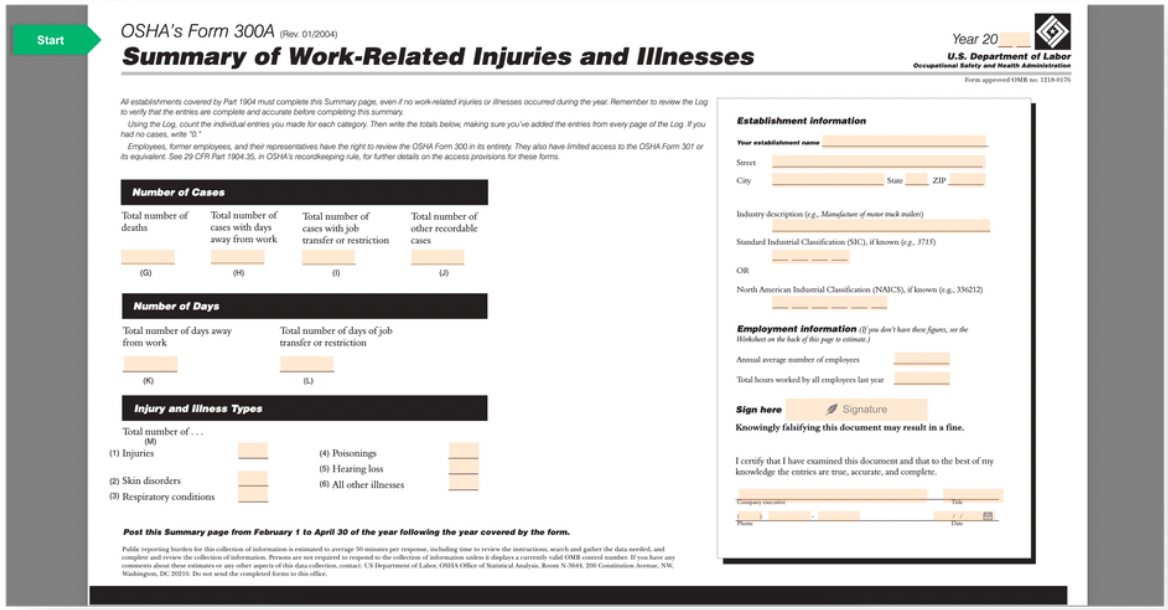
Enabling PDF Form Filler
To enable PDF Form Filler, email us at support@fieldpulse.com or use the chat feature in the bottom right corner of your screen.Creating a PDF Form
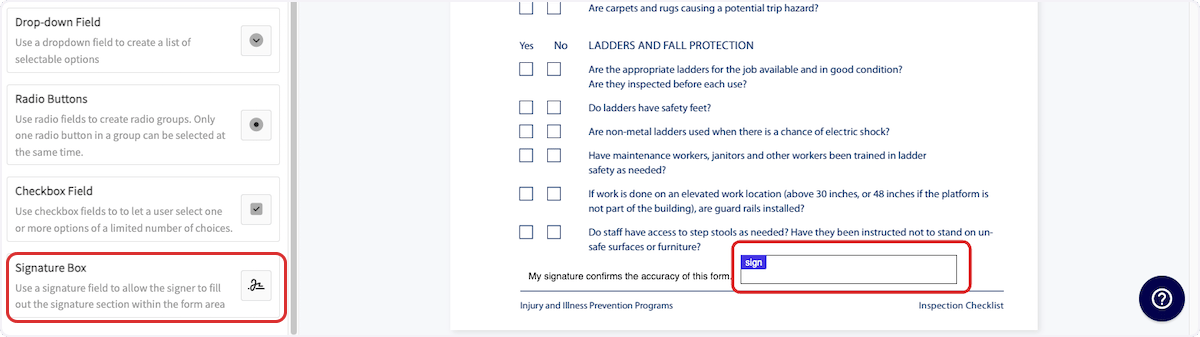
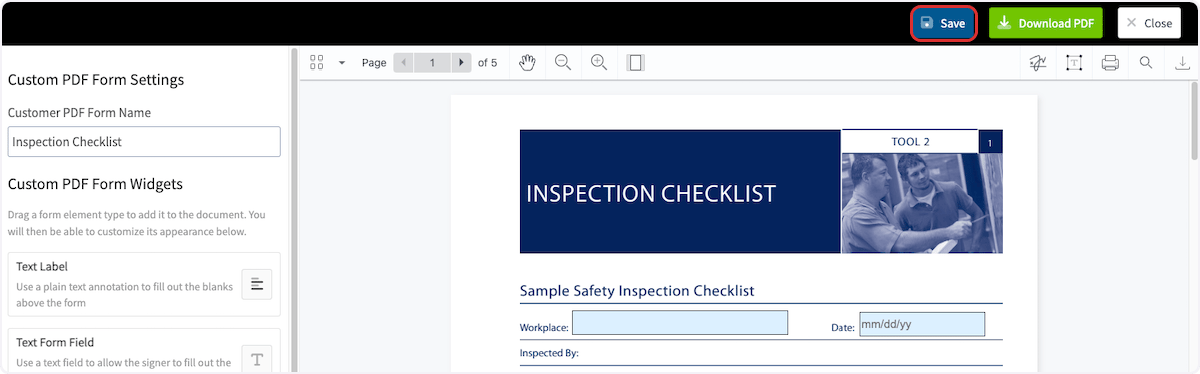
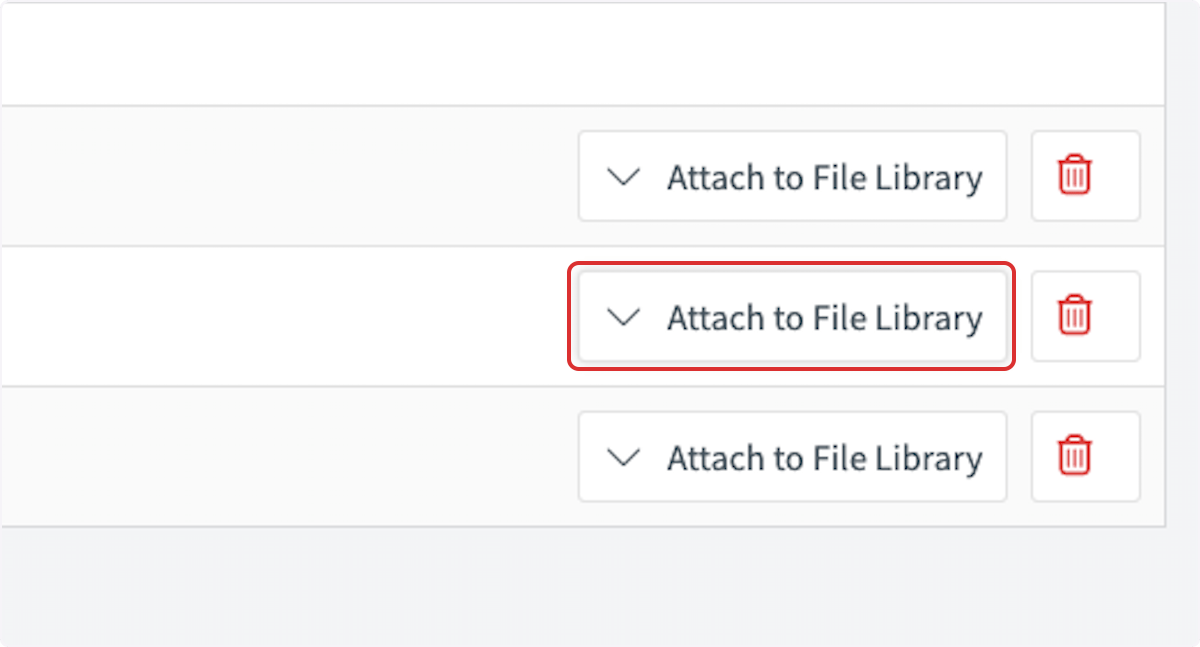
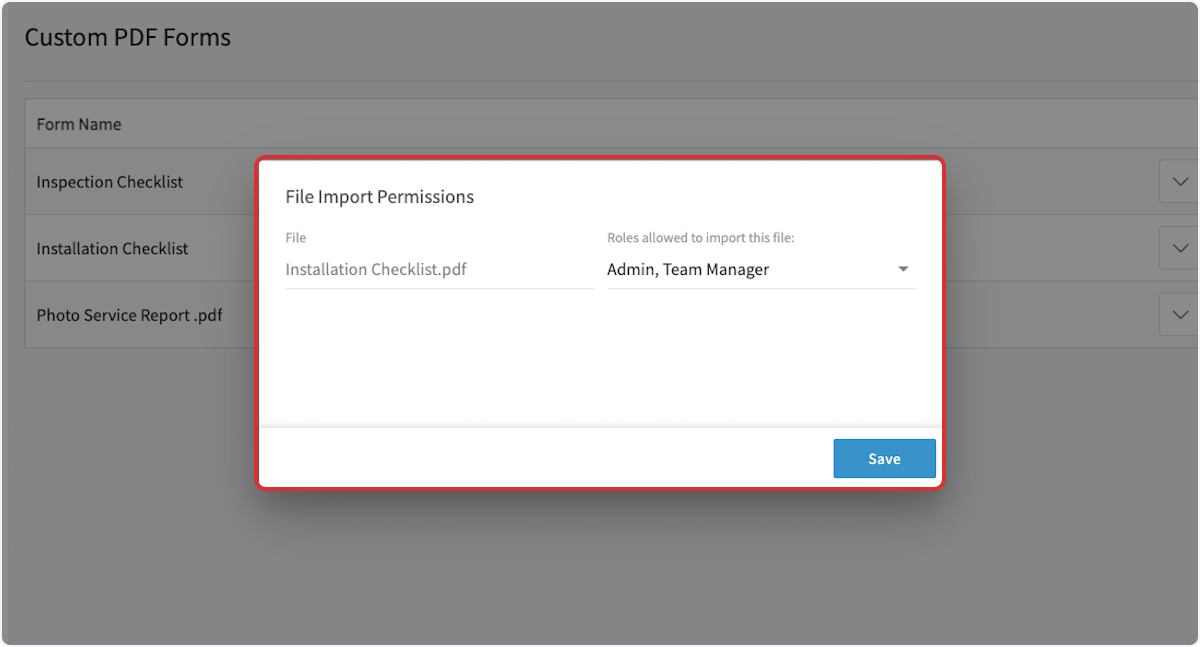
To create a PDF form, begin by navigating to Company Settings and selecting PDF Forms from the top menu.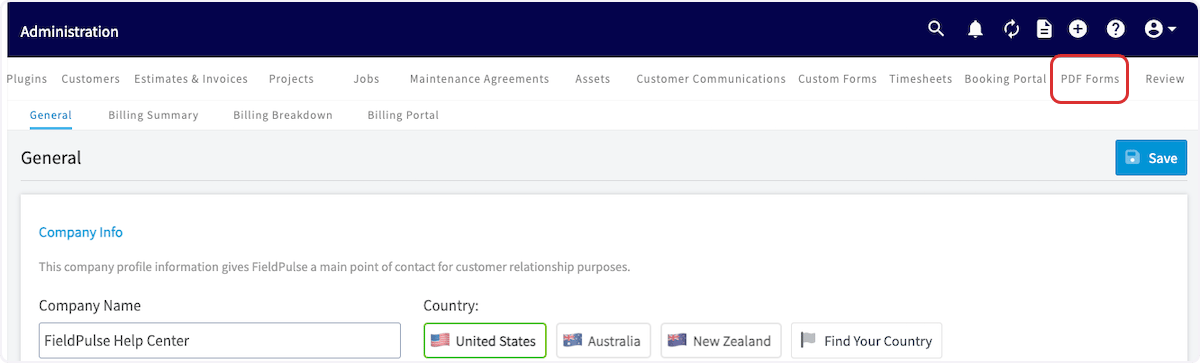
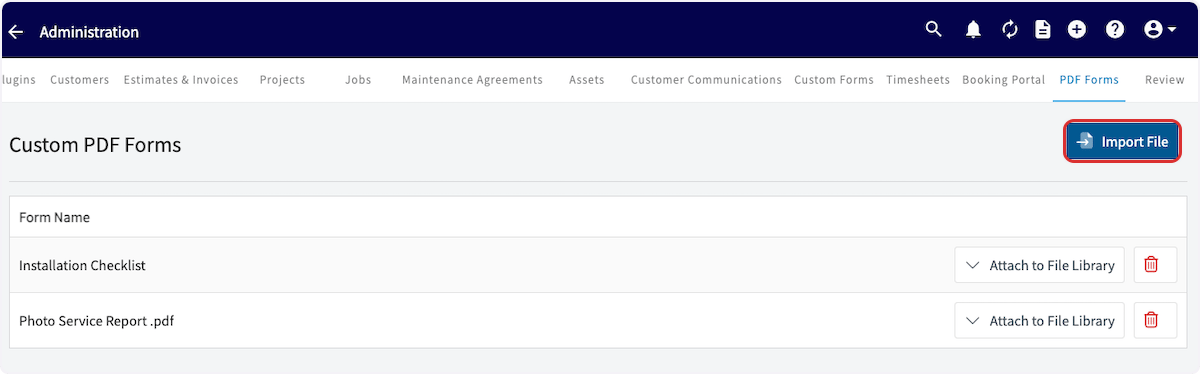
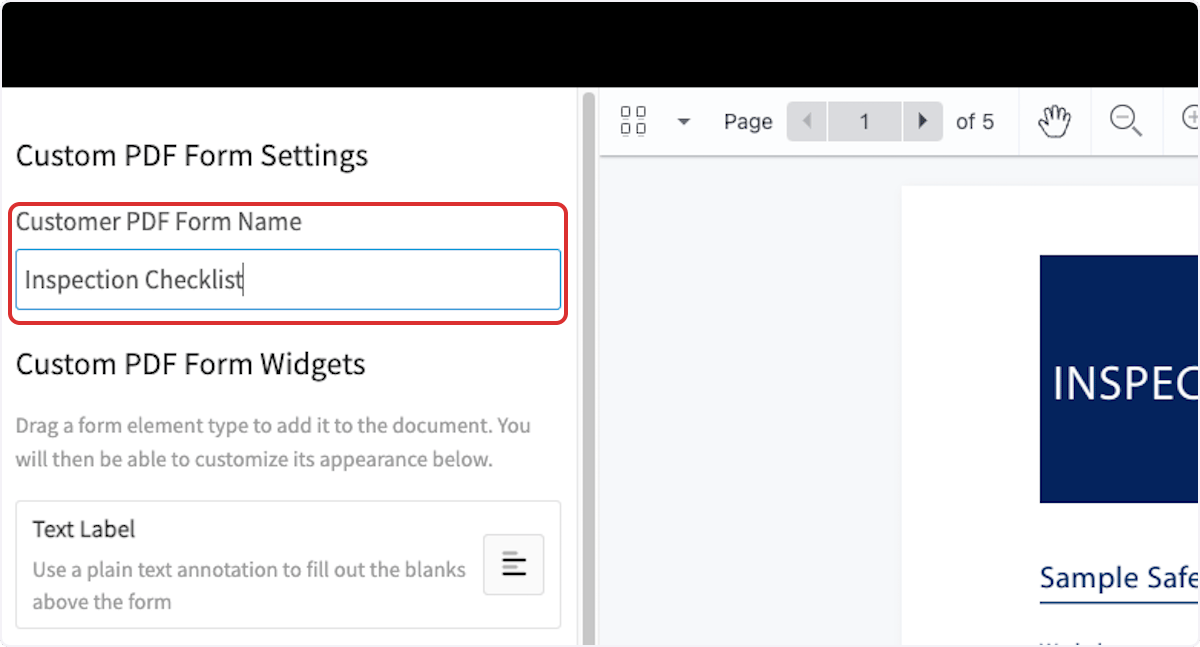
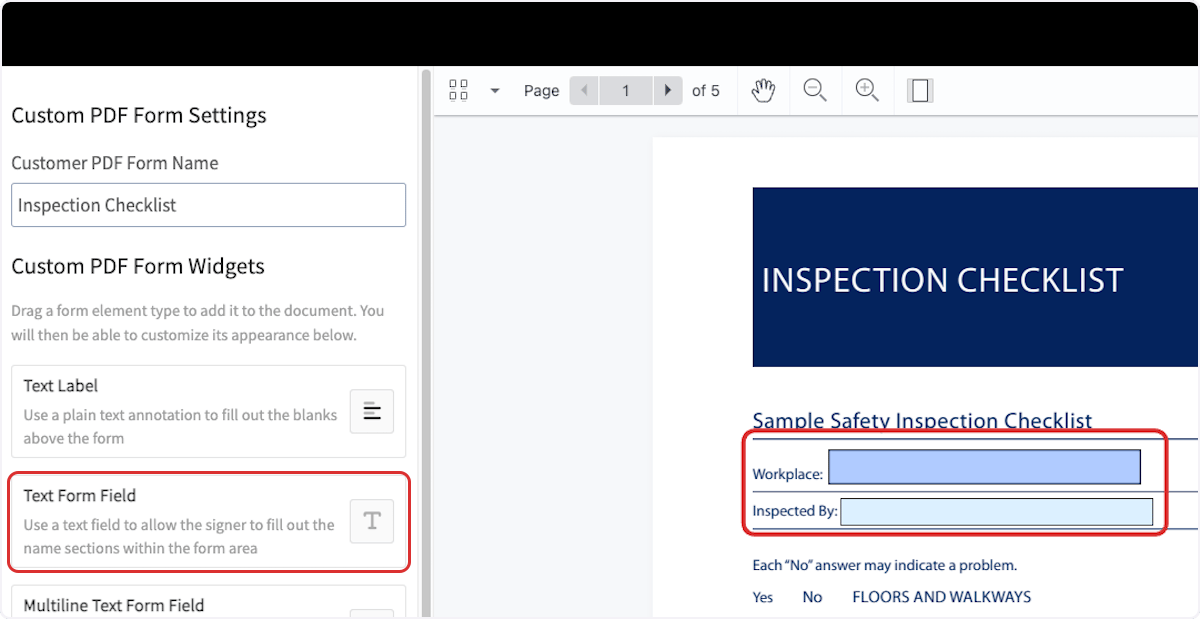
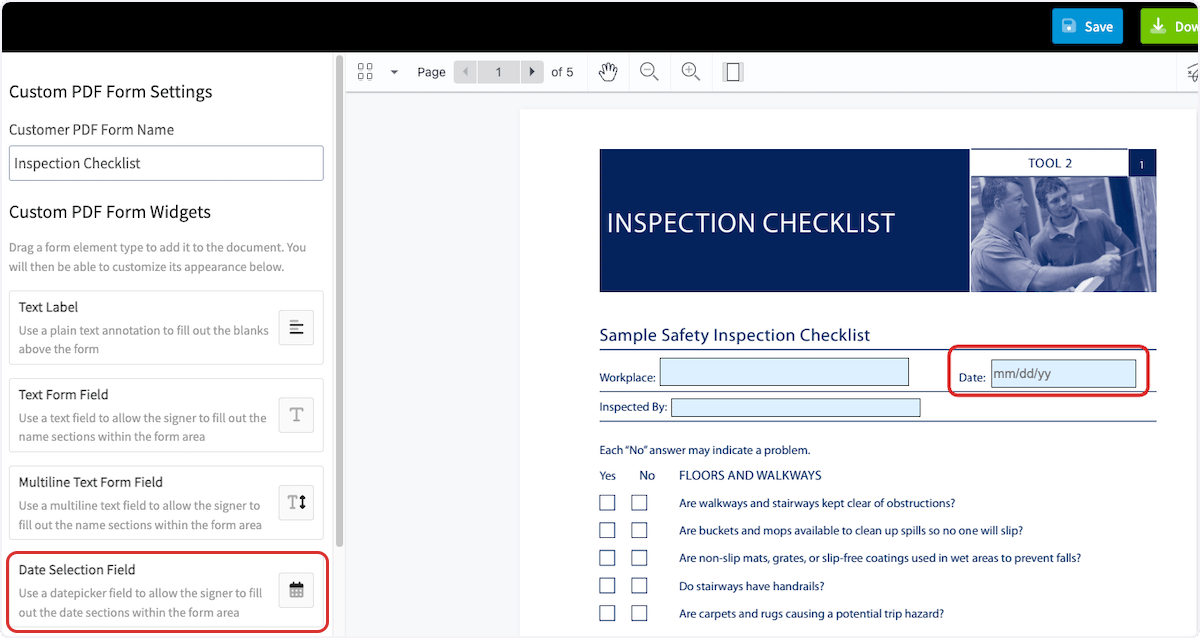
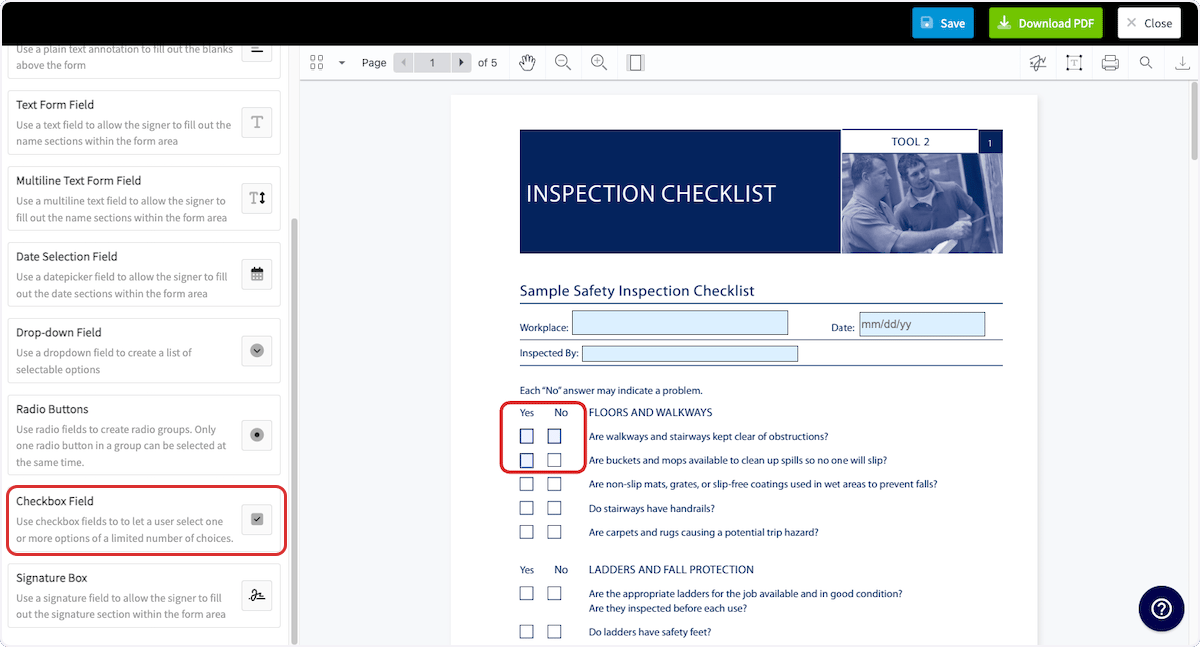
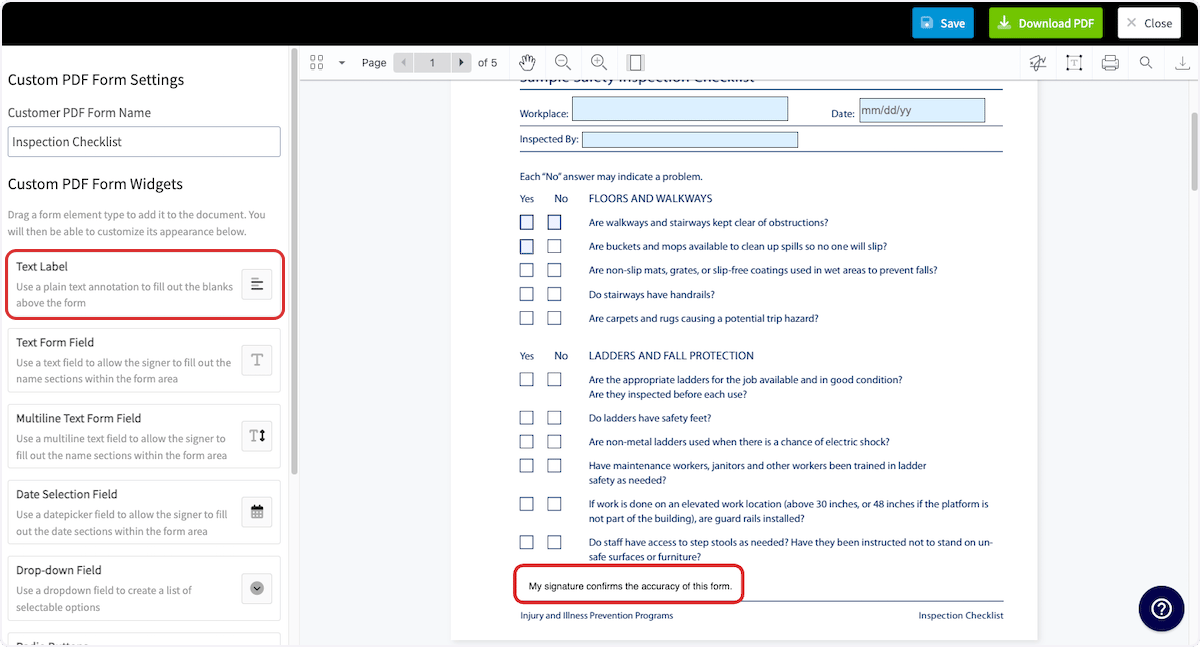
Attaching a PDF Form
PDF Forms can be attached to customers, jobs, projects, invoices, and more. To begin, select the record where you’d like to attach the form. For this example, we will attach the form to a job record.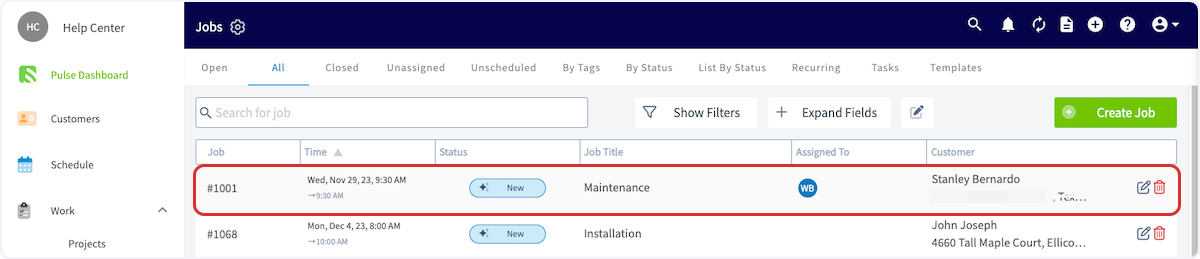
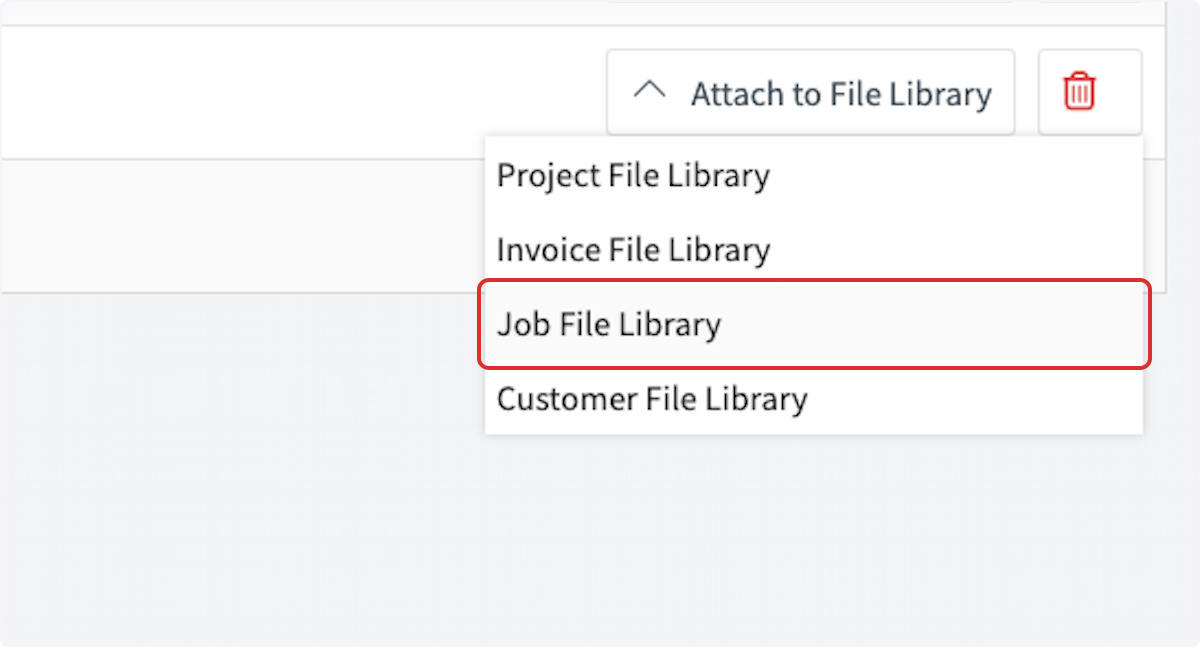
- Import From File Library: Selecting this button will only show the PDF Forms that were added to the related library. In this example, the only PDF Forms that would display would be those in the Job File Library, as we are looking at a job record.
- Import From PDF Library: Selecting this button will show all PDF Forms in your account.
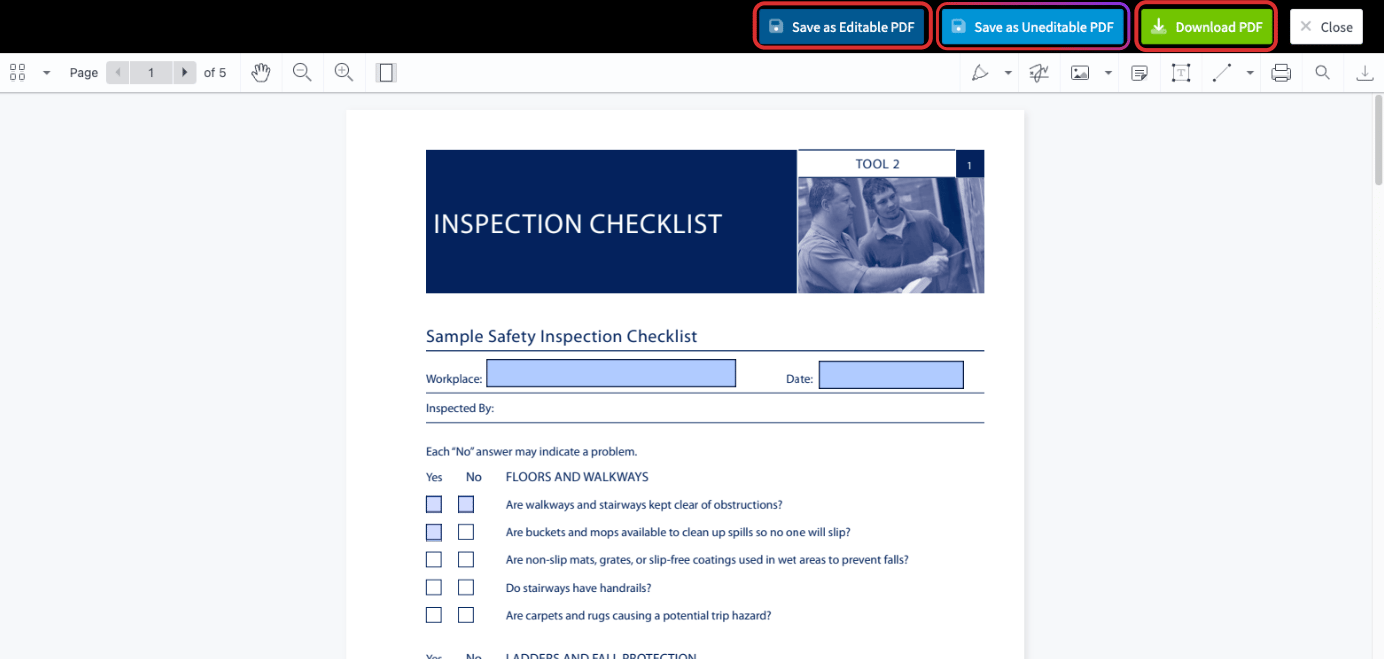
- Save as Editable PDF: This will allow you to fill out the fields in your PDF Form.
- Save as Uneditable PDF: This will not allow you to fill out the fields in your PDF Form.
- Download PDF: This will download the PDF to your device.
Have additional questions? Contact us at support@fieldpulse.com or use the chat feature in the bottom right corner of your screen.