
- When someone clicks on your Google Ads, they see Phone Number 1. If they come from Facebook, they see Phone Number 2, and if they click a link in your email campaign, they see Phone Number 3. This will allow you to track which channel is driving calls and conversions.
- You are testing out two landing pages and want to see which landing page is more effective in generating calls. For visitors arriving at Landing Page A, the phone number shown is Phone Number 4. Visitors on Landing Page B see Phone Number 5.
- You want to track the difference in conversions from organic search versus paid search. Visitors who come through organic search are shown Phone Number 6, while those from paid search see Phone Number 7, allowing you to determine the value of your paid search campaigns versus organic traffic.
Set-Up
Begin by navigating to Settings in Engage, then select the phone number for which you’d like to automatically designate a lead source. (Note: If you’d like to designate a lead source for each phone number, you’ll need to repeat this process for each line.)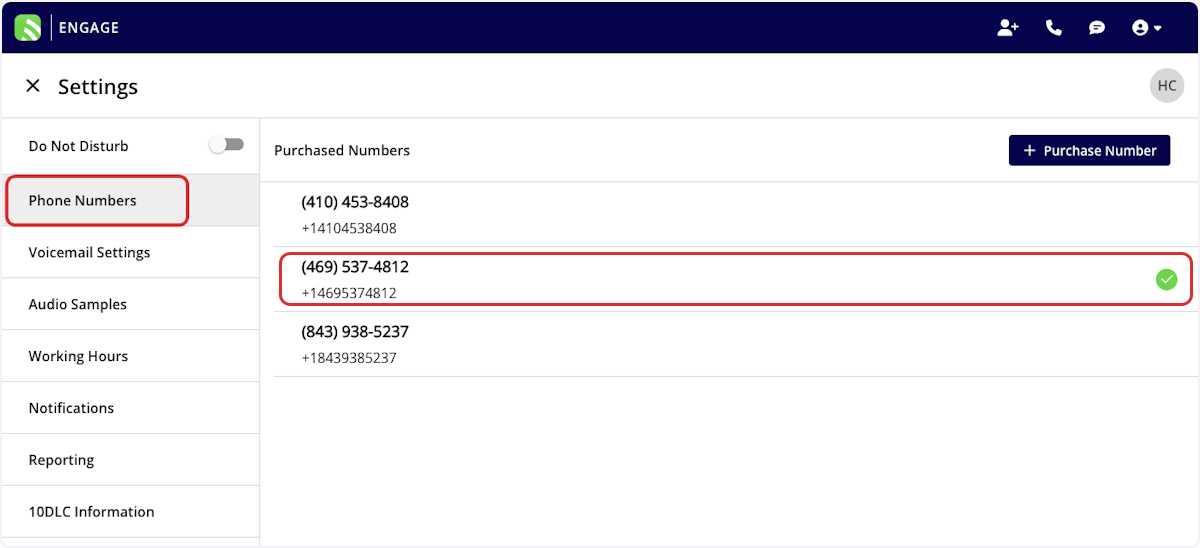
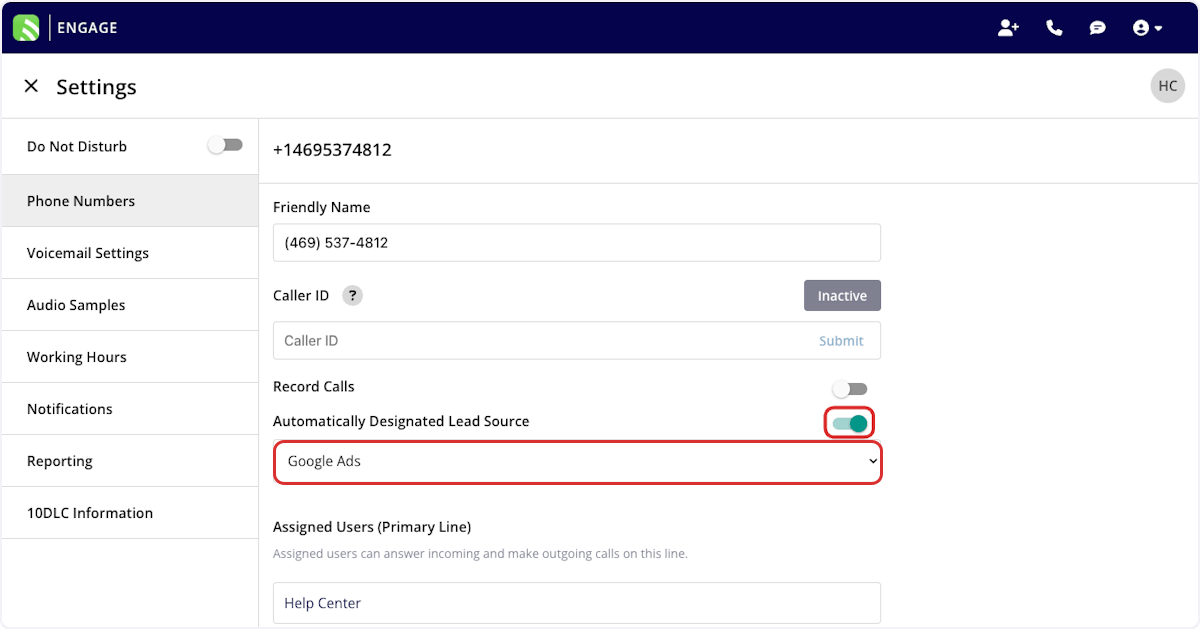
Use
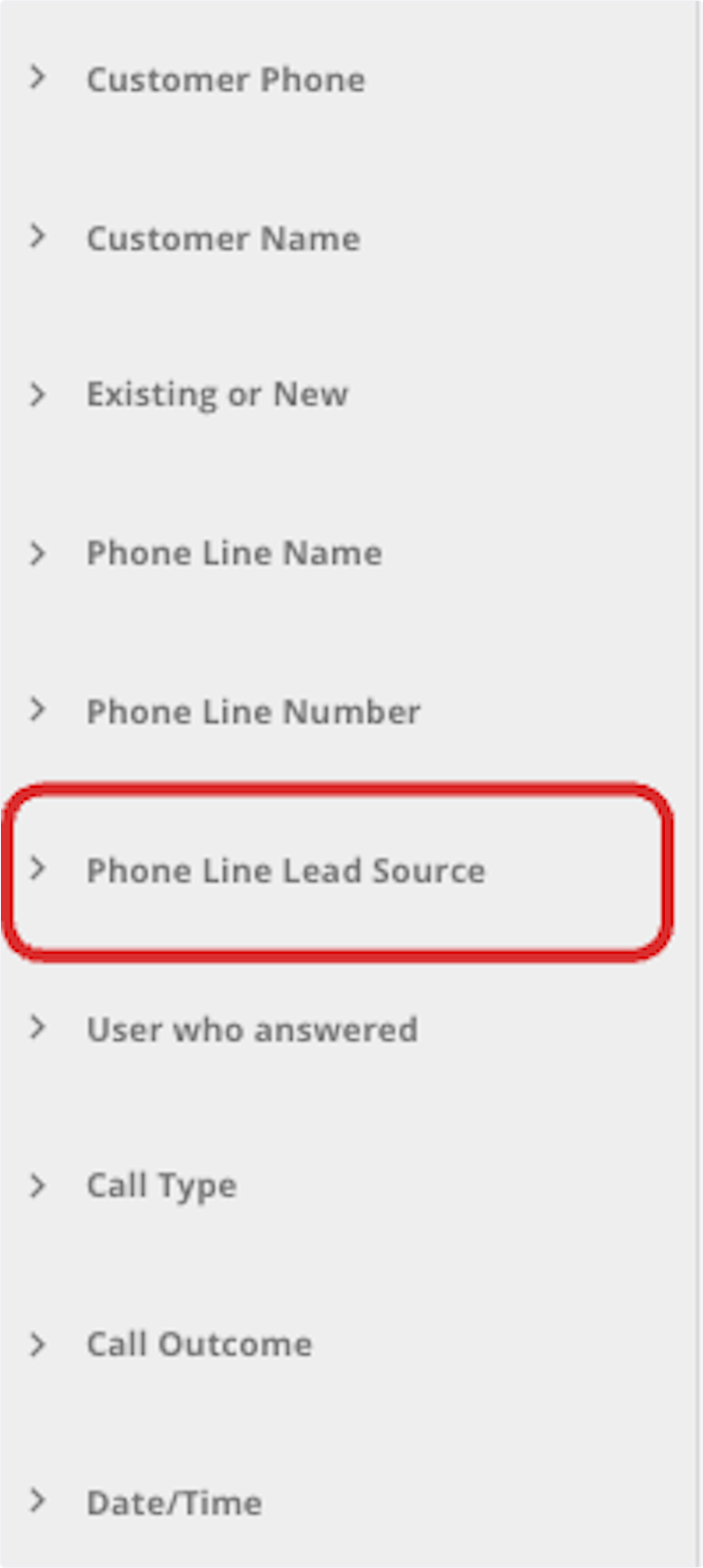
When saving a customer profile in Engage, the lead source will be automatically designated based on the phone line they called. Additionally, the lead source will be visible under Phone Line Lead Source in Engage Reporting.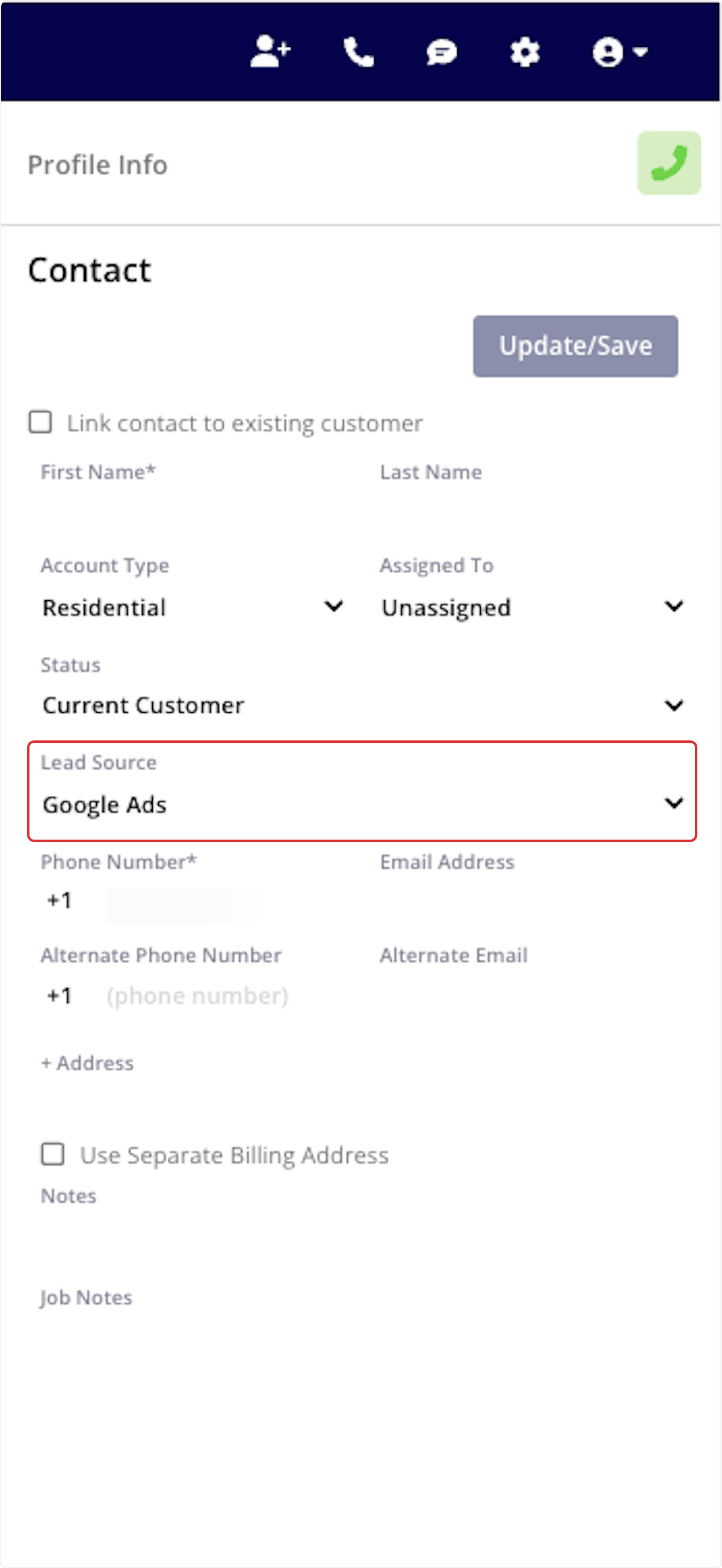
Have additional questions? Contact us at support@fieldpulse.com or use the chat feature in the bottom right corner of your screen.